

Overview
The UPM provides robust capabilities for managing user data, but manual entry for a large number of users can be time-consuming and prone to errors. The Import Engine within the Administration module addresses this challenge by allowing administrators to efficiently import user records and other entity data in bulk. This feature is crucial for initial data migration, regular updates, or when integrating data from external systems that don't have a direct API connection.
Administrators can configure import jobs by uploading a data file, mapping its columns to the corresponding fields in the platform, and then executing the import. The system also provides sample data templates to guide the preparation of import files and generates error reports for troubleshooting any issues during the import process. This ensures data accuracy and consistency while significantly reducing the administrative overhead associated with managing large volumes of data.
Accessing the Import Engine
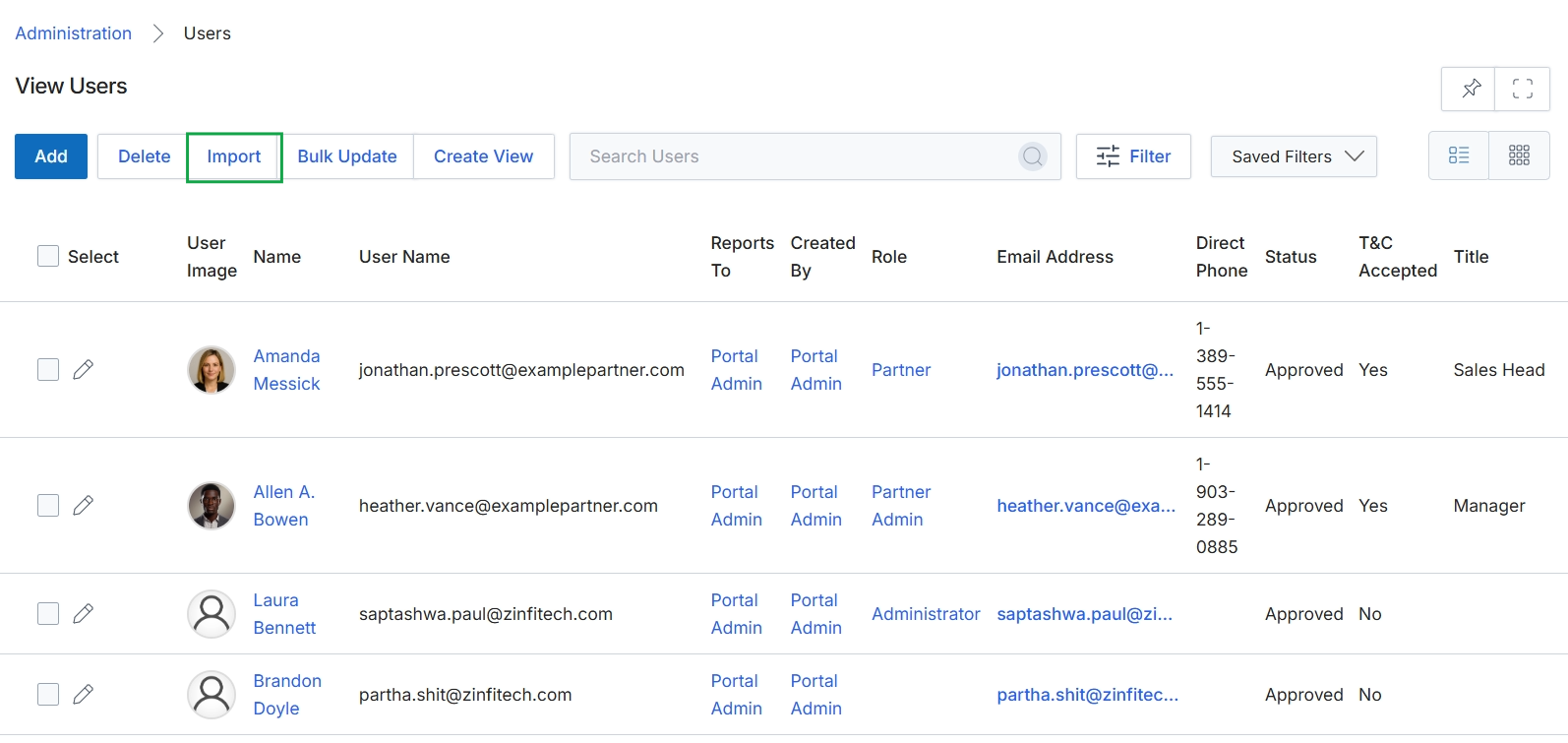
Click the Import button.
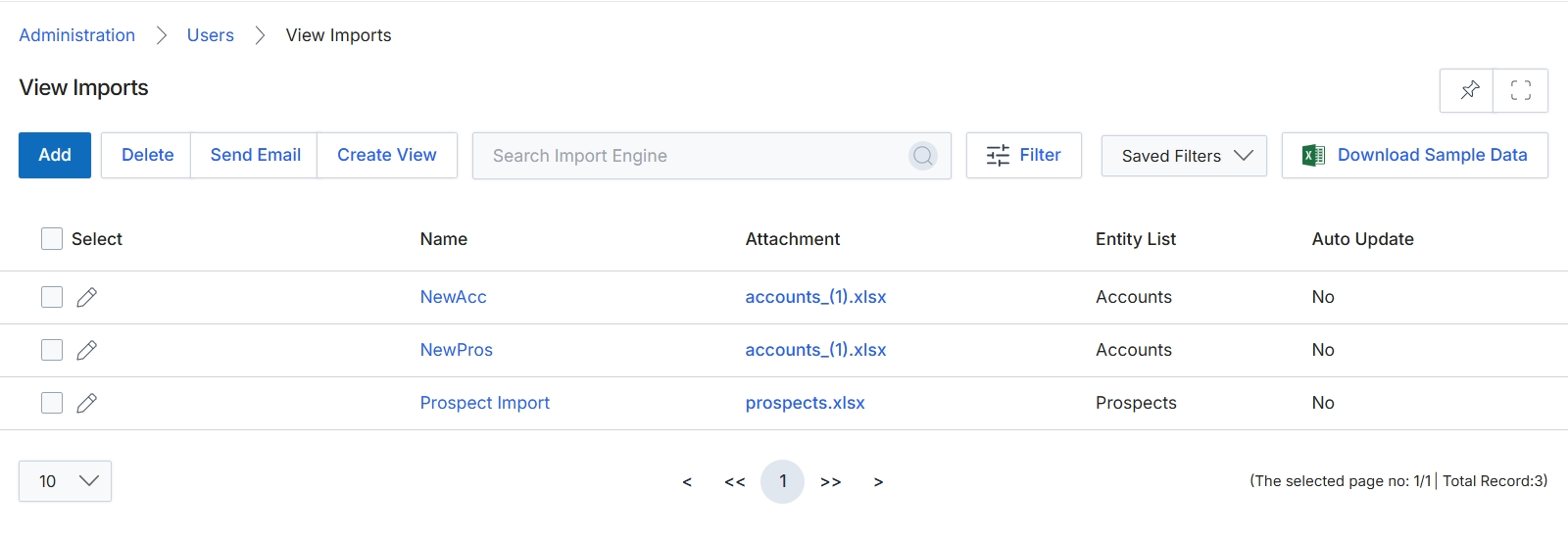
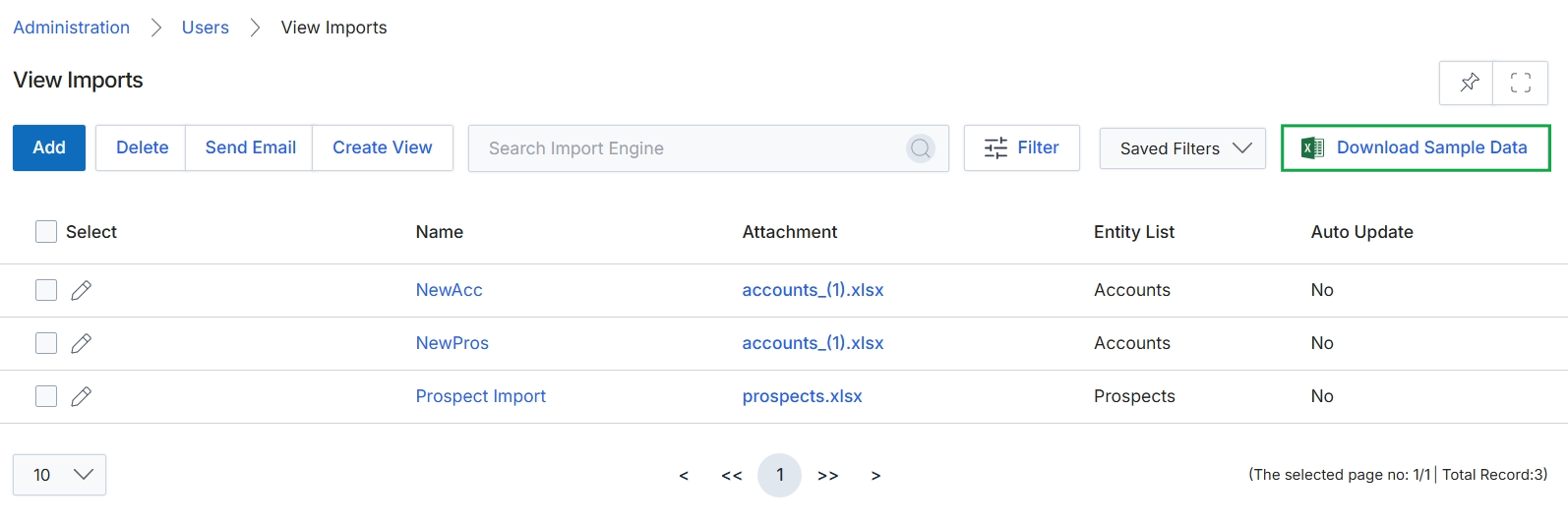
The View Imports screen displays a list of all existing import templates within the platform. Administrators use this screen to manage bulk data imports for various entities, such as users, accounts, or prospects. Each entry in the list represents a configured import template, which defines the mapping between a CSV or Excel file's columns and the platform's internal fields for a specific entity. This functionality is crucial for initial data migration, periodic updates, or integrating data from external systems that are not directly connected via an integration connector. From this view, administrators can add new import templates, modify existing ones, or initiate import processes.
Click the "Add" button to create a new import template.
Buttons
| Button | Description |
|---|---|
| Add | Initiates the process of creating a new import template. |
| Delete | Deletes selected import templates from the list. |
| Send Email | Sends an email related to the selected import templates. |
| Create View | Allows the creation of a custom view for the import templates list. |
| Filter | Opens a panel to apply filters to the list of import templates. |
| Download Sample Data | Downloads a sample data file, typically an Excel or CSV template, to guide users in preparing their import data. |
Fields
| Field | Description |
|---|---|
| Search Import Engine | A search bar to find specific import templates by name or other criteria. |
| Saved Filters | A dropdown to select and apply previously saved filter configurations. |
Column Headings
| Column | Description |
|---|---|
| Select | A checkbox to select all import templates in the current view. |
| Name | The name of the import template. |
| Attachment | The name of the sample file attached to the import template, if any. |
| Entity List | The type of entity (e.g., Accounts, Prospects) that this import template is designed for. |
| Auto Update | Indicates whether the import template is configured for automatic updates. |
Managing Existing Imports
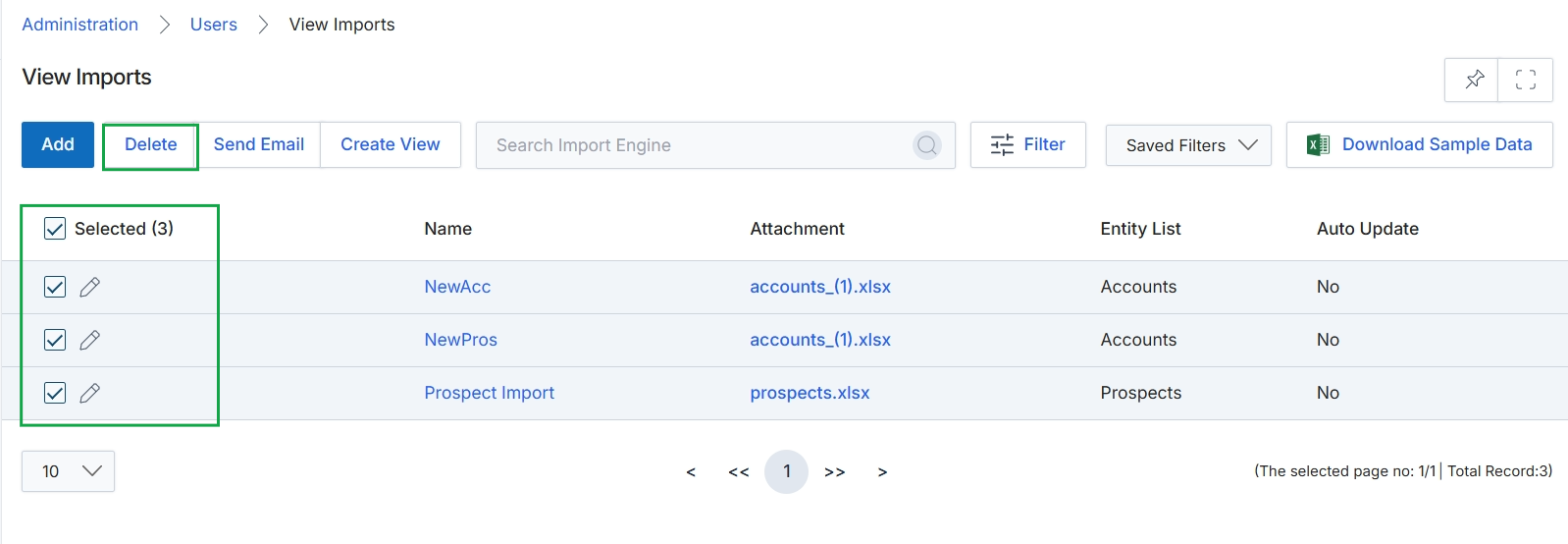
Click the Delete button.
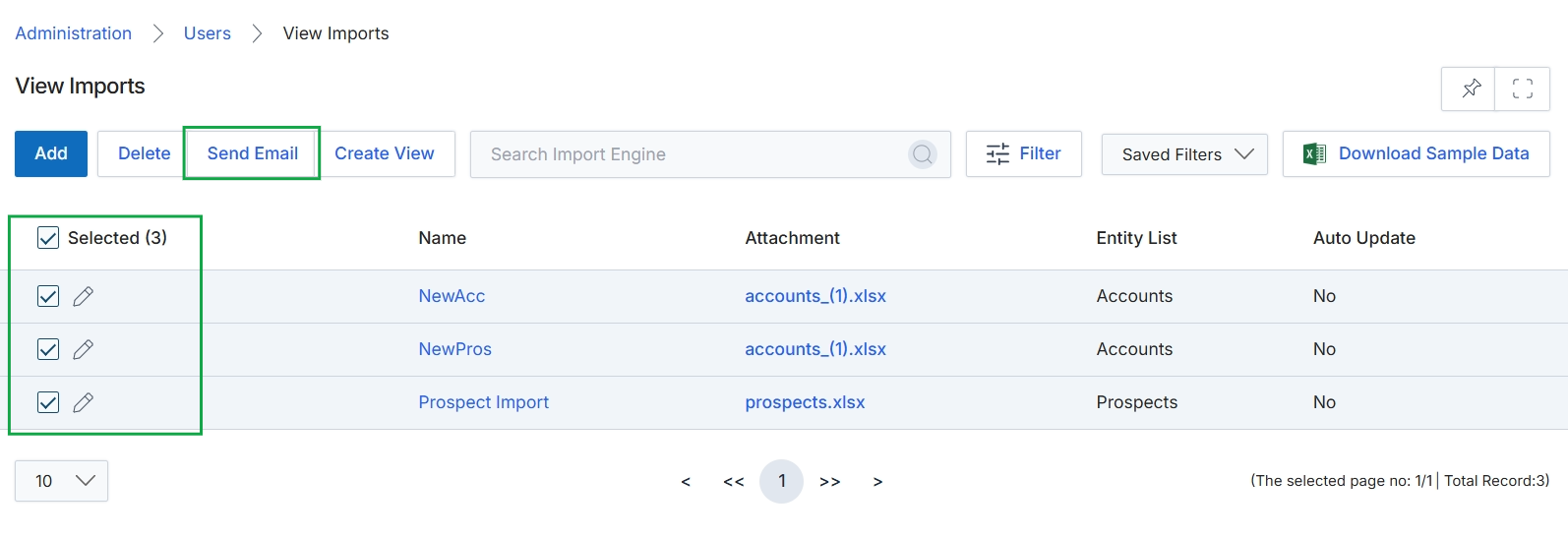
Click the Send Email button.
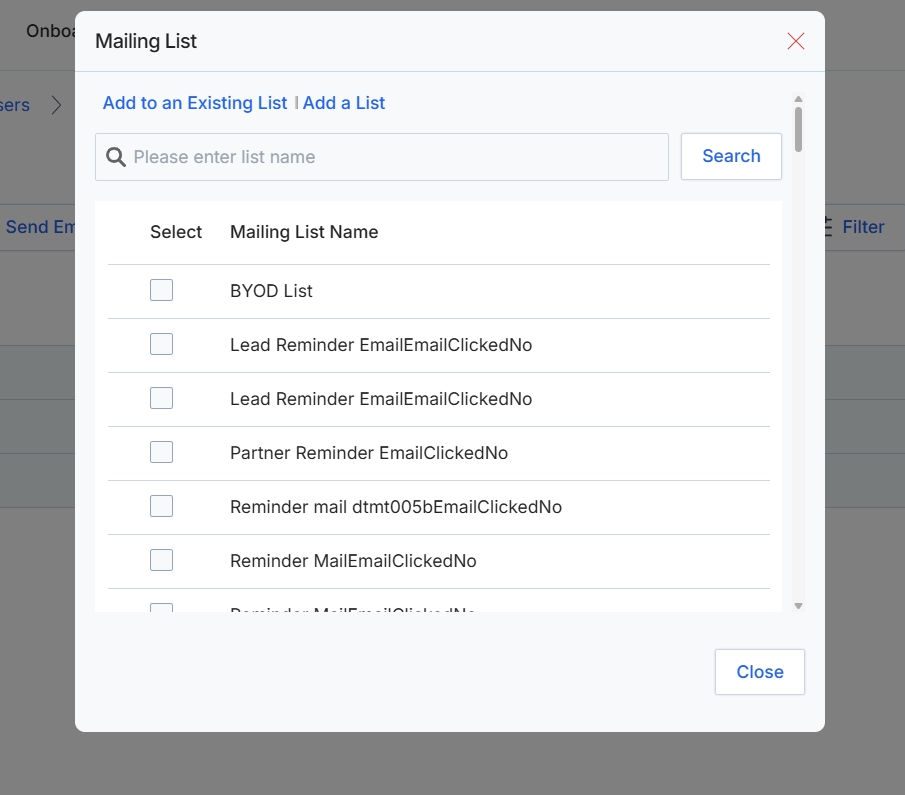
This dialog box allows administrators to associate imported users with existing mailing lists or create new ones. Mailing lists are used to segment users for targeted communication, such as sending newsletters, updates, or promotional content. By assigning users to specific lists during the import process, administrators can ensure that new users receive relevant information from the outset, streamlining communication efforts and improving user engagement. The dialog displays a searchable list of available mailing lists, enabling administrators to quickly find and select the appropriate list for the imported users.
Click the checkbox next to the desired mailing list to select it.
Buttons
| Button | Description |
|---|---|
| Add to an Existing List | A link to view or select an existing mailing list. |
| Add a List | A link to create a new mailing list. |
| Search | A button to initiate a search for mailing lists based on the entered name. |
| Close | A button to close the mailing list selection dialog. |
Fields
| Field | Description |
|---|---|
| Please enter list name | An input field to search for a specific mailing list by name. |
| BYOD List | Checkbox for the 'BYOD List' mailing list. |
| Lead Reminder EmailEmailClickedNo | Checkbox for the 'Lead Reminder EmailEmailClickedNo' mailing list. |
| Partner Reminder EmailClickedNo | Checkbox for the 'Partner Reminder EmailClickedNo' mailing list. |
| Reminder mail dtmt005bEmailClickedNo | Checkbox for the 'Reminder mail dtmt005bEmailClickedNo' mailing list. |
| Reminder MailEmailClickedNo | Checkbox for the 'Reminder MailEmailClickedNo' mailing list. |
Column Headings
| Column | Description |
|---|---|
| Select | Column header for checkboxes used to select mailing lists. |
| Mailing List Name | Column header for the names of the available mailing lists. |
Preparing for a New Import
Click Download Sample Data.
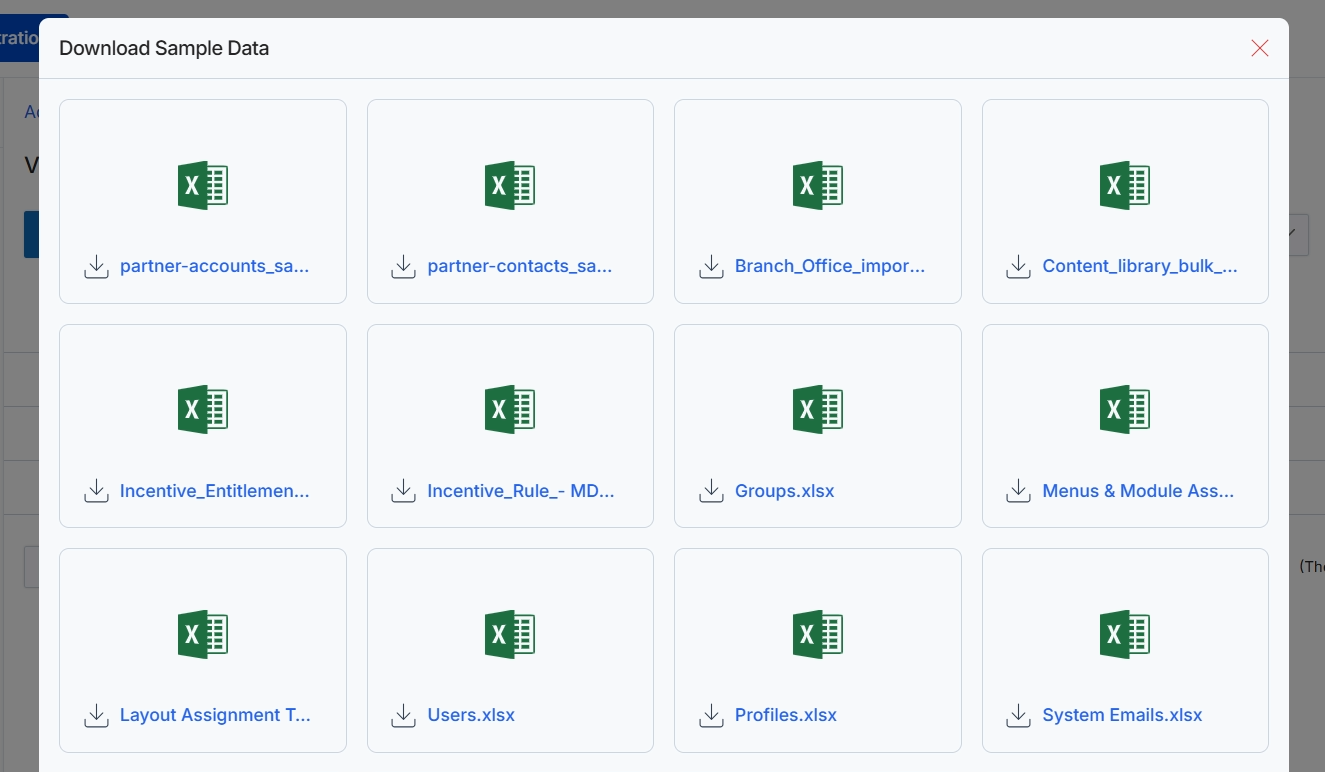
Click the Download Sample Data button.
Configuring and Executing an Import
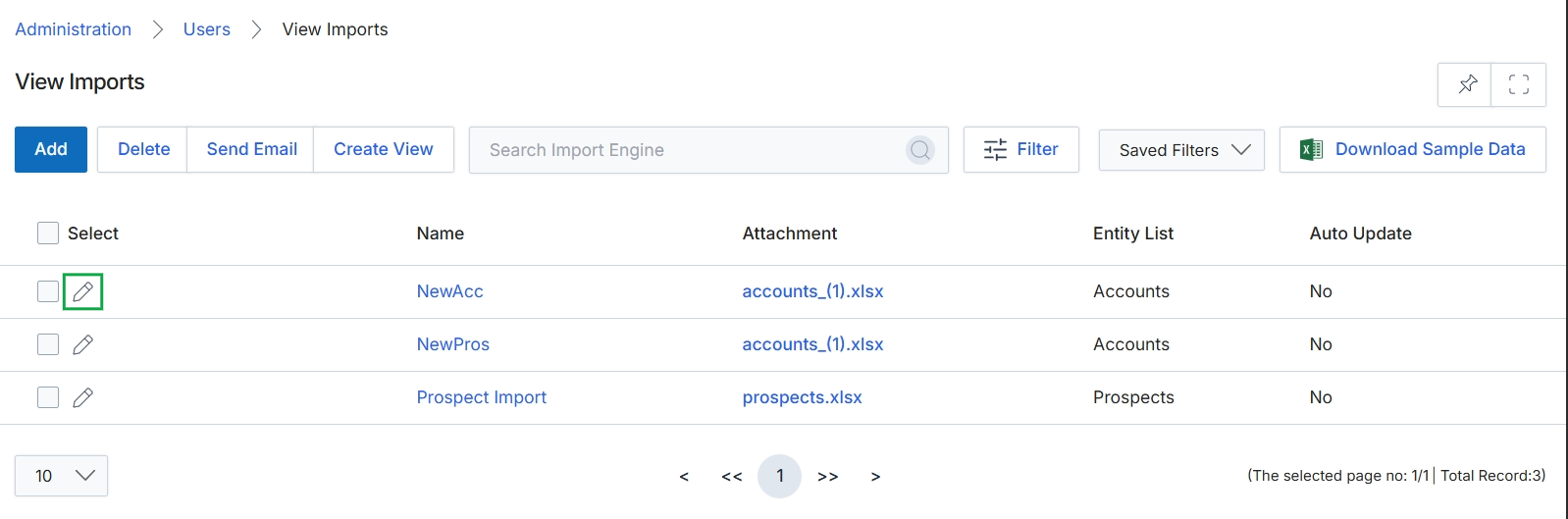
Click the Download Sample Data button.
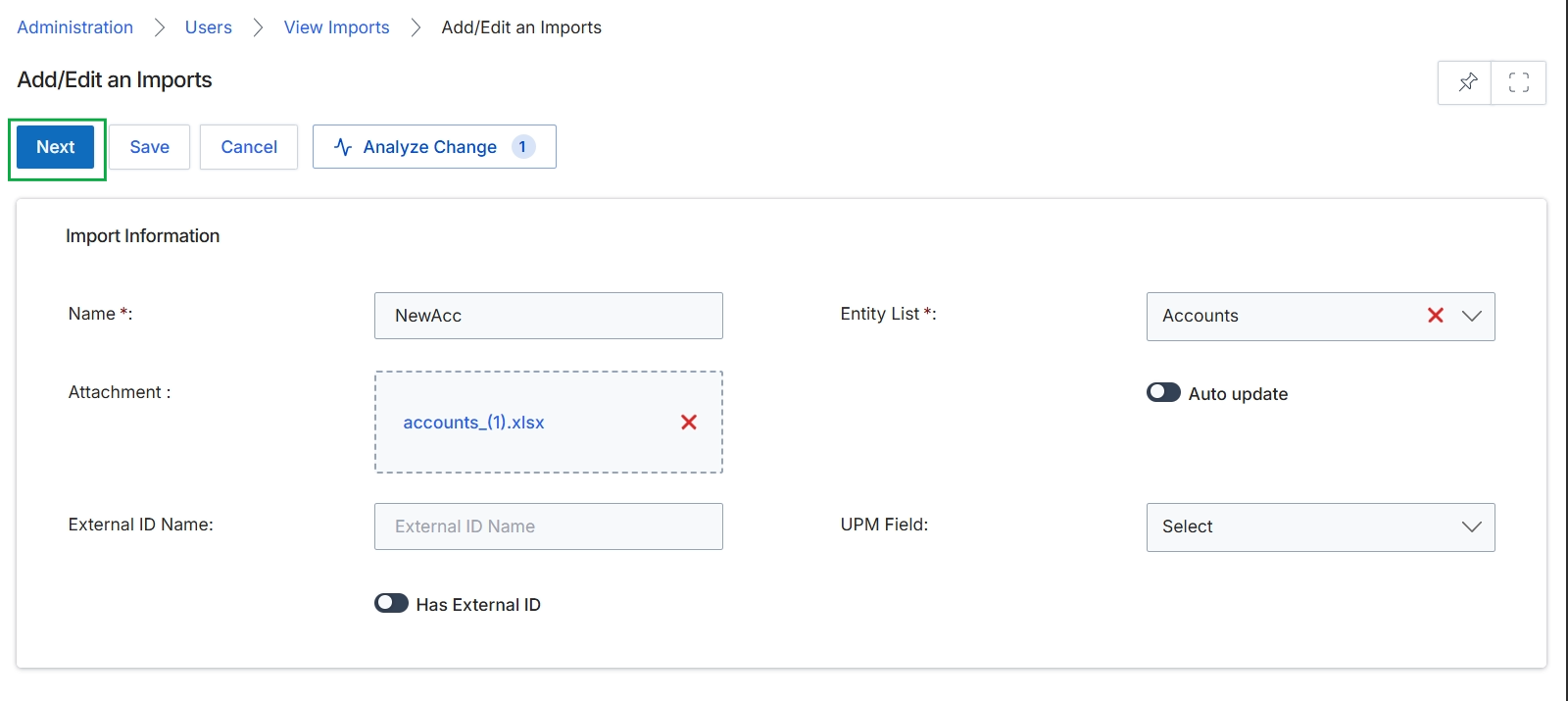
The Add/Edit an Imports screen is part of the User Management module, allowing administrators to configure and manage data import processes. This screen enables the setup of new import jobs or the modification of existing ones, specifying the type of entity being imported (e.g., Accounts), linking the import to a specific data file, and defining how external identifiers are handled. It supports both initial data loading and ongoing synchronization through an auto-update mechanism. The configuration here ensures that data from external sources is correctly mapped and integrated into the platform, maintaining data integrity and consistency across various modules.
Click "Next" to proceed with the import configuration after filling in the import information.
Buttons
| Button | Description |
|---|---|
| Next | Proceeds to the next step in the import configuration wizard. |
| Save | Saves the current import configuration without proceeding to the next step. |
| Cancel | Discards any changes and returns to the previous screen. |
| Analyze Change | Initiates an analysis of the changes that would be applied by the import, showing a count of detected changes. |
Import Information
| Field | Description |
|---|---|
| Name * | The name of the import job, used for identification. |
| Entity List * | The type of entity being imported (e.g., Accounts, Users, Partners). |
| Attachment | The data file (e.g., .xlsx) containing the records to be imported. |
| Auto update | A toggle switch to enable or disable automatic updates for this import job. |
| External ID Name | The name of the external identifier field in the import file. |
| UPM Field | The corresponding platform field to which the external ID will be mapped. |
| Has External ID | A toggle switch indicating whether the import data includes an external identifier. |
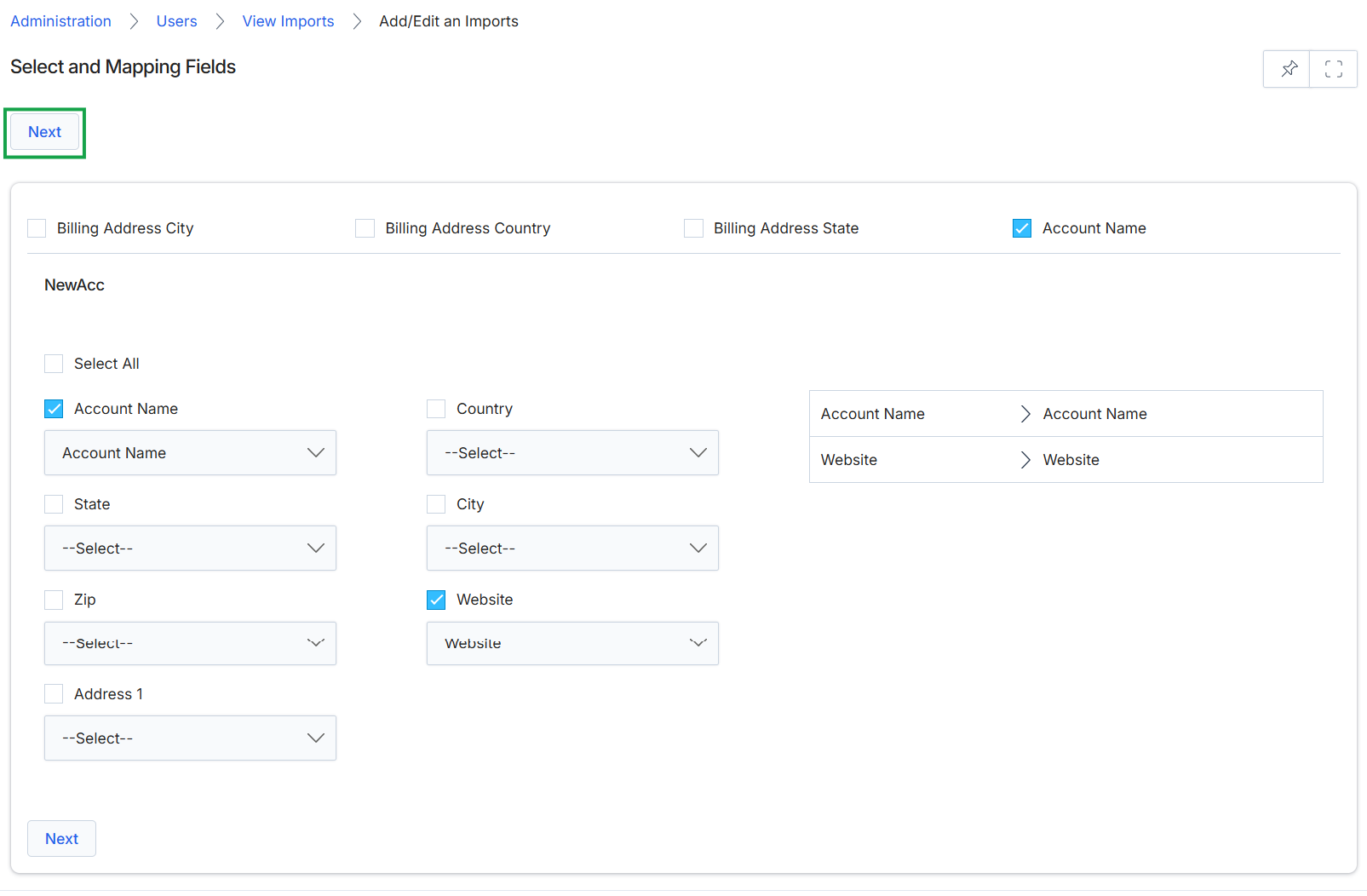
This screen is part of the user import process, allowing administrators to map fields from an uploaded data file to corresponding fields within the platform. It displays a list of available fields for mapping, grouped by their associated entity (e.g., 'NewAcc' likely refers to new accounts or partners). Administrators select which fields from their import file correspond to which system fields, ensuring data integrity and correct population of user or account records. The mapping process is critical for successfully integrating external data into the platform, especially when onboarding new users or partners in bulk. The right-hand panel provides a visual confirmation of the selected mappings.
Select the appropriate fields for mapping and click "Next" to proceed with the import.
Buttons
| Button | Description |
|---|---|
| Next | Proceeds to the next step in the import process after field mapping is complete. |
| Next | Proceeds to the next step in the import process after field mapping is complete. |
Fields
| Field | Description |
|---|---|
| Billing Address City | Checkbox to include or exclude the billing address city field in the mapping. |
| Billing Address Country | Checkbox to include or exclude the billing address country field in the mapping. |
| Billing Address State | Checkbox to include or exclude the billing address state field in the mapping. |
| Account Name | Checkbox to include or exclude the account name field in the mapping. |
| Account Name | Displays the mapped value for 'Account Name', showing the platform field on the left and the selected import file column on the right. |
| Website | Displays the mapped value for 'Website', showing the platform field on the left and the selected import file column on the right. |
NewAcc
| Field | Description |
|---|---|
| Select All | Checkbox to select or deselect all fields for mapping within the 'NewAcc' section. |
| Account Name | Checkbox to include or exclude the account name field for mapping, with a dropdown to select the corresponding column from the import file. |
| Account Name | Dropdown to select the column from the import file that corresponds to the 'Account Name' field. |
| Country | Checkbox to include or exclude the country field for mapping, with a dropdown to select the corresponding column from the import file. |
| --Select-- | Dropdown to select the column from the import file that corresponds to the 'Country' field. |
| State | Checkbox to include or exclude the state field for mapping, with a dropdown to select the corresponding column from the import file. |
| --Select-- | Dropdown to select the column from the import file that corresponds to the 'State' field. |
| City | Checkbox to include or exclude the city field for mapping, with a dropdown to select the corresponding column from the import file. |
| --Select-- | Dropdown to select the column from the import file that corresponds to the 'City' field. |
| Zip | Checkbox to include or exclude the zip code field for mapping, with a dropdown to select the corresponding column from the import file. |
| --Select-- | Dropdown to select the column from the import file that corresponds to the 'Zip' field. |
| Website | Checkbox to include or exclude the website field for mapping, with a dropdown to select the corresponding column from the import file. |
| Website | Dropdown to select the column from the import file that corresponds to the 'Website' field. |
| Address 1 | Checkbox to include or exclude the address line 1 field for mapping, with a dropdown to select the corresponding column from the import file. |
| --Select-- | Dropdown to select the column from the import file that corresponds to the 'Address 1' field. |
Reviewing Import Details and Errors
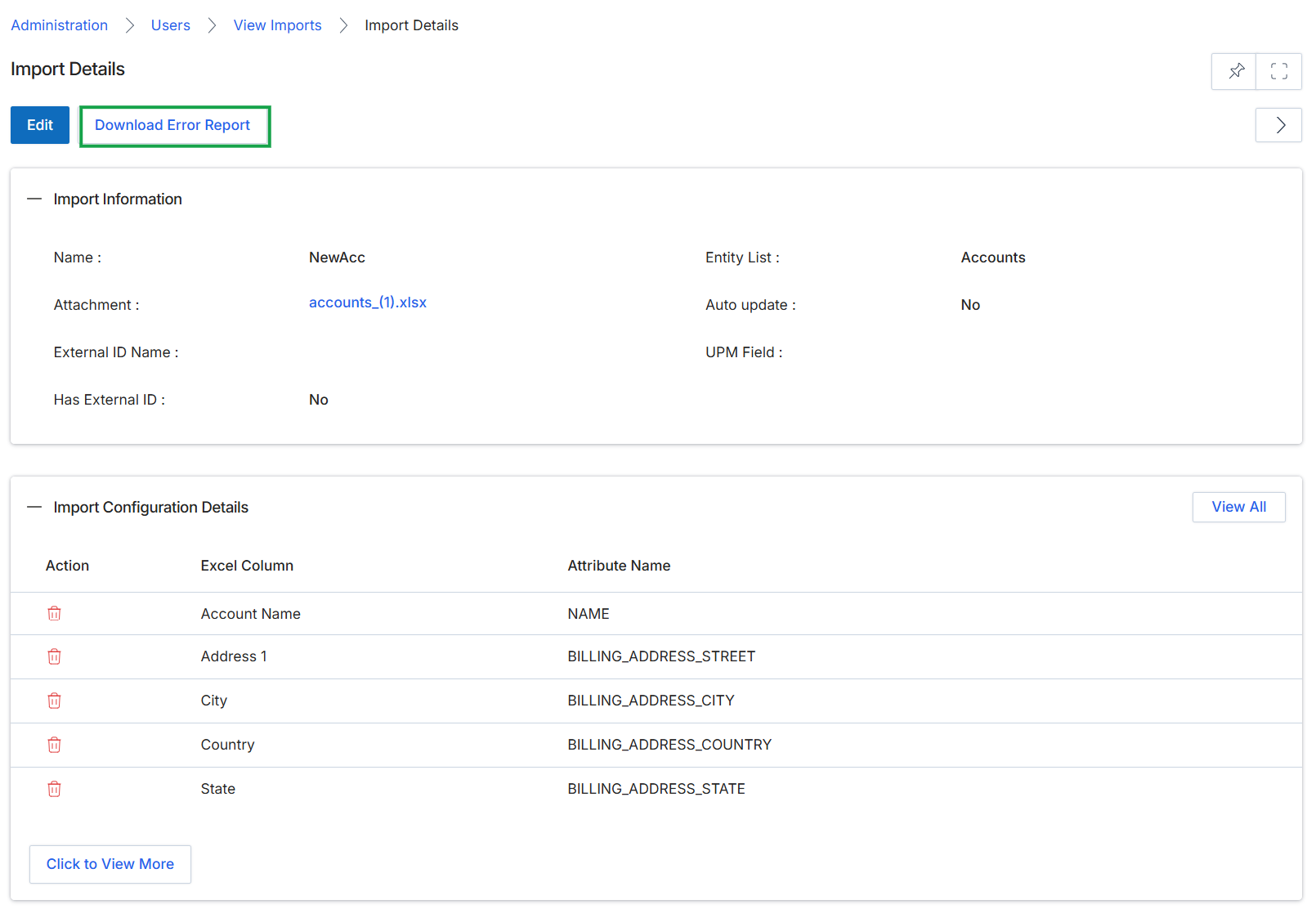
The Import Details screen provides a comprehensive overview of a specific data import operation, which is typically used by UPM administrators to bulk upload or update user, partner, or other entity records. This screen displays key information about the import, including its name, the source file, the target entity list, and whether it was configured for auto-update. It also details the mapping between the columns in the imported file and the corresponding fields within the platform, ensuring data integrity and correct placement. Administrators can use this view to review import configurations, identify any issues, and download error reports for failed imports to facilitate troubleshooting and data correction.
Click the "Download Error Report" button to retrieve a report detailing any errors encountered during the import process.
Buttons
| Button | Description |
|---|---|
| Edit | Allows modification of the import configuration details. |
| Download Error Report | Downloads a file containing details of any records that failed to import, along with the reasons for failure. |
| View All | Displays all configured import mapping details. |
| Click to View More | Expands the list to show additional import configuration details. |
Import Information
| Field | Description |
|---|---|
| Name | The name assigned to this import operation. |
| Attachment | The name of the source file used for the import. |
| External ID Name | The name of the external ID field used for mapping records. |
| Has External ID | Indicates whether the import uses an external ID for record identification. |
| Entity List | The type of entity (e.g., Accounts, Users) that was targeted for this import. |
| Auto update | Indicates whether the import was configured to automatically update existing records. |
| UPM Field | The platform field name corresponding to the imported data. |
Import Configuration Details
| Column | Description |
|---|---|
| Action | Allows actions such as deleting a specific mapping row. |
| Excel Column | The header name of the column from the imported Excel file. |
| Attribute Name | The corresponding attribute or field name within the platform. |