

Overview
Effective user management is critical for maintaining security, ensuring proper access control, and streamlining operations within any partner ecosystem. The platform's user management capabilities provide administrators with granular control over who can access the system, what they can do, and which data they can see. This detailed view of individual user profiles is essential for program managers and super administrators to oversee their team and partner users, ensuring that each user has the appropriate permissions and support to perform their tasks efficiently.
From this centralized view, administrators can quickly identify a user's role, their assigned partners or territories, and review their activity. This functionality supports various administrative tasks, from onboarding new team members and partners to adjusting permissions, troubleshooting access issues, or even temporarily impersonating a user to provide direct support or verify workflows. The ability to manage user accounts comprehensively helps maintain the integrity and efficiency of the entire partner program.
Accessing User Details
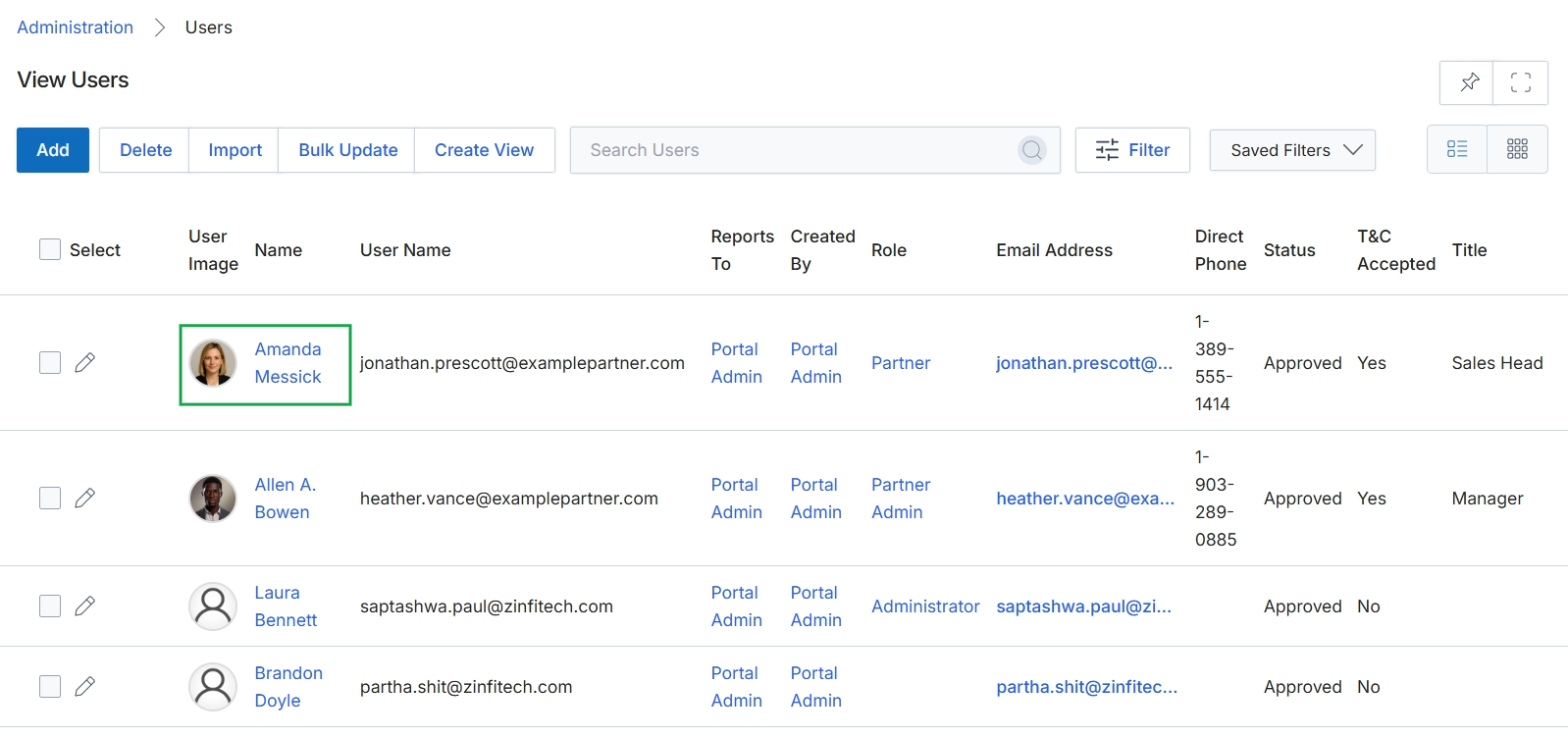
Click Amanda Messick to view the user's details.
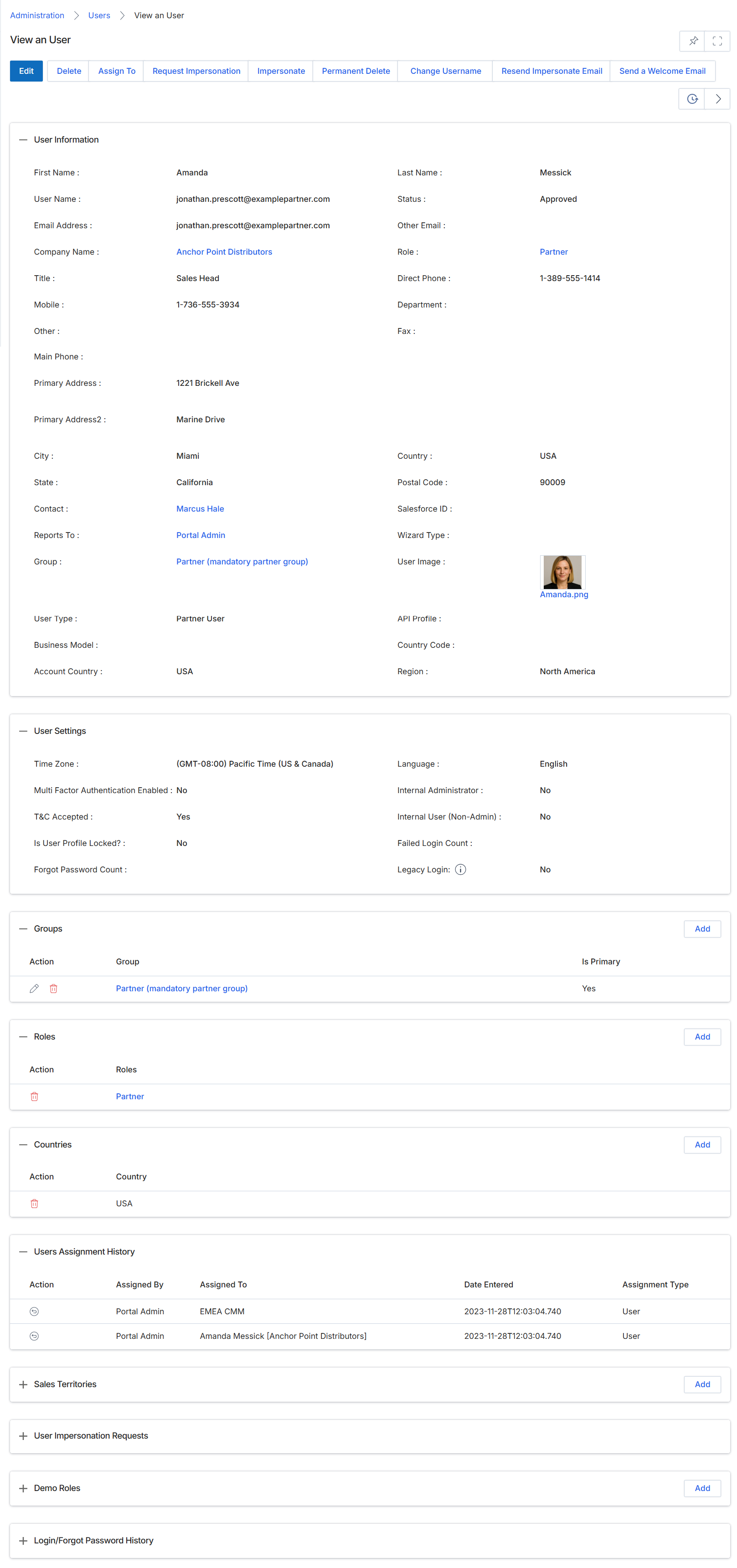
This screen displays the detailed profile of a selected user within the Administration module, providing a comprehensive view of their personal, professional, and system-related information. Administrators use this view to review user credentials, contact details, assigned roles, group memberships, and other configuration settings. The various sections on this page, such as 'User Information', 'User Settings', 'Groups', 'Roles', 'Countries', and 'Users Assignment History', consolidate all relevant data about a user, enabling administrators to quickly assess their permissions, responsibilities, and historical assignments within the platform. This centralized view is crucial for managing vendor-side users, ensuring proper access control, and maintaining an accurate record of user activities and configurations.
Review the detailed information for the selected user, including their personal details, system settings, assigned groups, roles, countries, and assignment history.
Buttons
| Button | Description |
|---|---|
| Edit | Allows editing of the user's profile information. |
| Delete | Deletes the user's account from the system. |
| Assign To | Assigns the user to specific partners or regions. |
| Request Impersonation | Initiates a request to impersonate the user's account. |
| Impersonate | Allows the administrator to log in as the selected user to view their portal. |
| Permanent Delete | Permanently deletes the user's account and all associated data. |
| Change Username | Modifies the user's login username. |
| Resend Impersonate Email | Resends the email notification for impersonation. |
| Send a Welcome Email | Sends a welcome email to the user, typically for new accounts. |
| Add | Adds a new group to the user's profile. |
| Add | Adds a new role to the user's profile. |
| Add | Adds a new country assignment to the user's profile. |
| Add | Adds a new sales territory to the user's profile. |
| Add | Adds a new user impersonation request. |
| Add | Adds a new demo role to the user's profile. |
| Add | Adds a new login/forgot password history entry. |
User Information
| Field | Description |
|---|---|
| First Name | The user's first name. |
| Last Name | The user's last name. |
| User Name | The username used for logging into the platform. |
| Status | The current status of the user's account, such as 'Approved'. |
| Email Address | The primary email address of the user. |
| Company Name | The name of the company the user is associated with. |
| Role | The primary role assigned to the user, defining their permissions. |
| Title | The user's job title. |
| Direct Phone | The user's direct phone number. |
| Mobile | The user's mobile phone number. |
| Department | The department the user belongs to. |
| Primary Address | The first line of the user's primary address. |
| Primary Address2 | The second line of the user's primary address. |
| City | The city of the user's primary address. |
| Country | The country of the user's primary address. |
| State | The state of the user's primary address. |
| Postal Code | The postal code of the user's primary address. |
| Contact | The contact person associated with the user. |
| User Image | A thumbnail image of the user's profile picture. |
| Reports To | The user's direct manager or reporting line. |
| Group | The group the user is part of, such as 'Partner (mandatory partner group)'. |
| User Type | The classification of the user, e.g., 'Partner User'. |
| Region | The geographical region assigned to the user. |
| Account Country | The country associated with the user's account. |
User Settings
| Field | Description |
|---|---|
| Time Zone | The time zone setting for the user's account. |
| Language | The preferred language for the user's interface. |
| Multi Factor Authentication Enabled | Indicates whether multi-factor authentication is enabled for the user. |
| T&C Accepted | Indicates whether the user has accepted the terms and conditions. |
| Is User Profile Locked? | Indicates if the user's profile is currently locked. |
| Legacy Login | Indicates if the user is using a legacy login method. |
Groups
| Column | Description |
|---|---|
| Action | Actions available for the group entry, such as edit or delete. |
| Group | The name of the group the user is assigned to. |
| Is Primary | Indicates if this is the user's primary group. |
Roles
| Column | Description |
|---|---|
| Action | Actions available for the role entry, such as delete. |
| Roles | The name of the role assigned to the user. |
Countries
| Column | Description |
|---|---|
| Action | Actions available for the country entry, such as delete. |
| Country | The country assigned to the user. |
Users Assignment History
| Column | Description |
|---|---|
| Action | Actions available for the assignment history entry. |
| Assigned By | The administrator who made the assignment. |
| Assigned To | The entity or user to whom the assignment was made. |
| Date Entered | The date and time when the assignment was recorded. |
| Assignment Type | The type of assignment made. |
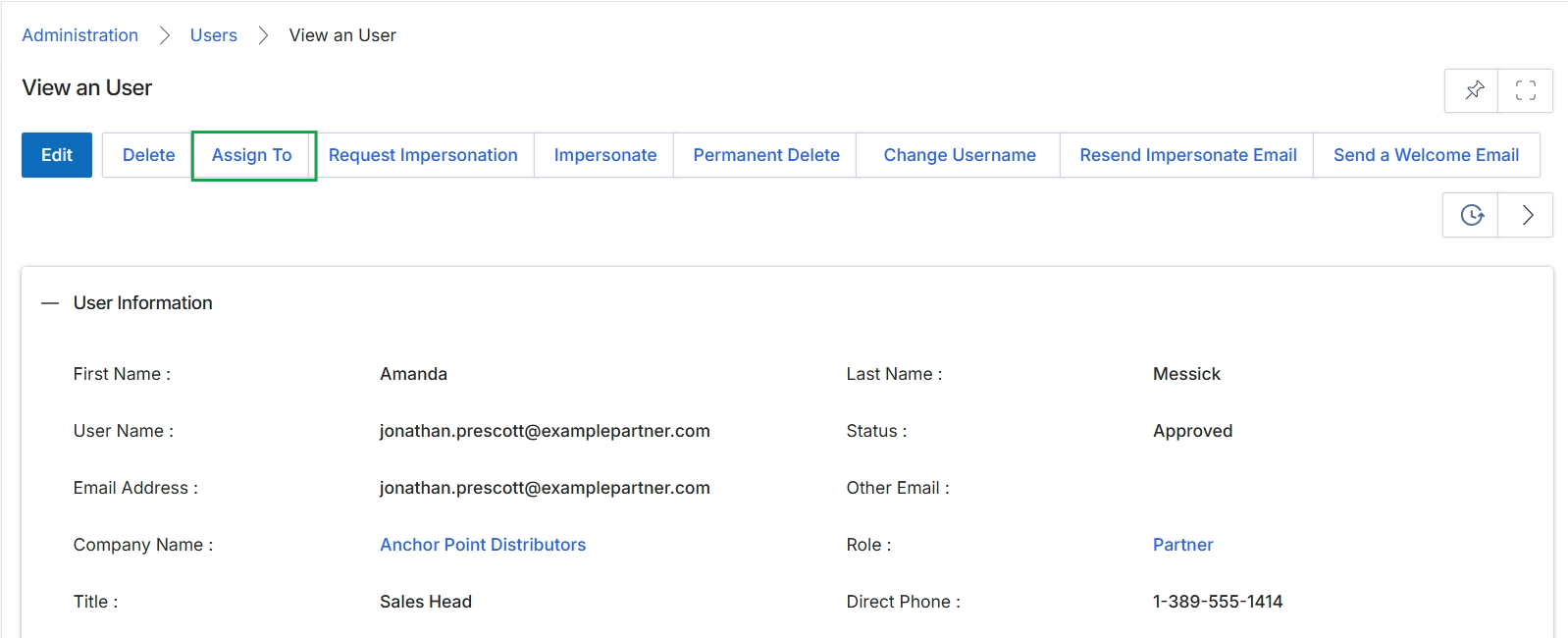
Click the Assign To button.
Assigning Records to Users or Groups
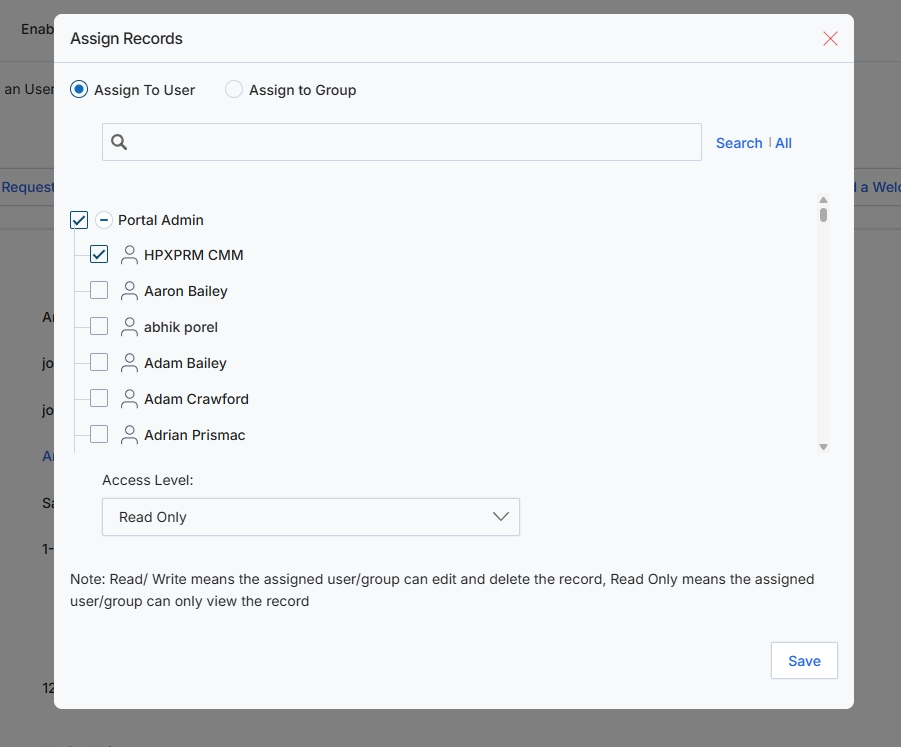
This dialog box facilitates the assignment of records to specific users or groups within the platform, a critical function for managing access control and workflow distribution. Administrators use this feature to delegate ownership or viewing rights for various entities, ensuring that the right personnel have the necessary permissions to interact with specific data. The assignment can be configured for individual users or entire groups, and the level of access (Read/Write or Read Only) can be precisely defined, aligning with the platform's role-based access control mechanisms. This ensures data security and operational efficiency by controlling who can view, edit, or delete records.
Select the user or group to whom the records will be assigned, and then choose the appropriate access level.
Buttons
| Button | Description |
|---|---|
| Save | Click to save the record assignment and close the dialog. |
Fields
| Field | Description |
|---|---|
| Assign To User | Select this option to assign records to an individual user. |
| Assign to Group | Select this option to assign records to a predefined group of users. |
| Search | A text input field to search for specific users or groups. |
| Access Level | A dropdown menu to select the level of access (Read Only or Read/Write) for the assigned users or groups. |
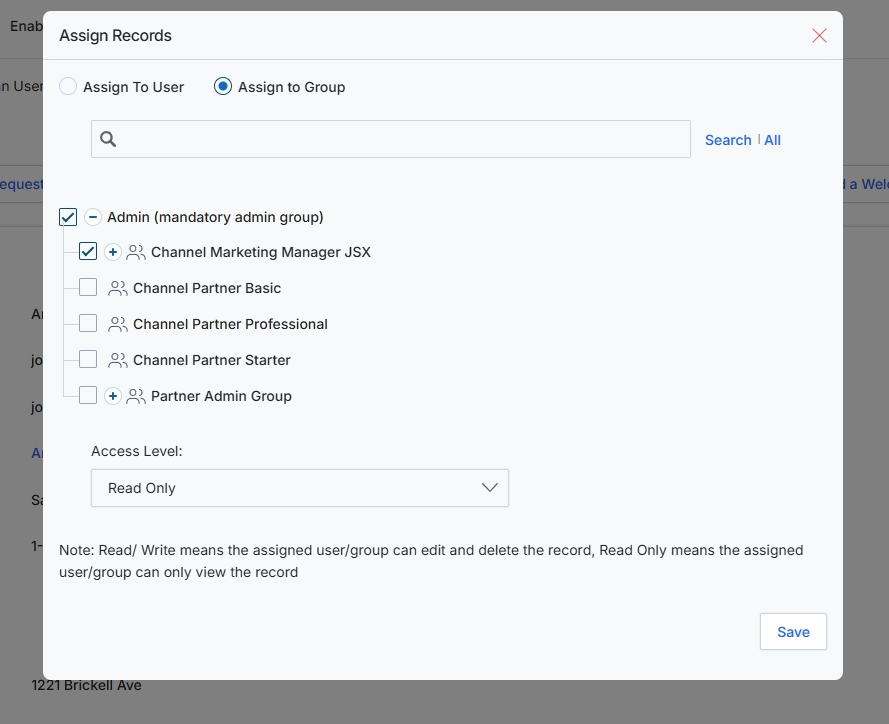
The Assign Records dialog allows administrators to control access to specific records by assigning them to individual users or groups. This feature is crucial for implementing granular access control and ensuring that only authorized personnel can view or manage particular data within the platform. By assigning records to groups, administrators can efficiently manage permissions for multiple users simultaneously, aligning with the role-based access control mechanisms of the UPM. This dialog also defines the access level, determining whether the assigned user or group can only view the record or has full read/write permissions, which includes the ability to edit and delete.
Select the desired groups to assign the records to and specify their access level.
Buttons
| Button | Description |
|---|---|
| Save | Button to save the record assignment and close the dialog. |
Fields
| Field | Description |
|---|---|
| Assign To User | Radio button to assign records to a specific user. |
| Assign to Group | Radio button to assign records to one or more user groups. |
| Search | All | Search input field to find specific groups by name, with an option to search all available groups. |
| Access Level | Dropdown to define the permission level for the assigned user/group (Read Only or Read/Write). |
Managing User Impersonation
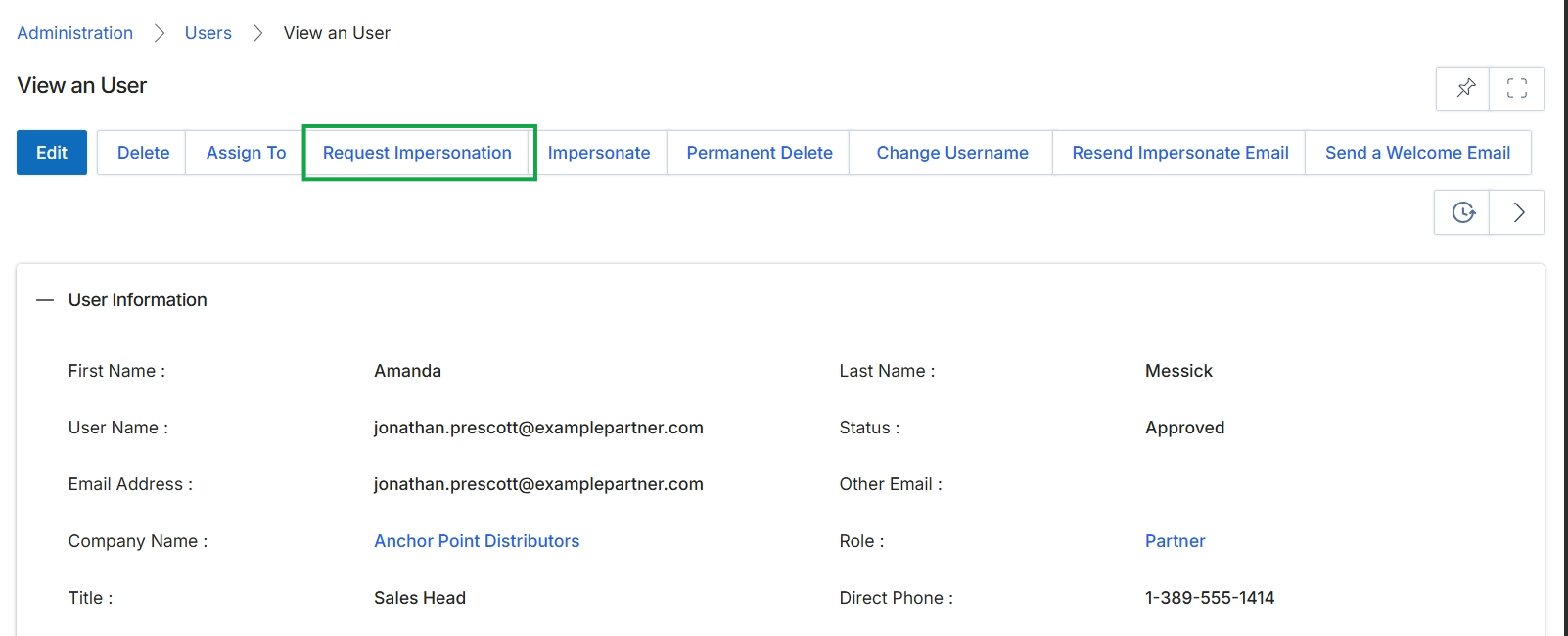
Click the Request Impersonation button.

This screen displays a list of user impersonation requests, which are formal requests made by a user to temporarily assume the identity and access privileges of another user within the platform. This feature is typically used for support, troubleshooting, or auditing purposes, allowing administrators or authorized personnel to experience the platform from another user's perspective. Each request includes details about the requestor, the user to be impersonated, the requested duration of access, and its current approval status. This list enables administrators to review, approve, or deny these requests, ensuring controlled and auditable access to user accounts.
Review the details of the pending user impersonation request.
Column Headings
| Column | Description |
|---|---|
| Name | A unique identifier for the impersonation request. |
| Impersonate Requested By User | The name of the user who initiated the impersonation request. |
| Impersonated User | The name of the user whose account is requested to be impersonated. |
| Access Duration (In Days) | The requested number of days for which the impersonation access is desired. |
| Status | The current status of the impersonation request, indicating whether it is pending, approved, or denied. |
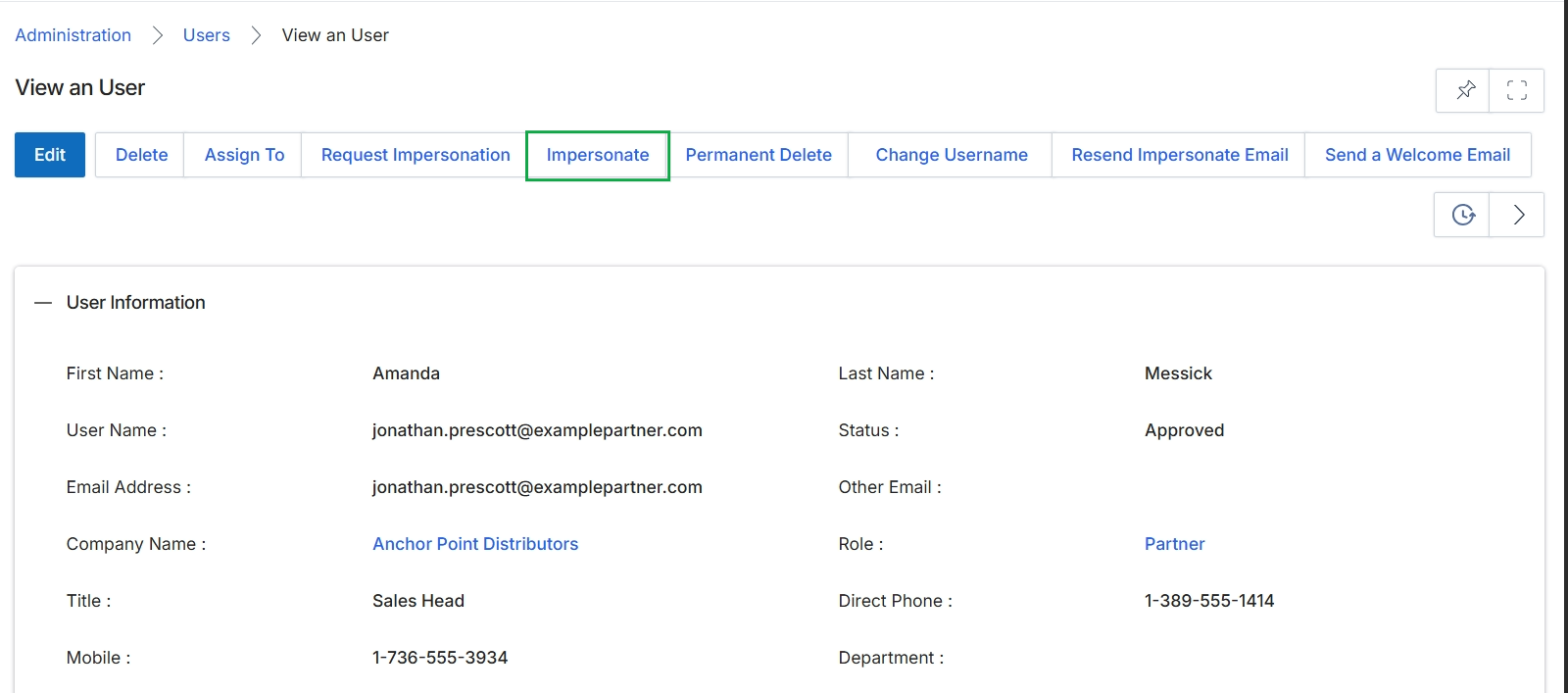
Click the Impersonate button.
Performing Account Management Actions
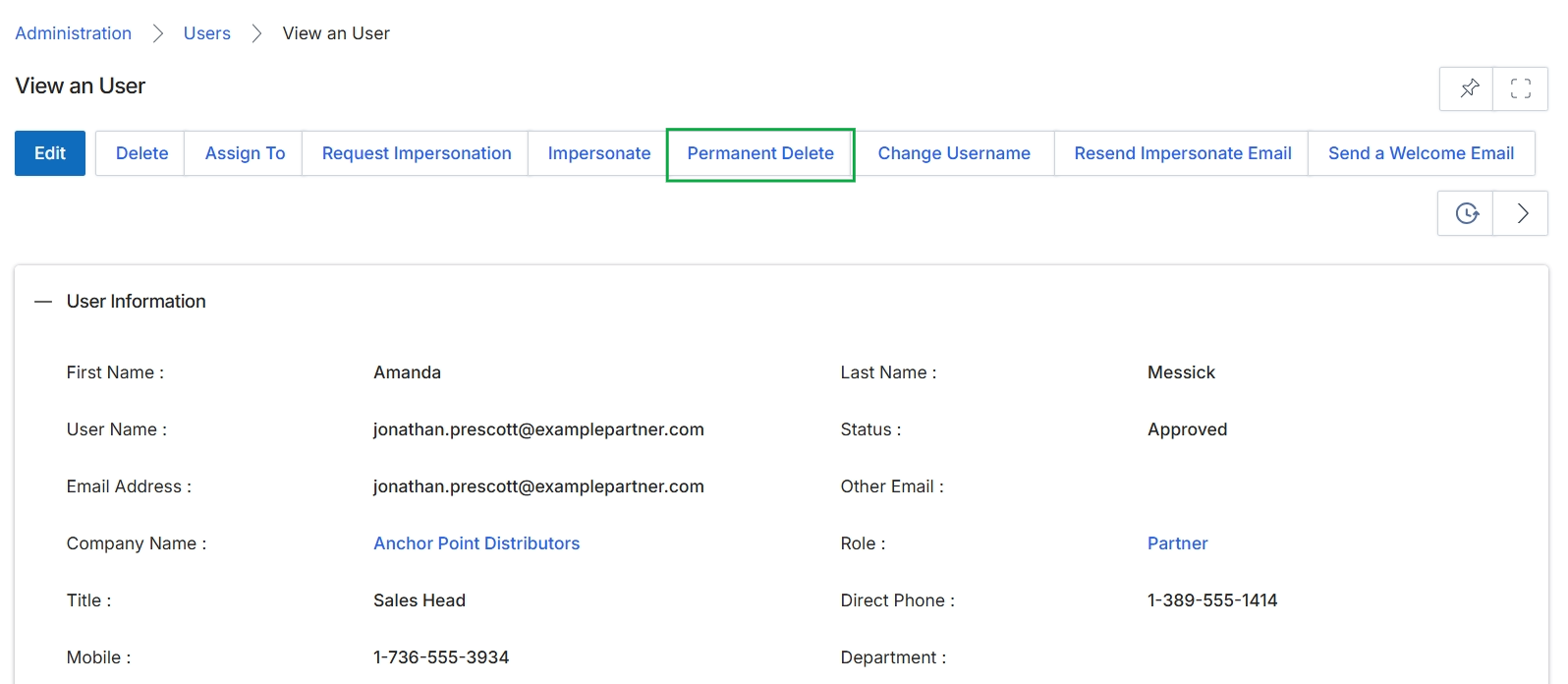
Click the Permanent Delete button.
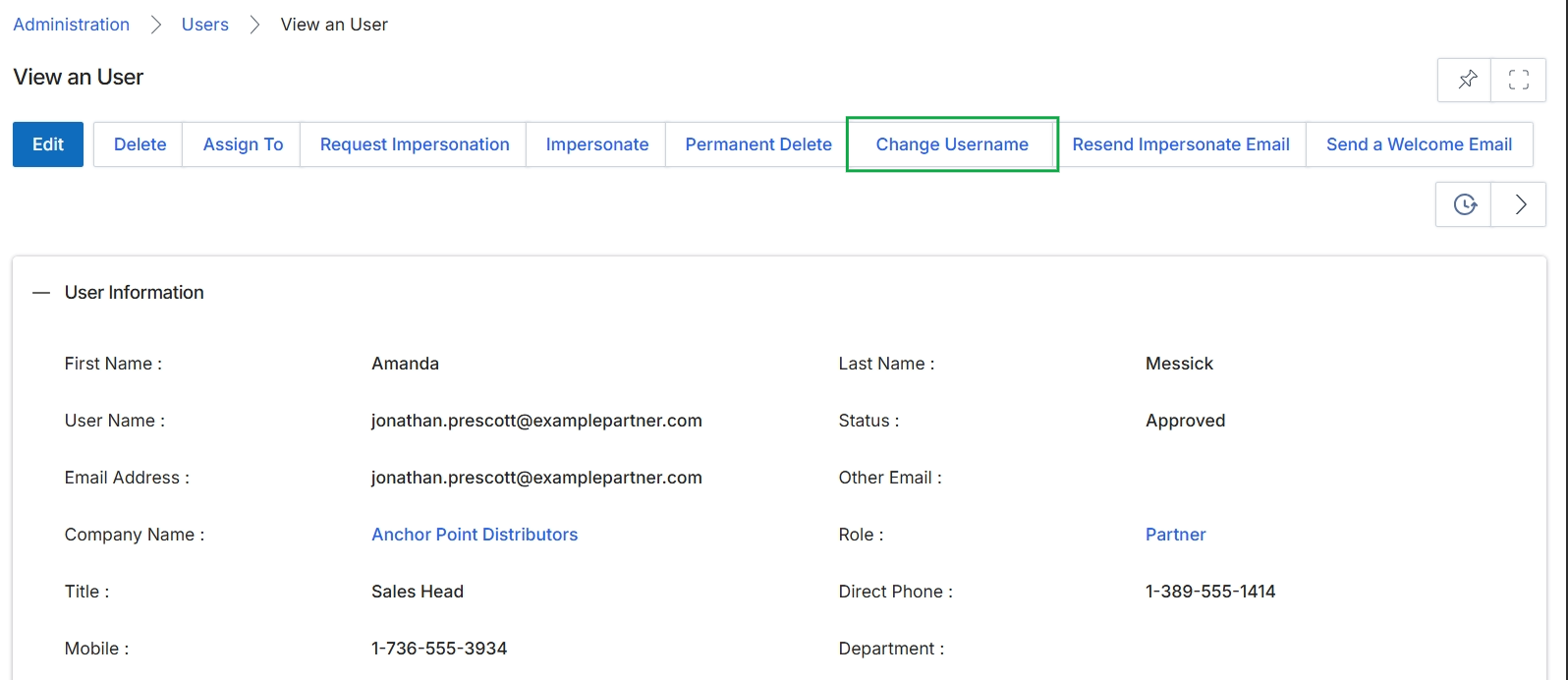
Click Change Username.
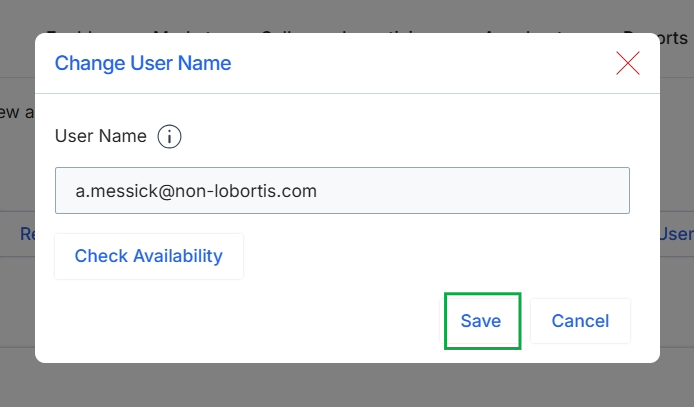
This dialog box allows administrators to modify the user name associated with a vendor-side user account. The user name is typically the email address used for login and identification within the platform. Changing the user name here updates the primary identifier for the user, which can impact their login credentials and how they are referenced in system communications. This action is part of the broader user management capabilities within the Administration module, ensuring that user account details remain accurate and up-to-date.
Click the "Save" button to apply the changes to the user name.
Buttons
| Button | Description |
|---|---|
| Check Availability | Click to verify if the entered user name is unique and available for use. |
| Save | Saves the updated user name to the system. |
| Cancel | Discards any changes made and closes the dialog. |
Fields
| Field | Description |
|---|---|
| User Name | The current user name, typically an email address, which can be edited. |
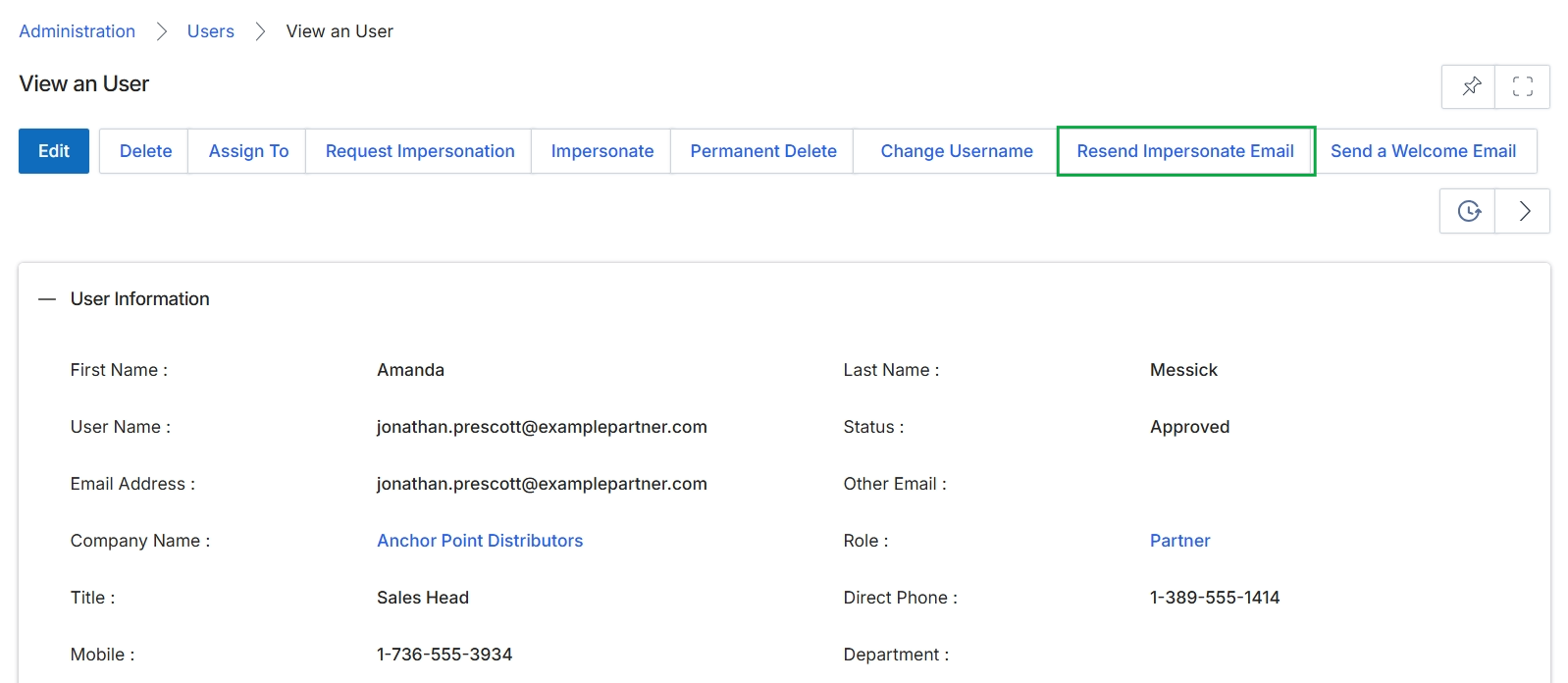
Click the Resend Impersonate Email button.
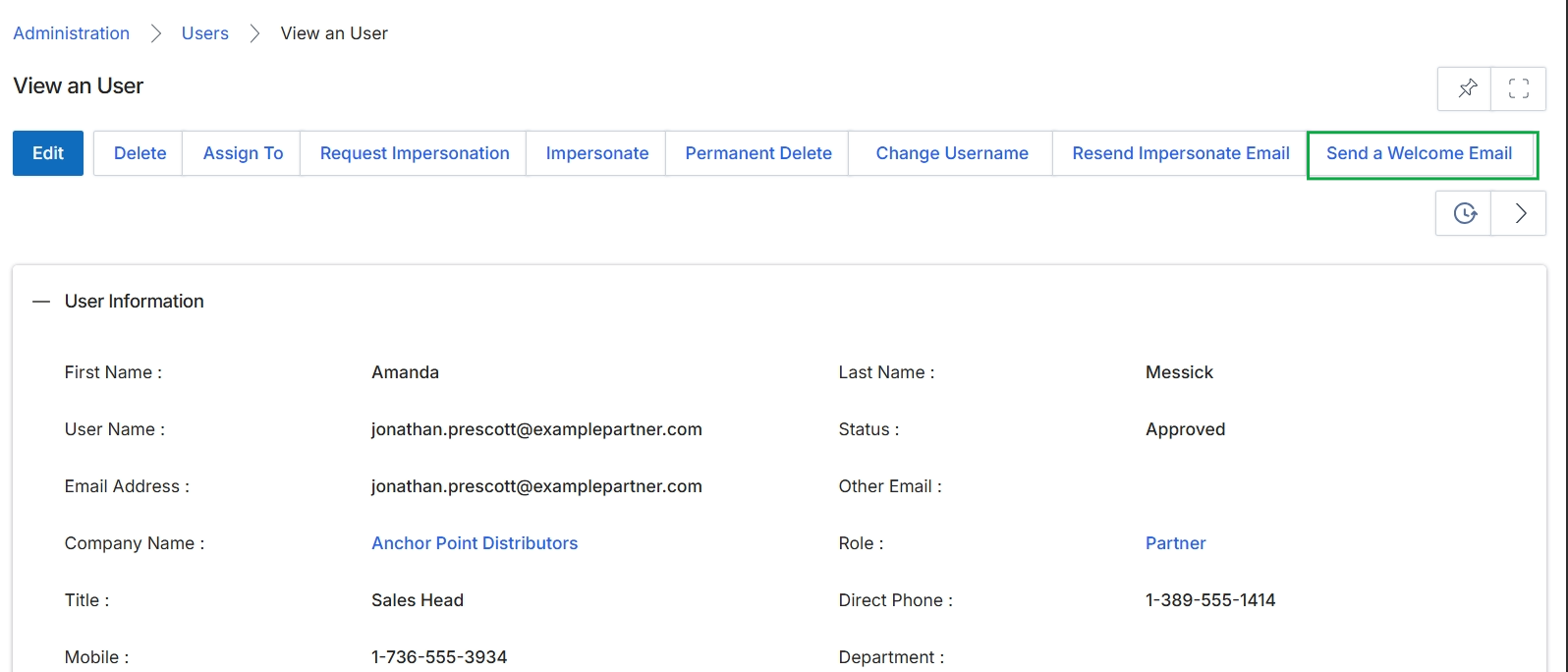
Click the Send a Welcome Email button.