

Overview
Partner business plans are crucial for aligning partner strategies with vendor objectives, fostering growth, and ensuring mutual success. This module serves as the central hub where partners submit their strategic plans, which can cover sales, marketing, and operational goals. Administrators can review these plans to understand partner commitments, allocate resources effectively, and identify areas for support or intervention.
Accessing Partner Business Plans
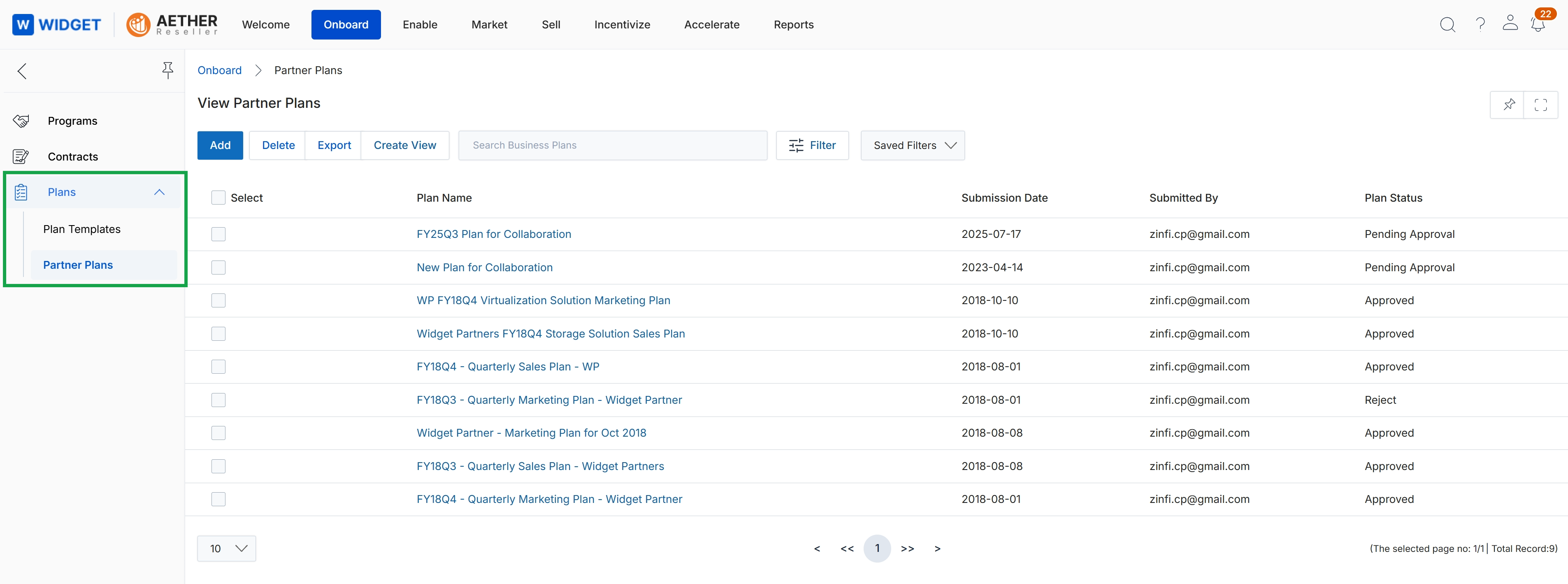
Click Partner Plans in the left navigation menu.
Delete, Export & Filter Partner Plans
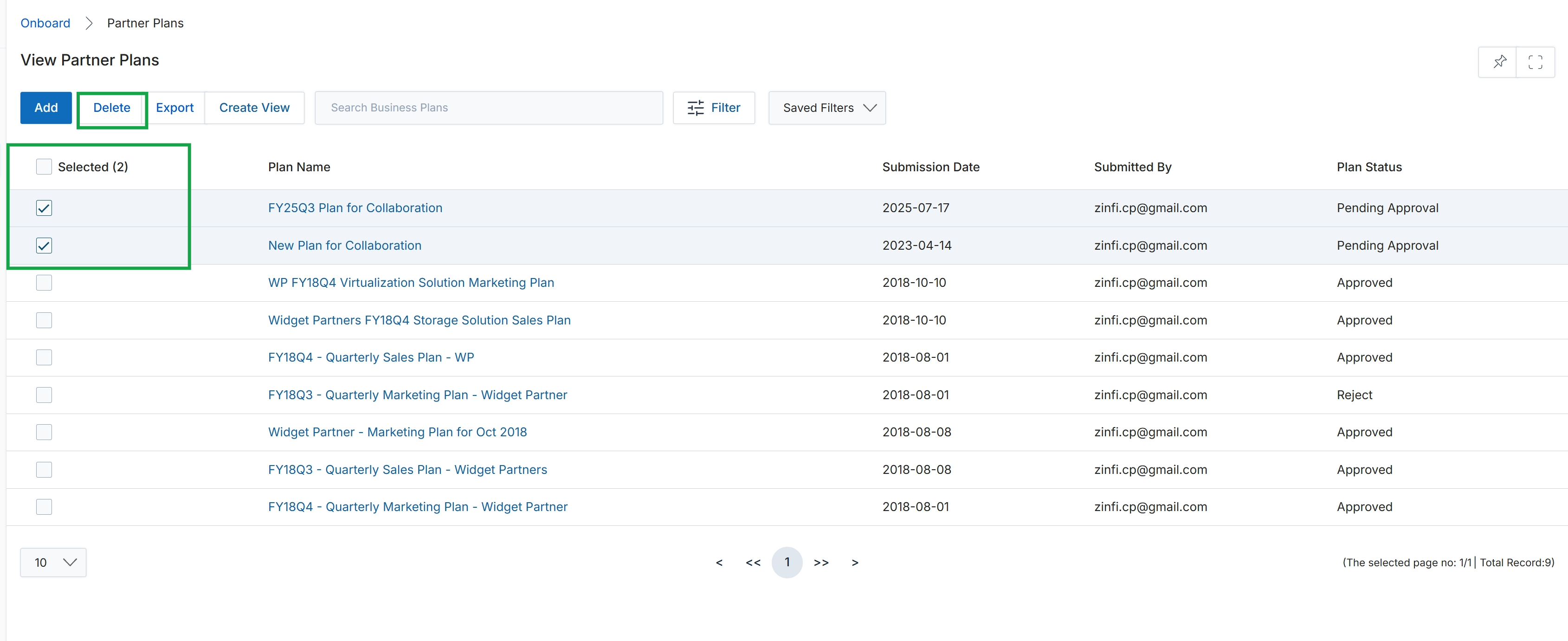
Click the checkbox next to the partner plan you want to delete.
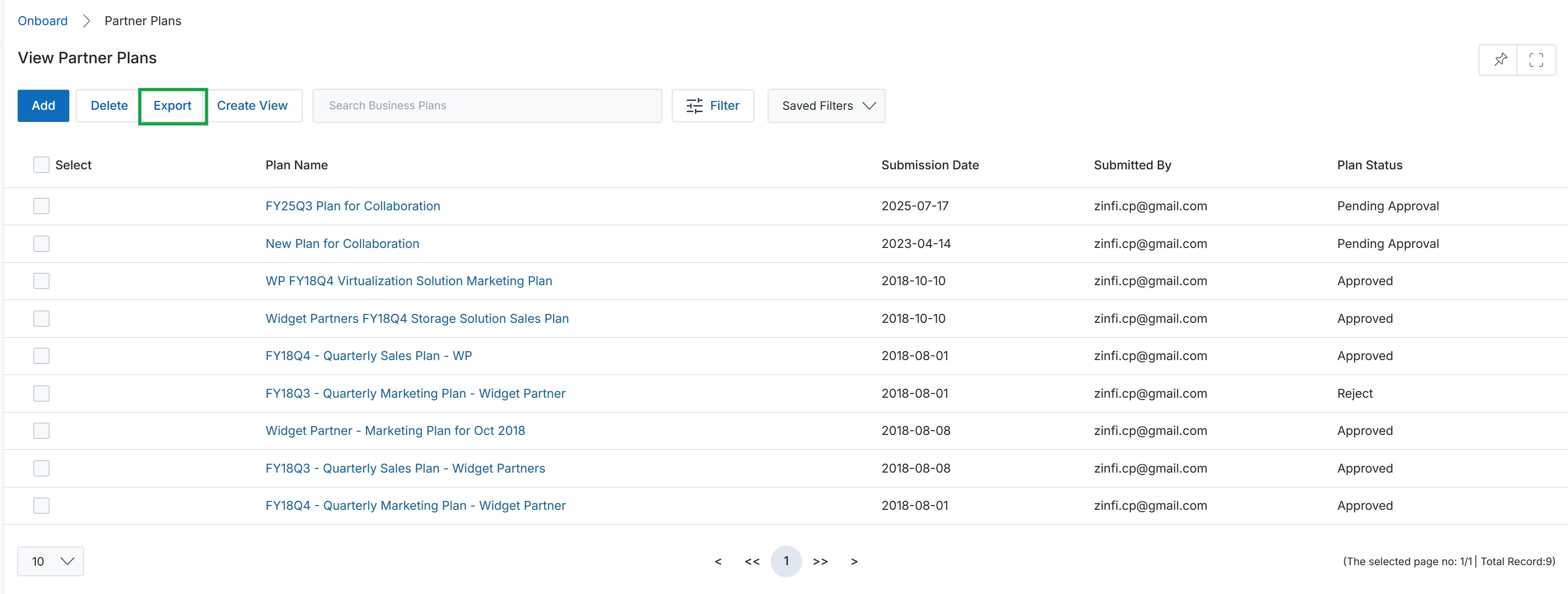
Click the Export button.
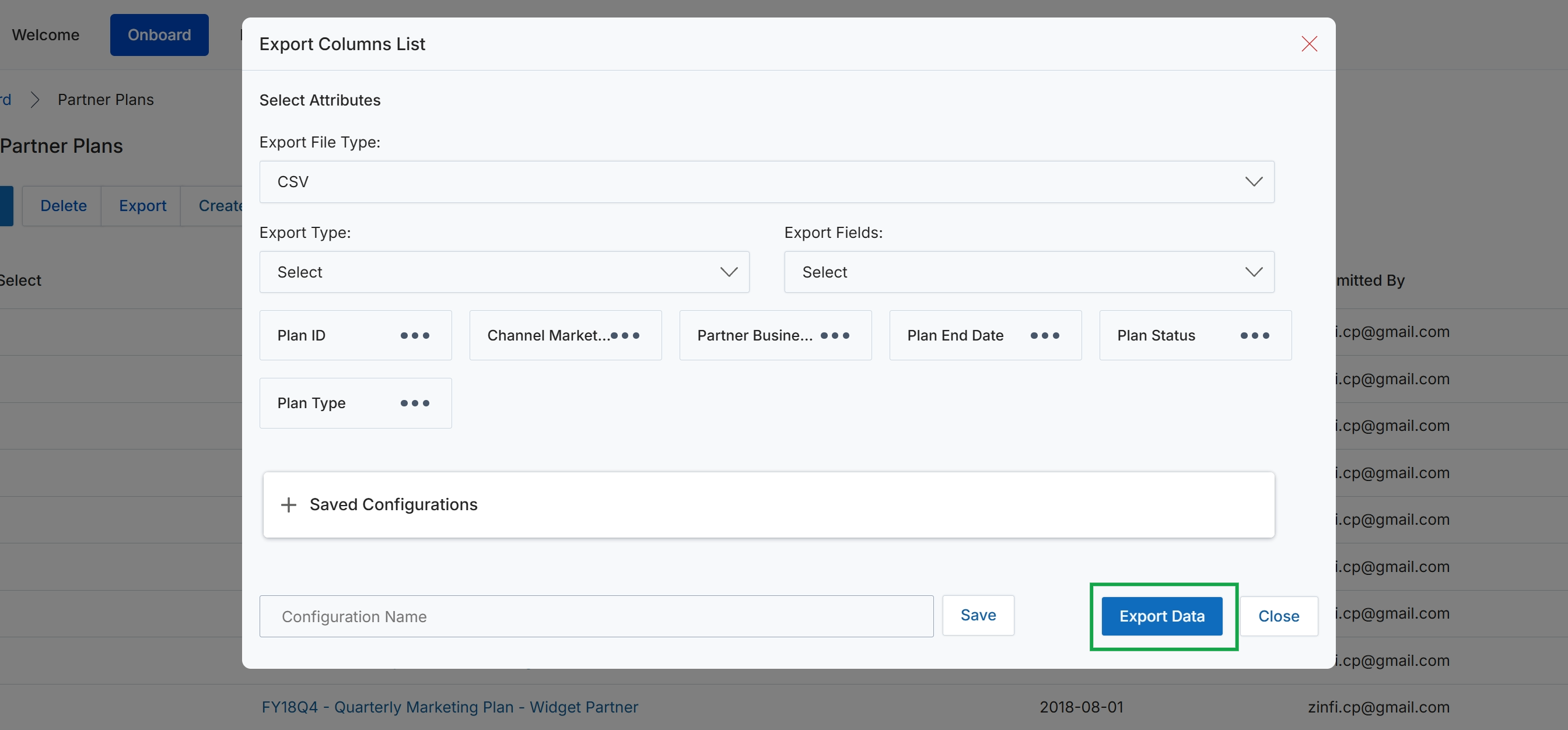
This modal window, 'Export Columns List', allows administrators to configure and initiate data exports for the currently viewed list of items, such as Partner Plans. Users can select the desired file type, specify the export type and fields, and choose which attributes to include in the exported file. This functionality supports data analysis, reporting, and integration with external systems by providing a flexible way to extract structured data from the platform. The modal also provides options to save frequently used export configurations for future convenience, streamlining repetitive export tasks.
Click the 'Export Data' button to generate and download the data based on the selected attributes and configurations.
Buttons
| Button | Description |
|---|---|
| Save | A button to save the current export configuration for later reuse. |
| Export Data | A button to initiate the data export process based on the selected options. |
| Close | A button to close the export columns list modal. |
Fields
| Field | Description |
|---|---|
| Select Attributes | A section header indicating where users can choose the specific data fields to include in the export. |
| Export File Type | A dropdown menu to select the format of the exported file, with 'CSV' currently chosen. |
| Export Type | A dropdown menu to specify the type of export, such as exporting all data or only selected records. |
| Export Fields | A dropdown menu to select specific fields or columns to be included in the export. |
| Saved Configurations | A section that allows users to manage and reuse previously saved export configurations. |
| Configuration Name | An input field to enter a name for the current export configuration, allowing it to be saved for future use. |
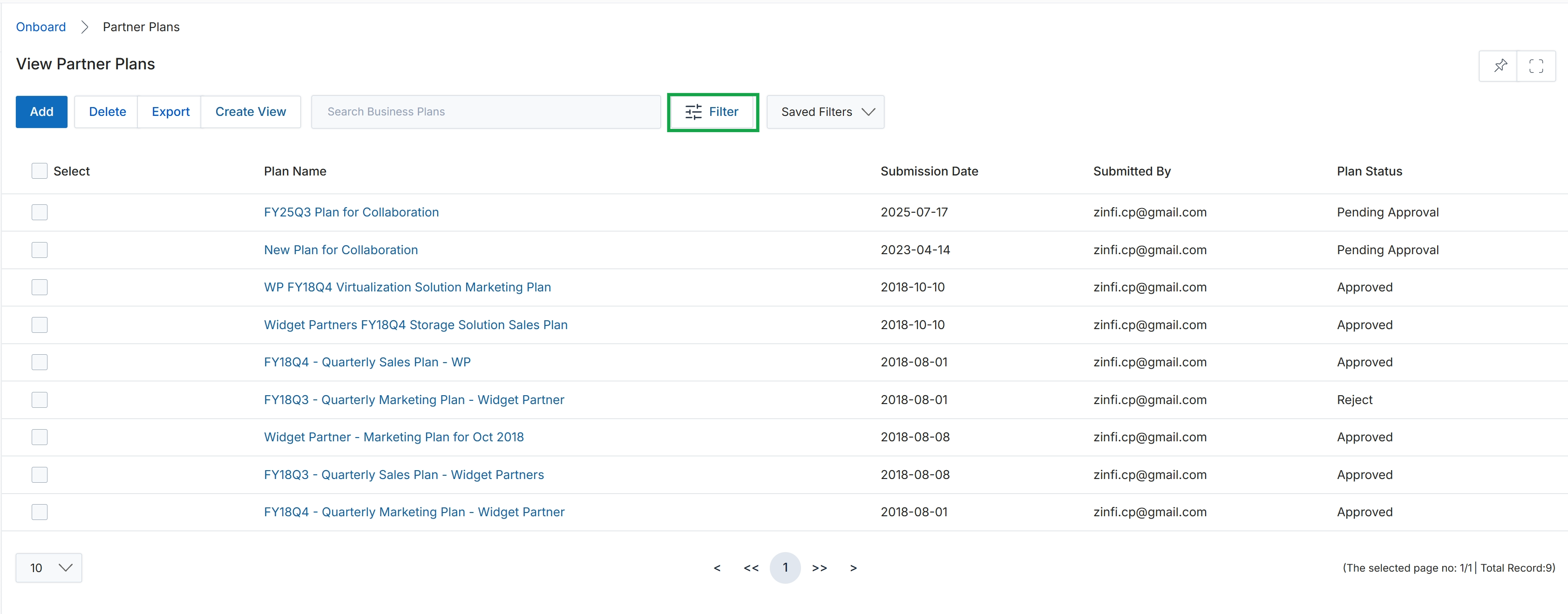
Click the Filter button to close the filter configuration panel.
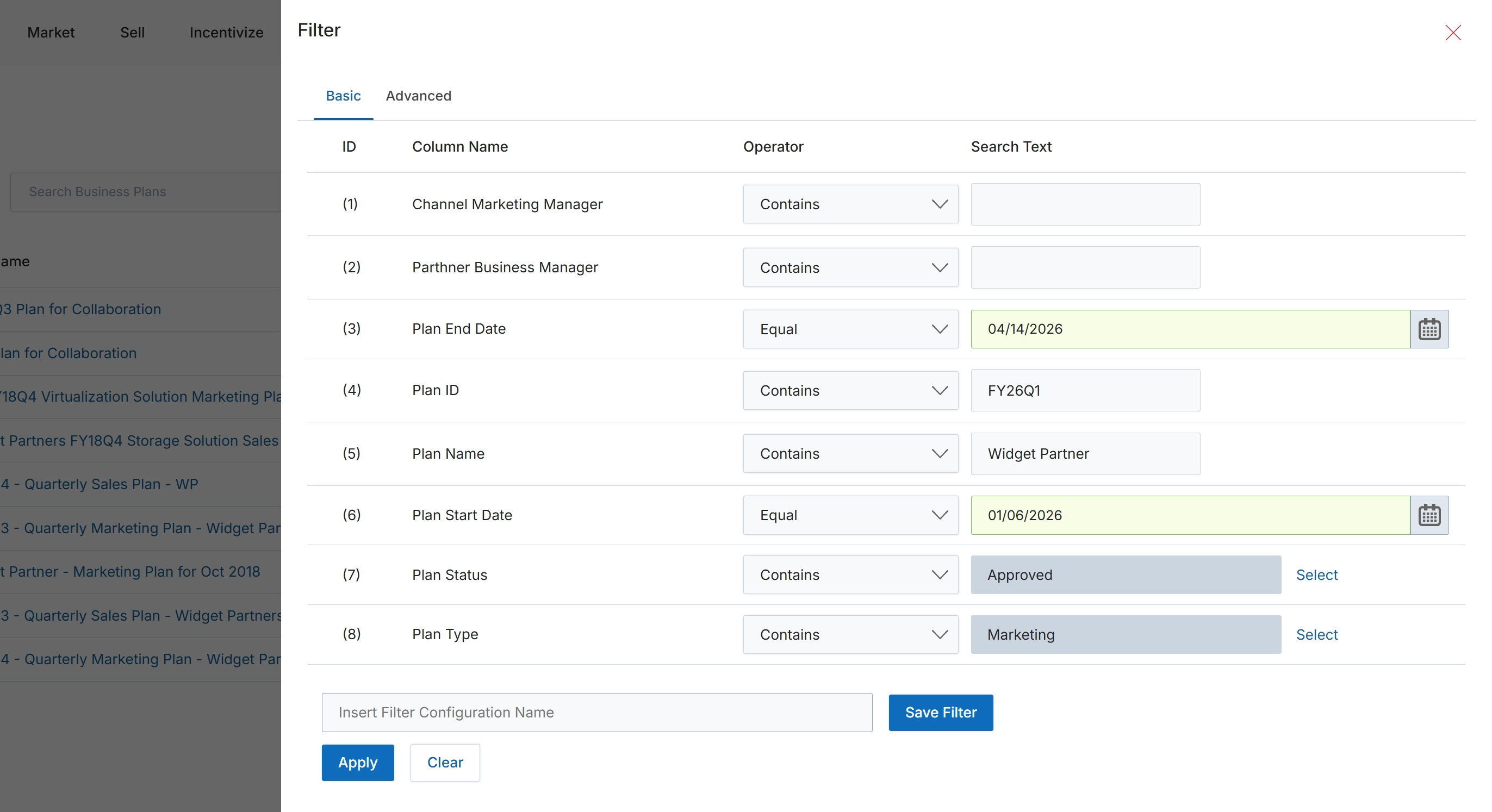
This Filter panel provides a mechanism for users to refine the display of Partner Business Plans by applying specific criteria. It allows for detailed filtering based on various plan attributes, enabling users to quickly locate relevant plans within a potentially large dataset. Users can define conditions using column names, operators, and search text, and can also save frequently used filter configurations for future use. This functionality is crucial for efficient management and analysis of business plans, supporting tasks such as reviewing plans by status, type, or date ranges.
Configure the filter criteria for Partner Business Plans by selecting column names, operators, and entering search text, then click 'Apply' to view the filtered results.
Buttons
| Button | Description |
|---|---|
| Basic | Tab to configure basic filter conditions. |
| Advanced | Tab to configure advanced filter conditions. |
| Select | Button to open a selection dialog for the 'Plan Status' filter. |
| Select | Button to open a selection dialog for the 'Plan Type' filter. |
| Save Filter | Button to save the current filter configuration with a specified name. |
| Apply | Button to apply the configured filters to the list of Partner Business Plans. |
| Clear | Button to clear all applied filter conditions. |
Fields
| Field | Description |
|---|---|
| Channel Marketing Manager | Dropdown to select the filter operator for the 'Channel Marketing Manager' field. |
| Partner Business Manager | Dropdown to select the filter operator for the 'Partner Business Manager' field. |
| Plan End Date | Dropdown to select the filter operator for the 'Plan End Date' field. |
| 04/14/2026 | Input field to enter or select the end date for the plan. |
| Plan ID | Dropdown to select the filter operator for the 'Plan ID' field. |
| FY26Q1 | Input field to enter the Plan ID to search for. |
| Plan Name | Dropdown to select the filter operator for the 'Plan Name' field. |
| Widget Partner | Input field to enter the Plan Name to search for. |
| Plan Start Date | Dropdown to select the filter operator for the 'Plan Start Date' field. |
| 01/06/2026 | Input field to enter or select the start date for the plan. |
| Plan Status | Dropdown to select the filter operator for the 'Plan Status' field. |
| Approved | Input field displaying the selected status 'Approved' for filtering plans. |
| Plan Type | Dropdown to select the filter operator for the 'Plan Type' field. |
| Marketing | Input field displaying the selected type 'Marketing' for filtering plans. |
| Insert Filter Configuration Name | Input field to enter a name for saving the current filter configuration. |
Column Headings
| Column | Description |
|---|---|
| ID | Header for the column displaying the sequential number of each filter condition. |
| Column Name | Header for the column displaying the name of the attribute being filtered. |
| Operator | Header for the column displaying the comparison operator used for the filter condition (e.g., Contains, Equal). |
| Search Text | Header for the column displaying the value to search for. |
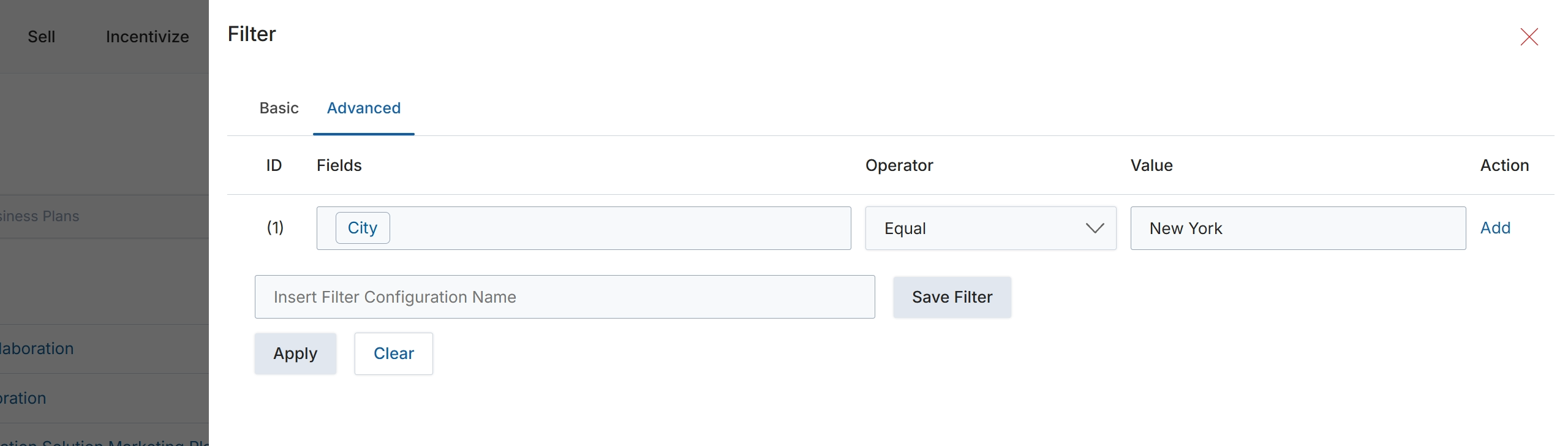
This screen presents the advanced filtering interface, allowing users to define precise criteria for segmenting and retrieving specific data records. In this view, users can construct a filter condition by selecting a field, an operator, and a corresponding value. This capability is crucial for narrowing down large datasets, such as lists of partner business plans, to focus on relevant information. The interface supports the creation of individual filter rules, which can then be applied to refine the displayed data.
Define a filter condition by selecting a field, an operator, and a value, then click Apply to filter the list of business plans.
Buttons
| Button | Description |
|---|---|
| Advanced | This tab allows users to define filter conditions using a combination of fields, operators, and values. |
| Add | A button to add another filter condition row. |
| Save Filter | A button to save the current filter configuration for future use. |
| Apply | A button to apply the defined filter conditions to the data. |
| Clear | A button to clear all defined filter conditions. |
| X | A button to close the filter dialog. |
Fields
| Field | Description |
|---|---|
| City | A dropdown field to select the specific data field for the filter condition, currently set to 'City'. |
| Equal | A dropdown field to select the operator for the filter condition, currently set to 'Equal'. |
| New York | An input field to enter the value for the filter condition, currently set to 'New York'. |
| Insert Filter Configuration Name | An input field to enter a name for the current filter configuration. |
Column Headings
| Column | Description |
|---|---|
| ID | The identifier for each filter condition row. |
| Fields | The column header for selecting the data field to filter by. |
| Operator | The column header for selecting the comparison operator for the filter condition. |
| Value | The column header for entering the value to compare against the selected field. |
| Action | The column header for actions related to each filter condition. |
Customizing the Plans View
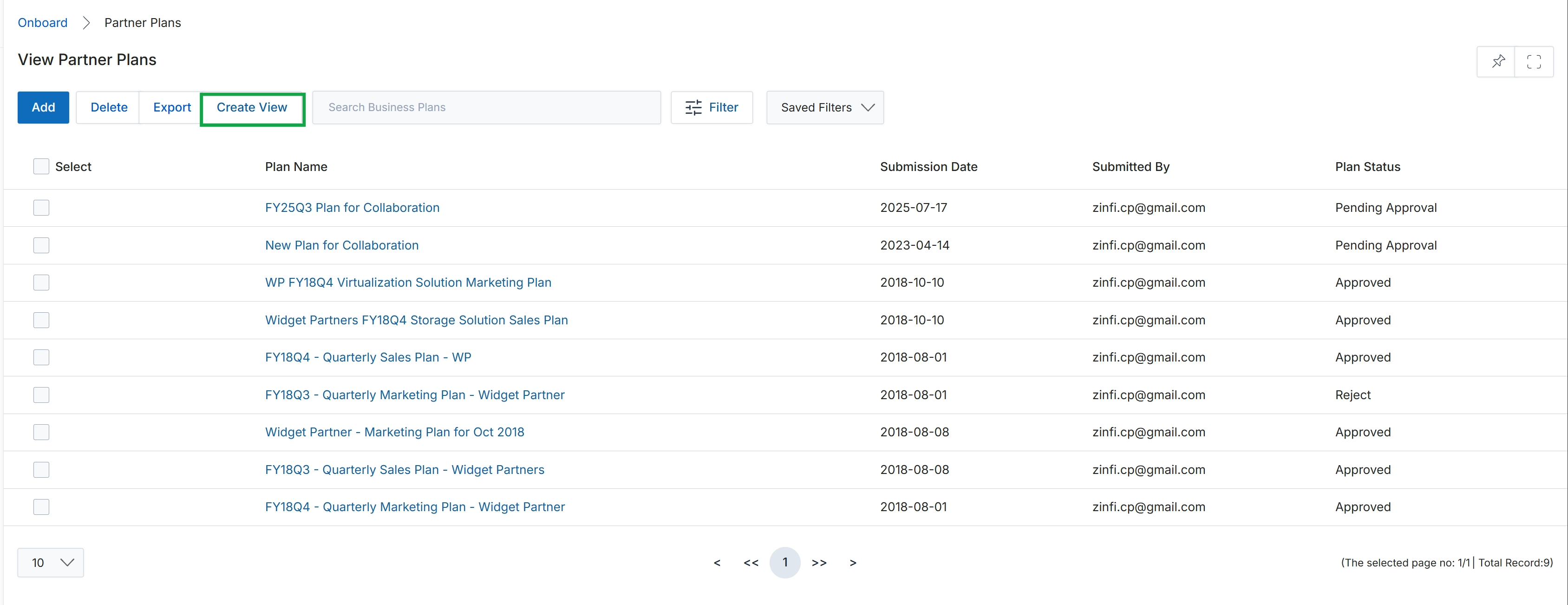
Click Export Data.
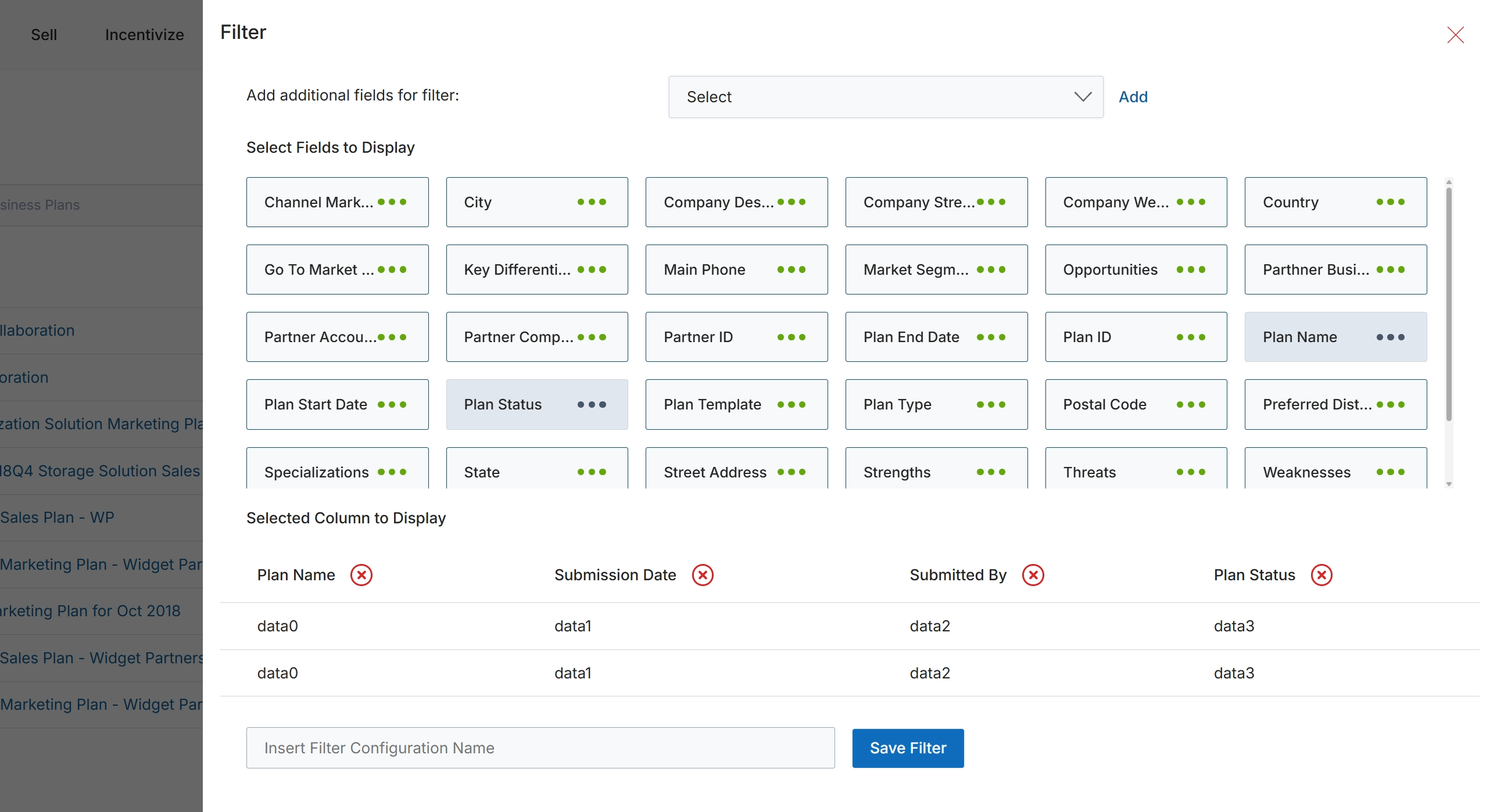
This filter configuration dialog allows administrators to customize the display and filtering of data within a list view, such as the Partner Business Plans list. It enables users to select which fields appear as columns in the main table and to define specific criteria for filtering the displayed records. This functionality is crucial for managing and analyzing large datasets, as it provides flexibility in how information is presented and allows users to focus on relevant subsets of data based on various attributes like plan name, status, or submission date. The ability to save filter configurations streamlines repetitive analysis tasks and ensures consistent data views across different sessions or users.
Select the desired fields to display as columns and define filter criteria for the list view.
Buttons
| Button | Description |
|---|---|
| Add | A button to add the selected field from the dropdown to the filter criteria. |
| Save Filter | A button to save the current filter and column display configuration under the specified name. |
Fields
| Field | Description |
|---|---|
| Select | A dropdown menu to add additional fields for filtering the data. |
| Insert Filter Configuration Name | An input field to enter a name for the current filter and column display configuration, allowing it to be saved for future use. |