

Overview
Certifications are structured learning programs designed to equip partners with the necessary product knowledge and skills to effectively sell, implement, and support vendor offerings. By completing certifications, partners can enhance their capabilities, demonstrate competency to customers, and often unlock higher program tiers or specialized benefits. This process ensures a well-trained and capable partner ecosystem, contributing to overall program success and improved customer satisfaction.
Browsing and Enrolling in Certifications
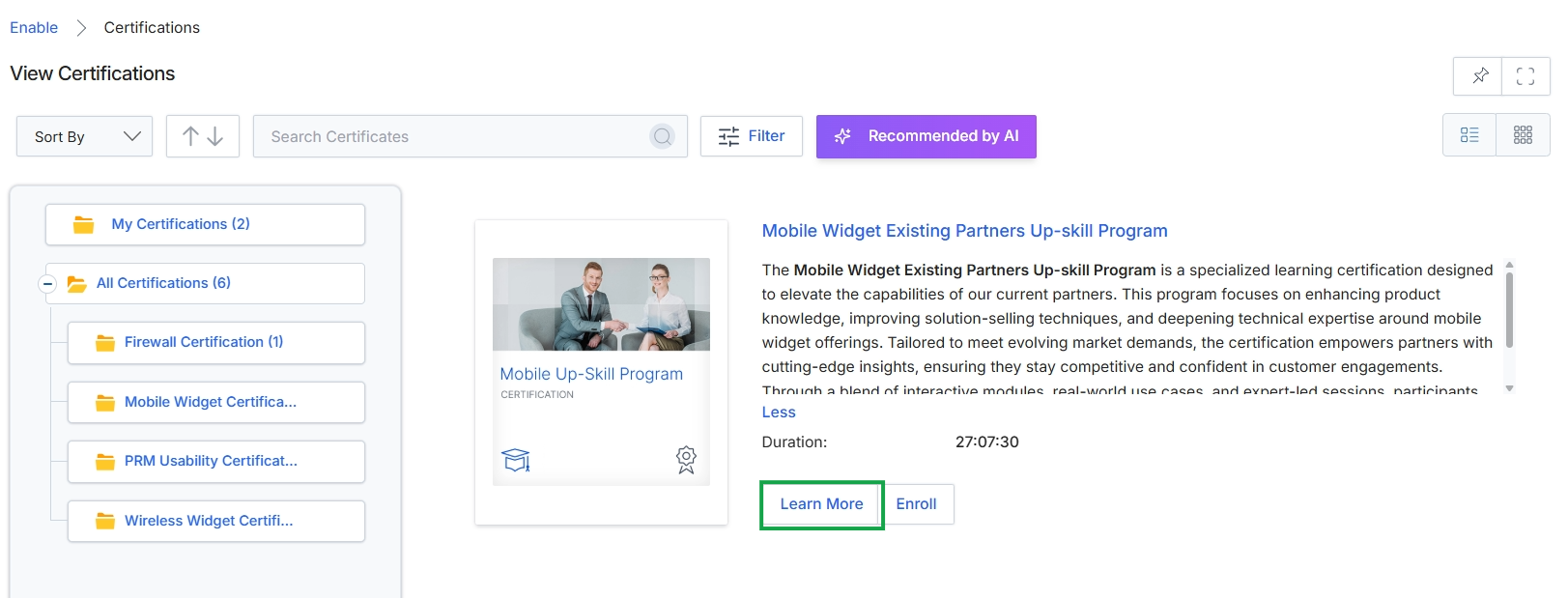
Click the Learn More button.
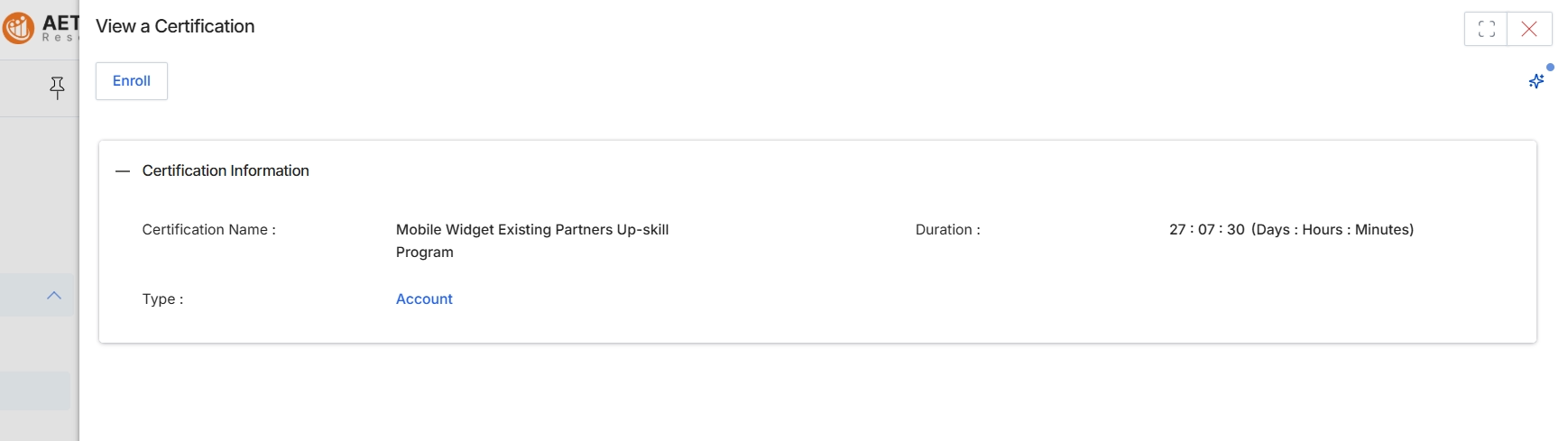
This screen displays the detailed information for a specific certification available within the Enable module. Partners can review these details, such as the certification's name, duration, and type, to understand its scope and requirements. This view provides a summary before a partner commits to enrolling, ensuring they have all necessary information to decide if the certification aligns with their learning objectives or program requirements. The certification details are presented in a clear, organized format to facilitate informed decision-making.
Click the "Enroll" button to begin the certification process.
Buttons
| Button | Description |
|---|---|
| Enroll | Initiates the enrollment process for this certification, granting access to the associated learning content. |
Certification Information
| Field | Description |
|---|---|
| Certification Name | The official name of the certification program. |
| Duration | The estimated time required to complete the certification, displayed in days, hours, and minutes. |
| Type | Indicates the category or focus area of the certification, such as 'Account' for account management skills. |
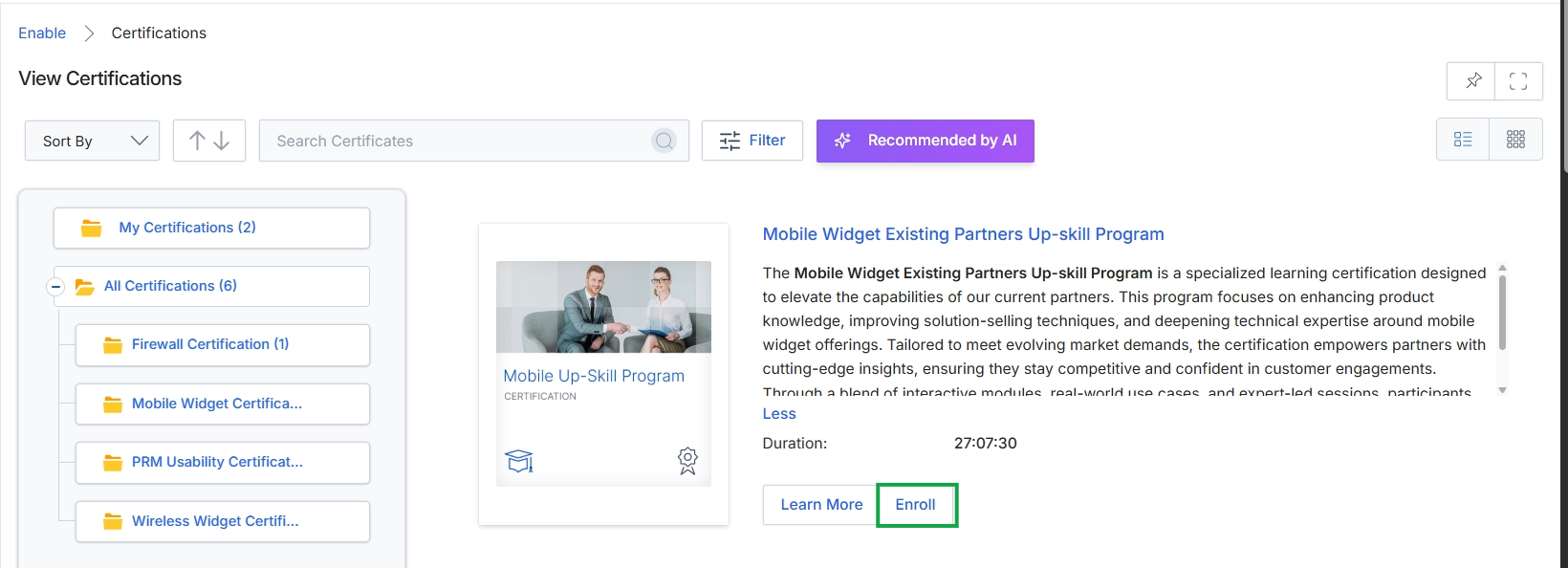
Click the Enroll button.
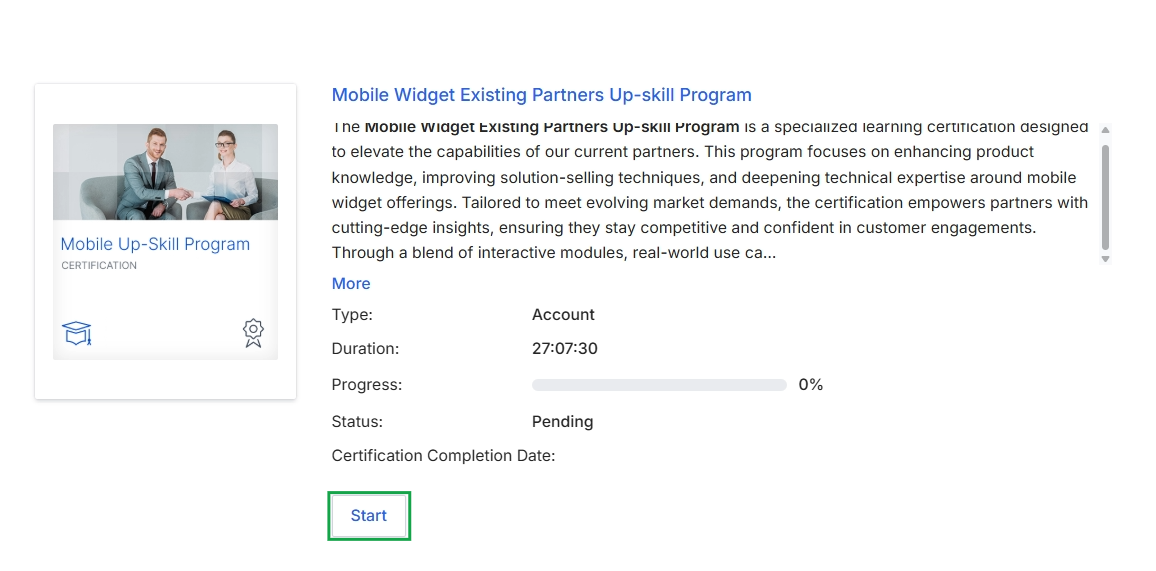
Click Enroll to register for the certification.
Viewing Certification Details and Courses
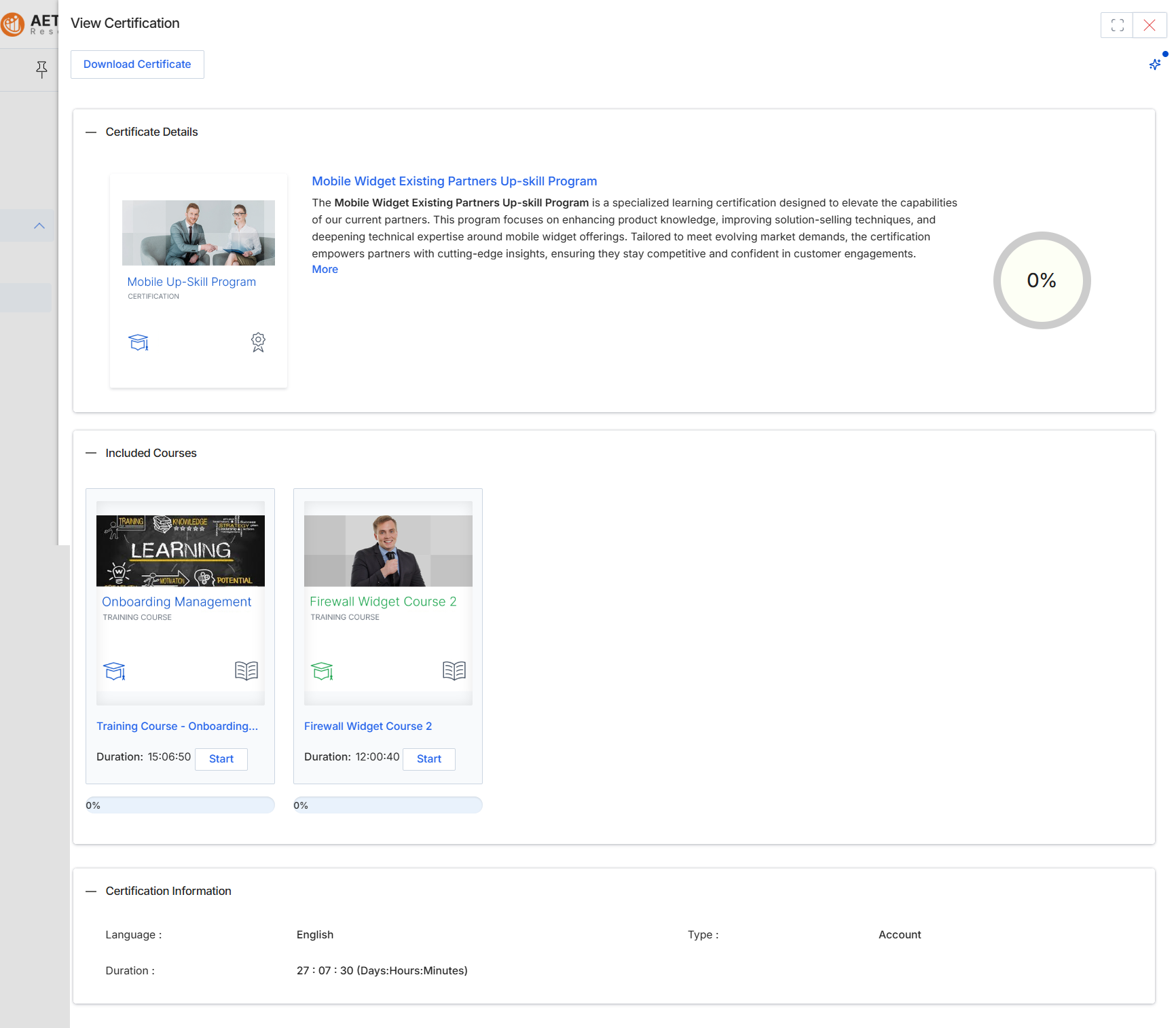
This screen provides a detailed overview of a specific certification within the Enable module, which is part of the partner learning and content management system. It displays the certification's title, a comprehensive description of its purpose and learning objectives, and the overall progress a partner has made toward its completion. Below the certification summary, it lists all the individual courses that are prerequisites for earning this certification, along with their respective progress statuses. This view allows partners to understand the learning path required and to initiate or continue their training by starting individual courses. Additionally, it provides administrative details about the certification, such as its language, type, and total estimated duration.
Review the certification details and the included courses, then click 'Start' next to a course to begin your training.
Buttons
| Button | Description |
|---|---|
| Download Certificate | Click to download the certificate once all required courses are completed and the certification is earned. |
| Start | Click to begin or resume the 'Onboarding Management' course. |
| Start | Click to begin or resume the 'Firewall Widget Course 2'. |
Certificate Details
| Field | Description |
|---|---|
| Mobile Widget Existing Partners Up-skill Program | The title of the certification, designed to enhance partner capabilities in mobile widget offerings. |
| Description | A detailed description of the certification program, outlining its focus, objectives, and benefits for partners. Click 'More' to expand the full description. |
| 0% | Indicates the overall completion percentage for the entire certification program. |
Included Courses
| Field | Description |
|---|---|
| Onboarding Management | The title of an included training course. |
| Training Course - Onboarding... | The full title of the 'Onboarding Management' course. |
| Duration | 15:06:50: The estimated duration of the 'Onboarding Management' course, displayed in Hours:Minutes:Seconds. |
| 0% | Indicates the completion percentage for the 'Onboarding Management' course. |
| Firewall Widget Course 2 | The title of another included training course. |
| Firewall Widget Course 2 | The full title of the 'Firewall Widget Course 2'. |
| Duration | 12:00:40: The estimated duration of the 'Firewall Widget Course 2', displayed in Hours:Minutes:Seconds. |
| 0% | Indicates the completion percentage for the 'Firewall Widget Course 2'. |
Certification Information
| Field | Description |
|---|---|
| Language | Specifies the language in which the certification and its courses are offered. |
| Duration | The total estimated duration to complete all courses within this certification, displayed in Days:Hours:Minutes. |
| Type | Indicates the category or type of the certification, such as 'Account'. |
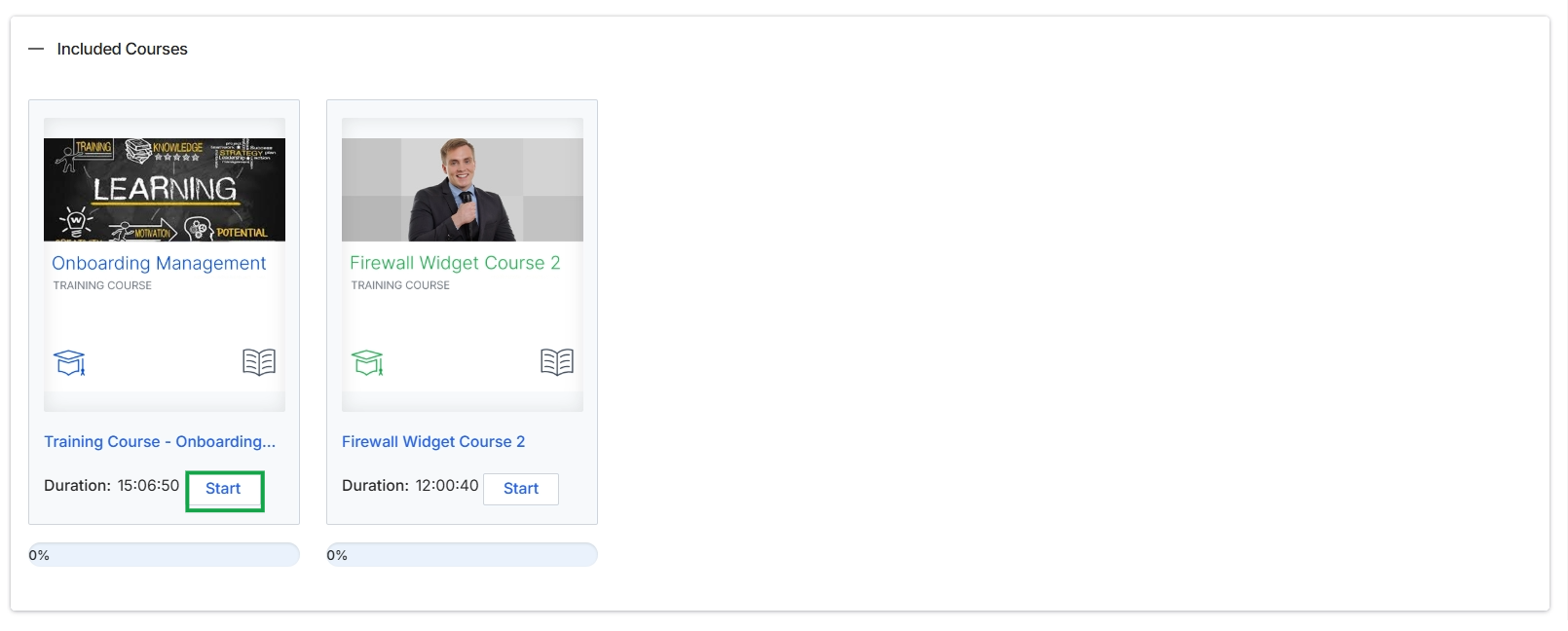
Click the Start button for the "Onboarding Management" course.
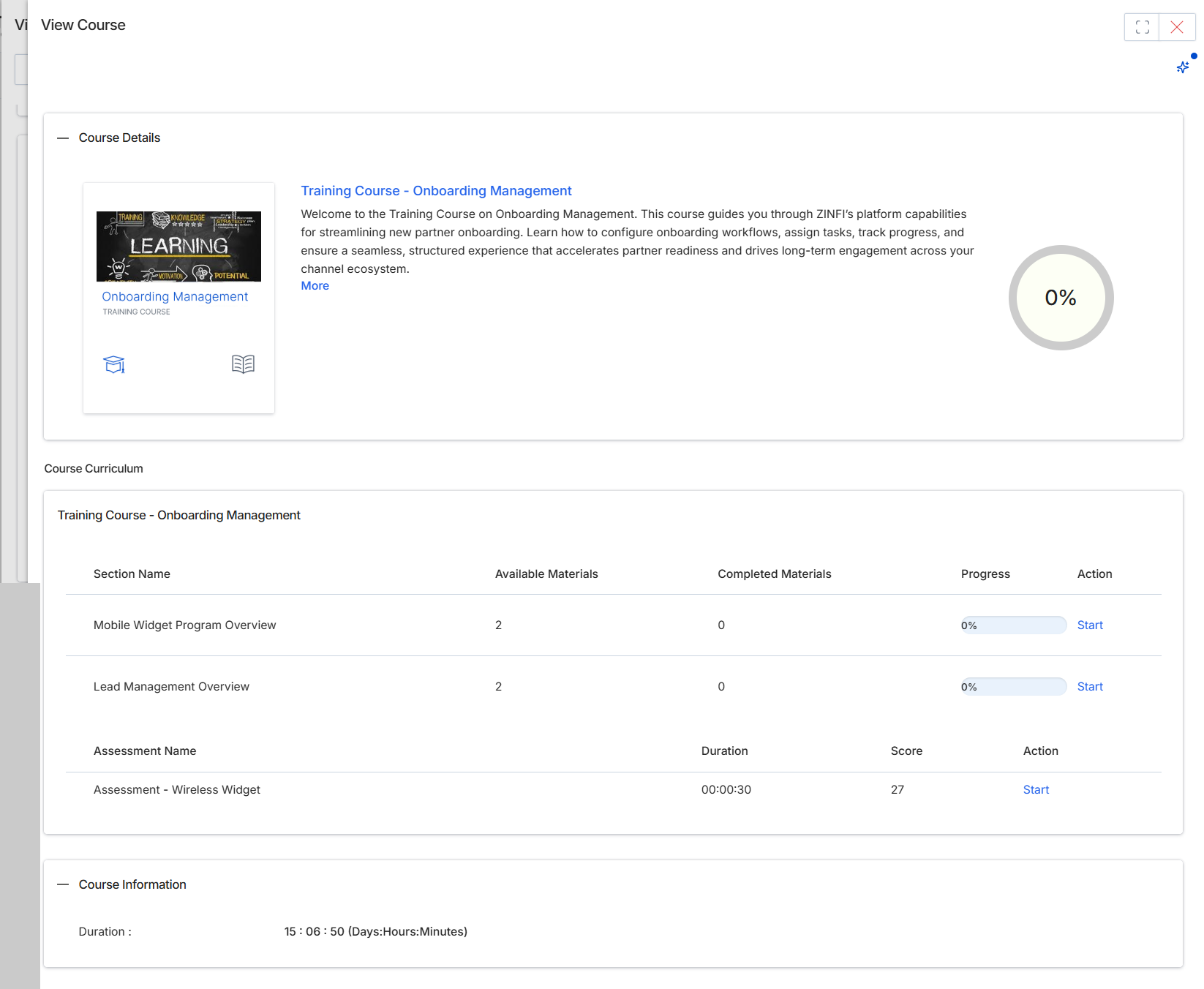
This screen displays the detailed information for a specific course within the Enable module, allowing partners to review its content and structure before beginning. It provides an overview of the course's purpose and curriculum, including individual sections and any associated assessments. Partners use this view to understand the learning objectives, estimated duration, and the sequence of topics, which helps them plan their learning journey. The screen also indicates the partner's current progress through the course, if any, and offers actions to start or continue individual sections or assessments.
Click 'Start' next to a course section or assessment to begin that specific learning activity.
Buttons
| Button | Description |
|---|---|
| More | A link to expand and view the full description of the course. |
| Start | Initiates or resumes the associated course section or assessment. |
Course Details
| Field | Description |
|---|---|
| Training Course - Onboarding Management | The title of the course, providing a brief description of its content and purpose. |
| 0% | A visual indicator showing the overall completion percentage of the course. |
Course Information
| Field | Description |
|---|---|
| Duration | The estimated total time required to complete the entire course, displayed in Days:Hours:Minutes format. |
Course Curriculum
| Column | Description |
|---|---|
| Section Name | The title of a specific learning section within the course curriculum. |
| Available Materials | The total number of learning materials or sub-items available within a specific course section. |
| Completed Materials | The number of learning materials or sub-items that the partner has completed within a specific course section. |
| Progress | The completion percentage for a specific course section. |
| Action | A column containing actions related to each course section or assessment. |
| Assessment Name | The title of an assessment associated with the course. |
| Duration | The estimated time required to complete an assessment. |
| Score | The score achieved on the last attempt of an assessment. |
Accessing Course Materials
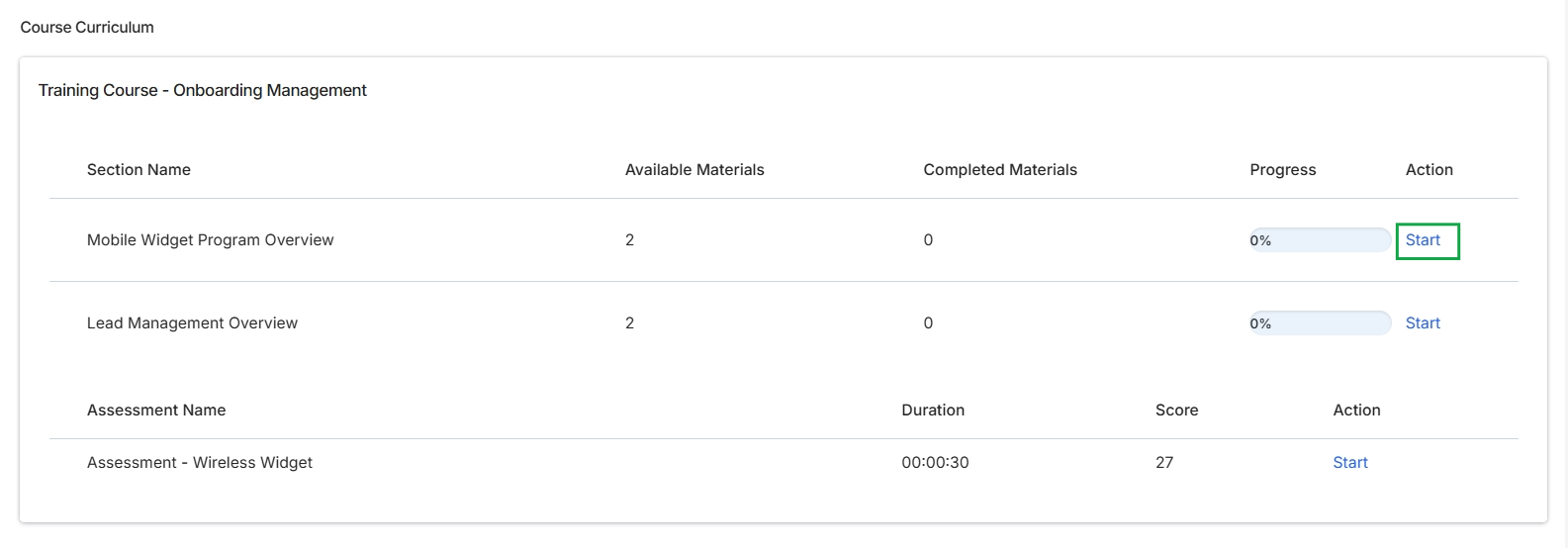
Click Start next to the "Mobile Widget Program Overview" section.
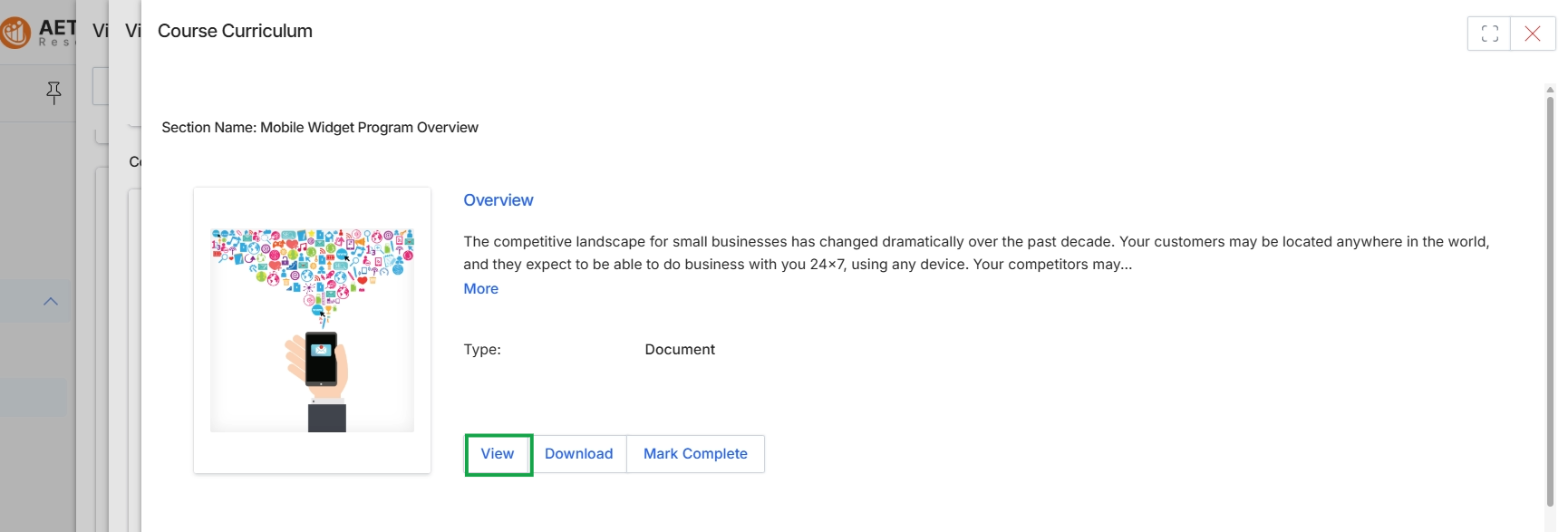
This screen displays the details of a specific content section within a course curriculum, presented as a document type. It provides an overview description of the content, along with options for partners to view the document directly, download it for offline access, or manually mark it as complete. This view allows partners to engage with learning materials and progress through their assigned training within the Enable module.
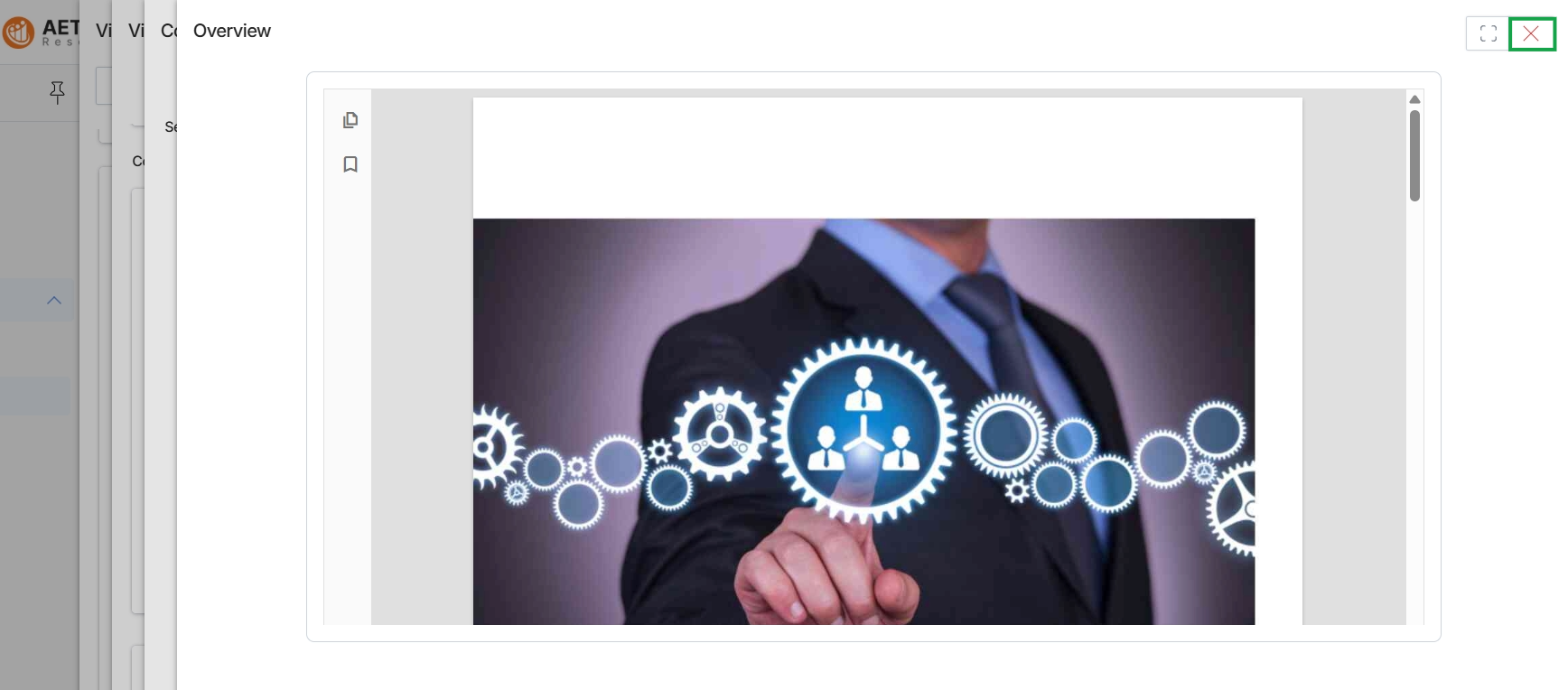
Click View.
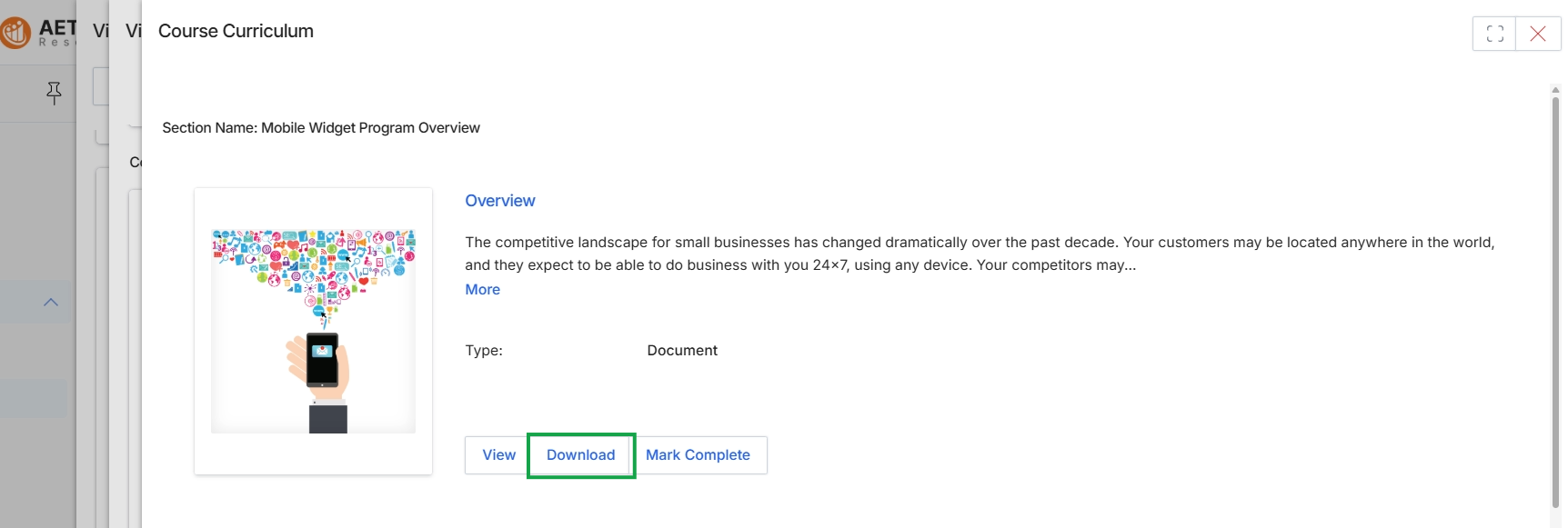
Click the Download button.
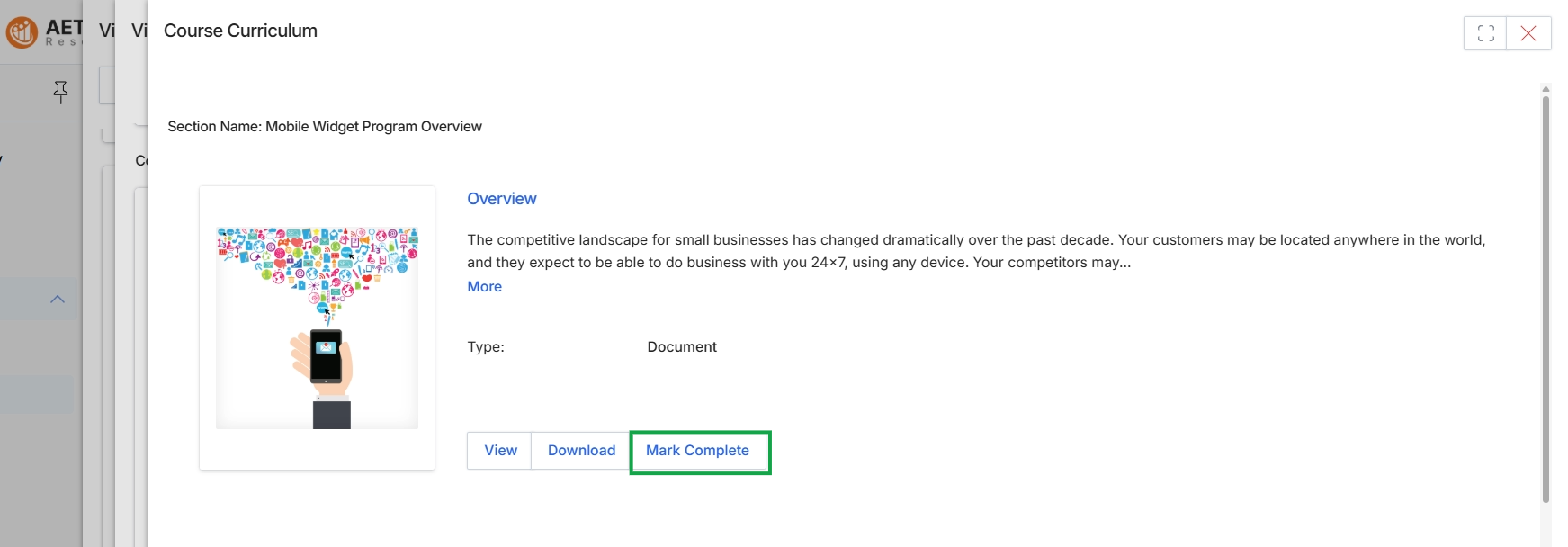
Click the Mark Complete button.
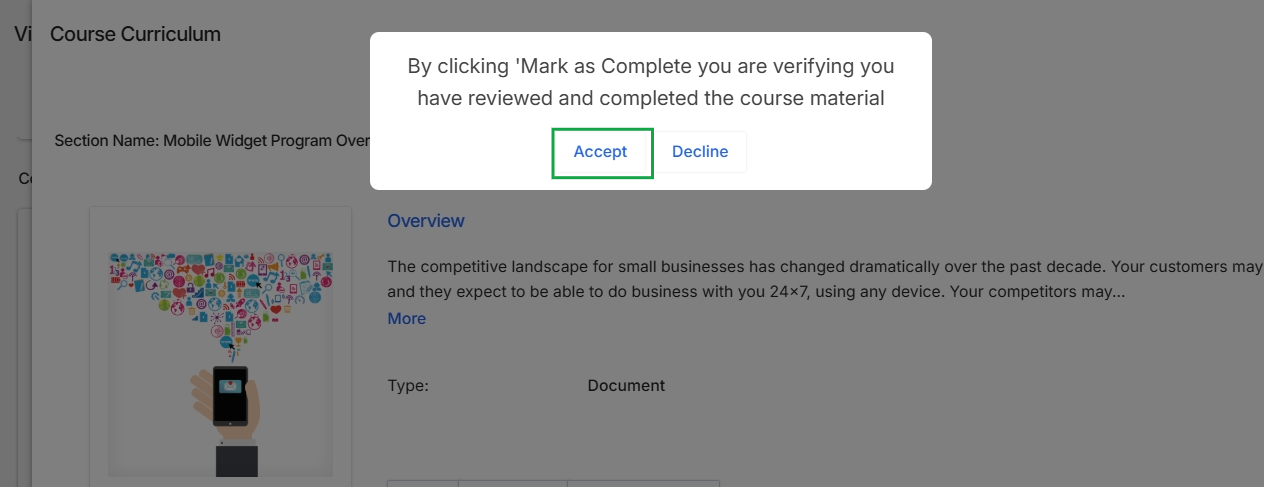
This screen displays a confirmation dialog that appears when a partner attempts to mark a course section as complete within the learning management system. The dialog prompts the partner to verify that they have reviewed and completed the course material before proceeding. This mechanism ensures that partners acknowledge their completion of a learning module, which is crucial for accurate progress tracking and potential certification within the Enable module.
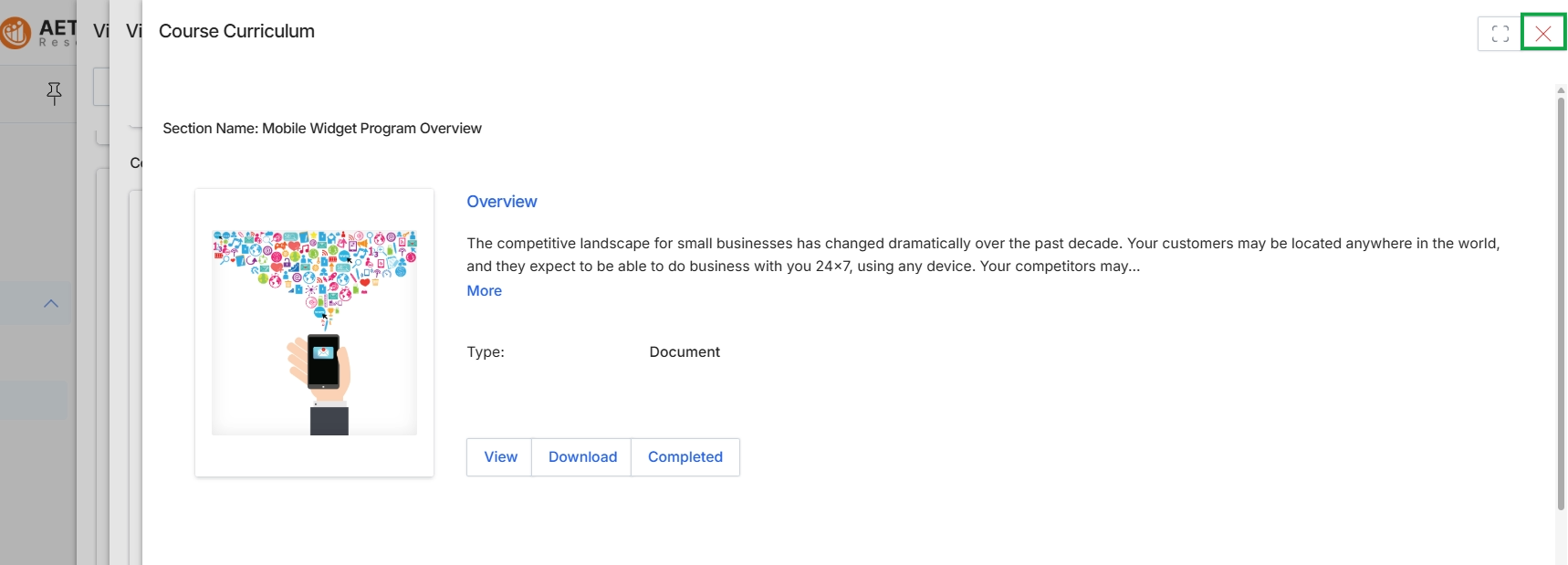
This screen displays the details of a specific section within a course curriculum, presenting an overview of the content. It shows a descriptive summary of the section, identifies its type as a document, and provides options for interacting with the content. This view allows users to review the section's information and access the document for viewing or downloading, indicating its completion status.
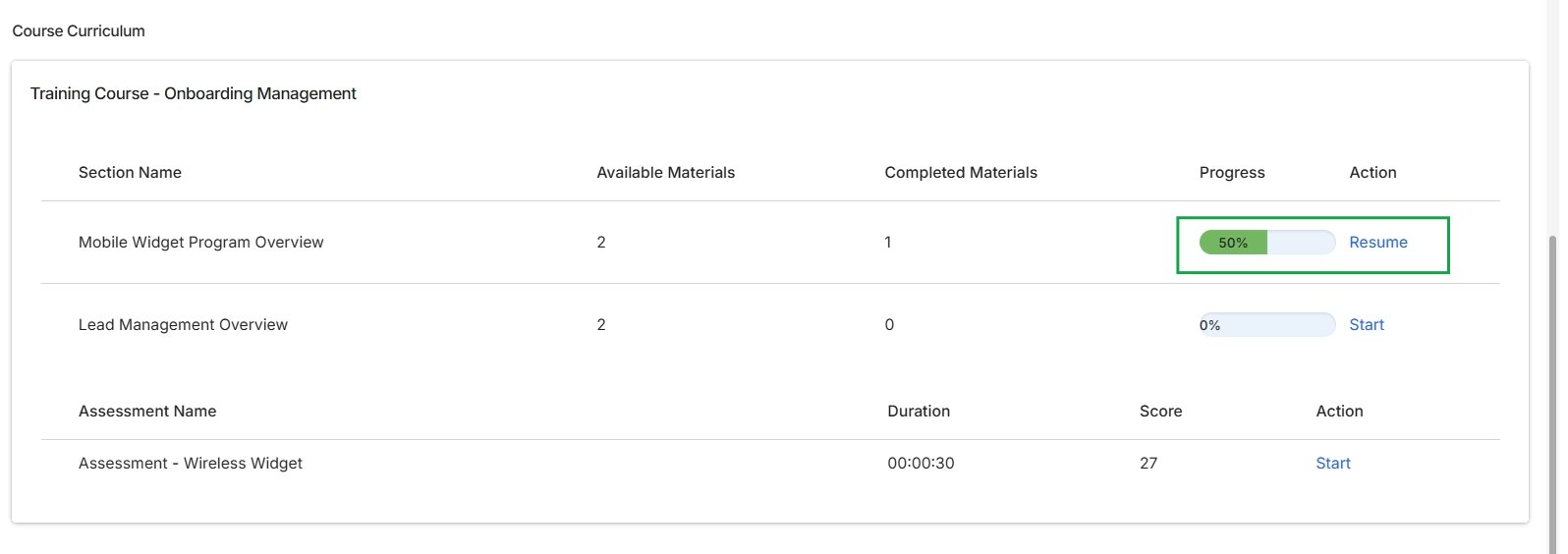
This screen displays the curriculum for a specific training course within the Enable module, detailing its sections and associated assessments. It provides an overview of the course structure, showing the number of available and completed materials for each section, along with the current progress for each section. The view also lists any assessments linked to the course, indicating their duration and a previously achieved score, allowing partners to resume or start their learning journey.
Resuming In-Progress Certifications
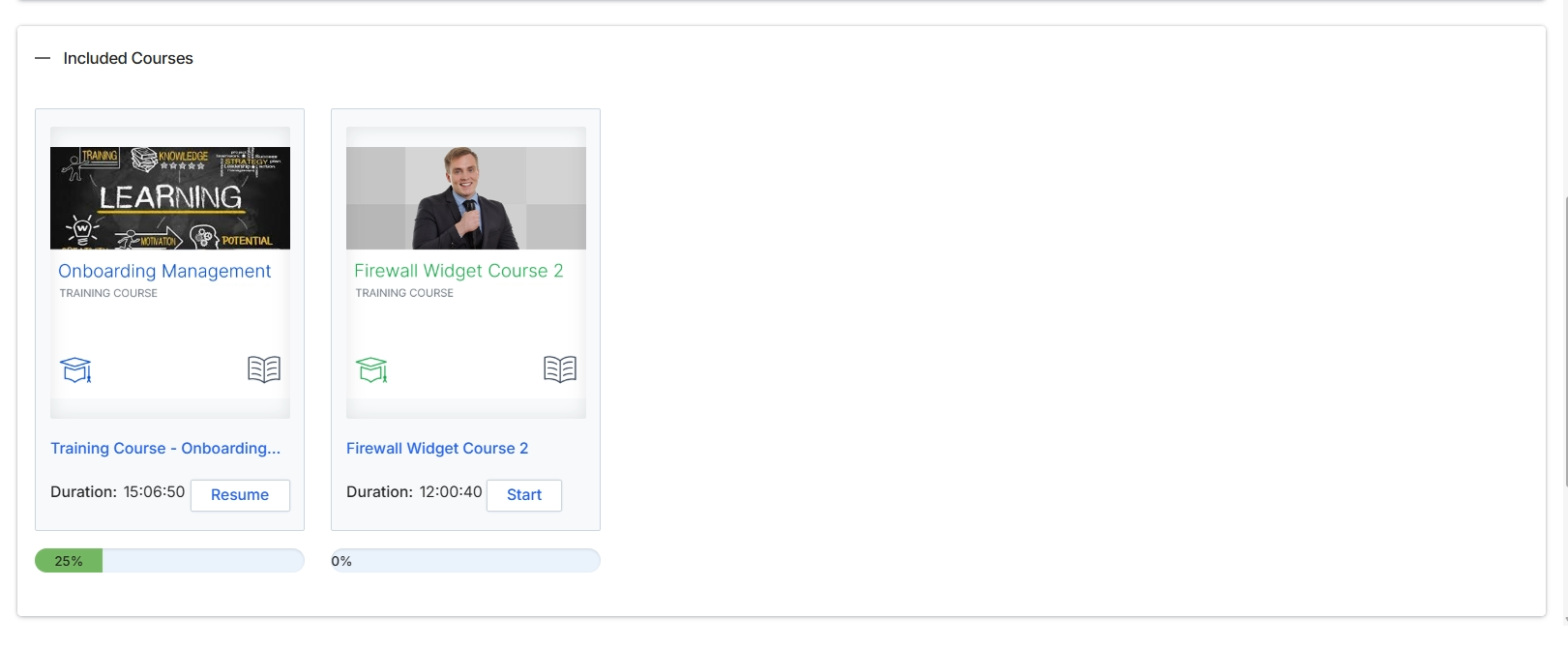
This screen displays a curated list of courses that are part of a specific certification program within the Enable module. Partners use this view to see the individual training components required or recommended for a certification. Each course is presented as a card, providing key information such as its title, estimated duration, and current progress. This interface allows partners to easily identify which courses they need to complete, enabling them to either resume an ongoing course or initiate a new one to work toward their certification.
Click the "Start" button next to "Firewall Widget Course 2" to begin the training, or click "Resume" next to "Onboarding Management" to continue that course.
Buttons
| Button | Description |
|---|---|
| Resume | A button to continue an in-progress training course. |
| Start | A button to begin a new training course. |
Fields
| Field | Description |
|---|---|
| Included Courses | A section heading indicating the courses associated with the current certification or learning path. |
| Onboarding Management | The title of a training course, indicating its subject matter. |
| TRAINING COURSE | A label indicating that 'Onboarding Management' is a training course. |
| Duration | 15:06:50: The estimated total duration of the 'Onboarding Management' training course. |
| 25% | A progress indicator showing that 25% of the 'Onboarding Management' course has been completed. |
| Firewall Widget Course 2 | The title of another training course. |
| TRAINING COURSE | A label indicating that 'Firewall Widget Course 2' is a training course. |
| Duration | 12:00:40: The estimated total duration of the 'Firewall Widget Course 2' training course. |
| 0% | A progress indicator showing that 0% of the 'Firewall Widget Course 2' has been completed. |
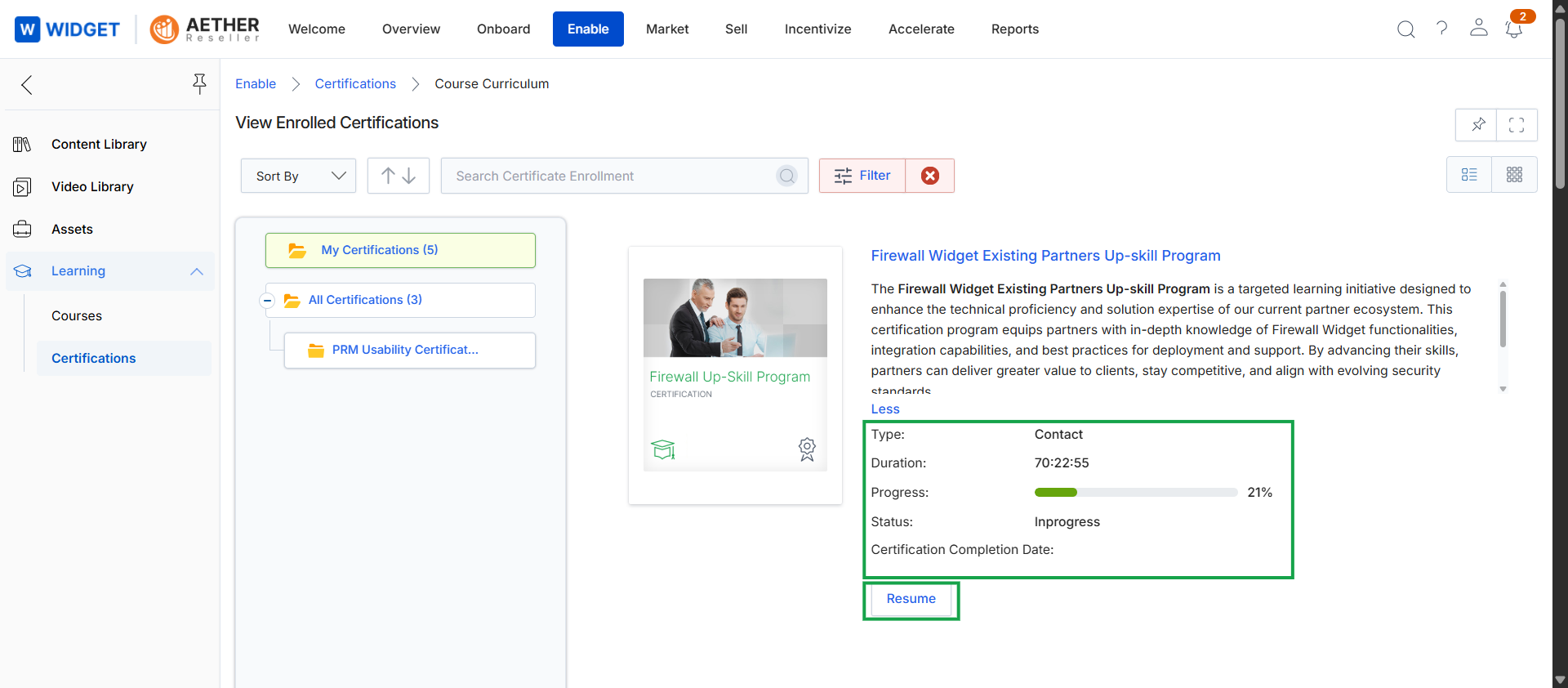
This screen displays a partner's enrolled certifications within the Enable module, providing a centralized view of their learning progress. It shows a list of certifications, including those currently in progress, and presents detailed information for a selected certification, such as its type, duration, current progress percentage, and status. Partners use this interface to monitor their certification journey and resume any incomplete learning programs, which contributes to their overall competency and scoring within the platform.
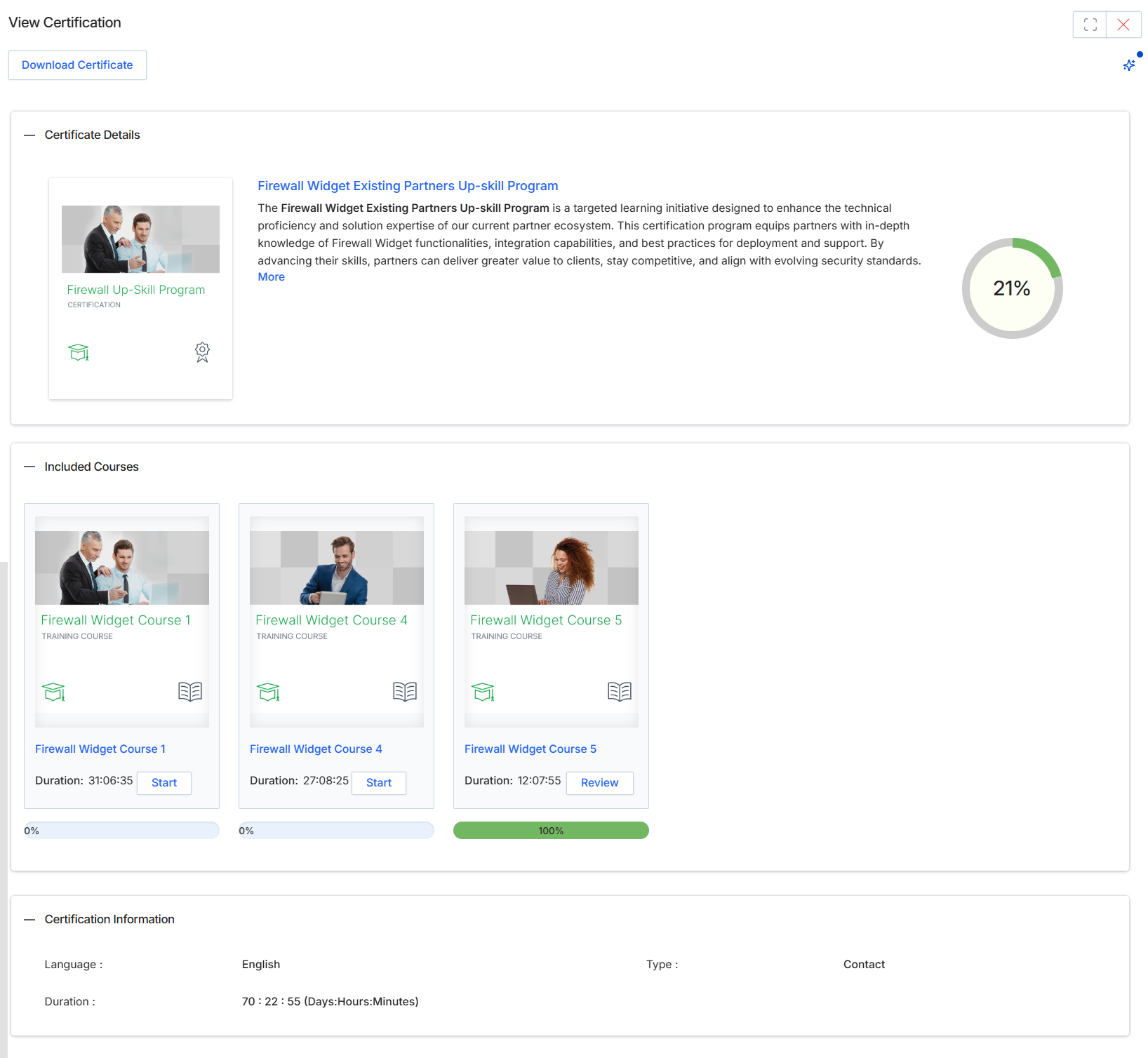
This screen provides a comprehensive overview of a specific certification program within the Enable module, detailing its purpose, required courses, and overall progress. Partners use this view to understand the certification's objectives, track their completion status for each included course, and access individual courses to begin or continue their learning journey. The certification program aims to enhance partner proficiency and solution expertise, equipping them with the knowledge needed to effectively deploy and support products. Once all required courses are completed, partners can download their certificate, which serves as a credential of their achieved competency.
Review the certification details, including the program description, included courses, and your progress, then click 'Start' to begin any uncompleted courses or 'Review' for completed ones.
Buttons
| Button | Description |
|---|---|
| Download Certificate | A button to download the certification document once all requirements are met. |
| Firewall Widget Existing Partners Up-skill Program | The title of the certification program, which is a clickable link to view more details about the program. |
| More | A text link to expand and view the full description of the certification program. |
| Start | A button to begin or resume 'Firewall Widget Course 1'. |
| Start | A button to begin or resume 'Firewall Widget Course 4'. |
| Review | A button to review 'Firewall Widget Course 5', indicating it has been completed. |
Certificate Details
| Field | Description |
|---|---|
| 21% | A circular progress indicator showing the overall completion percentage for the entire certification program. |
Included Courses
| Field | Description |
|---|---|
| Firewall Widget Course 1 | The title of the first course included in the certification program. |
| Duration | 31:06:35: The estimated duration of 'Firewall Widget Course 1'. |
| 0% | A progress bar indicating the completion status of 'Firewall Widget Course 1'. |
| Firewall Widget Course 4 | The title of the fourth course included in the certification program. |
| Duration | 27:08:25: The estimated duration of 'Firewall Widget Course 4'. |
| 0% | A progress bar indicating the completion status of 'Firewall Widget Course 4'. |
| Firewall Widget Course 5 | The title of the fifth course included in the certification program. |
| Duration | 12:07:55: The estimated duration of 'Firewall Widget Course 5'. |
| 100% | A progress bar indicating the completion status of 'Firewall Widget Course 5'. |
Certification Information
| Field | Description |
|---|---|
| Language | The language in which the certification program and its courses are offered, displayed as 'English'. |
| Type | The category or classification of the certification, displayed as 'Contact'. |
| Duration | The total estimated duration to complete all courses within the certification program, displayed as '70 : 22 : 55 (Days:Hours:Minutes)'. |