

Overview
The Enable module's Learning Management System (LMS) is crucial for educating and certifying partners, ensuring they have the necessary knowledge to effectively sell and support products. The 'View Courses' section serves as the primary interface for administrators to oversee the entire course catalog. By providing tools to sort, search, and filter courses, administrators can quickly locate specific training materials, assess their availability, and manage their presentation to various partner types and tiers.
Accessing the Course Catalog
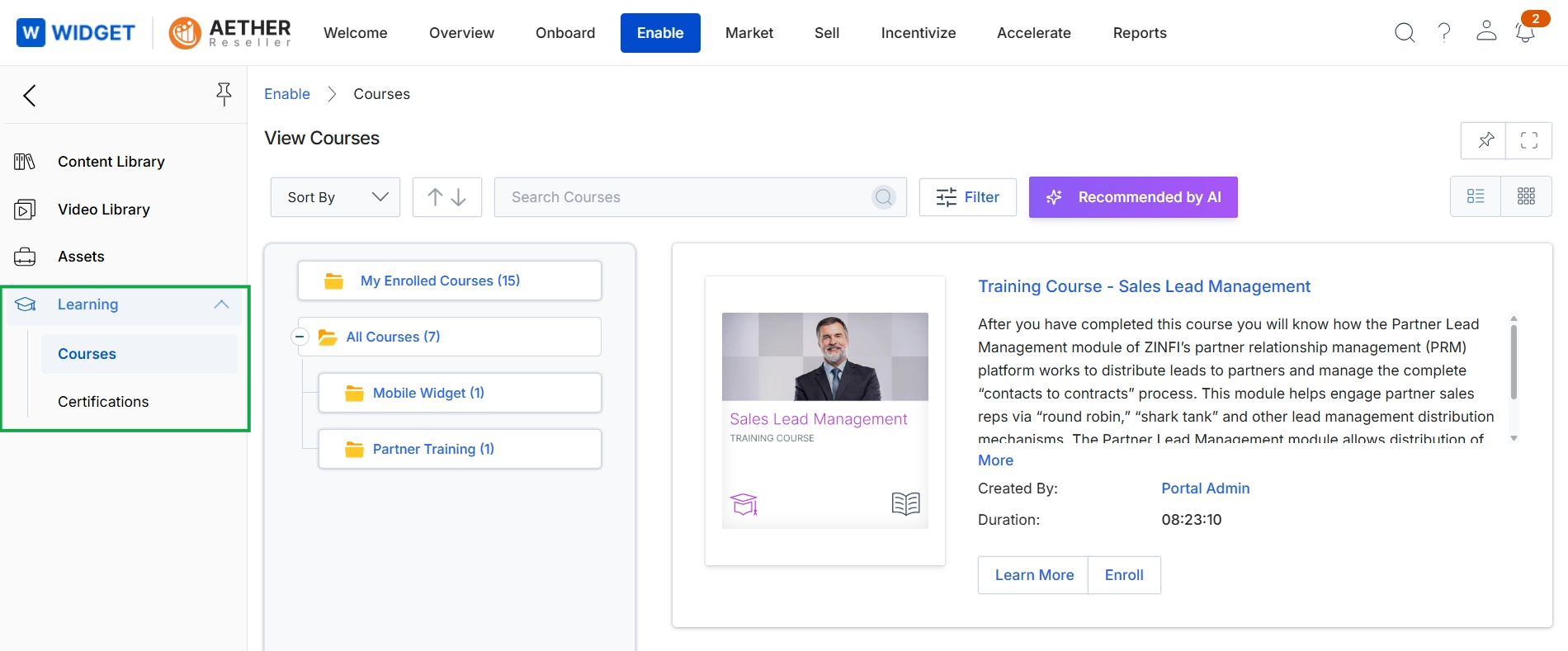
Click Enable → Learning → Courses.
Adjusting Course Display Options
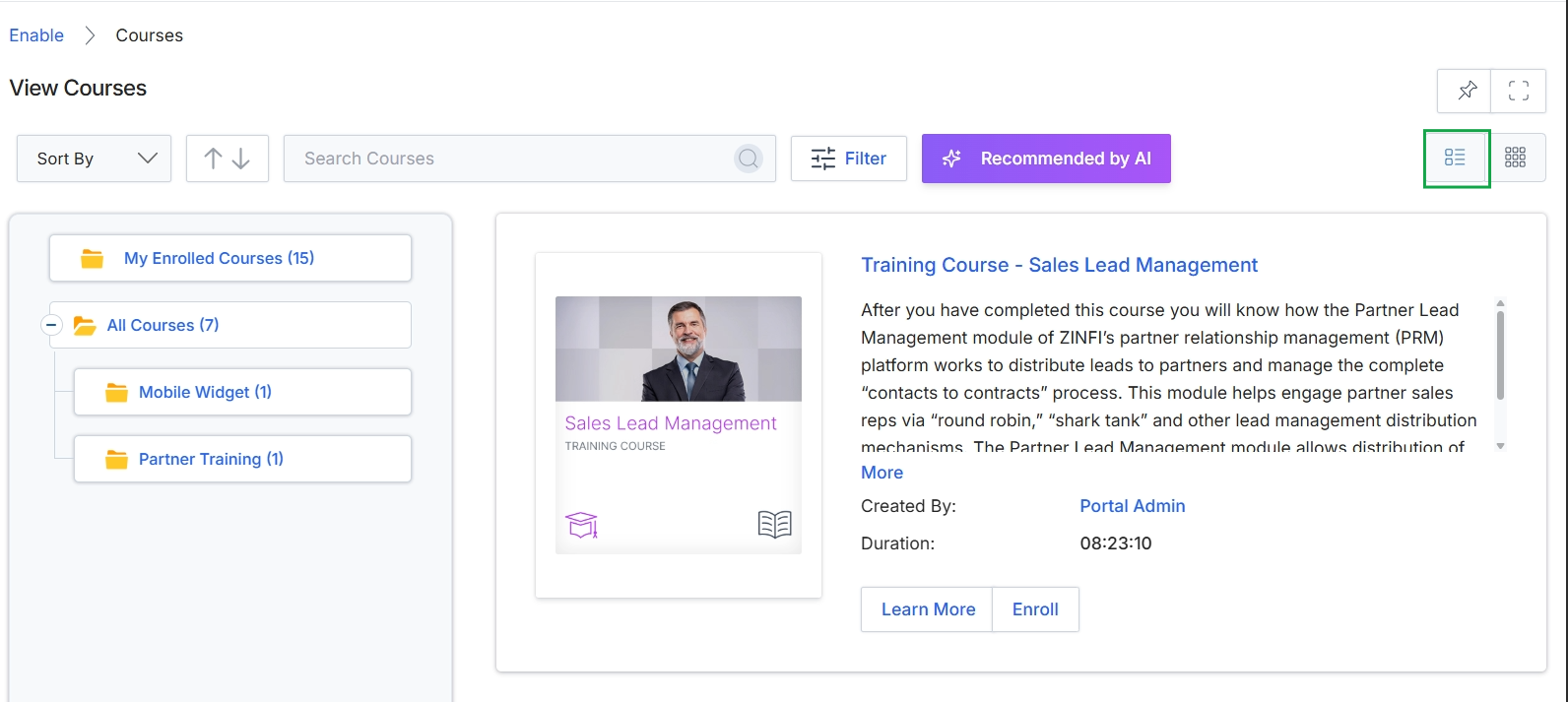
Click the List View icon.
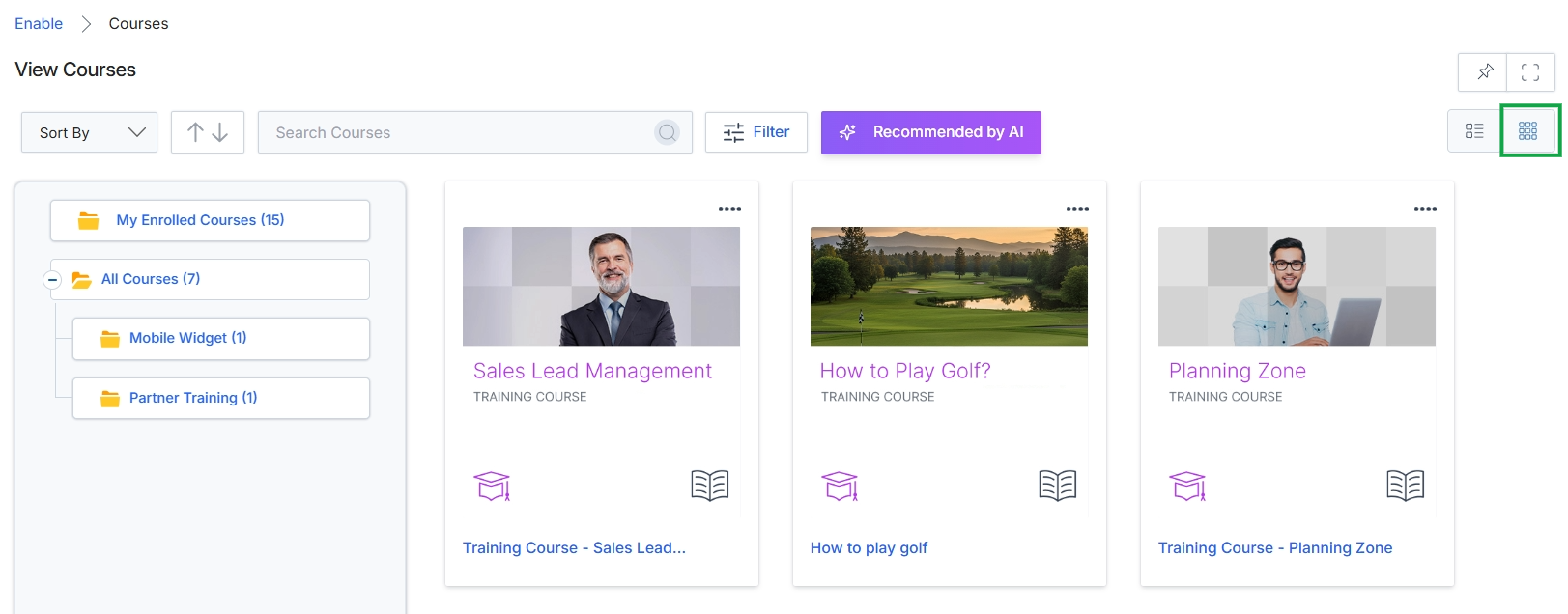
Click the Thumbnail View icon.
Navigating Course Categories
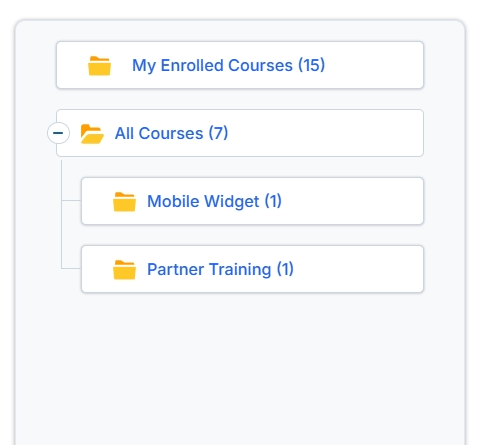
This screen displays a hierarchical view of course categories and enrolled courses within the Enable module's learning management system. It allows partners to browse available training content, organized into logical groupings, and to quickly access courses they are currently enrolled in. The structure helps partners navigate the learning catalog efficiently, with each category indicating the number of courses it contains.
Filtering Courses
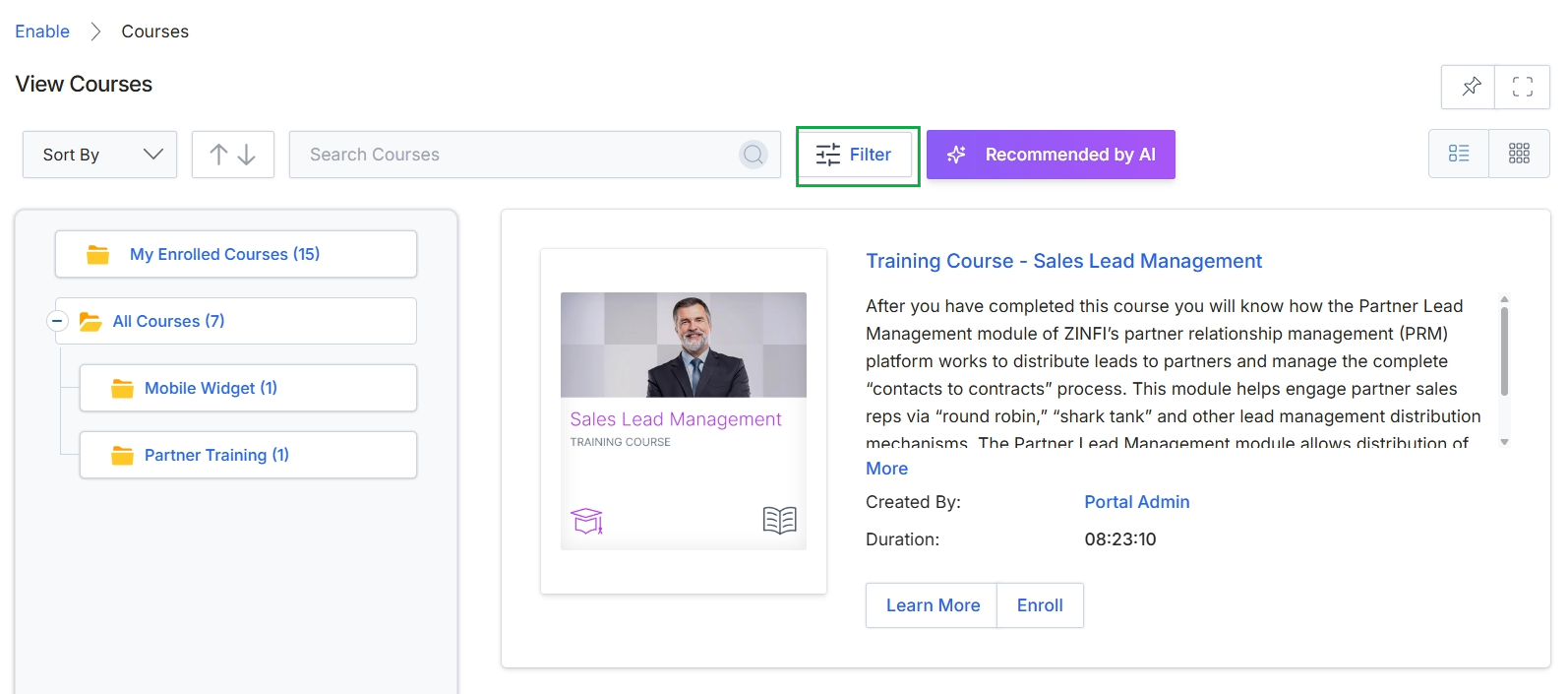
Click the expand icon next to All Courses.
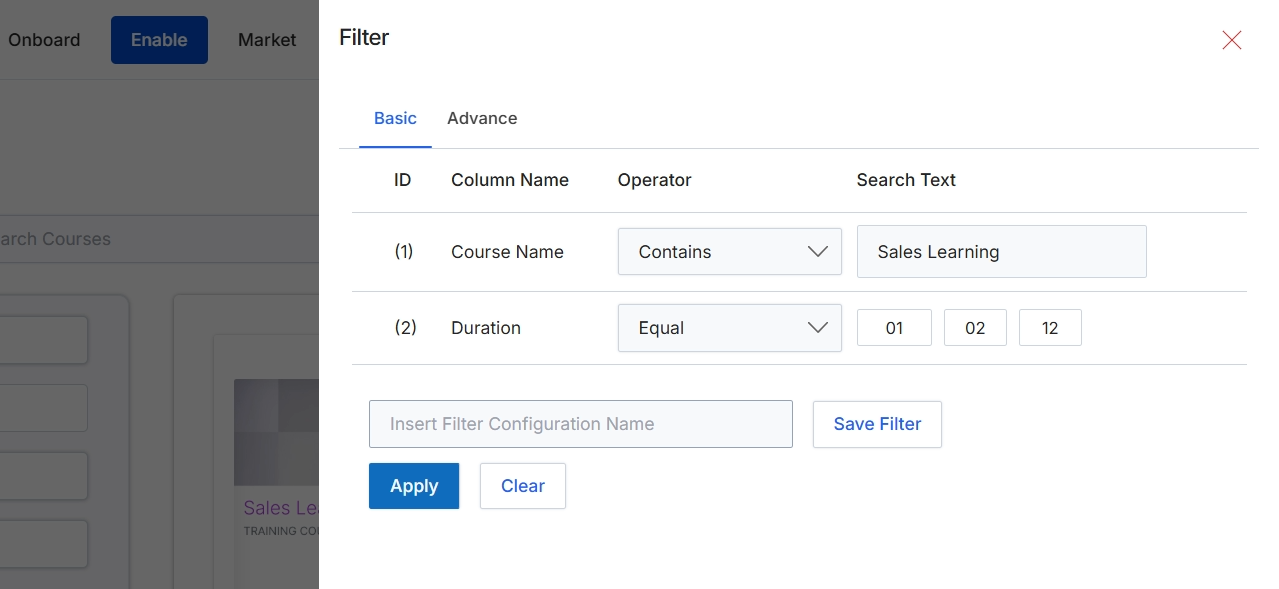
This screen displays the filter configuration panel, which allows administrators to define and apply specific criteria to narrow down the list of courses displayed in the Learning Management System (LMS) module. This filtering capability is crucial for efficiently managing a large course catalog, enabling users to quickly locate specific training content based on attributes like course name or duration. Administrators can apply basic filters immediately or save complex filter configurations for future use, streamlining content management and ensuring partners can easily find relevant learning paths. The panel supports defining multiple filter conditions, combining column names, operators, and search text to achieve precise results.
Apply the configured filters to the course list by clicking the 'Apply' button.
Buttons
| Button | Description |
|---|---|
| Basic | A tab to configure basic filter conditions. |
| Advance | A tab to configure advanced filter conditions. |
| 01 | A selectable duration value for filtering courses. |
| 02 | A selectable duration value for filtering courses. |
| 12 | A selectable duration value for filtering courses. |
| Save Filter | Saves the current filter configuration under the specified name. |
| Apply | Applies the configured filter criteria to the course list. |
| Clear | Clears all currently applied filter criteria. |
| X | Closes the filter panel without applying any changes. |
Fields
| Field | Description |
|---|---|
| Course Name | The name of the course to filter by. |
| Contains | The operator for the 'Course Name' filter, indicating that the course name should contain the specified text. |
| Sales Learning | The text to search for within the 'Course Name' field. |
| Duration | The duration of the course to filter by. |
| Equal | The operator for the 'Duration' filter, indicating that the course duration should exactly match one of the specified values. |
| Insert Filter Configuration Name | A text input field to provide a name for the current filter configuration, allowing it to be saved for future use. |
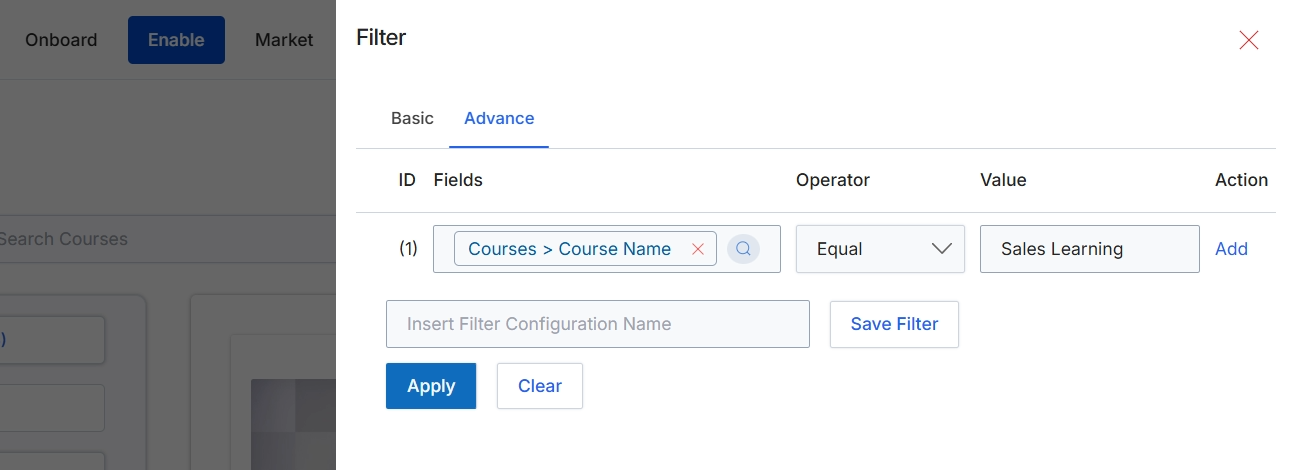
This screen displays the advanced filter configuration for courses within the Partner Learning Management (LMS) module. Administrators use this dialog to define complex filtering rules based on specific course attributes, allowing them to narrow down the list of courses displayed in the main view. The advanced filter provides granular control by enabling the creation of multiple filter conditions, each specifying a field, an operator, and a value. This functionality is crucial for managing large course catalogs, quickly locating specific training content, or preparing targeted views for different administrative tasks.
Define or modify advanced filter conditions for courses by selecting a field, an operator, and a value.
Buttons
| Button | Description |
|---|---|
| Basic | A tab to switch to the basic filter options, typically offering simpler, predefined filtering criteria. |
| Advance | A tab to switch to the advanced filter options, allowing for the creation of complex, multi-conditional filter rules. |
| Add | A button to add a new filter rule row to the configuration. |
| Save Filter | A button to save the current filter configuration under the specified name. |
| Apply | A button to apply the configured filter rules to the course list. |
| Clear | A button to clear all active filter conditions. |
| Close | A button to close the filter dialog. |
Fields
| Field | Description |
|---|---|
| Courses > Course Name | A dropdown field to select the course attribute to be filtered. |
| Equal | A dropdown field to select the comparison operator for the filter condition. |
| Sales Learning | An input field to enter the value to be used in the filter condition. |
| Insert Filter Configuration Name | An input field to enter a name for the current filter configuration, allowing it to be saved for future use. |
Column Headings
| Column | Description |
|---|---|
| ID | A column displaying the sequential identifier for each filter rule. |
| Fields | A column displaying the course attribute selected for filtering, such as 'Courses > Course Name'. |
| Operator | A column displaying the comparison operator used for the filter condition, such as 'Equal'. |
| Value | A column displaying the specific value to be matched against the selected field using the chosen operator. |
| Action | A column containing actions related to each filter rule, such as adding a new rule. |
Sorting and Searching Courses
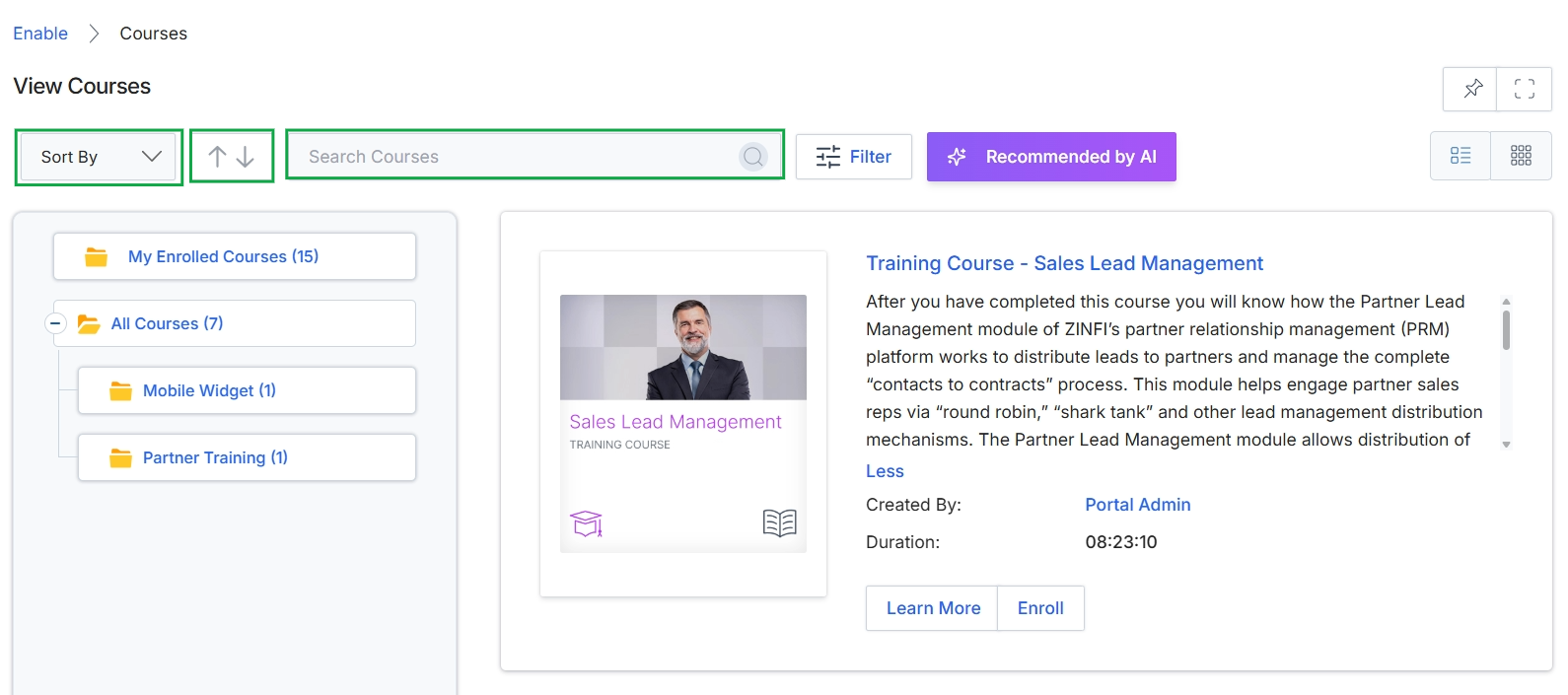
Click the Sort By dropdown, the sort order arrows, or enter text into the Search Courses field.