

Overview
Partner Programs are structured frameworks that define the terms, benefits, and requirements for partners engaging with the vendor. Partners enroll in these programs to access resources, incentives, and support tailored to their specific partnership type or performance tier. This module is crucial for partners to understand their current engagements, track their progress within programs, and ensure they are meeting all necessary requirements to maximize their partnership benefits.
Accessing My Programs
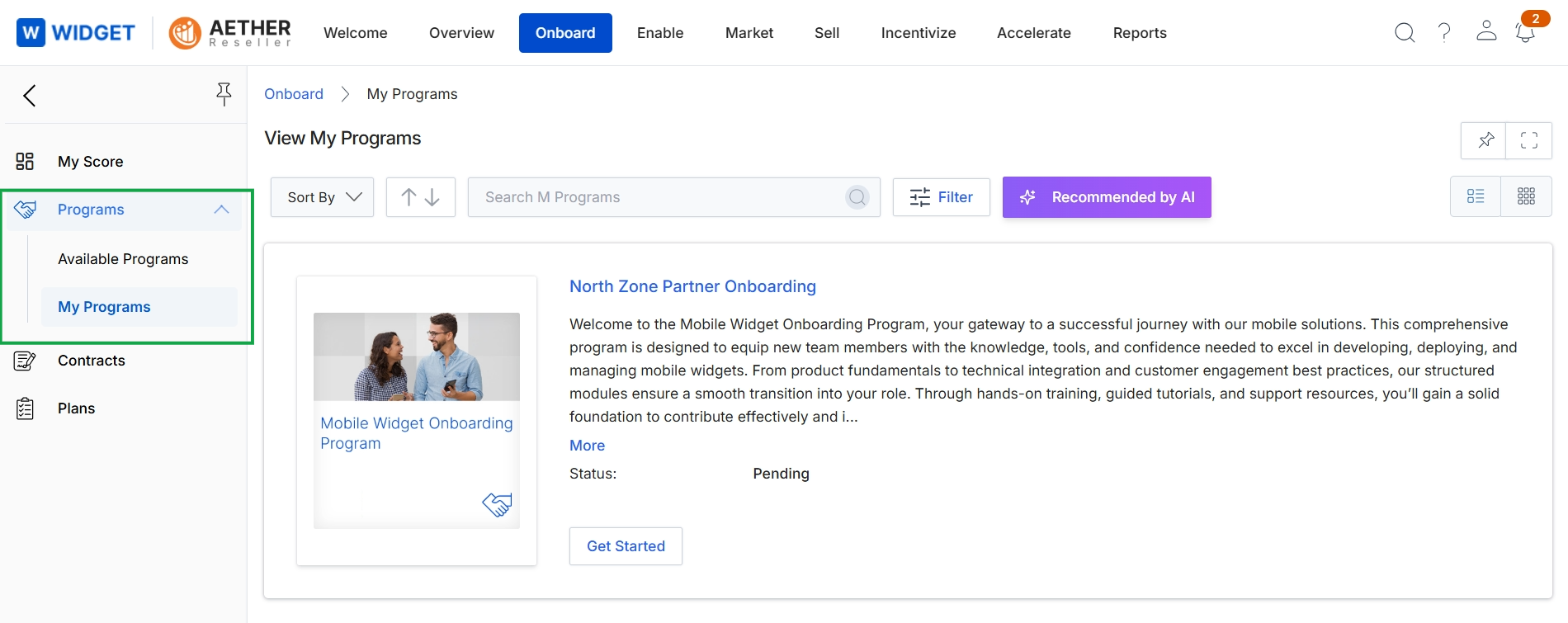
Click Programs → My Programs.
Viewing Program Information
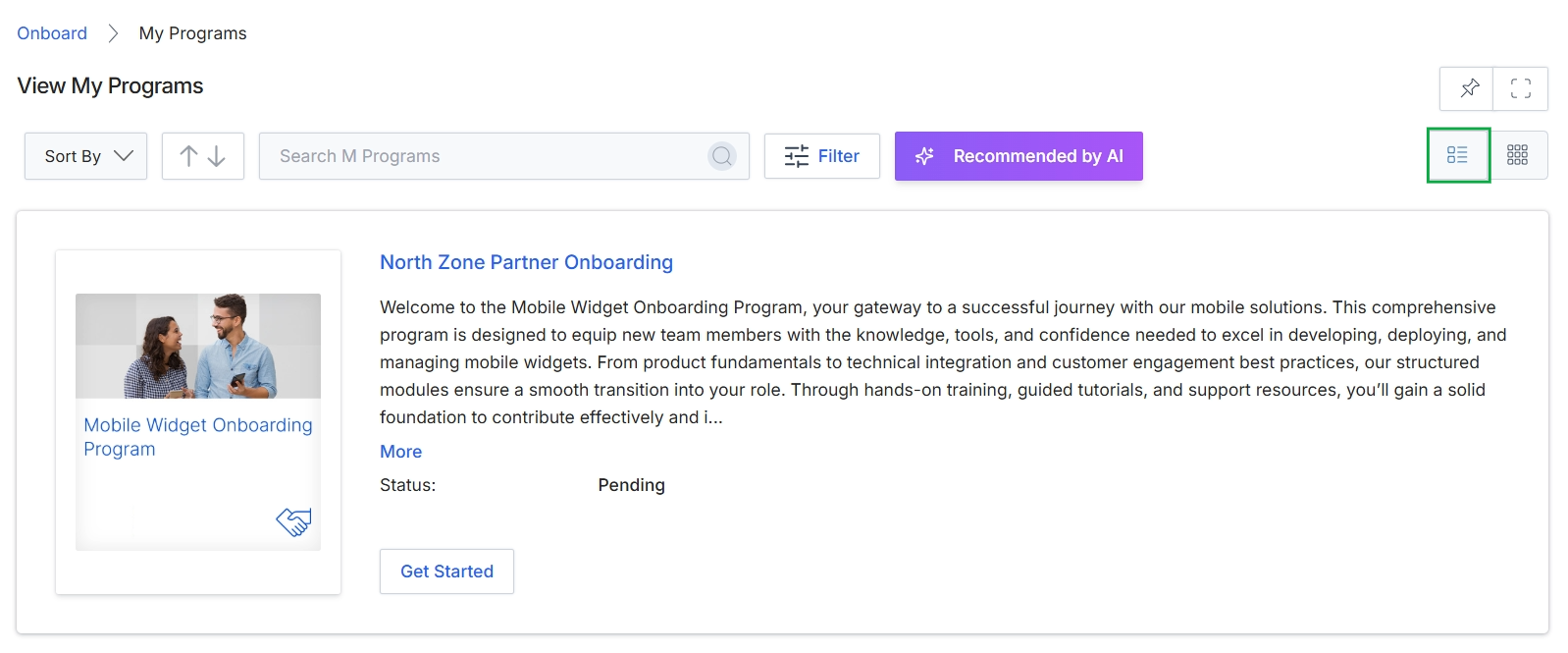
Click the List View icon.
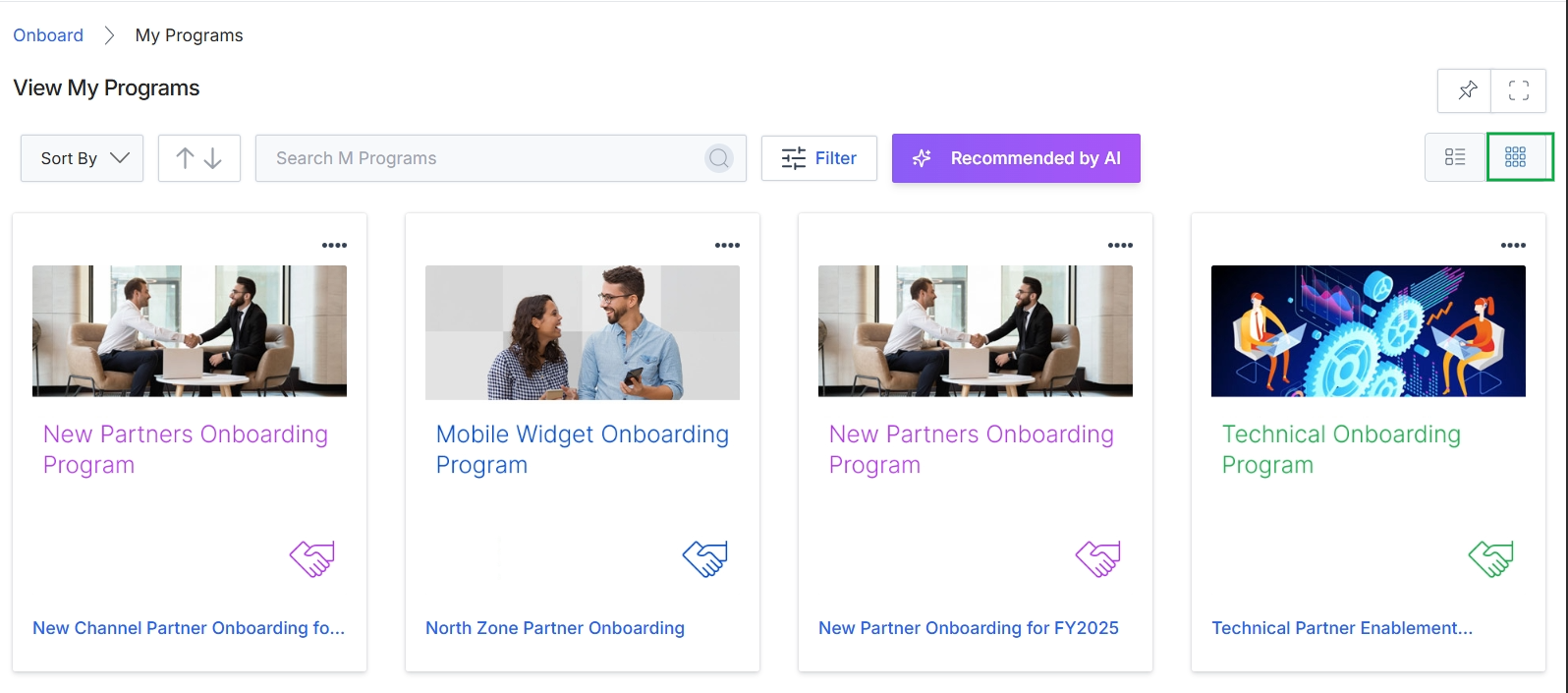
Click the Grid View icon.
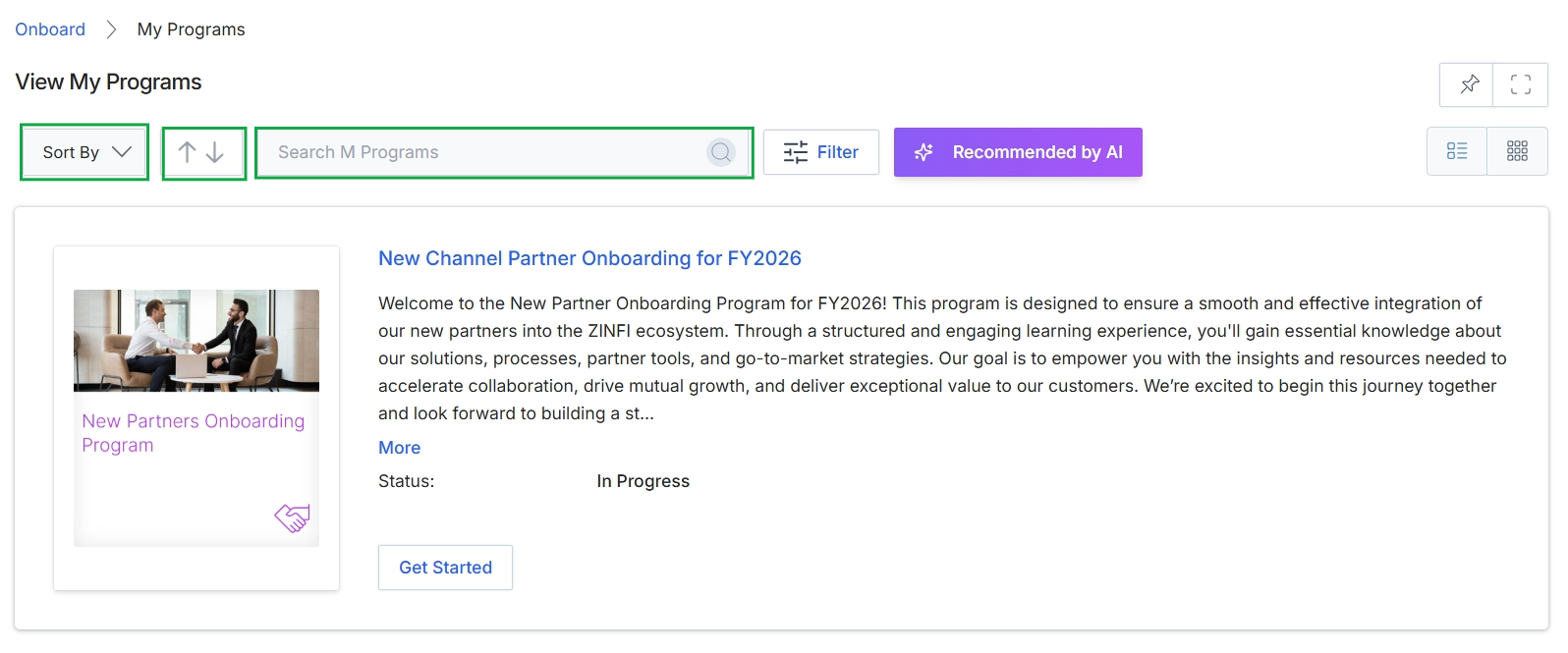
Use the Sort By dropdown, the sort order arrows, and the Search M Programs field to organize and find programs.
Filtering Program Listings
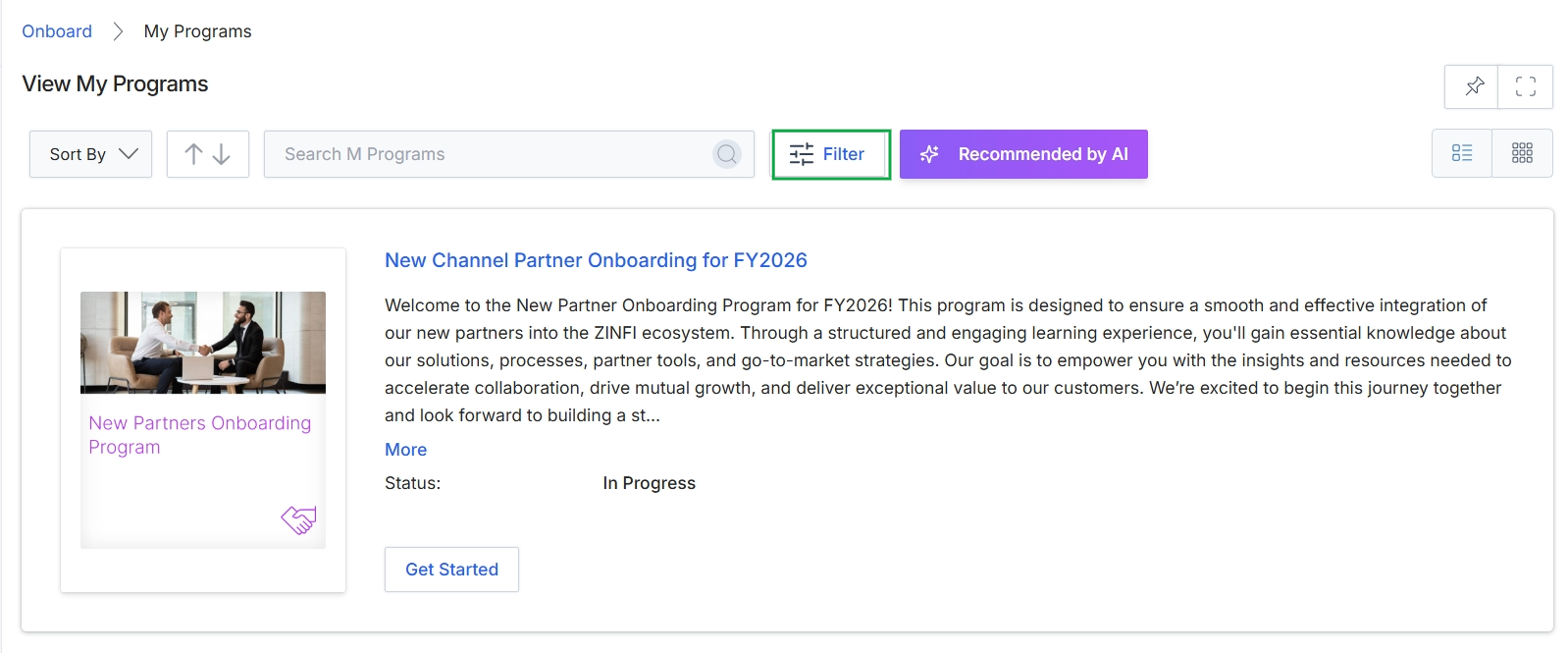
Click the Filter button.
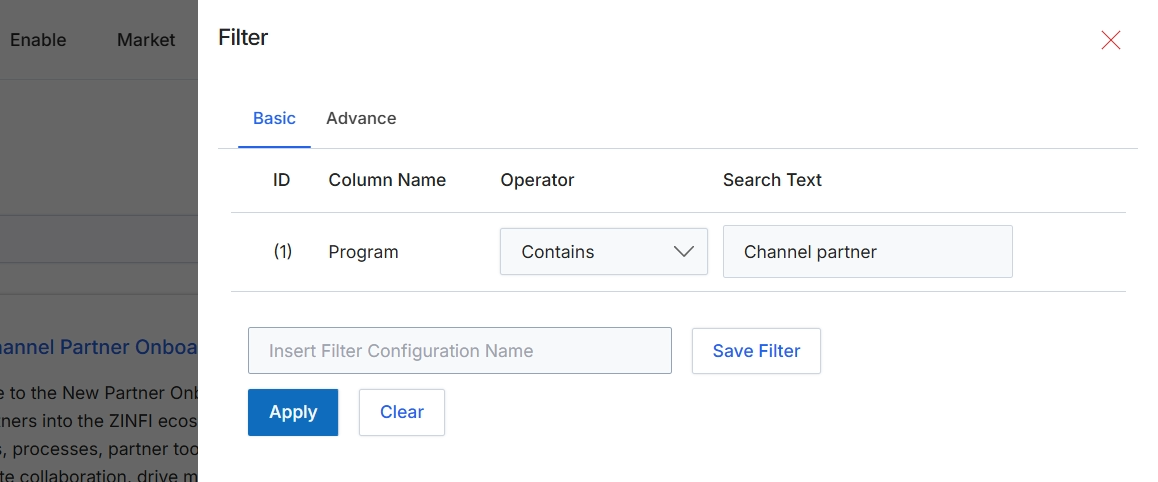
This filter panel provides a mechanism for users to refine the data displayed in a list view by applying specific criteria. It allows for both basic and advanced filtering, enabling users to narrow down results based on column names, operators, and search text. This functionality is crucial for efficiently navigating and analyzing large datasets, such as lists of partner programs, by focusing on relevant entries. Users can define and save filter configurations for repeated use, streamlining their workflow and ensuring consistent data segmentation.
Apply the filter to display only partner programs that contain 'Channel partner' in their name.
Buttons
| Button | Description |
|---|---|
| Basic | Selects the basic filtering interface, allowing simple rule creation. |
| Advance | Selects the advanced filtering interface, which may offer more complex rule combinations. |
| Save Filter | Saves the current filter configuration under the specified name. |
| Apply | Applies the defined filter rules to the list view, updating the displayed results. |
| Clear | Clears all active filter rules, resetting the list view to its unfiltered state. |
Fields
| Field | Description |
|---|---|
| Program | The column name selected for filtering, indicating that the filter applies to the 'Program' field. |
| Contains | The selected operator, indicating that the 'Program' column should contain the specified search text. |
| Channel partner | The text value to search for within the 'Program' column. |
| Insert Filter Configuration Name | A text input field to enter a name for the current filter configuration to save it for future use. |
Column Headings
| Column | Description |
|---|---|
| ID | A numerical identifier for each filter rule. |
| Column Name | The name of the column to which the filter rule is applied, such as 'Program'. |
| Operator | The logical operator used for the filter rule, such as 'Contains', 'Equals', 'Starts With', etc. |
| Search Text | The value or keyword to search for within the specified column. |
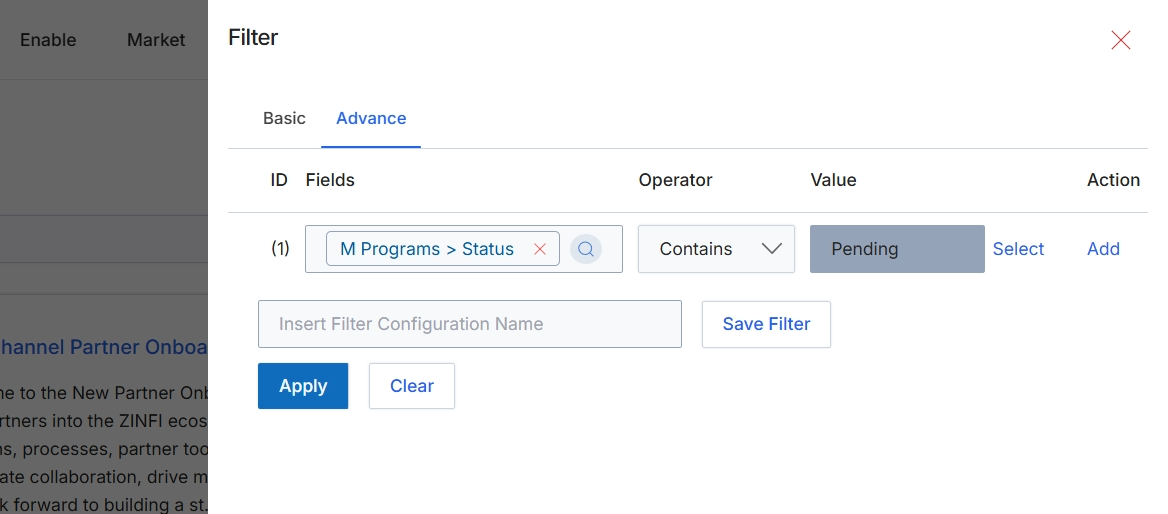
This screen presents the advanced filter configuration for lists within the UPM, allowing users to define complex search criteria using multiple conditions. It enables precise data retrieval by specifying fields, operators, and values, which is crucial for managing large datasets of partners, programs, or other entities. Users can build and save custom filter configurations to quickly apply them to various list views, streamlining administrative tasks and reporting. The ability to combine logical conditions ensures that administrators can isolate specific records based on their unique business requirements, such as filtering partners by status, type, or other attributes relevant to the Onboard module.
Apply the configured filter to display records matching the specified criteria.
Buttons
| Button | Description |
|---|---|
| Basic | Switches to the basic filter configuration interface. |
| Advance | The currently active tab, indicating the advanced filter configuration interface is in use. |
| Select | A link to select a different field for the current filter condition. |
| Add | A link to add another filter condition row. |
| Save Filter | Saves the current filter configuration with the specified name. |
| Apply | Applies the configured filter conditions to the current list view. |
| Clear | Clears all active filter conditions. |
Fields
| Field | Description |
|---|---|
| M Programs > Status | The selected field for the filter condition, indicating the status of a program. |
| Contains | The selected operator for the filter condition, specifying that the field value should contain the specified text. |
| Pending | The value entered for the filter condition, indicating that the program status should be 'Pending'. |
| Insert Filter Configuration Name | An input field to enter a name for the current filter configuration to save it for future use. |
Column Headings
| Column | Description |
|---|---|
| ID | A unique identifier for each filter condition row. |
| Fields | Displays the data field selected for the filter condition, such as 'M Programs > Status'. |
| Operator | Displays the logical operator applied to the filter condition, such as 'Contains'. |
| Value | Displays the specific value or keyword used in the filter condition, such as 'Pending'. |
| Action | Provides options to modify or add filter conditions. |