

Overview
The 'Available Programs' section within the Onboard module is designed to provide partners with a clear and accessible interface to explore the various partner programs offered by the vendor. This is a critical step in the partner journey, allowing partners to understand the scope, benefits, and requirements of each program before deciding to enroll. Partners can browse through program descriptions, view recommended programs, and initiate the enrollment process directly from this interface.
Accessing Available Programs
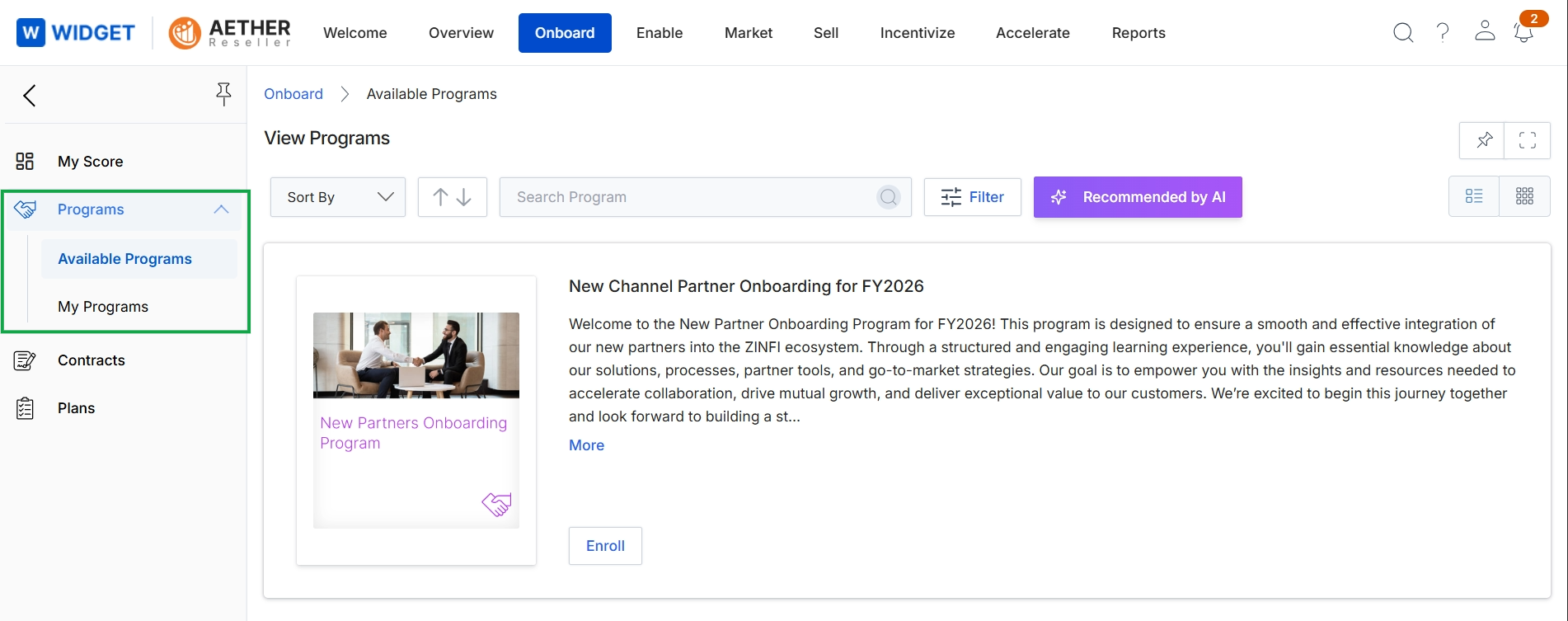
Click Programs → Available Programs.
Viewing Program Listings
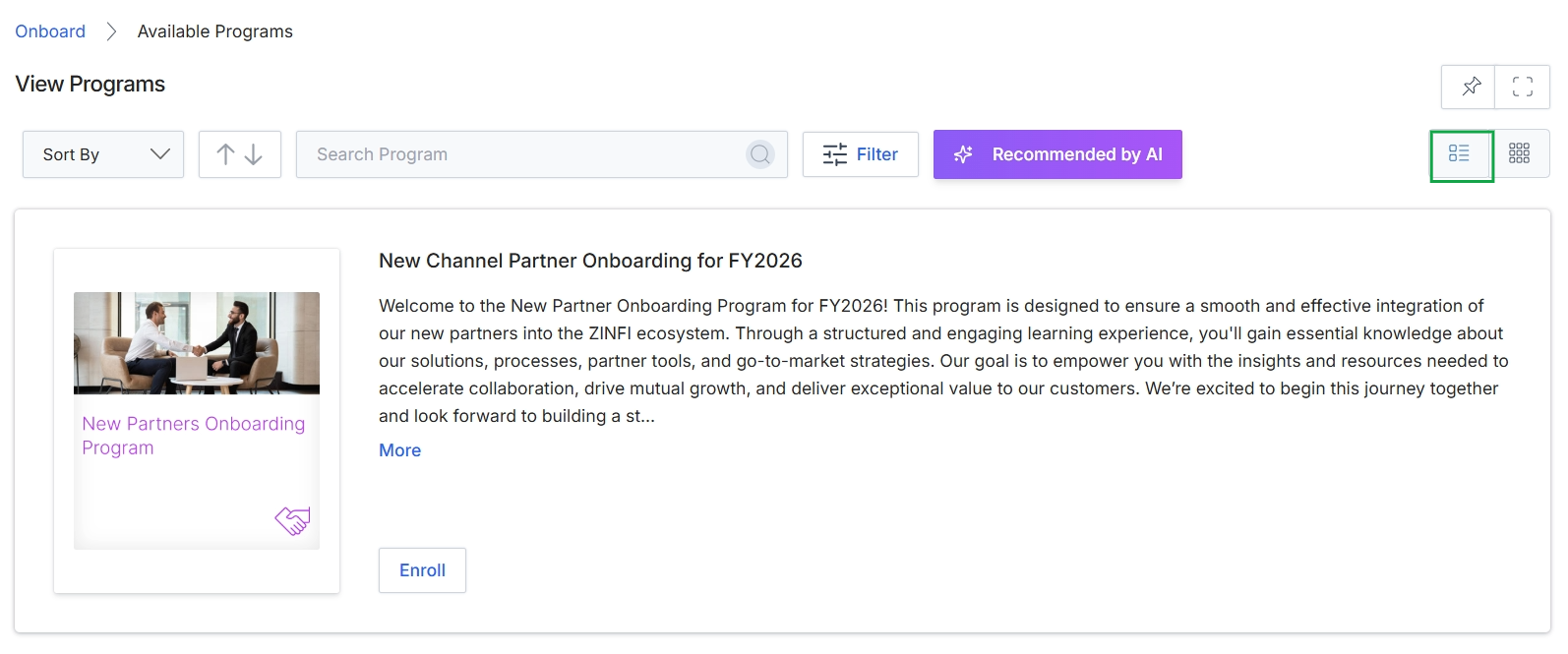
Click the list view icon.
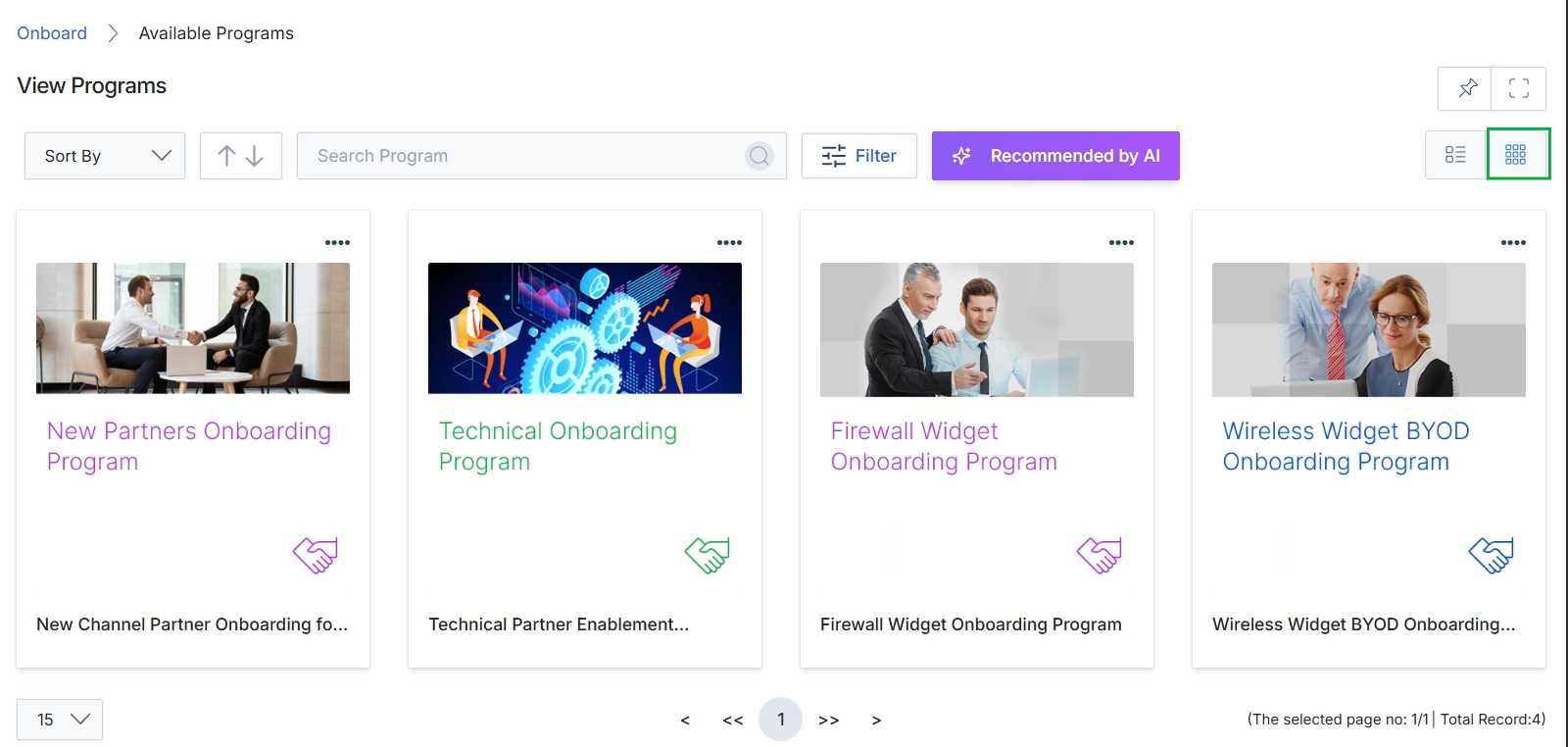
Click the Grid View icon.
Searching and Sorting Programs
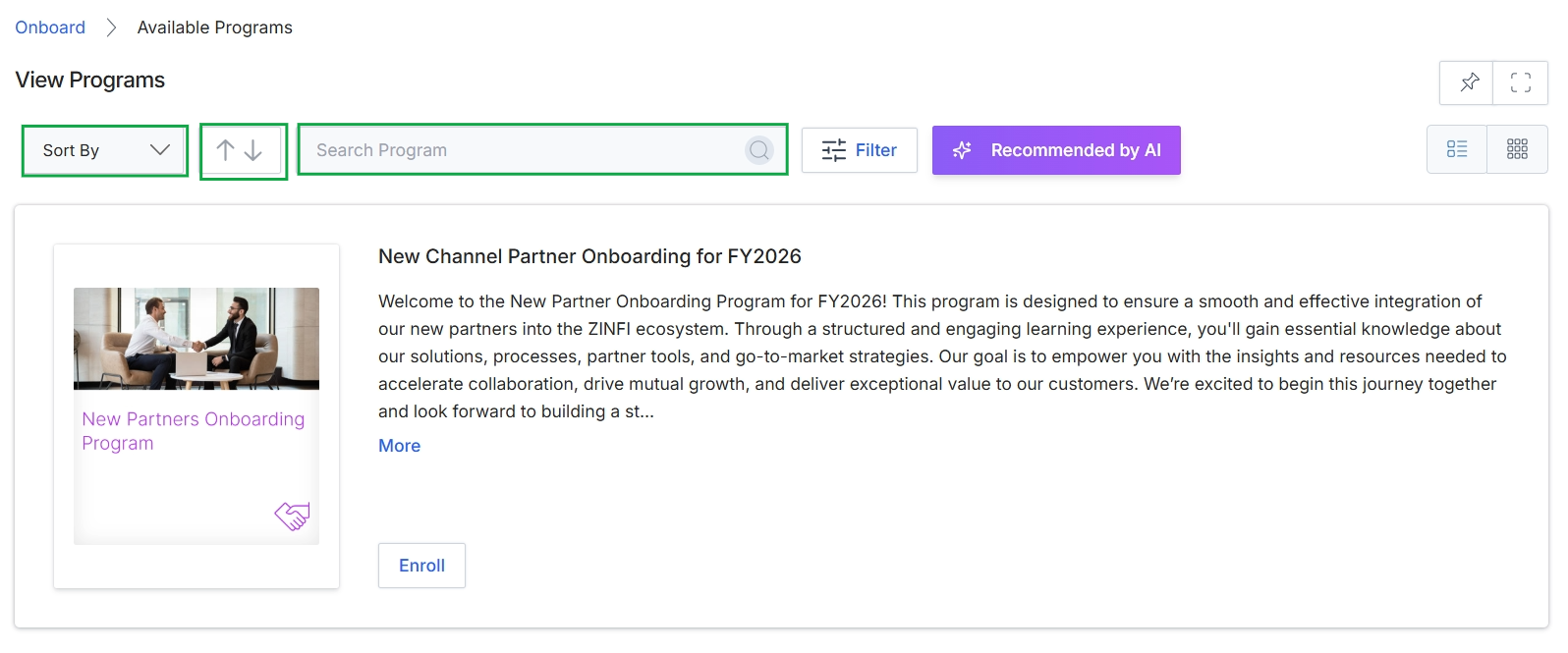
This screen displays a list of available partner programs that users can view and potentially enroll in. It provides tools for organizing and finding specific programs, including options to sort the program listings, change the display order, and search for programs by name. The view also features a filter option and a section highlighting programs recommended by AI, allowing users to efficiently navigate and discover relevant onboarding opportunities.
Filtering Programs
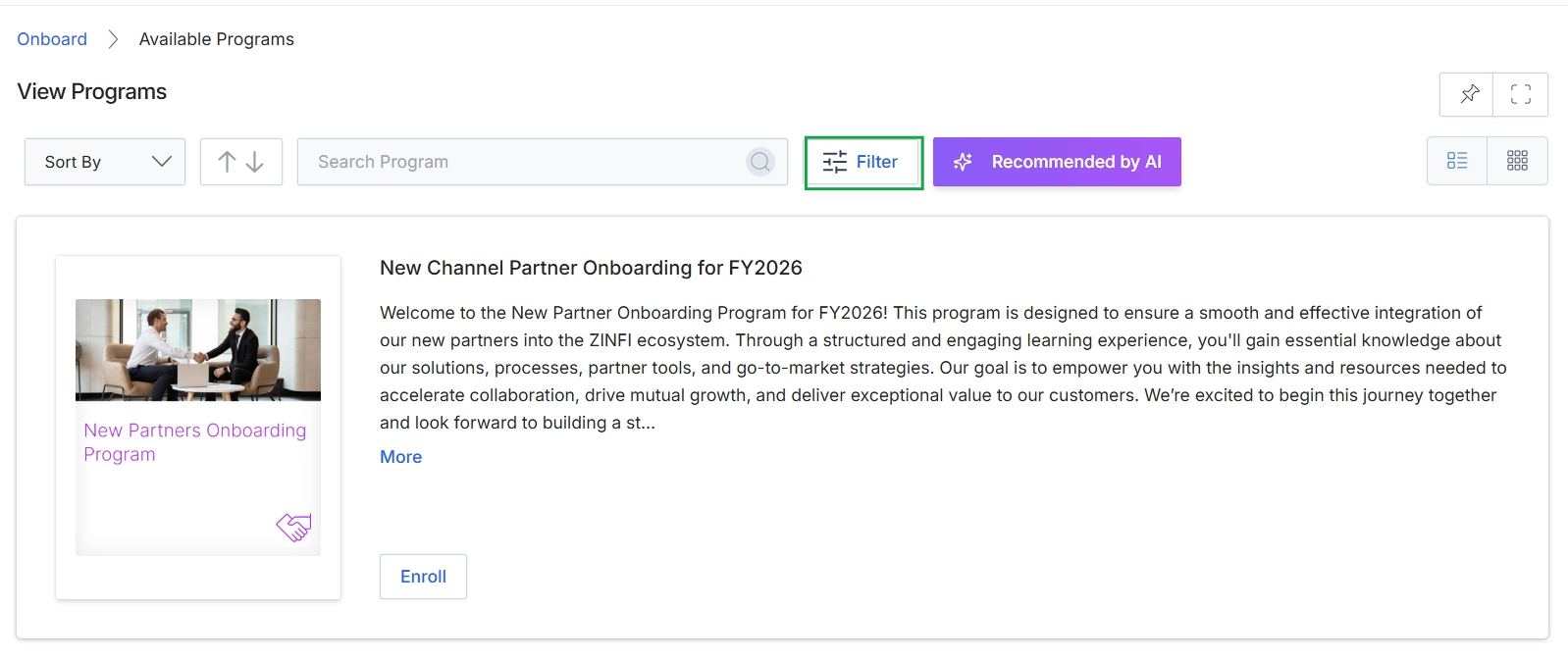
Click the Filter button.
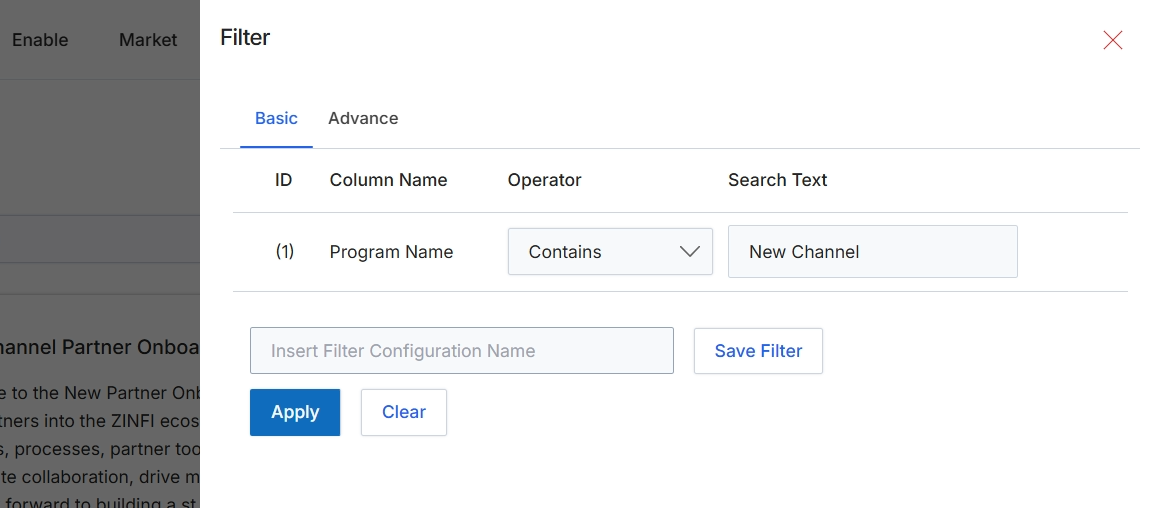
This filter panel provides administrators with the tools to refine the display of partner programs based on specific criteria. It allows for the creation of one or more filter rules, each targeting a particular column or attribute of the program data. Users can specify the column to filter, the operator (e.g., 'Contains', 'Equals'), and the search text or value. This functionality is crucial for efficiently navigating large lists of programs, identifying specific programs for management, or segmenting programs for reporting purposes. The panel also supports saving frequently used filter configurations for quick application in the future.
Define a filter rule by selecting a column, an operator, and entering search text, then click 'Apply' to filter the list of programs.
Buttons
| Button | Description |
|---|---|
| Basic | A tab to configure basic filter rules, typically involving direct column-value comparisons. |
| Advance | A tab to configure advanced filter rules, potentially offering more complex logic or criteria. |
| Save Filter | A button to save the currently defined filter configuration under the specified name. |
| Apply | A button to apply the defined filter rules to the list of partner programs, updating the displayed results. |
| Clear | A button to remove all active filter rules and display the complete list of partner programs. |
Fields
| Field | Description |
|---|---|
| Insert Filter Configuration Name | An input field to enter a name for the current filter configuration, allowing it to be saved for later use. |
Column Headings
| Column | Description |
|---|---|
| ID | A column header indicating the sequential identifier for each filter rule row. |
| Column Name | A column header for selecting the data field or attribute of the partner program to which the filter rule will apply. In the example, 'Program Name' is selected. |
| Operator | A column header for selecting the comparison operator (e.g., 'Contains', 'Equals', 'Starts With') to be used in the filter rule. In the example, 'Contains' is selected. |
| Search Text | A column header for entering the value or text that the selected column will be compared against using the chosen operator. In the example, 'New Channel' is entered. |
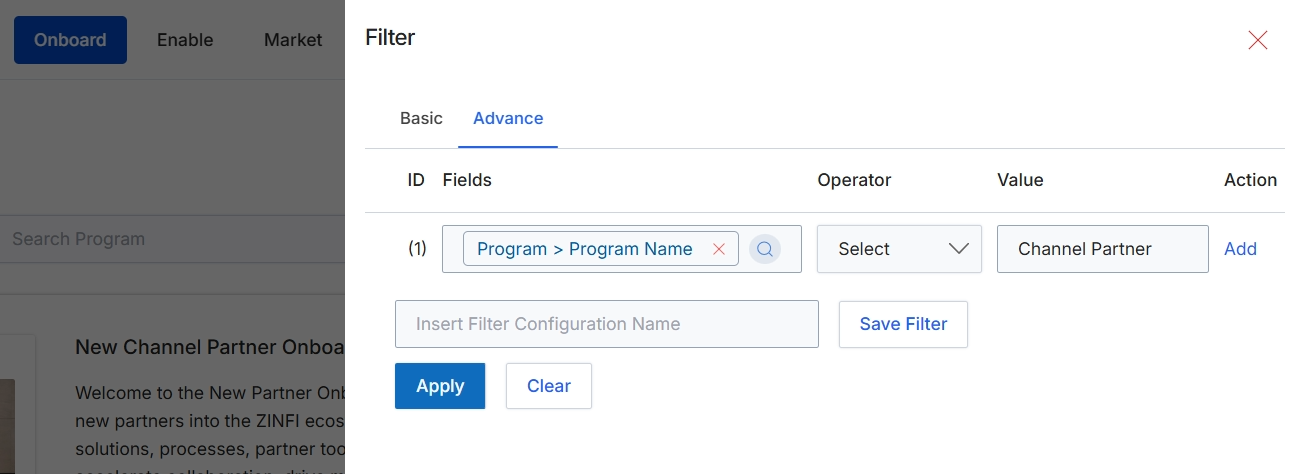
This modal window provides advanced filtering capabilities for lists within the UPM, allowing users to define specific criteria to narrow down displayed records. The advanced filter interface supports constructing complex queries by combining multiple conditions based on various fields, operators, and values. This enables administrators to precisely target specific sets of data, such as partner programs, for review or action. Users can also save frequently used filter configurations for future application, streamlining repetitive data analysis tasks.
Define advanced filter criteria by selecting fields, operators, and values, then apply the filter to the current list.
Buttons
| Button | Description |
|---|---|
| Basic | Switches the filter interface to a simpler, basic filtering mode. |
| Advance | Switches the filter interface to the advanced mode, allowing for complex, multi-condition filtering. |
| Add | Adds a new row to define an additional filter condition, allowing for multiple criteria to be combined. |
| Save Filter | Saves the current filter configuration under the specified name for quick access later. |
| Apply | Applies the defined filter criteria to the current list view, updating the displayed records. |
| Clear | Clears all active filter criteria, resetting the list view to show all records. |
Fields
| Field | Description |
|---|---|
| Program > Program Name | The selected field for the current filter rule, indicating that the filter will be applied to the 'Program Name' attribute within the 'Program' entity. |
| Select | A dropdown menu to choose the comparison operator for the filter rule, such as 'equals', 'contains', or 'starts with'. |
| Channel Partner | The value entered for the current filter rule, which will be compared against the 'Program Name' field using the selected operator. |
| Insert Filter Configuration Name | An input field to enter a name for the current set of filter criteria, allowing it to be saved for future use. |
Column Headings
| Column | Description |
|---|---|
| ID | Indicates the sequential number of each filter rule. |
| Fields | The column header for the field selection input, where users choose the data field to apply the filter condition to. |
| Operator | The column header for the operator selection dropdown, where users choose the comparison logic (e.g., equals, contains, starts with). |
| Value | The column header for the input field where users specify the value to compare against the selected field. |
| Action | The column header for actions related to managing individual filter rules, such as adding new rules. |