

Overview
Referral deals are a critical component of the Sell module, particularly for partners operating on a referral commission model. These deals represent sales opportunities identified and submitted by partners, which, upon successful closure, can trigger commission calculations in the Incentivize module. The ability to effectively manage and track these referrals is essential for vendors to monitor partner performance, ensure timely processing, and accurately attribute revenue contributions. This list view provides administrators with the tools to maintain a clear and organized record of all such opportunities.
Accessing and Managing Referral Deals
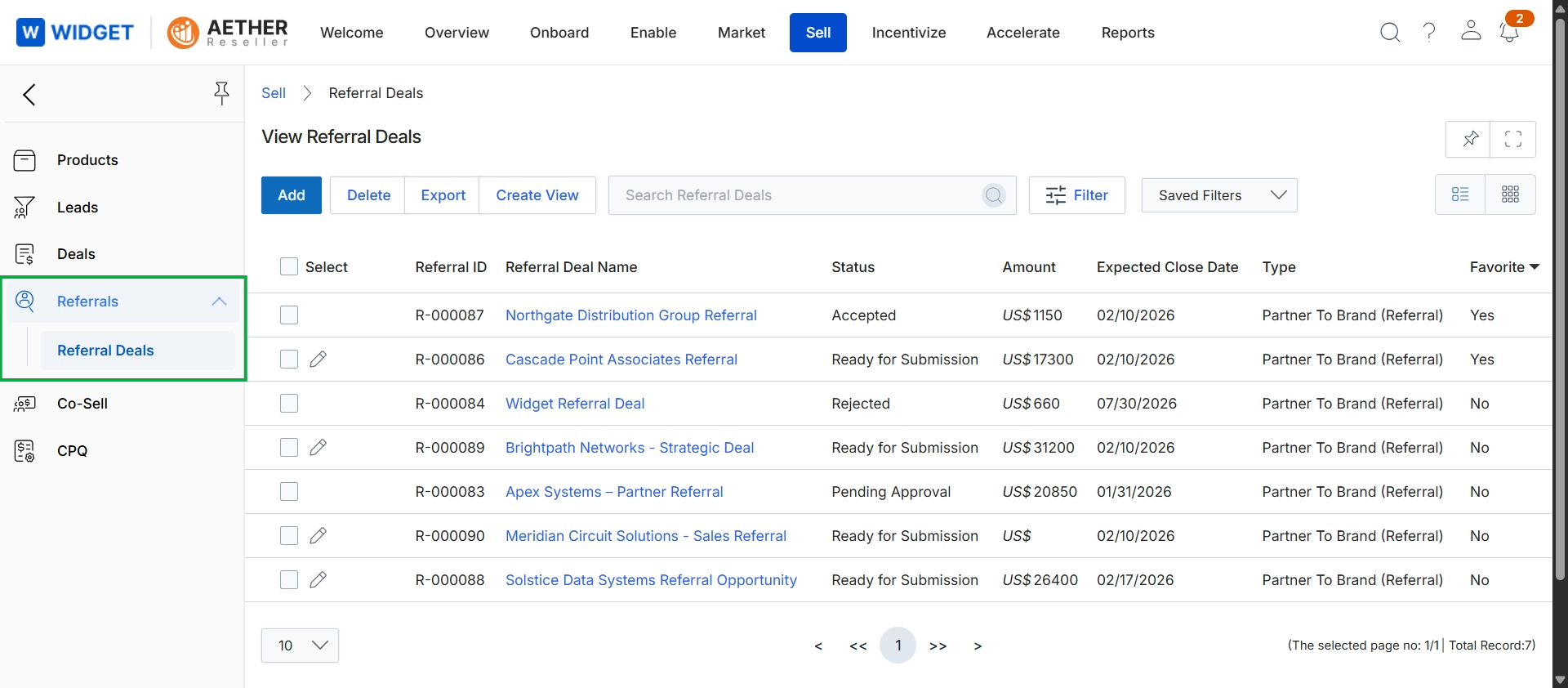
Click Referral Deals.
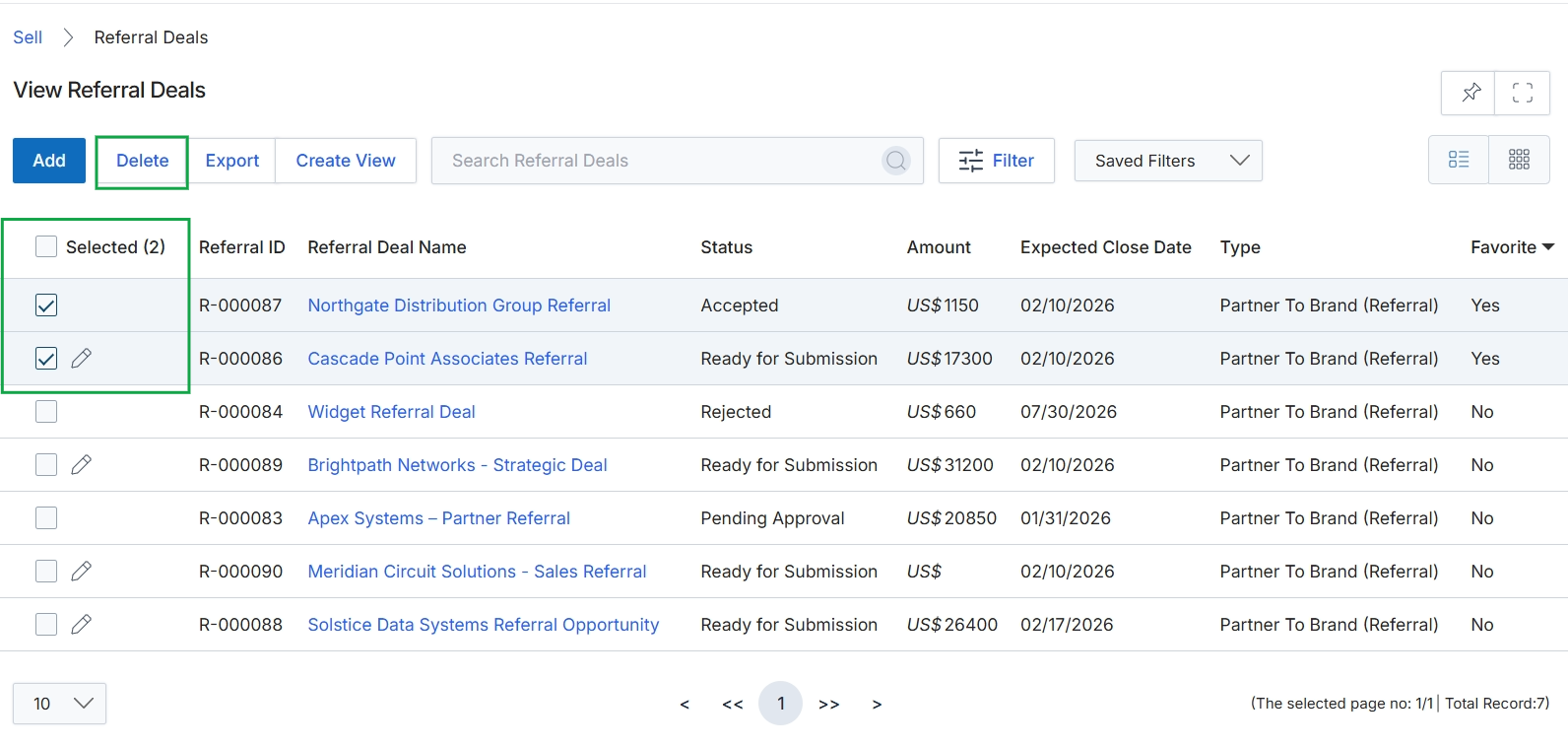
Select the checkboxes next to the desired referral deals, then click the Delete button.
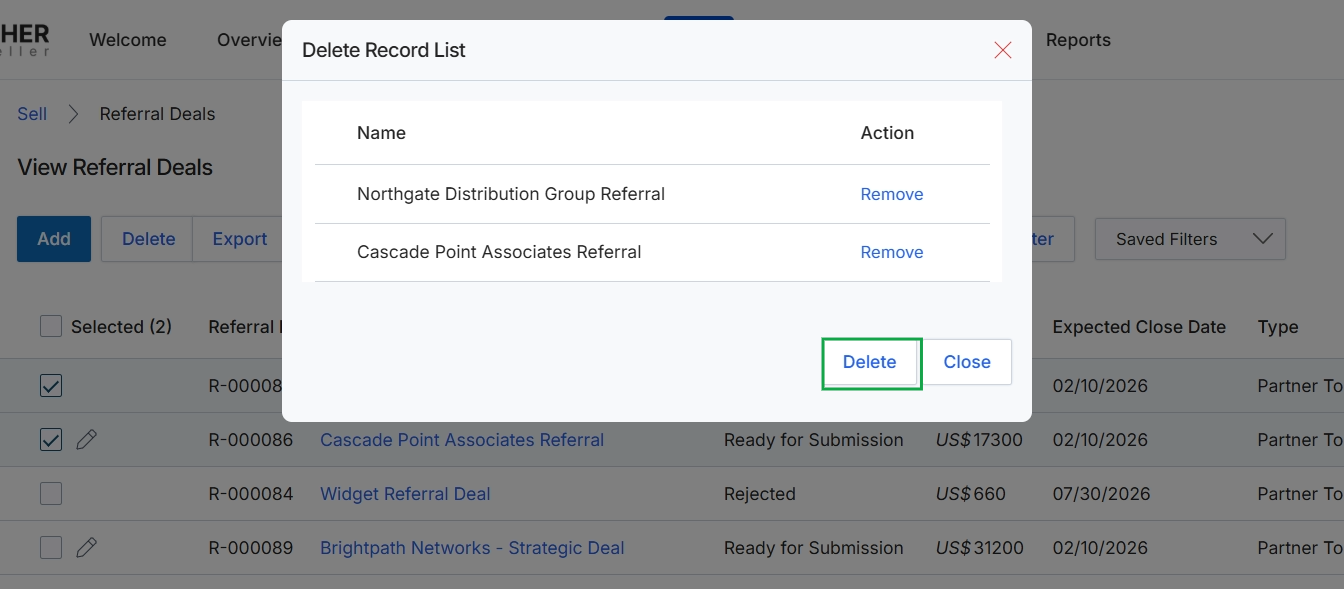
This screen displays a confirmation dialog for deleting selected referral deals from the platform. It lists the names of the referral deals chosen for deletion, allowing users to review the items before proceeding with the permanent removal. This dialog ensures that users can verify their selections, preventing accidental deletion of important sales opportunities or partner-submitted leads that may impact commission calculations or pipeline reporting.
Exporting Referral Deal Data
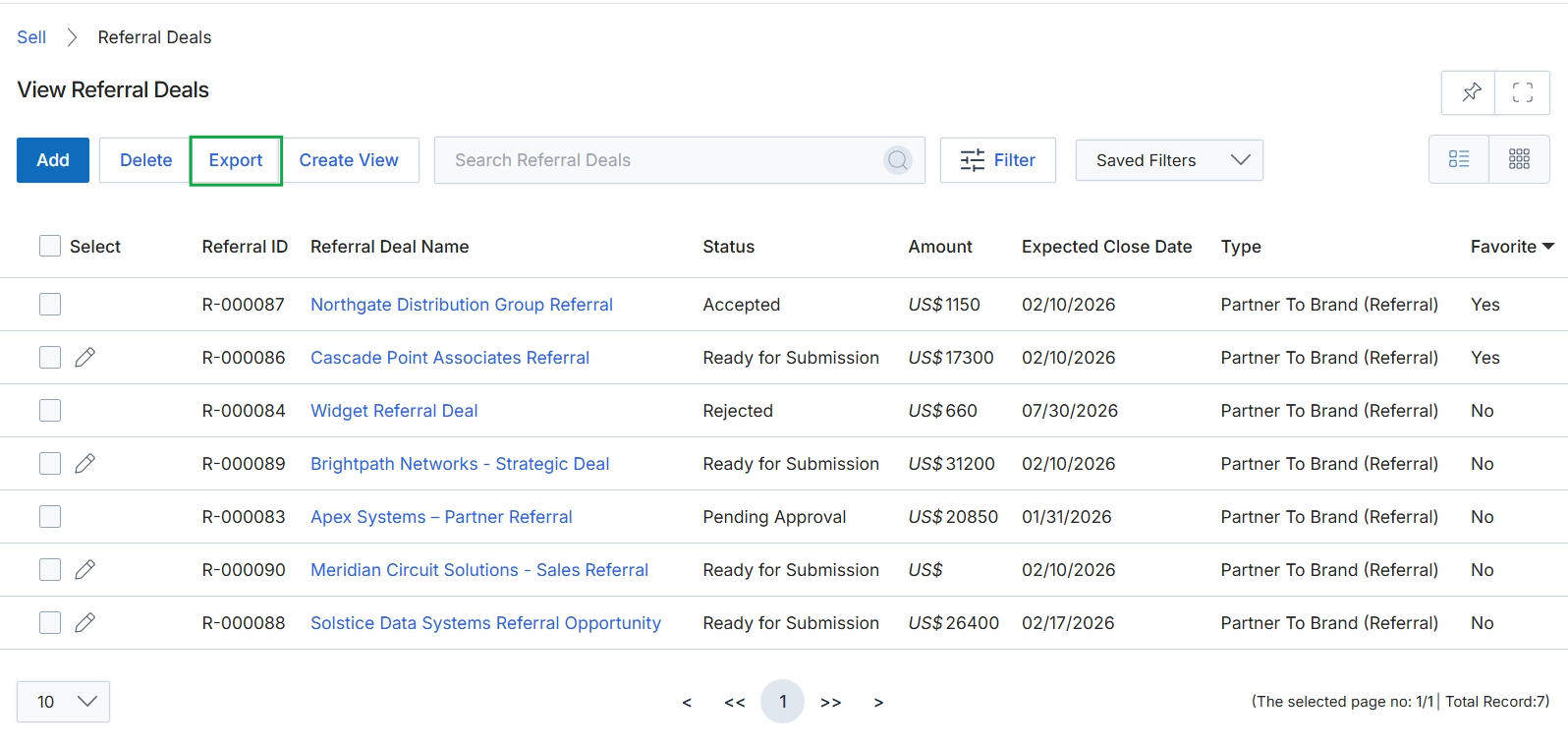
Click Delete.
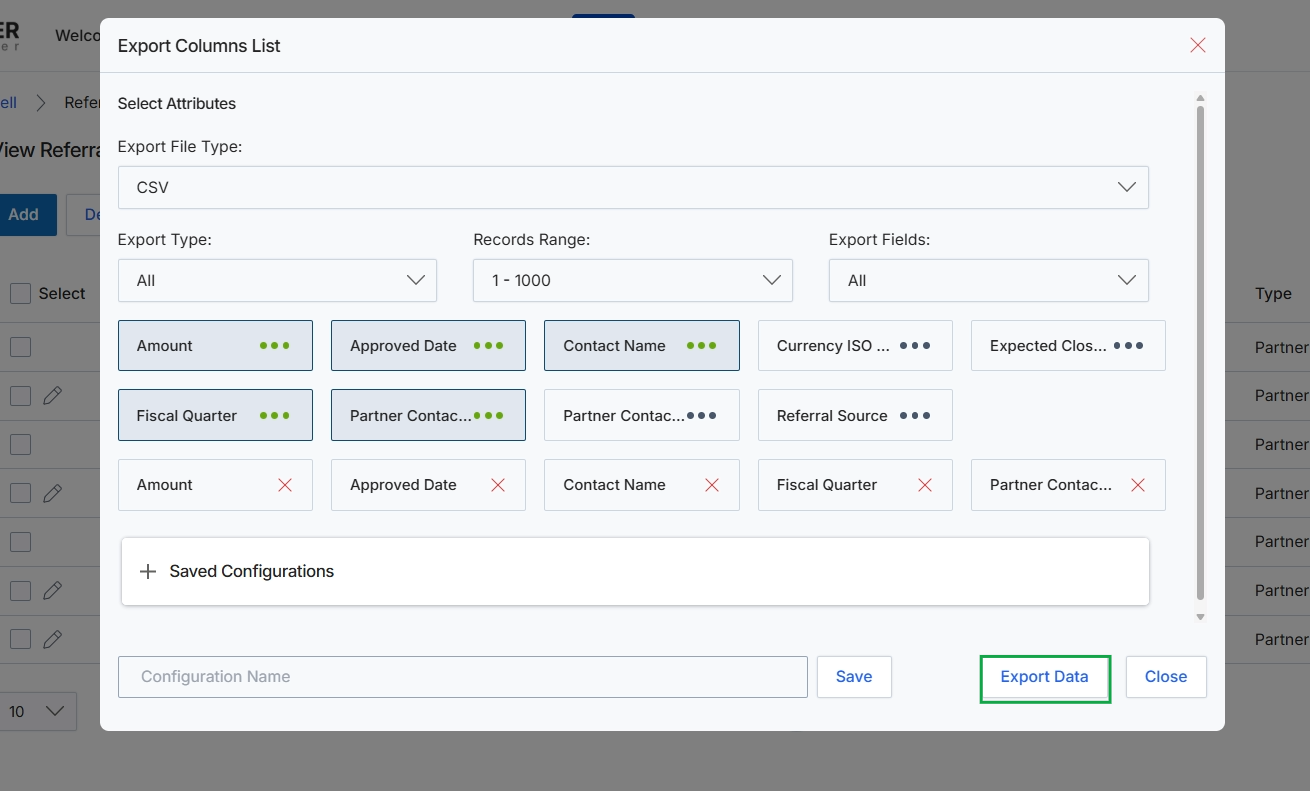
This dialog box, titled 'Export Columns List', enables users to configure the parameters for exporting data from a list view, such as the Referral Deals list. It allows for customization of the export file format, the range of records to be included, and the specific data columns to be exported. Users can select from available attributes to include in their export and manage saved export configurations for future use. This functionality is crucial for generating reports, performing offline analysis, or integrating data with other systems, providing flexibility in how data is extracted from the platform.
Configure the export options by selecting the desired file type, record range, and specific data columns to be included in the export.
Buttons
| Button | Description |
|---|---|
| Save | A button to save the current export configuration under the specified name. |
| Export Data | A button to initiate the data export based on the selected configurations. |
| Close | A button to close the export configuration dialog without performing an export. |
Saved Configurations
| Field | Description |
|---|---|
| Configuration Name | An input field to enter a name for saving the current export configuration. |
Creating Custom Views
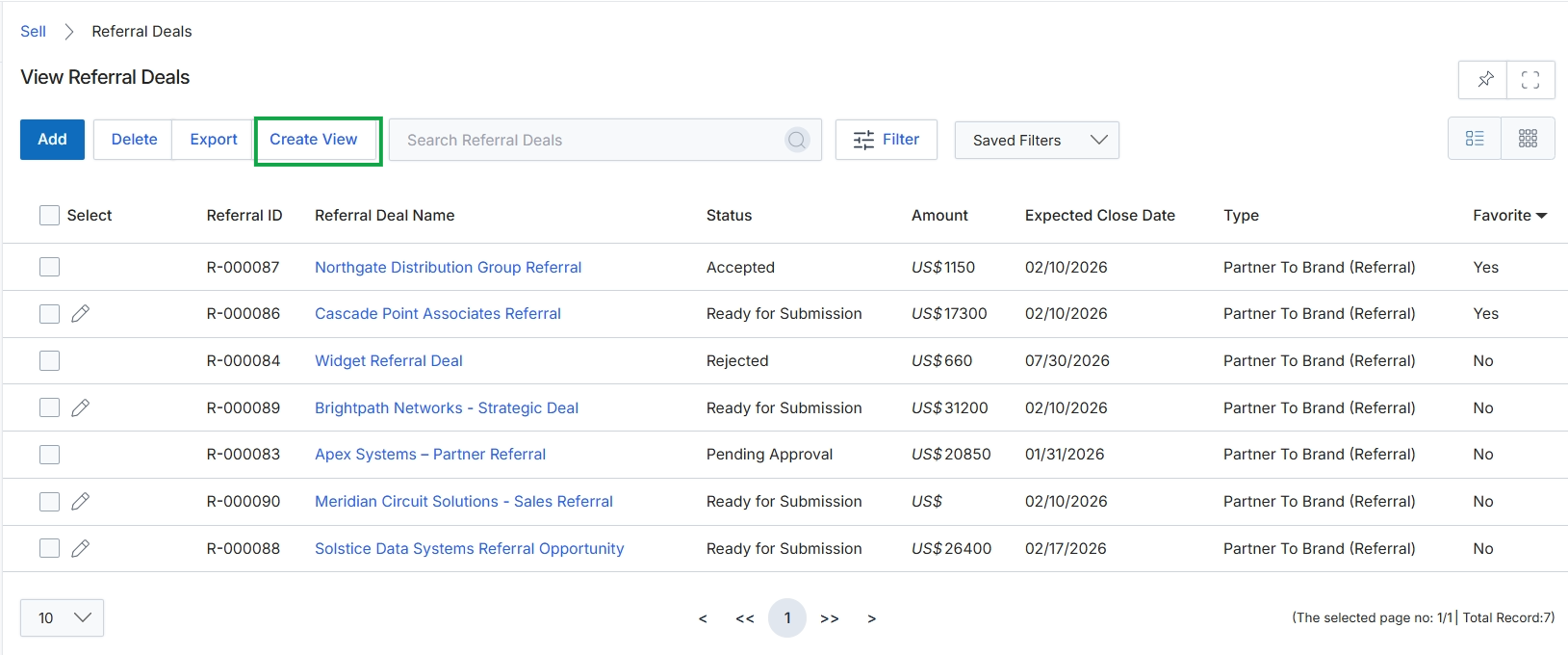
Click the Export Data button.
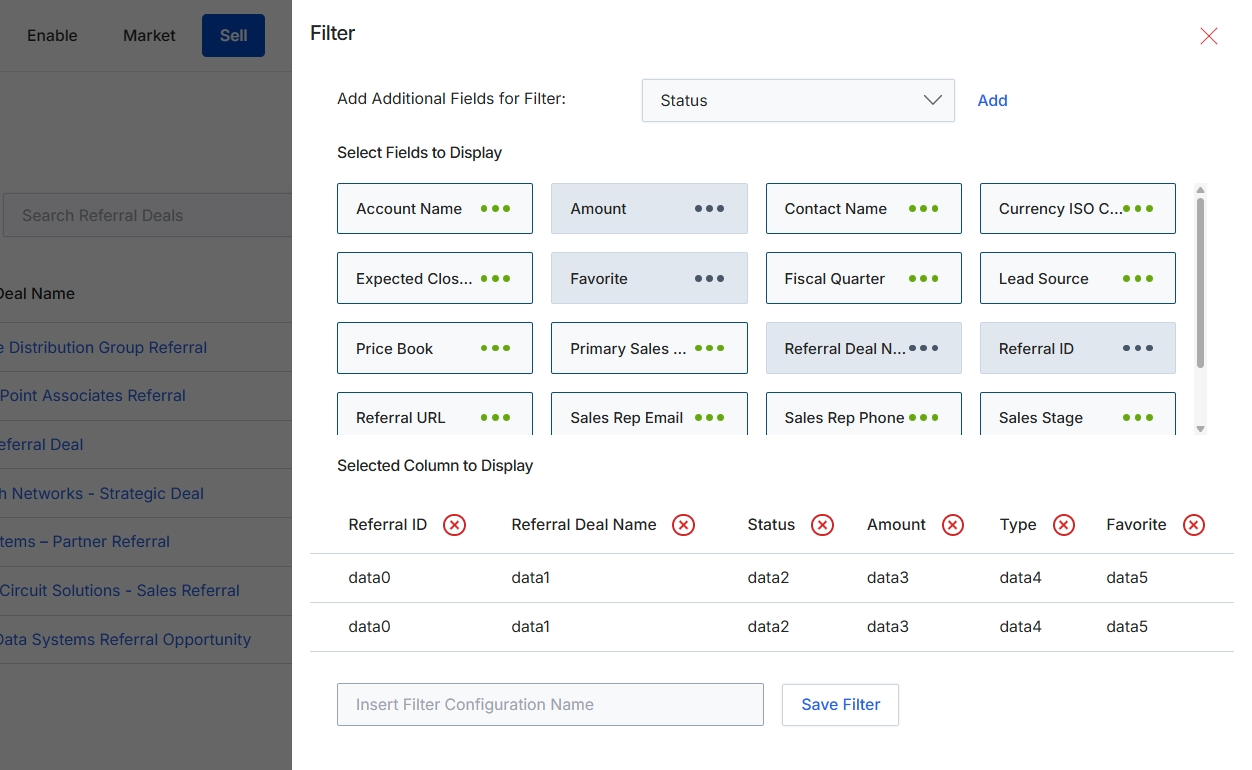
This filter configuration panel allows users to customize the display and filtering options for list views within the UPM, such as the Referral Deals list. Users can add new fields to filter by, select which data fields are visible as columns in the list, and save these configurations for future use. This functionality enhances data analysis and operational efficiency by enabling users to tailor their view of critical information, such as referral deals, to specific reporting or management needs. The panel provides flexibility in how data is presented and interacted with, supporting various user roles in monitoring and managing their sales pipeline.
Configure the filter and display columns for the Referral Deals list view.
Buttons
| Button | Description |
|---|---|
| Add | Adds the selected field from the dropdown to the filter criteria. |
| Save Filter | Saves the current filter and display column configuration under the specified name. |
| Insert Filter Configuration Name | An input field to enter a name for the current filter configuration, allowing it to be saved and reused. |
Applying and Saving Filters
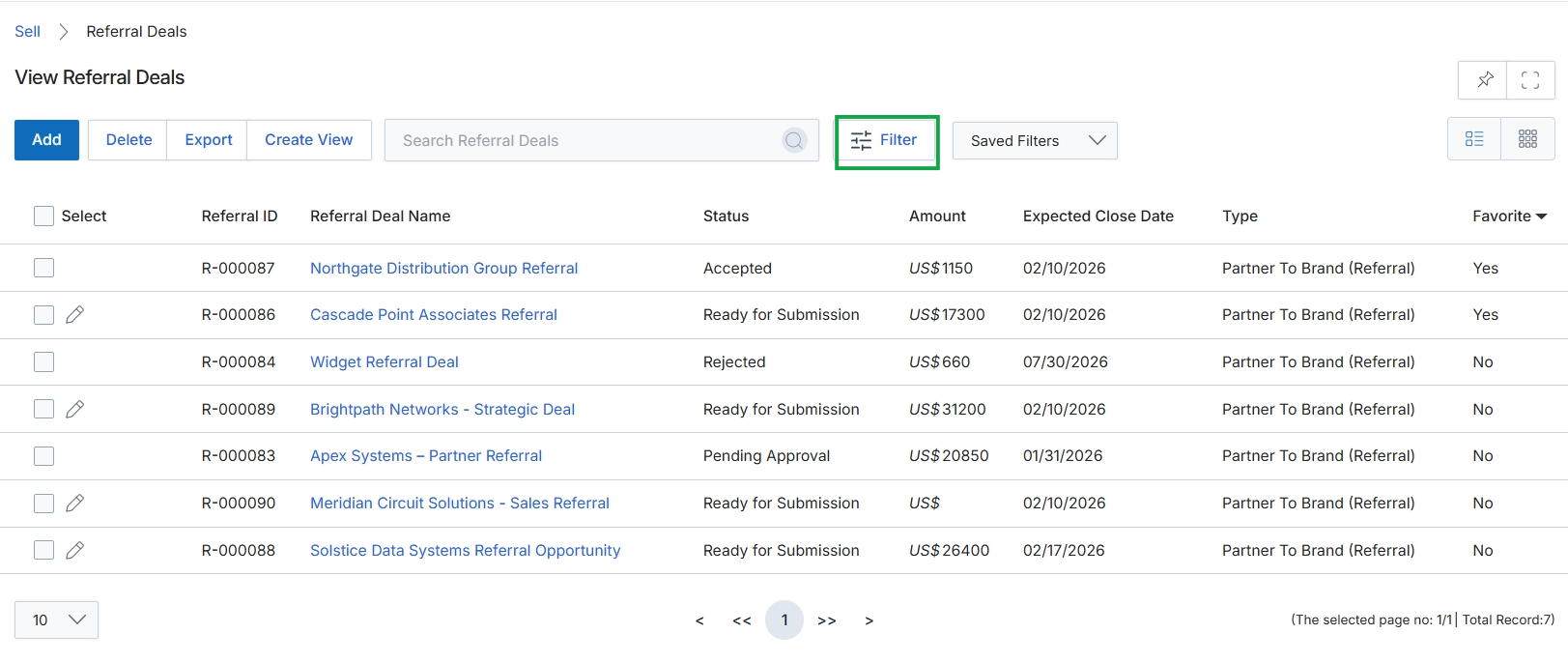
Click Filter.
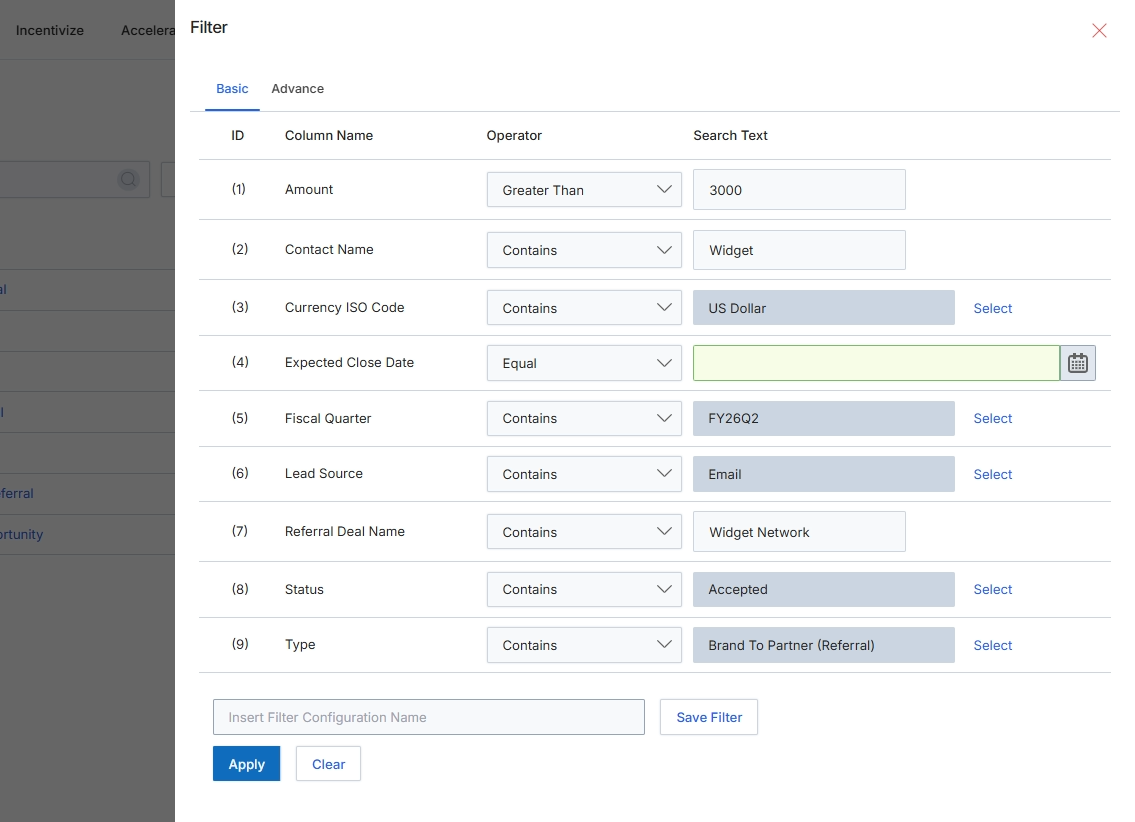
This filter configuration dialog enables users to define specific criteria for refining data displayed in a list view. It provides a structured way to apply multiple conditions based on various data columns, allowing for precise data retrieval. Users can specify which column to filter, the logical operator to use (e.g., 'Greater Than', 'Contains', 'Equal'), and the corresponding search text or value. This functionality is crucial for navigating large datasets, such as lists of referral deals, by isolating records that match particular business requirements or analytical interests.
Configure the filter conditions by selecting the desired column, operator, and search text for each criterion.
Buttons
| Button | Description |
|---|---|
| Basic | Tab to configure basic filter conditions. |
| Advance | Tab to configure advanced filter conditions. |
| Select | Button to open a selection dialog for the Currency ISO Code. |
| Calendar icon | Button to open a calendar picker for the Expected Close Date. |
| Select | Button to open a selection dialog for the Fiscal Quarter. |
| Select | Button to open a selection dialog for the Lead Source. |
| Select | Button to open a selection dialog for the Status. |
| Select | Button to open a selection dialog for the Type. |
| Save Filter | Saves the current filter configuration under the specified name. |
| Apply | Applies the configured filters to the data list. |
| Clear | Clears all currently set filter conditions. |
Fields
| Field | Description |
|---|---|
| Amount | Dropdown to select the operator for filtering by deal amount. |
| 3000 | Input field for the amount value to filter by. |
| Contact Name | Dropdown to select the operator for filtering by contact name. |
| Widget | Input field for the contact name to filter by. |
| Currency ISO Code | Dropdown to select the operator for filtering by currency ISO code. |
| US Dollar | Input field for the currency ISO code to filter by. |
| Expected Close Date | Dropdown to select the operator for filtering by expected close date. |
| Fiscal Quarter | Dropdown to select the operator for filtering by fiscal quarter. |
| FY26Q2 | Input field for the fiscal quarter to filter by. |
| Lead Source | Dropdown to select the operator for filtering by lead source. |
| Input field for the lead source to filter by. | |
| Referral Deal Name | Dropdown to select the operator for filtering by referral deal name. |
| Widget Network | Input field for the referral deal name to filter by. |
| Status | Dropdown to select the operator for filtering by deal status. |
| Accepted | Input field for the deal status to filter by. |
| Type | Dropdown to select the operator for filtering by deal type. |
| Brand To Partner (Referral) | Input field for the deal type to filter by. |
| Insert Filter Configuration Name | Input field to enter a name for the current filter configuration to save it for future use. |
Column Headings
| Column | Description |
|---|---|
| ID | Identifier for each filter row. |
| Column Name | The name of the data field or column to apply the filter to. |
| Operator | The logical operator (e.g., 'Contains', 'Equal', 'Greater Than') to use for the filter condition. |
| Search Text | The value or text to search for within the selected column, based on the chosen operator. |
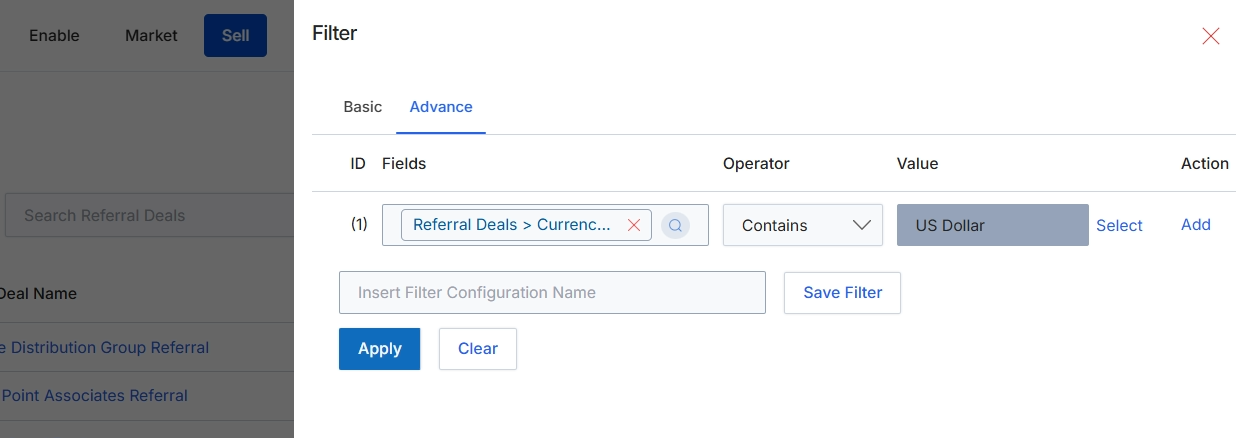
This screen displays the Advanced Filter configuration panel, which allows users to define and apply complex filtering rules to the Referral Deals list. Unlike basic filters, the advanced filter provides granular control over data selection by enabling the creation of multiple filter conditions, each specifying a field, an operator, and a value. Users can add multiple rules, combine them logically, and save these custom filter configurations for future use, facilitating precise analysis and management of referral deal data. This capability is essential for segmenting large datasets to focus on specific deal characteristics, such as currency, status, or partner.
Configure the advanced filter by selecting fields, operators, and values, then click Apply to filter the Referral Deals list.
Buttons
| Button | Description |
|---|---|
| Basic | A tab to switch to the basic filter configuration options. |
| Advance | A tab to switch to the advanced filter configuration options, allowing for more complex rule-based filtering. |
| X | A button to remove the selected field from the filter rule. |
| Search icon | An icon to search for available fields to add to the filter rule. |
| Select | A button to select a value for the 'Value' field of the current filter rule. |
| Add | A button to add a new filter rule to the configuration. |
| Save Filter | A button to save the current filter configuration under the specified name. |
| Apply | A button to apply the configured filter criteria to the Referral Deals list. |
| Clear | A button to clear all currently configured filter criteria. |
Fields
| Field | Description |
|---|---|
| Referral Deals > Currenc... | The selected field for the first filter rule, indicating that the filter is applied to the 'Currency ISO Code' field within 'Referral Deals'. |
| Contains | The selected operator for the first filter rule, specifying that the field's value should include the specified text. |
| US Dollar | The value entered for the first filter rule, indicating that only referral deals with 'US Dollar' in their currency ISO code will be shown. |
| Insert Filter Configuration Name | A text input field to provide a name for the current filter configuration, allowing it to be saved for future use. |
Column Headings
| Column | Description |
|---|---|
| ID | A column header indicating the sequential identifier for each filter rule. |
| Fields | A column header for selecting the data field to which a filter rule will be applied. |
| Operator | A column header for selecting the comparison operator (e.g., 'Contains', 'Equals', 'Greater Than') for a filter rule. |
| Value | A column header for entering or selecting the specific value to compare against the chosen field using the selected operator. |
| Action | A column header for actions related to each filter rule, such as removing or adding a rule. |