

Overview
The Email Template Gallery is a core component of the UPM Market module, enabling efficient and consistent email marketing across the partner ecosystem. It serves as a central hub where administrators can define and manage all email communications, ensuring brand consistency and compliance. By providing a structured environment for template creation and distribution, UPM empowers both vendors to launch broad campaigns and partners to execute localized marketing efforts using pre-approved, high-quality content. This gallery supports various email types, from campaign-specific communications to event reminders, and allows for granular control over who can access and use each template.
Accessing Email Templates
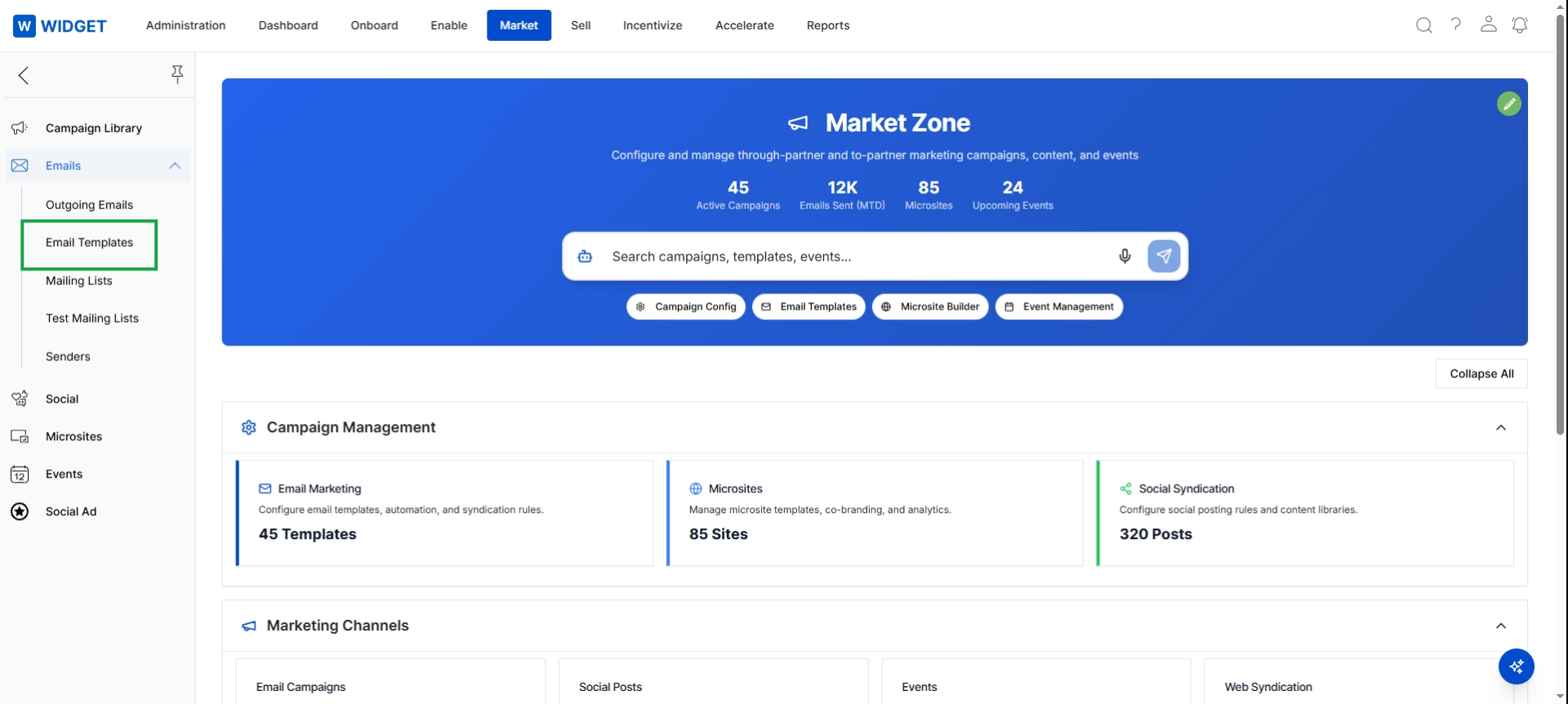
Click Emails → Email Templates in the left navigation menu.
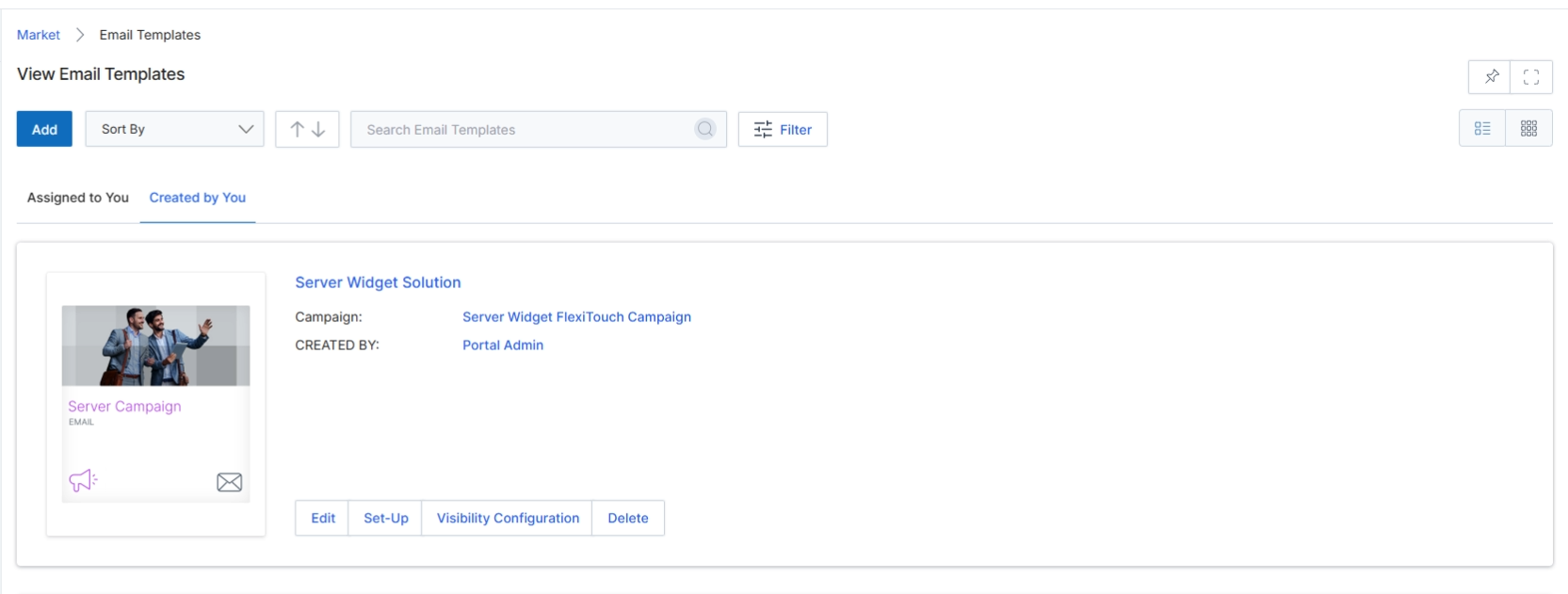
The Email Templates screen within the Market module serves as a central repository for all email templates available for use in marketing campaigns. Both vendor administrators and partners utilize these templates to create and execute email marketing activities, ensuring brand consistency and compliance with pre-defined messaging. This screen allows users to view, manage, and configure the visibility of these templates, which are crucial for the WF-01 Campaign Creation and WF-02 Partner Executes a Campaign workflows. Templates can be pre-approved by the vendor, and partners can customize them within defined editable zones, as outlined in WF-06 Email Campaign Execution. The list view provides an overview of available templates, categorized by assignment and creation status, facilitating efficient management and selection for various marketing initiatives.
Navigate to the Email Templates list view to manage available email marketing templates.
Buttons
| Button | Description |
|---|---|
| Add | Initiates the process to create a new email template. |
| Filter | Opens a panel to apply filters to the email template list. |
| Assigned to You | Displays email templates that have been assigned to the current user or their team. |
| Created by You | Displays email templates that were created by the current user. |
| Edit | Allows modification of the selected email template's content and settings. |
| Set-Up | Configures advanced settings or properties for the selected email template. |
| Visibility Configuration | Manages which partners or partner segments can view and use the selected email template. |
| Delete | Removes the selected email template from the system. |
Fields
| Field | Description |
|---|---|
| Sort By | Allows sorting the list of email templates based on various criteria. |
| Search Email Templates | A search bar to find specific email templates by name or keywords. |
Viewing and Managing Templates
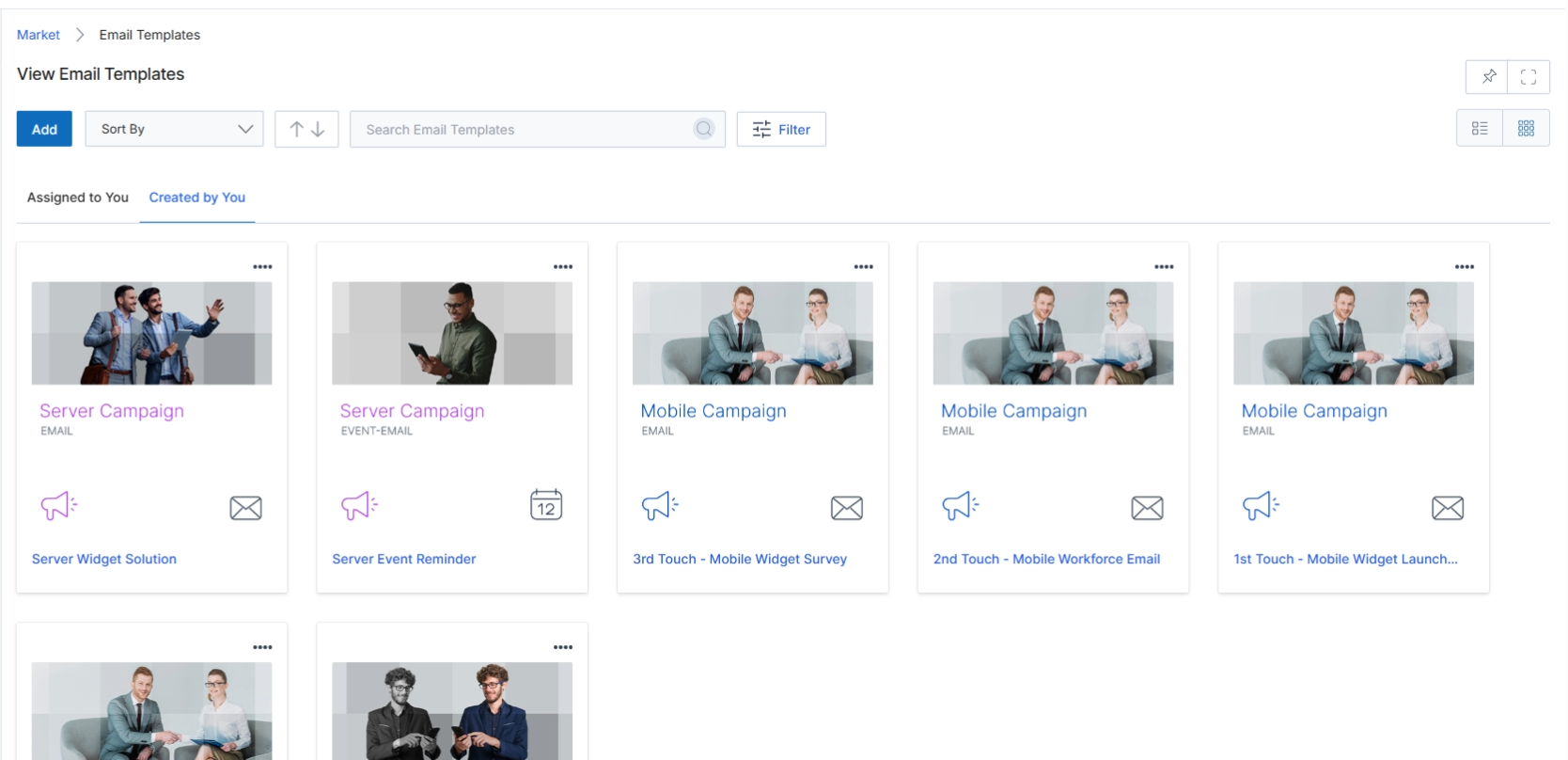
The Email Templates screen provides a centralized repository for managing all email templates available within the UPM platform. These templates are crucial for both vendor-initiated marketing campaigns and partner-executed co-marketing activities, allowing for consistent branding and messaging. This view displays a gallery of existing email templates, which can be filtered, sorted, and searched to quickly locate specific assets. Each template entry typically includes a visual preview, its name, associated campaign, and creation details, enabling users to identify and manage email assets effectively. This screen serves as the starting point for editing, setting up, or configuring the visibility of individual email templates.
Click the 'Thumb view' icon to switch the display of email templates from a list to a gallery view, showing larger visual previews of each template.
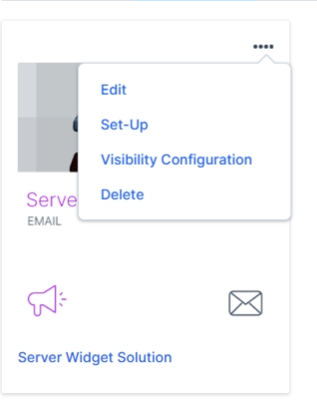
The Email Templates screen within the Market module provides a centralized repository for all email templates available for use in marketing campaigns. These templates are pre-designed, often co-branded, and can be utilized by both vendors and partners to execute email marketing activities. This screen allows users to view, manage, and configure the properties of individual email templates, ensuring consistency and compliance with brand guidelines and regulatory requirements. Templates can be filtered and sorted to facilitate easy navigation and selection, supporting various campaign types and target audiences.
Click the three-dot 'More Options' icon on an email template card to reveal a dropdown menu of actions.
Buttons
| Button | Description |
|---|---|
| Edit | Allows modification of the email template's content and settings. |
| Set-Up | Configures advanced settings or integrations related to the email template. |
| Visibility Configuration | Manages which partner types, tiers, or segments can access and use this specific email template. |
| Delete | Removes the email template from the system. |
Configuring Template Visibility
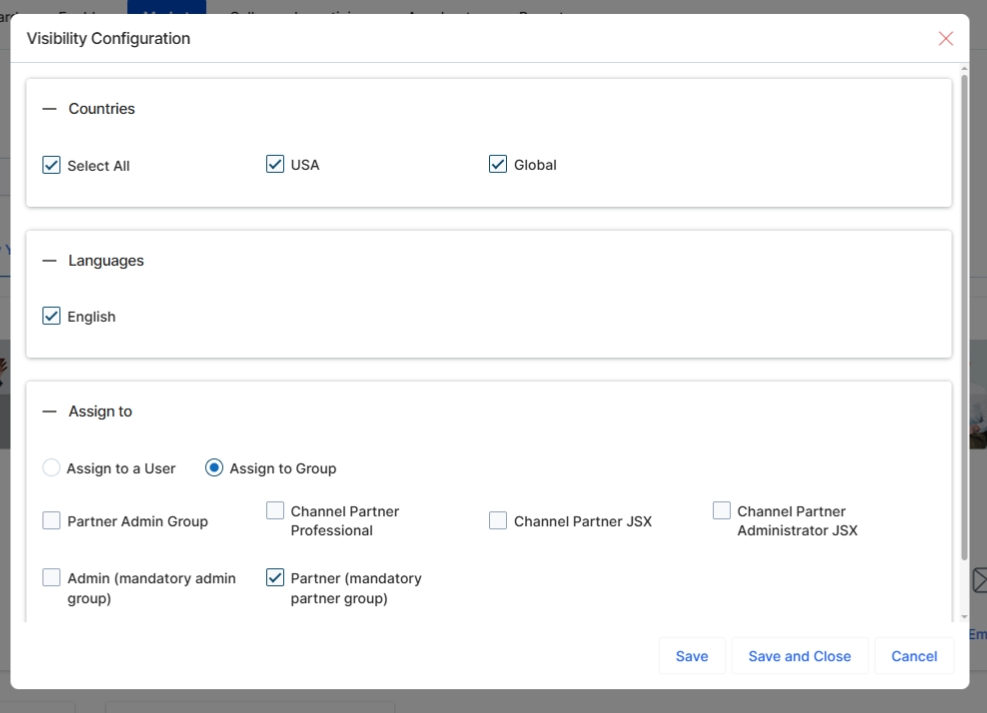
The Visibility Configuration dialog allows vendors to control which partners can access and utilize a specific email template within the Market module. This granular control ensures that marketing assets are distributed appropriately based on geographic regions, language preferences, and partner group assignments. By defining these visibility rules, vendors can tailor the partner experience, ensuring partners only see relevant campaign materials, which is crucial for maintaining brand consistency and optimizing campaign effectiveness across diverse partner ecosystems. This dialog supports multi-country and multi-language deployments, enabling targeted content delivery.
Open the Visibility Configuration dialog for the selected email template.
Buttons
| Button | Description |
|---|---|
| Save | Saves the visibility configuration changes. |
| Save and Close | Saves the visibility configuration changes and closes the dialog. |
| Cancel | Discards any changes and closes the dialog. |
Countries
| Field | Description |
|---|---|
| Countries | This section allows you to specify the countries for which this email template will be visible. Selecting 'Select All' makes the template available globally, while specific country checkboxes can be used for regional targeting. |
| Select All | A checkbox to select all available countries, making the email template visible globally. |
Languages
| Field | Description |
|---|---|
| Languages | This section allows you to specify the languages for which this email template will be visible. |
Assign to
| Field | Description |
|---|---|
| Assign to a User | A radio button to select assignment to an individual user. |
| Assign to Group | A radio button to select assignment to one or more partner groups. |
Filtering Templates
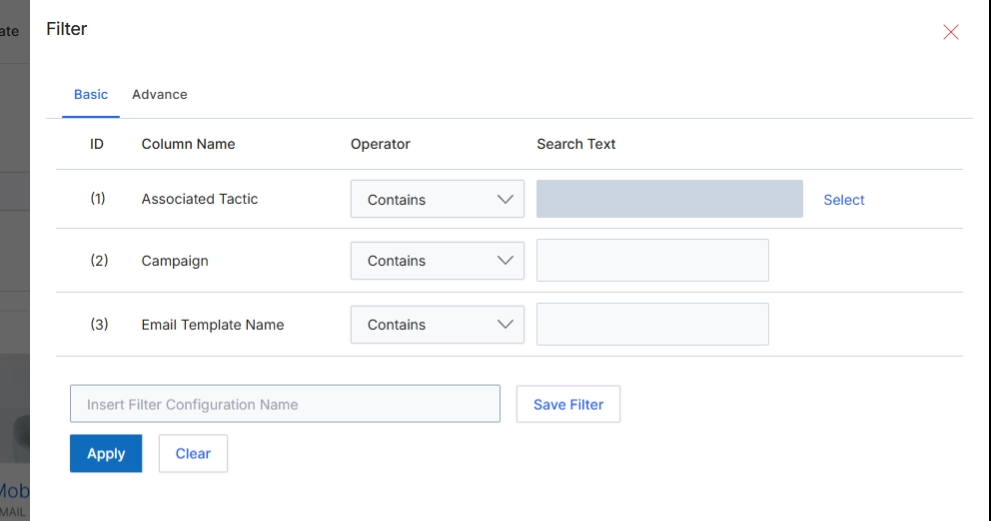
This screen displays the Basic Filter configuration for Email Templates, allowing users to define criteria for narrowing down the list of templates. Email templates are reusable, branded email designs that can be used by both vendors and partners for various marketing campaigns. The filter functionality helps users efficiently locate specific templates based on attributes such as associated tactics, campaign names, or the template's own name. This is crucial for managing a potentially large library of email templates, ensuring that users can quickly find and utilize the correct assets for their marketing activities within the Market module.
Configure the basic filter criteria by entering search text for the desired columns.
Buttons
| Button | Description |
|---|---|
| Save Filter | Saves the current filter configuration under the specified name. |
| Apply | Applies the configured filter criteria to the Email Templates list. |
| Clear | Clears all entered filter criteria. |
Fields
| Field | Description |
|---|---|
| Insert Filter Configuration Name | A field to enter a name for the current filter configuration, allowing it to be saved for future use. |
Column Headings
| Column | Description |
|---|---|
| ID | A numerical identifier for each filter row. |
| Column Name | The name of the attribute to filter by, such as 'Associated Tactic', 'Campaign', or 'Email Template Name'. |
| Operator | The comparison operator to use for the filter, such as 'Contains'. |
| Search Text | The text value to search for within the specified column. |
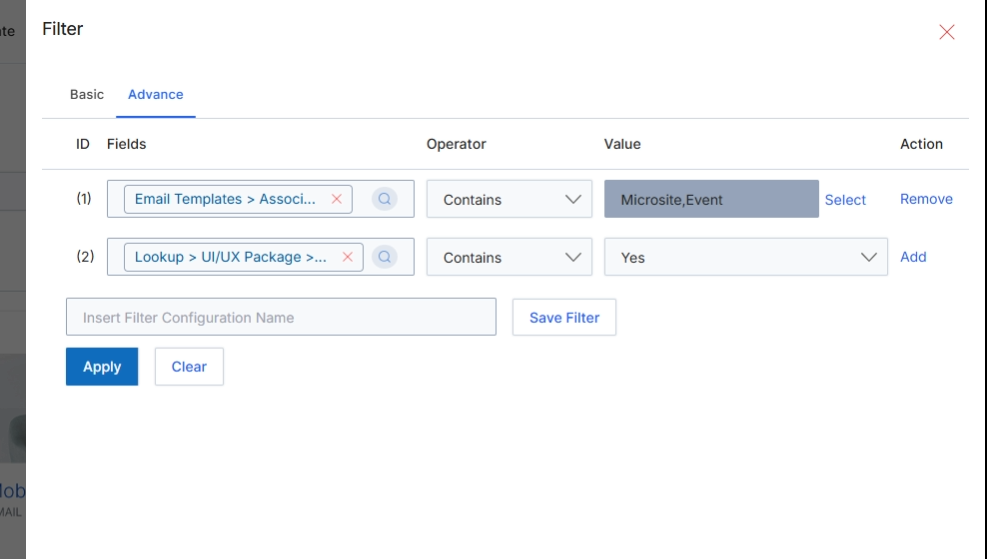
The Filter dialog provides options to refine the display of email templates based on various criteria. This advanced view allows users to construct complex filter queries by combining multiple conditions using logical operators. This capability is crucial for efficiently managing a large library of email templates, enabling users to quickly locate specific templates for campaigns, review their status, or perform bulk actions. The advanced filter supports granular control over which templates are displayed, facilitating targeted marketing efforts and ensuring that partners can easily find and utilize relevant co-marketing assets.
Click the 'Advance' tab to access more detailed filtering options for email templates.
Buttons
| Button | Description |
|---|---|
| Save Filter | Button to save the current filter configuration under the specified name. |
| Apply | Button to apply the configured filters to the email template list. |
| Clear | Button to clear all applied filter conditions. |
Fields
| Field | Description |
|---|---|
| Insert Filter Configuration Name | Input field to provide a name for the current filter configuration, allowing it to be saved for future use. |
Column Headings
| Column | Description |
|---|---|
| Fields | Dropdown menu to select the field by which to filter the email templates, such as 'Email Templates > Associated Tactic' or 'Lookup > UI/UX Package > UI/UX Package Name'. |
| Operator | Dropdown menu to select the logical operator for the filter condition, such as 'Contains', 'Equals', 'Starts With', etc. |
| Value | Input field or selection button to specify the value for the chosen filter field and operator. For example, 'Microsite,Event' for 'Associated Tactic' or 'Yes' for a boolean field. |
| Action | Buttons to 'Remove' an existing filter row or 'Add' a new filter row to build complex queries. |