

Overview
Mailing lists are fundamental to effective email marketing, enabling vendors and partners to segment their audience and deliver relevant content. Within UPM's Market module, the Mailing Lists feature provides a centralized repository for managing these crucial contact groups. This ensures that email campaigns, whether for lead nurturing, partner enablement, or promotional activities, reach the intended recipients efficiently and compliantly.
Administrators can define lists based on various criteria, import contacts from different sources, and maintain the accuracy of recipient data. This capability supports targeted communication strategies, allowing for personalized engagement that drives better campaign performance and strengthens relationships with prospects and partners alike.
Mailing Lists
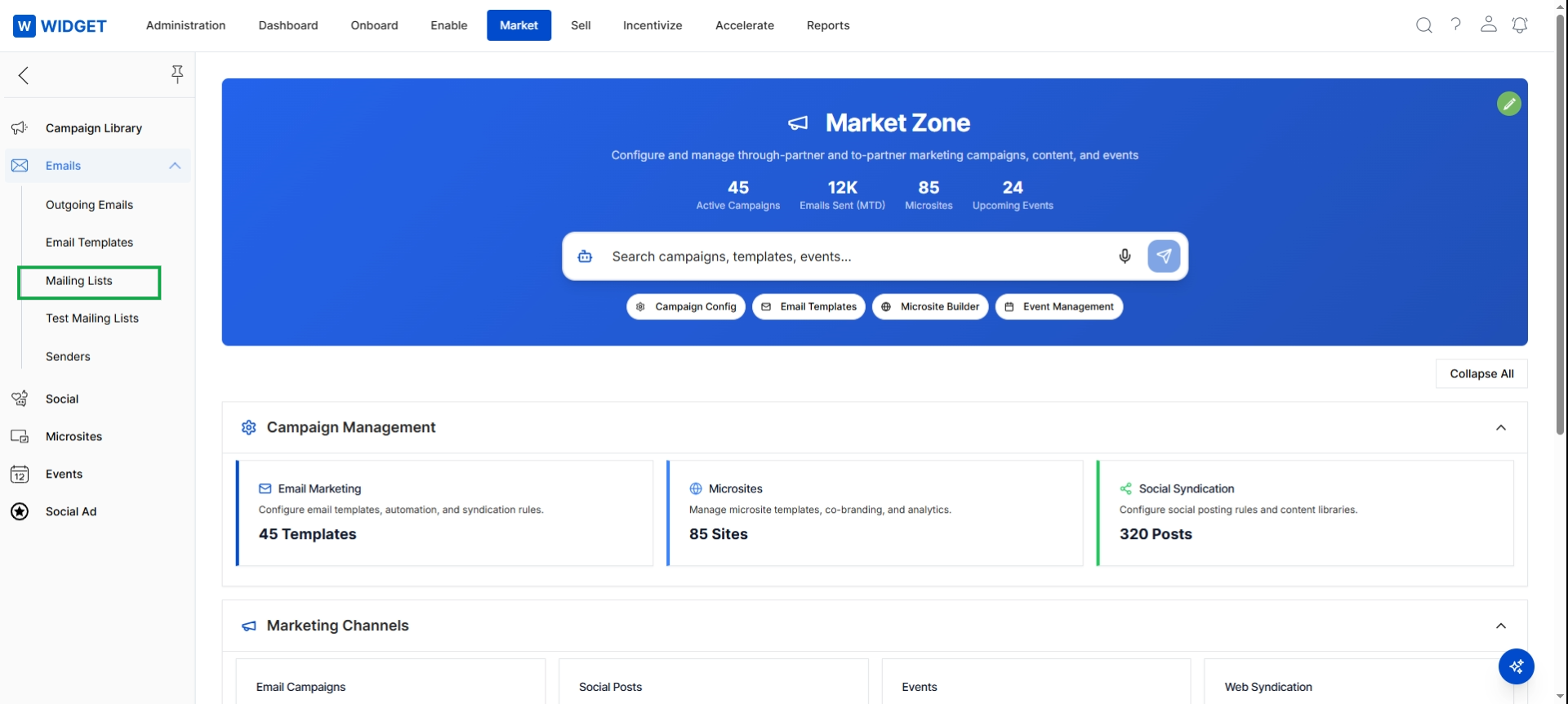
Click Market in the top navigation bar, then click Emails in the left navigation panel to expand the sub-menu, then click Mailing Lists.
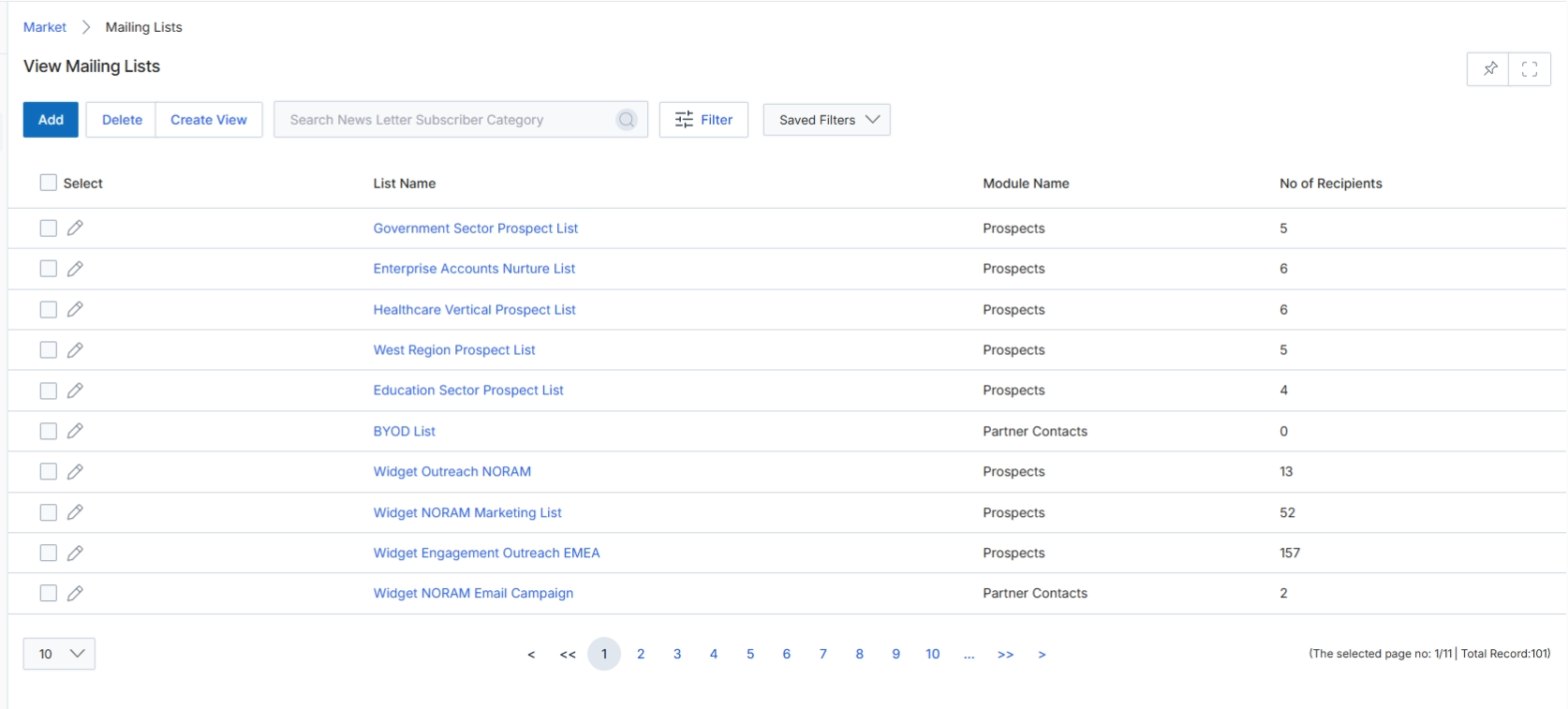
The Mailing Lists screen provides a comprehensive view of all email distribution lists configured within the UPM platform. These lists are crucial for both vendor-initiated and partner-executed email marketing campaigns, enabling targeted communication with prospects, customers, or partner contacts. This screen displays key information for each list, such as its name, the module it originates from (e.g., Prospects, Partner Contacts), and the number of recipients it contains. Users can manage these lists by adding new ones, creating custom views, or applying filters to quickly locate specific lists. The ability to manage mailing lists directly impacts the effectiveness and reach of marketing efforts across the entire partner ecosystem.
Click on "Mailing Lists" in the left navigation panel under the Emails section to view the list of all configured mailing lists.
Buttons
| Button | Description |
|---|---|
| Add | Initiates the process to create a new mailing list. |
| Delete | Deletes selected mailing lists from the system. |
| Create View | Allows users to define and save custom views of the mailing list table based on specific criteria. |
| Filter | Applies filters to narrow down the displayed mailing lists based on various attributes. |
| Saved Filters | A dropdown to select and apply previously saved filter configurations. |
Fields
| Field | Description |
|---|---|
| Search News Letter Subscriber Category | A search bar to find mailing lists by name or category. |
Column Headings
| Column | Description |
|---|---|
| Select | Checkbox to select individual mailing lists for bulk actions. |
| List Name | The name assigned to the mailing list. |
| Module Name | Indicates the module from which the contacts in the mailing list originate (e.g., Prospects, Partner Contacts). |
| No of Recipients | The total number of contacts included in the mailing list. |
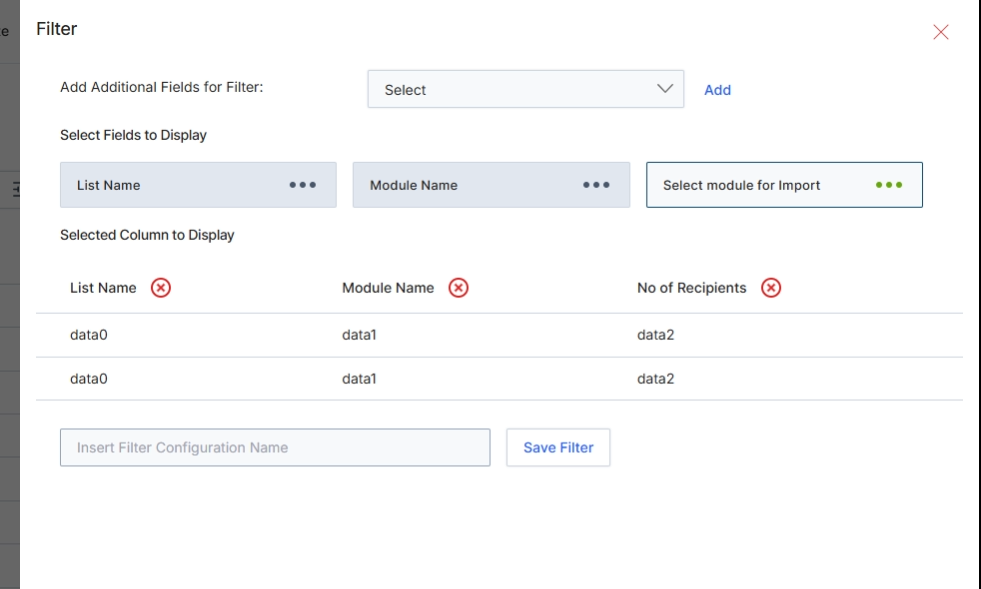
The Filter panel on the Mailing Lists screen allows users to customize the displayed columns and apply additional filtering criteria to the list of mailing lists. This functionality is crucial for managing email marketing efforts within the Market module, enabling users to focus on specific segments of their contact data. By selecting relevant fields to display and defining filter conditions, users can tailor the view to their analytical or operational needs, such as identifying lists based on their module name, recipient count, or other custom attributes. This customization helps in efficiently organizing and utilizing mailing lists for various marketing campaigns, ensuring that the right messages reach the intended audiences.
Configure the filter settings by adding additional fields, selecting fields to display, and specifying a filter configuration name.
Buttons
| Button | Description |
|---|---|
| Add | Adds the selected additional field to the filter criteria. |
| Save Filter | Saves the defined filter configuration for future use. |
Fields
| Field | Description |
|---|---|
| Add Additional Fields for Filter | A dropdown to select additional fields that can be used to filter the mailing lists. |
| Select Fields to Display | A dropdown to choose which fields from the mailing list records should be visible as columns in the main table. |
| Select Module for Import | A dropdown to select a module for importing data, which will then be displayed as a column. |
| Insert Filter Configuration Name | A text input field to enter a name for the current filter configuration, allowing it to be saved and reused. |
Column Headings
| Column | Description |
|---|---|
| List Name | Represents the 'List Name' column, which is currently selected to be displayed. |
| Module Name | Represents the 'Module Name' column, which is currently selected to be displayed. |
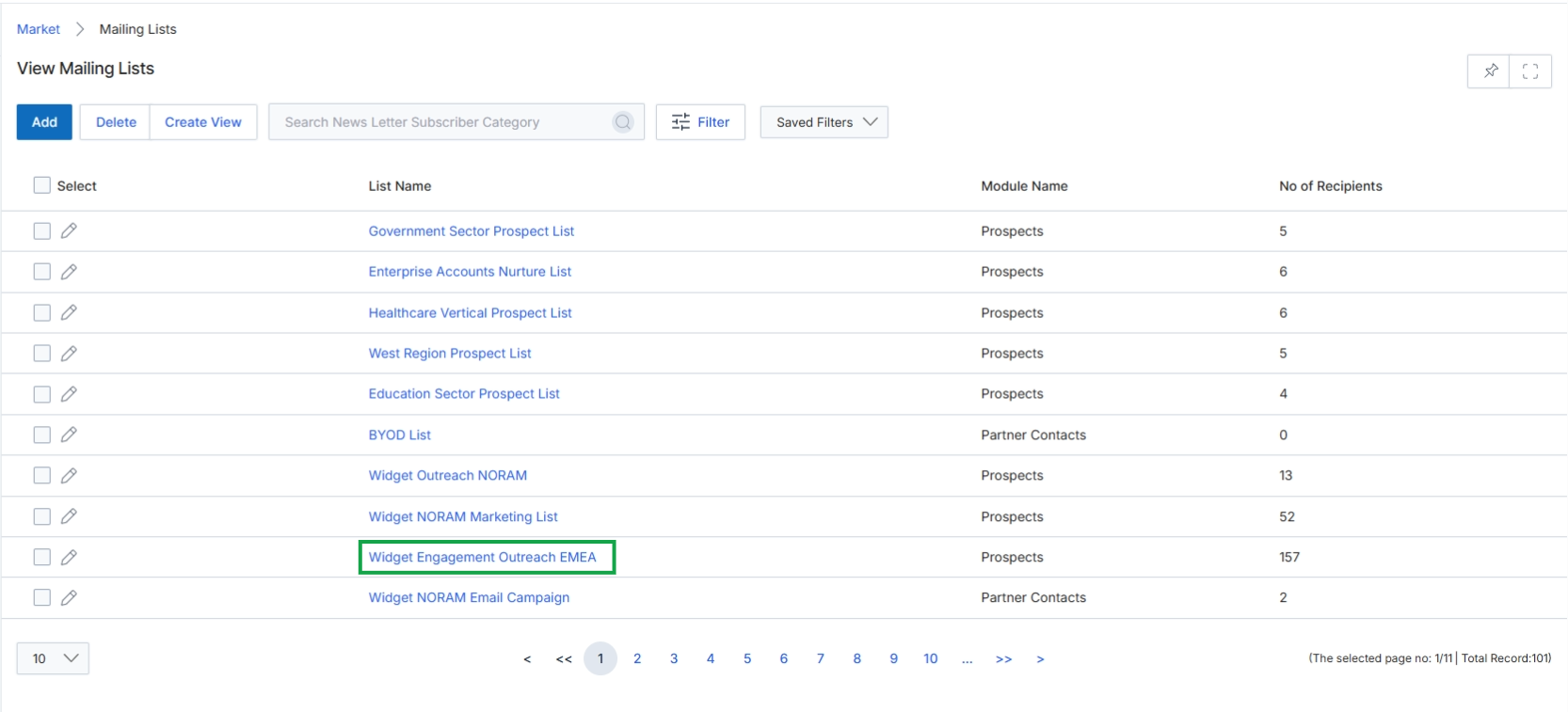
Click on a List Name record to open the View a Mailing List page.
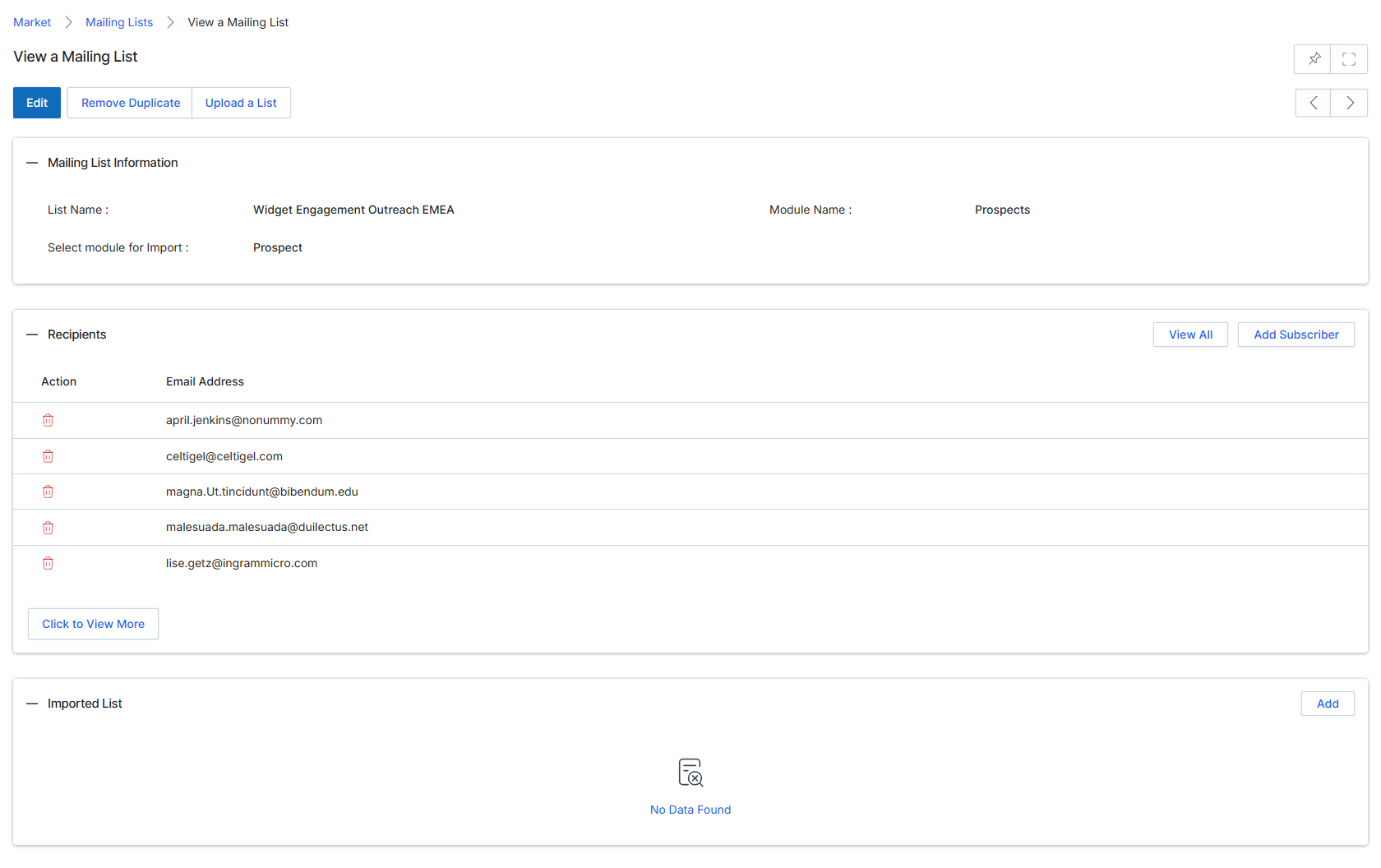
This screen displays the detailed view of a specific Mailing List within the Email Marketing Management section of the Market module. Mailing lists are fundamental for executing email campaigns, allowing vendors and partners to target specific groups of contacts with marketing communications. This view provides comprehensive information about the selected list, including its name, the module it's associated with (e.g., Prospects or Partner Contacts), and a list of the recipients' email addresses. This detail view allows users to review the composition of a mailing list before it is used in a campaign, ensuring that the correct audience is targeted.
Click on the 'Widget Engagement EMEA' mailing list name to view its details.
Buttons
| Button | Description |
|---|---|
| Edit | Allows modification of the mailing list's properties. |
| Remove Duplicate | Removes any duplicate email addresses from the mailing list. |
| Upload a List | Enables uploading a new list of recipients to this mailing list. |
| View All | Displays all recipients in the list. |
| Add Subscriber | Adds a new individual email address to the mailing list. |
| Click to View More | Expands the list to show additional recipients. |
| Add | Adds an imported list. |
Mailing List Information
| Field | Description |
|---|---|
| List Name | The name of the mailing list. |
| Module Name | Indicates the module from which the contacts for this mailing list are sourced (e.g., Prospects, Partner Contacts). |
| Select module for import | Specifies the module from which contacts can be imported into this mailing list. |
Column Headings
| Column | Description |
|---|---|
| Email Address | The email address of a recipient in the mailing list. |
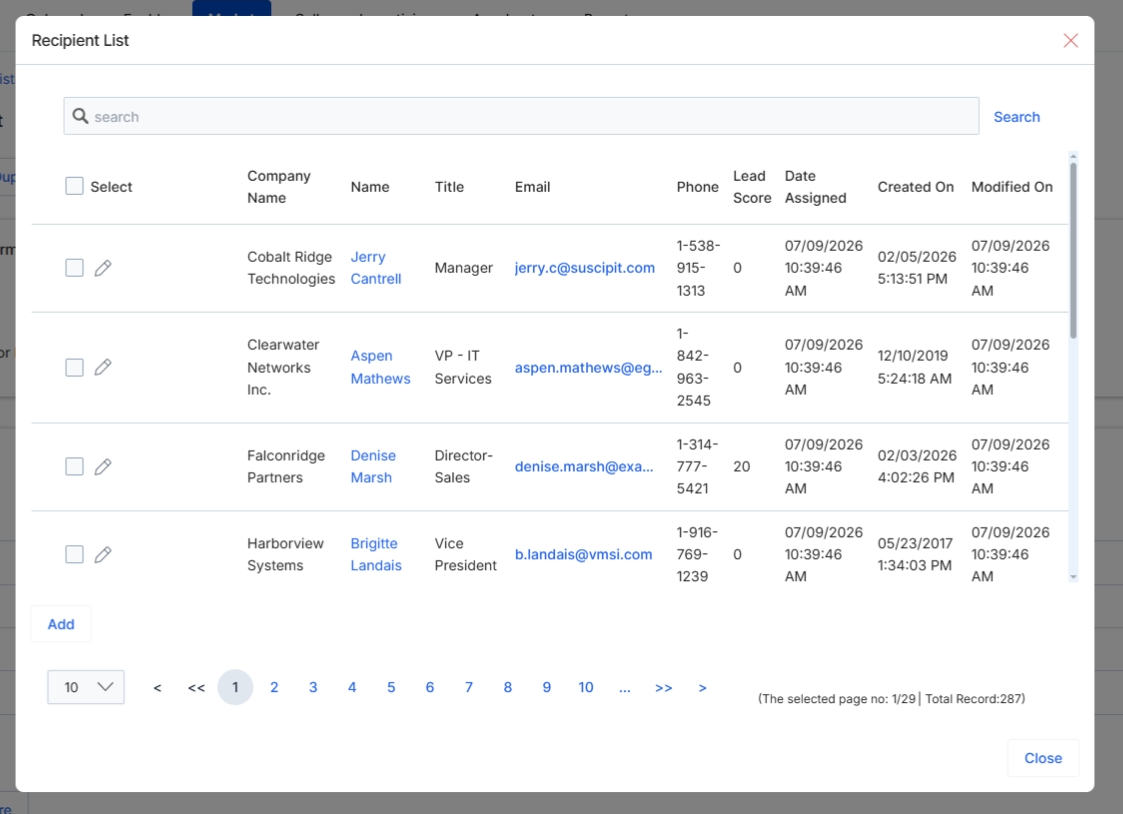
This screen displays the details of a specific Mailing List within the Market module, which is used to manage email campaigns. Mailing lists are crucial for targeting specific groups of contacts for marketing outreach, allowing vendors and partners to segment their audience for various campaigns. This view provides an overview of the list's information, including its name and the module from which it imports data, and lists the individual recipients currently associated with it. The ability to add or remove recipients directly from this view ensures that the mailing list remains current and relevant for ongoing marketing activities, supporting the broader workflow of campaign creation and execution by ensuring the right messages reach the right audience.
Click the Add button within the Recipients section to open the Recipient List modal.
Buttons
| Button | Description |
|---|---|
| Close | Closes the Recipient List modal without adding any selected recipients. |
Fields
| Field | Description |
|---|---|
| Search | A search bar to filter the list of available recipients by keywords. |
Column Headings
| Column | Description |
|---|---|
| Select | A checkbox to select individual recipients for addition to the mailing list. |
| Company Name | The name of the company associated with the recipient. |
| Name | The full name of the recipient. |
| Title | The job title of the recipient within their company. |
| Phone | The contact phone number of the recipient. |
| Lead Score | A numerical score indicating the recipient's engagement or qualification level. |
| Assigned | Indicates who the recipient is assigned to. |
| Date Created | The date when the recipient's record was created in the system. |
| Modified On | The date when the recipient's record was last modified. |
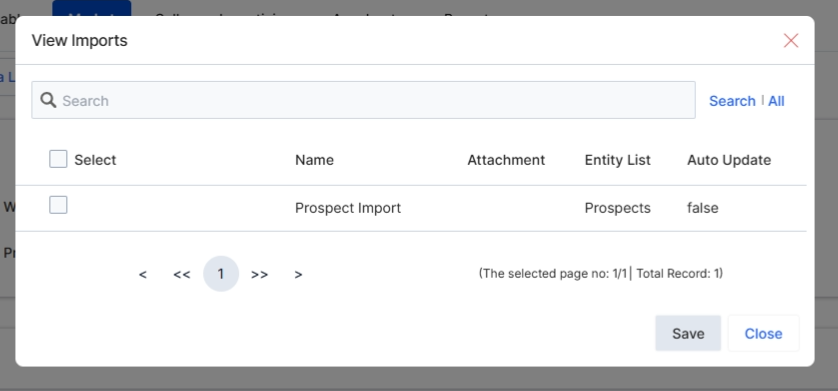
This screen displays the 'View Imports' dialog, which provides a centralized view of all imported lists associated with the current mailing list. This feature is crucial for managing the data sources that populate a mailing list, especially when integrating with external systems or importing large datasets. It allows administrators to track the origin and status of imported recipient data, ensuring data integrity and compliance. The dialog shows key details about each import, such as its name, associated attachment, the entity list it belongs to, and whether it's configured for auto-update, which is vital for maintaining up-to-date recipient information for marketing campaigns.
Click the 'Upload a List' button to open the 'View Imports' dialog.
Buttons
| Button | Description |
|---|---|
| Save | Saves any changes made within the 'View Imports' dialog. |
| Close | Closes the 'View Imports' dialog without saving changes. |
Fields
| Field | Description |
|---|---|
| Search | A text input field to search for specific imports within the displayed list. |
Column Headings
| Column | Description |
|---|---|
| Select | A checkbox column to select one or more imported lists for bulk actions. |
| Name | Displays the name of the imported list. |
| Attachment | Indicates if an attachment is associated with the imported list. |
| Entity List | Specifies the type of entity the imported list contains (e.g., Prospects). |
| Auto Update | Indicates whether the imported list is configured to automatically update its contents. |
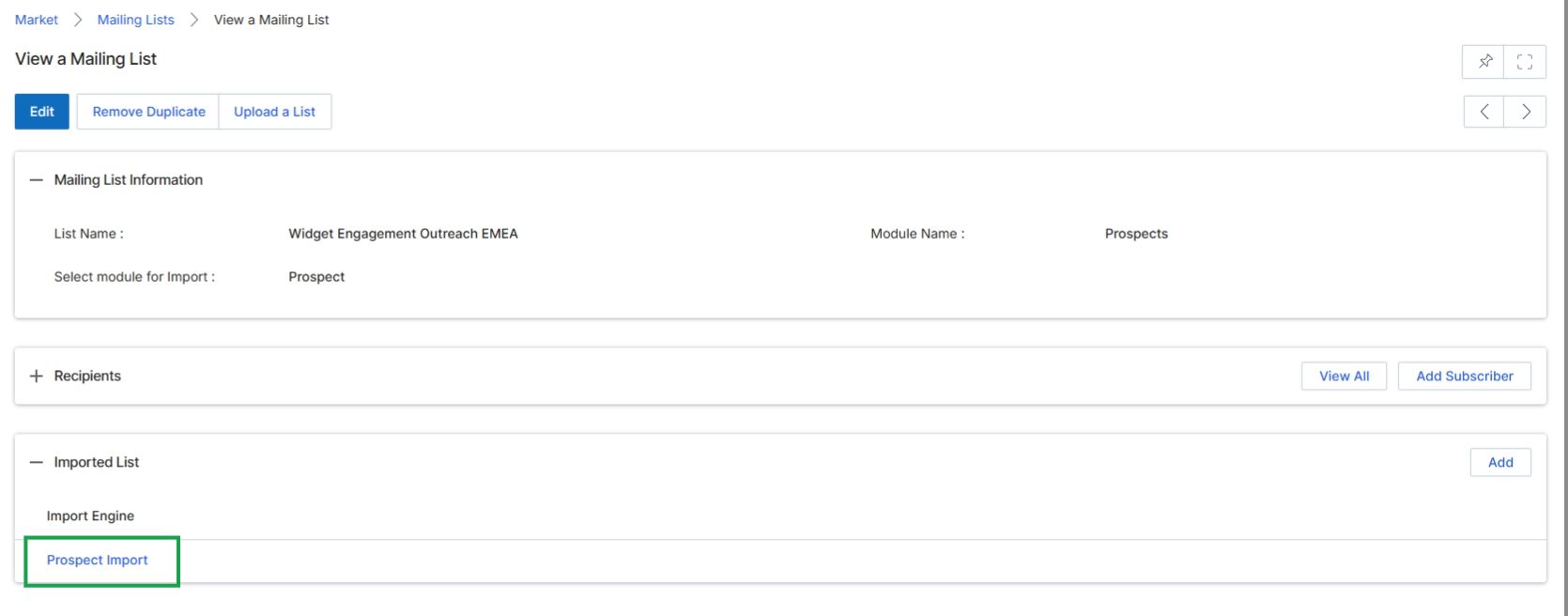
This screen displays the details of a specific mailing list within the Market module, showing that an import process has been completed. The "Imported List" section now contains a link to "Prospect Import," indicating that a list of prospects has been successfully imported and associated with this mailing list. This view allows administrators to confirm the successful integration of external contact data into the platform for use in email campaigns.
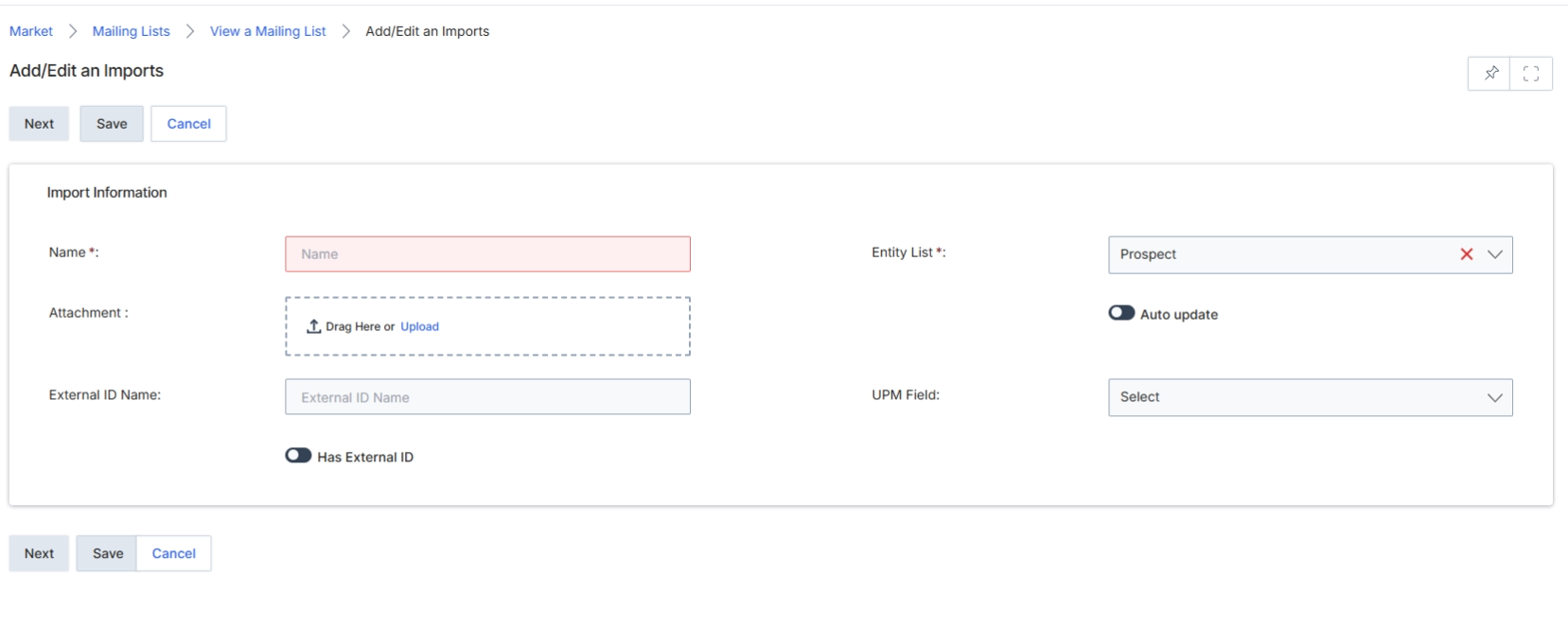
This screen, 'Add/Edit an Imports', is part of the UPM Market module and allows users to configure the import of contact lists for email marketing campaigns. It enables the creation of new import configurations or the modification of existing ones, specifying details such as the import name, the target entity list (e.g., Prospects), and the file containing the data. This functionality is crucial for populating mailing lists with external data, ensuring that marketing campaigns can target specific groups of contacts. The screen also provides options for managing external IDs and auto-updating the imported list, which helps maintain data integrity and synchronization with external systems. Once configured, these import settings facilitate the seamless integration of contact data into the UPM platform for use in various marketing activities.
Configure the import by providing a name, attaching the import file, and specifying the entity list.
Buttons
| Button | Description |
|---|---|
| Next | Proceeds to the next step in the import configuration process. |
| Save | Saves the current import configuration. |
| Cancel | Discards any changes and returns to the previous screen. |
Import Information
| Field | Description |
|---|---|
| Name | Enter a descriptive name for this import configuration. |
| Entity List | Select the target entity type (e.g., Prospect) to which the imported data will be mapped. |
| Attachment | Drag and drop or upload the file containing the contact data to be imported. |
| Auto update | Toggle to enable or disable automatic updates for this imported list. |
| External ID Name | Enter the name of the external ID if 'Has External ID' is enabled. |
| UPM Field | Select the corresponding UPM field for the external ID. |
| Has External ID | Check this box if the import file contains an external ID that needs to be mapped. |
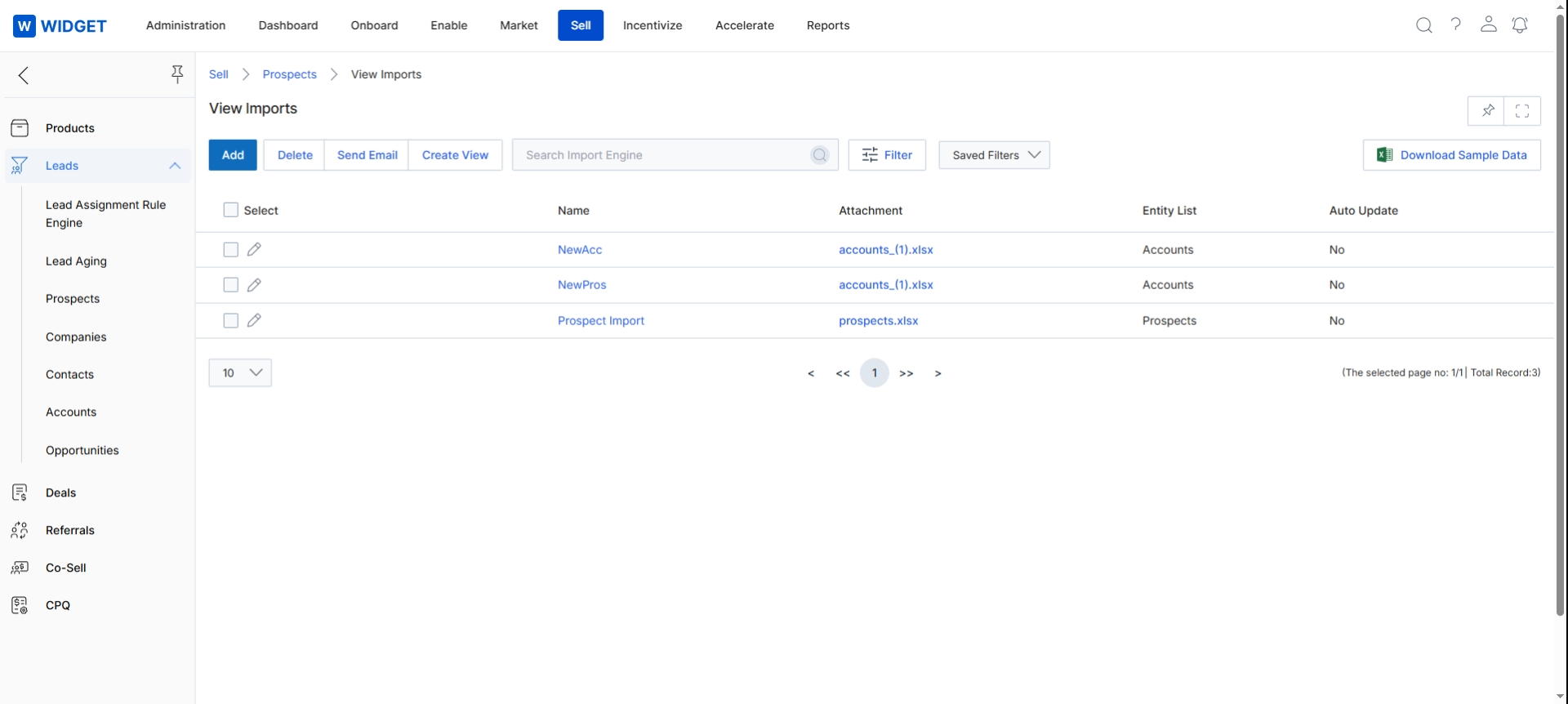
This screen displays a list of all configured data import jobs within the UPM platform, providing a centralized view for monitoring and managing the ingestion of external data. Each entry in the table details the import's name, the attached file, the target entity list (e.g., Accounts, Prospects), and whether automatic updates are enabled. This view allows administrators to quickly assess import statuses, identify data sources, and manage data synchronization, ensuring the system's data remains current and accurate for various modules like Sell and Market.