

Overview
Email templates are a core component of UPM's Market module, facilitating efficient and scalable email marketing efforts. By pre-defining email content and structure, vendors can ensure brand consistency across all partner communications, whether for campaign promotions, event invitations, or general announcements. These templates are designed to be reusable and can be linked to specific campaigns and marketing tactics, streamlining the process of launching new initiatives and enabling partners to execute co-branded email campaigns with ease.
Add/Edit a New Email Template
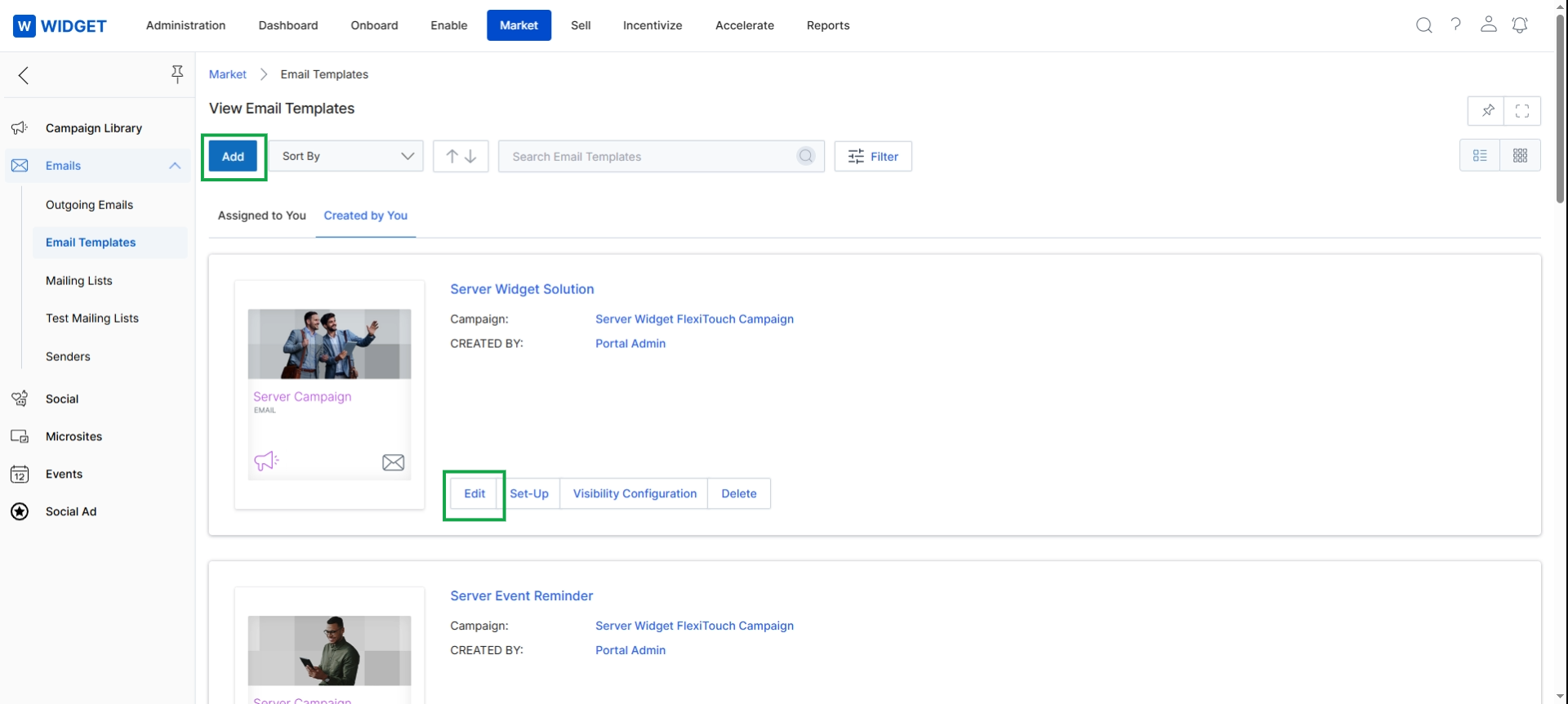
Click Add (or Edit) → Add/Edit an Email Template.
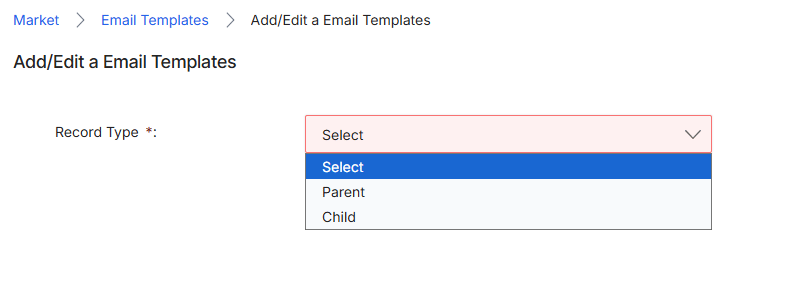
This screen, titled 'Add/Edit a Email Templates', is the initial step in defining a new email template within the UPM Market module. Email templates are reusable, branded email structures that vendors and partners can use for various marketing campaigns, as outlined in the WF-01 and WF-06 workflows. Before proceeding with the full template configuration, the system requires the user to specify the 'Record Type' for the new email template. This classification helps in organizing and managing templates, potentially influencing their inheritance or relationship with other templates, and ensuring proper application within different campaign contexts.
Select the Record Type for the new email template from the dropdown menu.
Fields
| Field | Description |
|---|---|
| Record Type | Specifies the classification of the email template, which can be 'Select', 'Parent', or 'Child'. This choice may influence how the template can be used or customized in relation to other templates. |
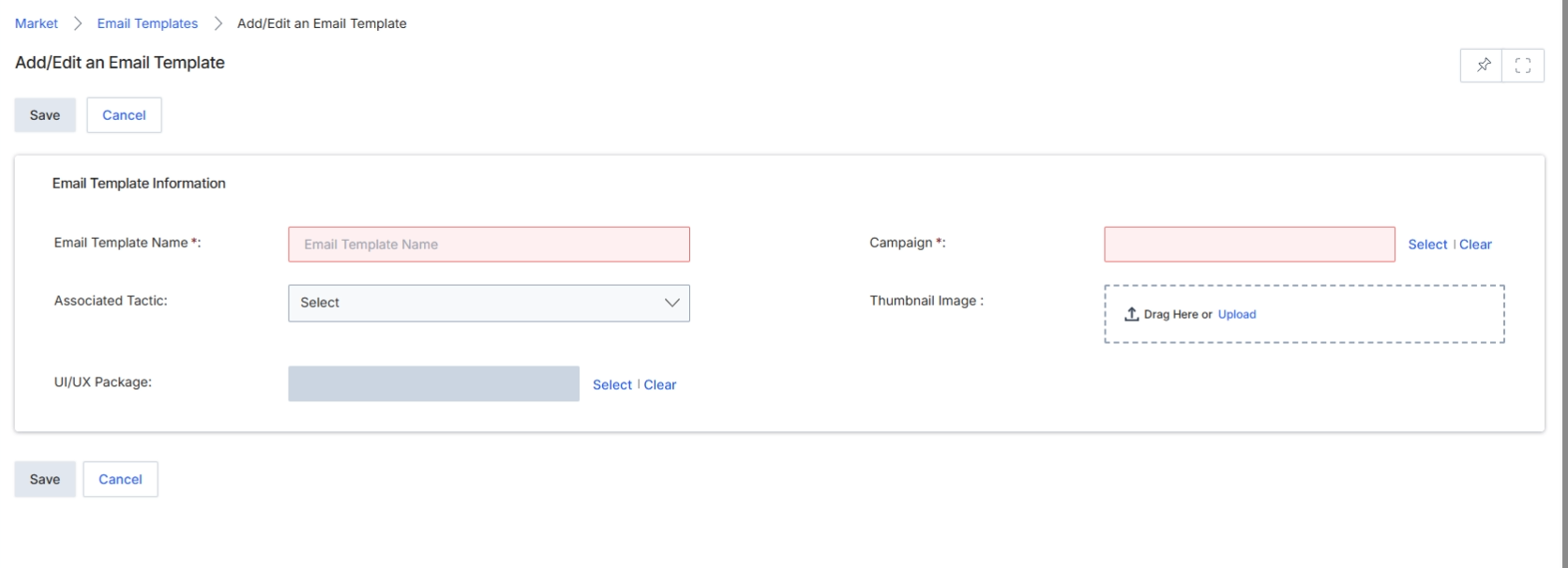
This form collects essential information for defining the template's properties, such as its name, associated campaign, and any specific marketing tactics it supports. The fields on this form allow for the detailed configuration of the email template, ensuring it aligns with its intended use within the UPM platform's marketing capabilities.
Fill in the details for the new email template on the Add/Edit an Email Template form.
Buttons
| Button | Description |
|---|---|
| Save | Click to save the new email template. |
| Cancel | Click to discard changes and return to the previous screen. |
Email Template Information
| Field | Description |
|---|---|
| Email Template Name | Enter a unique name for the email template. |
| Campaign | Select the marketing campaign this email template will be associated with. |
| Associated Tactic | Select the specific marketing tactic (e.g., email, event, paid ad) this template supports. |
| Thumbnail Image | Upload a thumbnail image to represent the email template. |
| UI/UX Package | Select the user interface/user experience package for this template. |
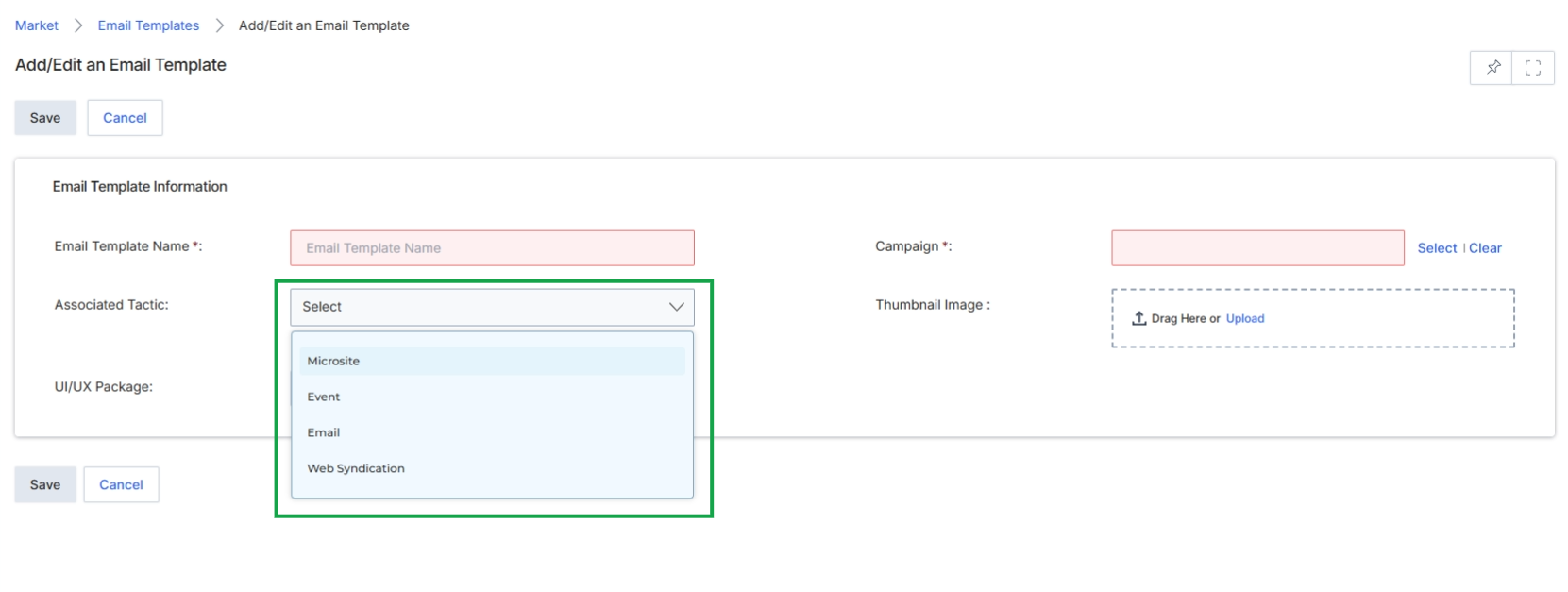
Select the appropriate marketing tactic from the "Associated Tactic" dropdown list to specify the type of activity this email template will support.
Email Template Information
| Field | Description |
|---|---|
| Associated Tactic | Specifies the marketing activity type (e.g., Microsite, Event, Email, Web Syndication) that this email template is designed to support. This helps categorize and filter templates for partners when they are planning their campaigns. |
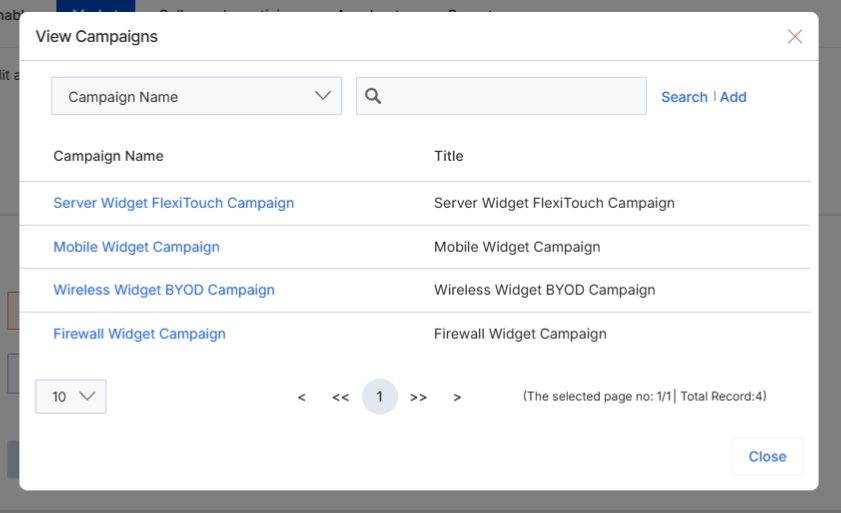
This modal dialog, 'View Campaigns', allows users to select an existing campaign to associate with the email template being created or edited. In the UPM Market module, campaigns serve as overarching marketing initiatives that can encompass a range of tactics, including email marketing. Associating an email template with a specific campaign helps organize marketing efforts, track performance metrics, and ensure that all related activities fall under a unified strategy. This selection is crucial for proper reporting and attribution within the platform, linking the email template's usage and results back to a broader marketing objective.
Select a campaign from the 'View Campaigns' modal to associate it with the email template.
Buttons
| Button | Description |
|---|---|
| Search | Initiates a search for campaigns based on the entered campaign name. |
| Add | Opens a form to add a new campaign. |
| Close | Closes the 'View Campaigns' modal without making a selection. |
Fields
| Field | Description |
|---|---|
| Campaign Name | A text input field to search for campaigns by name. |
Column Headings
| Column | Description |
|---|---|
| Campaign Name | Displays the name of an available campaign. Clicking a campaign name selects it. |
| Title | Displays the title of the campaign. |
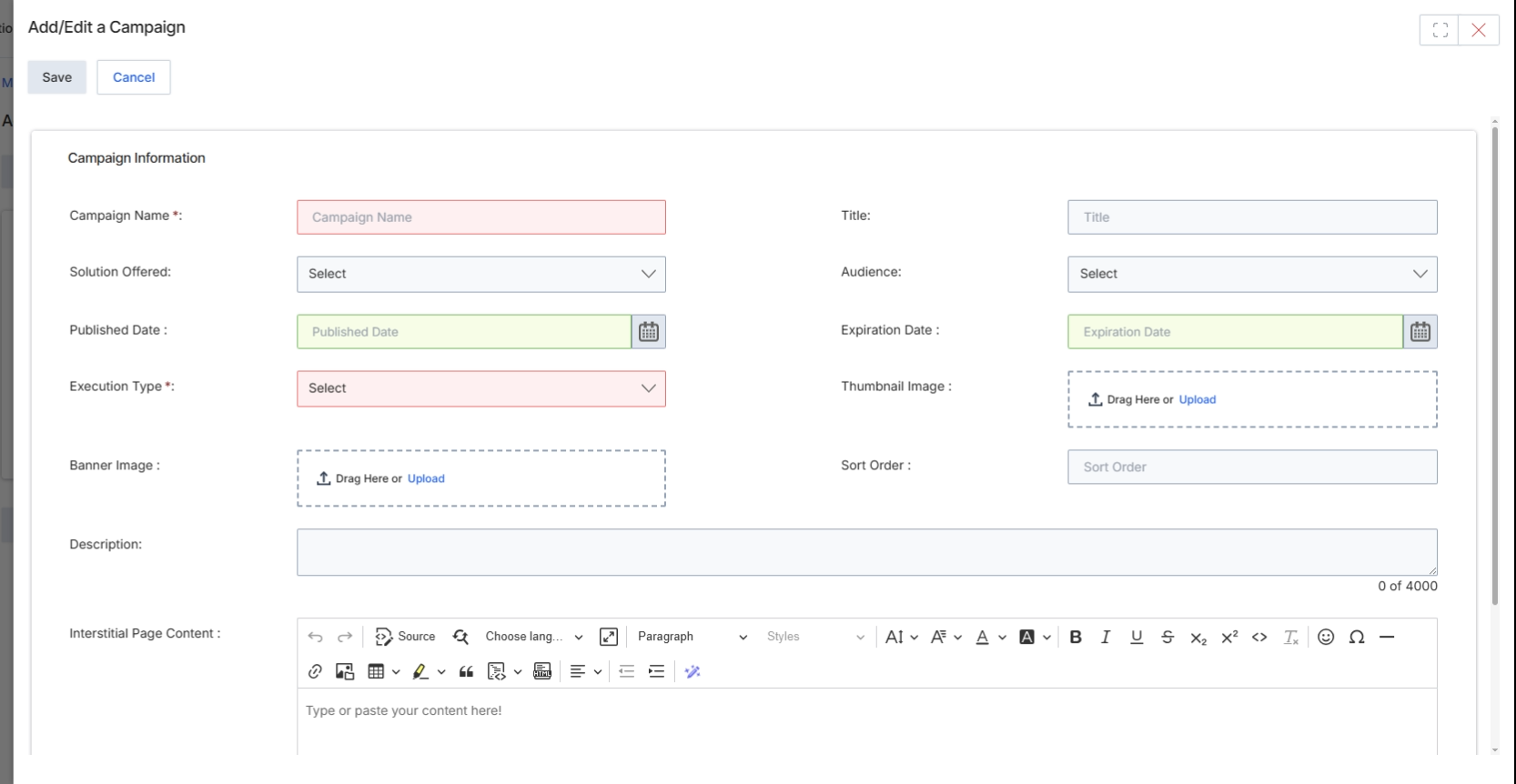
This screen displays the 'Add/Edit a Campaign' form, which is used by vendor-side users to define and configure new co-marketing campaigns within the Market module. Campaigns are central to UPM's co-marketing capabilities, allowing vendors to structure marketing initiatives with specific objectives, budgets, and assets that partners can then execute. This form captures all the essential details required to set up a campaign, including its name, type, target audience, duration, and associated creative assets. Once configured and published, these campaigns become visible to eligible partners in their portals, enabling them to participate in co-marketing efforts. The form supports the comprehensive definition of a campaign, which is a prerequisite for partners to select and launch marketing activities or apply for Market Development Funds (MDF) related to specific initiatives.
Fill out the 'Add/Edit a Campaign' form to define the new campaign's details.
Buttons
| Button | Description |
|---|---|
| Save | Saves the current campaign configuration. |
| Cancel | Discards any changes and closes the form. |
Campaign Information
| Field | Description |
|---|---|
| Campaign Name * | Enter the name of the campaign. This is a mandatory field. |
| Title | Enter an optional title for the campaign. |
| Solution Offered | Select the solution or product offered by this campaign from the dropdown. |
| Audience | Select the target audience for this campaign from the dropdown. |
| Published Date | Select the date when the campaign should become visible to partners. |
| Expiration Date | Select the date when the campaign will no longer be active or visible. |
| Execution Type * | Select the type of execution for this campaign (e.g., Email, Event, Paid Ad). This is a mandatory field. |
| Thumbnail Image | Upload a thumbnail image to represent the campaign. |
| Banner Image | Upload a banner image for the campaign. |
| Sort Order | Enter a numerical value to determine the display order of the campaign in lists. |
| Description | Provide a detailed description of the campaign. |
Fields
| Field | Description |
|---|---|
| Interstitial Page Content | Enter or paste the content for the interstitial page associated with this campaign using the rich text editor. |
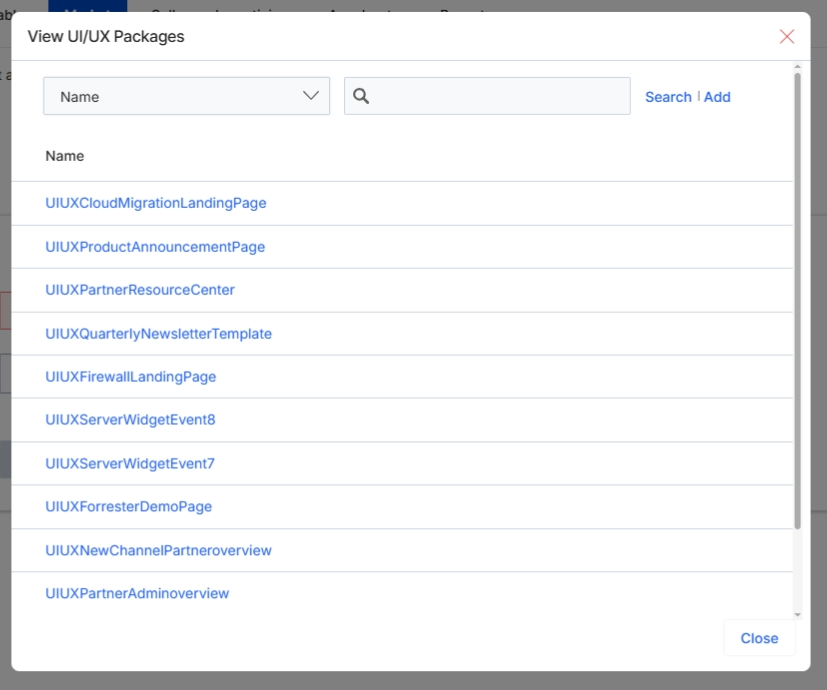
This modal window, 'View UI/UX Packages,' allows users to select a pre-defined UI/UX package for an email template. UI/UX packages are collections of design elements and layouts that ensure consistency and branding across various marketing assets. By selecting a package, users can quickly apply a standardized look and feel to their email templates, streamlining the design process and maintaining brand guidelines. This selection is crucial for ensuring that partner-facing communications align with the vendor's overall marketing strategy and visual identity.
Select a UI/UX package from the list to apply its design elements to the email template.
Buttons
| Button | Description |
|---|---|
| Search | Initiates a search for UI/UX packages based on the entered name. |
| Add | Adds a new UI/UX package to the system. |
| Close | Closes the 'View UI/UX Packages' modal without making a selection. |
Fields
| Field | Description |
|---|---|
| Name | This input field allows users to search for specific UI/UX packages by name. |
Column Headings
| Column | Description |
|---|---|
| Name | Displays the name of an available UI/UX package. |
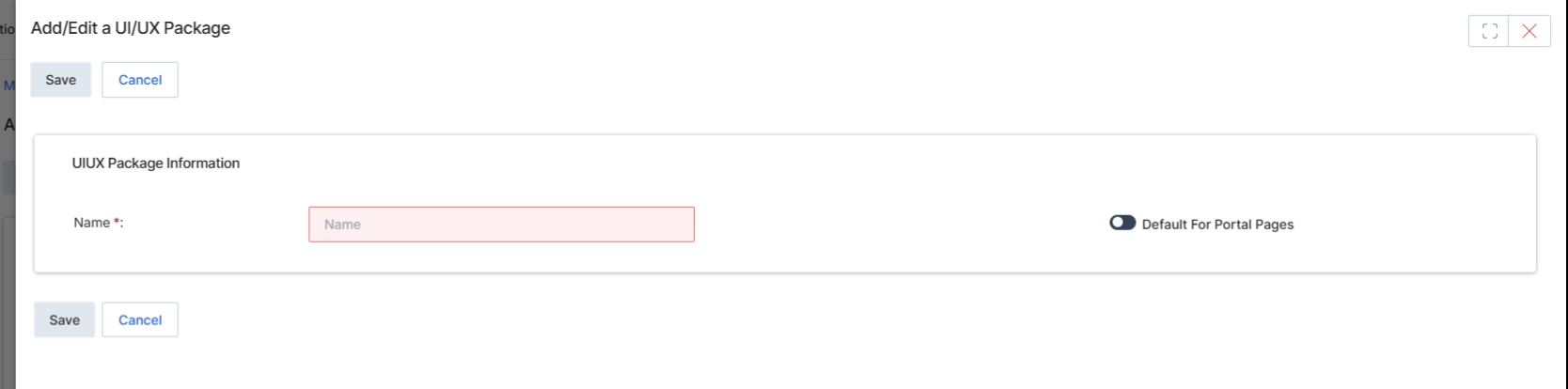
This screen displays the Add/Edit UI/UX Package form, which is used to define and manage UI/UX packages within the UPM platform. UI/UX packages are collections of design elements and configurations that can be applied to various partner-facing interfaces, such as microsites or email templates, to ensure brand consistency and user experience. This form allows administrators to create new packages or modify existing ones, specifying their name and whether they should be set as the default for partner portal pages. These packages are crucial for maintaining a unified brand presence across all partner touchpoints and streamlining the design process for marketing assets.
Fill out the Add/Edit a UI/UX Package form to define a new UI/UX package.
Buttons
| Button | Description |
|---|---|
| Save | Click to save the new or updated UI/UX package. |
| Cancel | Click to discard any changes and close the form without saving. |
UI/UX Package Information
| Field | Description |
|---|---|
| Name * | Enter the name for the UI/UX package. This is a required field. |
| Default For Portal Pages | Toggle this switch to set the current UI/UX package as the default for all partner portal pages. |