

Overview
Effective email marketing relies on thorough testing to ensure that messages render correctly across various email clients and devices, and that all links and personalization fields function as intended. The Test Mailing List functionality within the Market module provides a dedicated environment for administrators to create and maintain lists of internal recipients or specific test accounts. This capability is vital for quality assurance in email campaigns, allowing for iterative testing and refinement before broad deployment to partners or prospects. By isolating testing from live mailing lists, UPM helps prevent accidental sends to production audiences and ensures that only polished, error-free communications are distributed.
Accessing Test Mailing Lists
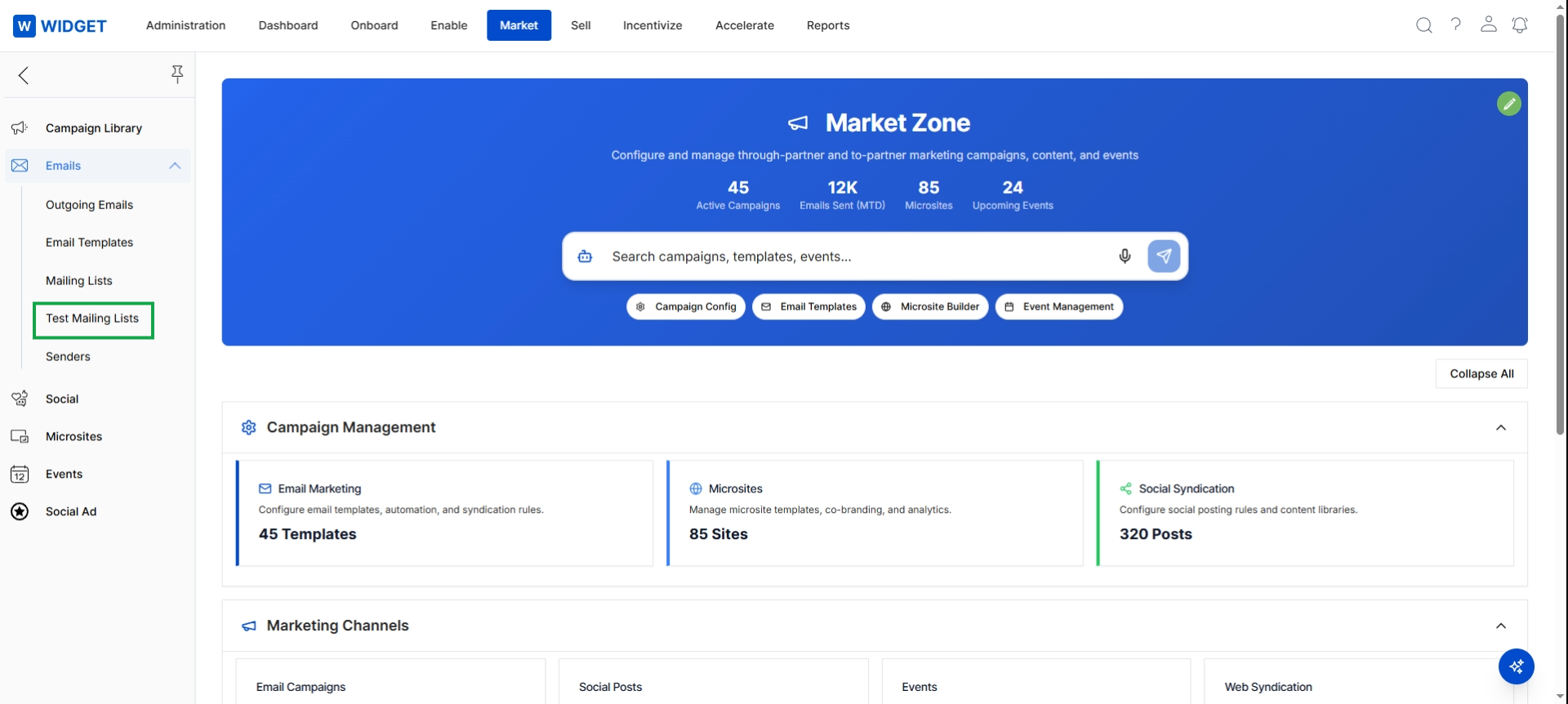
Click Market in the top navigation bar, then click Emails in the left navigation panel, and then click Test Mailing Lists.
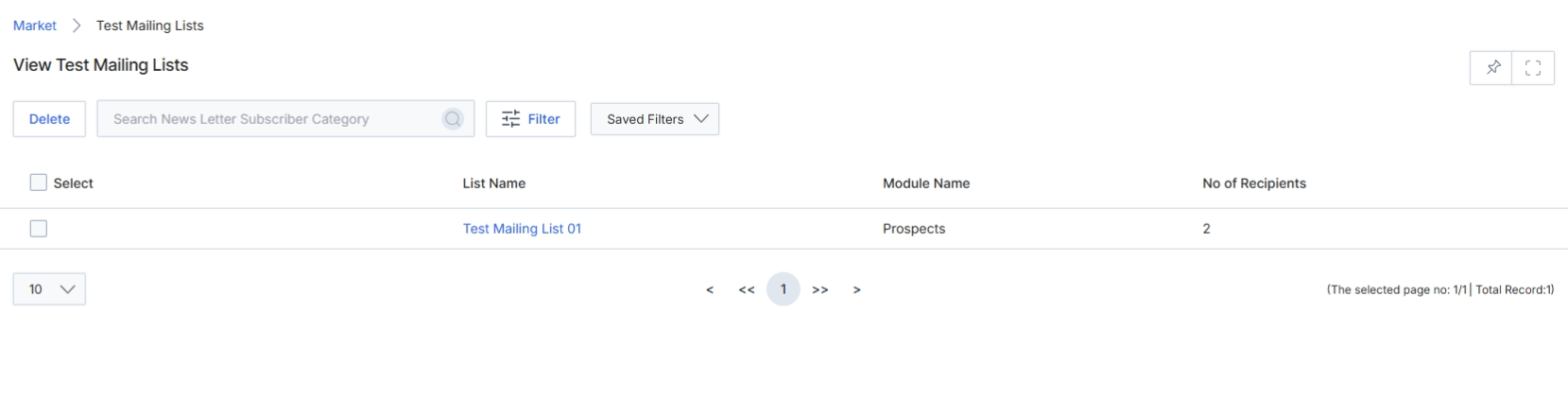
The Test Mailing Lists screen provides a dedicated view for managing mailing lists specifically designated for testing purposes within the Email Marketing module. These lists are crucial for vendors to validate email templates, personalization merge fields, and campaign delivery mechanics before deploying campaigns to live partner or prospect audiences. This separation ensures that testing activities do not inadvertently impact actual marketing efforts or customer data. The screen displays key information about each test list, such as its name, the module it's associated with (e.g., Prospects), and the number of recipients it contains, allowing for efficient oversight and management of testing resources.
Click Test Mailing Lists in the left navigation panel to view the list of test mailing lists.
Buttons
| Button | Description |
|---|---|
| Delete | Deletes the selected test mailing list(s). |
| Filter | Applies filters to narrow down the displayed list of test mailing lists. |
| Saved Filters | Opens a dropdown to select and apply previously saved filter configurations. |
Fields
| Field | Description |
|---|---|
| Search News Letter Subscriber Category | Searches for test mailing lists by newsletter subscriber category. |
Column Headings
| Column | Description |
|---|---|
| Select | Checkbox to select individual test mailing lists for bulk actions. |
| List Name | The name of the test mailing list. |
| Module Name | The module from which the recipients for the test mailing list are sourced (e.g., Prospects). |
| No of Recipients | The total number of recipients included in the test mailing list. |
Viewing and Managing a Test List
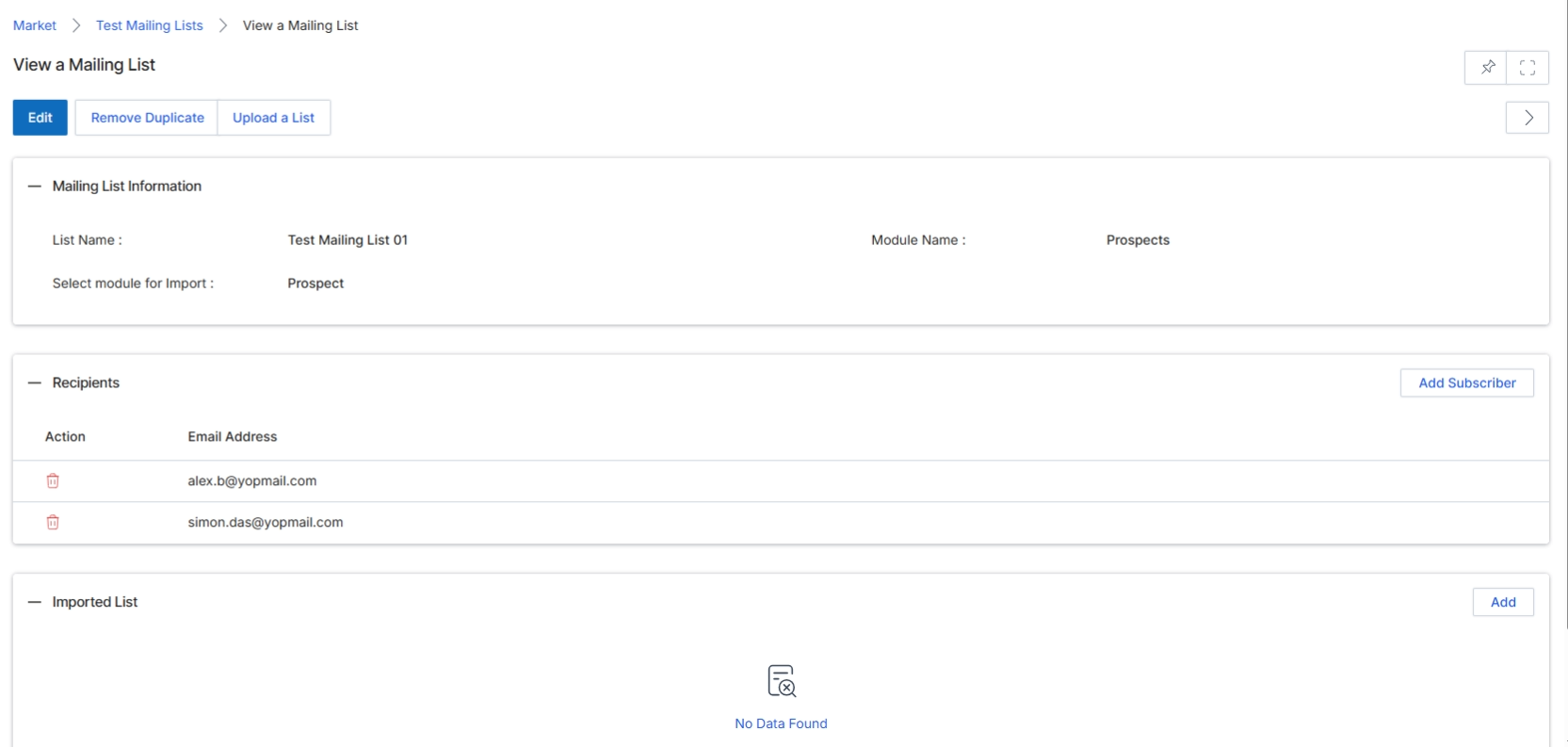
This screen displays the detailed information for a specific mailing list within the Email Marketing Management module. Mailing lists are fundamental for executing email campaigns, allowing vendors to target specific groups of contacts. This view provides an overview of the list's configuration, including its name, the module it's associated with, and crucially, the individual recipients (subscribers) included in the list. From this detail view, users can manage the list by editing its properties, adding new subscribers, or uploading an entirely new list. This screen is essential for verifying the contents and settings of a mailing list before it is used in an email campaign, ensuring that the right messages reach the intended audience.
Review the details of the selected mailing list, including its general information and the list of recipients.
Buttons
| Button | Description |
|---|---|
| Edit | Click to modify the mailing list's properties. |
| Remove Duplicate | Click to remove any duplicate entries from the mailing list. |
| Upload a List | Click to upload a new list of recipients to this mailing list. |
| Add Subscriber | Click to manually add a new email address to the recipient list. |
| Add | Click to add an imported list. |
Mailing List Information
| Field | Description |
|---|---|
| List Name | Displays the name of the mailing list. |
| Module Name | Indicates the module from which the mailing list's contacts are sourced, such as 'Prospects'. |
| Select Module for Import | Specifies the module from which contacts can be imported into this mailing list. |
Column Headings
| Column | Description |
|---|---|
| Action | Column header for actions that can be performed on individual recipients, such as deleting them. |
| Email Address | Column header for the email addresses of the recipients in the mailing list. |
Adding and Importing Recipients
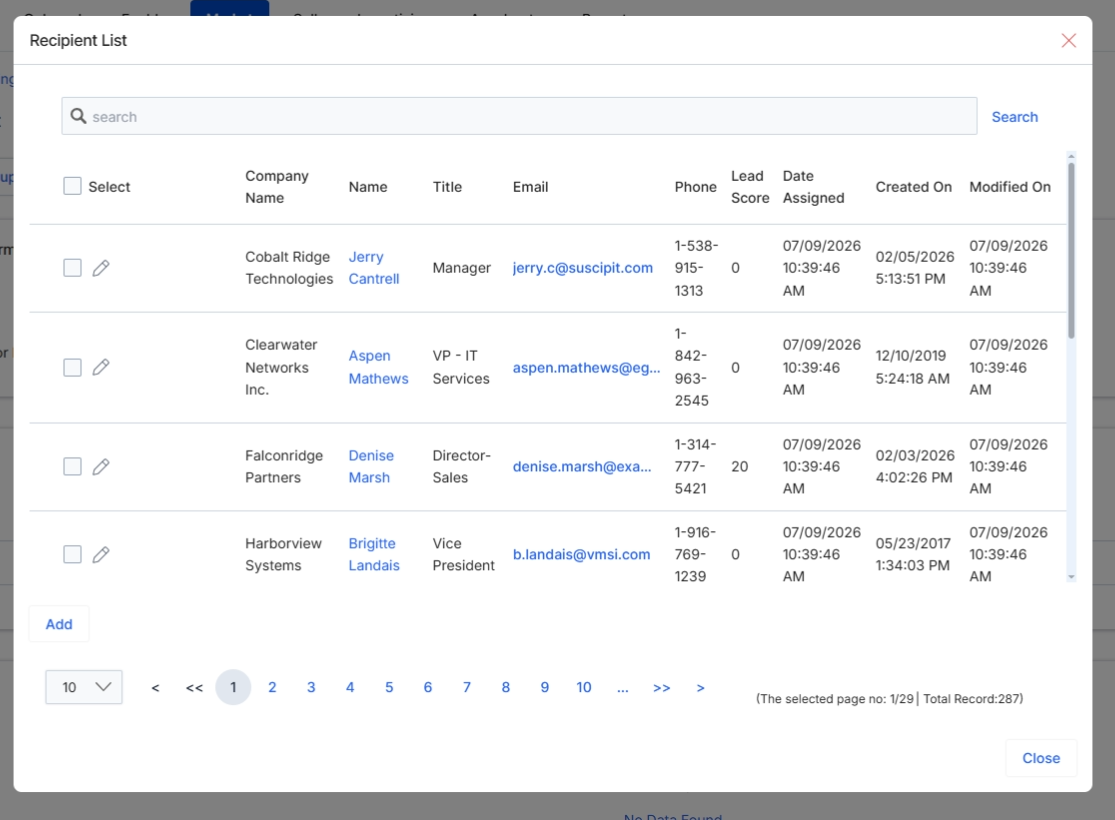
The Recipient List dialog allows users to select and add individual prospects or contacts to a mailing list within the Market module. This dialog is crucial for building targeted email campaigns, enabling users to leverage existing data from the UPM system, such as prospect information, to populate their mailing lists. It displays key details for each potential recipient, including company, name, title, email, and lead score, facilitating informed selection. The ability to filter and search within this list ensures that only relevant contacts are added, supporting the creation of highly segmented and effective marketing communications. Once selected, these recipients will be included in email campaigns associated with the mailing list, allowing for direct engagement with specific target audiences.
Click the "Add Subscriber" button to open the Recipient List dialog and select subscribers for the mailing list.
Buttons
| Button | Description |
|---|---|
| Close | Closes the Recipient List dialog without adding any selected recipients. |
Fields
| Field | Description |
|---|---|
| Search | Allows users to search for specific recipients within the displayed list. |
Column Headings
| Column | Description |
|---|---|
| Select | A checkbox column to select individual recipients for addition to the mailing list. |
| Company Name | Displays the name of the company associated with the recipient. |
| Name | Shows the full name of the recipient. |
| Title | Indicates the job title of the recipient. |
| Displays the email address of the recipient. | |
| Phone | Shows the contact phone number for the recipient. |
| Lead Score | Presents the lead score assigned to the recipient, indicating their qualification level. |
| Date Assigned | Indicates the date when the recipient was assigned. |
| Created On | Displays the date and time when the recipient's record was created. |
| Modified On | Shows the date and time when the recipient's record was last modified. |
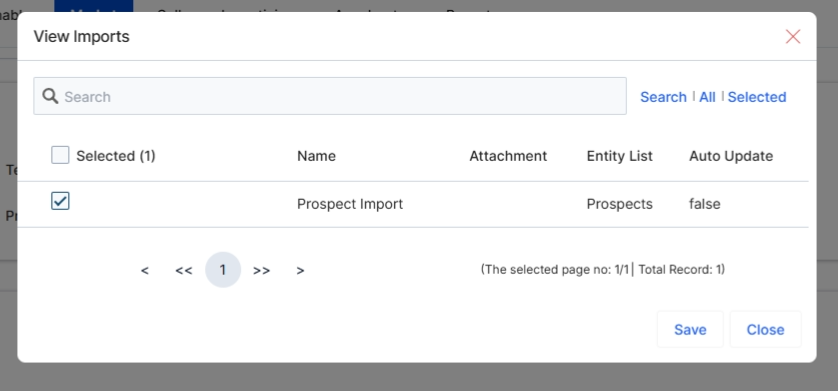
The 'View Imports' dialog allows users to select and add previously imported lists of prospects or other entities to the current mailing list being configured. This functionality is critical for leveraging existing data within UPM's Market module, enabling targeted email campaigns without requiring re-entry of contact information. By integrating imported lists, users can efficiently populate recipient lists for various marketing activities, ensuring that campaigns reach the intended audience segments. The dialog displays available imported lists, along with details such as their name, attachment status, and whether they are configured for auto-update, providing the necessary context for selection.
Select the 'Prospect Import' list from the 'View Imports' dialog to add it to the current mailing list.
Buttons
| Button | Description |
|---|---|
| Search All | Selected | Toggles between viewing all imported lists and only those currently selected. |
| Save | Saves the selected imported list to the current mailing list. |
| Close | Closes the 'View Imports' dialog without saving any changes. |
Fields
| Field | Description |
|---|---|
| Search | A search bar to filter the displayed imported lists by keywords. |
| Selected (1) | A checkbox indicating that one item is currently selected for import. |
| Prospect Import | A checkbox to select the 'Prospect Import' list for inclusion. |
Column Headings
| Column | Description |
|---|---|
| Name | The name of the imported list. |
| Attachment | Indicates if the imported list is attached to another entity or process. |
| Entity List | Specifies the type of entities contained within the imported list (e.g., Prospects). |
| Auto Update | Indicates whether the imported list is configured to automatically update its contents. |
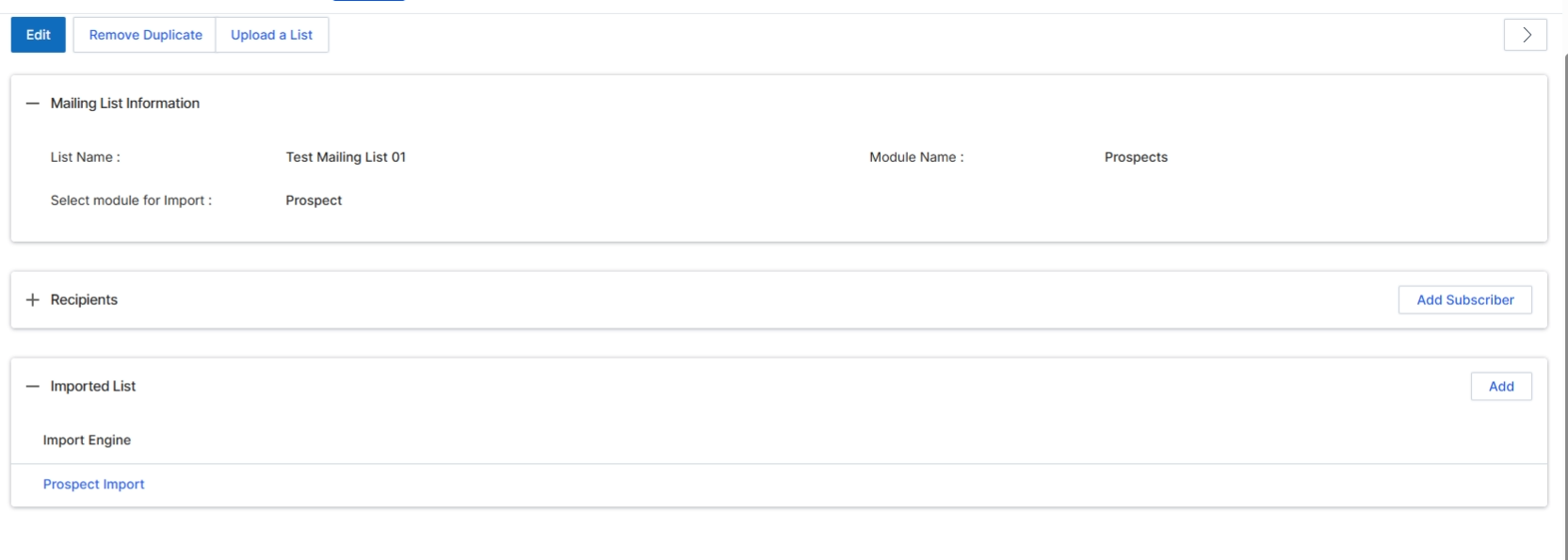
This screen displays the details of a Test Mailing List, which is used for managing email campaigns within the Market module. Test Mailing Lists allow vendors to define a group of recipients for email campaigns, either by manually adding individual subscribers or by importing existing lists from other modules, such as Prospects. This particular view shows that a Prospect Import has been successfully added to the mailing list, indicating that the list will now draw its recipients from the specified prospect data. The ability to import lists streamlines the process of targeting specific segments of partners or prospects with marketing communications, leveraging data already present within UPM.
After selecting the desired import and clicking 'Close' in the 'View Imports' dialog, the selected import record, such as 'Prospect Import', is added to the 'Imported List' section of the Test Mailing List.
Buttons
| Button | Description |
|---|---|
| Add Subscriber | Adds individual email addresses as subscribers to the mailing list. |
| Add | Opens a dialog to add a new imported list to the mailing list. |
Column Headings
| Column | Description |
|---|---|
| Import Engine | A label indicating the source of the imported list. |