

Overview
Effective email marketing relies on proper sender authentication and management to ensure deliverability and brand consistency. The Senders feature is a critical component of the UPM Market module, enabling administrators to define and control the email addresses from which all platform-generated marketing emails are sent. This includes emails for campaigns, notifications, and other communications initiated by both vendors and partners.
By centralizing sender management, UPM helps maintain email reputation, reduce spam flags, and ensure that recipients recognize and trust the origin of messages. This is particularly important in a multi-sided platform where various partners may be sending emails on behalf of the vendor, requiring strict control over sender identities.
Accessing Sender Management
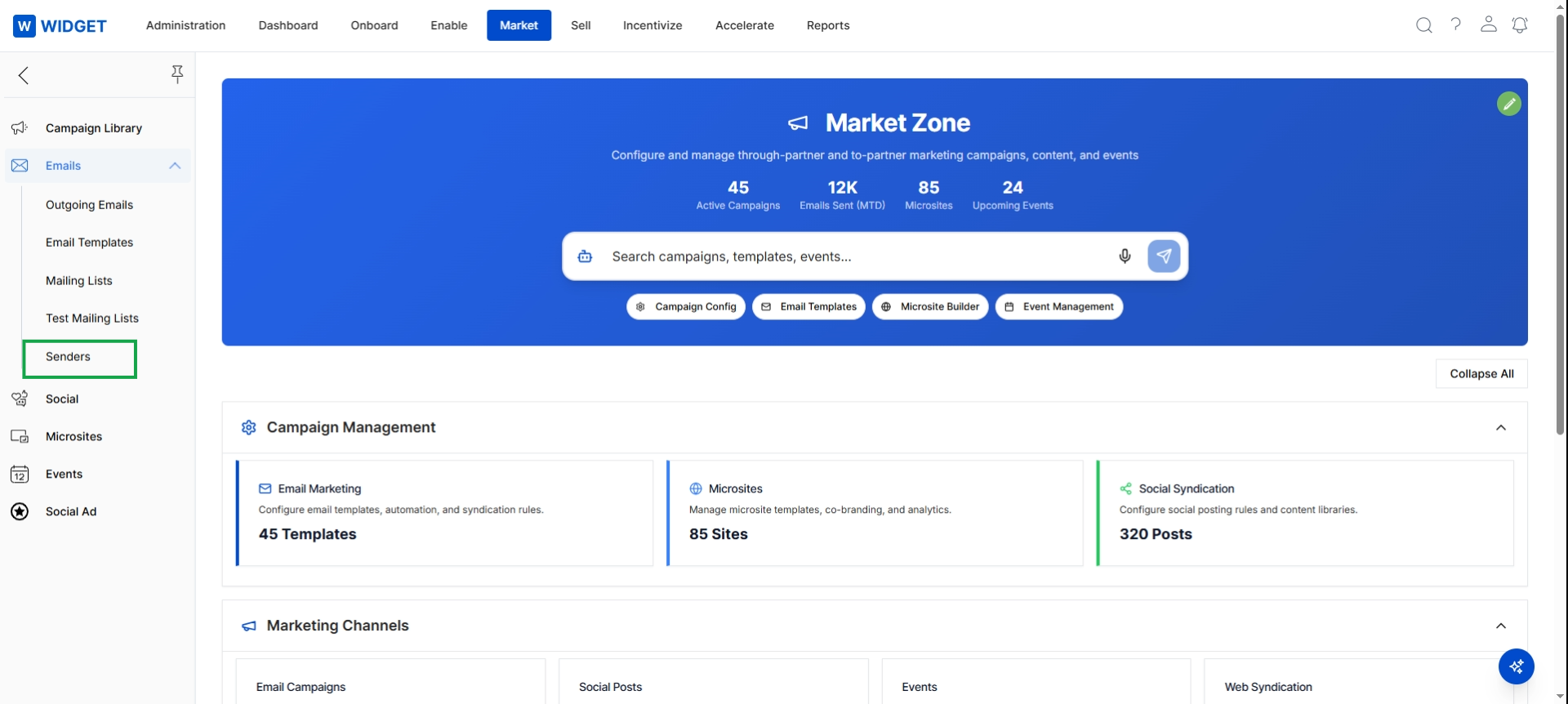
Click Market in the top navigation bar, then click Emails in the left navigation menu to expand it, and then click Senders.
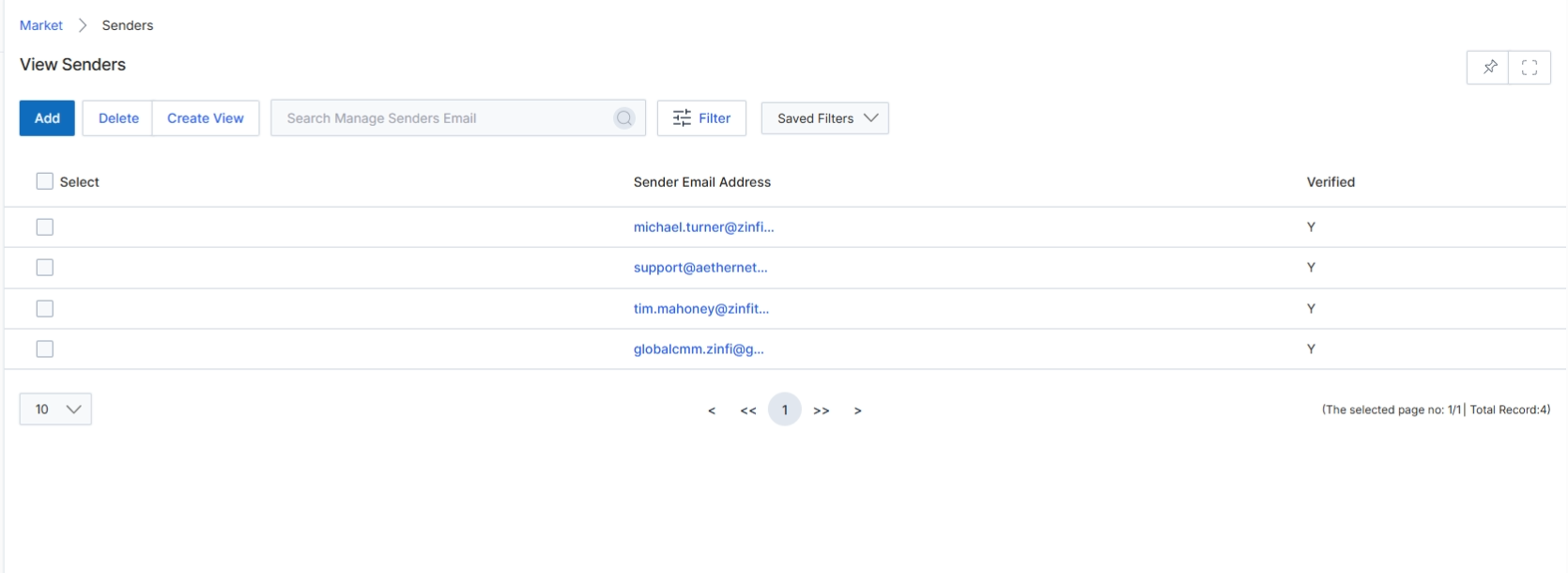
The Senders list view displays all configured email sender addresses within the UPM platform. These sender addresses are crucial for managing email marketing campaigns, as they define the 'From' address for all outgoing communications, ensuring brand consistency and deliverability. This screen allows administrators to review existing sender email addresses, verify their status, and manage them by adding new ones or removing outdated entries. Proper management of sender addresses helps maintain email reputation and ensures that marketing communications reach their intended recipients effectively.
Click Senders in the left navigation menu to view the list of configured email sender addresses.
Buttons
| Button | Description |
|---|---|
| Add | Click to add a new email sender address. |
| Delete | Click to delete selected email sender addresses. |
| Create View | Click to create a custom view for the Senders list. |
| Filter | Click to apply filters to the list of sender email addresses. |
| Saved Filters | Select from a dropdown of previously saved filter configurations. |
Fields
| Field | Description |
|---|---|
| Search Manage Senders Email | Enter text to search for specific sender email addresses. |
Column Headings
| Column | Description |
|---|---|
| Select | Checkbox to select individual sender email addresses for bulk actions. |
| Sender Email Address | Displays the email address configured as a sender. |
| Verified | Indicates whether the sender email address has been verified. |
Adding and Editing Senders
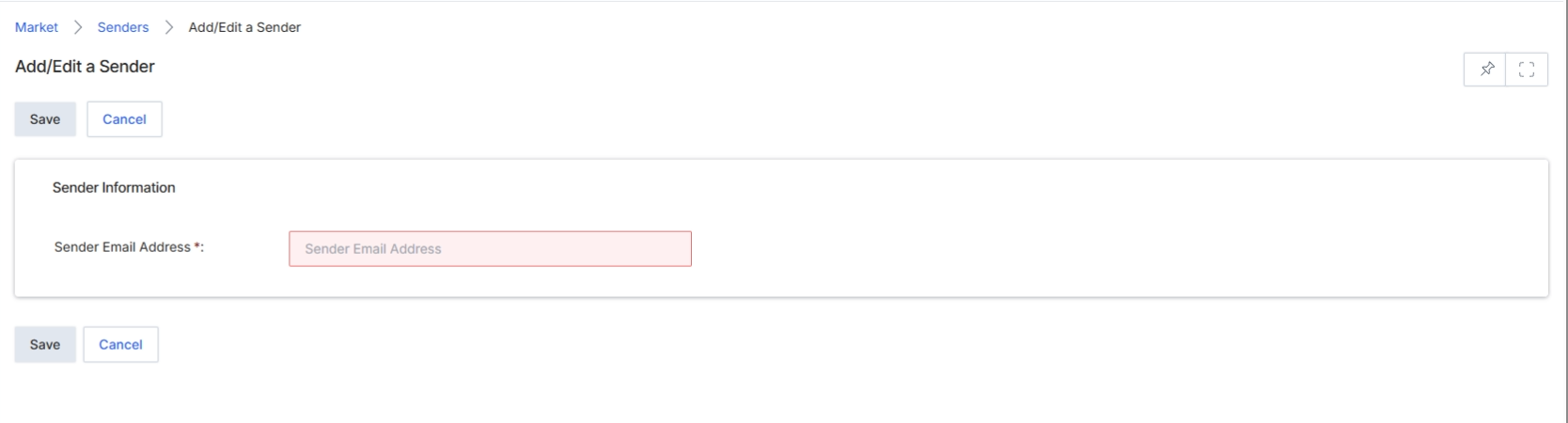
The Add/Edit a Sender form allows users to define and manage email sender addresses within the UPM Market module. These sender addresses are crucial for email campaigns, ensuring that communications sent through the platform originate from recognized and verified sources, which helps improve deliverability and brand consistency. This form is part of the email marketing management functionality, enabling the configuration of email infrastructure that supports various campaign types, including those eligible for Market Development Funds (MDF) or general partner communications. Proper sender configuration is a prerequisite for executing email campaigns, as outlined in the email campaign execution workflow (WF-06).
Enter the email address to be used as a sender for marketing communications in the Sender Email Address field.
Buttons
| Button | Description |
|---|---|
| Save | Saves the entered sender email address configuration. |
| Cancel | Discards any changes and closes the Add/Edit a Sender form. |
Sender Information
| Field | Description |
|---|---|
| Sender Email Address * | The email address that will appear as the sender for outgoing marketing emails. This field is required. |
Filtering Sender Information
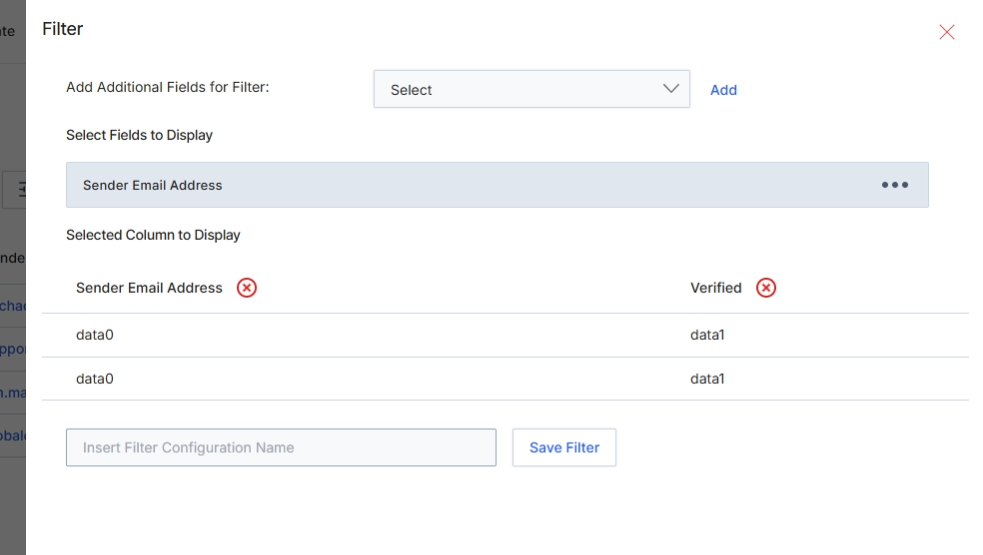
The View Senders screen displays a list of all configured email sender profiles within the UPM platform. These sender profiles define the 'From' email addresses used for outgoing email campaigns, ensuring that communications sent through the Market module are properly branded and attributed. This list view allows administrators to manage existing senders, add new ones, or delete outdated entries. The filter panel, as shown, enables users to customize which fields are displayed as columns in the main sender list and to save specific filter configurations for quick access, facilitating efficient management of potentially large numbers of sender profiles.
Configure the filter settings by selecting additional fields to display as columns in the Senders list view.
Buttons
| Button | Description |
|---|---|
| Add | Adds the selected field from the 'Add Additional Fields for Filter' dropdown to the filter criteria. |
| Save Filter | Saves the current filter configuration with the specified name. |
Fields
| Field | Description |
|---|---|
| Add Additional Fields for Filter | A dropdown menu to select additional fields that can be used to filter the list of senders. |
| Select Fields to Display | A section that lists the fields currently selected to be displayed as columns in the Senders list. |
| Sender Email Address | A selected field that will be displayed as a column in the Senders list, showing the email address of the sender. |
| Selected Column to Display | A section indicating the fields that are currently chosen to appear as columns in the main table. |
| Sender Email Address | A field representing the sender's email address, currently selected to be a visible column. |
| Verified | A field indicating the verification status of the sender's email address, currently selected to be a visible column. |
| Insert Filter Configuration Name | A text input field to enter a name for the current filter configuration, allowing it to be saved for future use. |