

Overview
Effective email marketing is crucial for engaging partners and promoting campaigns. UPM's Email Marketing Management provides a centralized platform for vendors to create, manage, and distribute email communications to their partner network. This feature ensures brand consistency while allowing for necessary customization, enabling partners to effectively co-market products and services.
By offering the ability to copy existing emails, the system significantly reduces the time and effort required to launch new email campaigns. This is particularly useful for recurring newsletters, event promotions, or product updates where the core structure and branding remain consistent, but specific details need to be updated. Partners can leverage these pre-configured emails to quickly execute their marketing activities, maintaining alignment with vendor messaging.
Steps
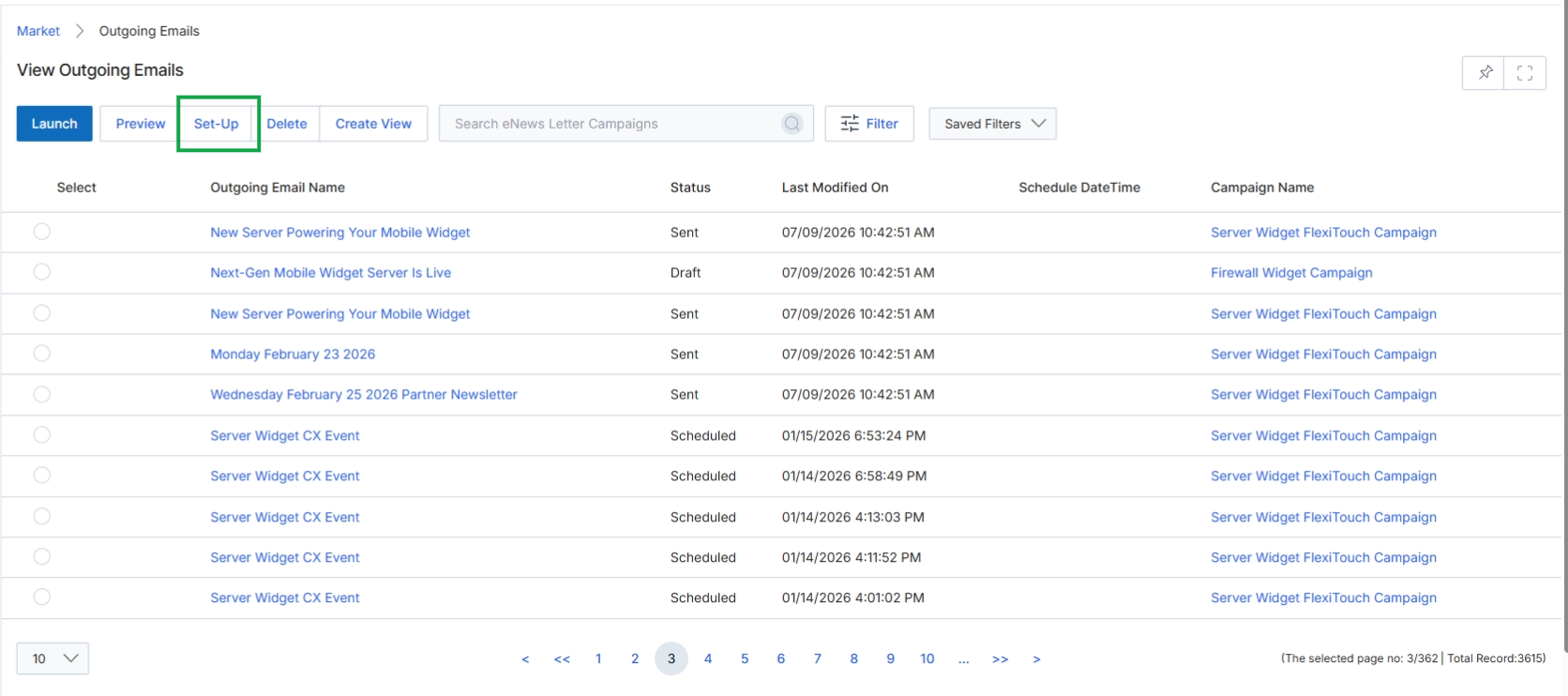
Click Set-Up → Copy Email.
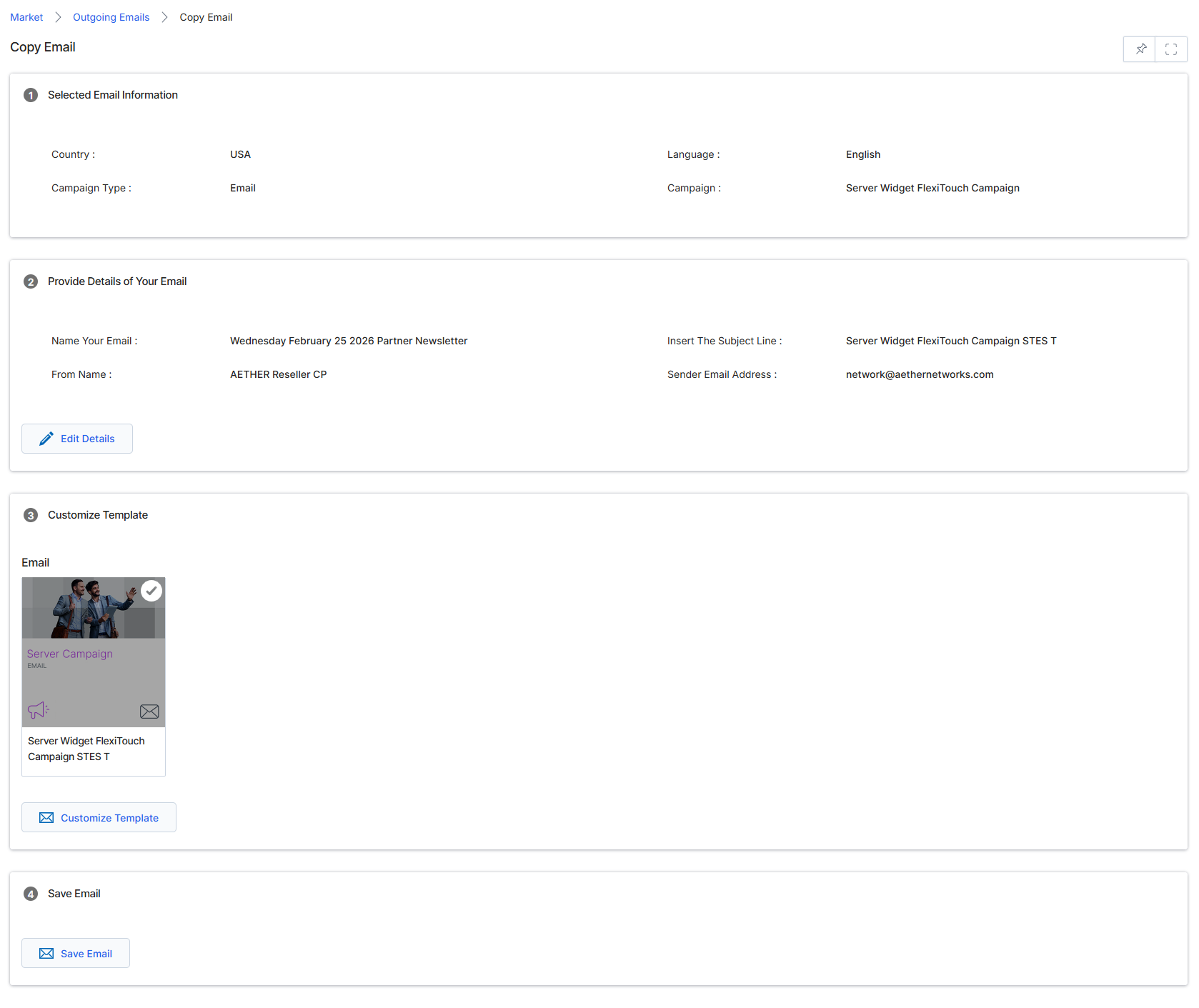
The Copy Email screen allows users to duplicate an existing email campaign, providing a starting point for new campaigns based on previously configured and sent emails. This feature is particularly useful for recurring communications like newsletters or event invitations, where the core structure and branding remain consistent but specific content or scheduling needs to be updated. By copying an email, users can leverage existing designs and settings, reducing the effort required to create new email campaigns from scratch. The screen displays the selected email's general information, details that can be customized for the new copy, and a preview of the email template.
Click the "Copy Email" button to duplicate an existing email campaign.
Buttons
| Button | Description |
|---|---|
| Edit Details | Click to edit the details of the email, such as name, subject, and sender information. |
| Customize Template | Click to open the email template editor and make changes to the email's design and content. |
| Save Email | Click to save the newly copied email campaign with the applied changes. |
Selected Email Information
| Field | Description |
|---|---|
| Country | The country associated with the original email campaign. |
| Language | The language of the original email campaign. |
| Campaign Type | The type of campaign the original email belongs to, such as 'Email'. |
| Campaign | The name of the campaign the original email is part of. |
Provide Details of Your Email
| Field | Description |
|---|---|
| Name Your Email | The name of the email campaign, which can be edited for the new copy. |
| Insert The Subject Line | The subject line of the email, which can be edited for the new copy. |
| From Name | The sender's name displayed to recipients, which can be edited. |
| Sender Email Address | The email address from which the email will be sent, which can be edited. |
Customize Template
| Field | Description |
|---|---|
| A visual preview of the email template, showing its current design and content. |
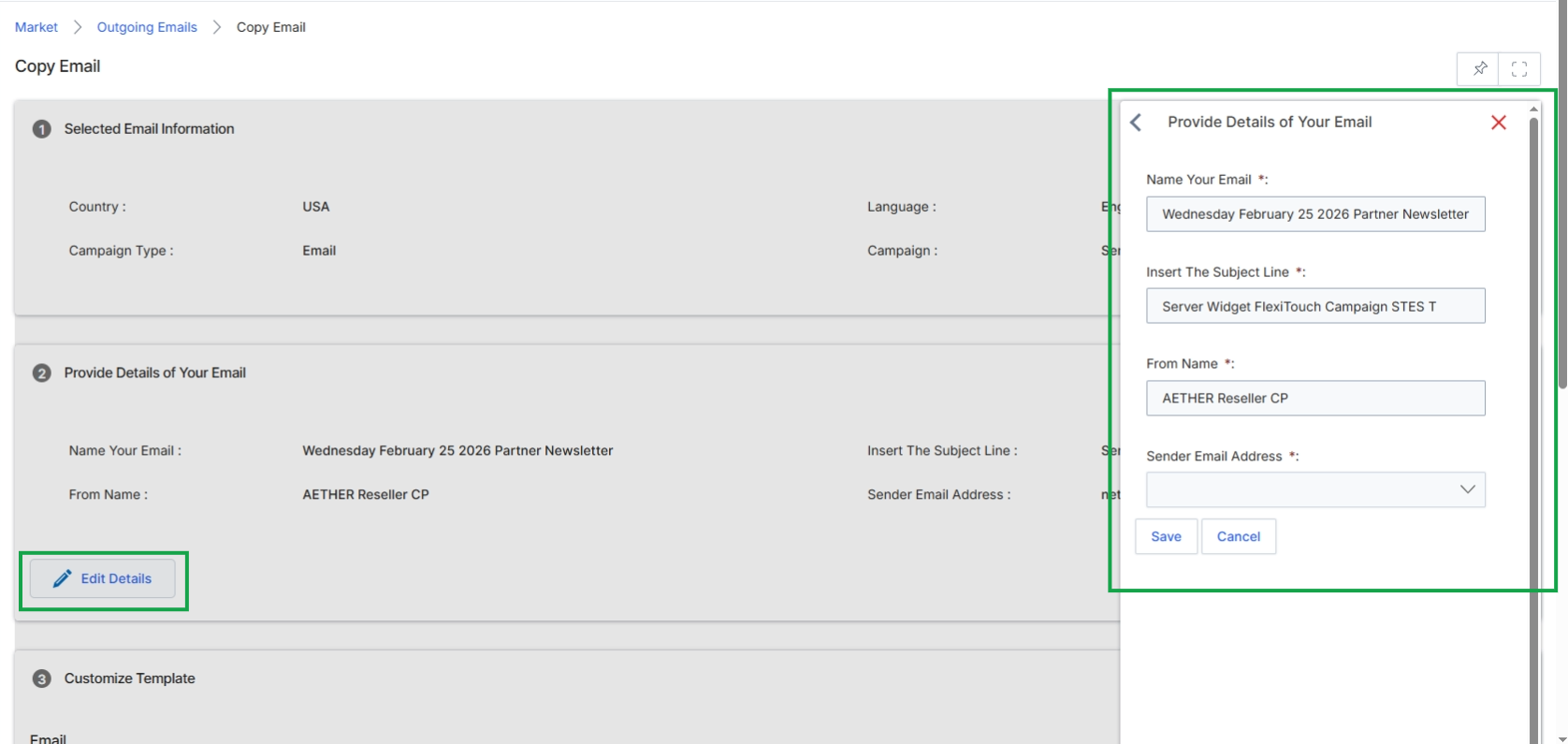
This screen displays the 'Copy Email' page within the Market module, allowing users to duplicate an existing email campaign for reuse or modification. The page is structured into several sections, including 'Selected Email Information', 'Provide Details of Your Email', 'Customize Template', and 'Save Email'. It provides an overview of the email's current settings and content, enabling administrators to quickly review and then edit specific aspects of the copied email. This functionality is crucial for efficient campaign management, as it streamlines the process of creating new campaigns based on successful past efforts, ensuring brand consistency and reducing manual setup time. The 'Provide Details of Your Email' section specifically contains core identifying information for the email, such as its name, subject line, and sender details.
Click the "Edit Details" button within the "Provide Details of Your Email" section to open a side panel for editing the email's core information.
Buttons
| Button | Description |
|---|---|
| Save | Saves the changes made to the email details. |
| Cancel | Discards any changes and closes the editing panel. |
Fields
| Field | Description |
|---|---|
| Name Your Email | The internal name for the email campaign, used for identification within the system. |
| Insert The Subject Line | The subject line that will be displayed to recipients in their email client. |
| From Name | The name that appears as the sender of the email. |
| Sender Email Address | The email address from which the campaign will be sent. |
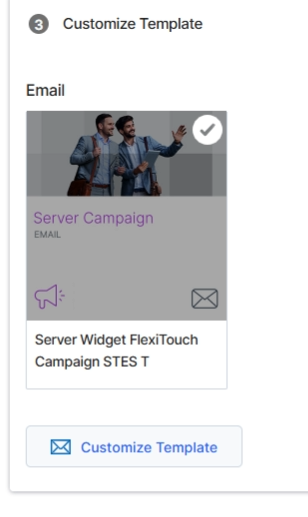
Click Customize Template to open the editor.
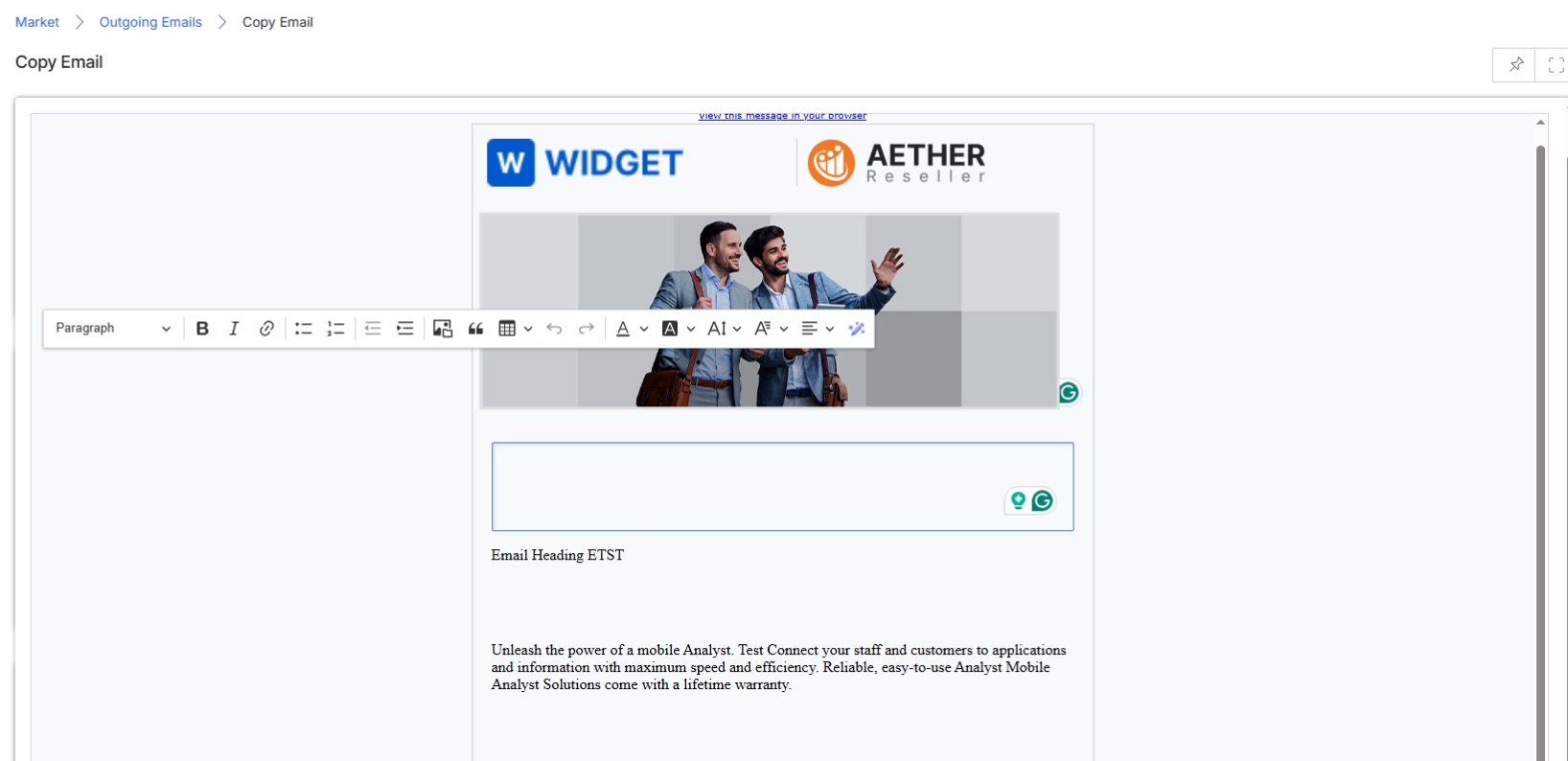
This screen displays the email editor interface, allowing users to customize an email template. It shows a visual representation of the email content, including a header with branding, an image, and editable text areas. This interface enables partners to tailor pre-approved email templates for their specific campaigns, adhering to vendor-defined customization boundaries while preparing to send an email campaign as part of the Market module's workflow.