

Overview
Effective partner management requires administrators to have a comprehensive and easily navigable overview of their entire partner ecosystem. The 'View Partner Accounts' section serves as the primary hub for accessing and managing individual partner records. From here, administrators can quickly locate specific partners, assess their status, and perform essential administrative tasks.
Exporting Partner Account Data
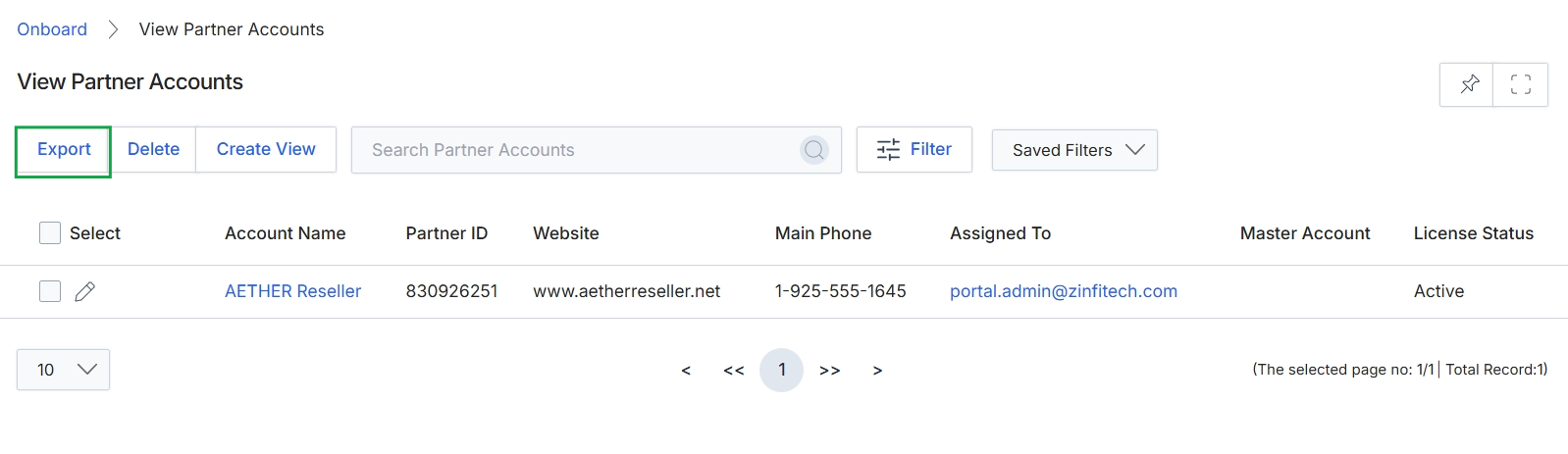
Click the Export button.
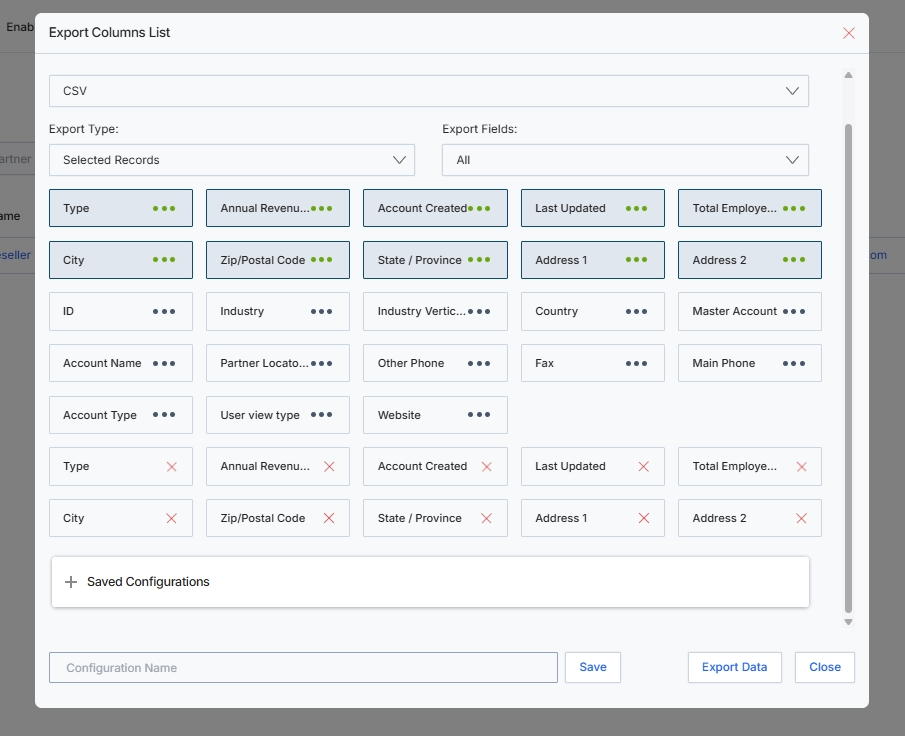
This modal window, the Export Columns List, provides administrators with the functionality to customize data exports from the UPM platform. Users can specify the desired file format, choose whether to export all records or only selected ones, and precisely define which data fields (columns) should be included in the output. This level of customization ensures that exported data is relevant to specific analytical or reporting needs, supporting various business functions such as data migration, external reporting, or integration with other systems. The modal also allows for saving frequently used column configurations for future exports, streamlining repetitive tasks.
Configure the export settings by selecting the desired export type, fields, and optionally saving the configuration.
Buttons
| Button | Description |
|---|---|
| Save | Saves the current column configuration under the specified name. |
| Export Data | Initiates the data export based on the configured settings. |
| Close | Closes the Export Columns List modal without performing an export. |
Fields
| Field | Description |
|---|---|
| CSV | The selected file format for the export. Currently set to CSV (Comma Separated Values). |
| Export Type | A dropdown menu to select the scope of the export, such as 'Selected Records' or 'All Records'. |
| Selected Records | The current selection for the export type, indicating that only records previously selected in the list view will be exported. |
| Export Fields | A dropdown menu to select which fields (columns) to include in the export. |
| All | The current selection for export fields, indicating that all available fields are considered for export. Specific fields can be added or removed below. |
Deleting Partner Accounts
Click Close.
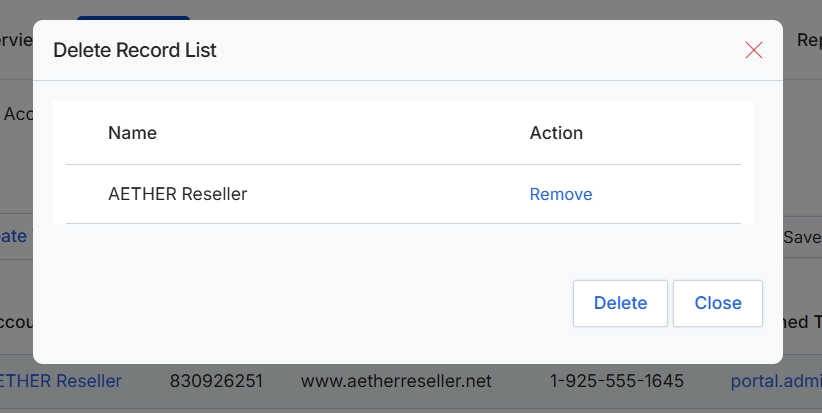
This dialog box displays a list of records selected for deletion, allowing administrators to review the items before confirming the action. It shows the name of each selected record, such as a partner account, and provides an option to remove individual items from the deletion list. This interface ensures that administrators can verify the records they intend to delete, preventing accidental removal of critical partner data from the platform.
Creating and Managing Custom Views
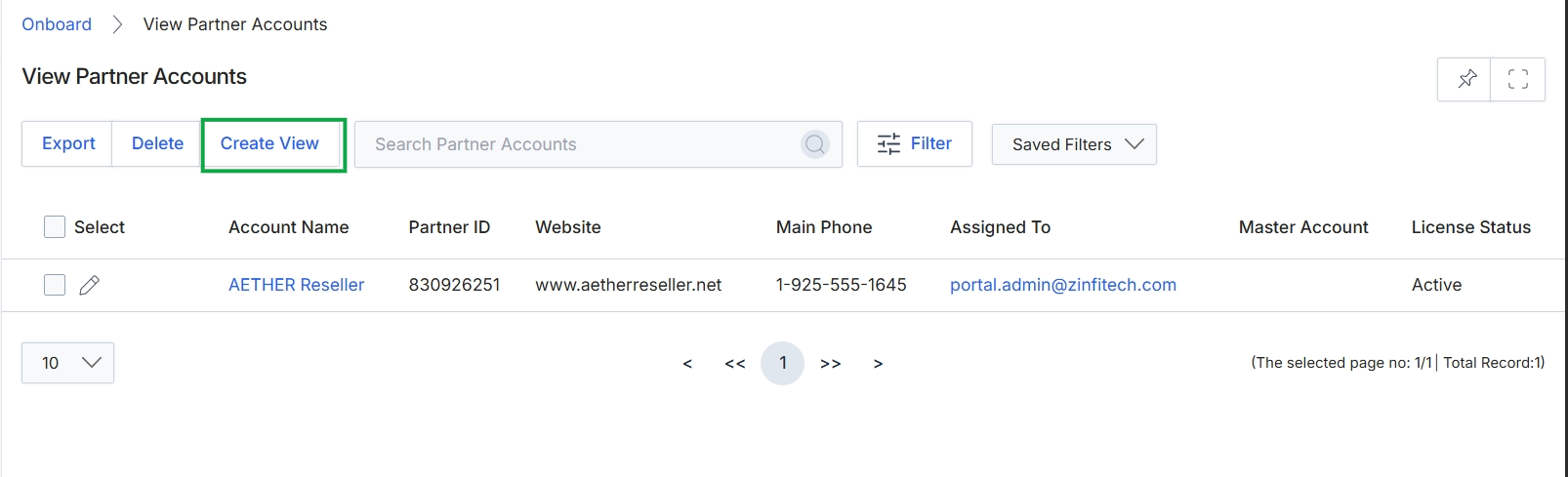
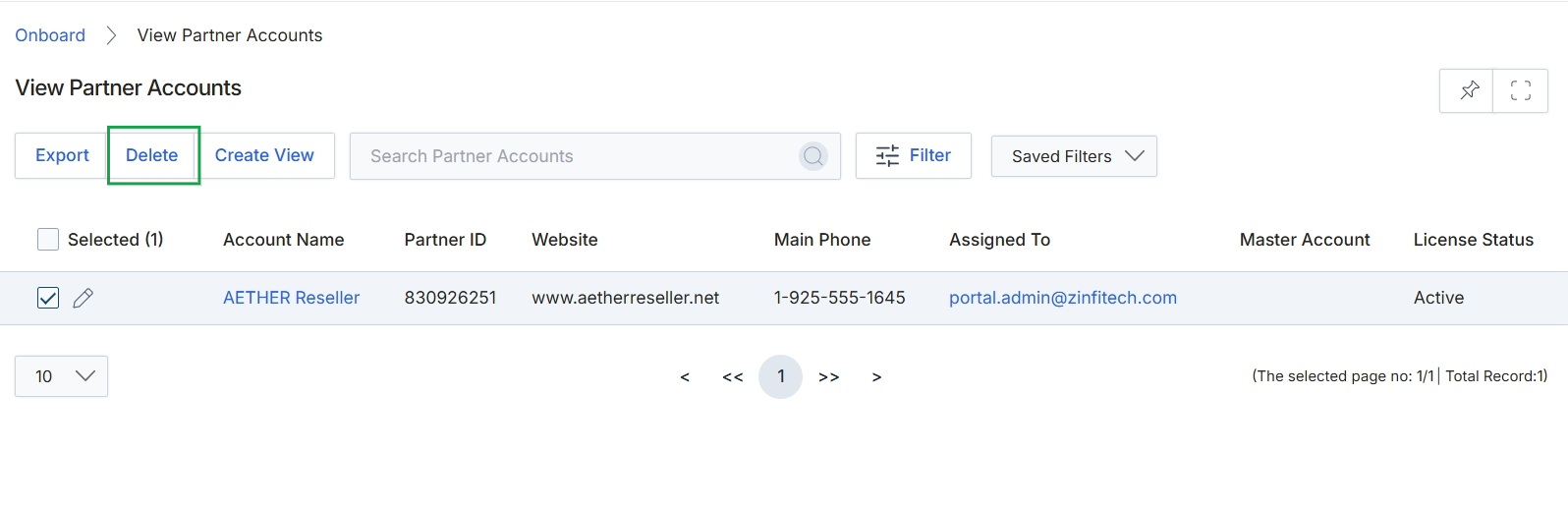
Click the Delete button to confirm the deletion of the selected partner account.
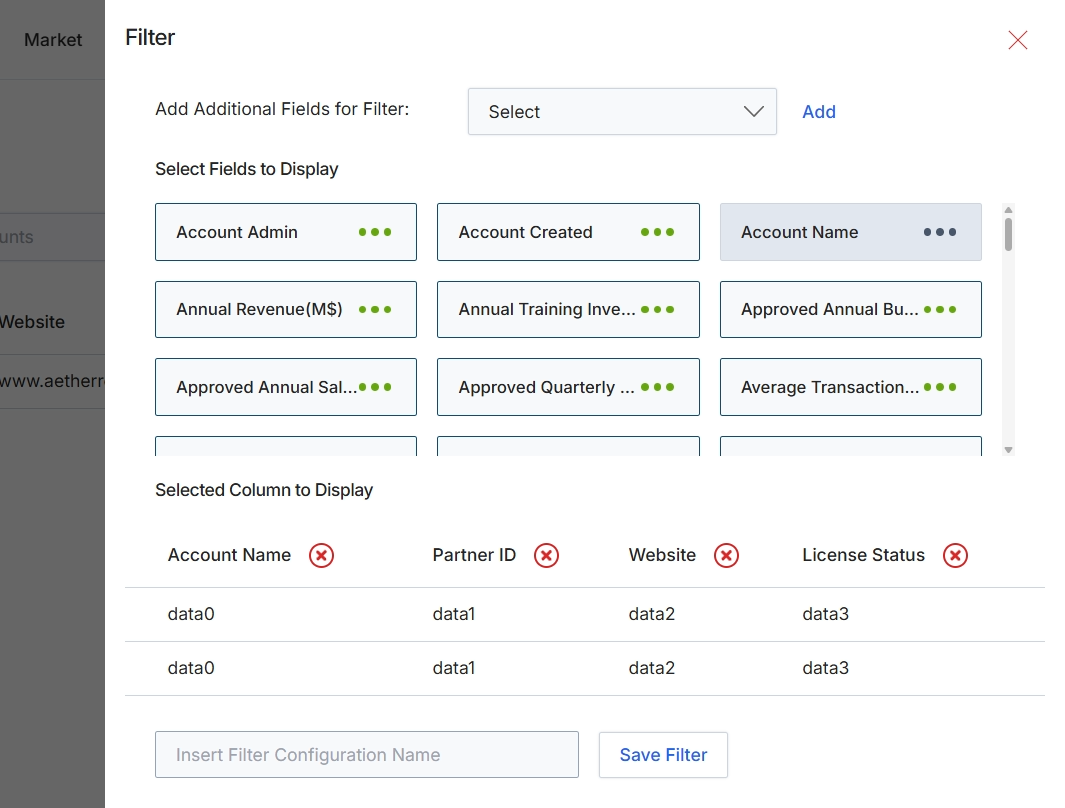
This Filter configuration modal allows users to customize the data displayed and filtered in a list view, such as the Partner Account list. It provides options to select additional fields that can be used for filtering the list, as well as to specify which columns should be visible in the resulting data table. This customization helps users focus on the most relevant information for their specific analytical or operational needs, enhancing the efficiency of data review and management within the platform.
Enter a name for the custom filter configuration to save it for future use.
Buttons
| Button | Description |
|---|---|
| Add | A button to add the selected field from the 'Add Additional Fields for Filter' dropdown to the available filter options. |
| Save Filter | A button to save the current filter and column display configuration under the specified name. |
Fields
| Field | Description |
|---|---|
| Add Additional Fields for Filter | A dropdown menu to select additional fields that can be used to filter the list of partner accounts. |
| Select | The dropdown selector for choosing fields to add to the filter criteria. |
| Insert Filter Configuration Name | An input field to enter a custom name for the current filter and column display configuration. |
Filtering Partner Accounts
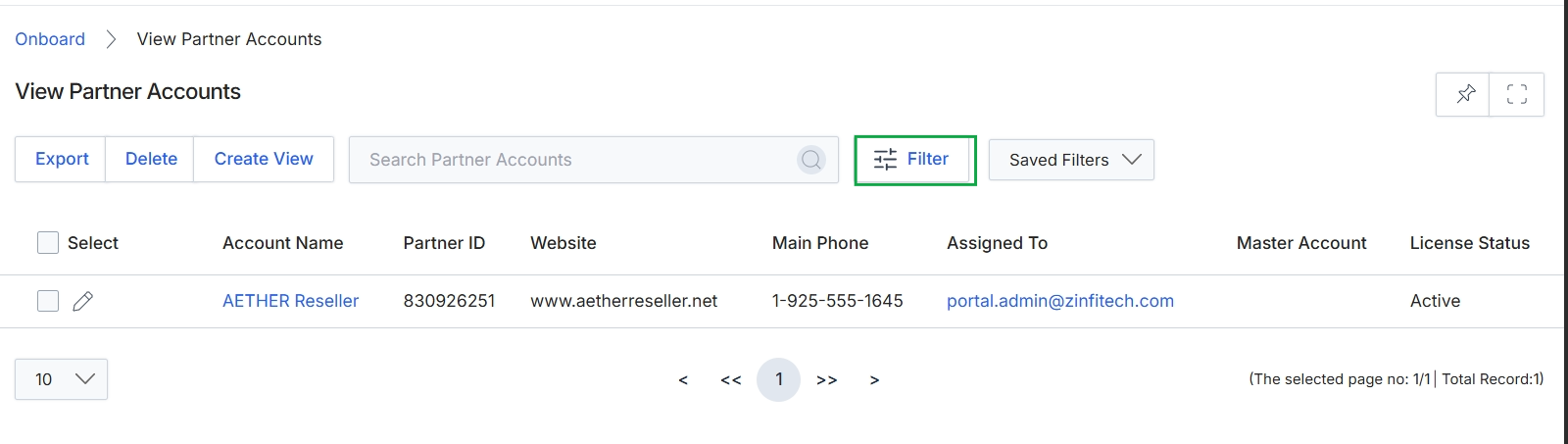
Click the Filter button.
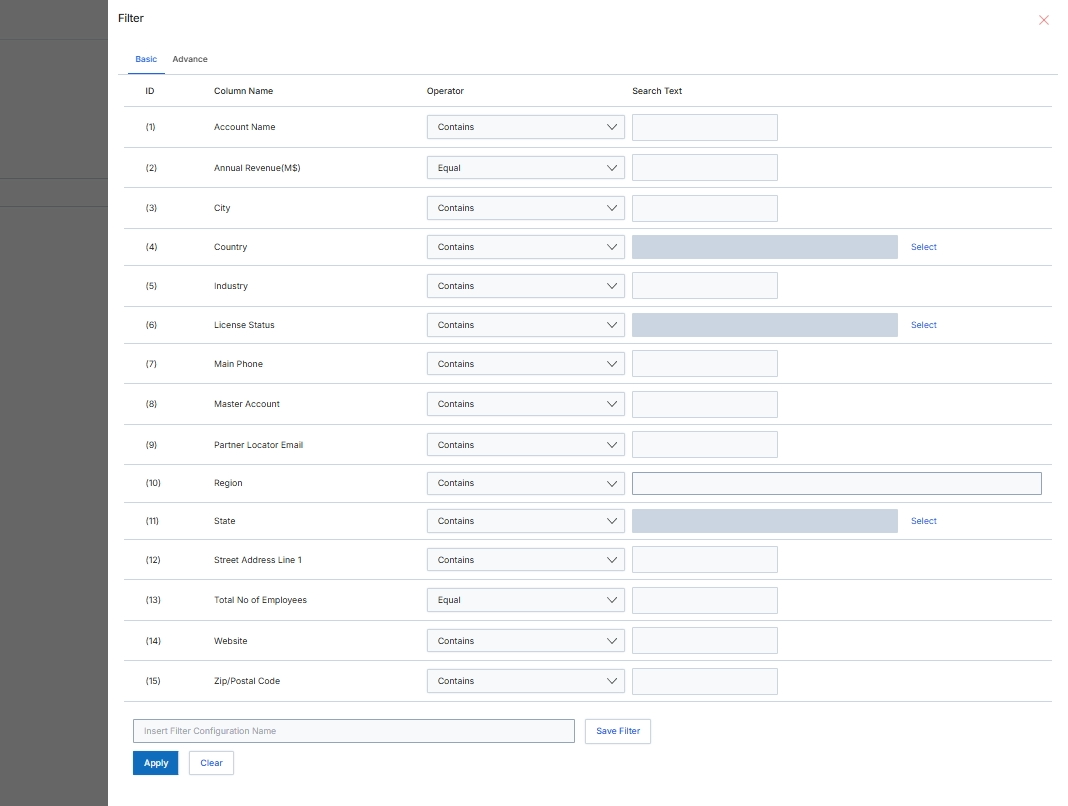
This screen provides a flexible filtering interface for refining the list of partner accounts within the UPM. Users can define specific criteria across various partner attributes, such as company details, financial information, and geographic location, to narrow down the displayed records. This capability is essential for segmenting partners, identifying specific groups for targeted actions, or analyzing subsets of the partner ecosystem. Filters can be applied temporarily or saved for repeated use, streamlining administrative tasks and supporting data-driven decision-making in partner management.
Define your filter criteria by selecting operators and entering search text for the desired columns, then click 'Apply' to view the filtered results or 'Save Filter' to store the configuration.
Buttons
| Button | Description |
|---|---|
| Basic | Activates the basic filter configuration view, allowing users to define criteria for common partner attributes. |
| Advance | Switches to an advanced filter configuration view, typically offering more complex rule-building capabilities (not shown in this view). |
| Save Filter | Saves the currently defined filter configuration under the specified name for later retrieval and application. |
| Apply | Applies the current filter criteria to the partner accounts list, displaying only the matching records. |
| Clear | Resets all filter criteria, removing any entered values or selected operators. |
Fields
| Field | Description |
|---|---|
| Insert Filter Configuration Name | An input field to provide a name for the current filter configuration if the user wishes to save it for future use. |
Column Headings
| Column | Description |
|---|---|
| ID | A sequential identifier for each filter row. |
| Column Name | The name of the partner account attribute available for filtering. |
| Operator | A dropdown to select the comparison operator (e.g., 'Contains', 'Equal') for the corresponding column. |
| Search Text | An input field to enter the value to be matched against the selected 'Column Name' using the chosen 'Operator'. |
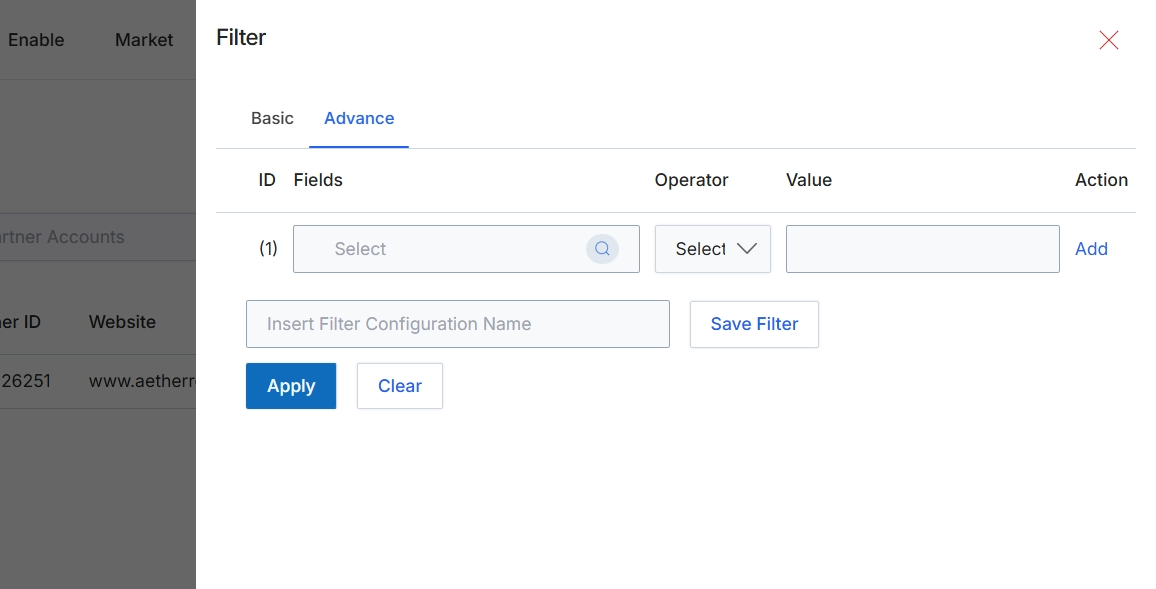
This screen displays the advanced filter configuration panel, which allows administrators to define complex search criteria for partner accounts using multiple conditions. Unlike basic filters, the advanced filter provides granular control over which fields to query, the logical operator to apply (e.g., equals, contains, greater than), and the specific values to match. This capability is essential for segmenting partners based on various attributes, such as partner type, tier, region, or custom fields, enabling targeted management and analysis within the Onboard module. Users can also save frequently used filter configurations for future application, streamlining repetitive search tasks.
Define your advanced filter criteria by selecting a field, operator, and value, then click 'Apply' to filter the partner accounts list.
Buttons
| Button | Description |
|---|---|
| Basic | Switches to the basic filter configuration options. |
| Advance | Displays the advanced filter configuration options, allowing for multi-condition filtering. |
| Add | Adds another row to define an additional filter condition. |
| Save Filter | Saves the current advanced filter configuration under the specified name. |
| Apply | Applies the configured filter criteria to the partner accounts list. |
| Clear | Clears all defined filter conditions and resets the filter panel. |
| X | Closes the filter panel without applying any changes. |
Fields
| Field | Description |
|---|---|
| Fields | A text input field with a search icon to select the partner account field to be used in the filter condition. |
| Operator | A dropdown to select the logical operator for the filter condition (e.g., equals, contains, starts with, greater than). |
| Value | A text input field to enter the value against which the selected field will be compared. |
| Insert Filter Configuration Name | A text input field to enter a name for the current filter configuration to save it for future use. |