

Overview
Effective partner relationship management relies on accurate and up-to-date contact information for all individuals within a partner organization. The Partner Contacts module serves as the central repository for this critical data, enabling administrators to maintain comprehensive records of partner personnel, including their roles, contact details, and assigned user IDs within the platform. This ensures that communications, training assignments, and access permissions are directed to the correct individuals, fostering smoother collaboration and program engagement.
Administrators can leverage this module to efficiently onboard new partner contacts, update existing information, and segment contacts for targeted outreach. The robust import functionality supports bulk updates and additions, crucial for managing large partner ecosystems, while the direct email feature facilitates immediate communication with selected contacts, streamlining administrative tasks and enhancing overall program efficiency.
Accessing and Viewing Partner Contacts
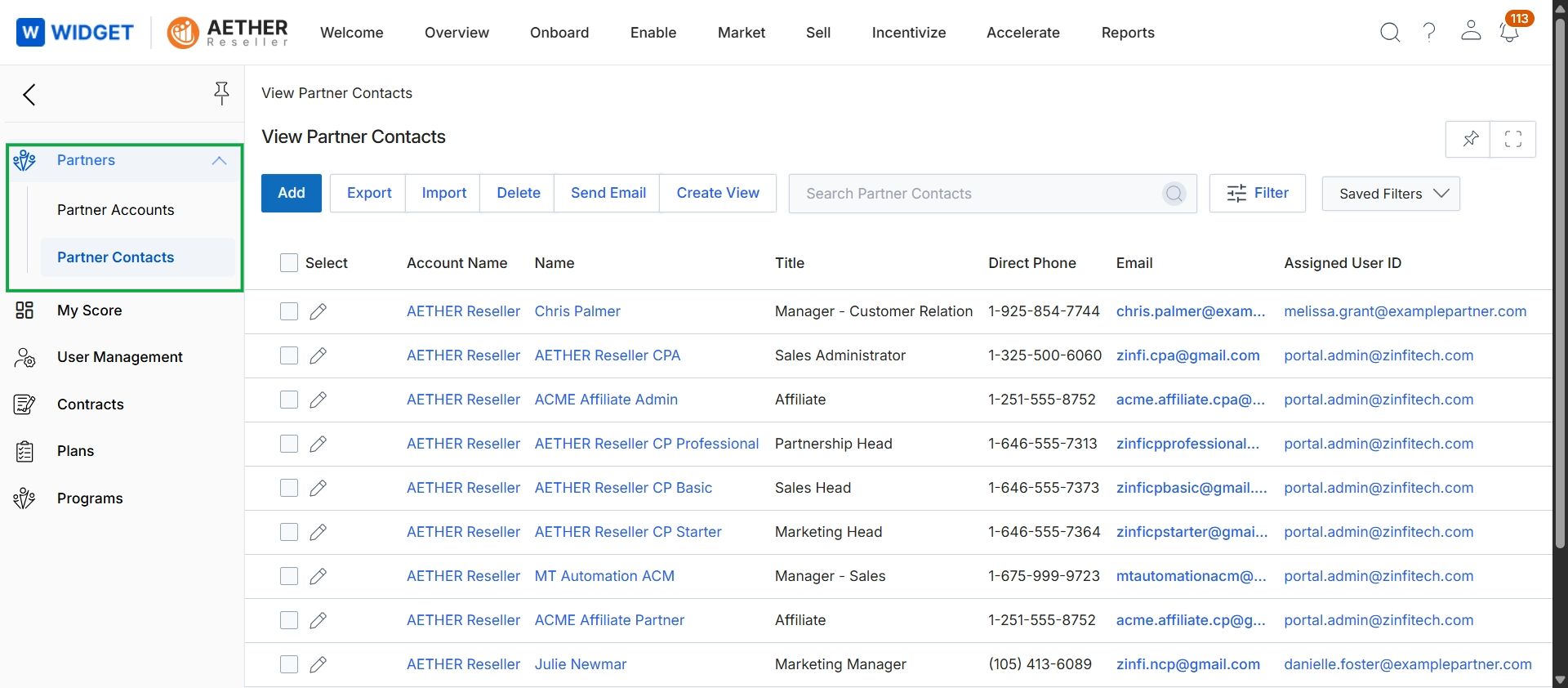
Click Partners → Partner Contacts.
Importing Partner Contacts
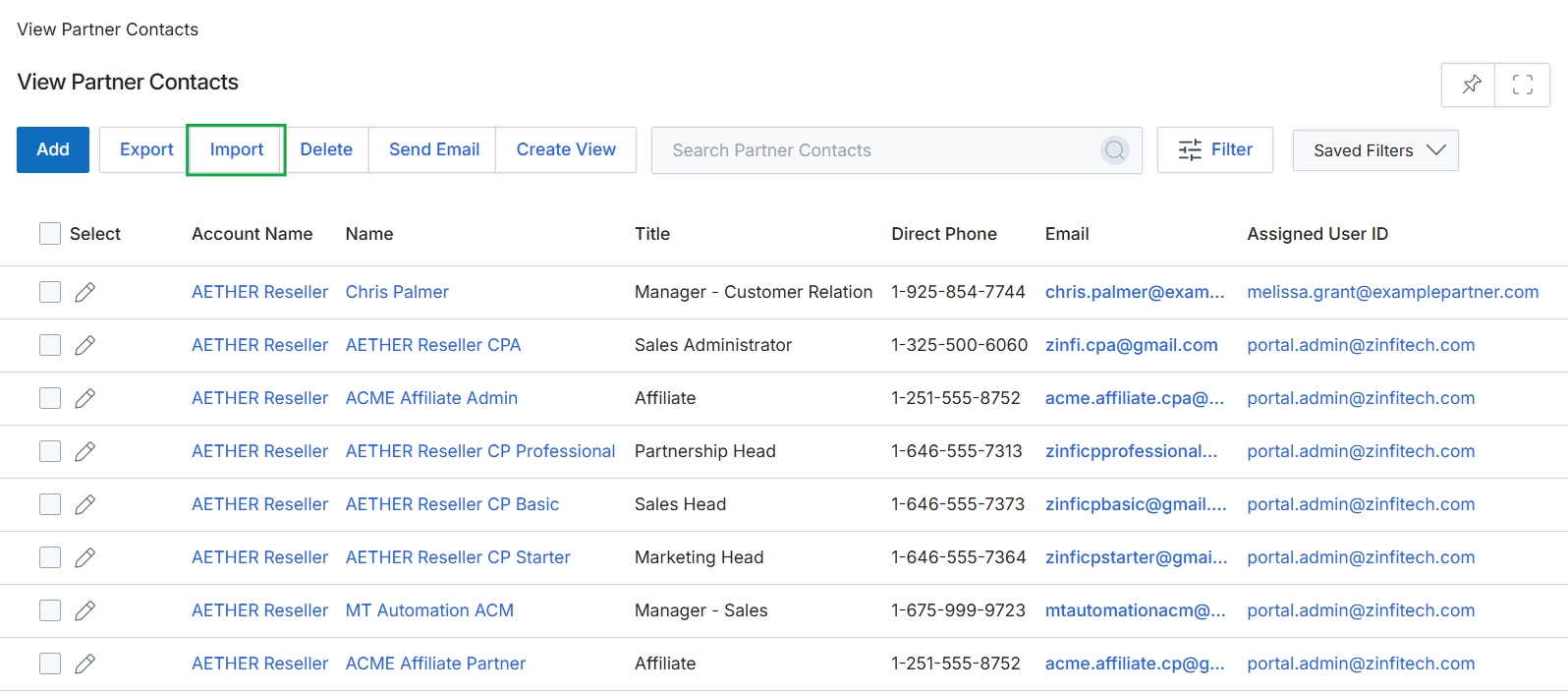
Click Import.
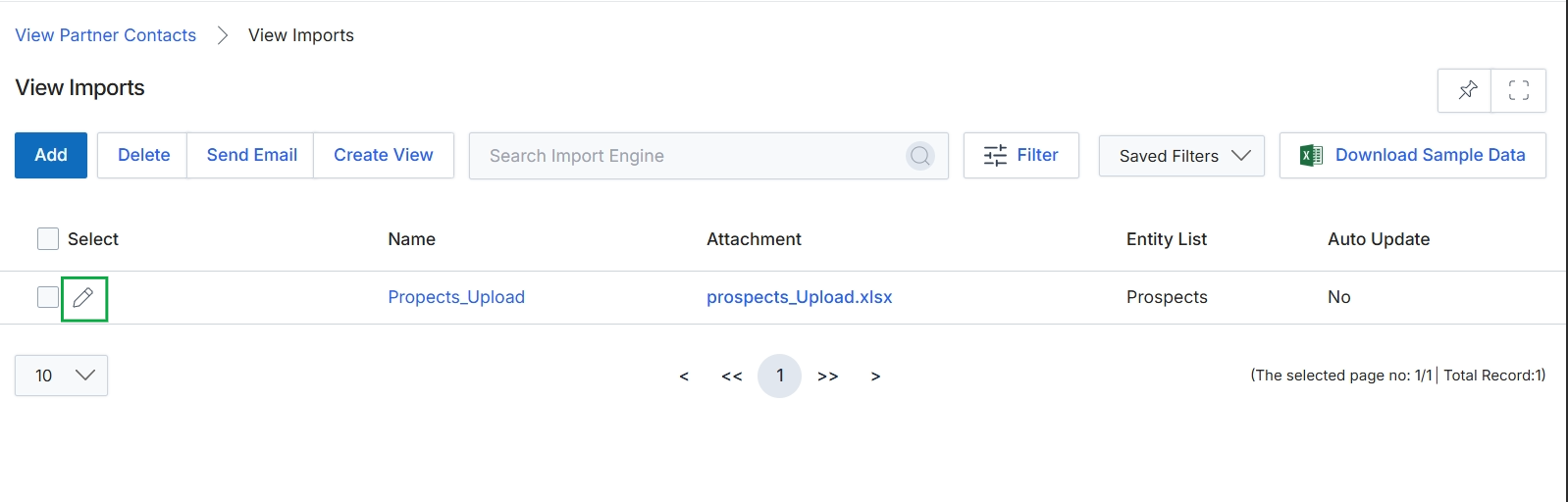
This screen displays a list of data import configurations within the UPM, specifically showing details for importing various entities. It provides an overview of previously set up import jobs, including their names, associated file attachments, the type of entity being imported (such as Prospects), and whether the import is configured for automatic updates. Administrators use this view to manage and review the data import processes that populate the platform with partner-related information, supporting the partner recruitment workflow.
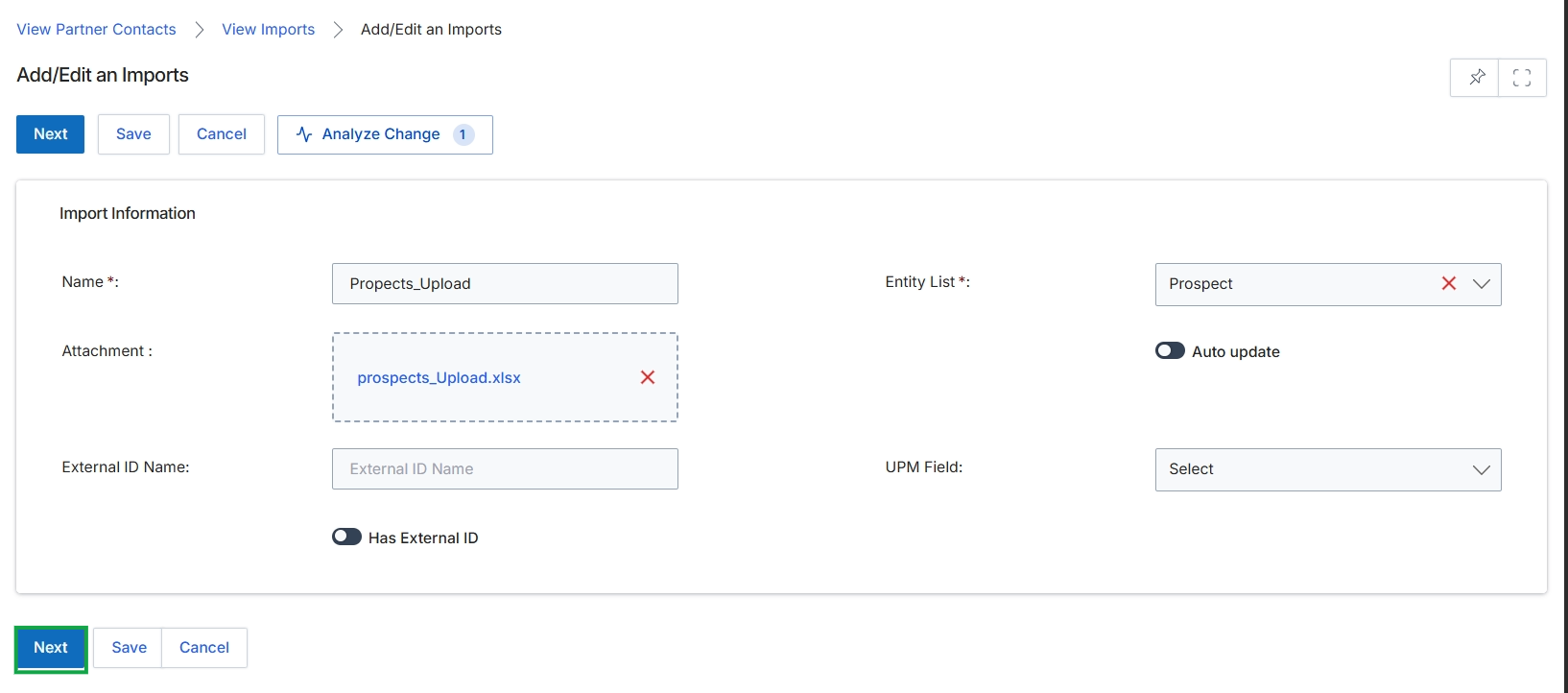
This screen, 'Add/Edit an Imports', allows administrators to configure the details for a new or existing data import operation within the UPM. It is used to define the source file, specify the target entity for the import (e.g., Prospect), and manage settings related to external identifiers and automatic updates. This import functionality supports the initial step of the partner recruitment workflow (WF-01), enabling the bulk creation or update of prospect records via CSV or similar file uploads, which can then be enriched and moved through the application process. The screen ensures that the import process is properly defined before data mapping and analysis can proceed.
Click the 'Next' button to proceed with the import configuration after defining the import details.
Buttons
| Button | Description |
|---|---|
| Next | Proceeds to the next step of the import process, typically data mapping. |
| Save | Saves the current import configuration without proceeding to the next step. |
| Cancel | Discards any changes and returns to the previous screen. |
| Analyze Change | Initiates an analysis of changes in the uploaded file, likely comparing it to existing data or previous versions. |
Import Information
| Field | Description |
|---|---|
| Name * | A required field to enter a descriptive name for the import job. |
| Entity List * | A required dropdown to select the target entity type (e.g., Prospect, Partner Account) for the data being imported. |
| Attachment | The field to upload the data file (e.g., .xlsx, .csv) containing the records to be imported. |
| Auto update | A toggle to enable or disable automatic updates for existing records based on the imported data. |
| External ID Name | An optional field to specify the name of the external identifier column in the uploaded file, if 'Has External ID' is enabled. |
| UPM Field | A dropdown to select the UPM field that corresponds to the external ID, used for mapping purposes. |
| Has External ID | A toggle to indicate whether the import file contains an external identifier that needs to be mapped to a UPM field. |
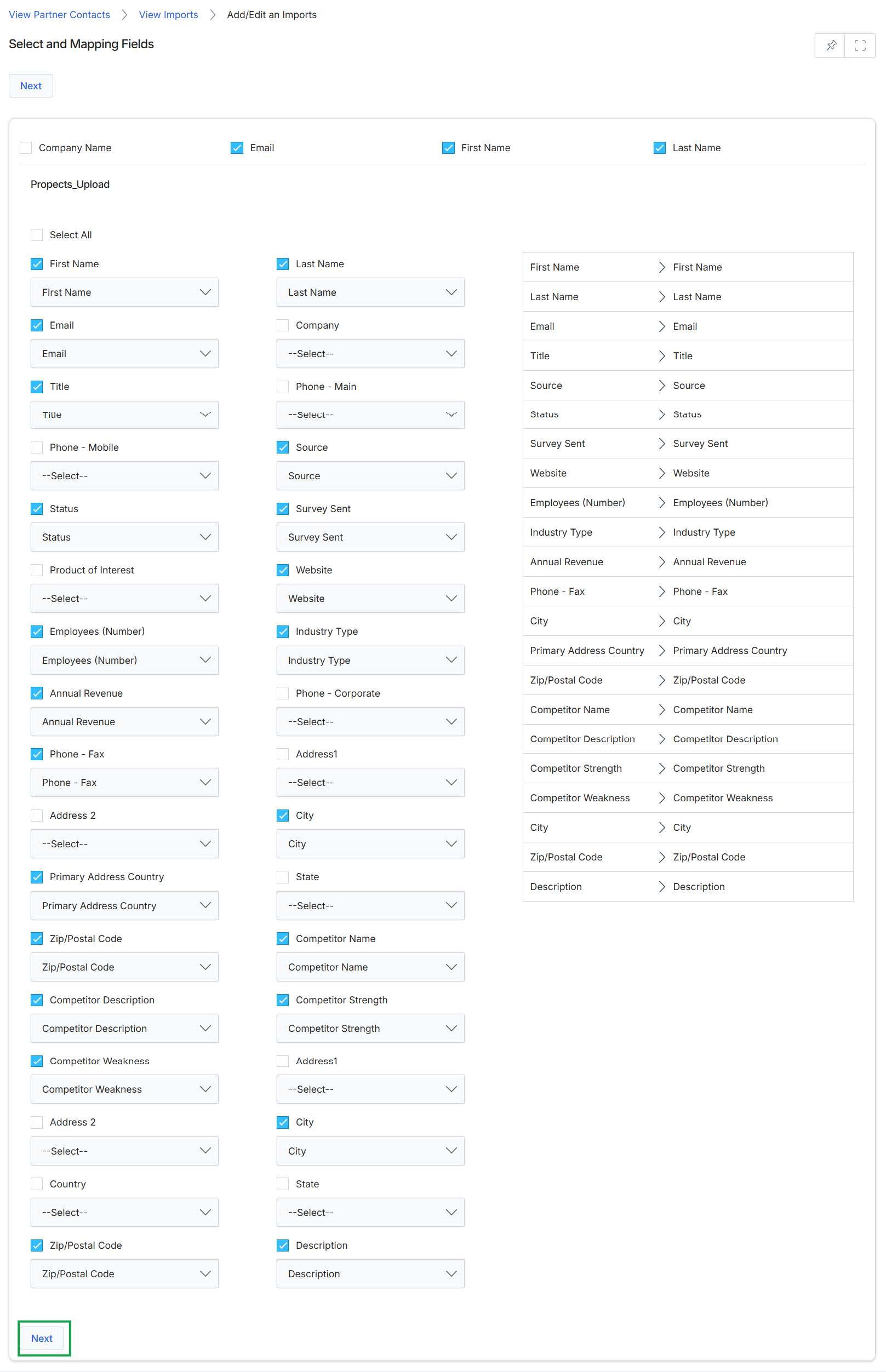
This screen displays an interface for mapping fields during a data import process, specifically for prospect data. It allows administrators to align columns from an uploaded file, labeled as 'Propects_Upload', with corresponding fields within the UPM system. The left side of the screen presents checkboxes and dropdown menus for selecting and mapping source data fields, while the right side lists the target UPM fields, indicating the intended destination for the imported information. This step is crucial for ensuring that external data is correctly structured and integrated into the platform's prospect records.
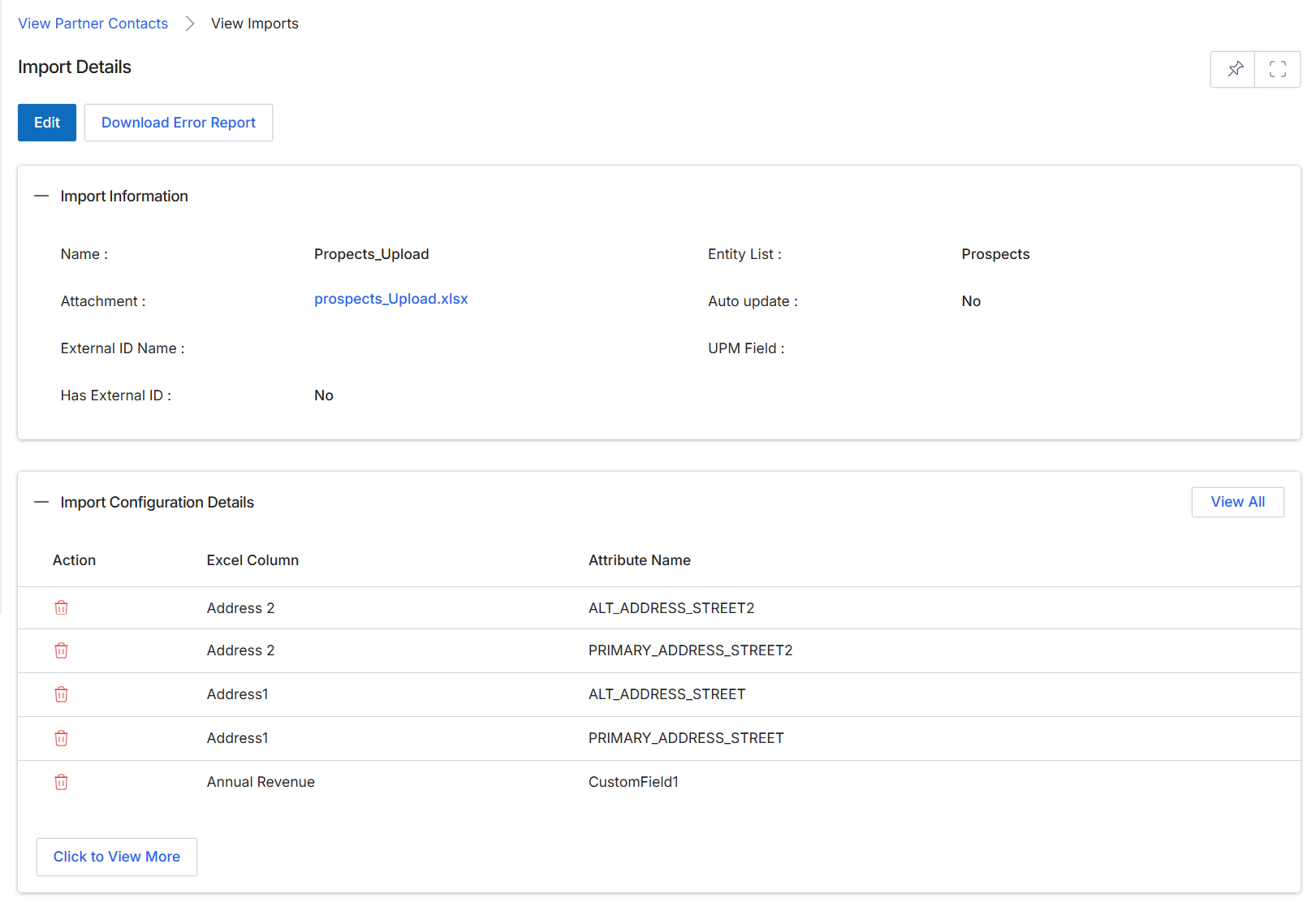
This screen displays the detailed information for a specific import record within the UPM, providing a comprehensive overview of the import's configuration and status. It is typically accessed by administrators after an import process has been initiated, allowing them to review the source file, the target entity, and the mapping of data fields. This view is crucial for verifying that data from external sources, such as prospect lists, is correctly aligned with the platform's data model, and for troubleshooting any issues that may arise during the import process. The screen also provides options to edit the import configuration or download an error report if the import encountered problems.
Review the details of the selected import, including the import information and the configured mapping between Excel columns and platform attributes.
Buttons
| Button | Description |
|---|---|
| Edit | Allows modification of the import configuration details. |
| Download Error Report | Downloads a report detailing any errors encountered during the import process. |
| View All | Displays all configured mappings for the import. |
| Click to View More | Expands the list to show additional import configuration details. |
Import Information
| Field | Description |
|---|---|
| Name | The name assigned to this specific import job. |
| Attachment | The name of the source file (e.g., an Excel spreadsheet) that was uploaded for this import. |
| External ID Name | The name of the external identifier used for this import, if applicable. |
| Has External ID | Indicates whether the import uses an external identifier. |
| Entity List | The target entity within UPM to which the imported data is mapped, such as 'Prospects'. |
| Auto update | Indicates whether the import is configured to automatically update existing records. |
| UPM Field | The specific platform field targeted by the import, if applicable. |
Import Configuration Details
| Column | Description |
|---|---|
| Action | An icon representing an action that can be performed on the mapped row, such as deleting the mapping. |
| Excel Column | The name of the column from the uploaded Excel file. |
| Attribute Name | The corresponding attribute or field name in the UPM platform to which the Excel column is mapped. |
Communicating with Partner Contacts
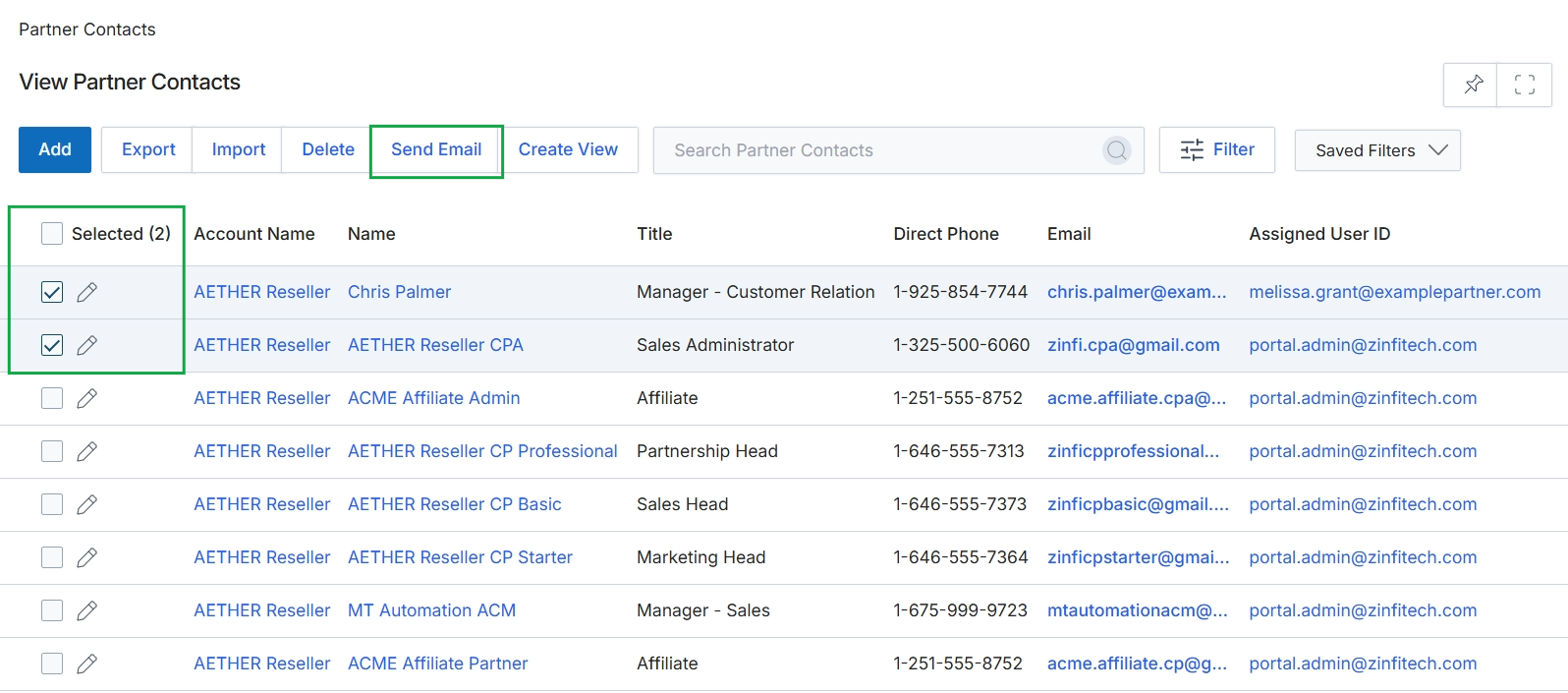
Click Partner Contacts in the breadcrumb navigation.
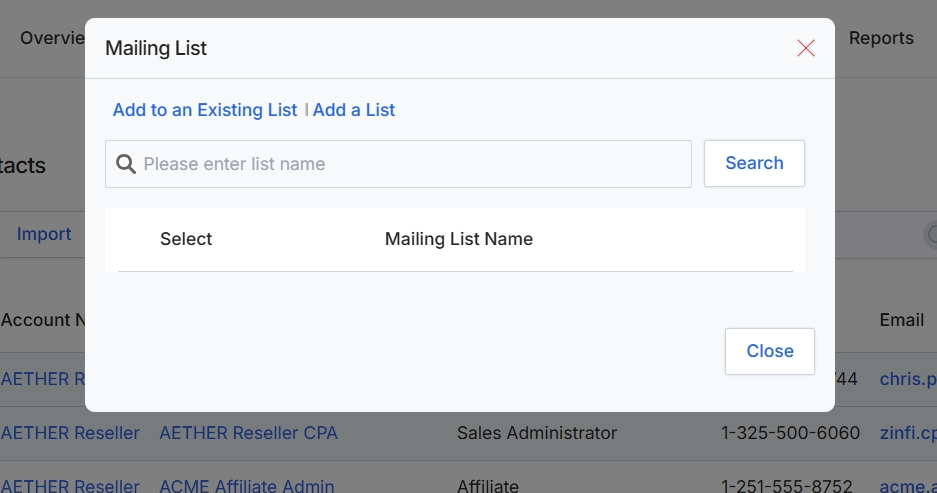
This screen displays a modal dialog for managing mailing lists, which allows administrators to add partner contacts to existing mailing lists or create new ones. It provides a search function to find specific lists by name and presents options to either select an existing list or initiate the creation of a new one. This functionality supports the broader communication and marketing efforts within the platform, enabling targeted outreach to partner contacts.