

Overview
The Rebates Management module within the Incentivize zone is crucial for managing retrospective revenue-based rewards for partners. Rebates are designed to incentivize partners to achieve specific revenue targets over a defined period, offering a percentage or flat amount back once those targets are met. This feature provides administrators with a comprehensive overview of all rebates that have been accrued, allowing for effective tracking and management of these financial incentives.
Accessing the Rebates List
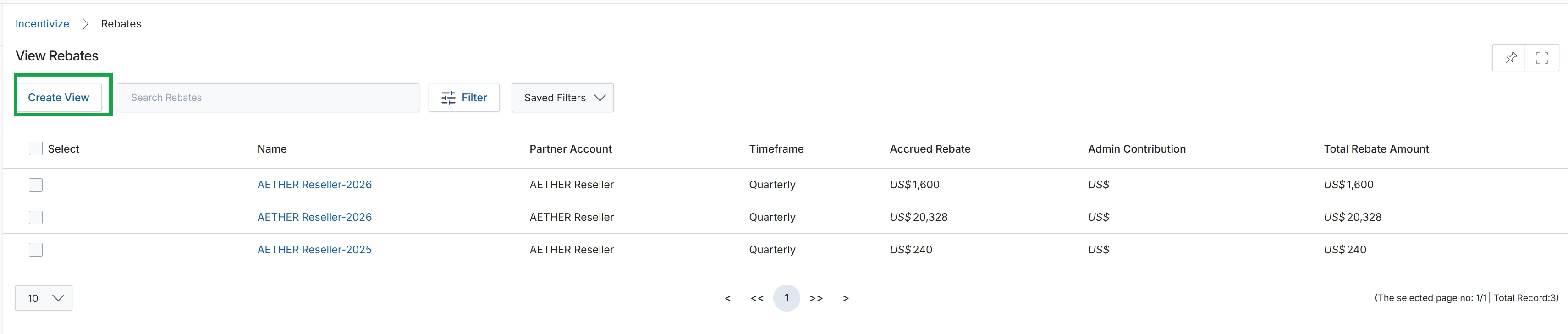
Click Create View.
Filtering Rebate Data
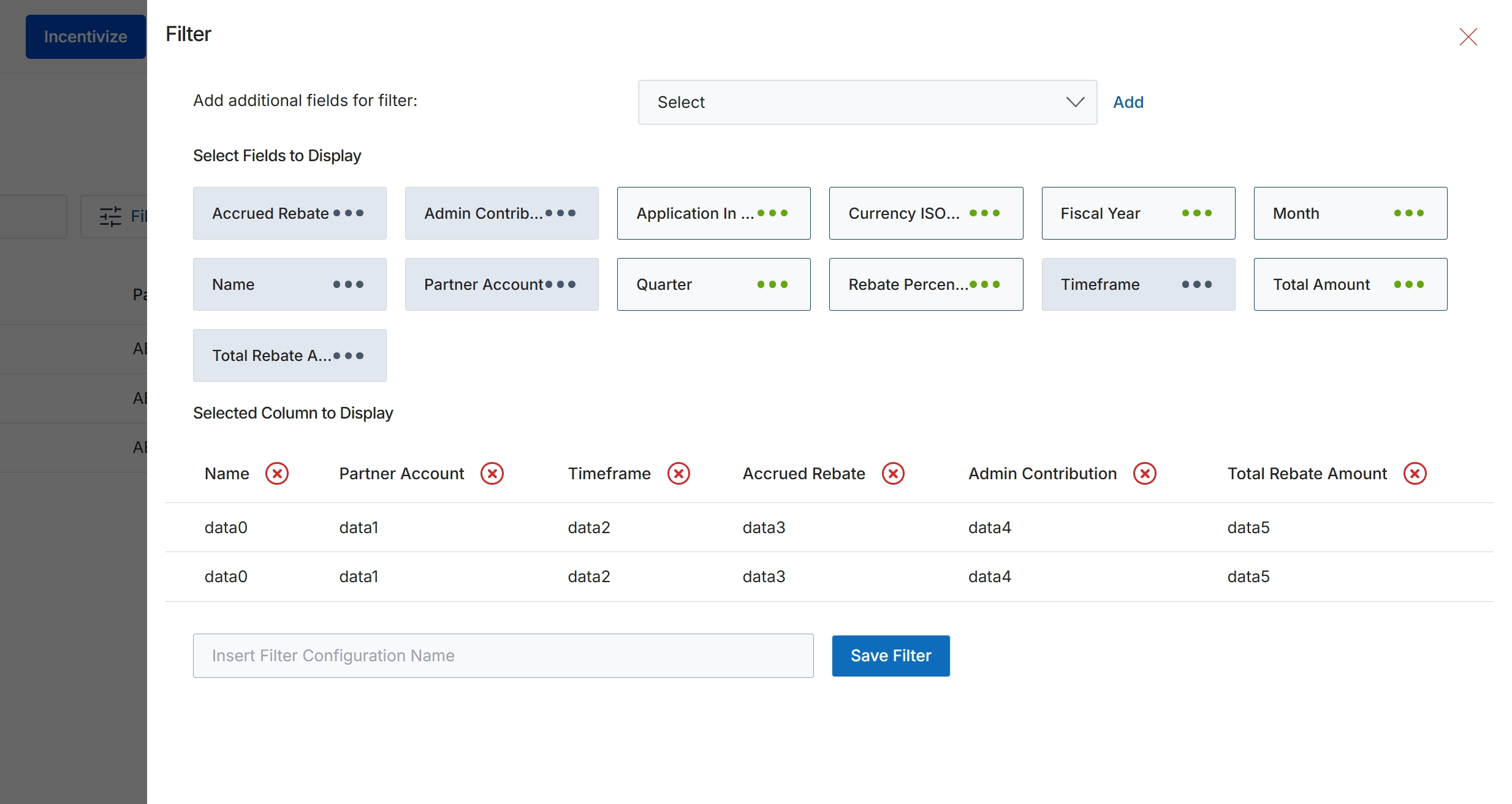
This filter configuration dialog enables users to customize the data displayed in the Rebates Management list view. Users can add specific fields to filter the rebate records, select which columns are visible in the table, and arrange their order. This customization helps users focus on relevant information, analyze specific rebate trends, or prepare tailored reports. The ability to save filter configurations streamlines future analysis by allowing quick access to frequently used views of rebate data.
Add additional filter fields and select the columns to display for the Rebates Management list.
Buttons
| Button | Description |
|---|---|
| Add | Adds the selected field from the dropdown to the filter criteria. |
| Save Filter | Saves the current filter and column display settings under the provided configuration name. |
Add additional fields for filter:
| Field | Description |
|---|---|
| Select | A dropdown menu to select additional fields that can be used to filter the rebate data. |
Fields
| Field | Description |
|---|---|
| Insert Filter Configuration Name | An input field to enter a name for the current filter configuration to save it for future use. |
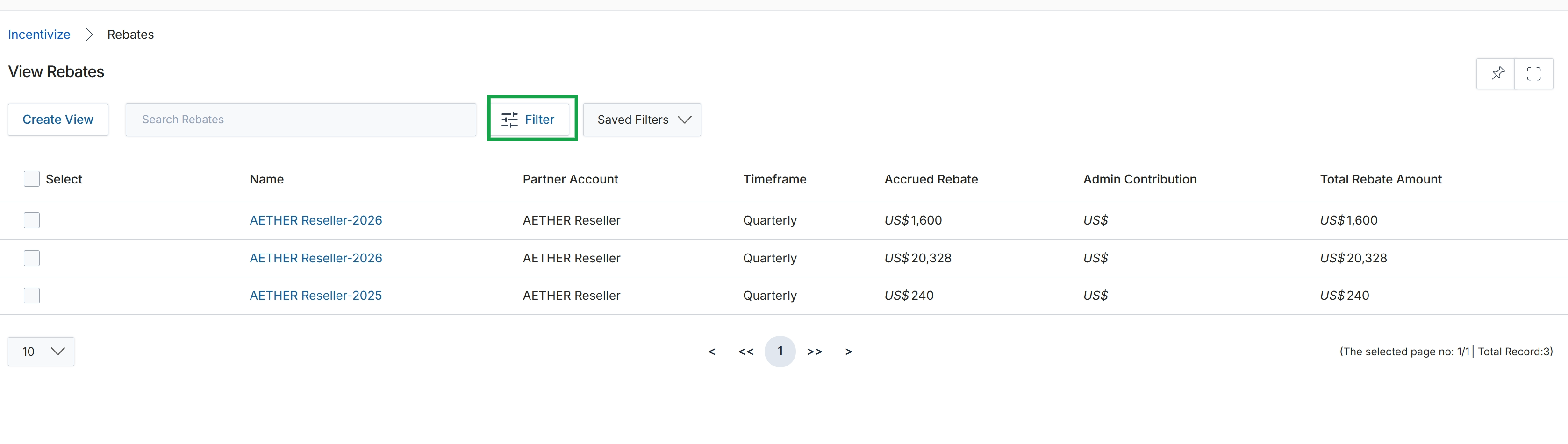
Click the Filter button.
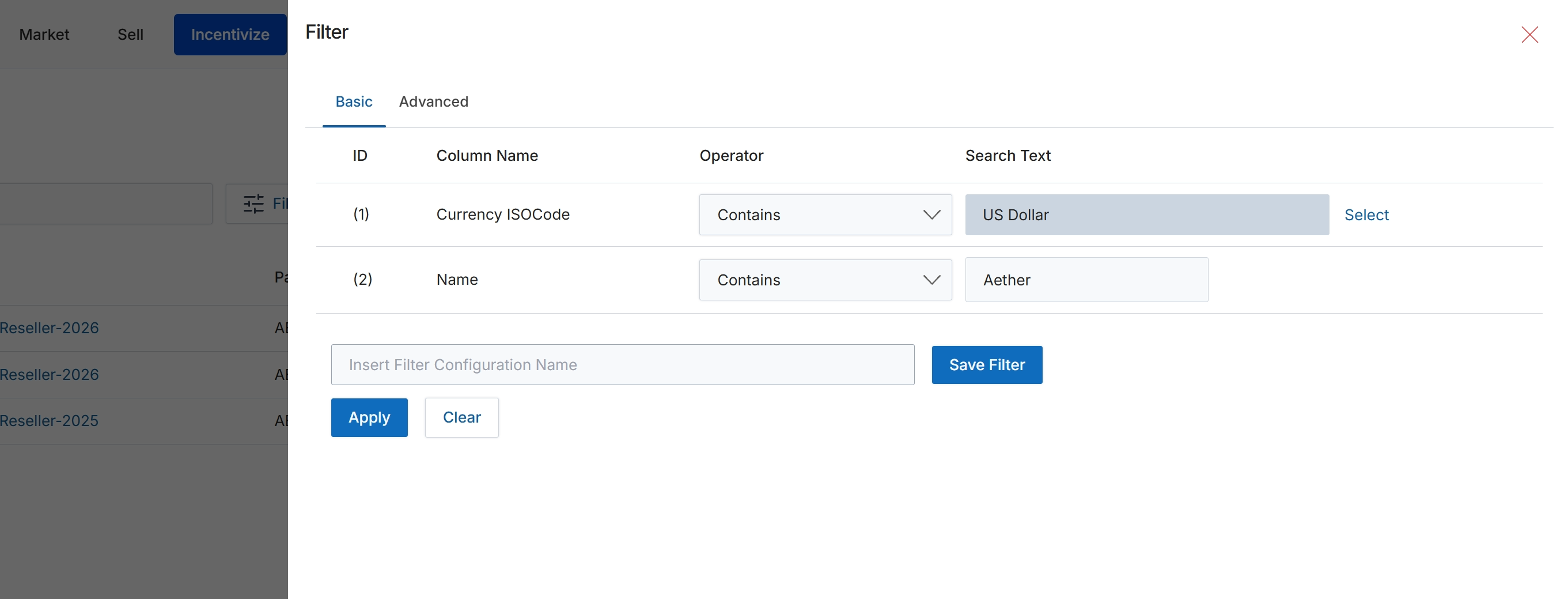
This filter panel provides a mechanism for users to refine the data displayed in a list view by applying specific criteria. It supports both basic and advanced filtering capabilities, allowing users to define conditions based on various data columns, operators, and search values. This enables administrators to quickly locate specific records, such as rebate rules, by filtering for attributes like currency or name. The ability to save filter configurations streamlines future searches for frequently used criteria, enhancing efficiency in managing large datasets within the module.
Apply the defined filter criteria to narrow down the list of rebate rules.
Buttons
| Button | Description |
|---|---|
| Basic | Selects the basic filter configuration mode, allowing for straightforward rule-based filtering. |
| Advanced | Selects the advanced filter configuration mode, which may offer more complex logical operators or grouping options (not visible in this basic view). |
| Select | A button to open a selection dialog for the 'Currency ISOCode' search text. |
| Save Filter | Saves the current filter configuration under the specified name for later retrieval. |
| Apply | Applies the configured filter criteria to the data table, updating the displayed records. |
| Clear | Resets all filter criteria, removing any applied filters and displaying the full dataset. |
Fields
| Field | Description |
|---|---|
| Currency ISOCode | The name of the column being filtered, representing the ISO currency code. |
| Name | The name of the column being filtered, representing the name of the rebate rule or related entity. |
| Contains | The operator selected for the 'Currency ISOCode' filter, indicating that the column value should contain the specified search text. |
| Contains | The operator selected for the 'Name' filter, indicating that the column value should contain the specified search text. |
| US Dollar | The search value entered for the 'Currency ISOCode' filter. |
| Aether | The search value entered for the 'Name' filter. |
| Insert Filter Configuration Name | A text input field to provide a name for the current filter configuration, allowing it to be saved for future use. |
Column Headings
| Column | Description |
|---|---|
| ID | A numerical identifier for each filter criterion row. |
| Column Name | The name of the data column to which the filter criterion applies. |
| Operator | The type of comparison or condition to apply to the selected column's value. |
| Search Text | The value or pattern to search for within the specified column. |
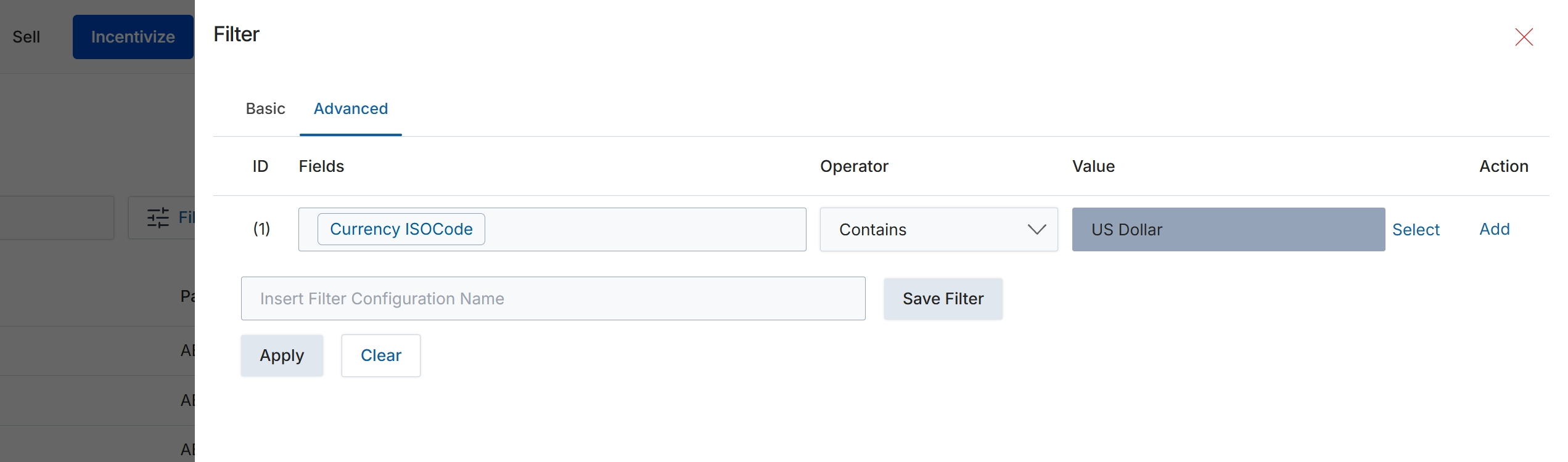
This screen displays the advanced filter configuration dialog, allowing users to define complex search criteria for data tables within the UPM. Users can specify multiple filter conditions by selecting a field, an operator, and a corresponding value. This granular filtering capability helps users quickly locate specific records, such as Rebate Rules, by applying precise conditions like currency type or rule name. The ability to save filter configurations streamlines future searches, enhancing efficiency for administrators managing various incentive programs.
Configure the advanced filter by selecting fields, operators, and values, then click 'Apply' to filter the data, or 'Save Filter' to store the configuration for future use.
Buttons
| Button | Description |
|---|---|
| Basic | Switches the filter interface to a simpler, basic mode. |
| Advanced | Switches the filter interface to an advanced mode, allowing for multiple, complex filter conditions. |
| Select | Allows selection of a predefined value for the filter condition. |
| Add | Adds a new filter condition row to the advanced filter. |
| Save Filter | Saves the currently defined filter configuration under the specified name. |
| Apply | Applies the configured filter conditions to the data table. |
| Clear | Clears all active filter conditions. |
Fields
| Field | Description |
|---|---|
| Currency ISOCode | The selected field for the first filter condition, indicating that the filter will be applied to the currency ISO code. |
| Contains | The selected operator for the first filter condition, meaning the field's value must contain the specified text. |
| US Dollar | The value entered for the first filter condition, specifying 'US Dollar' as the text to search for within the 'Currency ISOCode' field. |
| Insert Filter Configuration Name | An input field to enter a name for the current filter configuration to save it for future use. |
Column Headings
| Column | Description |
|---|---|
| ID | Identifies the sequence number of each filter condition row. |
| Fields | The column header for selecting the data field to apply the filter condition to. |
| Operator | The column header for selecting the comparison operator (e.g., Contains, Equals, Starts With) for the filter condition. |
| Value | The column header for entering or selecting the value to compare against the chosen field. |
| Action | The column header for actions related to each filter condition, such as adding or selecting values. |