

Overview
Microsites are co-branded landing pages that partners can customize and publish to promote vendor products and services. This functionality is crucial for partners to establish their online presence while maintaining brand consistency with the vendor. By managing individual pages, vendors ensure that partners have a flexible yet controlled framework to build out their microsites, complete with essential sections like 'Home', 'Products', 'Documents', and 'Contact'.
This granular control over microsite pages allows vendors to pre-define the structure and content types available to partners, streamlining the co-marketing process. Partners can then focus on populating these pages with their specific information and lead capture forms, knowing that the underlying structure and branding are already in place, ultimately driving more effective lead generation and sales.
Viewing Microsite Pages
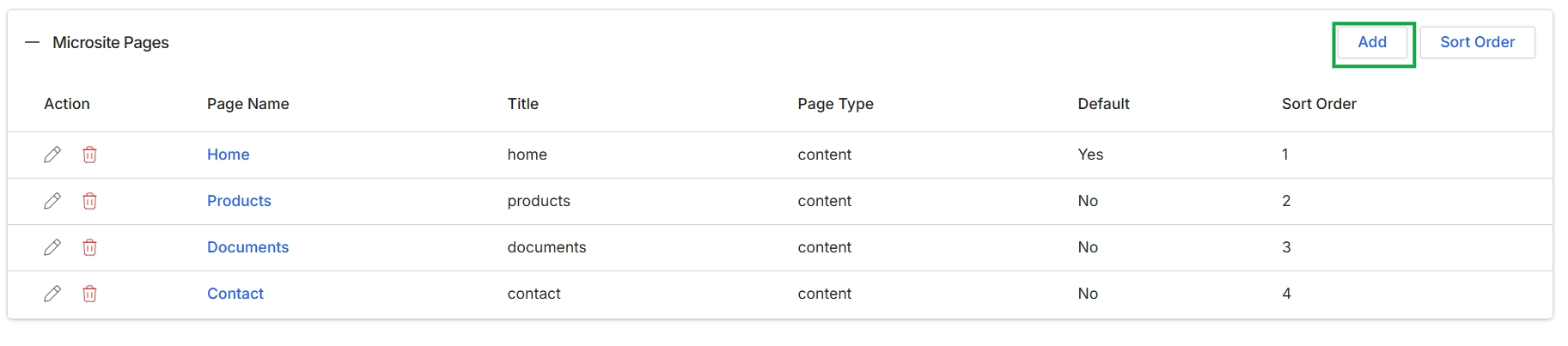
Click the Add button.
Adding a New Microsite Page
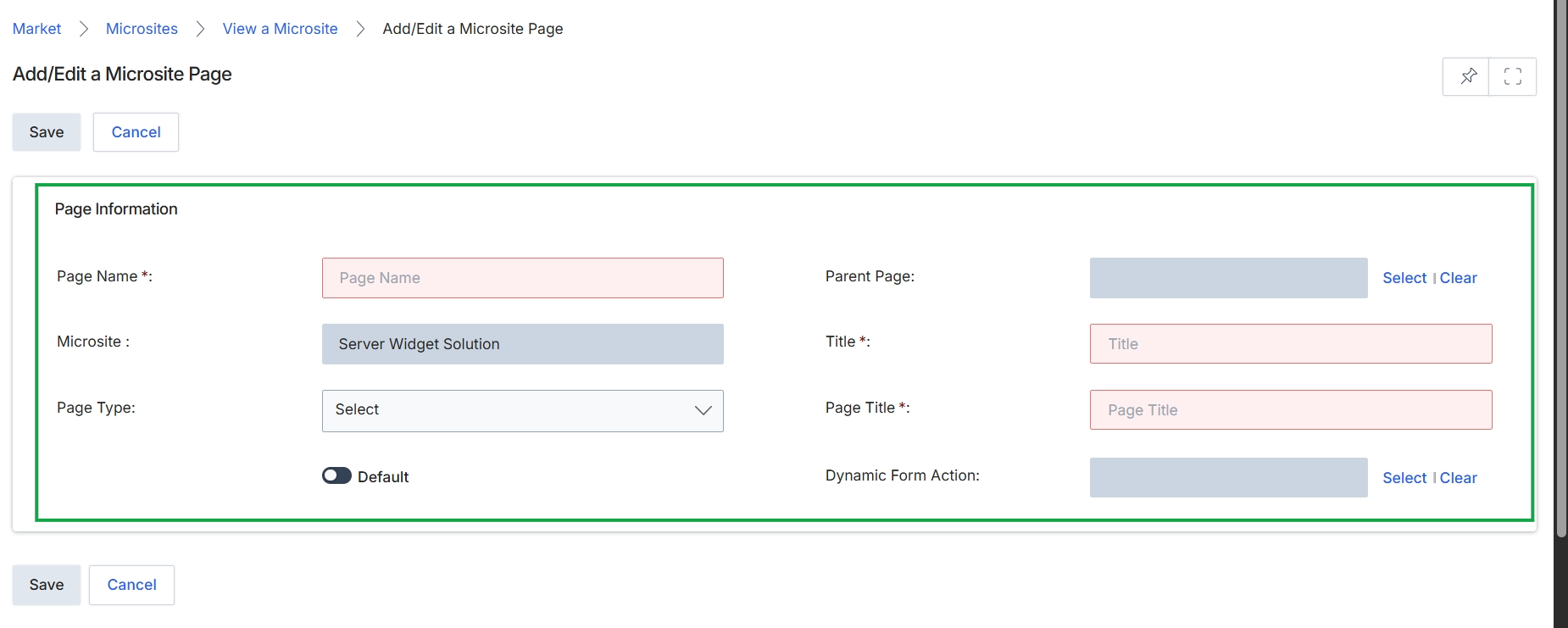
This screen provides the interface for adding or editing a page within an existing microsite. It allows users to define fundamental properties for a microsite page, such as its name, type, and the microsite it belongs to. The form also includes options for structuring the microsite by assigning a parent page, which helps organize content and navigation, and setting a default page, which designates the primary landing page for the microsite. This functionality is crucial for administrators to manage the content and structure of partner-branded microsites, ensuring they are well-organized and effectively serve their marketing purpose.
Enter the page name and title, select the page type, and configure other page information for the microsite.
Buttons
| Button | Description |
|---|---|
| Save | Saves the current microsite page configuration. |
| Cancel | Discards any changes and returns to the previous view. |
Page Information
| Field | Description |
|---|---|
| Page Name * | Enter the name for the microsite page. This is a required field. |
| Microsite | Displays the name of the microsite to which this page belongs. This field is pre-populated. |
| Page Type | Select the type of page from the dropdown menu. |
| Default | Toggle this switch to set this page as the default landing page for the microsite. |
| Parent Page | Select an existing page to be the parent of this page, establishing a hierarchical structure. |
| Title * | Enter the title for the microsite page. This is a required field. |
| Page Title * | Enter the page title. This is a required field. |
| Dynamic Form Action | Select a dynamic form action to associate with this page. |
Editing an Existing Microsite Page
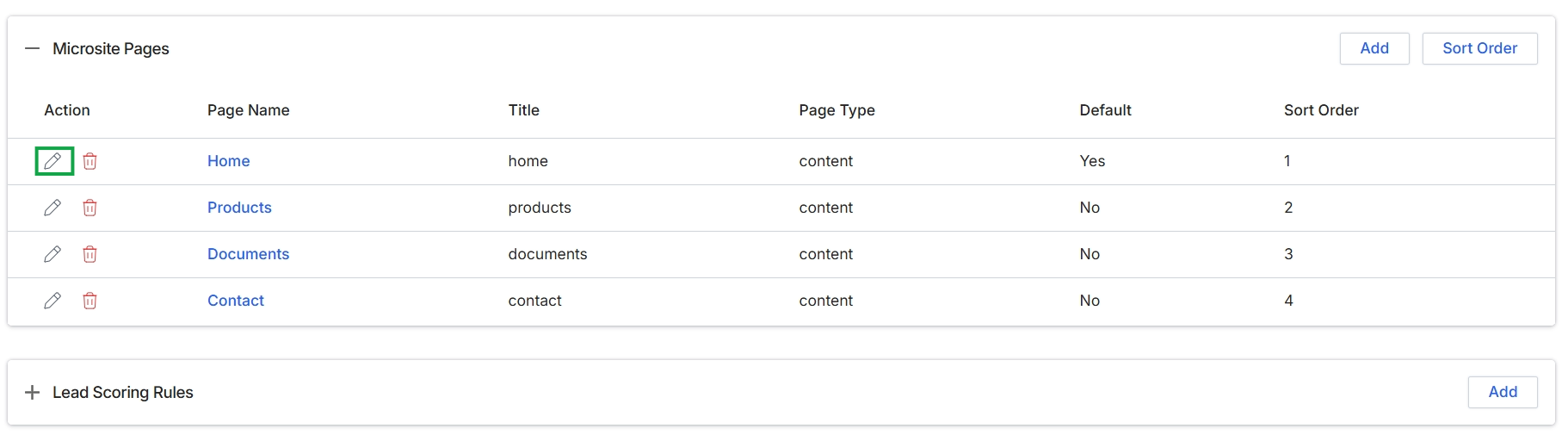
This screen displays a list of microsite pages that have been configured for a partner's microsite. Each entry represents a distinct page within the microsite, such as a Home page, Products page, or Contact page. Administrators use this view to manage the structure and content of the microsite, including adding new pages, editing existing ones, and defining their order. The 'Default' column indicates which page serves as the primary landing page for the microsite. This functionality is crucial for partners to customize their co-branded landing pages, which are used to capture leads and promote vendor products.
Click the Edit icon next to the "Home" page to modify its details.
Buttons
| Button | Description |
|---|---|
| Add | Click to add a new microsite page. |
| Sort Order | Click to reorder the microsite pages. |
| Edit icon | Click this icon to edit the details of the corresponding microsite page. |
| Delete icon | Click this icon to delete the corresponding microsite page. |
| Add | Click to add a new lead scoring rule. |
Microsite Pages
| Column | Description |
|---|---|
| Action | This column contains icons to perform actions on each microsite page, such as editing or deleting. |
| Page Name | The user-friendly name of the microsite page. |
| Title | The internal title or slug for the microsite page. |
| Page Type | Indicates the type of content for the microsite page, such as 'content'. |
| Default | Indicates whether this page is set as the default landing page for the microsite. |
| Sort Order | The numerical order in which the microsite pages are displayed. |
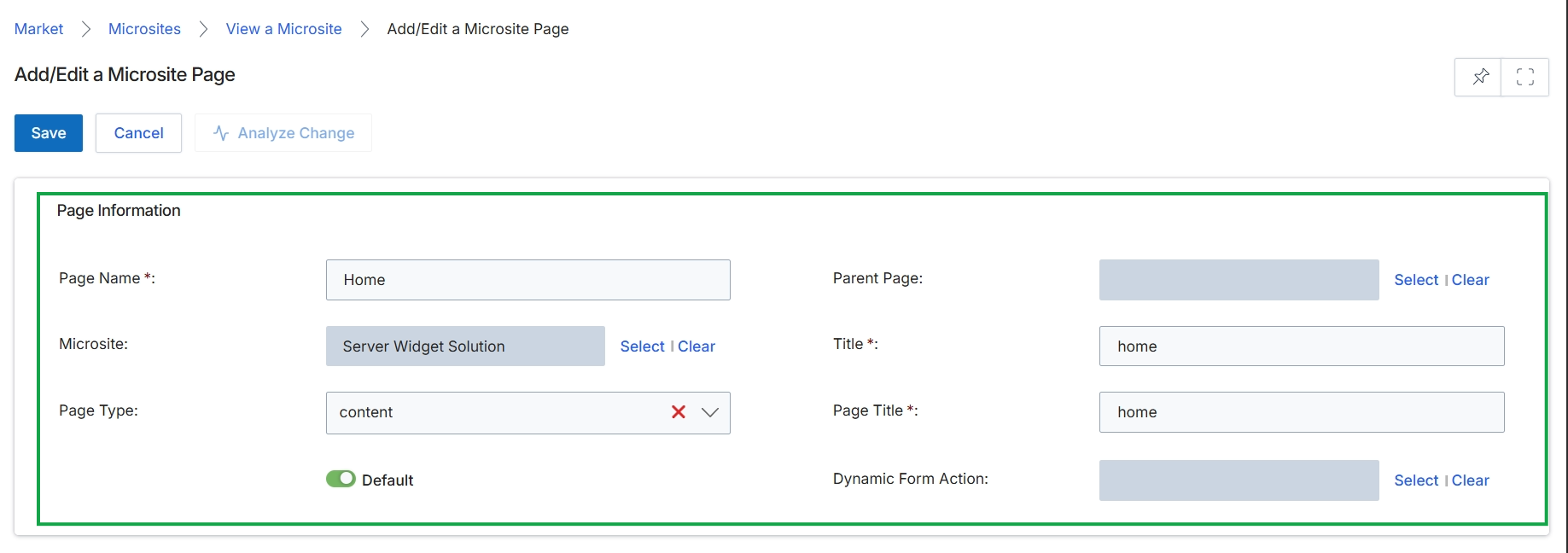
This screen is for adding or editing a specific page within a microsite. It allows users to define core properties for a microsite page, such as its name, the microsite it belongs to, its type (e.g., content), and its title. This functionality is crucial for structuring the content and navigation of partner-branded landing pages within the Market module.
Deleting a Microsite Page
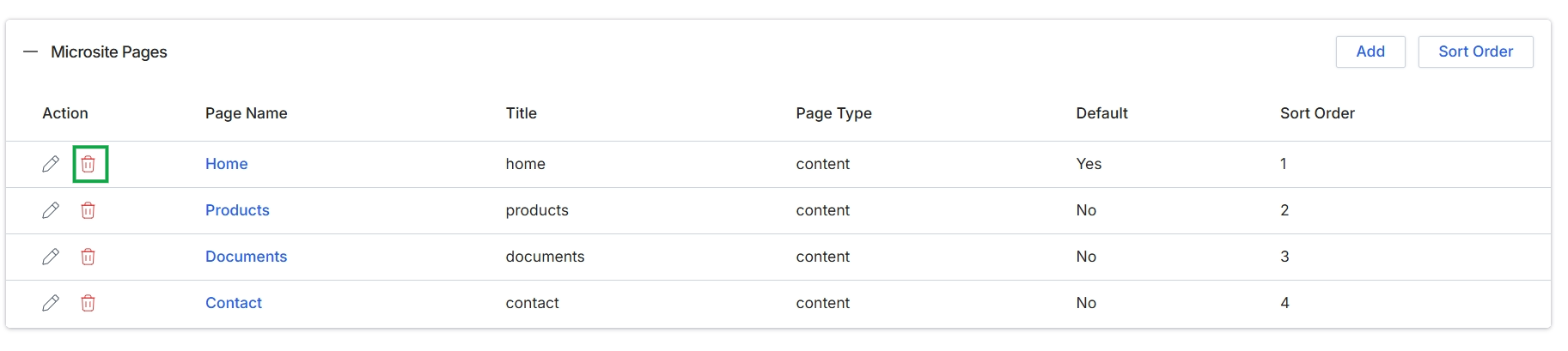
Click the Delete icon next to the "Home" microsite page.