

Overview
Microsites are partner-branded landing pages that help partners promote vendor products and services. As the number of microsites grows, administrators need efficient tools to manage and locate specific microsites for review, updates, or performance analysis. The filtering functionality provides a robust way to navigate through the microsite inventory, ensuring that administrators can quickly find the information they need without sifting through extensive lists.
This capability is crucial for maintaining an organized and effective co-marketing program. By allowing filters to be saved, the platform enhances productivity, enabling administrators to reuse frequently needed search criteria. This ensures that even large deployments of microsites remain manageable and accessible.
Accessing the Filter Options
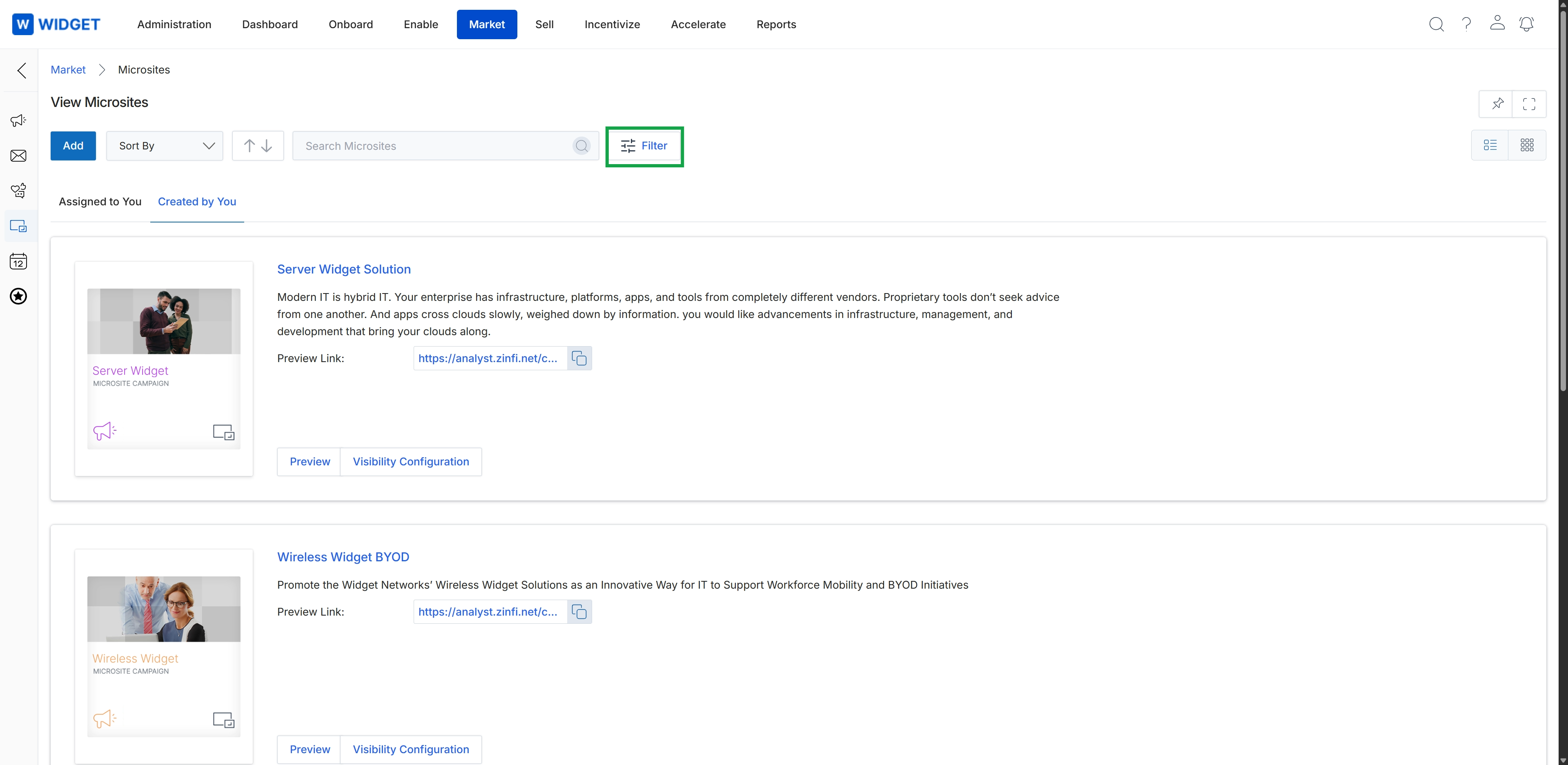
Click the Filter button.
Applying Basic Filters
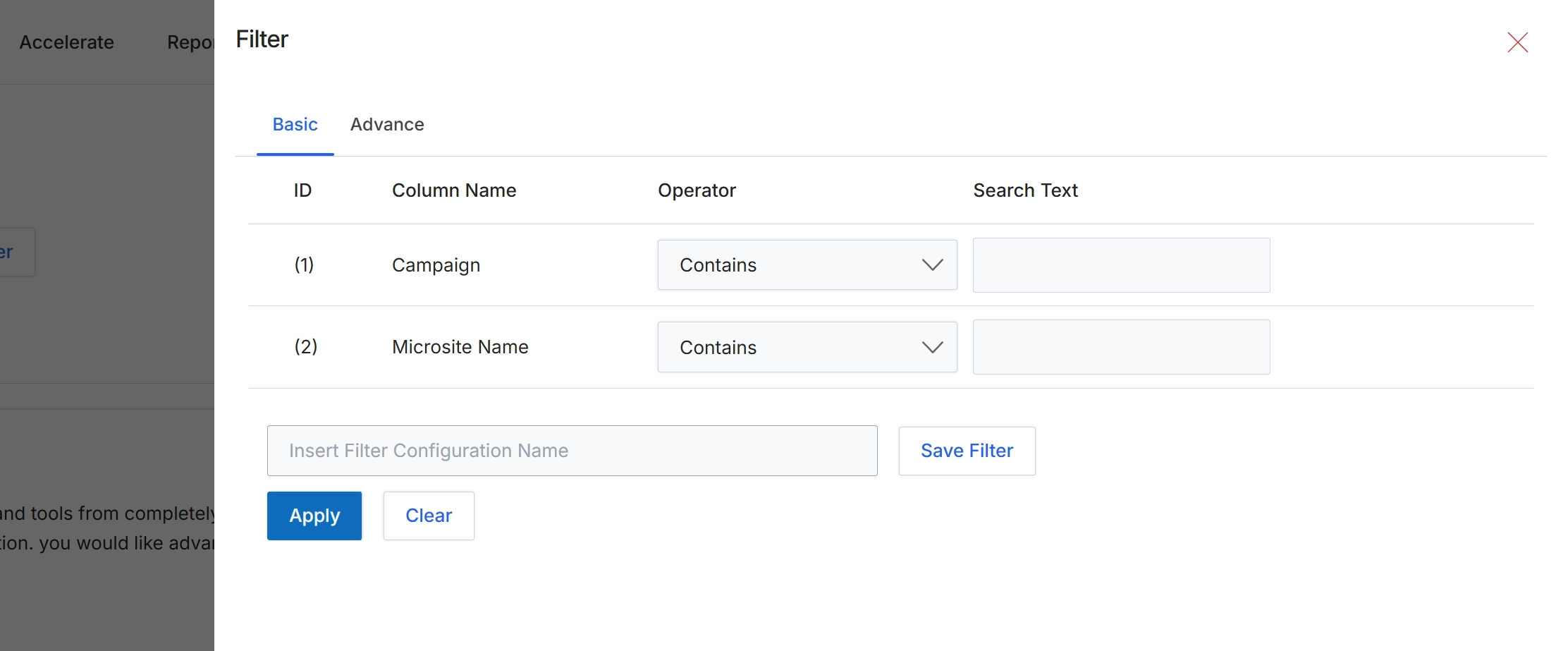
This filter panel allows users to refine the displayed list of microsites and landing pages by applying specific search criteria. It provides basic filtering options based on key attributes such as the associated campaign or the microsite's name. Users can specify search text and choose an operator (like 'Contains') to match values. This panel also includes functionality to save frequently used filter configurations, enabling quick application of complex search parameters without re-entering them each time. The filtering mechanism helps users efficiently locate specific microsites within potentially large lists, supporting effective management and analysis of marketing assets.
Apply basic filters to the microsite and landing page list by entering search criteria for 'Campaign' or 'Microsite Name'.
Buttons
| Button | Description |
|---|---|
| Basic | Selects the basic filtering options, allowing simple text-based searches. |
| Advance | Switches to advanced filtering options, which may offer more complex criteria and logical operators. |
| Save Filter | Saves the current filter configuration under the specified name. |
| Apply | Applies the selected filter criteria to the microsite list. |
| Clear | Clears all entered filter criteria and resets the filter panel. |
Fields
| Field | Description |
|---|---|
| Campaign | Allows filtering the list based on the name of the campaign associated with the microsite. |
| Contains | The operator for the 'Campaign' filter, indicating that the search text should be contained within the campaign name. |
| Search Text | Enter the text to search for within the 'Campaign' field. |
| Microsite Name | Allows filtering the list based on the name of the microsite. |
| Contains | The operator for the 'Microsite Name' filter, indicating that the search text should be contained within the microsite name. |
| Search Text | Enter the text to search for within the 'Microsite Name' field. |
| Insert Filter Configuration Name | Enter a name to save the current filter configuration for future use. |
Using Advanced Filters
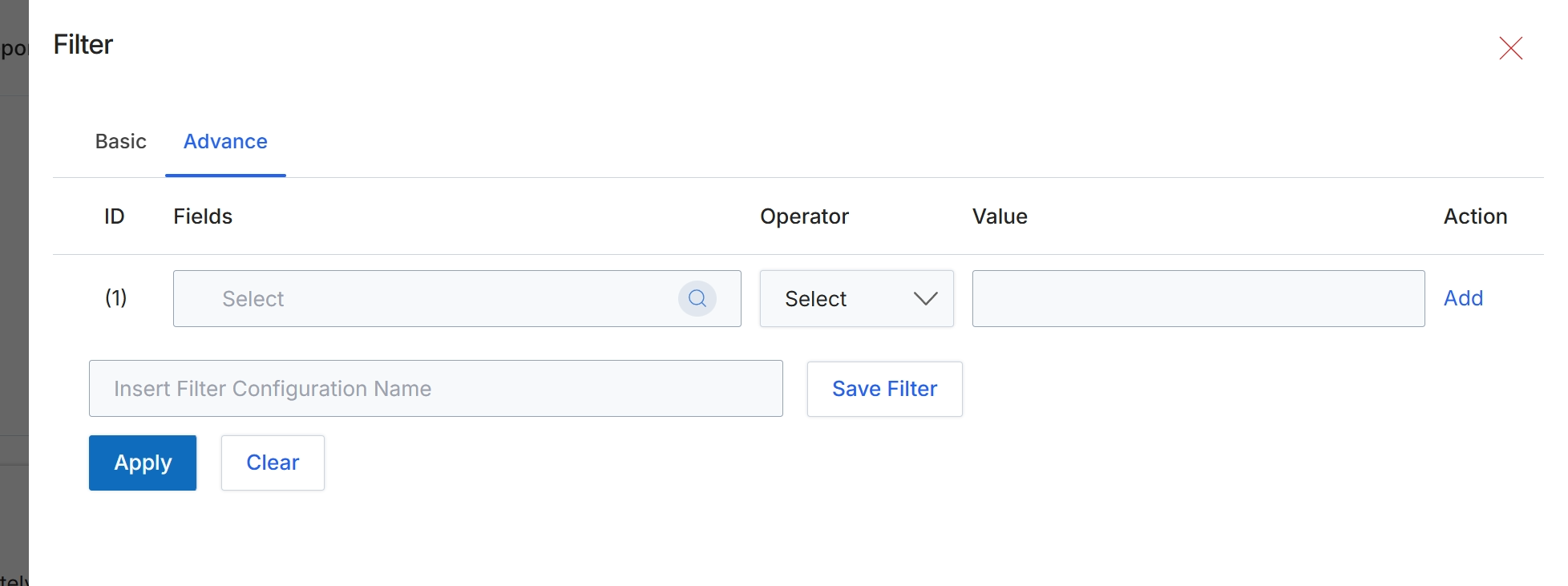
This screen presents the advanced filtering options within the module, allowing users to construct complex queries for data retrieval. It provides a structured interface to define filter conditions based on specific fields, operators, and values. Users can add multiple filter criteria to refine their search and save frequently used filter configurations for future application, enhancing efficiency in data management. This advanced filter capability supports more granular data segmentation and analysis compared to basic filtering, which is crucial for managing large datasets of microsites and landing pages.
Click the "Advance" tab to access the advanced filtering options.
Buttons
| Button | Description |
|---|---|
| Basic | Tab to switch to basic filtering options. |
| Advance | Tab to switch to advanced filtering options, allowing for more complex query construction. |
| Add | Button to add another filter condition row. |
| Save Filter | Button to save the current filter configuration under the specified name. |
| Apply | Button to apply the configured filters to the data. |
| Clear | Button to clear all applied filter conditions. |
Fields
| Field | Description |
|---|---|
| Select | Dropdown to choose the field for the first filter condition. |
| Select | Dropdown to choose the operator for the first filter condition. |
| Insert Filter Configuration Name | Text input field to enter a name for the current filter configuration to save it for future use. |
Column Headings
| Column | Description |
|---|---|
| ID | Column header for the filter condition identifier. |
| Fields | Column header for selecting the data field to apply the filter to. |
| Operator | Column header for selecting the logical operator (e.g., equals, contains, starts with) for the filter condition. |
| Value | Column header for entering the value to filter by. |
| Action | Column header for actions related to the filter condition, such as adding or removing a row. |