

Overview
Microsites are a critical component of co-marketing, enabling partners to promote vendor products or services under their own branding. These landing pages are essential for lead generation, event promotion, and tracking marketing performance. Administrators utilize this feature to ensure each microsite is accurately configured, aligned with specific marketing campaigns, and visually consistent with branding guidelines through the selection of UI/UX packages and the upload of thumbnail images.
Managing microsite details ensures that partners have access to flexible yet controlled co-branded web presences. This capability supports various partner marketing activities by providing a robust platform for customizing and deploying landing pages that capture leads and track engagement effectively, ultimately contributing to the success of the overall partner program.
Editing Microsite Information
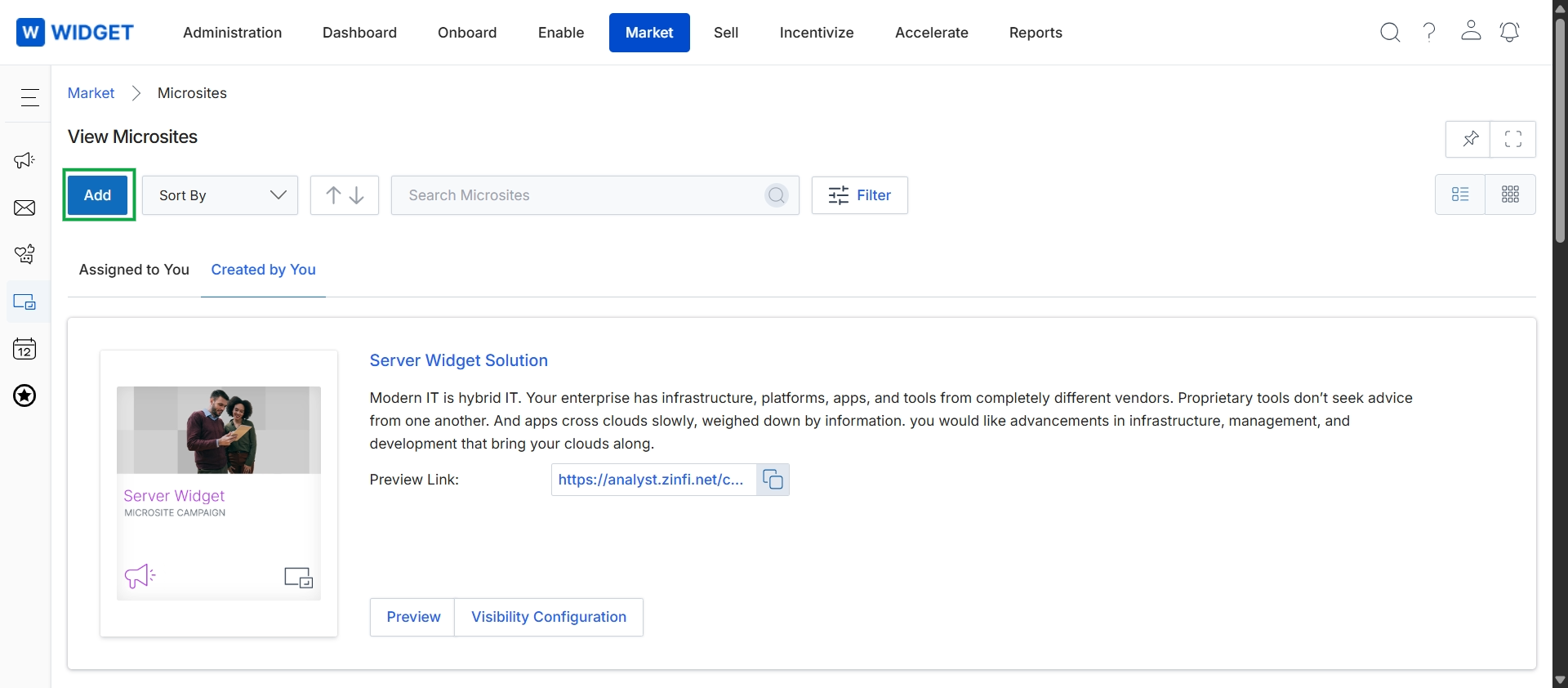
The View Microsites screen displays a list of all microsites available within the platform, allowing users to manage and monitor their co-branded landing pages. Microsites are a key feature in the Market module, enabling partners to create customized web pages using vendor-approved templates and content. These pages are designed to capture leads, which are then routed to the partner's lead queue in the Sell module. This screen provides an overview of existing microsites, including their preview links and options for further configuration, supporting the partner's ability to execute marketing activities and track performance.
Click the "Add" button to create a new microsite.
Buttons
| Button | Description |
|---|---|
| Add | Initiates the process of creating a new microsite. |
| Filter | Opens a panel to apply filters to the microsite list. |
| Assigned to You | Displays microsites that have been assigned to the current user. |
| Created by You | Displays microsites that were created by the current user. |
| Preview | Opens a preview of the microsite. |
| Visibility Configuration | Allows configuring the visibility settings for the microsite. |
Fields
| Field | Description |
|---|---|
| Sort By | Allows sorting the list of microsites by various criteria. |
| Search Microsites | A search bar to find specific microsites by name or keyword. |
| Preview Link | Shows the URL for the microsite, allowing users to view the live page. |
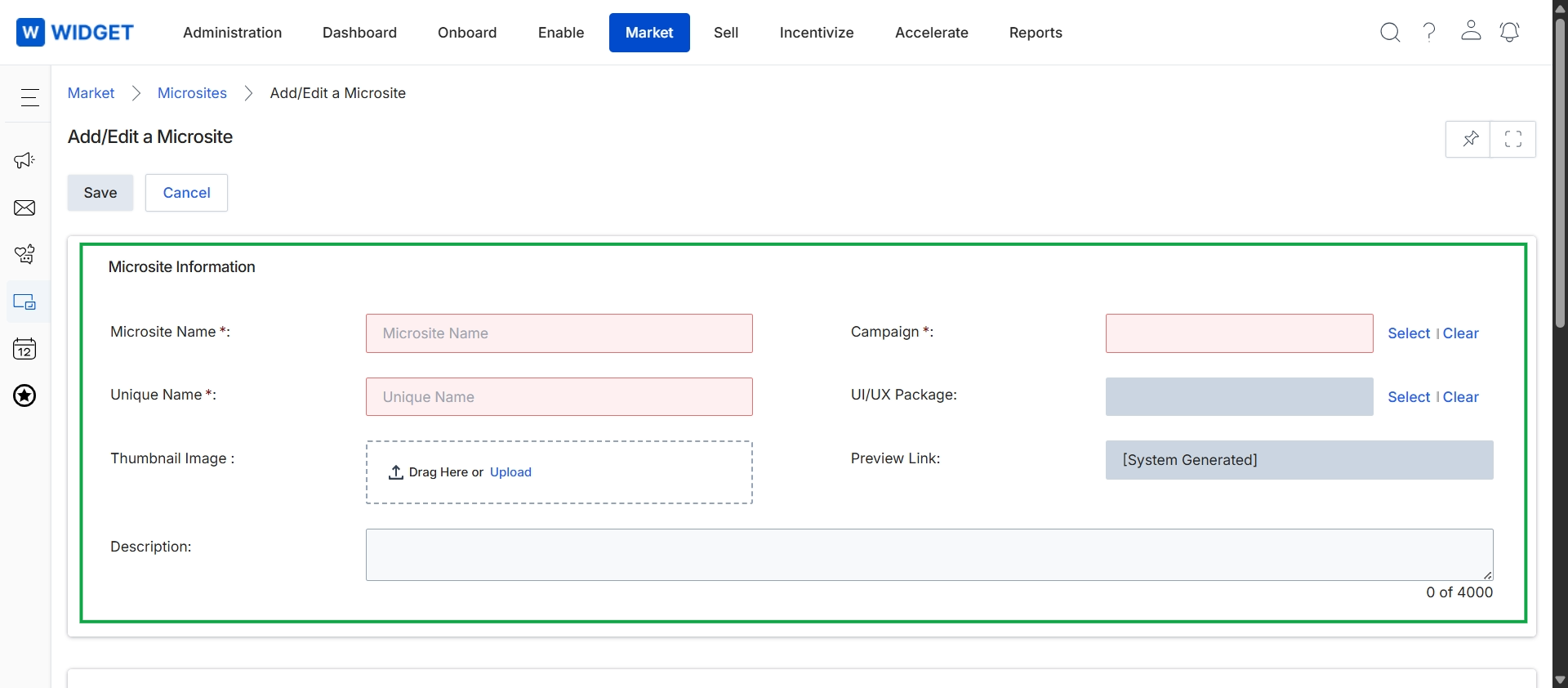
This screen, titled 'Add/Edit a Microsite', is where UPM administrators define the properties of a microsite within the Market module. Microsites are partner-branded landing pages that partners can use to promote vendor products and services, capture leads, and track marketing performance. This form allows administrators to configure essential details such as the microsite's name, a unique identifier for its URL, and its association with a specific marketing campaign. It also facilitates the upload of a thumbnail image for visual representation and provides a field for a detailed description. Once configured, the platform automatically generates a preview link, enabling administrators to review the microsite's appearance before it is made available to partners.
Fill in the required details on the 'Add/Edit a Microsite' form to define the new microsite's properties.
Buttons
| Button | Description |
|---|---|
| Save | Saves the current microsite configuration. |
| Cancel | Discards any changes and returns to the previous screen. |
Microsite Information
| Field | Description |
|---|---|
| Microsite Name * | Enter a descriptive name for the microsite. This is a mandatory field. |
| Unique Name * | Provide a unique identifier for the microsite, which will typically be used in its URL. This is a mandatory field. |
| Thumbnail Image | Upload a thumbnail image to represent the microsite, either by dragging and dropping or by clicking 'Upload'. |
| Description | Provide a detailed description of the microsite, with a maximum limit of 4000 characters. |
| Campaign * | Select the marketing campaign to which this microsite will be associated. This is a mandatory field. |
| UI/UX Package | Select the user interface and user experience package to be applied to this microsite. |
| Preview Link | This field displays the system-generated preview link for the microsite once it has been configured. |
Viewing Microsite Details
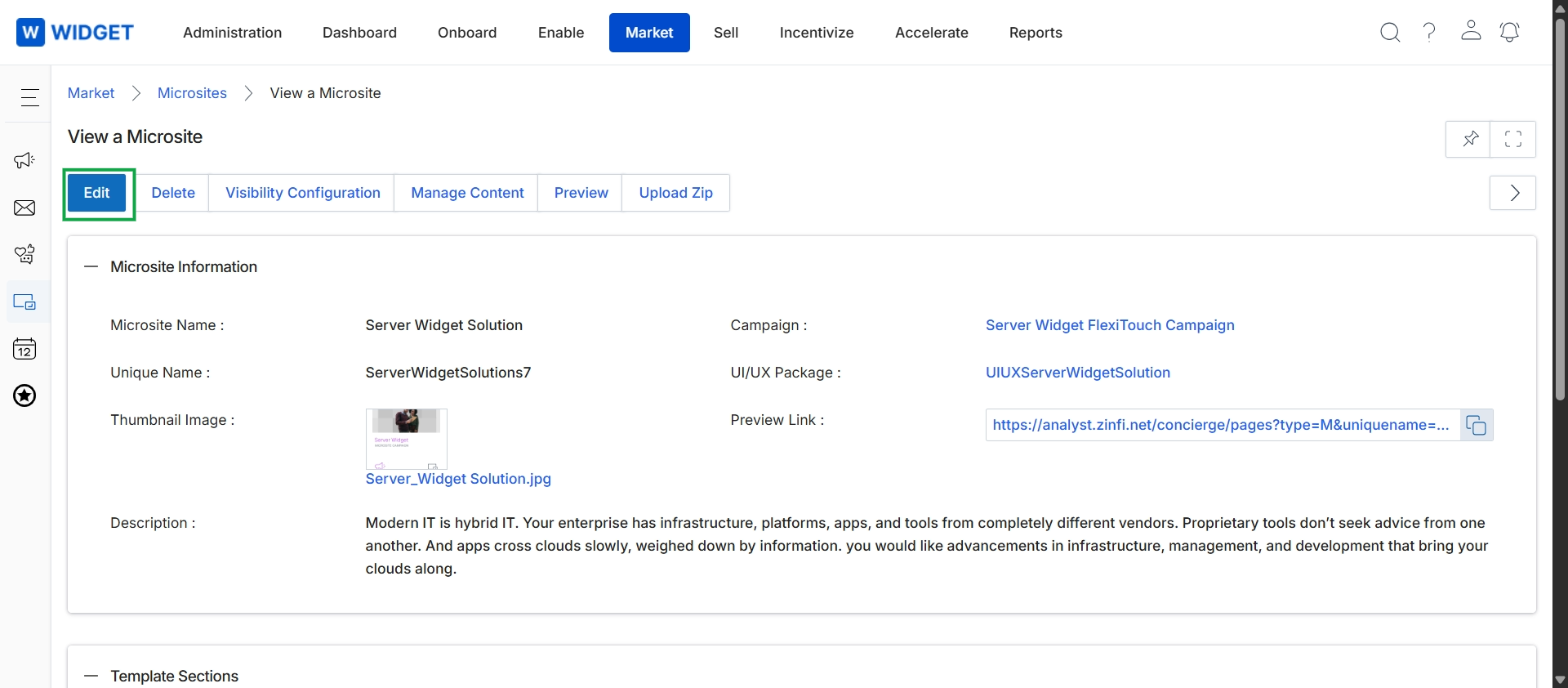
Click the Edit button.
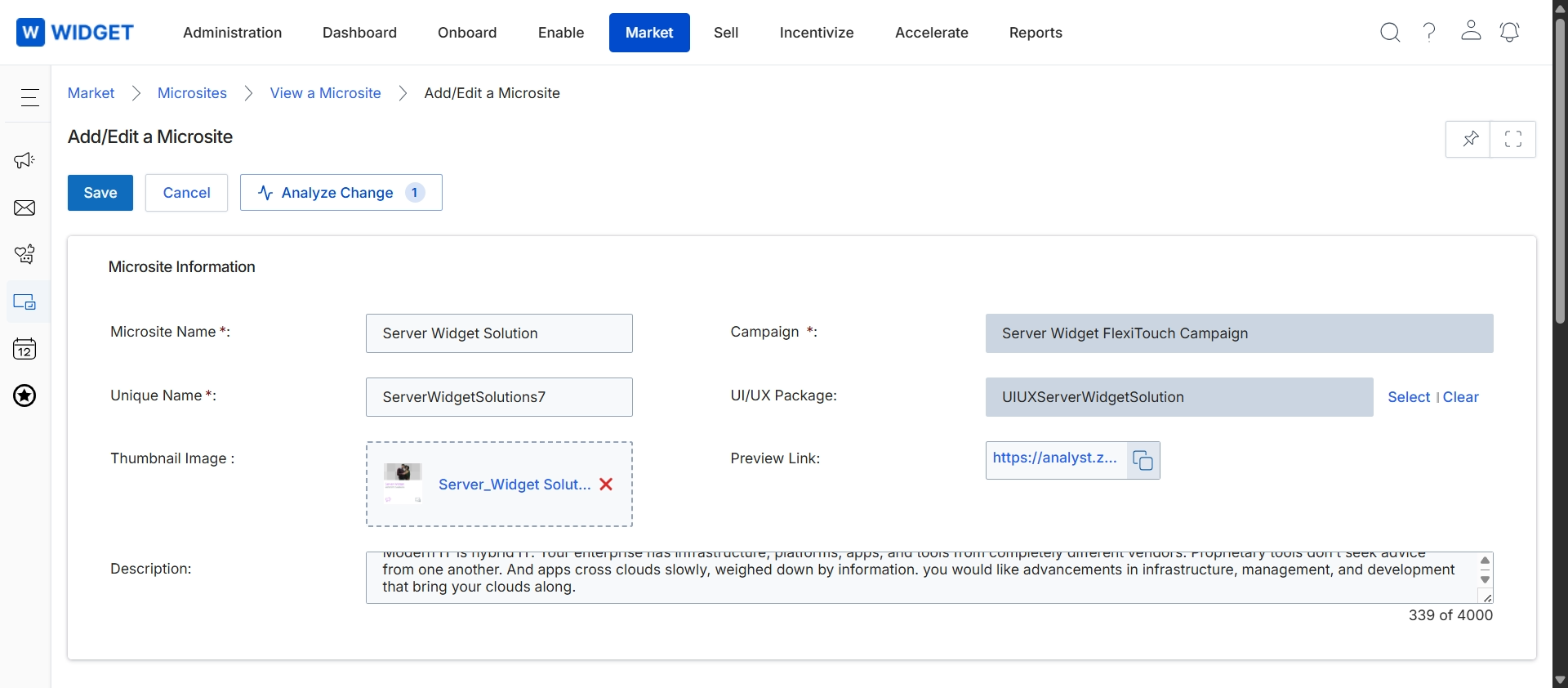
This screen displays the Add/Edit a Microsite form, which administrators use to create or modify partner-branded landing pages within the Market module. Microsites are a key co-marketing tool, allowing partners to customize vendor-approved templates with their branding and content, and to capture leads directly into their pipeline. This form captures essential identifying details for the microsite, such as its display name and a unique identifier, and associates it with a specific marketing campaign for tracking and analytics. It also enables the selection of a UI/UX package to control the microsite's visual presentation and provides a field for a descriptive overview of the microsite's content or purpose. Once configured and published, these microsites generate unique URLs and track visitor interactions, with lead form submissions routed to the partner's leads queue in the Sell module.
Fill out the Microsite Information form to define the properties of the microsite.
Buttons
| Button | Description |
|---|---|
| Save | Saves the current microsite configuration. |
| Cancel | Discards any changes and returns to the previous screen. |
| Analyze Change | Analyzes the changes made to the microsite configuration. |
| Select | Opens a dialog to select a UI/UX package. |
| Clear | Clears the currently selected UI/UX package. |
Microsite Information
| Field | Description |
|---|---|
| Microsite Name * | The display name for the microsite. |
| Campaign * | The marketing campaign to which this microsite is associated for tracking purposes. |
| Unique Name * | A unique identifier for the microsite, often used in its URL. |
| UI/UX Package | The selected UI/UX package that determines the visual design and user experience of the microsite. |
| Thumbnail Image | An image representing the microsite, often used in listings or previews. |
| Preview Link | A link to preview the microsite before publishing. |
| Description | A detailed description of the microsite's content or purpose. |
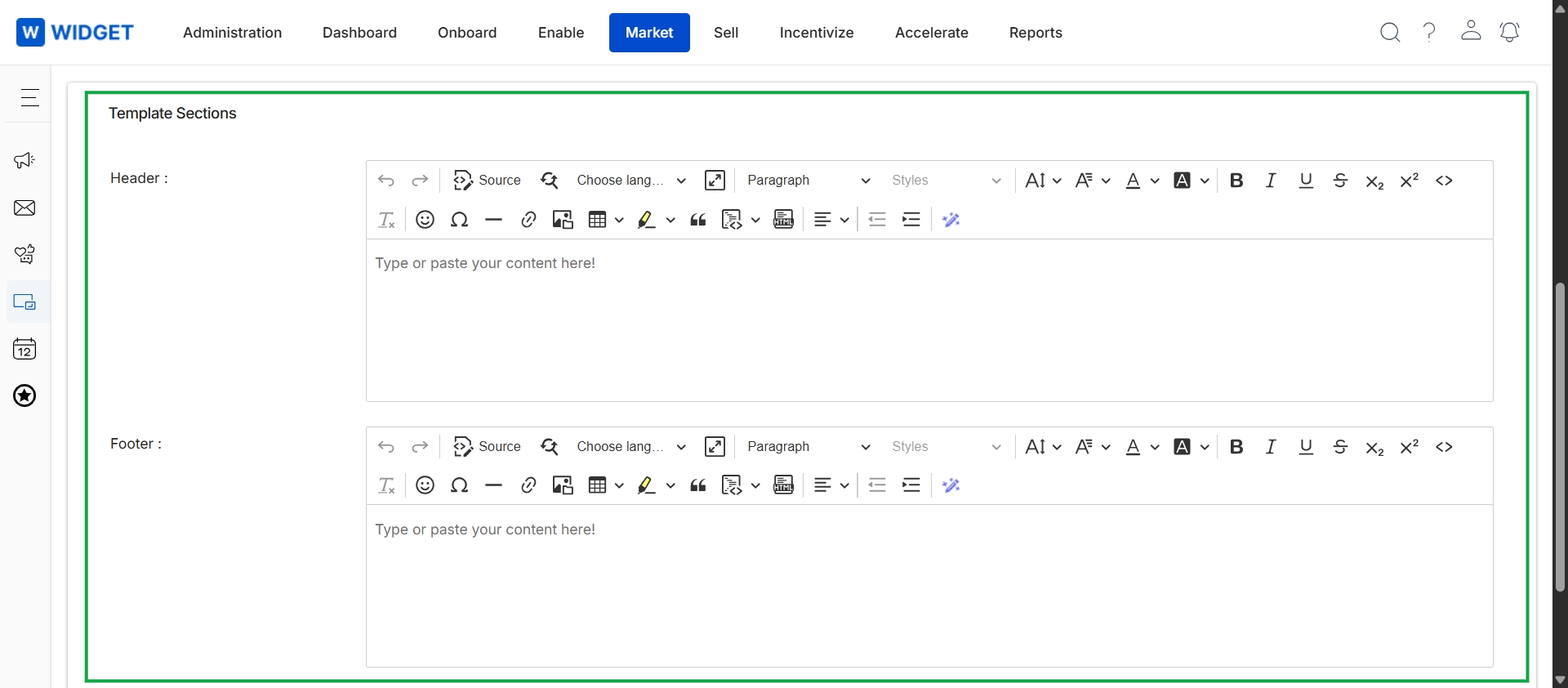
This screen allows UPM administrators to define the global header and footer content for microsite templates. These sections are crucial for maintaining brand consistency and ensuring that essential information, such as legal disclaimers, copyright details, or standard navigation elements, appears uniformly across all partner-branded landing pages. The rich text editors provide extensive formatting options and support embedding various media, enabling a consistent user experience while allowing partners to customize other parts of their microsites. This centralized control helps enforce branding guidelines and legal requirements across the partner ecosystem.
Enter the desired content for the Header and Footer sections of the microsite template using the rich text editors.
Template Sections
| Field | Description |
|---|---|
| Header | A rich text editor for defining the content that will appear in the header section of all microsite templates, ensuring consistent branding and information. |
| Footer | A rich text editor for defining the content that will appear in the footer section of all microsite templates, typically used for legal notices, copyright, or contact information. |