

Overview
Business plan templates are foundational tools within the platform, enabling vendors to provide structured frameworks for partners to develop their strategic plans. These templates ensure consistency in planning, facilitate alignment with vendor goals, and streamline the review process for partner-submitted business plans. By defining objectives, revenue targets, and target audiences upfront, templates guide partners in creating comprehensive and effective plans that drive mutual success.
Administrators utilize these templates to initiate and manage the strategic planning process with their partners. The ability to assign templates to specific users or groups ensures that the right partners receive the appropriate planning guidance. Furthermore, the detailed view of each template, including its objectives and associated partner plans, provides administrators with critical insights into partner engagement and progress, allowing for effective oversight and support.
Accessing and Viewing Plan Templates
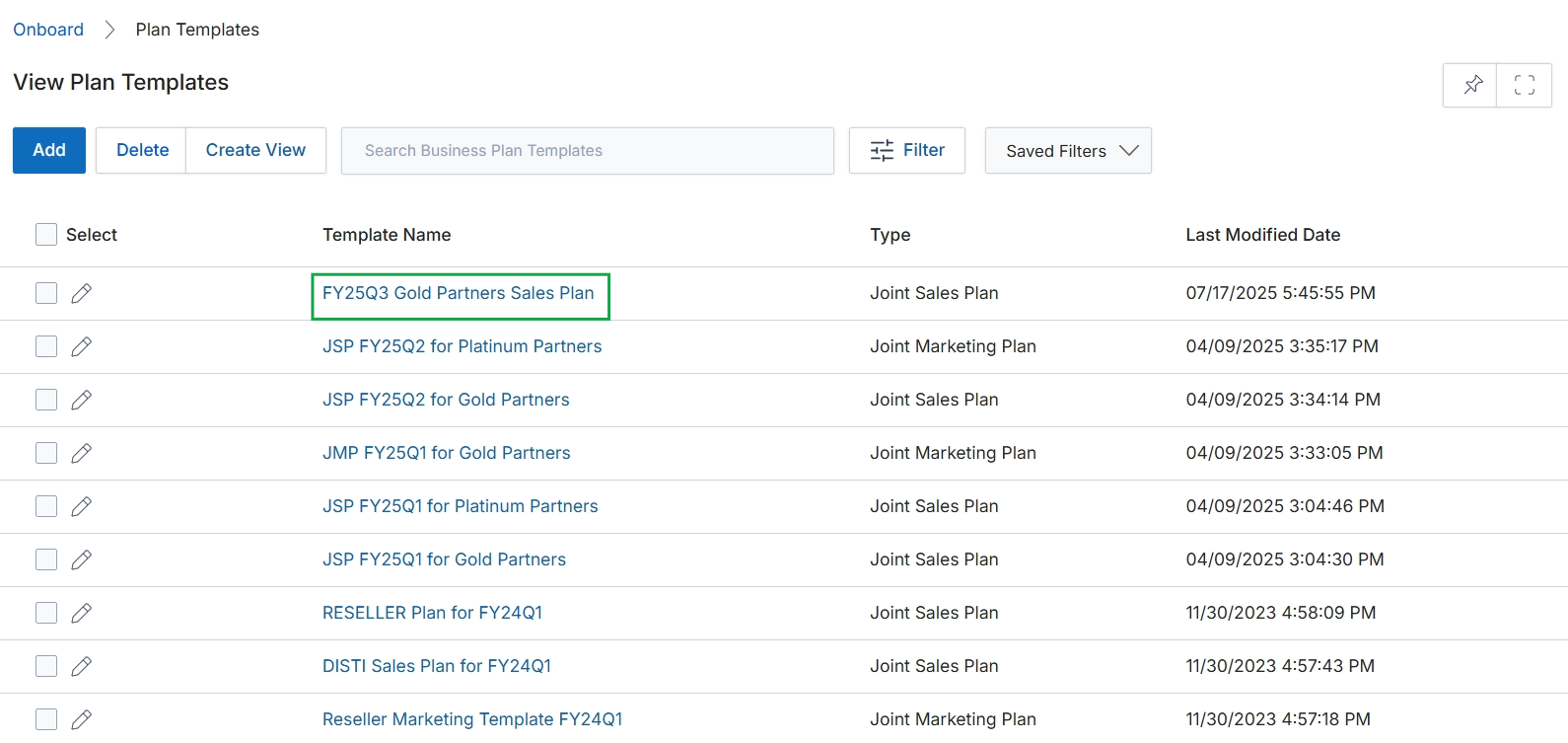
Click the FY25Q3 Gold Partners Sales Plan link to view the plan template.
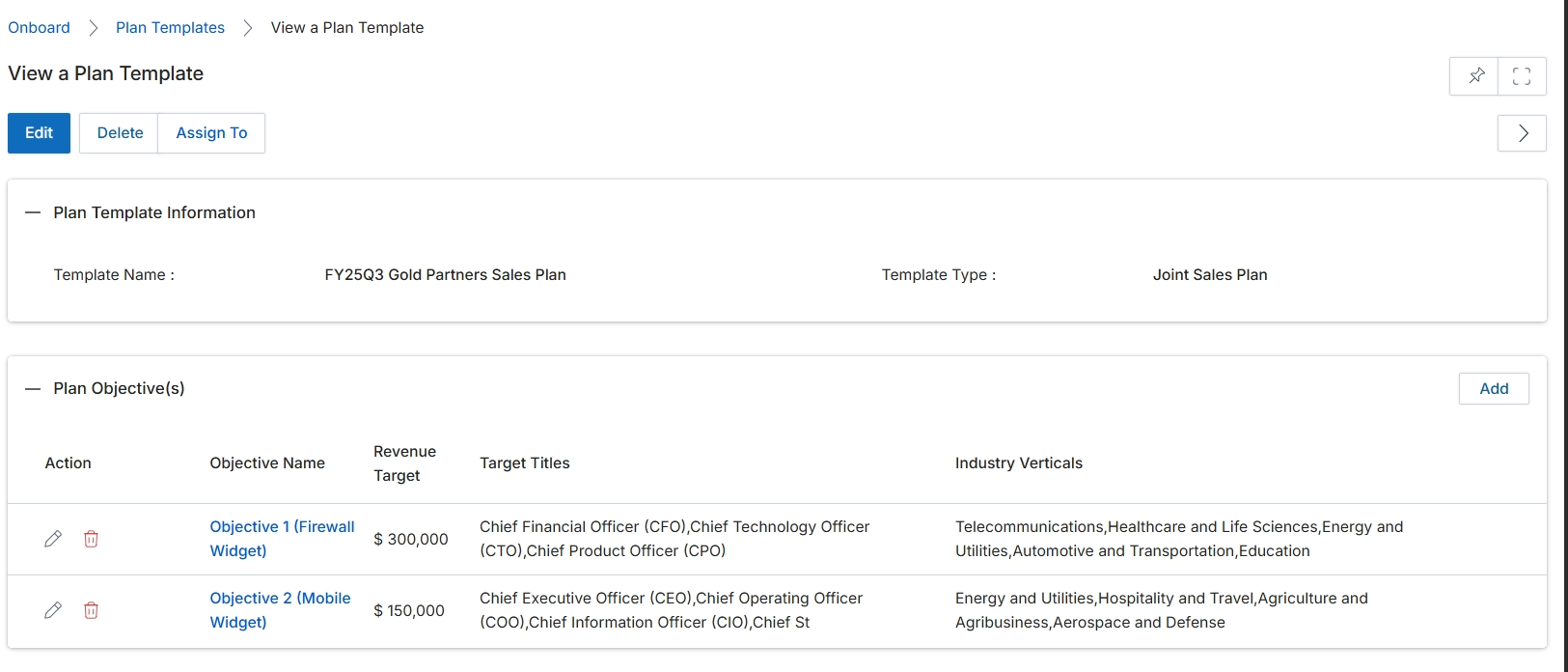
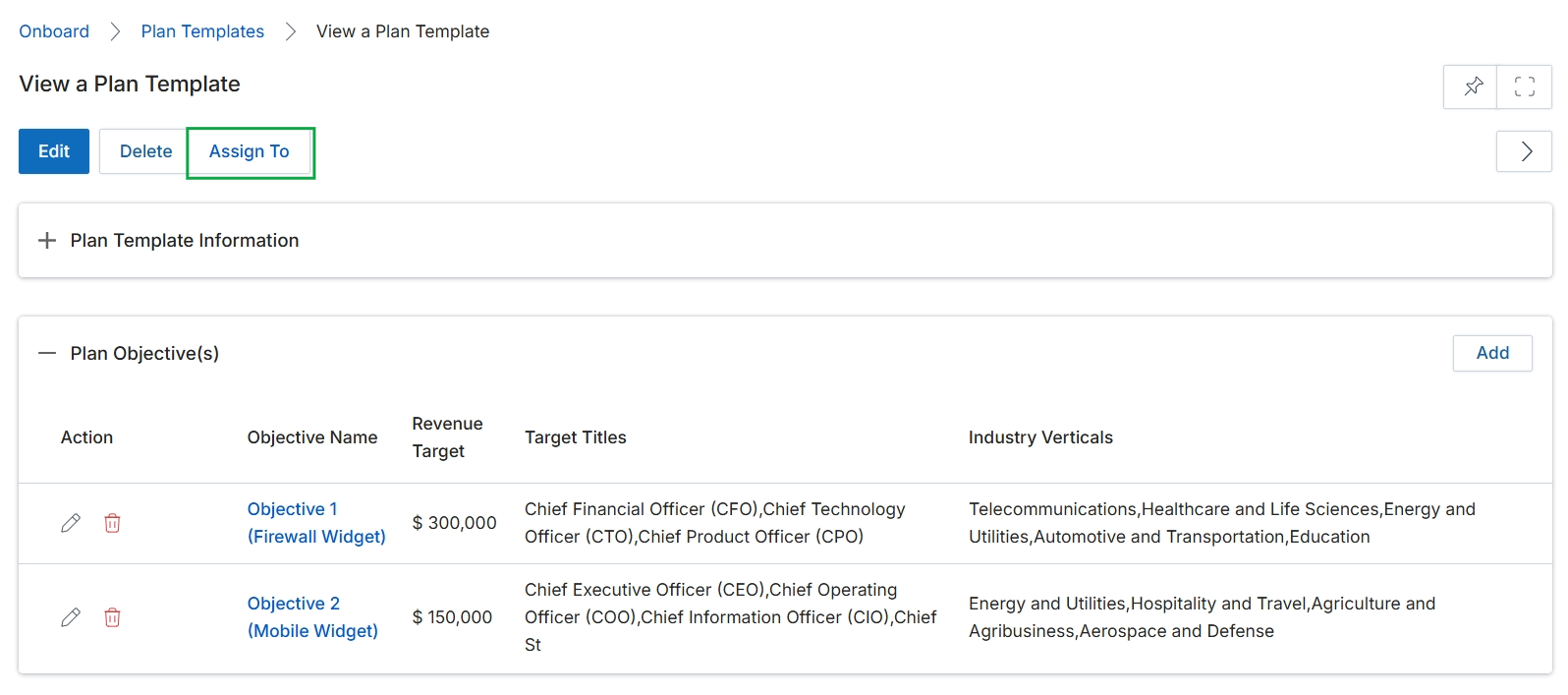
This screen displays the details of a selected Plan Template, which outlines the structure and objectives for partner business plans. Plan Templates are foundational for the Accelerate module, enabling vendors to standardize the planning process for their partners. This view provides a comprehensive summary of the template's general information and its defined objectives, including target revenue, roles, and industry verticals. Administrators use this screen to review existing templates, understand their scope, and prepare for editing or assigning them to partners.
Review the details of the selected plan template, including its general information and defined objectives.
Buttons
| Button | Description |
|---|---|
| Edit | Allows modification of the plan template's details and objectives. |
| Delete | Removes the plan template from the system. |
| Assign To | Initiates the process of assigning this plan template to specific partners. |
| Add | Adds a new objective to the plan template. |
Plan Template Information
| Field | Description |
|---|---|
| Template Name | The name of the plan template, such as 'FY25Q3 Gold Partners Sales Plan'. |
| Template Type | The category or type of the plan template, such as 'Joint Sales Plan'. |
Plan Objective(s)
| Column | Description |
|---|---|
| Action | Column header for actions that can be performed on each objective, such as edit or delete. |
| Objective Name | Column header for the name of each objective within the plan template. |
| Revenue Target | Column header for the target revenue associated with each objective. |
| Target Titles | Column header for the job titles or roles that are the focus of each objective. |
| Industry Verticals | Column header for the industry sectors relevant to each objective. |
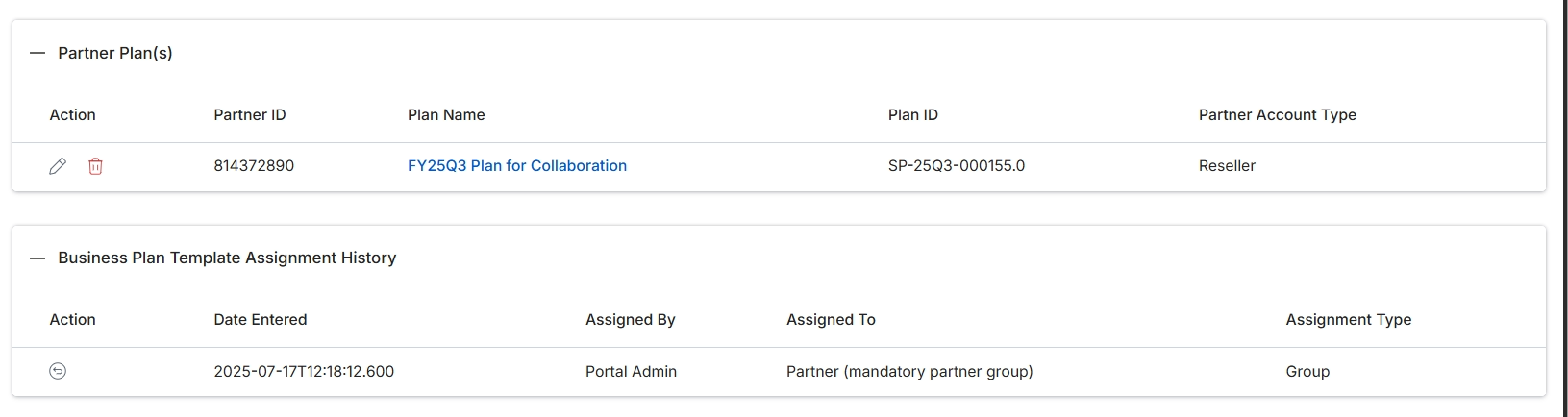
This screen displays the details of a specific Partner Plan template, including any associated partner plans and the assignment history of the template. The 'Partner Plan(s)' section lists individual plans created from this template, providing an overview of which partners are using it and their plan details. The 'Business Plan Template Assignment History' section tracks when and by whom the template was assigned, and to which partner group or individual, offering an audit trail for template distribution and usage. This view helps administrators understand the reach and impact of a particular business plan template across their partner ecosystem.
Review the listed partner plans and the assignment history for this business plan template.
Partner Plan(s)
| Column | Description |
|---|---|
| Action | Icons to edit or delete the individual partner plan. |
| Partner ID | The unique identifier for the partner associated with the plan. |
| Plan Name | The name of the partner plan, which is a clickable link to view its details. |
| Plan ID | The unique identifier for the specific partner plan. |
| Partner Account Type | The type of partner account associated with the plan, such as 'Reseller'. |
Business Plan Template Assignment History
| Column | Description |
|---|---|
| Action | An icon to view details of the assignment history entry. |
| Date Entered | The date and time when the template assignment was recorded. |
| Assigned By | The user who assigned the business plan template. |
| Assigned To | The partner or partner group to whom the template was assigned. |
| Assignment Type | The method or category of assignment, such as 'Group'. |
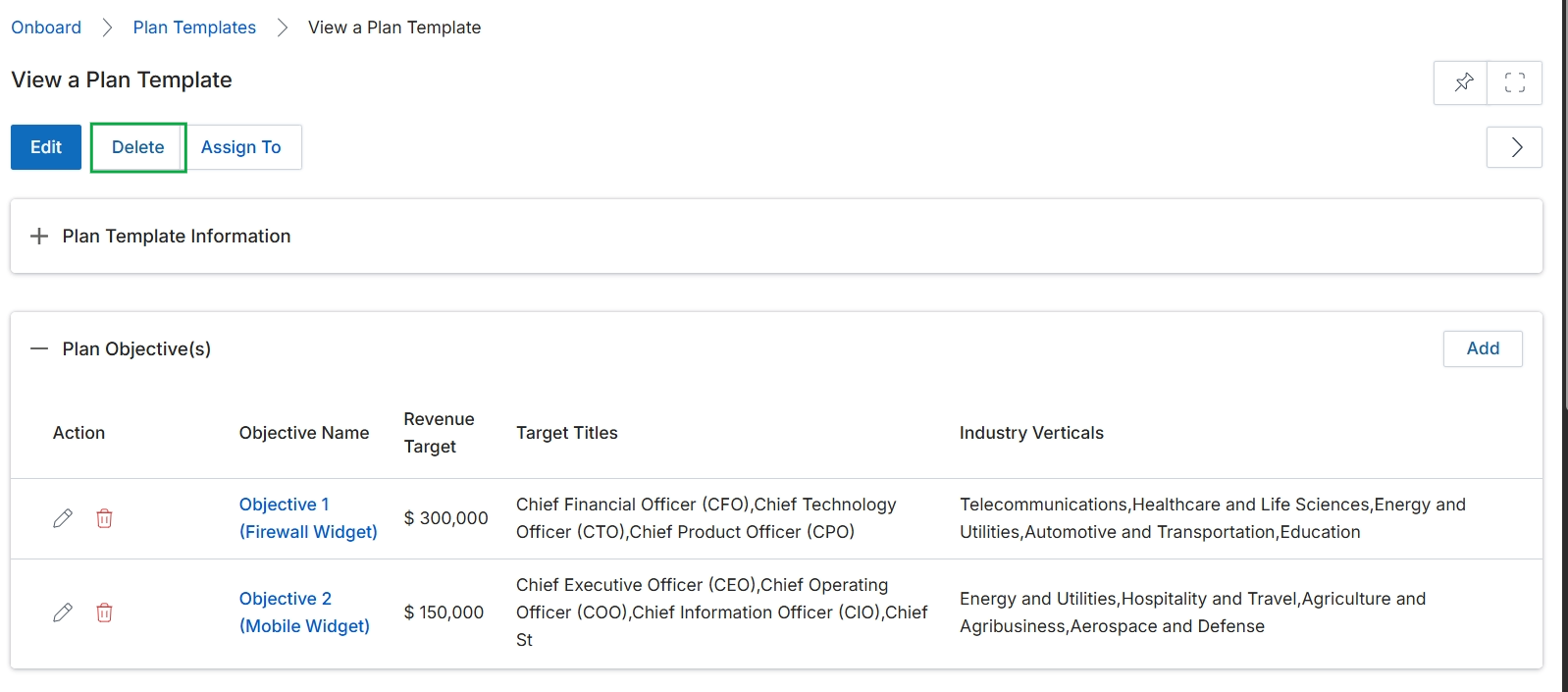
Click the Delete button.
Assigning Plan Templates
Click the Assign To button.
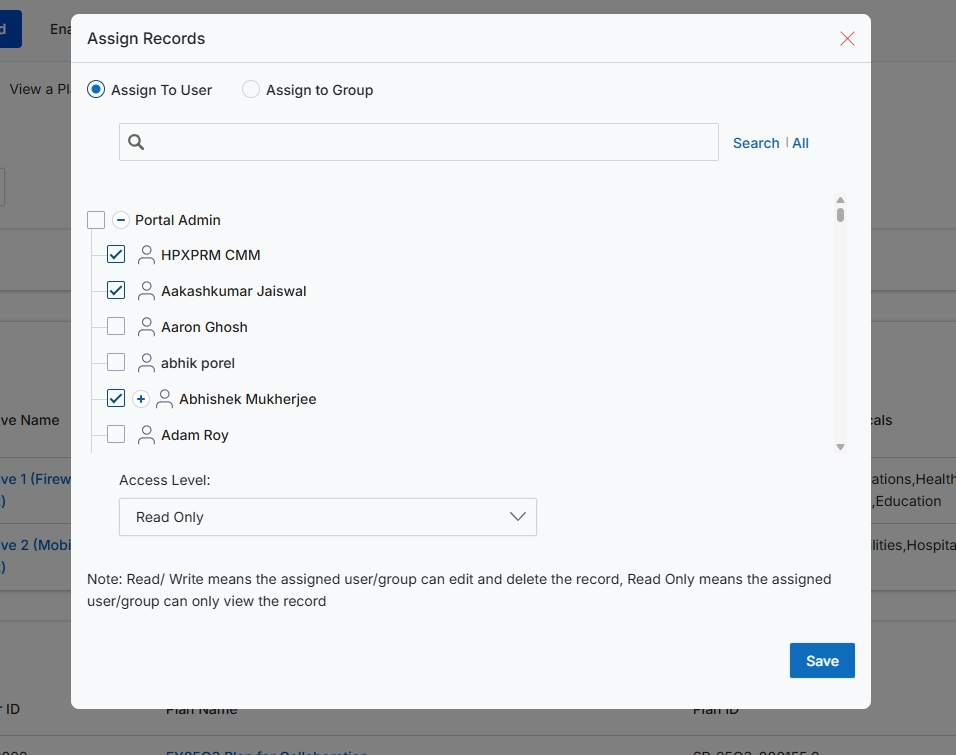
This modal dialog, 'Assign Records', allows administrators to control access to specific records by assigning them to individual users or predefined user groups. This granular access control is crucial for maintaining data security and ensuring that only authorized personnel can view or modify sensitive information within the platform. Administrators can specify whether the assigned users or groups have 'Read Only' access, meaning they can view the record, or 'Read/Write' access, which grants them permission to edit and delete the record. This feature is vital for managing workflows where different teams or individuals require varying levels of interaction with specific data.
Select the users or groups to assign the record to, choose their access level, and then click "Save".
Buttons
| Button | Description |
|---|---|
| Search | All | Click this link to perform a search or view all available users/groups. |
| Save | Click to save the record assignment with the selected users/groups and access level. |
Fields
| Field | Description |
|---|---|
| Assign To User | Select this radio button to assign the record to individual users. |
| Assign to Group | Select this radio button to assign the record to a predefined group of users. |
| Search | Enter keywords here to search for specific users or groups. |
| Access Level | A dropdown menu to select the access level for the assigned users or groups, either 'Read Only' or 'Read/Write'. |
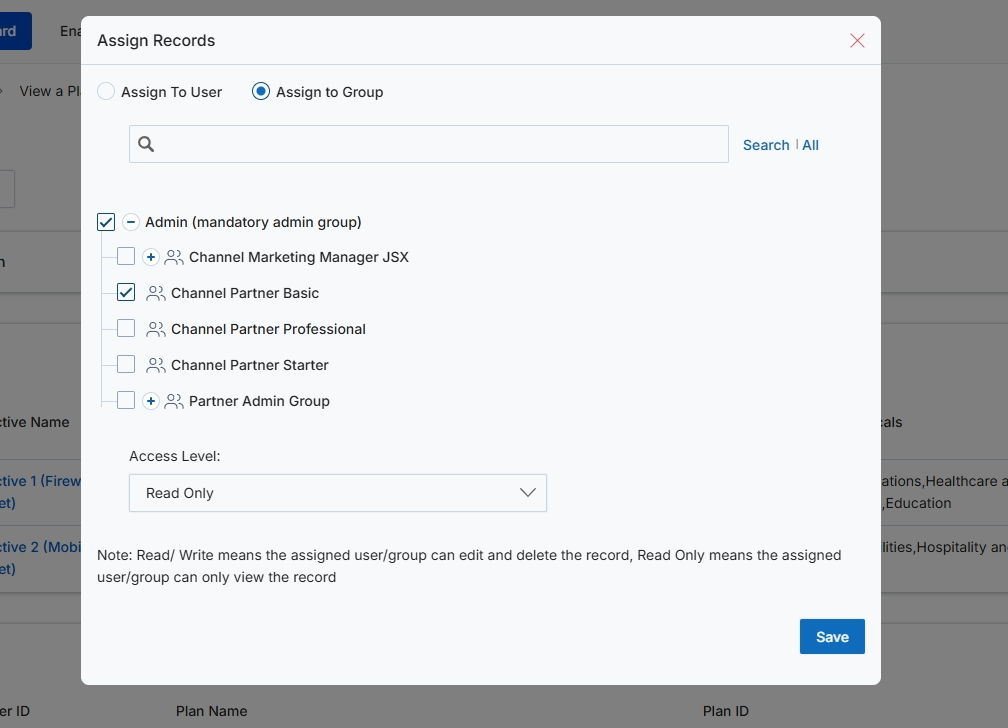
This modal dialog, 'Assign Records', allows administrators to control access to specific records by assigning them to user groups. This functionality is crucial for managing permissions and ensuring that only authorized personnel or partner groups can view or modify sensitive information or module-specific content, such as plan templates. The screen provides options to search for groups and select them from a hierarchical list, along with defining the level of access (Read/Write or Read Only) that the assigned groups will have to the record. This granular control over record access supports the platform's role-based access control (RBAC) model, enabling administrators to tailor visibility and editing rights according to organizational structure and security policies.
Select the user groups to assign to the record and define their access level.
Buttons
| Button | Description |
|---|---|
| All | Clickable link to display all available user groups. |
| Save | Button to save the assignment of records to the selected groups with the specified access level. |
Fields
| Field | Description |
|---|---|
| Assign To User | Radio button to assign the record to individual users. |
| Assign to Group | Radio button to assign the record to user groups. |
| Search | Text input field to search for specific user groups. |
| Access Level | Dropdown menu to select the access level for the assigned user/group, either 'Read/Write' or 'Read Only'. |
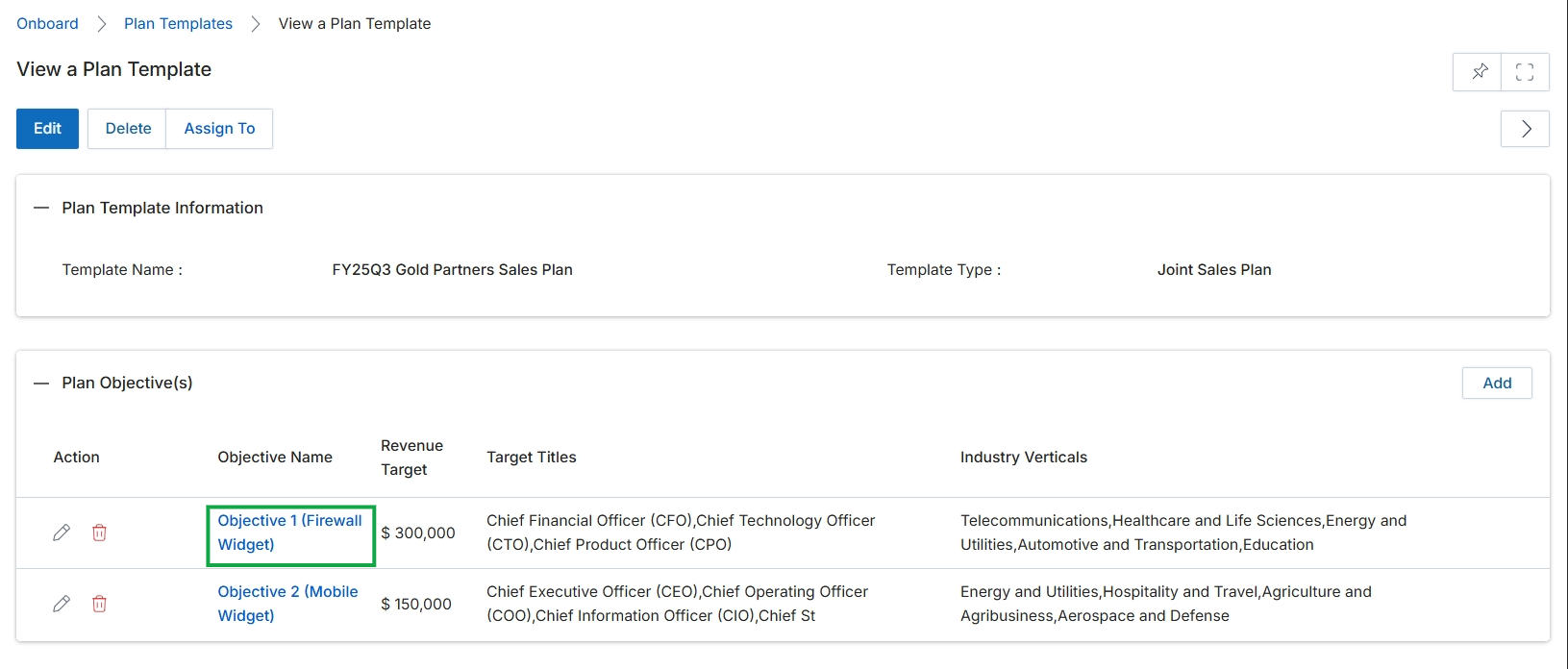
Click the Objective Name to open plan objective details
Reviewing Plan Objectives
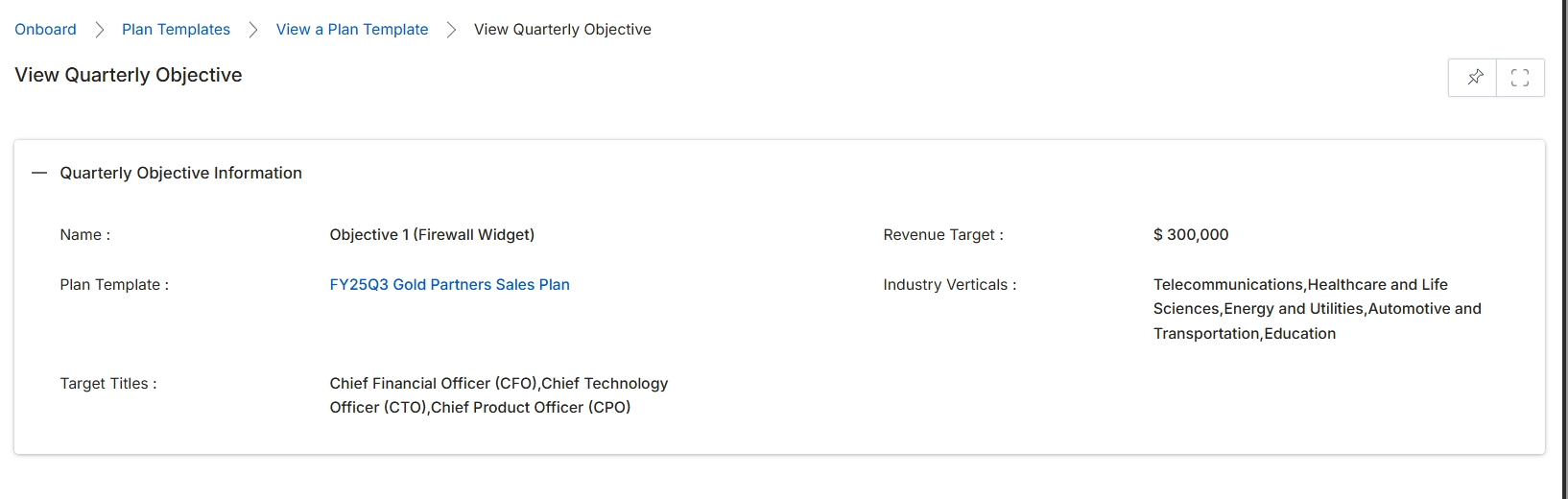
This screen displays the details of a specific Quarterly Objective within a Plan Template. Quarterly Objectives are components of broader Plan Templates, which define strategic goals and targets for partners. This view provides a summary of the objective's key attributes, such as its name, associated plan template, revenue targets, and the specific industry verticals and target titles it addresses. This information is crucial for administrators to understand the scope and focus of each objective, ensuring alignment with overall program goals and enabling effective partner enablement and incentivization strategies.
Review the details of the Quarterly Objective displayed on this screen.
Quarterly Objective Information
| Field | Description |
|---|---|
| Name | The name of the quarterly objective, providing a clear identifier for its purpose. |
| Plan Template | The name of the Plan Template to which this quarterly objective belongs, indicating its broader strategic context. |
| Target Titles | The specific job titles within target organizations that this objective is designed to reach or influence. |
| Revenue Target | The financial goal set for this quarterly objective, expressed as a monetary value. |
| Industry Verticals | The specific industries or market segments that this objective is focused on. |
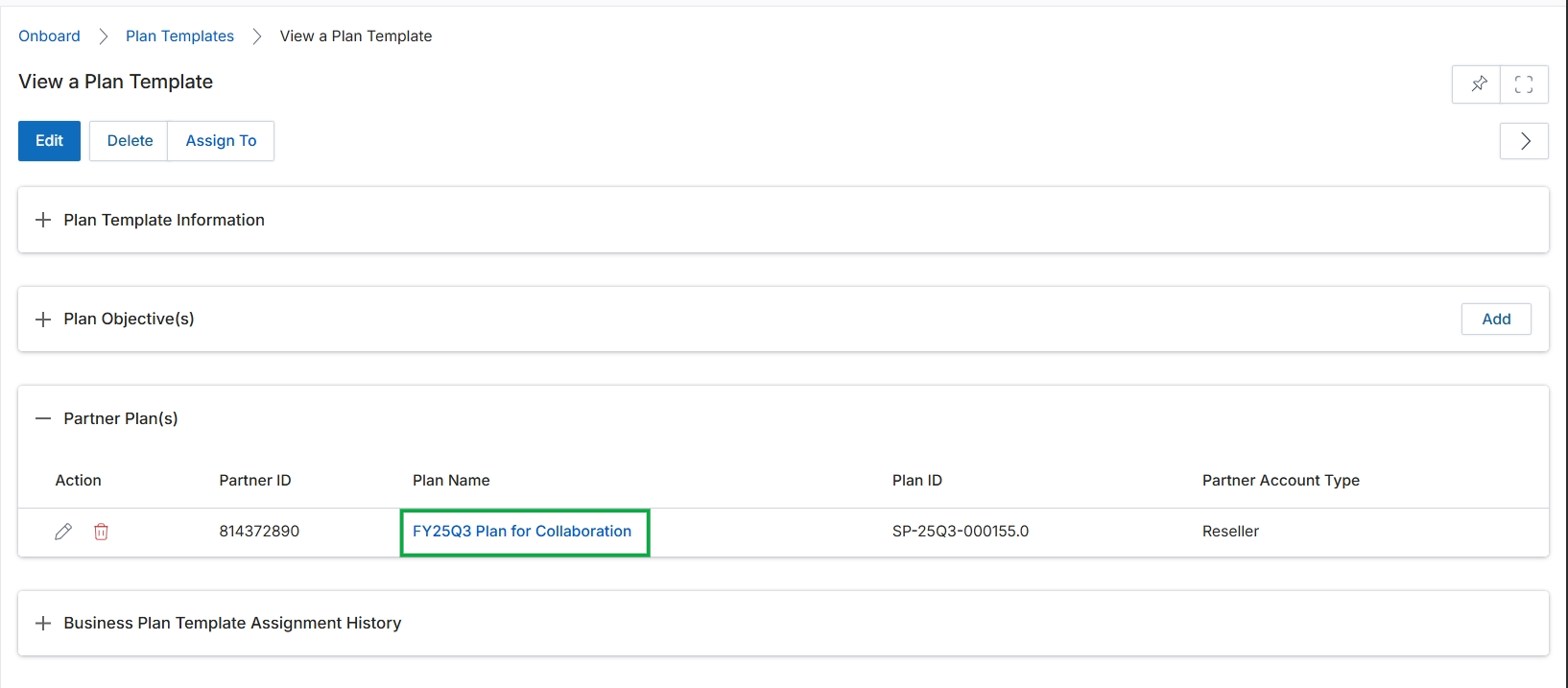
Click the FY25Q3 Plan for Collaboration link.
Viewing Associated Partner Plans
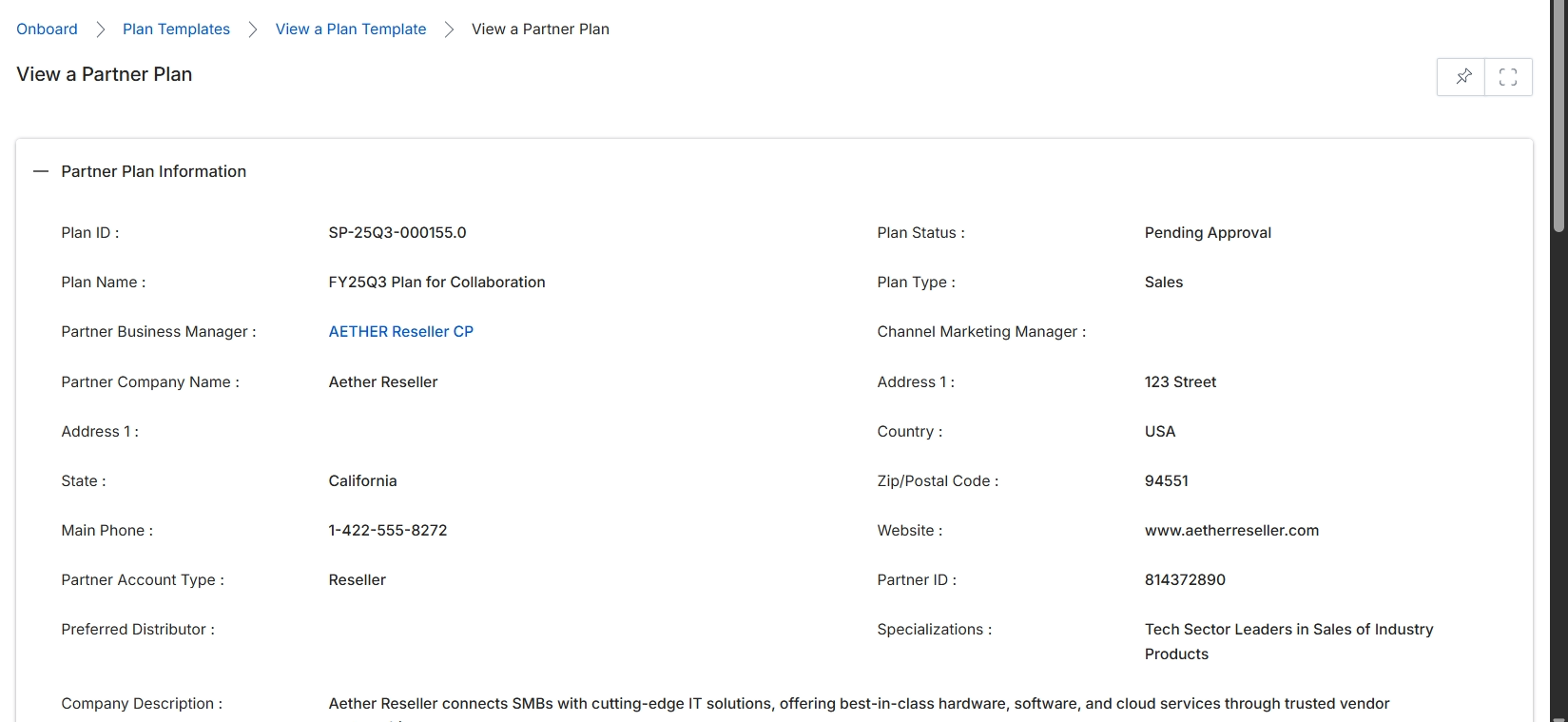
This screen displays the detailed information for a specific Partner Plan, which outlines the collaborative strategies and objectives between a vendor and a partner. It provides a comprehensive overview of the plan's status, associated partner details, and key contact information. Administrators use this view to review the specifics of a partner's business plan, understand their strategic alignment, and track their progress within the program. The information presented here is crucial for managing partner relationships, assessing performance, and ensuring that partner activities align with overall program goals.
Review the details of the selected Partner Plan.
Partner Plan Information
| Field | Description |
|---|---|
| Plan ID | A unique identifier assigned to the partner plan. |
| Plan Status | The current approval status of the partner plan, indicating whether it is pending, approved, or declined. |
| Plan Name | The descriptive name given to the partner plan. |
| Plan Type | The category or focus area of the partner plan, such as 'Sales' or 'Marketing'. |
| Partner Business Manager | The vendor-side manager responsible for overseeing this partner's business plan. |
| Channel Marketing Manager | The vendor-side marketing manager assigned to support this partner. |
| Partner Company Name | The name of the partner company associated with this plan. |
| Address 1 | The primary street address of the partner company. |
| Country | The country where the partner company is located. |
| State | The state or province of the partner company's address. |
| Zip/Postal Code | The postal code for the partner company's address. |
| Main Phone | The primary contact phone number for the partner company. |
| Website | The official website of the partner company. |
| Partner Account Type | The classification of the partner, such as 'Reseller' or 'Affiliate'. |
| Partner ID | A unique identification number for the partner account. |
| Preferred Distributor | The distributor preferred by the partner, if applicable. |
| Specializations | The specific areas of expertise or focus for the partner company. |
| Company Description | A brief description of the partner company's business and offerings. |
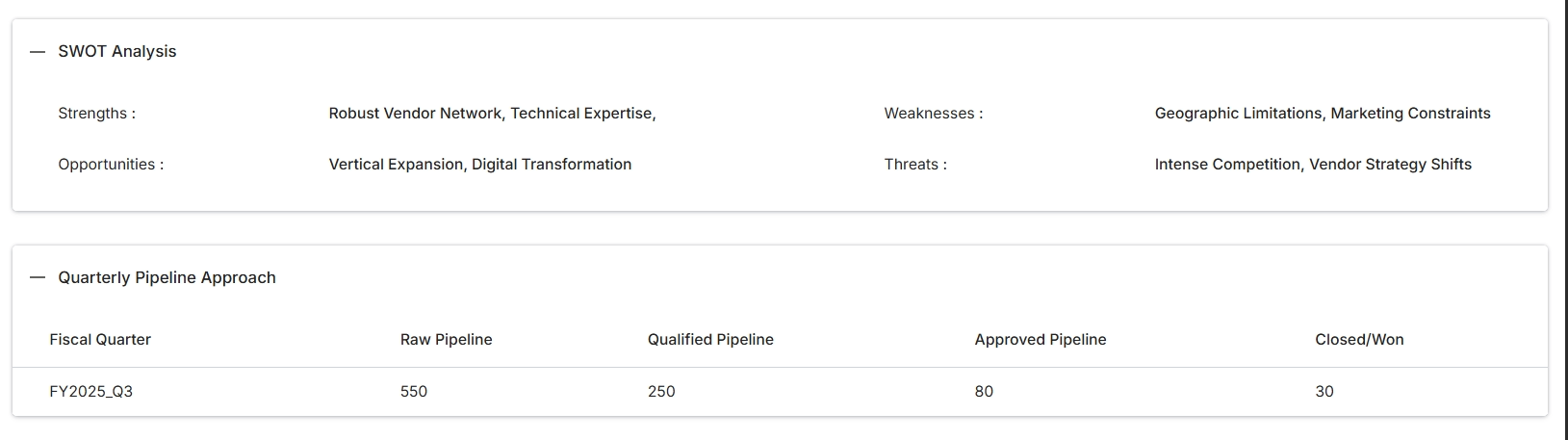
This screen displays sections of a plan template, specifically the SWOT Analysis and Quarterly Pipeline Approach. These sections are part of a broader business plan framework that partners use to outline their strategies and objectives. The SWOT Analysis provides a structured view of internal strengths and weaknesses, as well as external opportunities and threats relevant to the partner's business in relation to the vendor's program. The Quarterly Pipeline Approach section details the partner's sales pipeline projections across different stages for a specific fiscal quarter, offering insights into their sales forecasting and performance goals. These details contribute to the overall evaluation of a partner's business plan within the Accelerate module.
Review the details of the SWOT Analysis and Quarterly Pipeline Approach sections within the plan template.
SWOT Analysis
| Field | Description |
|---|---|
| Strengths | Lists the internal positive attributes and capabilities of the partner's business. |
| Opportunities | Identifies external factors that the partner could exploit to their advantage. |
| Weaknesses | Details the internal limitations and disadvantages of the partner's business. |
| Threats | Highlights external factors that could pose challenges or risks to the partner's business. |
Quarterly Pipeline Approach
| Column | Description |
|---|---|
| Fiscal Quarter | Indicates the specific financial quarter for which the pipeline data is presented. |
| Raw Pipeline | Represents the total value of all potential deals in the pipeline for the fiscal quarter. |
| Qualified Pipeline | Shows the value of deals that have met specific qualification criteria in the pipeline. |
| Approved Pipeline | Displays the value of deals that have been approved and are progressing through the sales cycle. |
| Closed/Won | Indicates the value of deals that have been successfully closed or won during the fiscal quarter. |
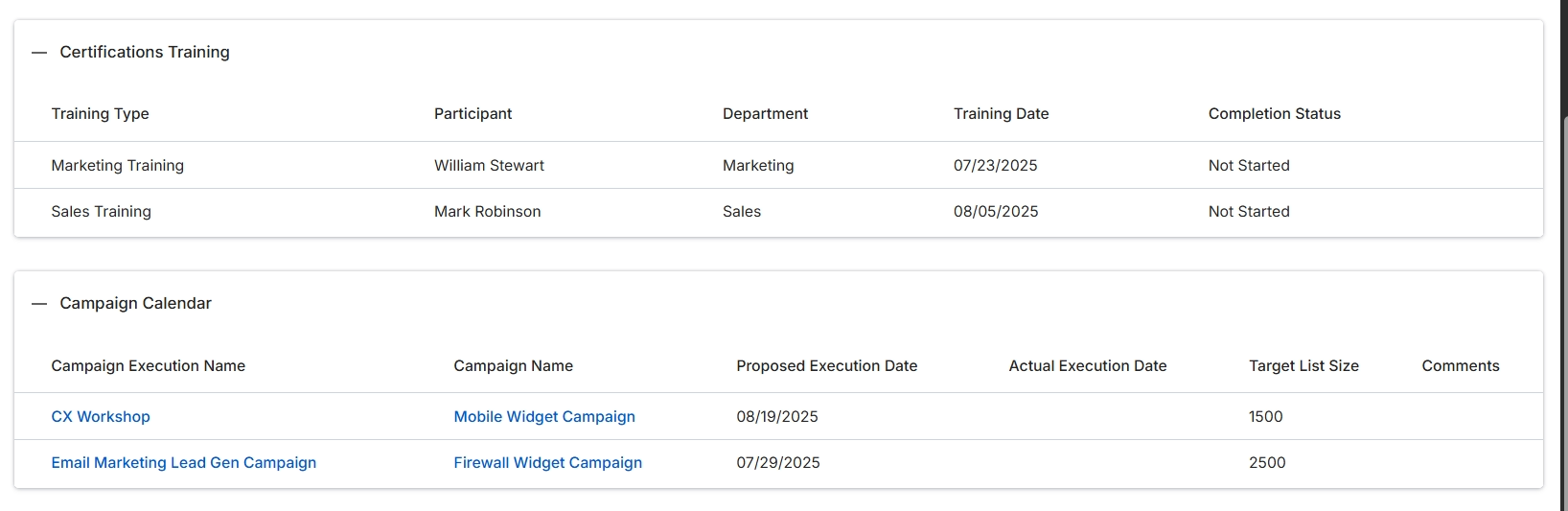
This screen displays specific sections of a business plan template, detailing both required certifications and planned marketing activities. The 'Certifications Training' section outlines the training types, participants, departments, scheduled dates, and completion status for various certifications, which are often prerequisites for partners to gain full access to program benefits or specific product lines. The 'Campaign Calendar' section provides a structured overview of planned marketing campaigns, including their execution names, associated campaign names, proposed and actual execution dates, target list sizes, and any relevant comments. These sections are crucial for both the vendor and the partner to track compliance with training requirements and align on marketing efforts, ensuring that the partner is enabled and actively engaged in promoting products or services.
Review the details presented in the Certifications Training and Campaign Calendar sections of the plan template.
Certifications Training
| Column | Description |
|---|---|
| Training Type | The type of training required for certification. |
| Participant | The individual at the partner organization assigned to complete the training. |
| Department | The department of the participant within the partner organization. |
| Training Date | The scheduled date for the training. |
| Completion Status | The current status of the training completion (e.g., Not Started, In Progress, Completed). |
Campaign Calendar
| Column | Description |
|---|---|
| Campaign Execution Name | The specific name given to the execution of a marketing campaign. |
| Campaign Name | The overarching name of the marketing campaign. |
| Proposed Execution Date | The planned date for the campaign's execution. |
| Actual Execution Date | The date on which the campaign was actually executed. |
| Target List Size | The number of individuals or accounts targeted by the campaign. |
| Comments | Any additional notes or remarks regarding the campaign. |
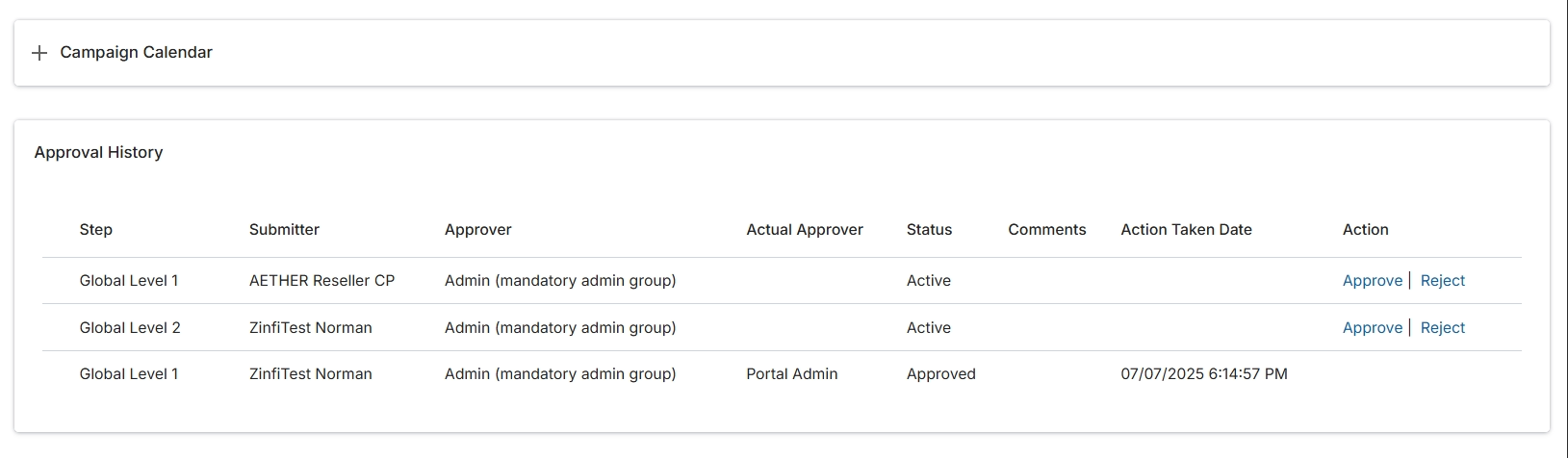
This screen displays the approval history for an item, such as a business plan or a campaign, detailing each step in the approval workflow. It provides a comprehensive record of who submitted each step, who was designated as the approver, who actually took action, the current status of each step, and any associated comments or action dates. This history is crucial for auditing, tracking progress, and ensuring accountability within multi-level approval processes. For pending steps, authorized users can directly approve or reject the request from this view, facilitating efficient workflow management.
Review the approval history for the item, and if authorized, click "Approve" or "Reject" for any pending steps.
Buttons
| Button | Description |
|---|---|
| Campaign Calendar | A button to access the campaign calendar functionality. |
| Approve | A button to approve the current approval step. |
| Reject | A button to reject the current approval step. |
Approval History
| Column | Description |
|---|---|
| Step | Indicates the specific level or stage within the approval workflow. |
| Submitter | Displays the name of the user who submitted the approval request for this step. |
| Approver | Shows the designated individual or group responsible for approving this step. |
| Actual Approver | Identifies the specific user who performed the approval or rejection action for the step. |
| Status | Indicates the current state of the approval step, such as 'Active' or 'Approved'. |
| Comments | Provides any additional notes or feedback related to the approval action. |
| Action Taken Date | Records the date and time when an approval or rejection action was performed. |
| Action | Contains clickable links to 'Approve' or 'Reject' the pending approval step. |