

Overview
Business plan templates are crucial for guiding partners in developing their joint sales and marketing strategies. By providing a repository of well-defined templates, administrators can standardize the planning process, ensure consistency across the partner ecosystem, and facilitate effective collaboration. These templates can be tailored for different partner types, tiers, or specific programs, helping partners align their objectives with the overall program goals.
Accessing and Viewing Plan Templates
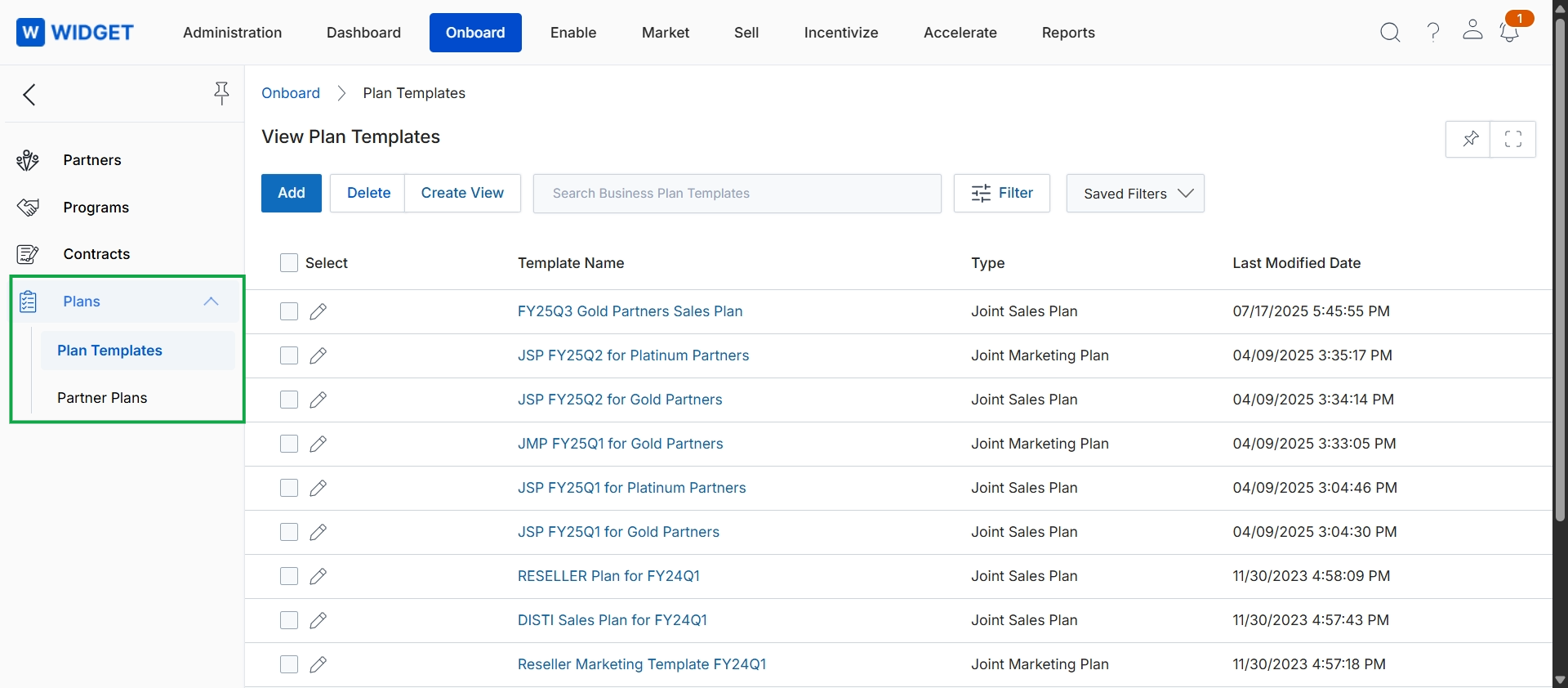
Click Onboard → Plans → Plan Templates.
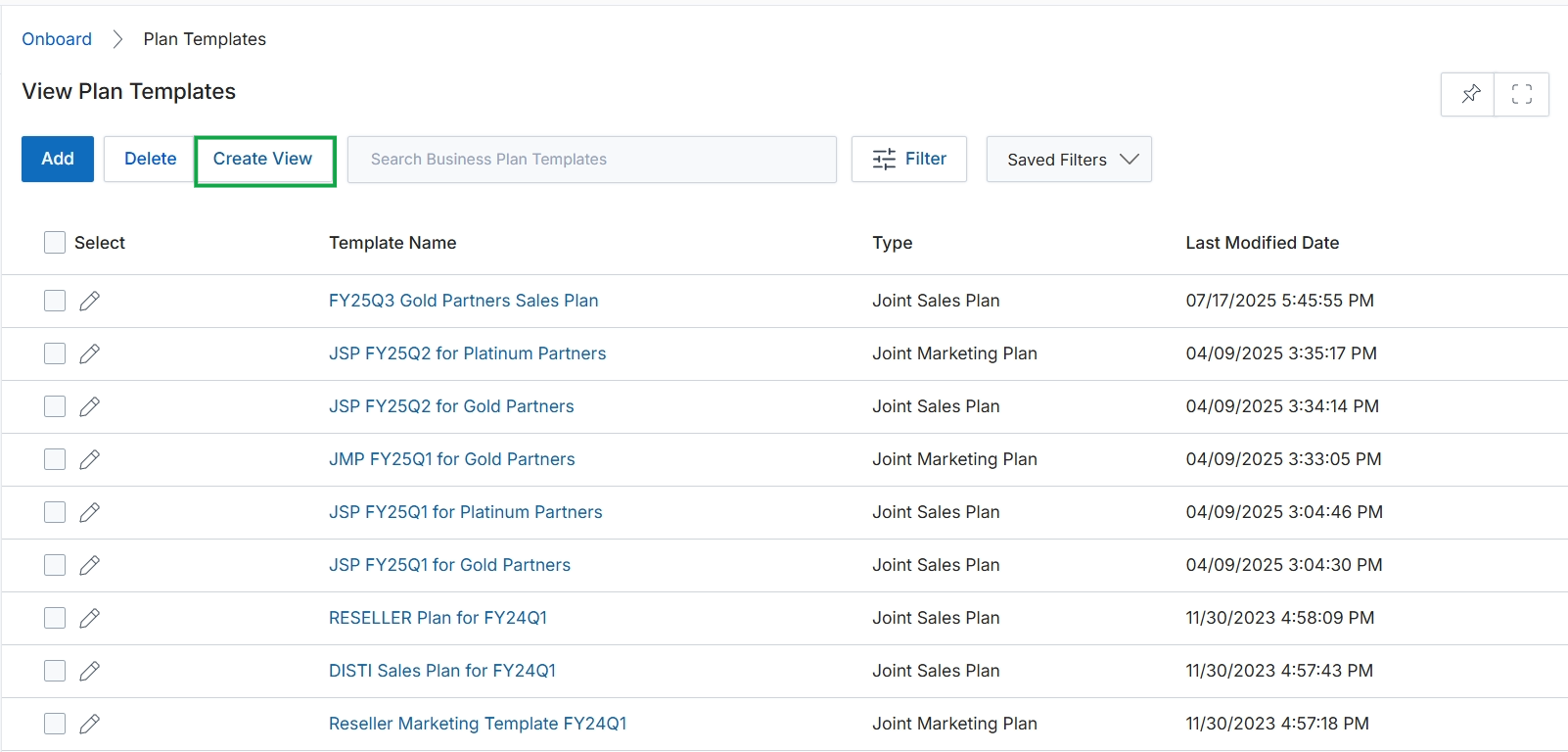
Click Create View.
Filtering and Customizing Views
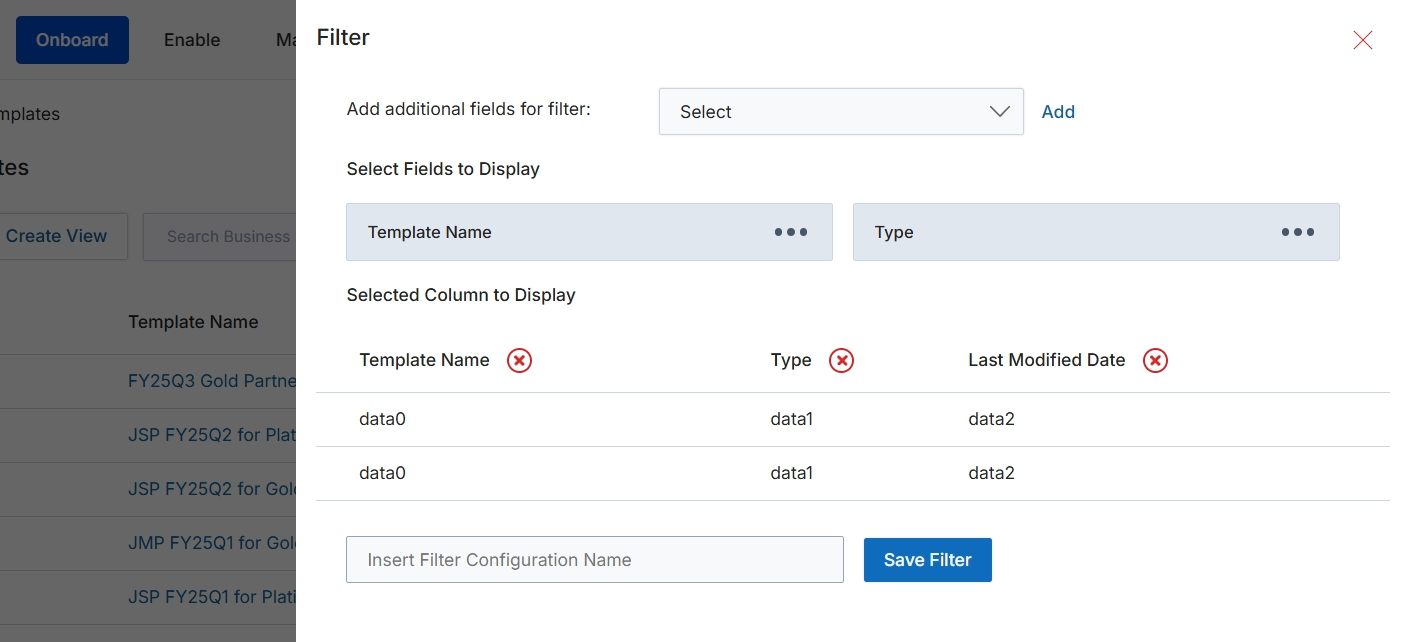
This filter configuration dialog allows users to customize the display and filtering of data within a list view. Users can select specific fields to be displayed as columns in the main table, and also define filter criteria based on various data fields. This functionality enhances data analysis and reporting by enabling users to focus on relevant information and create personalized views of their data, which can then be saved for future use. The ability to save filter configurations streamlines workflows and ensures consistency in data presentation across different sessions or users.
Enter a name for the filter configuration in the 'Insert Filter Configuration Name' field.
Buttons
| Button | Description |
|---|---|
| Add | A button to add the selected field from the dropdown to the filter criteria. |
| Save Filter | A button to save the current filter configuration with the specified name. |
Fields
| Field | Description |
|---|---|
| Add additional fields for filter | A dropdown menu to select additional fields that can be used to filter the displayed data. |
| Select | Placeholder text for the dropdown menu to add additional fields for filtering. |
| Insert Filter Configuration Name | A text input field to enter a name for the current filter configuration, allowing it to be saved and reused. |
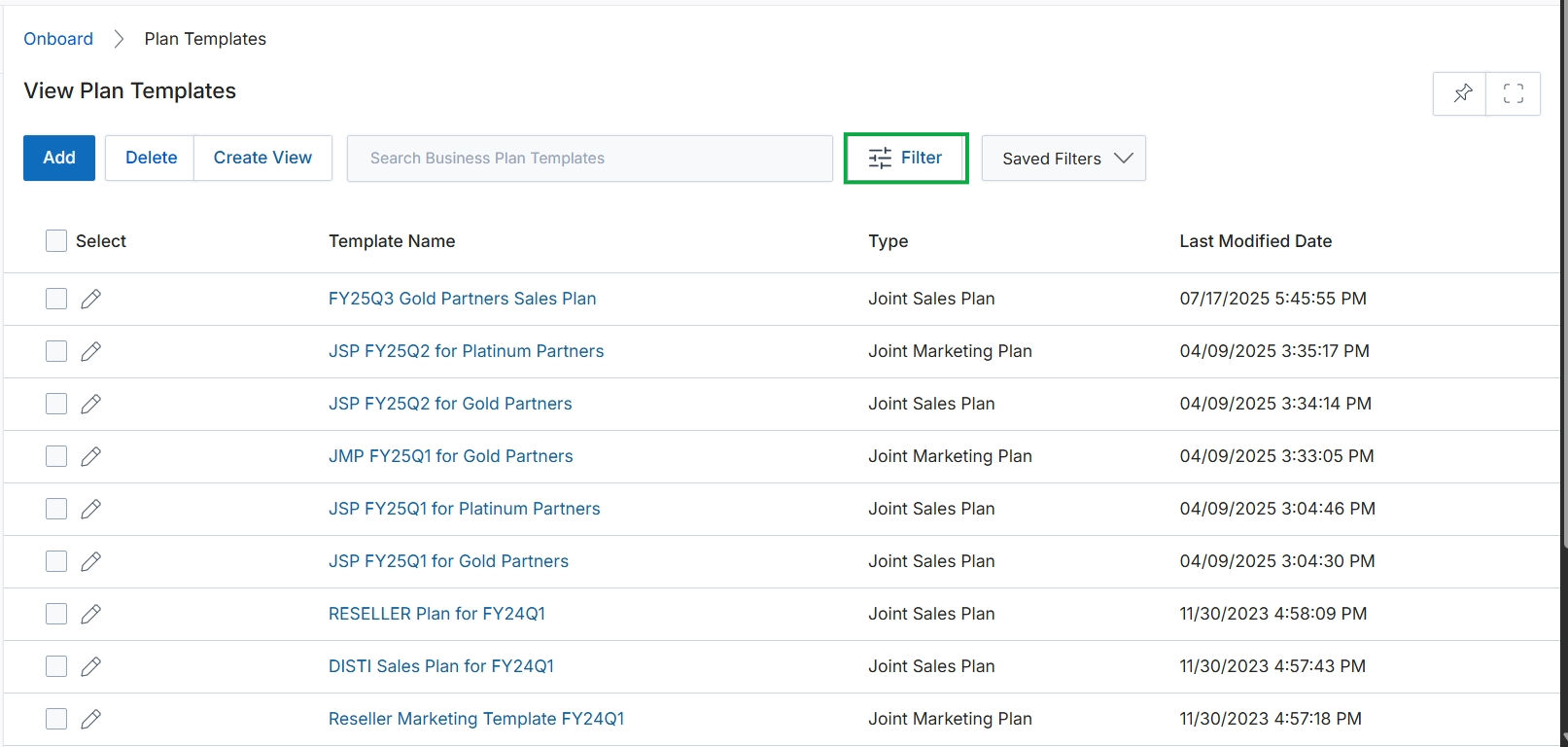
Click the Filter button.
Applying Advanced Filters
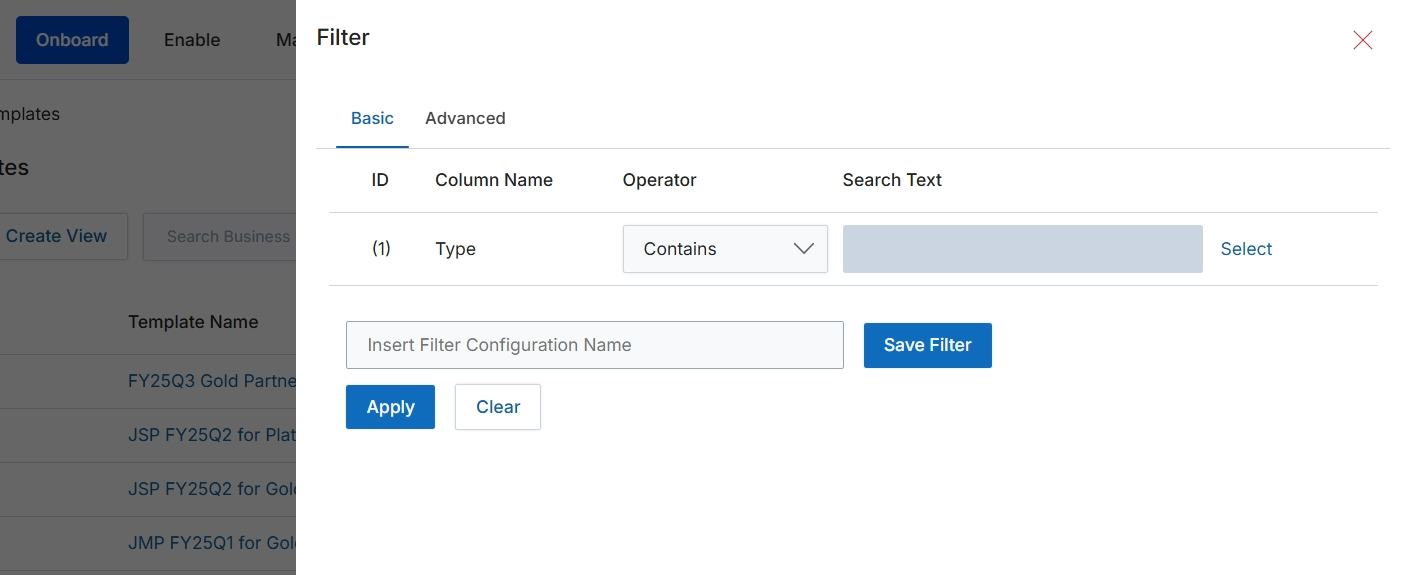
The Filter dialog allows users to define and apply filters to the displayed data, enabling them to narrow down lists based on specific criteria. This feature is crucial for efficiently managing large datasets, such as partner business plan templates, by allowing administrators to quickly locate relevant records. Users can create basic filters by specifying column names, operators, and search text, or switch to an advanced mode for more complex logical conditions. Filters can be saved for future use, streamlining repetitive search tasks and improving overall productivity within the platform.
Select 'Type' from the Column Name dropdown to specify the column for filtering.
Buttons
| Button | Description |
|---|---|
| Basic | Switches the filter configuration to basic mode, allowing for simple rule creation. |
| Advanced | Switches the filter configuration to advanced mode, enabling more complex rule definitions. |
| Select | A button associated with the Search Text field, used to select a predefined value or open a selection dialog. |
| Save Filter | A button to save the current filter configuration under the specified name for future use. |
| Apply | A button to apply the defined filter criteria to the current view, updating the displayed list. |
| Clear | A button to clear all defined filter criteria and reset the view to show all records. |
Fields
| Field | Description |
|---|---|
| Type | A dropdown field under 'Column Name' to select 'Type' as the filtering criterion. |
| Contains | A dropdown field under 'Operator' to select the comparison operator for the filter. |
| Insert Filter Configuration Name | A text input field to enter a name for the filter configuration, allowing it to be saved and reused. |
Column Headings
| Column | Description |
|---|---|
| ID | A read-only identifier for the filter row. |
| Column Name | A dropdown to select the data column to which the filter will be applied. |
| Operator | A dropdown to select the comparison operator (e.g., 'Contains', 'Equals', 'Starts With') for the filter condition. |
| Search Text | A field to enter or select the value to search for within the chosen column. |
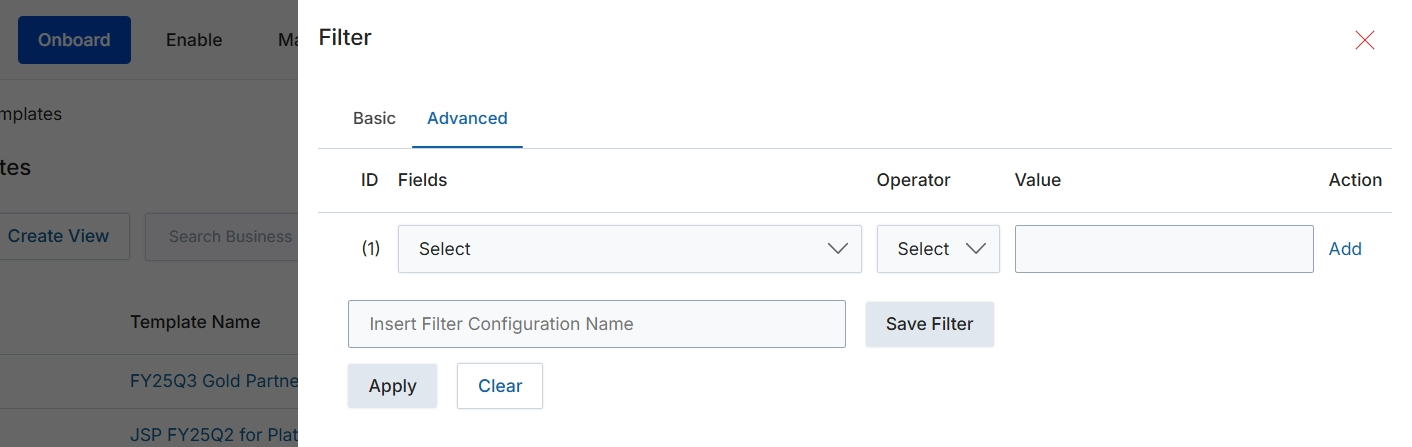
This screen displays the advanced filter configuration panel, which allows users to define complex filtering rules for lists of items within the module. Users can specify multiple criteria by selecting fields, operators, and values, enabling highly granular control over the data displayed. This advanced filtering capability is essential for administrators who need to segment data, analyze specific subsets of records, or quickly locate particular items based on detailed attributes. The ability to save filter configurations streamlines repetitive analysis and reporting tasks, enhancing operational efficiency by providing quick access to frequently used data views.
Select the 'Advanced' tab to configure detailed filter criteria for the displayed list.
Buttons
| Button | Description |
|---|---|
| Basic | Switches to the basic filter configuration options. |
| Advanced | Switches to the advanced filter configuration options, allowing for complex rule-based filtering. |
| Add | Adds a new filter rule row to the configuration. |
| Save Filter | Saves the current advanced filter configuration under the specified name. |
| Apply | Applies the configured filters to the list view. |
| Clear | Clears all configured filter rules. |
Fields
| Field | Description |
|---|---|
| Select | A dropdown to choose the specific field to apply the filter to. |
| Select | A dropdown to choose the operator for the filter condition (e.g., equals, contains). |
| Value | An input field to enter the value for the filter condition. |
| Insert Filter Configuration Name | An input field to provide a name for the current filter configuration to save it for future use. |
Column Headings
| Column | Description |
|---|---|
| ID | A numerical identifier for each filter rule. |
| Fields | The column header for the dropdown where users select the data field to filter by. |
| Operator | The column header for the dropdown where users select the comparison operator (e.g., equals, contains, greater than). |
| Value | The column header for the input field where users enter the value to filter against. |
| Action | The column header for actions related to each filter row, such as adding or removing a rule. |