

Overview
Partner business plans are crucial for aligning partner activities with vendor objectives, especially in the Accelerate module. These plans outline a partner's proposed strategies, goals, and resource requests, serving as a roadmap for their engagement and performance within the partner program. Effective management of these plans ensures that partners are focused on profitable activities and that the vendor can provide appropriate support and resources.
This interface provides administrators with the tools to efficiently review, track, and manage these strategic documents. By offering robust filtering and customization options, the platform helps administrators quickly identify plans requiring attention, monitor progress, and maintain a clear overview of the strategic direction of their partner ecosystem.
Accessing Partner Plans
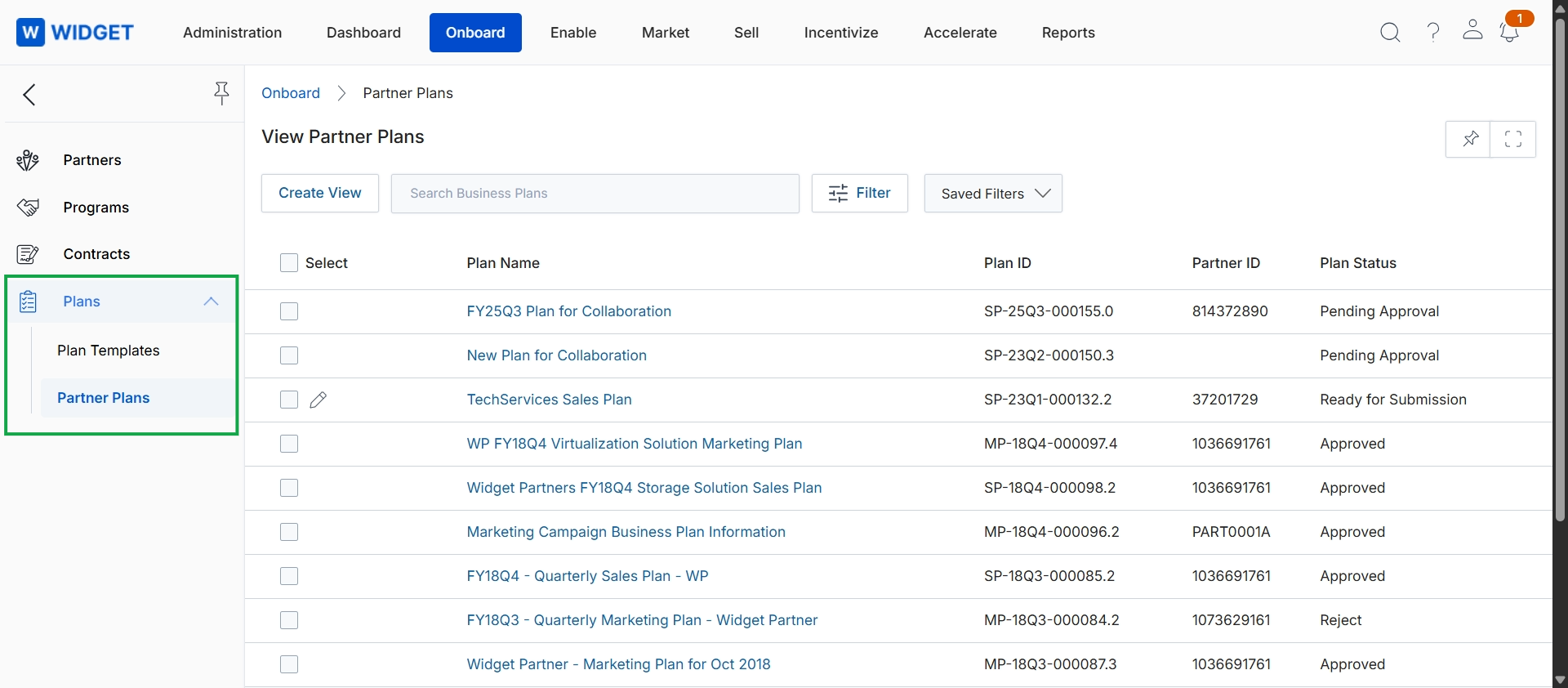
Click Plans → Partner Plans in the left navigation menu.
Creating Custom Views
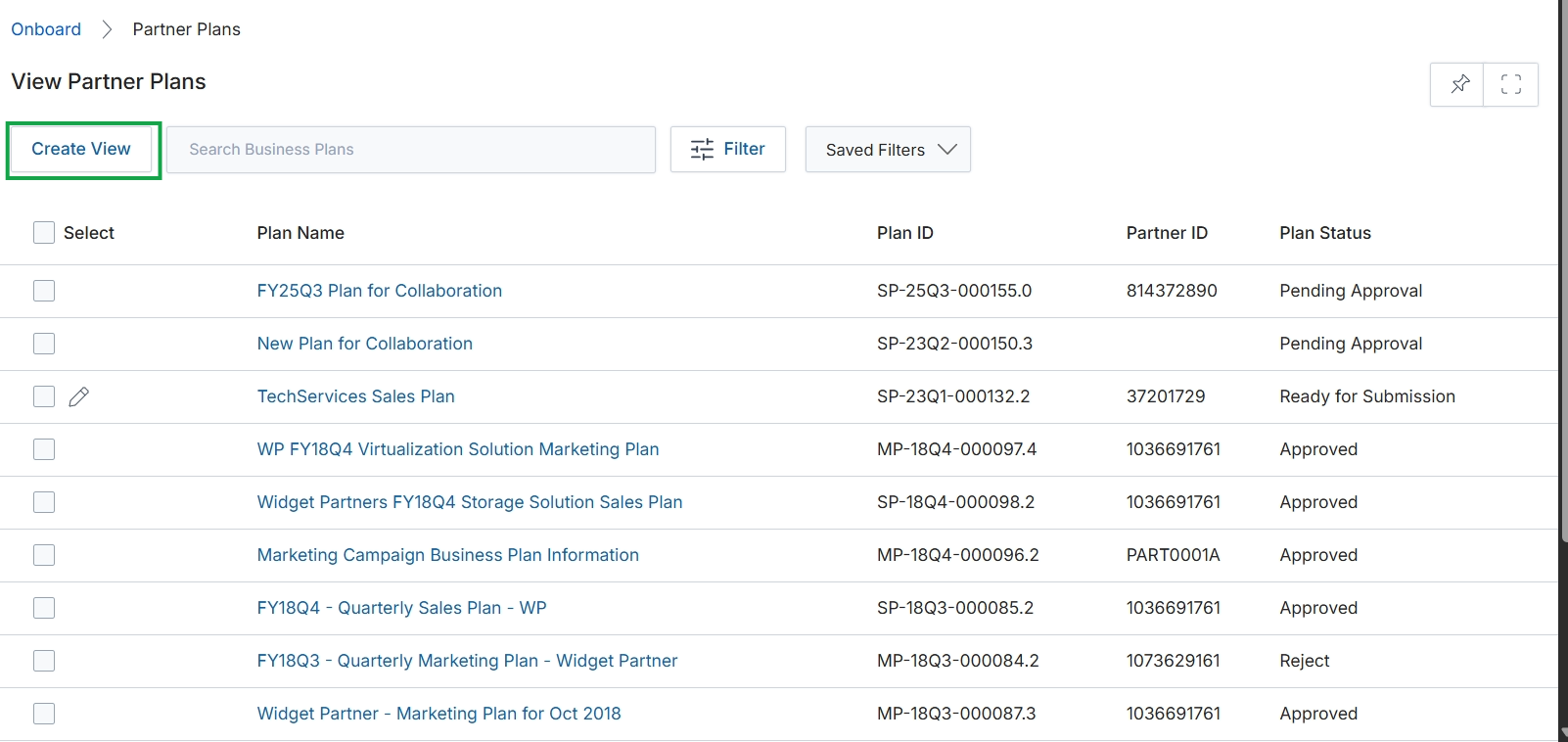
Click Plans → Partner Plans in the left navigation menu.
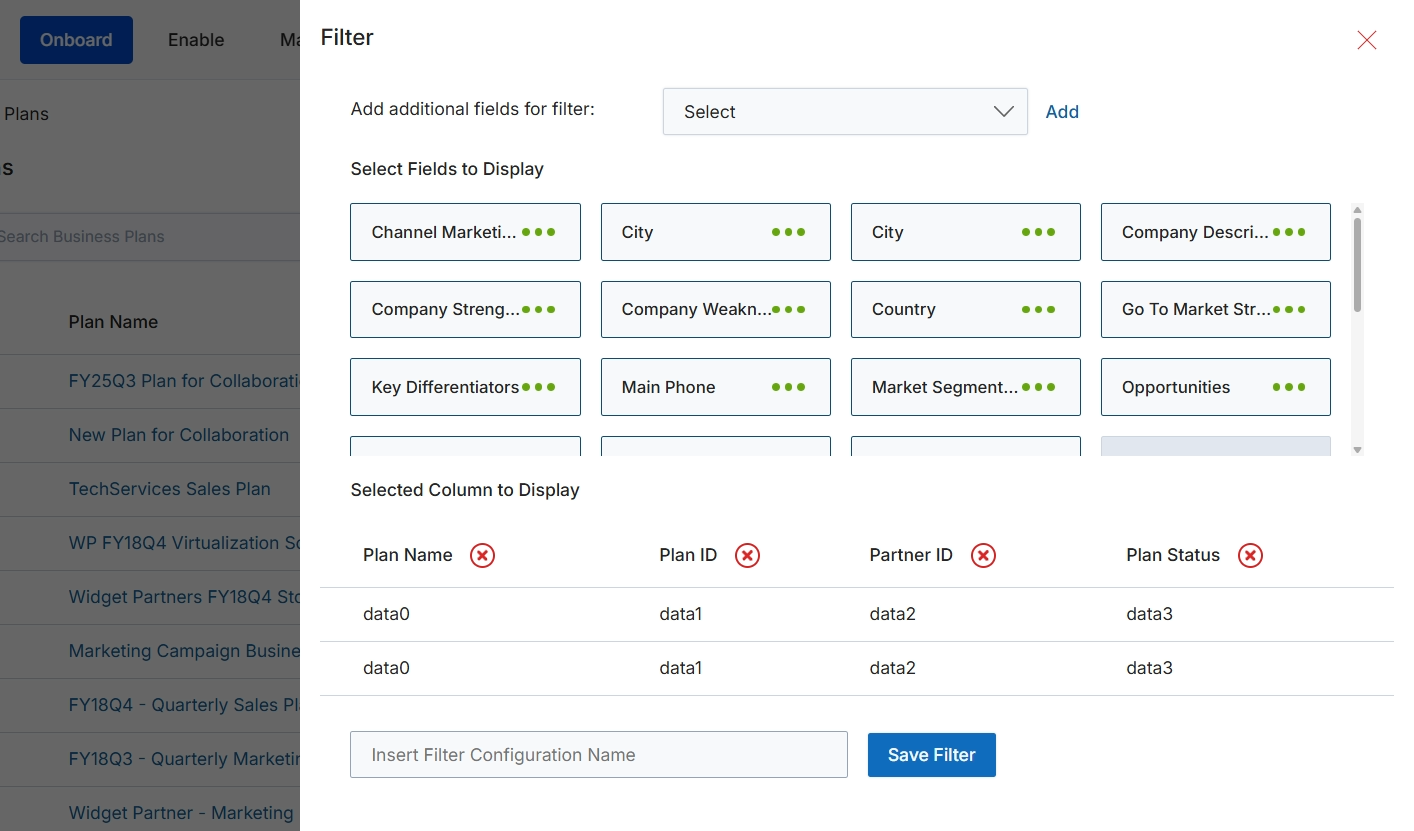
This filter configuration dialog allows users to customize the display and filtering options for the business plans list. It enables administrators to select which fields are available for filtering the list and which columns are visible in the main table view. This customization helps users focus on relevant data, streamline their workflow, and create tailored views for different analytical or operational needs. The ability to save filter configurations ensures that frequently used views can be quickly reapplied without manual re-selection of fields and columns.
Configure the filter settings by selecting fields to display and columns for the table, then save the filter configuration.
Buttons
| Button | Description |
|---|---|
| Add | Button to add the selected field to the filter options. |
| Save Filter | Button to save the current filter configuration. |
Fields
| Field | Description |
|---|---|
| Select | Dropdown to add additional fields for filtering the business plans list. |
| Insert Filter Configuration Name | Text input field to enter a name for the custom filter configuration. |
Selected Column to Display
| Column | Description |
|---|---|
| Plan Name | A selected column header for the business plan name. |
| Plan ID | A selected column header for the business plan identifier. |
| Partner ID | A selected column header for the partner identifier. |
| Plan Status | A selected column header for the status of the business plan. |
Applying and Saving Filters
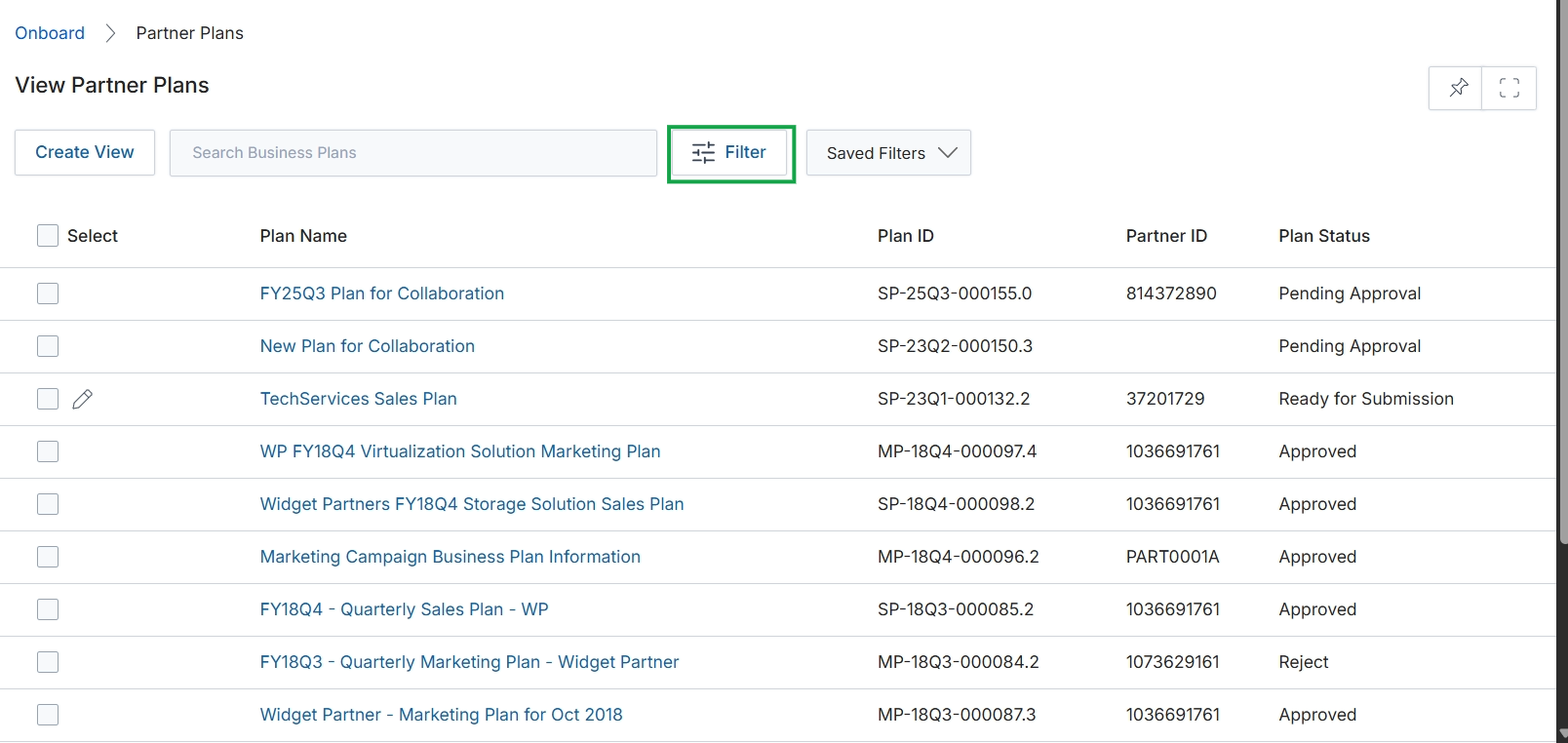
Click the Filter button.
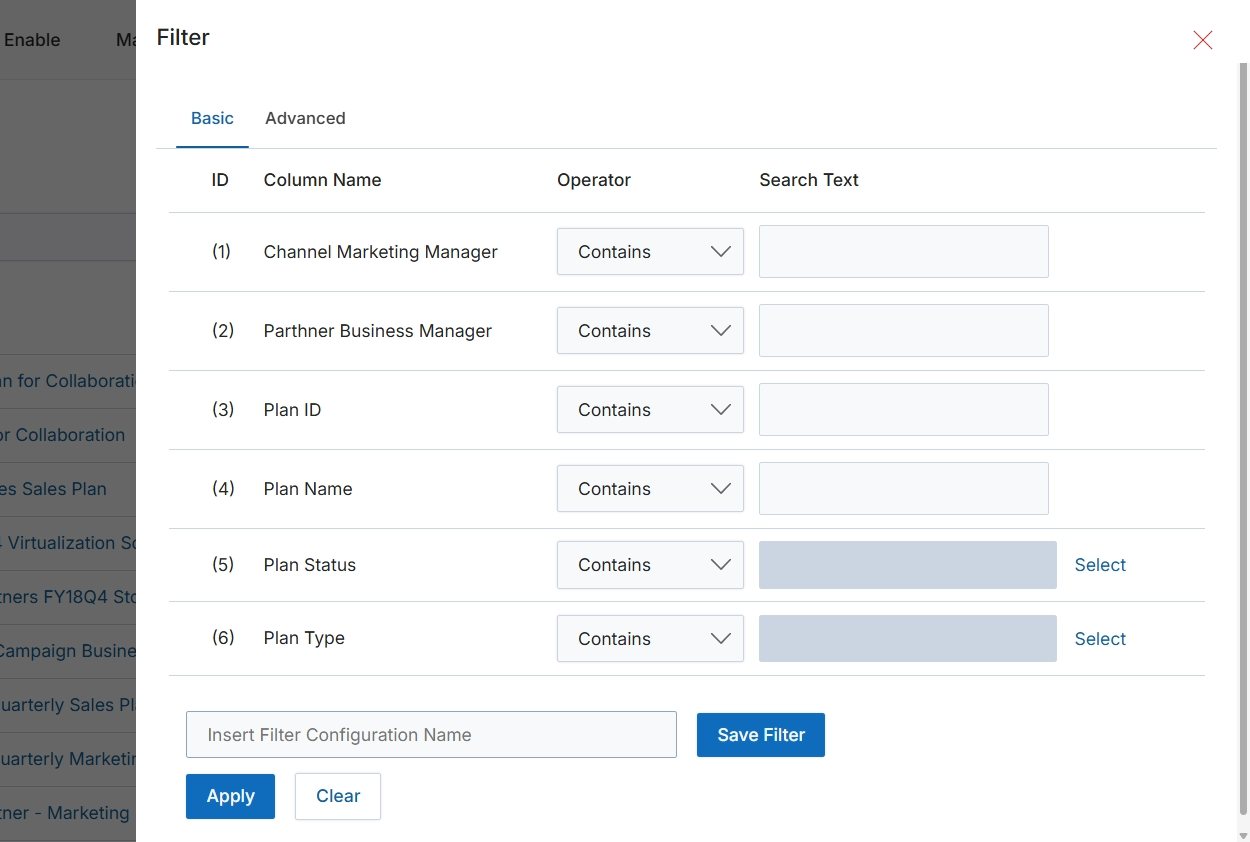
This filter dialog allows users to refine the list of business plans displayed by applying specific criteria. It provides both basic and advanced filtering options to help users quickly locate relevant plans based on various attributes such as the assigned channel marketing manager, plan ID, plan name, status, or type. This functionality is crucial for managing a large volume of business plans, enabling administrators to focus on specific segments of plans for review, reporting, or further action. The ability to save filter configurations streamlines repetitive search tasks, enhancing operational efficiency.
Configure the filter criteria to narrow down the list of business plans.
Buttons
| Button | Description |
|---|---|
| Basic | Selects the basic filtering interface, allowing for straightforward condition-based filtering. |
| Advanced | Selects the advanced filtering interface, providing more complex filtering options. |
| Select | Opens a selection dialog to choose specific plan statuses. |
| Select | Opens a selection dialog to choose specific plan types. |
| Save Filter | Saves the current filter configuration with the specified name. |
| Apply | Applies the configured filters to the business plan list. |
| Clear | Clears all applied filter criteria. |
Fields
| Field | Description |
|---|---|
| Channel Marketing Manager | Allows filtering by the assigned channel marketing manager. |
| Partner Business Manager | Allows filtering by the assigned partner business manager. |
| Plan ID | Allows filtering by the unique identifier of the business plan. |
| Plan Name | Allows filtering by the name of the business plan. |
| Plan Status | Allows filtering by the current status of the business plan. |
| Plan Type | Allows filtering by the type of business plan. |
| Insert Filter Configuration Name | Enter a name for the current filter configuration to save it for future use. |
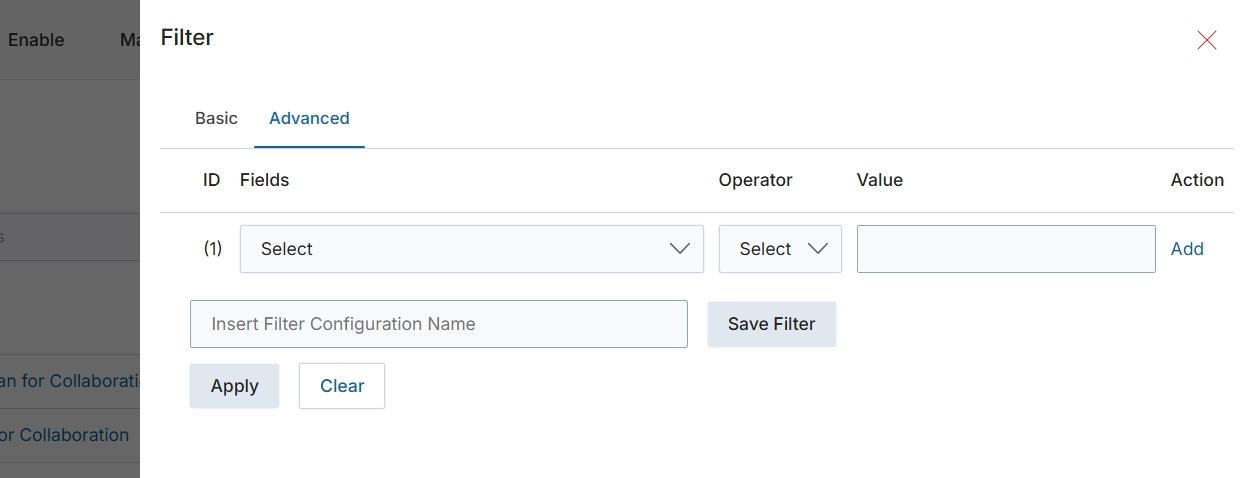
This filter dialog provides advanced options for refining the display of records within a list view. Users can construct complex queries by specifying multiple criteria, combining fields, operators, and values to narrow down results. This functionality is crucial for efficiently managing large datasets, allowing administrators to quickly locate specific records based on detailed attributes. The ability to save filter configurations streamlines repetitive search tasks, enhancing productivity by making frequently used filters readily accessible for future use.
Click the "Advanced" tab to access more detailed filtering options.
Buttons
| Button | Description |
|---|---|
| Basic | Switches the filter interface to a simpler, basic mode. |
| Advanced | Switches the filter interface to an advanced mode, allowing for more complex query construction. |
| Add | Adds a new row to define an additional filter condition. |
| Save Filter | Saves the current filter configuration under the specified name. |
| Apply | Applies the defined filter conditions to the list view. |
| Clear | Clears all active filter conditions. |
Fields
| Field | Description |
|---|---|
| Select | A dropdown to choose the specific field to filter by. |
| Select | A dropdown to choose the operator for the filter condition. |
| Value | An input field to enter the value for the filter condition. |
| Insert Filter Configuration Name | An input field to provide a name for the current filter configuration to save it for future use. |
Column Headings
| Column | Description |
|---|---|
| ID | A column header indicating the identifier for each filter row. |
| Fields | A column header for selecting the data field to apply the filter to. |
| Operator | A column header for selecting the logical operator (e.g., equals, contains, greater than) for the filter condition. |
| Value | A column header for entering the value to compare against the selected field. |
| Action | A column header for actions related to the filter row, such as adding or removing conditions. |