

Overview
Web Syndication, also known as Showcases, is a crucial feature within the Market module that empowers vendors to scale their marketing efforts across their partner ecosystem. It provides a centralized repository and management system for content intended for partner websites, ensuring brand consistency and messaging control. By defining Showcases, administrators can pre-package marketing materials, including rich text and images, and associate them with specific marketing campaigns. This reduces the content creation burden on individual partners and ensures that all syndicated content aligns with the vendor's current strategies and branding guidelines.
Partners can then easily integrate these vendor-approved Showcases into their digital presence, facilitating lead generation and enhancing brand awareness. The platform offers tools for administrators to manage various aspects of each Showcase, such as its name, description, visual components, and content sections (header and footer). This structured approach streamlines the distribution of marketing assets, making it efficient for both vendors to disseminate content and for partners to utilize it effectively.
Viewing Existing Showcases
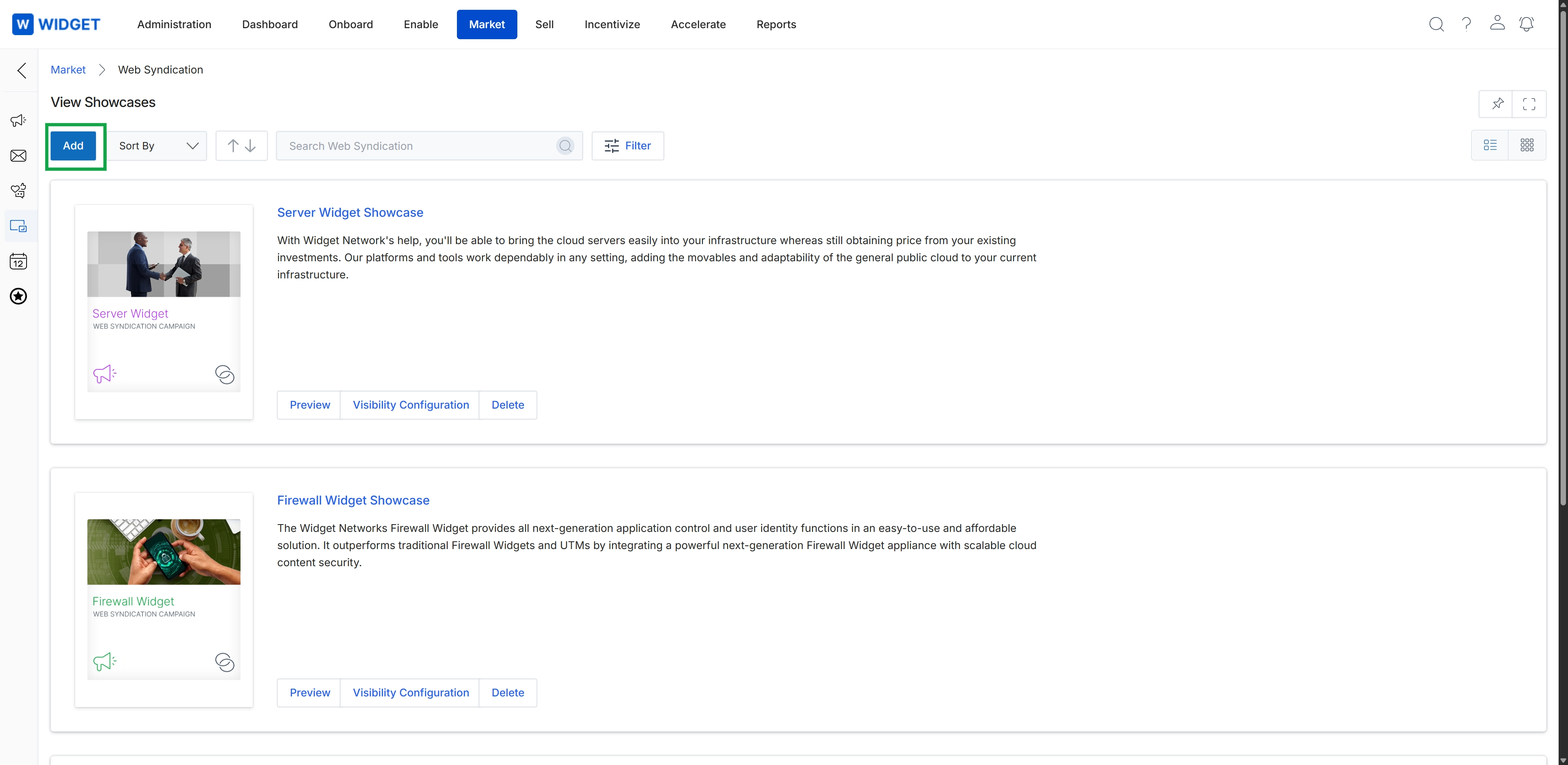
Click the Add button.
Adding a New Showcase
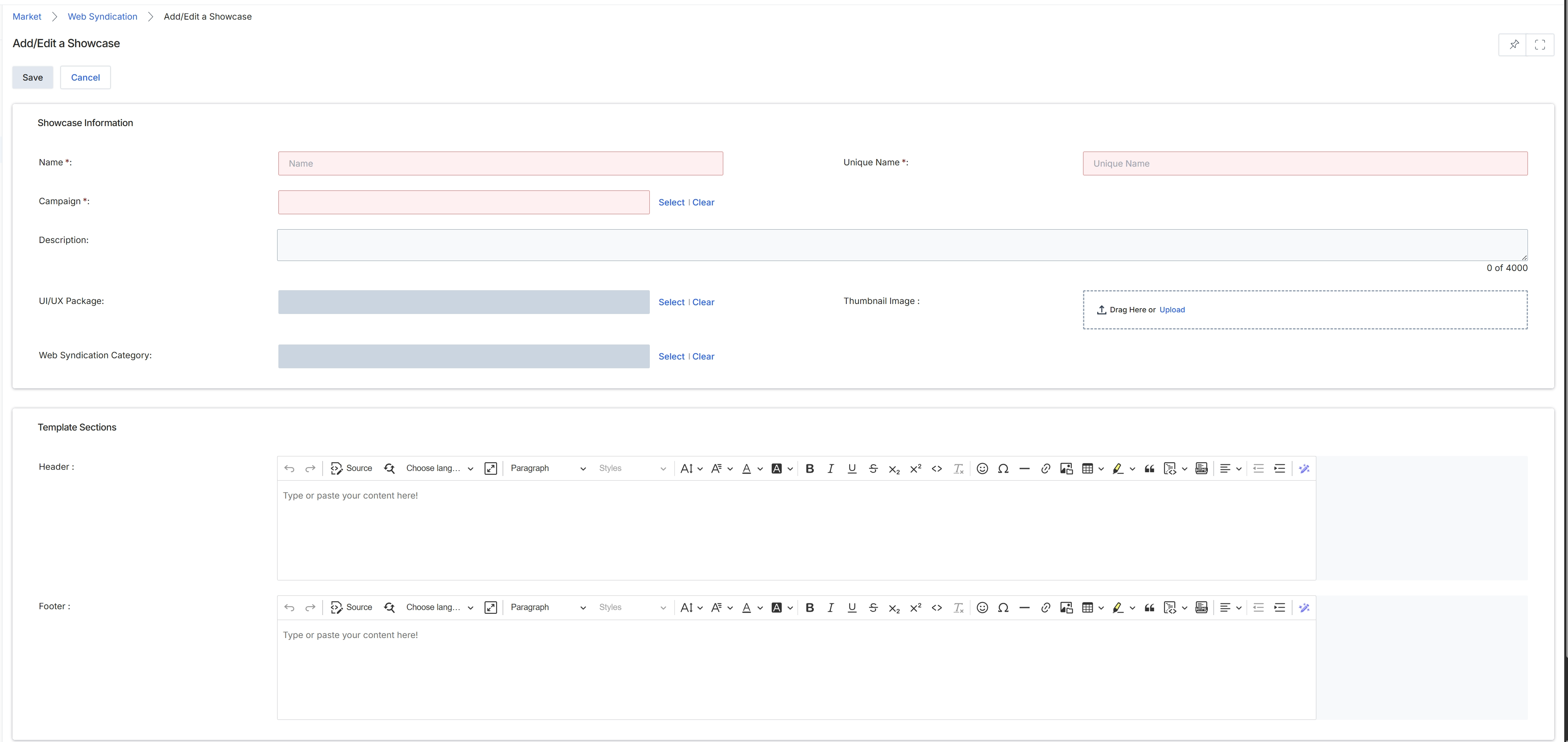
The Add/Edit a Showcase form is used by UPM administrators to define or modify a showcase within the Web Syndication feature of the Market module. This form allows for the configuration of essential attributes for how vendor content is presented and syndicated to partners, including its name, associated campaign, and a unique identifier. Administrators can also specify the UI/UX package, web syndication category, upload a thumbnail image, and provide rich text content for the header and footer sections. This form is crucial for structuring and managing the content partners can syndicate to their own websites or microsites, ensuring brand consistency and proper content delivery.
Fill out the Add/Edit a Showcase form with the required information to create a new showcase.
Buttons
| Button | Description |
|---|---|
| Save | Saves the current showcase configuration. |
| Cancel | Discards any changes and returns to the previous screen. |
Showcase Information
| Field | Description |
|---|---|
| Name * | Enter the name of the showcase. |
| Unique Name * | Enter a unique identifier for the showcase. |
| Campaign * | Select the campaign associated with this showcase. |
| Description | Provide a description for the showcase (up to 4000 characters). |
| UI/UX Package | Select the UI/UX package to be used for the showcase. |
| Thumbnail Image | Upload a thumbnail image for the showcase by dragging and dropping or clicking to upload. |
| Web Syndication Category | Select the web syndication category for the showcase. |
Template Sections
| Field | Description |
|---|---|
| Header | Enter or paste rich text content for the header section of the showcase. |
| Footer | Enter or paste rich text content for the footer section of the showcase. |
Editing an Existing Showcase
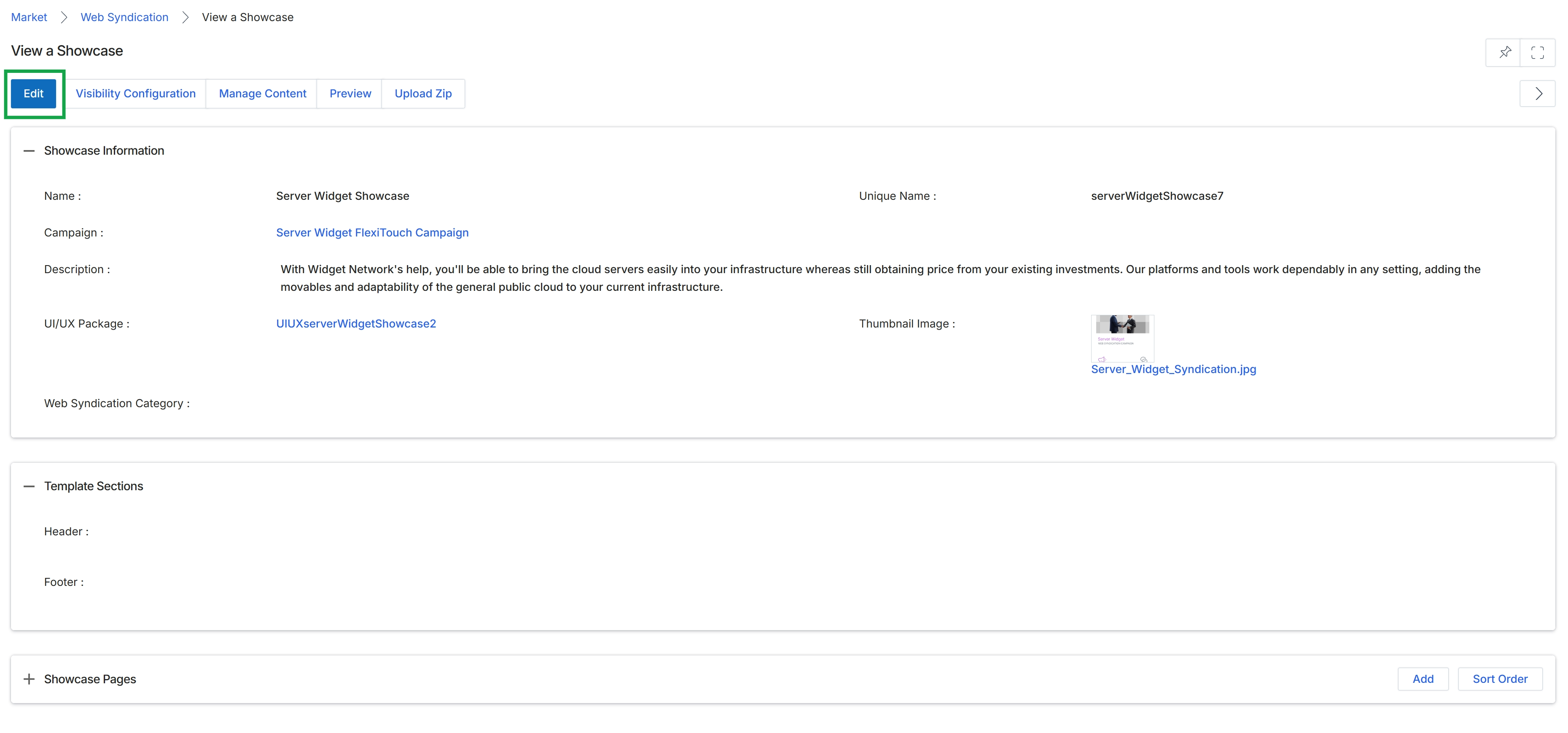
This screen displays the details of a specific showcase within the Web Syndication module, which is part of the Market zone. Showcases are co-branded web content or landing pages that partners can utilize to promote vendor products and services. This view provides an overview of the showcase's configuration, including its name, associated campaign, description, UI/UX package, and thumbnail image. It also outlines the template sections and any associated showcase pages. From this screen, administrators can review the current setup before making any modifications or managing related content.
Click the "Edit" button to modify the showcase's details.
Buttons
| Button | Description |
|---|---|
| Edit | Click this button to enter edit mode and modify the showcase's details. |
| Visibility Configuration | This button allows configuration of who can see and use this showcase. |
| Manage Content | This button navigates to the content management interface for the showcase. |
| Preview | This button displays a preview of the showcase as it would appear to partners or end-users. |
| Upload Zip | This button allows uploading a ZIP file containing showcase assets or templates. |
| Add | This button allows adding new pages to the showcase. |
| Sort Order | This button allows reordering the pages within the showcase. |
Showcase Information
| Field | Description |
|---|---|
| Name | The display name of the showcase. |
| Unique Name | A system-generated or user-defined unique identifier for the showcase. |
| Campaign | The marketing campaign associated with this showcase. |
| Description | A detailed description of the showcase's purpose and content. |
| UI/UX Package | The user interface and user experience package applied to the showcase. |
| Thumbnail Image | A small preview image representing the showcase. |
| Web Syndication Category | The category to which this web syndication showcase belongs. |
Template Sections
| Field | Description |
|---|---|
| Header | The content defined for the header section of the showcase template. |
| Footer | The content defined for the footer section of the showcase template. |
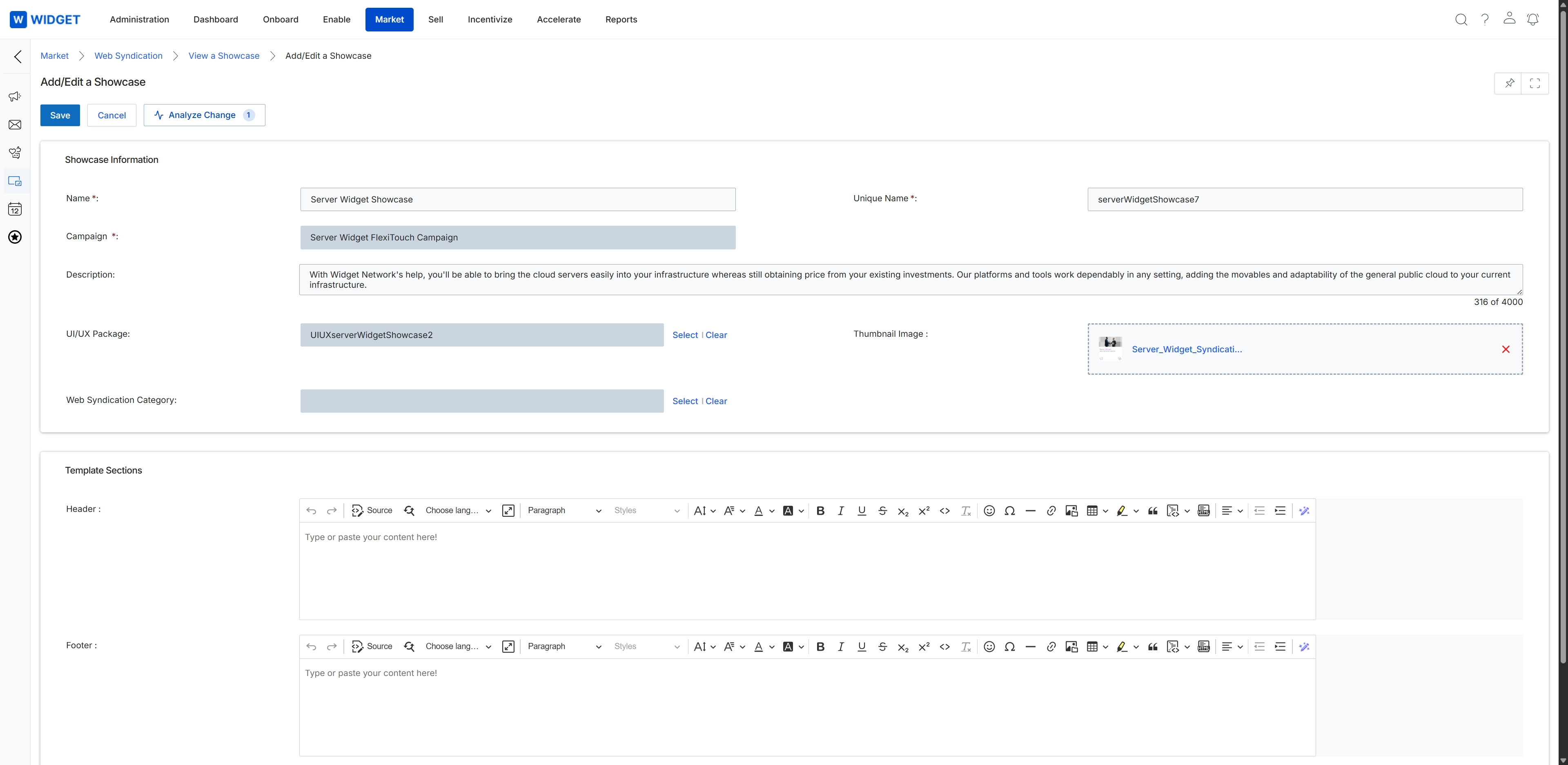
This screen presents the interface for modifying an existing showcase within the Web Syndication feature of the Market module. It allows administrators to update various details associated with a syndicated content package, including its name, unique identifier, and the marketing campaign it is associated with. The screen also provides fields for a descriptive overview and the ability to upload a thumbnail image, alongside rich text editors for defining header and footer content that will frame the syndicated material when partners display it on their digital properties.