

Overview
Microsites, also known as Showcases, are partner-branded landing pages that partners can customize and publish to promote vendor products or services. These microsites are crucial for partners to establish an online presence that aligns with the vendor's brand while allowing for their unique messaging. The ability to create and manage individual pages within these Showcases provides partners with the flexibility to build out a multi-page website, offering detailed information about products, services, documents, and contact information.
Administrators use this functionality to define the structure and content of these Showcase pages. This ensures that partners have the necessary tools to effectively market to their audience, capture leads through dynamic forms, and present a professional, co-branded image. The pages can be configured as content pages or landing pages, with options to define parent-child relationships for organized navigation.
Accessing Showcase Pages
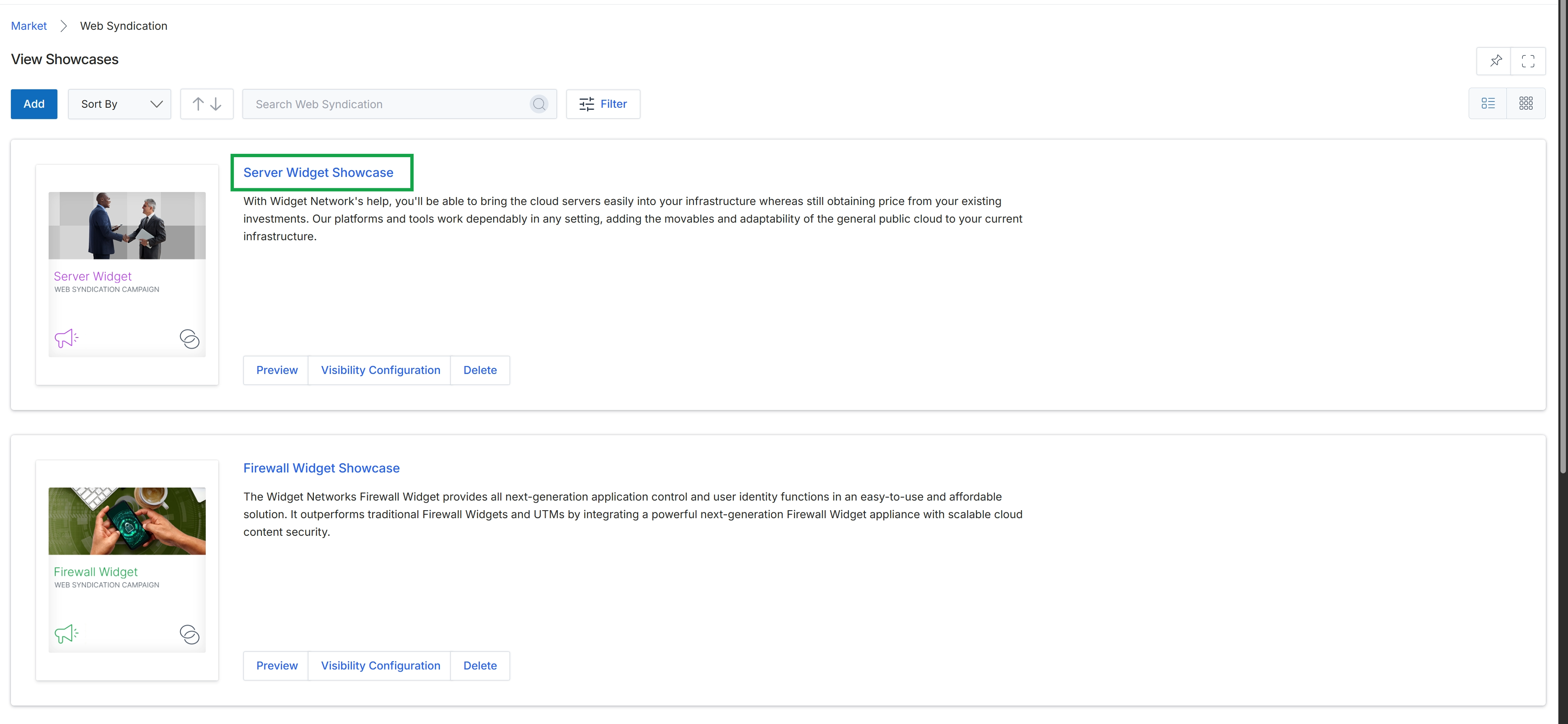
Click the Server Widget Showcase title.

This screen displays a list of existing showcase pages, which are a type of microsite or landing page that partners can use for co-branded marketing. Each row in this table provides key details about a specific page, including its internal name, display title, type, and sort order. This interface allows administrators to manage the structure and content of these pages, providing an overview of all configured showcase pages within the platform. The presence of an 'Add' button indicates that new showcase pages can be created from this interface, expanding the available co-branded landing page options for partners.
Click the "Add" button to create a new showcase page.
Buttons
| Button | Description |
|---|---|
| Add | Initiates the process of creating a new showcase page. |
| Sort Order | Allows reordering of the showcase pages. |
Column Headings
| Column | Description |
|---|---|
| Action | Column header for actions that can be performed on each showcase page, such as editing or deleting. |
| Name | Column header for the internal name of the showcase page. |
| Title | Column header for the display title of the showcase page. |
| Type | Column header indicating the type of content for the showcase page. |
| Sort Order | Column header for the numerical order in which the showcase pages are displayed. |
Adding a New Showcase Page
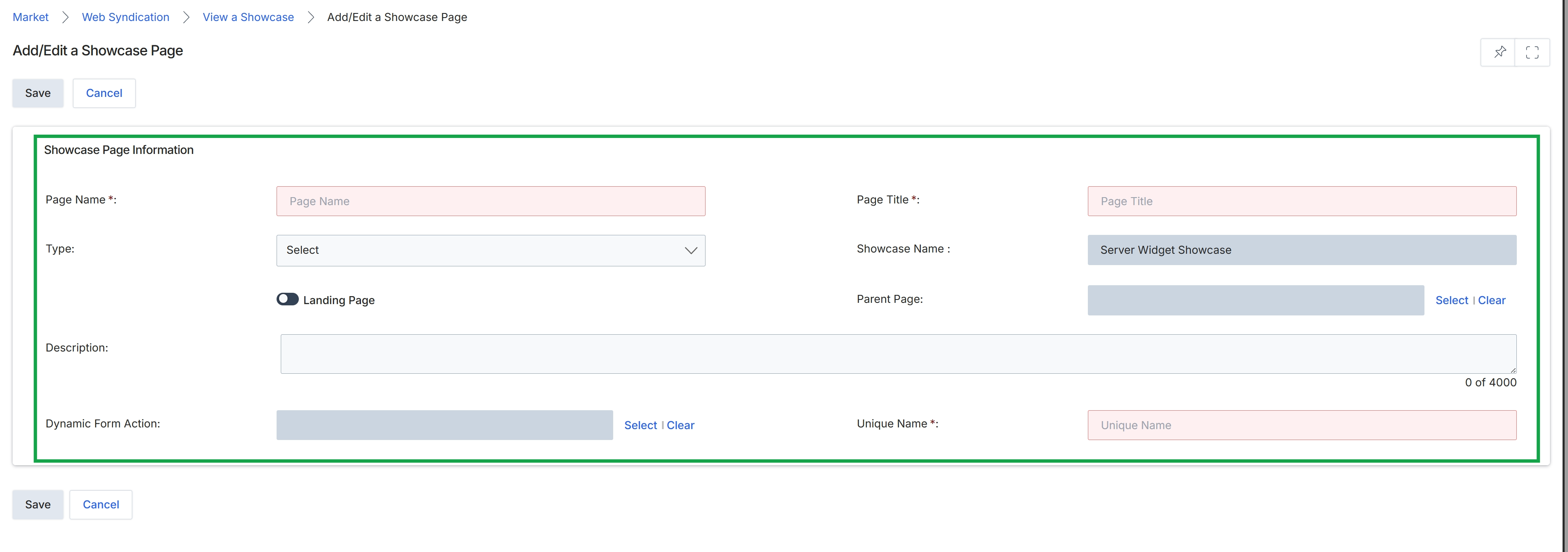
This screen presents the Add/Edit a Showcase Page form, which administrators use to create or modify showcase pages within the Web Syndication module. These pages serve as content containers or templates that partners can leverage to build their own co-branded microsites or landing pages, facilitating their marketing efforts. The form allows for the definition of essential page properties, such as its name, title, and type, and indicates its association with a specific showcase. It also includes fields for a detailed description and a unique name, which are crucial for organizing and identifying content that partners can use for their marketing activities. The 'Landing Page' toggle determines if the page functions as a standalone landing page, while 'Parent Page' allows for hierarchical organization of content.
Enter the required details in the 'Page Name', 'Page Title', and 'Unique Name' fields, and provide other relevant information in the Add/Edit a Showcase Page form.
Buttons
| Button | Description |
|---|---|
| Save | Saves the entered showcase page information. |
| Cancel | Discards any changes and returns to the previous screen. |
| Select | Button to select the parent page. |
| Clear | Button to clear the selected parent page. |
| Select | Button to select the dynamic form action. |
| Clear | Button to clear the selected dynamic form action. |
| Save | Saves the entered showcase page information. |
| Cancel | Discards any changes and returns to the previous screen. |
Showcase Page Information
| Field | Description |
|---|---|
| Page Name * | The name of the showcase page, which is a required field. |
| Page Title * | The title of the showcase page, which is a required field. |
| Type | The type of showcase page, selected from a dropdown list. |
| Showcase Name | The name of the showcase this page belongs to, which is pre-filled as 'Server Widget Showcase'. |
| Landing Page | A toggle to indicate if this showcase page functions as a landing page. |
| Parent Page | The parent page for this showcase page. |
| Description | A text area for a detailed description of the showcase page, with a character limit of 4000. |
| Dynamic Form Action | A field to define a dynamic form action. |
| Unique Name * | A unique identifier for the showcase page, which is a required field. |
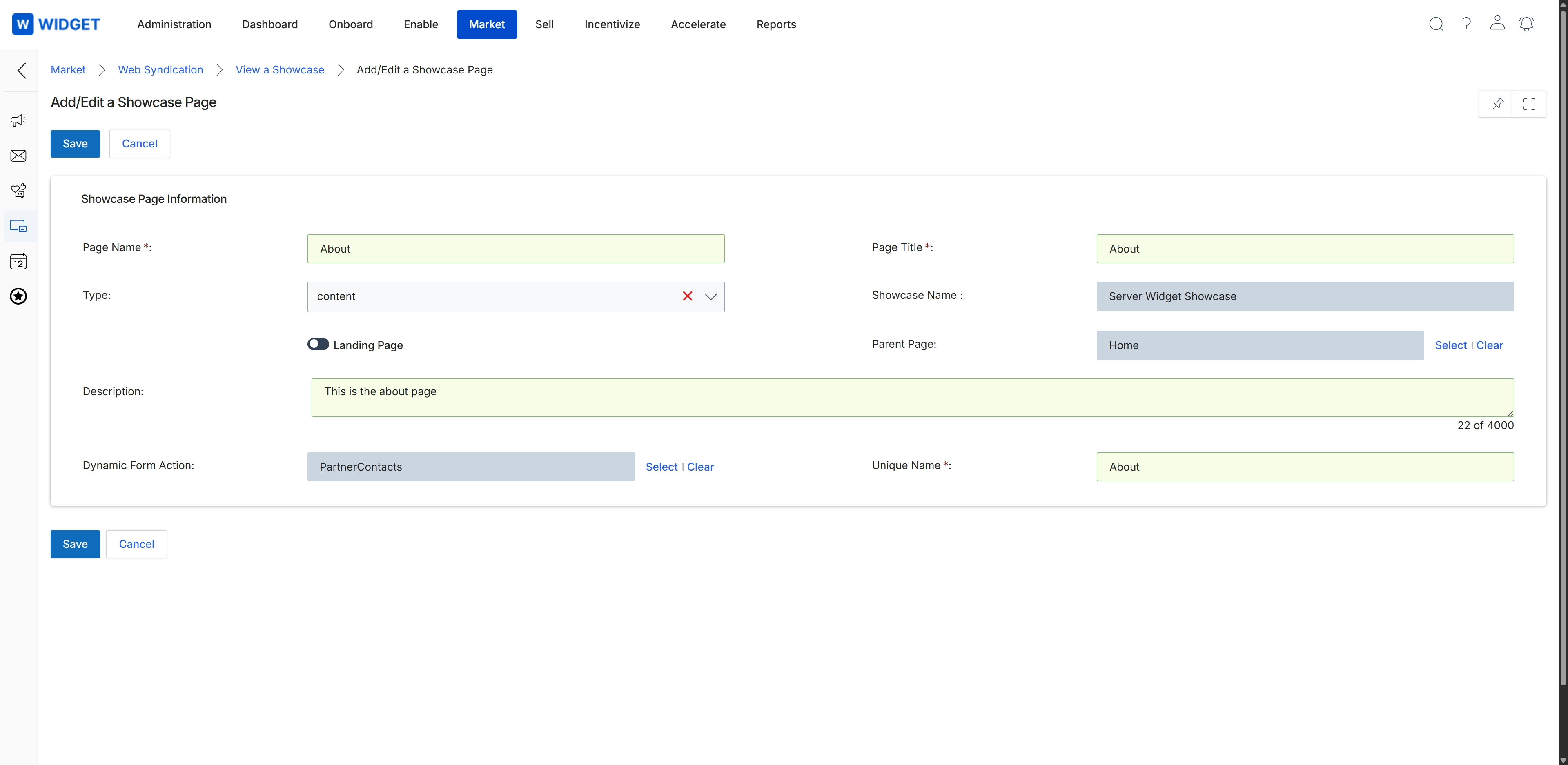
This screen provides the interface for administrators to create or modify a showcase page within the Web Syndication feature, which is part of the Market module. Showcase pages are used to present content in a structured, hierarchical manner, often for partner-facing information or co-branded content. Administrators define key properties such as the page's name, title, and type, and can associate it with a parent page to organize the content hierarchy. The form also allows for the integration of interactive elements by linking to a dynamic form action, enabling data collection or specific functionalities directly on the showcase page. This ensures that partners can access relevant, up-to-date information and engage with interactive features as configured by the vendor.
After filling out the details for the showcase page, click the "Save" button to store the information.
Buttons
| Button | Description |
|---|---|
| Save | Saves the current showcase page information. |
| Cancel | Discards any changes and returns to the previous view. |
Showcase Page Information
| Field | Description |
|---|---|
| Page Name * | The internal name for the showcase page. |
| Type | The content type of the showcase page, such as 'content' for general information. |
| Landing Page | A toggle to indicate if this page functions as a landing page. |
| Description | A detailed description of the showcase page's content or purpose, with a character limit of 4000. |
| Dynamic Form Action | Specifies a form action to be associated with this page, enabling interactive elements or data collection. |
| Page Title * | The title displayed for the showcase page. |
| Showcase Name | The name of the showcase to which this page belongs. |
| Parent Page | Allows selection of a parent page to establish a hierarchical structure within the showcase. |
| Unique Name * | A unique identifier for the showcase page. |
Editing Showcase Page Details

Click the pencil icon next to the "Home" showcase page.
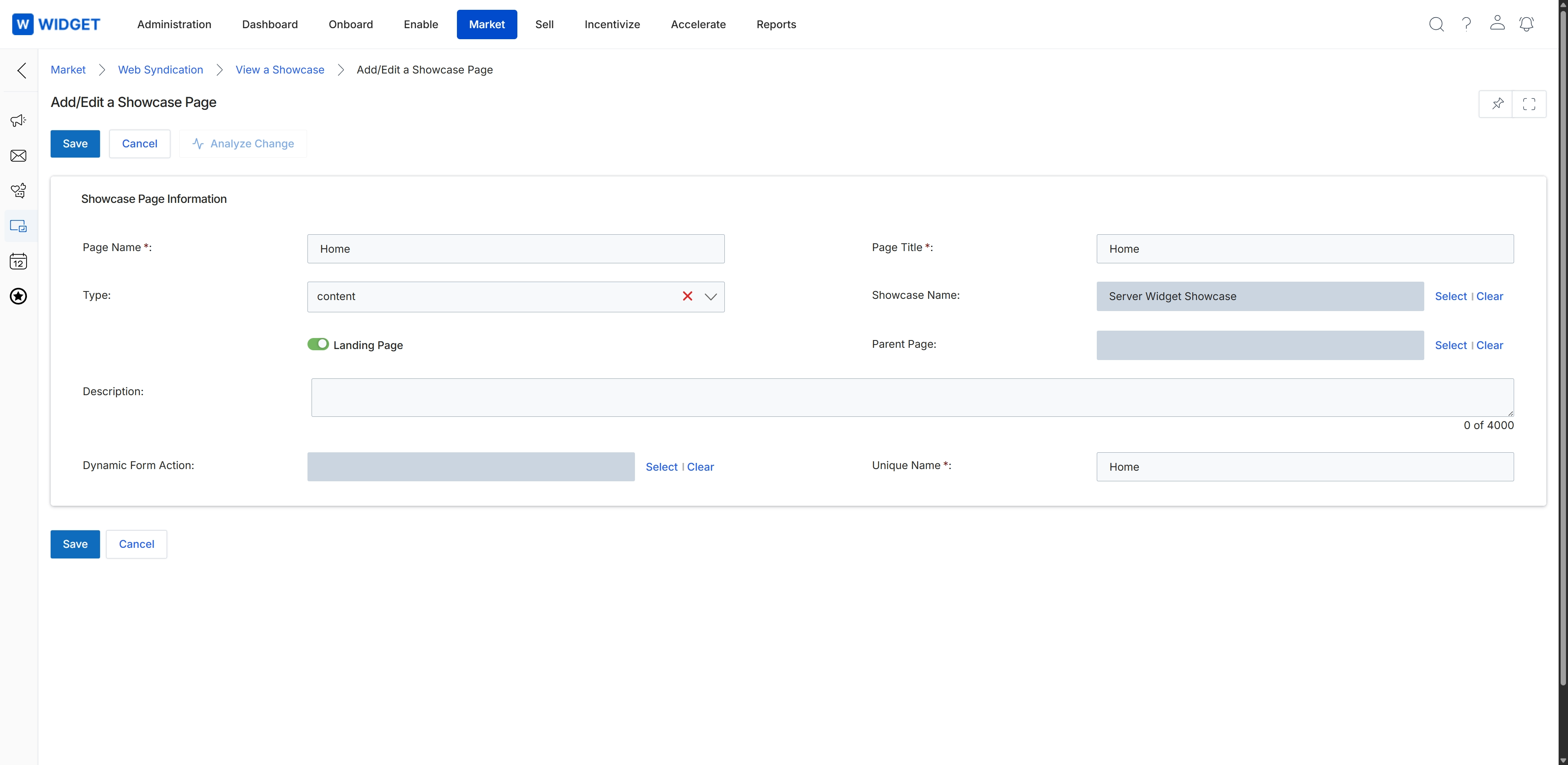
This screen displays the form for adding or editing a showcase page, which functions as a component of a larger microsite or landing page within the Market module. Administrators utilize this interface to configure the specific properties of an individual page, such as its name, title, type, and its association with a particular showcase. This configuration capability supports the creation of distinct pages that collectively form a comprehensive microsite, enabling partners to deploy co-branded landing pages for their marketing initiatives.
Deleting a Showcase Page

Click the Delete (trash can) icon next to the "Home" page.
Managing Showcase Page Content
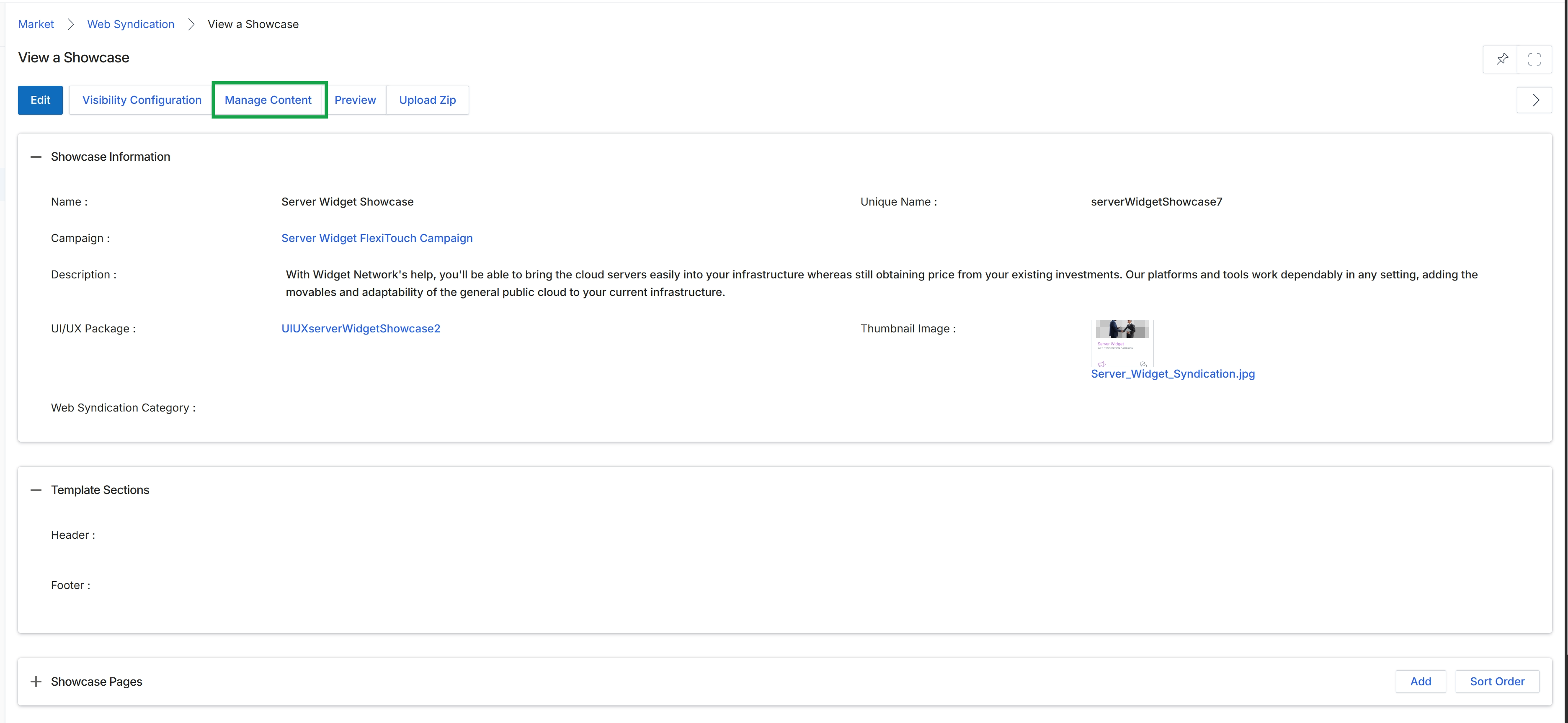
Click Manage Content.
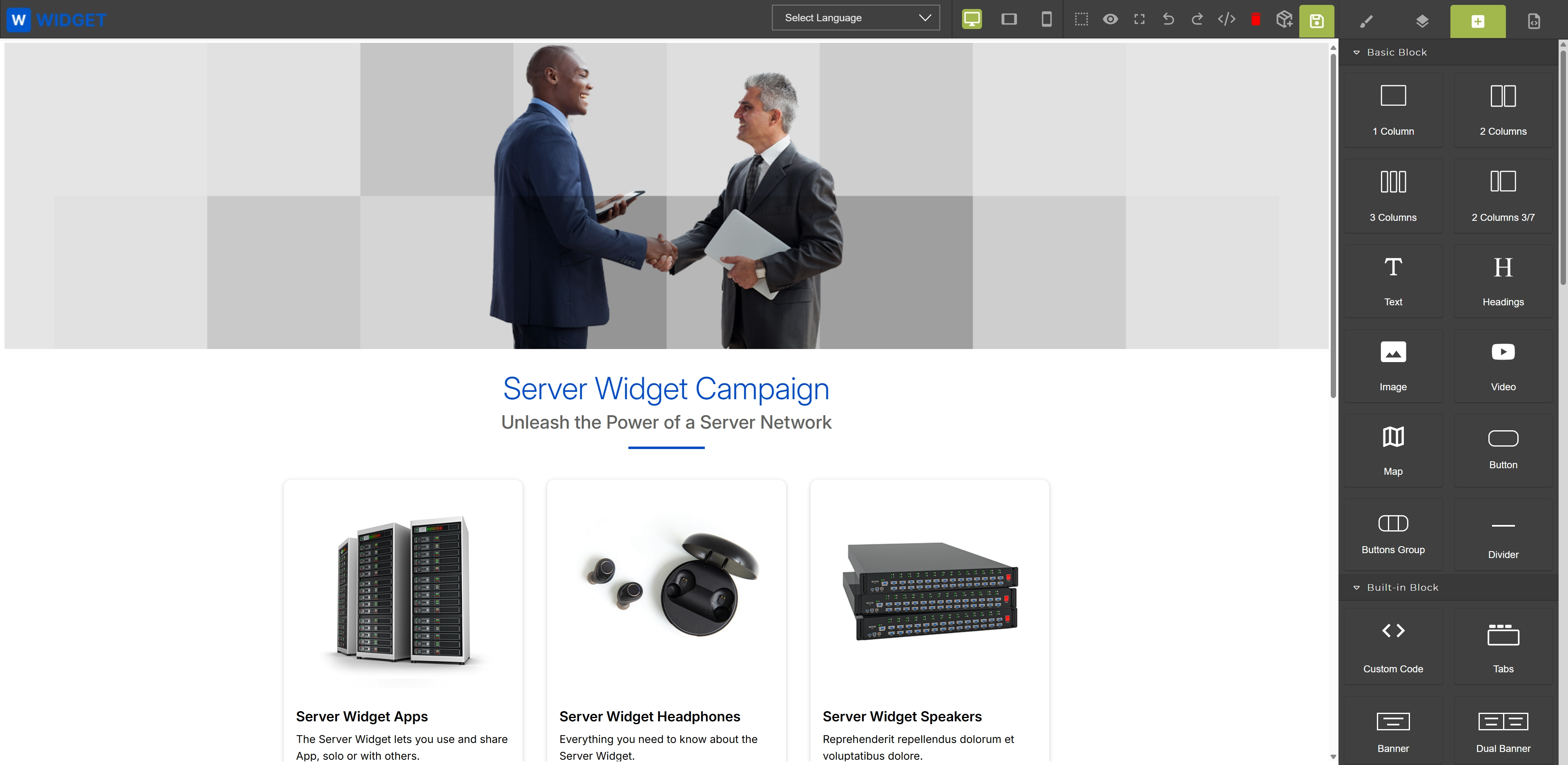
Click the Manage Content button.
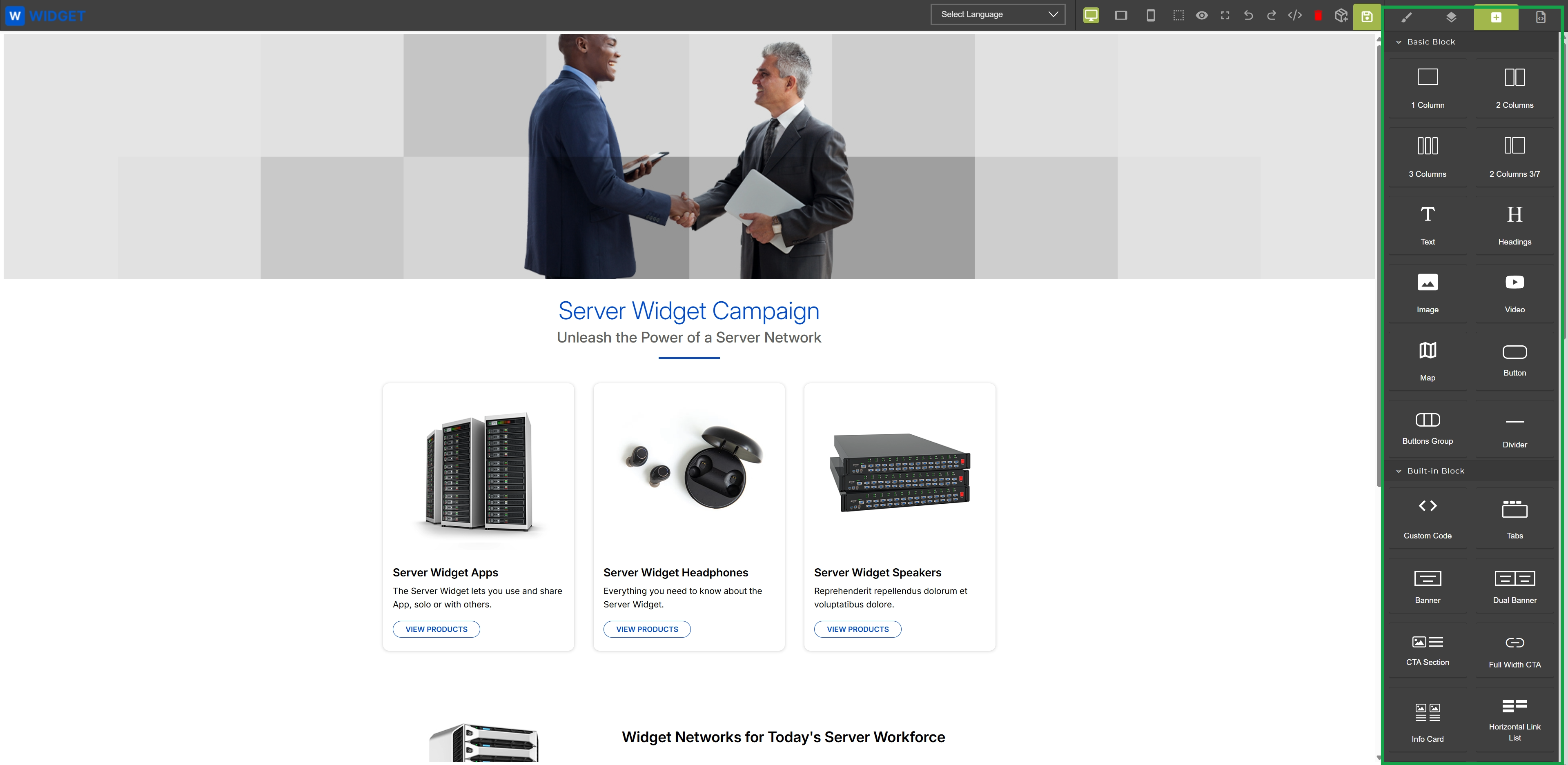
This screen displays a content editor interface for building or customizing microsites and landing pages within the Market module. On the left, a preview of the page content is visible, showcasing elements like a hero image, campaign title, and product listings. The right-hand panel provides a drag-and-drop interface with various content blocks and elements, categorized as 'Basic Block' and 'Built-in Block,' which users can utilize to construct and modify the page layout and components. This editor facilitates the creation of partner-branded landing pages, allowing partners to customize content within vendor-defined templates.