

Overview
Effective partner support is crucial for maintaining strong relationships and ensuring partner success. The Support Tickets module within Accelerate provides a robust help desk system for partners to submit inquiries and for administrators to manage those requests efficiently. This ensures that partners receive timely assistance for technical issues, program questions, billing inquiries, and more, contributing to overall program satisfaction and operational continuity. The system tracks key ticket attributes like category, priority, and status, allowing administrators to prioritize and assign tasks effectively.
Accessing and Viewing Support Tickets
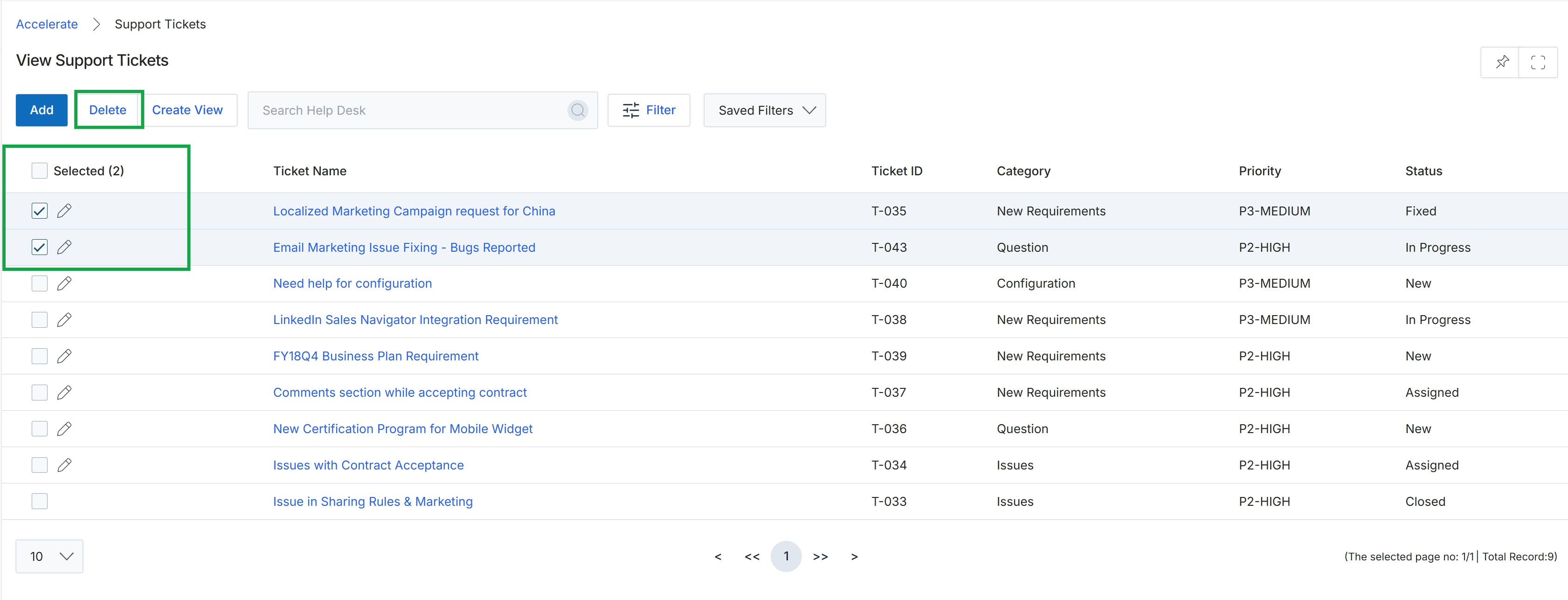
Click Delete.
Deleting Support Tickets
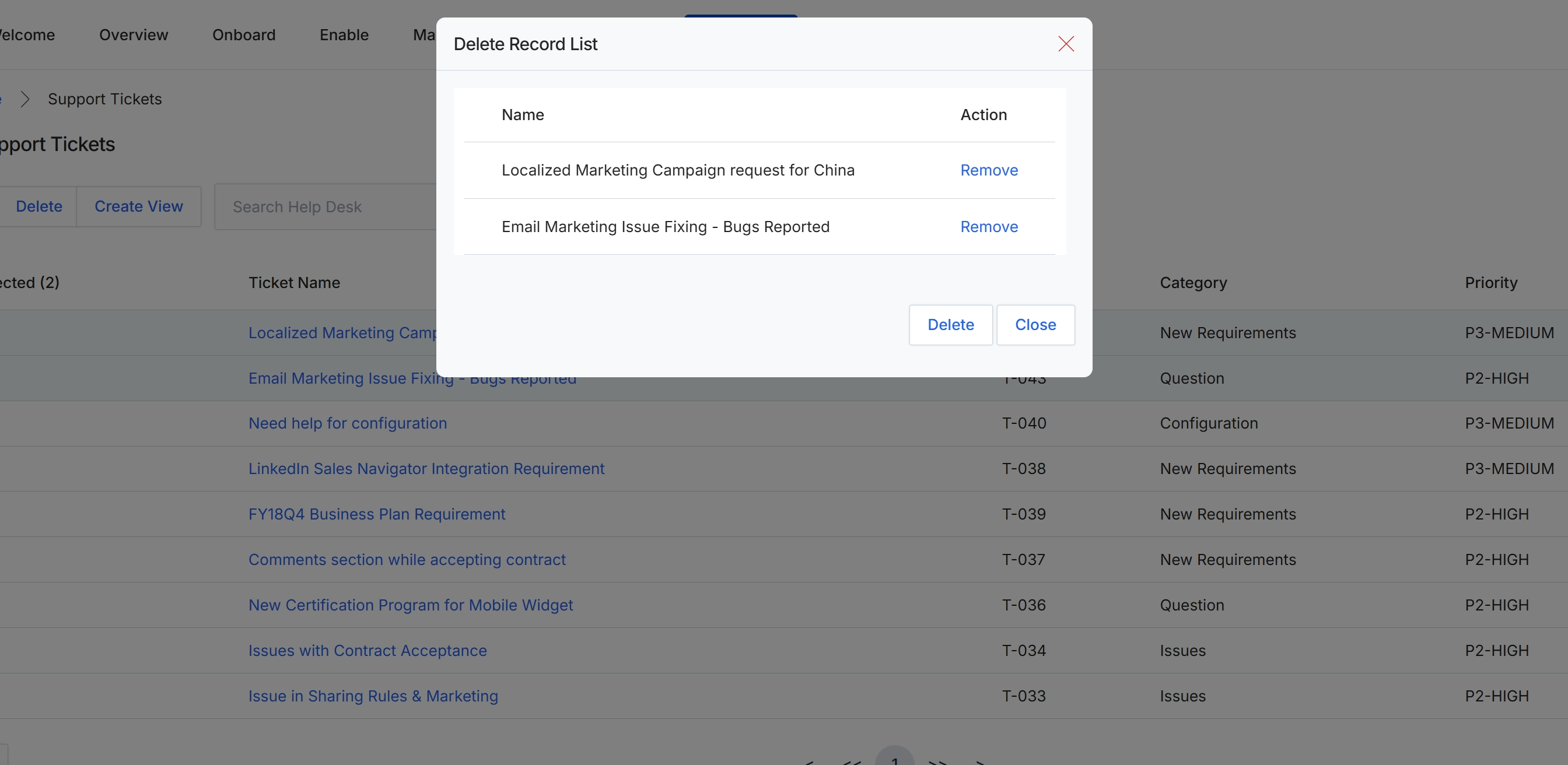
This screen displays a modal dialog for confirming the deletion of selected support tickets from the system. It presents a list of the specific tickets chosen for removal, allowing the user to review them before proceeding. This dialog serves as a critical confirmation step in the support ticket management workflow, ensuring that only intended records are permanently removed from the platform's help desk functionality.
Filtering and Creating Custom Views
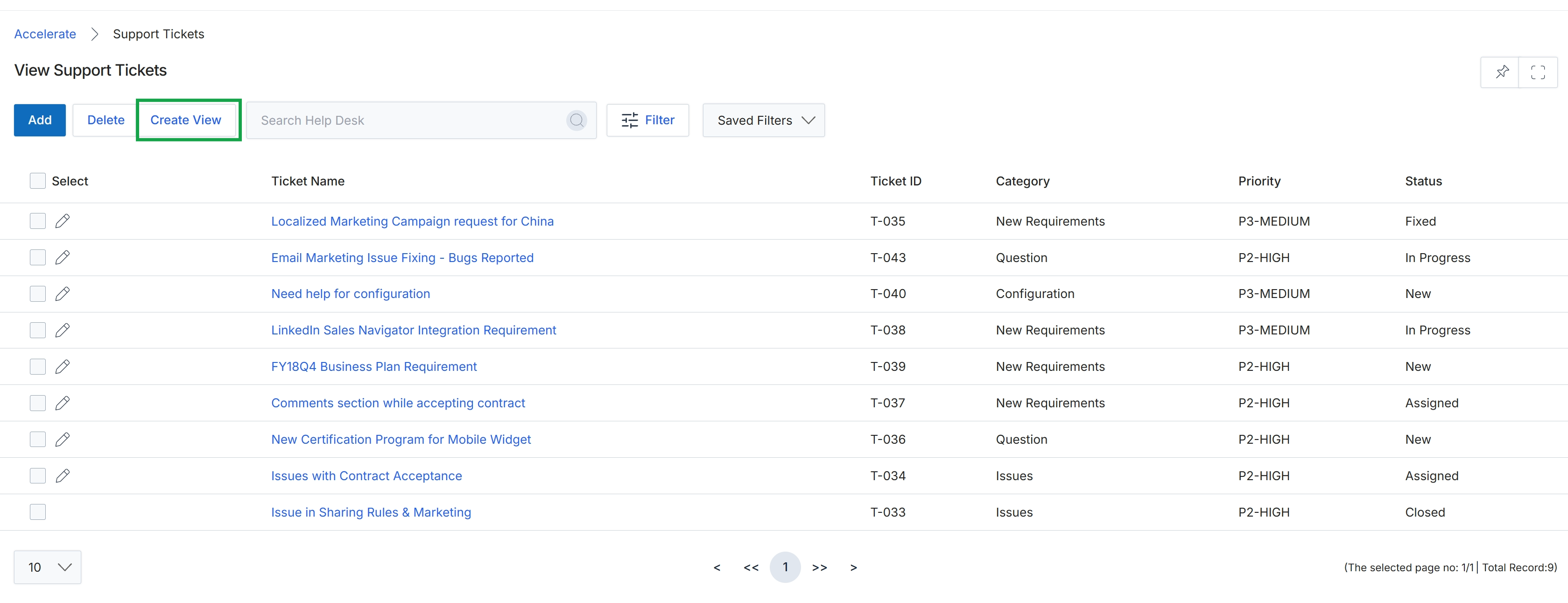
Click the Create View button.
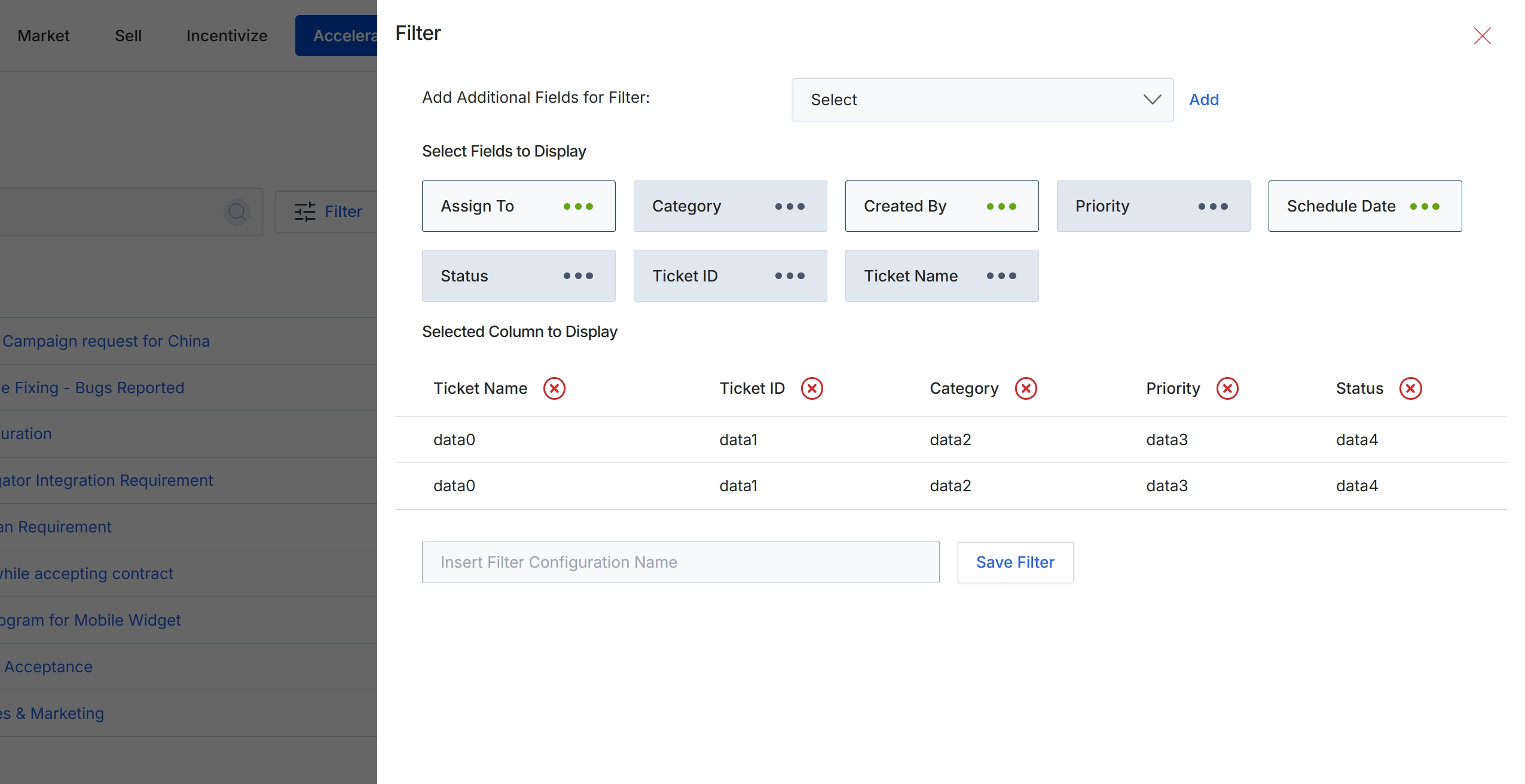
This dialog provides comprehensive controls for customizing the display and filtering of support ticket lists. Users can define which fields are available for filtering the ticket data and specify which columns appear in the main list view. This level of customization allows users to tailor the ticket display to their specific needs, focusing on relevant information such as assignment, category, priority, or status, and saving these configurations for future use. The ability to save filter configurations streamlines the process of analyzing and managing support tickets within the Accelerate module.
Configure the fields available for filtering and select the columns to display in the support ticket list.
Buttons
| Button | Description |
|---|---|
| Add | Adds the selected field from the dropdown to the list of available filters. |
| Save Filter | Saves the current filter and display configuration under the specified name. |
Add Additional Fields for Filter
| Field | Description |
|---|---|
| Select | A dropdown menu to add additional fields that can be used for filtering the support ticket list. |
Fields
| Field | Description |
|---|---|
| Insert Filter Configuration Name | An input field to enter a name for the current filter and display configuration, allowing it to be saved for future use. |
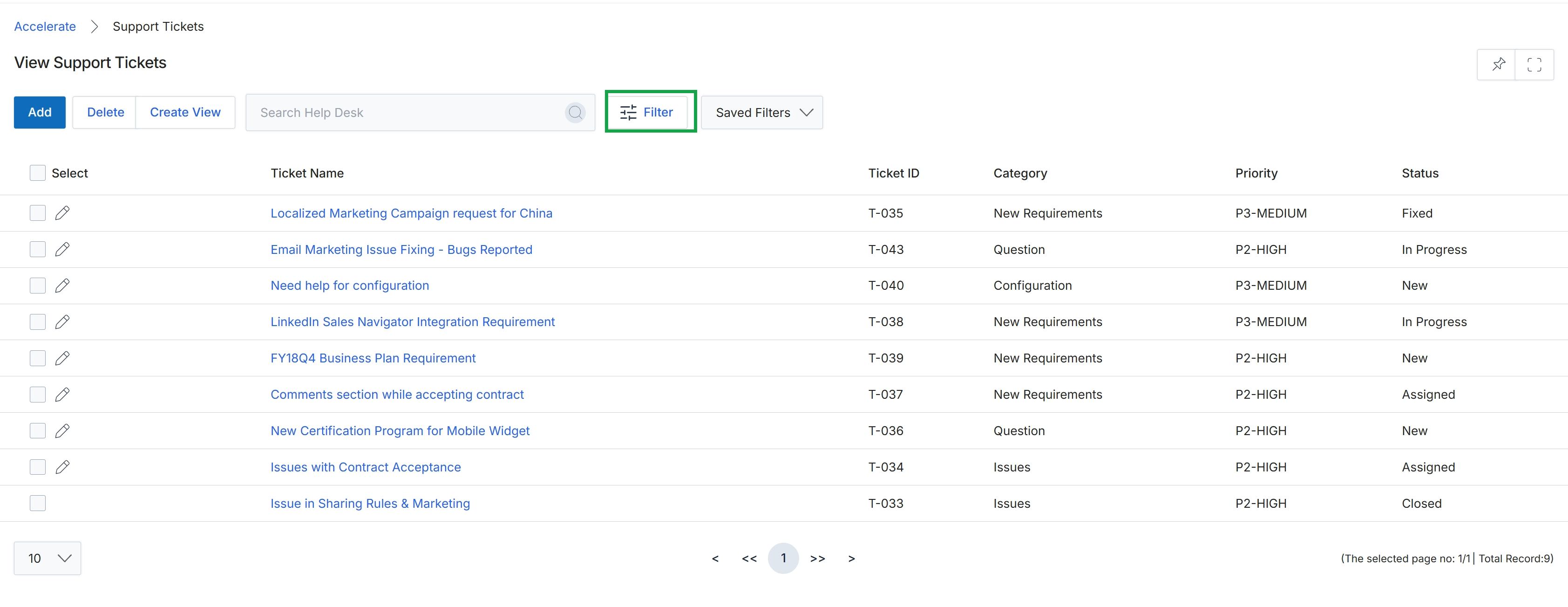
Close the filter panel by clicking the X icon in the top right corner.
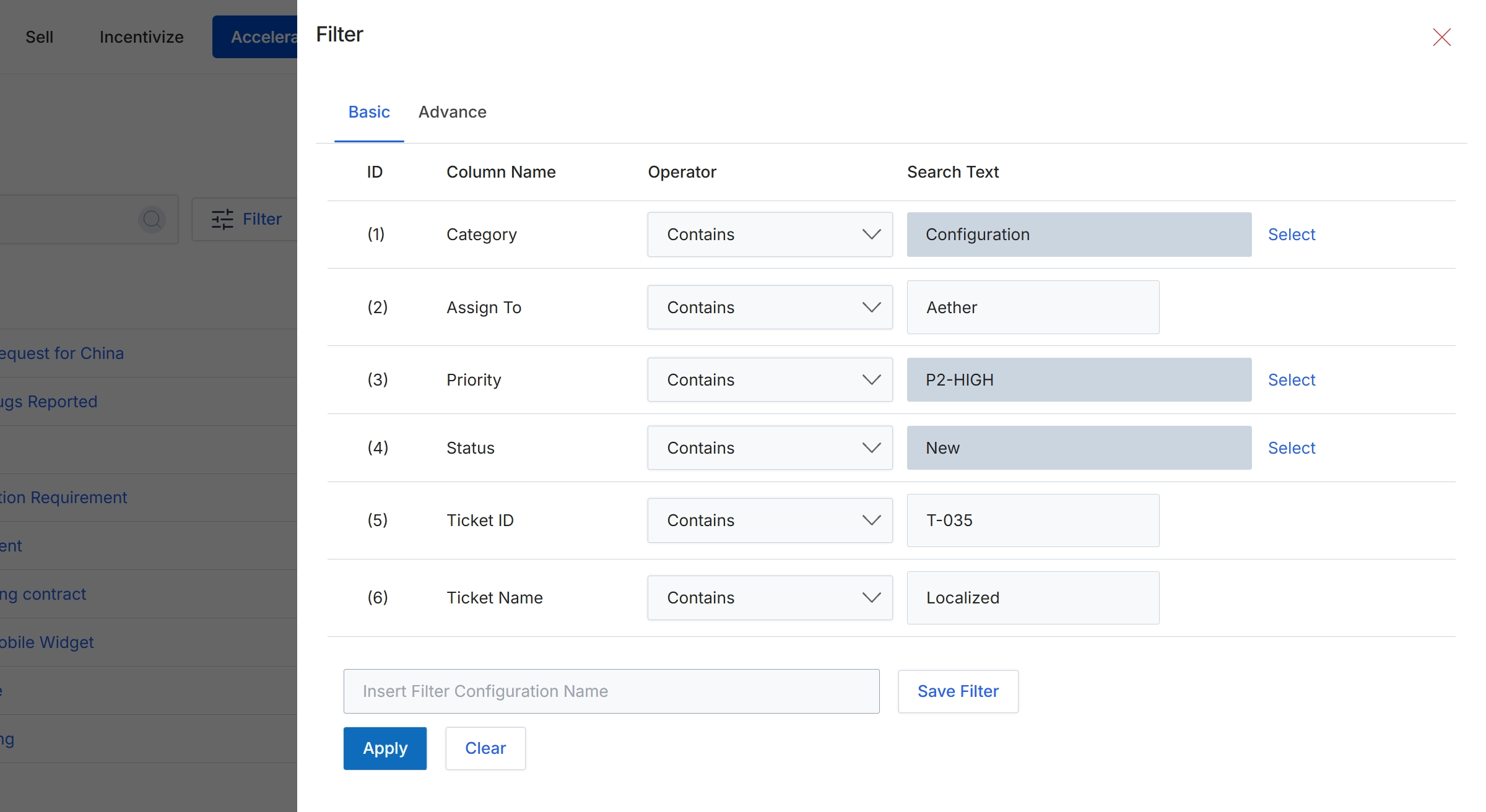
This filter modal provides a mechanism for users to refine the list of support tickets displayed in the main view. It allows for the application of specific criteria across various ticket attributes, enabling users to quickly locate relevant tickets based on their category, assignee, priority, status, ID, or name. The filtering capability is crucial for efficient management of support requests, especially when dealing with a large volume of tickets, as it helps channel managers or support agents focus on specific subsets of issues or responsibilities. Users can define multiple filter conditions, which are then applied to dynamically update the ticket list.
Click the "Apply" button to implement the defined filter criteria and update the support ticket list.
Buttons
| Button | Description |
|---|---|
| Basic | A tab that allows users to define filter conditions using a basic set of criteria fields. |
| Advance | A tab for defining more complex or advanced filter conditions. |
| Save Filter | A button to save the currently defined filter configuration under the specified name. |
| Apply | Applies the selected filter criteria to the support ticket list. |
| Clear | Clears all currently applied filter criteria. |
Fields
| Field | Description |
|---|---|
| Category | The category of the support ticket, such as 'Configuration'. |
| Assign To | The name of the user or team assigned to the support ticket, such as 'Aether'. |
| Priority | The priority level of the support ticket, such as 'P2-HIGH'. |
| Status | The current status of the support ticket, such as 'New'. |
| Ticket ID | The unique identifier for the support ticket, such as 'T-035'. |
| Ticket Name | The name or subject of the support ticket, such as 'Localized'. |
| Insert Filter Configuration Name | A text input field to enter a name for the current filter configuration to save it for future use. |
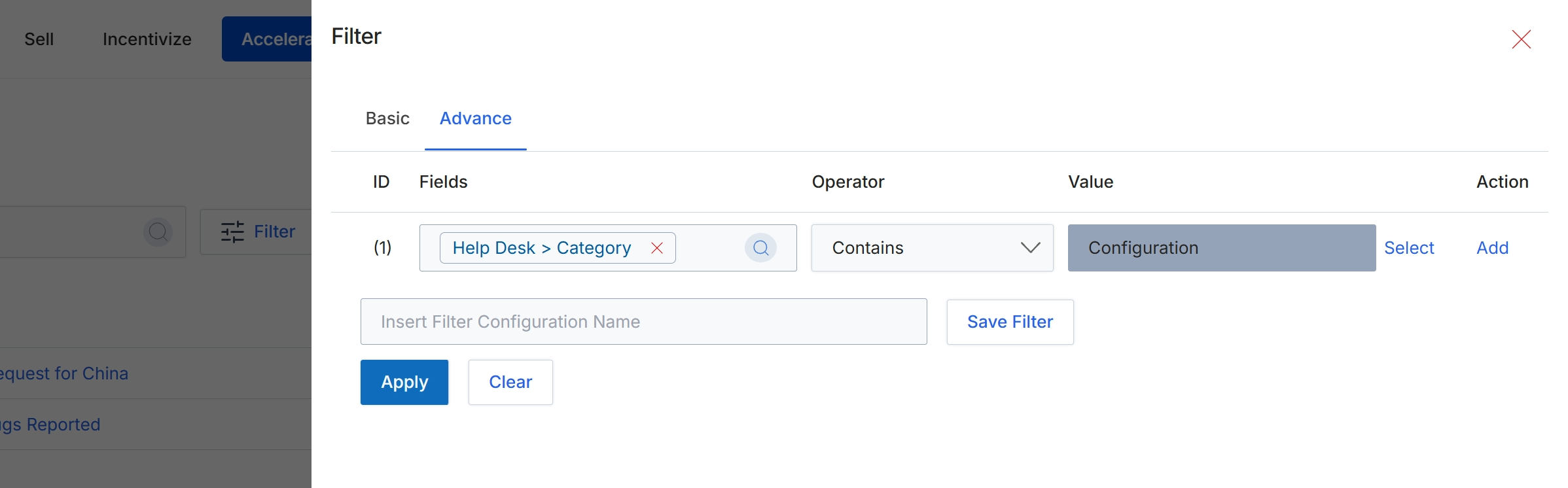
This screen displays the filter configuration dialog, allowing users to define criteria for narrowing down lists of items, such as support tickets. The dialog supports both basic and advanced filtering options, enabling precise data segmentation. Users can specify filter conditions by selecting a field, an operator, and a corresponding value. This functionality is crucial for efficiently managing and analyzing large datasets within the platform, helping users quickly locate specific records or groups of records based on their attributes. The configured filters can also be saved for future reuse, streamlining repetitive search tasks.
Configure the filter by selecting the desired field, operator, and value for your search criteria.
Buttons
| Button | Description |
|---|---|
| Basic | Switches to the basic filter configuration interface. |
| Advance | Switches to the advanced filter configuration interface, which allows for more complex, multi-condition filtering. |
| Select | Allows selection of a predefined value for the filter condition. |
| Add | Adds a new filter condition row to the configuration. |
| Save Filter | Saves the current filter configuration under the specified name for quick access later. |
| Apply | Applies the configured filter conditions to the list view, displaying only the matching records. |
| Clear | Resets all filter conditions, removing any applied filters. |
Fields
| Field | Description |
|---|---|
| Help Desk > Category | The selected field for the current filter condition, indicating that the filter applies to the category of help desk tickets. |
| Contains | The selected operator for the current filter condition, meaning the field's value must contain the specified text. |
| Configuration | The value entered for the current filter condition, indicating that the 'Help Desk > Category' field should contain 'Configuration'. |
| Insert Filter Configuration Name | A text input field to enter a name for the current filter configuration, allowing it to be saved for future use. |
Column Headings
| Column | Description |
|---|---|
| ID | Identifies the sequential number of the filter condition. |
| Fields | Represents the data field to which the filter condition will be applied, such as 'Help Desk > Category'. |
| Operator | Defines the comparison logic for the filter condition, such as 'Contains', 'Equals', 'Starts With', etc. |
| Value | Specifies the value against which the selected field will be compared using the chosen operator. |
| Action | Provides options to manage the filter condition, such as selecting a value or adding a new condition. |