

Overview
The Quotes section within the CPQ Management module is a critical tool for overseeing the sales proposals generated by partners. It allows administrators to maintain visibility into the quoting process, ensuring that pricing, discounts, and terms align with company policies. This oversight is crucial for maintaining brand consistency and financial integrity across all partner-driven sales efforts.
Administrators can efficiently manage a high volume of quotes by leveraging search, filtering, and custom view capabilities. This enables quick identification of quotes requiring approval, those nearing expiry, or those associated with specific accounts or partners. The ability to track the status of each quote, from 'Pending Approval' to 'Approved,' facilitates timely interventions and ensures a smooth progression from quote generation to sales order conversion.
Accessing the Quotes List
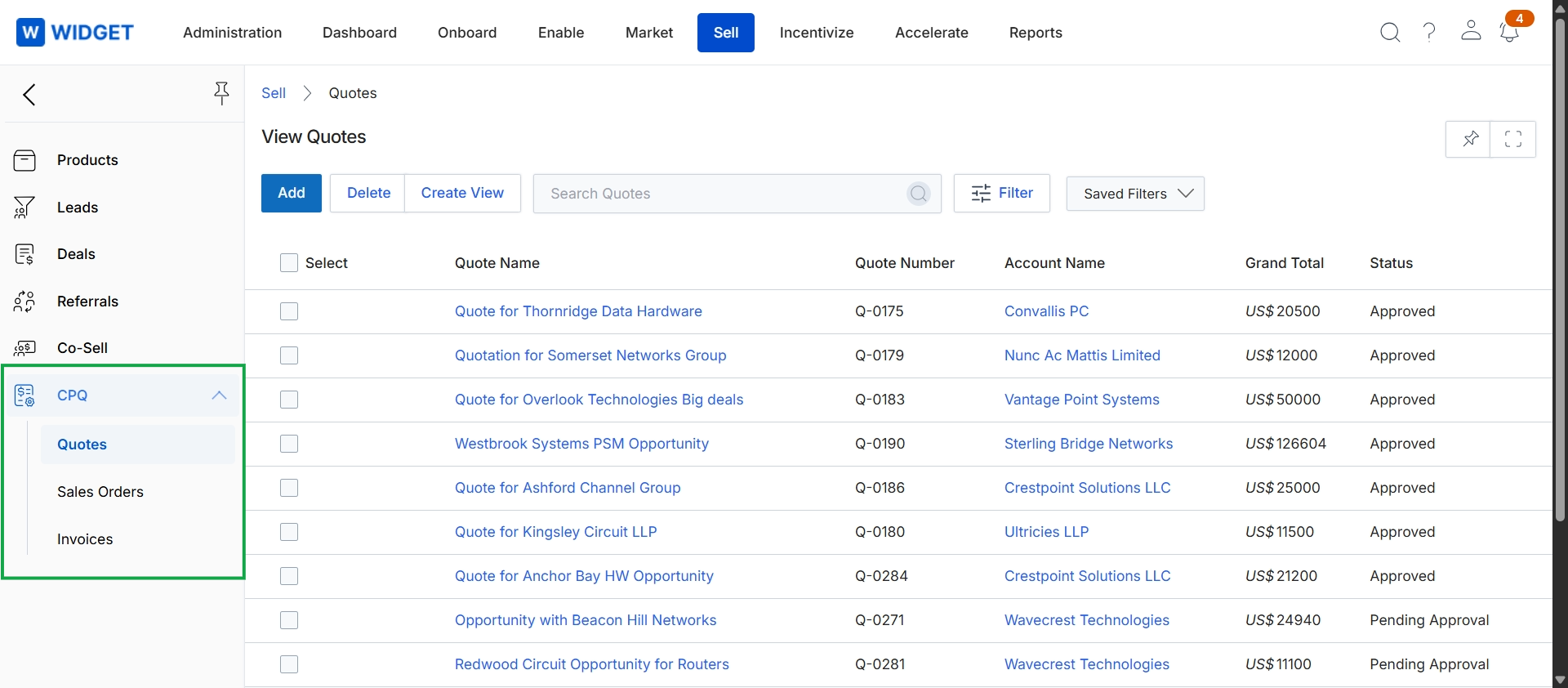
Click CPQ in the left navigation menu to expand the submenu, then click Quotes.
Managing Quotes View
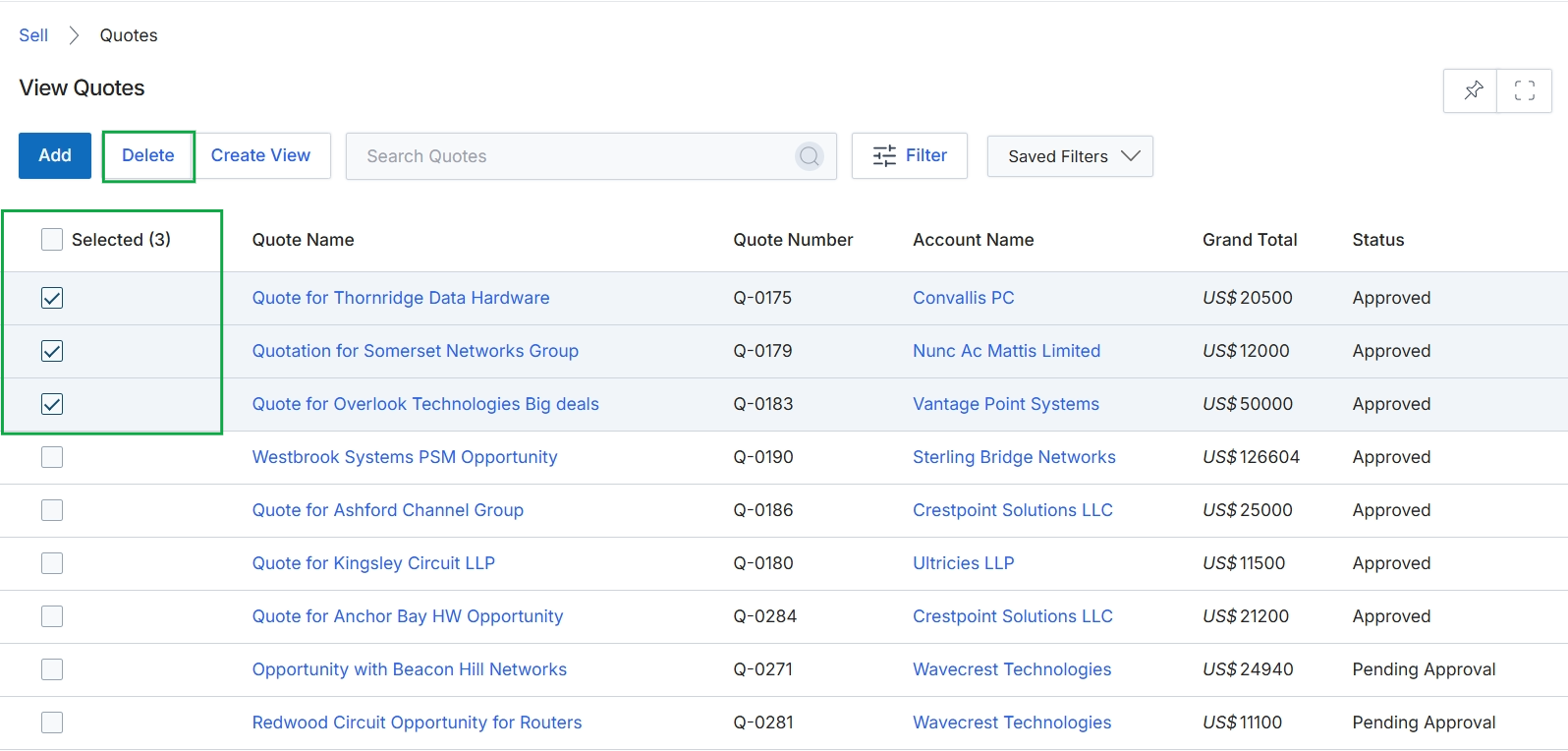
This screen displays a list of quotes within the Sell module, providing an overview of all generated quotes. It allows users to view key details for each quote, such as its name, number, associated account, grand total, and current status. The interface supports bulk actions, enabling users to select multiple quotes for processing, such as deletion, which is indicated by the highlighted 'Delete' button and the selected checkboxes next to several quote entries. This functionality is crucial for managing the lifecycle of quotes, from creation to finalization or removal.
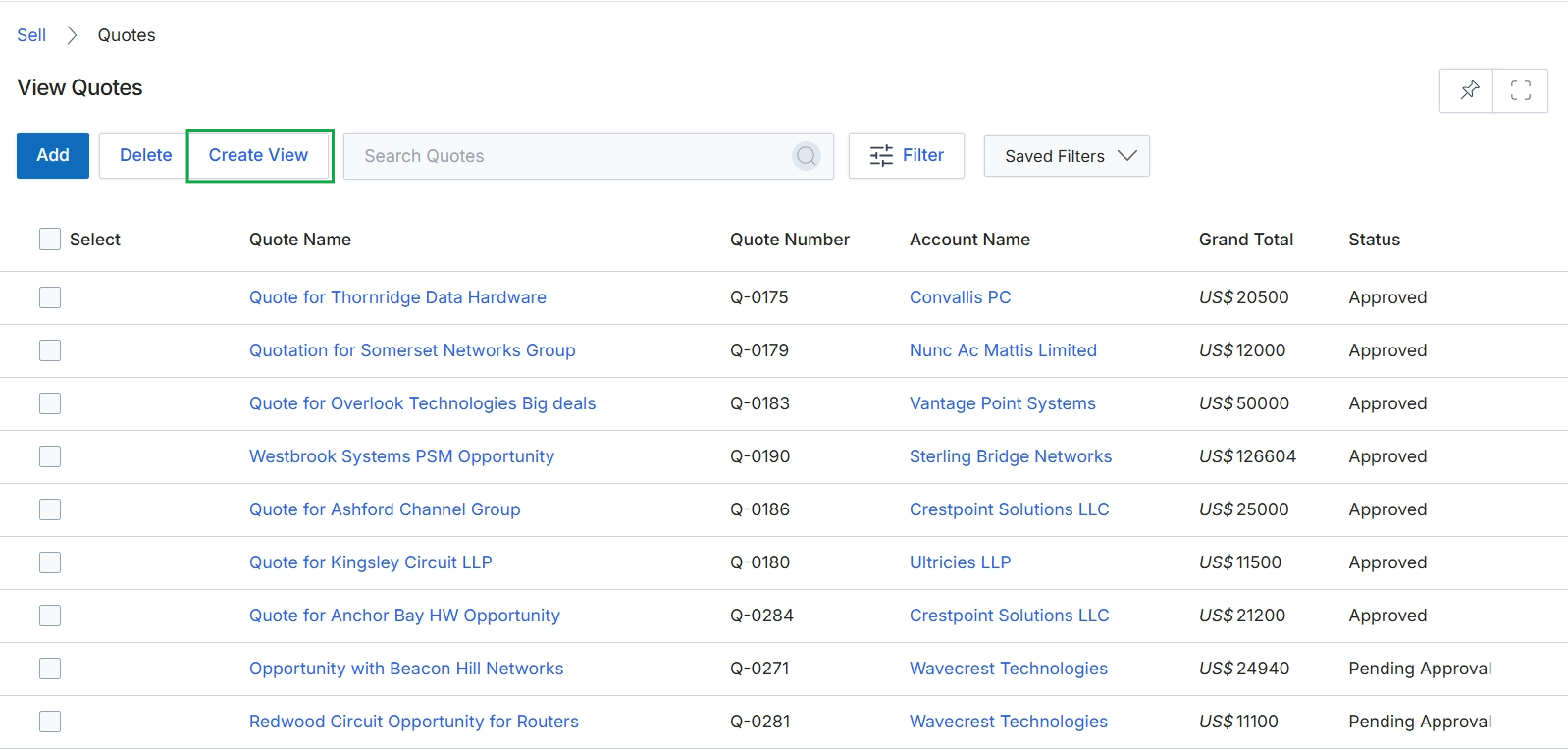
Click the Create View button.
Filtering and Customizing the View
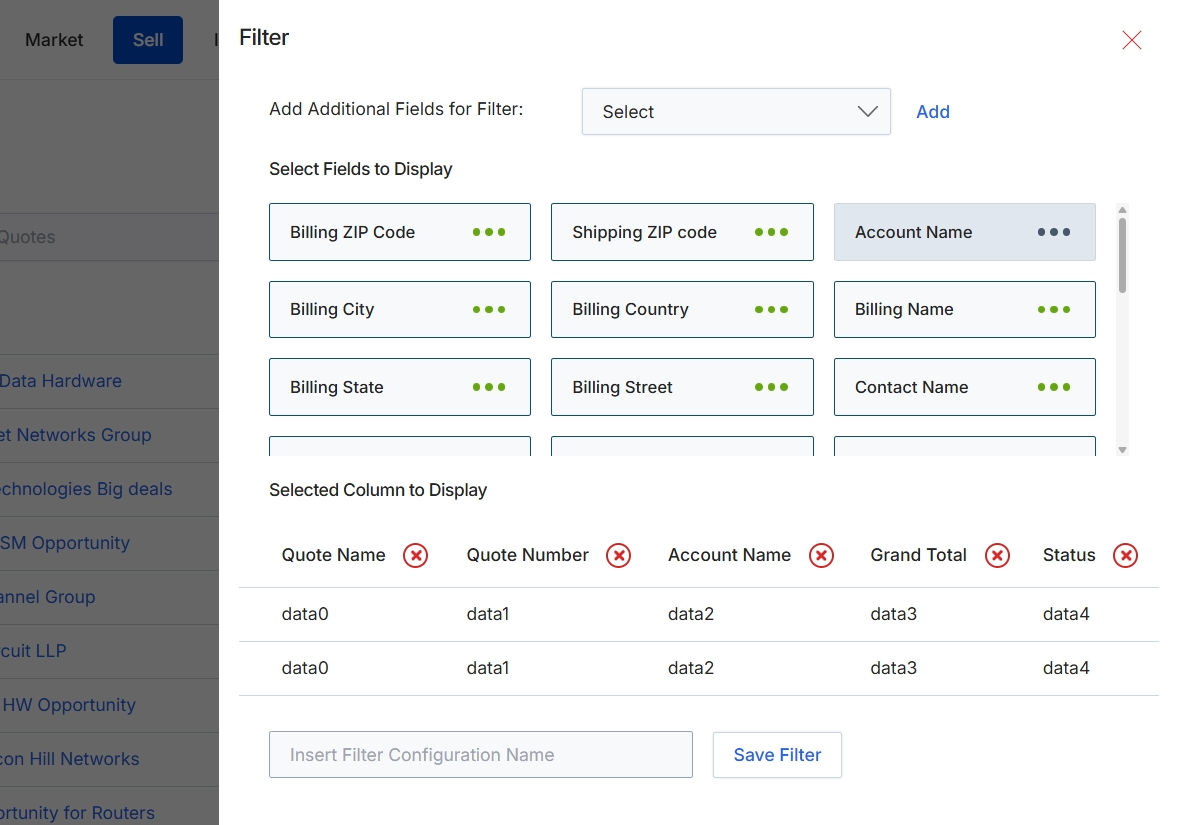
This filter configuration dialog allows administrators to customize the display and filtering options for the Quotes list view. It provides granular control over which data fields are available for filtering and which columns are visible in the main table. By adding specific fields to the filter options, users can quickly narrow down the list of quotes based on relevant criteria, enhancing data discoverability and management. The 'Selected Column to Display' section directly impacts the information presented in the Quotes list, enabling users to focus on key metrics and details relevant to their workflow.
Select additional fields from the "Add Additional Fields for Filter" dropdown to expand the filtering capabilities for the Quotes list view.
Buttons
| Button | Description |
|---|---|
| Add | A button to add the selected field from the dropdown to the 'Select Fields to Display' section. |
| Save Filter | A button to save the current filter configuration. |
Fields
| Field | Description |
|---|---|
| Add Additional Fields for Filter | A dropdown menu to select and add more fields that can be used to filter the Quotes list. |
| Insert Filter Configuration Name | A text input field to enter a name for the current filter configuration, allowing it to be saved for future use. |
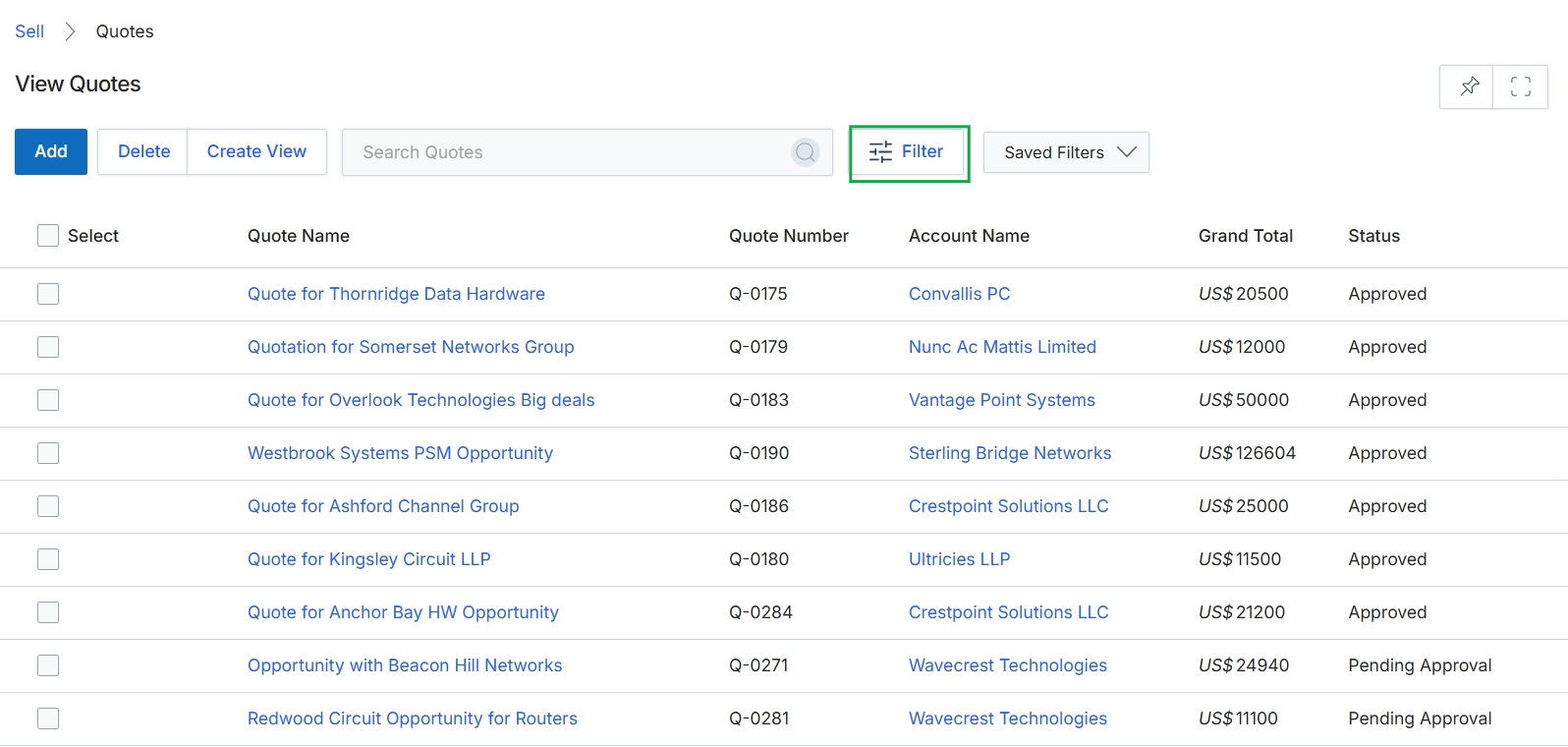
Click the Filter button.
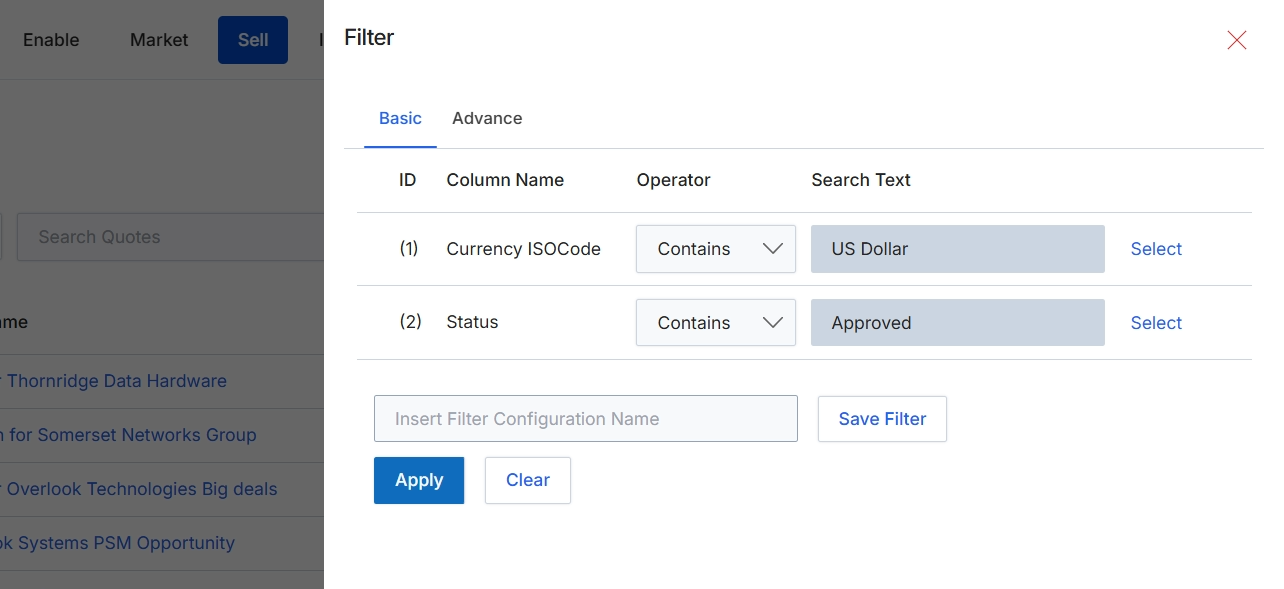
This modal dialog allows users to apply filters to the list of quotes, refining the displayed data based on specified criteria. It supports both basic and advanced filtering options, enabling users to narrow down the quote list by various attributes such as currency and status. This functionality is crucial for efficiently managing and reviewing quotes, especially in environments with a large volume of sales activities. Users can also save frequently used filter configurations for quick application in the future, streamlining their workflow.
Apply the pre-configured filters to the quotes list by clicking the "Apply" button.
Buttons
| Button | Description |
|---|---|
| Basic | Selects the basic filter configuration options. |
| Advance | Selects the advanced filter configuration options. |
| Save Filter | Saves the current filter configuration with the specified name. |
| Apply | Applies the configured filters to the quotes list. |
| Clear | Clears all applied filter criteria. |
Fields
| Field | Description |
|---|---|
| Insert Filter Configuration Name | Enter a name for the current filter configuration to save it for future use. |
Column Headings
| Column | Description |
|---|---|
| ID | Identifies the filter rule number. |
| Column Name | The name of the column to which the filter is applied, such as 'Currency ISOCode' or 'Status'. |
| Operator | The logical operator used for the filter condition, such as 'Contains'. |
| Search Text | The value to search for within the specified column, such as 'US Dollar' or 'Approved'. |
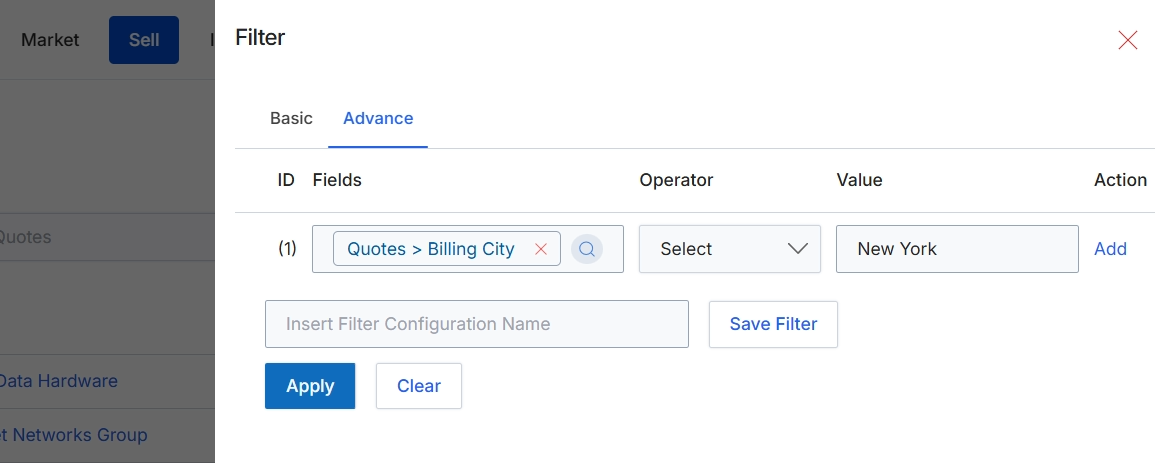
This screen displays the advanced filter options for refining the list of quotes. Users can define complex filtering criteria by selecting specific fields, operators, and values to narrow down the displayed quotes. This advanced filtering capability allows for precise data segmentation, enabling users to quickly locate quotes based on various attributes such as billing city, status, or value. The ability to save filter configurations streamlines future analysis and reporting by providing quick access to frequently used filter sets.
Apply the advanced filter to view quotes with a billing city of 'New York'.
Buttons
| Button | Description |
|---|---|
| Basic | Tab to switch to basic filtering options. |
| Advance | Tab to switch to advanced filtering options, allowing for more complex criteria. |
| Add | Button to add another filter rule. |
| Save Filter | Button to save the current filter configuration under the specified name. |
| Apply | Button to apply the configured filters to the quotes list. |
| Clear | Button to clear all applied filter criteria. |
Fields
| Field | Description |
|---|---|
| Quotes > Billing City | The selected field for the filter, indicating that quotes will be filtered by their billing city. |
| Select | Dropdown to choose the comparison operator for the filter rule. |
| New York | The value entered for the 'Billing City' filter, specifying that only quotes from New York should be displayed. |
| Insert Filter Configuration Name | Text input field to enter a name for the current filter configuration to save it for future use. |
Column Headings
| Column | Description |
|---|---|
| ID | Column header for the filter rule identifier. |
| Fields | Column header for the field to be filtered. |
| Operator | Column header for the comparison operator used in the filter rule. |
| Value | Column header for the value to compare against the selected field. |
| Action | Column header for actions related to the filter rule, such as adding or removing. |