

Overview
The Sales Orders feature within the Sell module is integral to managing the post-quote sales process. Once a quote is accepted by a customer, it can be converted into a sales order, signifying a confirmed purchase. This module allows administrators to oversee all such orders, providing a clear picture of closed deals and revenue generation. It serves as a critical link between the quoting process and subsequent actions like fulfillment, invoicing, and commission calculations in the Incentivize module.
Admins can use this tool to quickly find specific orders, analyze sales trends, and ensure that all necessary information for each transaction is accurately recorded. The ability to filter and customize views helps in focusing on relevant data, whether for reporting, auditing, or operational management. This ensures that the sales pipeline is not only tracked through deals and quotes but also formally closed out with verifiable sales orders.
Accessing Sales Orders
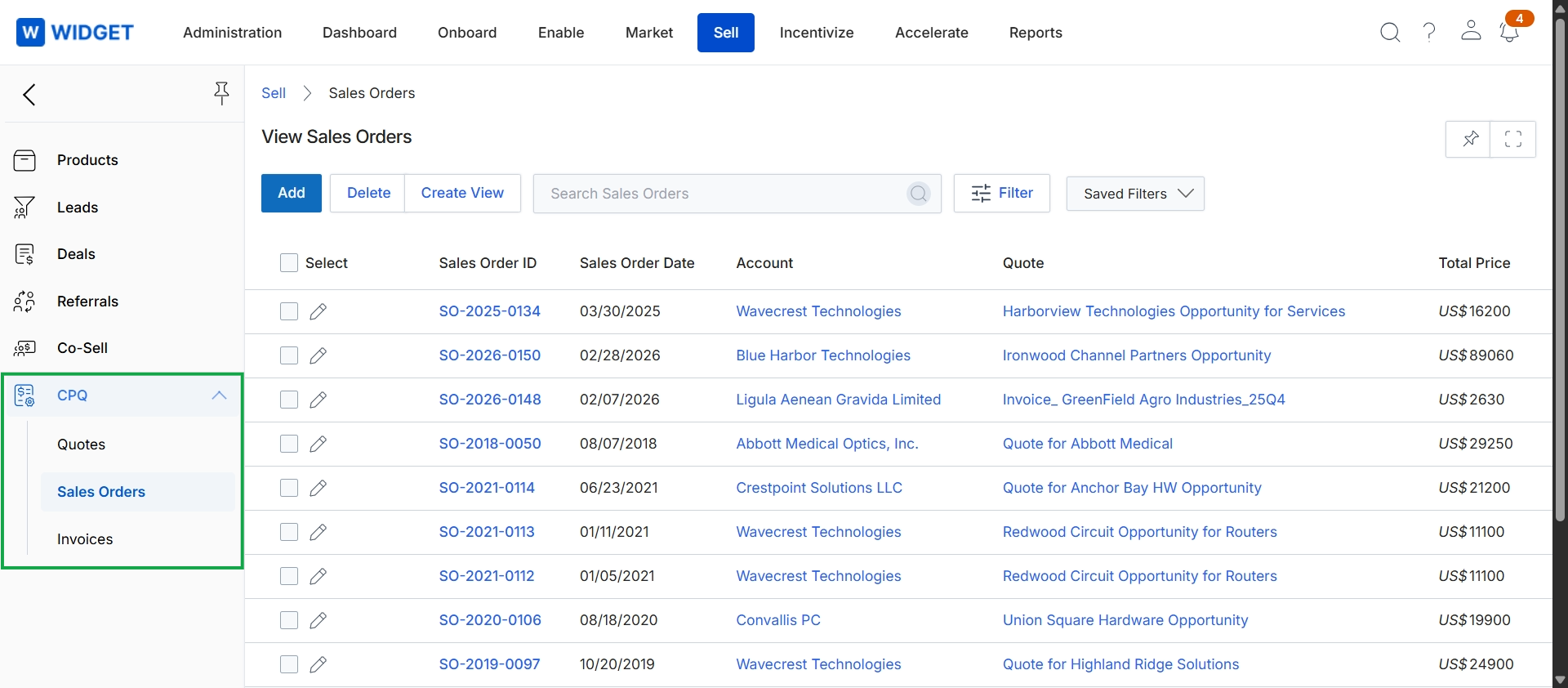
Click CPQ to expand the menu, then click Sales Orders.
Managing Sales Order Views
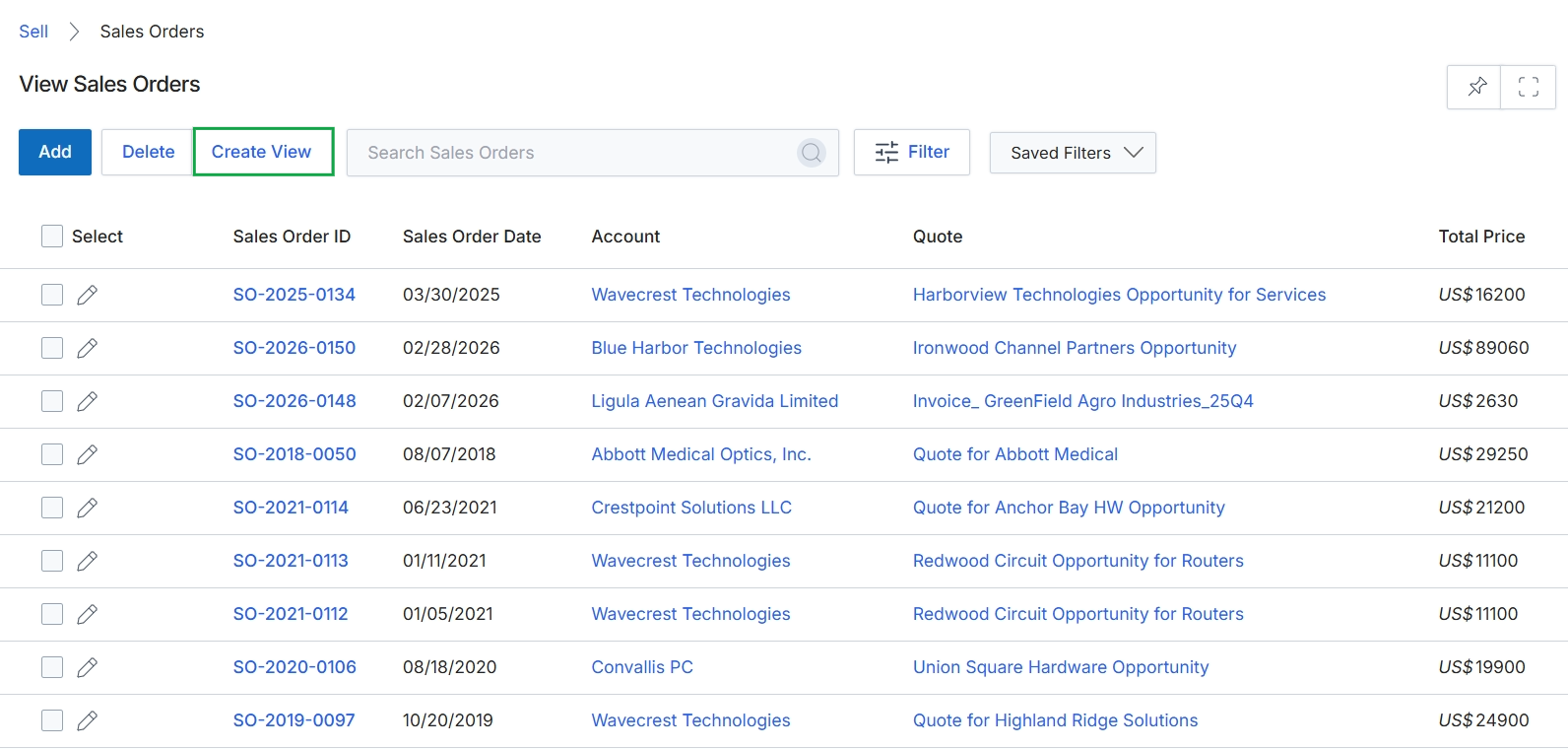
Click Create View.
Customizing Display Columns
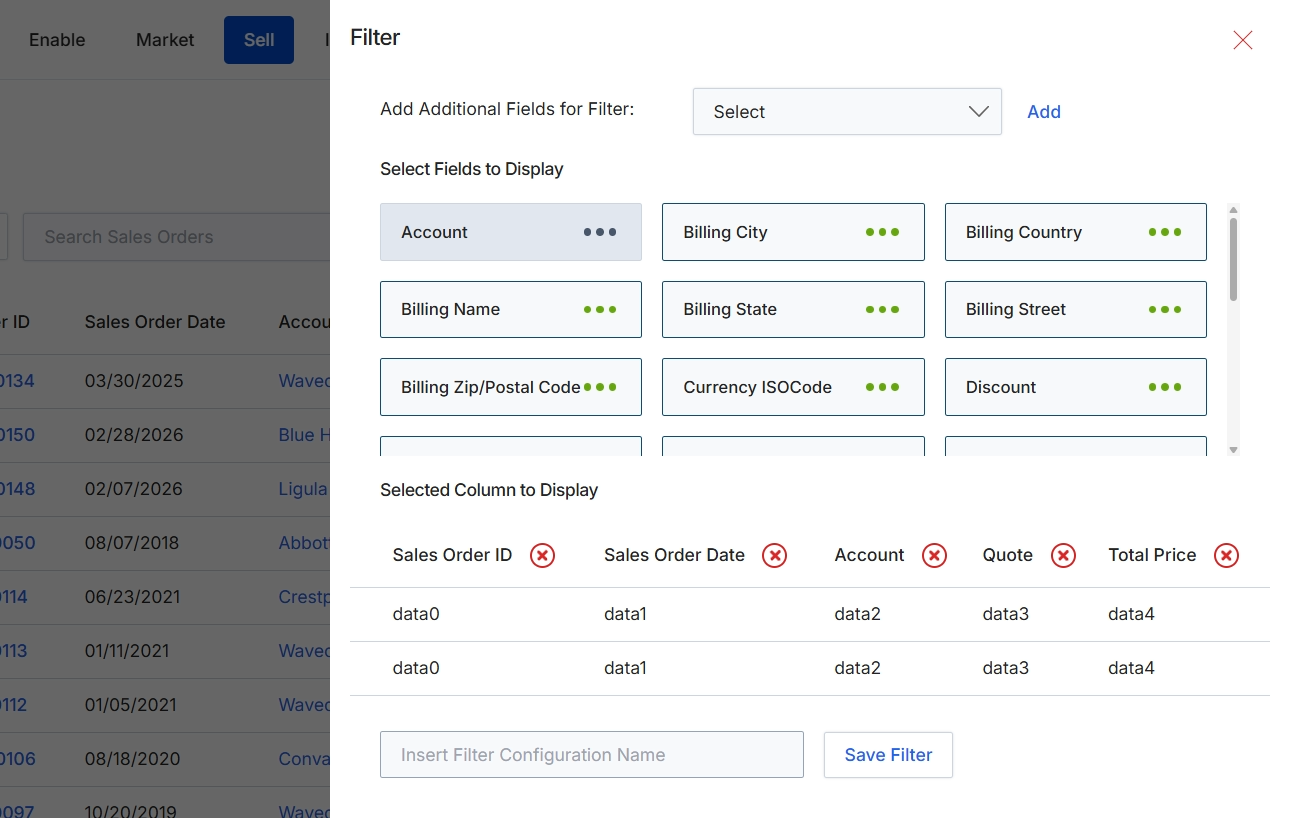
This filter configuration dialog allows users to customize the display of sales order data by selecting which fields appear as columns in the Sales Orders list view. Users can add new fields to the display, remove existing ones, and rearrange their order to create a personalized view that highlights the most relevant information for their workflow. This feature enhances data visibility and user efficiency by enabling quick access to critical sales order details without navigating to individual record pages. The configured display settings can be saved as named filters for future reuse, streamlining reporting and analysis tasks.
Enter a name for the current filter configuration to save it for future use.
Buttons
| Button | Description |
|---|---|
| Save Filter | A button to save the current filter configuration under the specified name. |
Fields
| Field | Description |
|---|---|
| Add Additional Fields for Filter | A dropdown menu to select additional fields that can be displayed as columns in the Sales Orders list. |
| Select Fields to Display | This section shows the fields currently available for selection to be displayed as columns. Users can click on these fields to add them to the 'Selected Column to Display' area. |
| Selected Column to Display | This section shows the fields that have been selected to be displayed as columns in the Sales Orders list. Users can remove fields by clicking the 'X' icon next to each field. |
| Insert Filter Configuration Name | An input field to enter a custom name for the current filter configuration, allowing it to be saved and reused. |
Applying Basic Filters
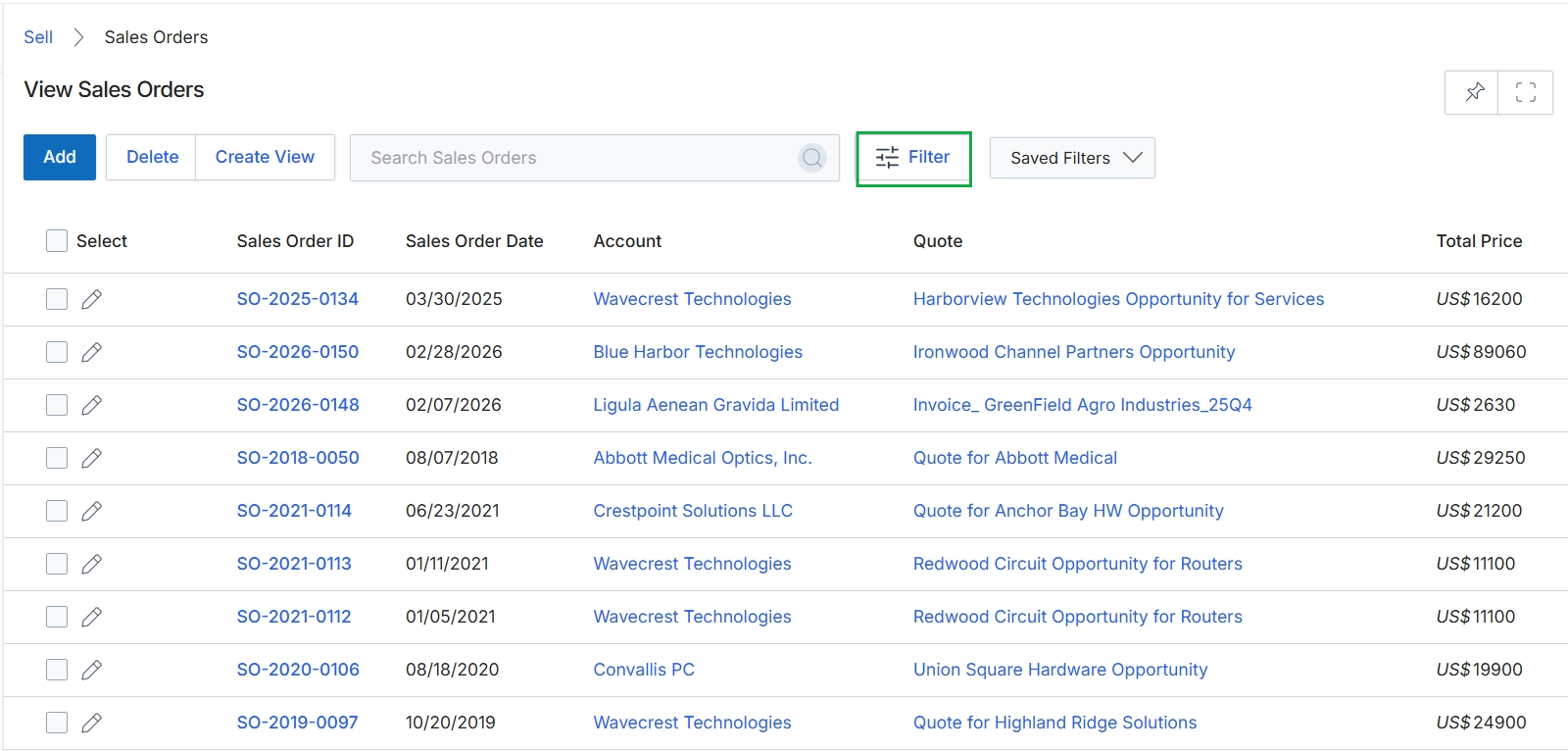
Click the Filter button.
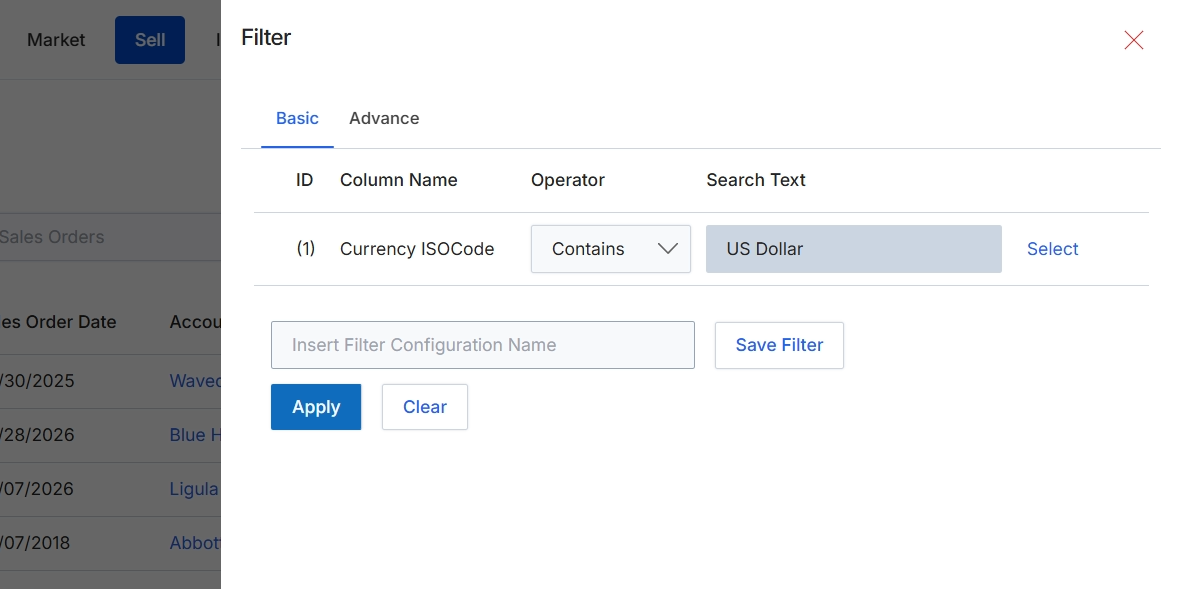
This filter dialog allows users to refine the displayed list of sales orders by applying specific criteria. Users can define one or more filter conditions based on various column names, select an operator (e.g., 'Contains', 'Equals', 'Starts With'), and provide a search value. This functionality is crucial for efficiently navigating large datasets of sales orders, enabling users to quickly locate specific orders or groups of orders that match their requirements. Filters can be saved for future use, streamlining repetitive search tasks and improving overall productivity within the Sell module.
Apply the filter to view sales orders where the 'Currency ISOCode' contains 'US Dollar'.
Buttons
| Button | Description |
|---|---|
| Basic | Tab to configure basic filter conditions. |
| Advance | Tab to configure advanced filter conditions. |
| Select | Button to select a value for the search text. |
| Save Filter | Button to save the current filter configuration for future use. |
| Apply | Button to apply the configured filter to the sales orders list. |
| Clear | Button to clear all filter conditions. |
Fields
| Field | Description |
|---|---|
| Currency ISOCode | The name of the column being filtered, representing the ISO code for currency. |
| Contains | Dropdown to select the operator for the filter condition, currently set to 'Contains'. |
| US Dollar | The search text entered for the 'Currency ISOCode' filter. |
| Insert Filter Configuration Name | Field to enter a name for saving the current filter configuration. |
Column Headings
| Column | Description |
|---|---|
| ID | Column header for the filter condition identifier. |
| Column Name | Column header for the name of the field to filter by. |
| Operator | Column header for the comparison operator used in the filter condition. |
| Search Text | Column header for the value to search for within the selected column. |
Using Advanced Filters
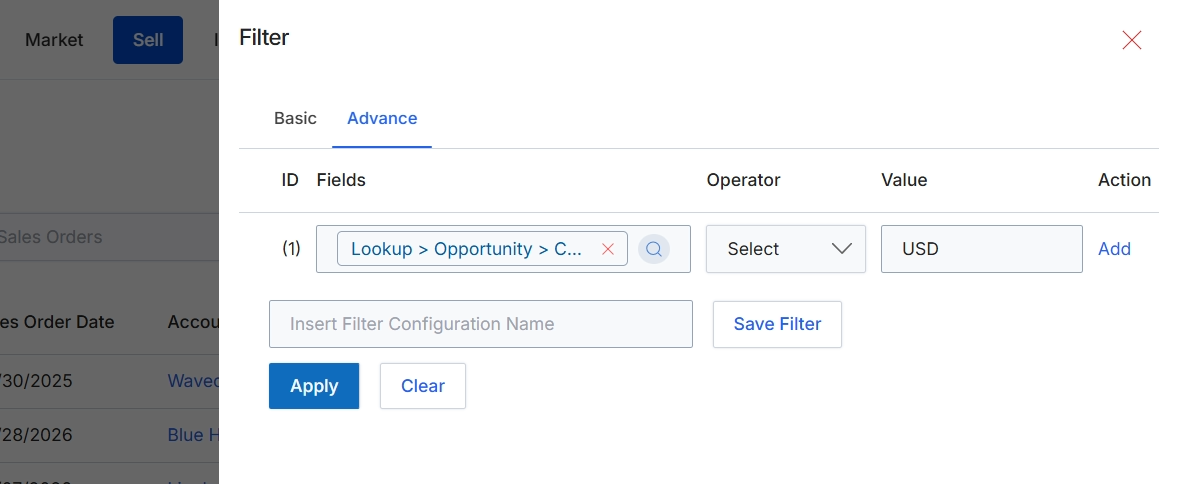
The Filter dialog provides options for refining the displayed list of sales orders. It supports both basic and advanced filtering capabilities to help users quickly locate specific records. The advanced filter allows for the construction of complex query conditions using multiple criteria, operators, and values, which is particularly useful for large datasets or when precise data segmentation is required. Users can also save frequently used filter configurations for future use, streamlining their workflow and improving efficiency in managing sales order data.
Click the "Apply" button to apply the configured advanced filter to the sales orders list.
Buttons
| Button | Description |
|---|---|
| Basic | Switches the filter interface to basic mode, offering simpler filtering options. |
| Advance | Switches the filter interface to advanced mode, allowing for complex, multi-conditional filtering. |
| Add | Adds a new filter condition row. |
| Save Filter | Saves the current filter configuration for future use. |
| Clear | Clears all applied filter conditions. |
Fields
| Field | Description |
|---|---|
| Lookup > Opportunity > C... | A field displaying the currently selected field path for the filter condition. |
| Select | A dropdown to choose the operator for the filter condition. |
| USD | A field displaying the value for the filter condition. |
| Insert Filter Configuration Name | Input field to enter a name for saving the current filter configuration. |
Column Headings
| Column | Description |
|---|---|
| ID | Column header for the filter rule identifier. |
| Fields | Column header for the field to be filtered. |
| Operator | Column header for the comparison operator (e.g., equals, contains, greater than). |
| Value | Column header for the value to compare against the selected field. |
| Action | Column header for actions related to the filter rule, such as adding or removing a rule. |