

Overview
Effective content organization is crucial for partner enablement, as it directly impacts a partner's ability to quickly access and utilize valuable resources. The Video Library's category management system provides a structured approach to classify video content, making it intuitive for partners to browse and locate specific training, product demonstrations, or marketing materials. By creating logical categories and sub-categories, vendors can enhance the partner experience and ensure that their video assets are easily discoverable and consumable, ultimately supporting partner self-service and reducing support inquiries.
This robust categorization system also allows administrators to maintain a clean and organized video library as content grows. It supports the dynamic needs of a partner program by enabling quick updates to category information, status, and the association of videos. The ability to define parent-child relationships between categories ensures a logical flow, mirroring how partners might think about and search for information, thereby maximizing the utility of the video content for various partner types and tiers.
Accessing and Viewing Categories
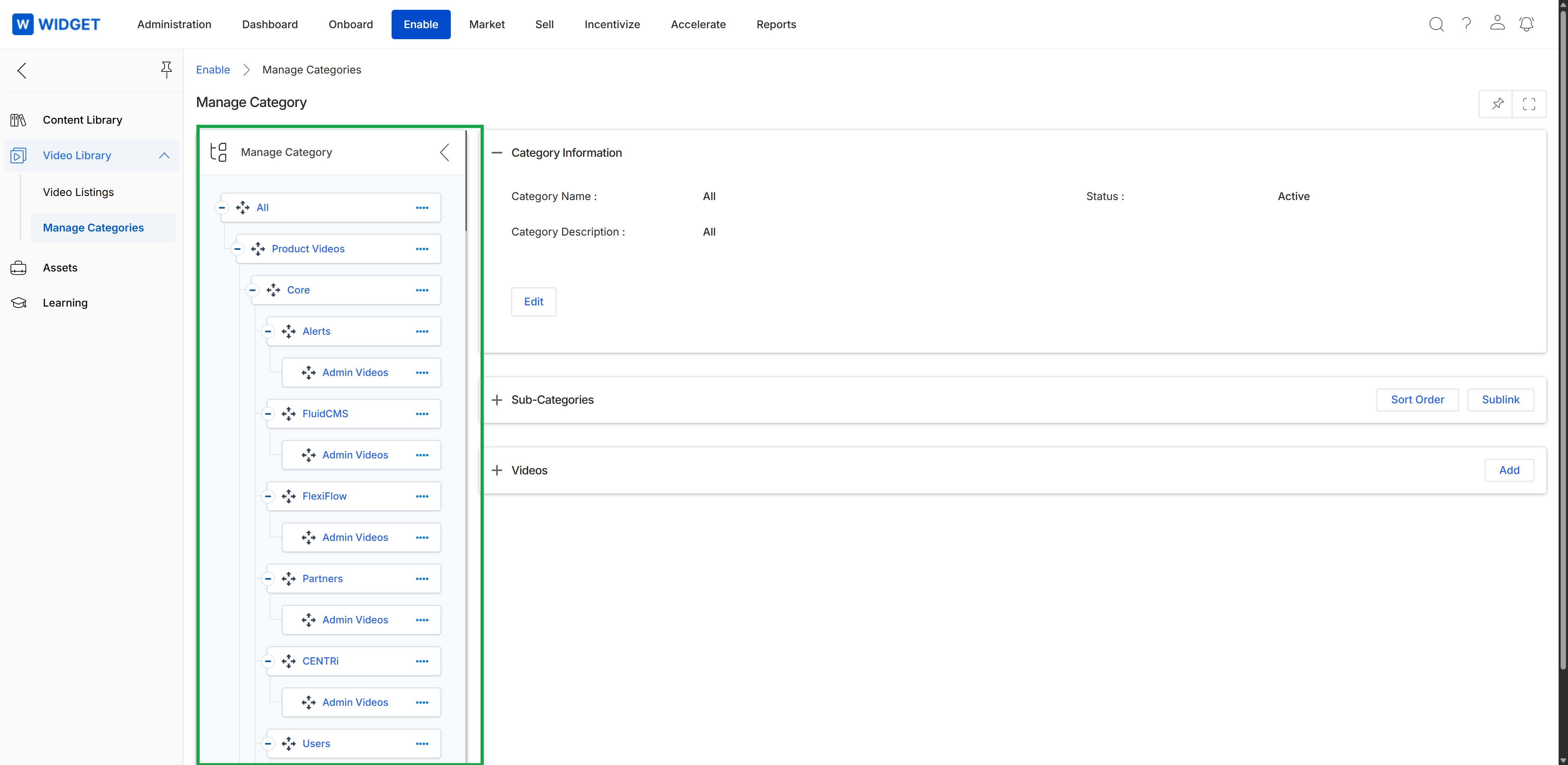
Click Enable → Video Library → Manage Categories.
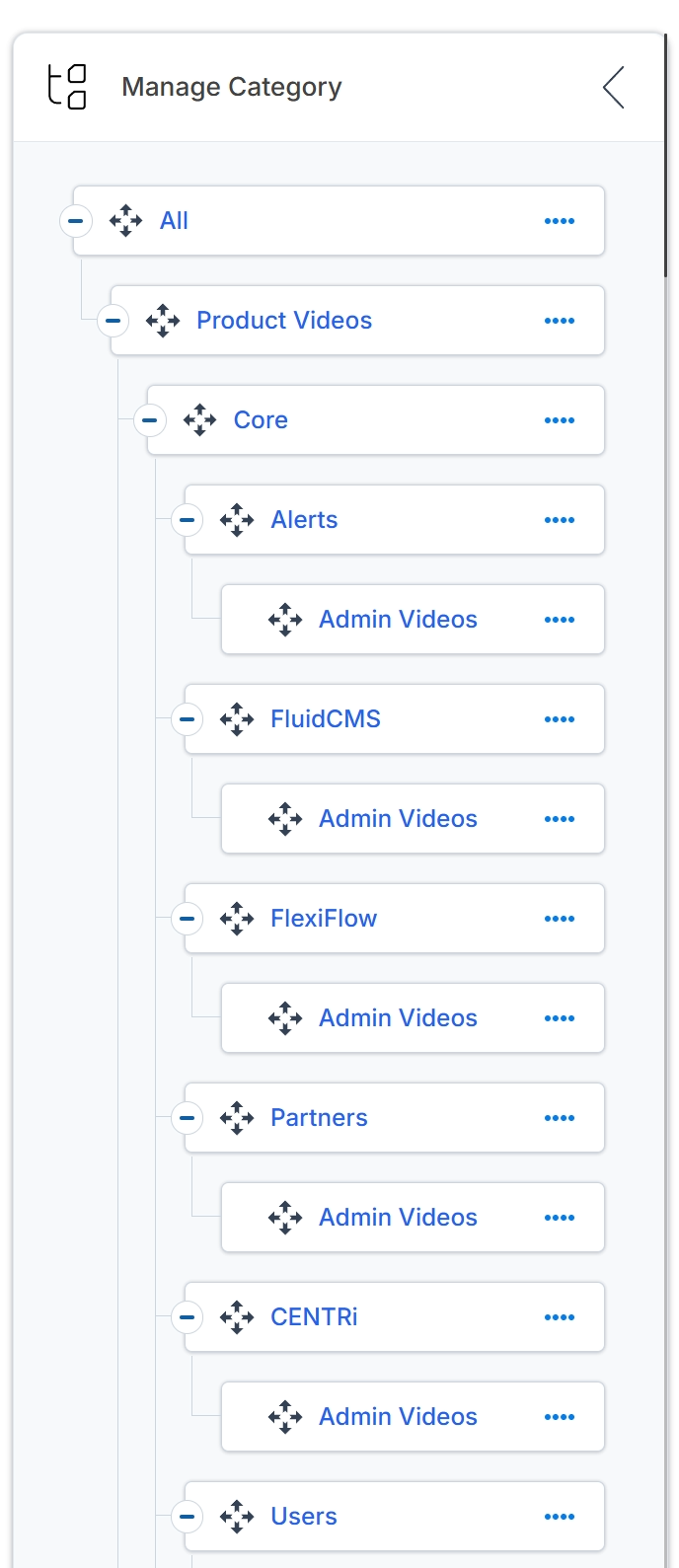
This screen provides the interface for managing video categories within the Enable module's Content Library. It presents a hierarchical tree view of existing video categories on the left panel, allowing administrators to organize video content. The right panel shows the details of the currently selected category, including its name, description, and status, along with sections for managing sub-categories and associated videos. This view enables vendors to structure their video library logically for partners.
Managing Category Information
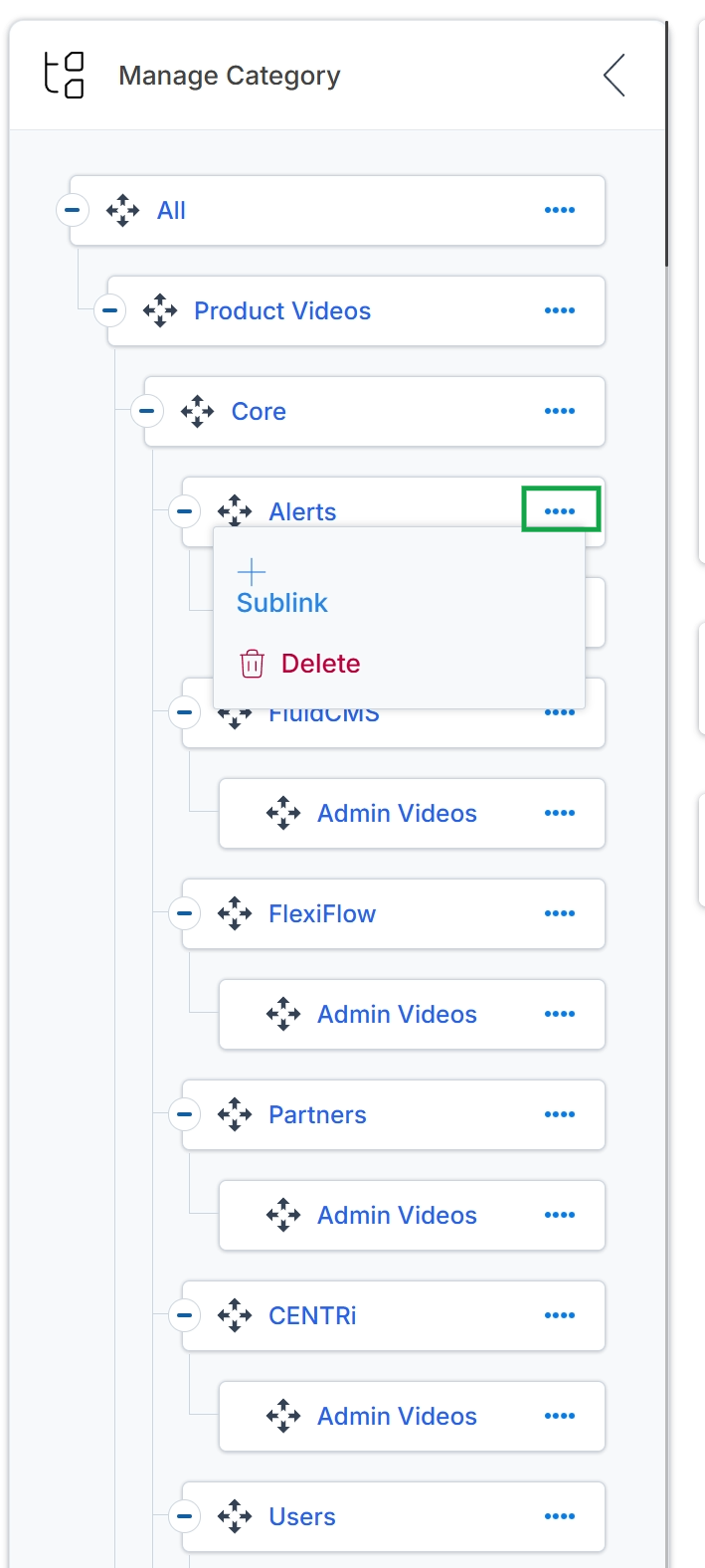
This screen displays the interface for managing video categories within the Enable module's Content Library. It shows a hierarchical tree structure of existing video categories and subcategories on the left panel. The right panel provides detailed information for the currently selected category, including its name, description, and status. This view allows administrators to organize video content into a logical structure, which helps partners navigate and find relevant training and marketing materials more efficiently. The second image shows a context menu that appears when the ellipsis icon next to a category is clicked, revealing options such as "Sublink" and "Delete" for managing the selected category.
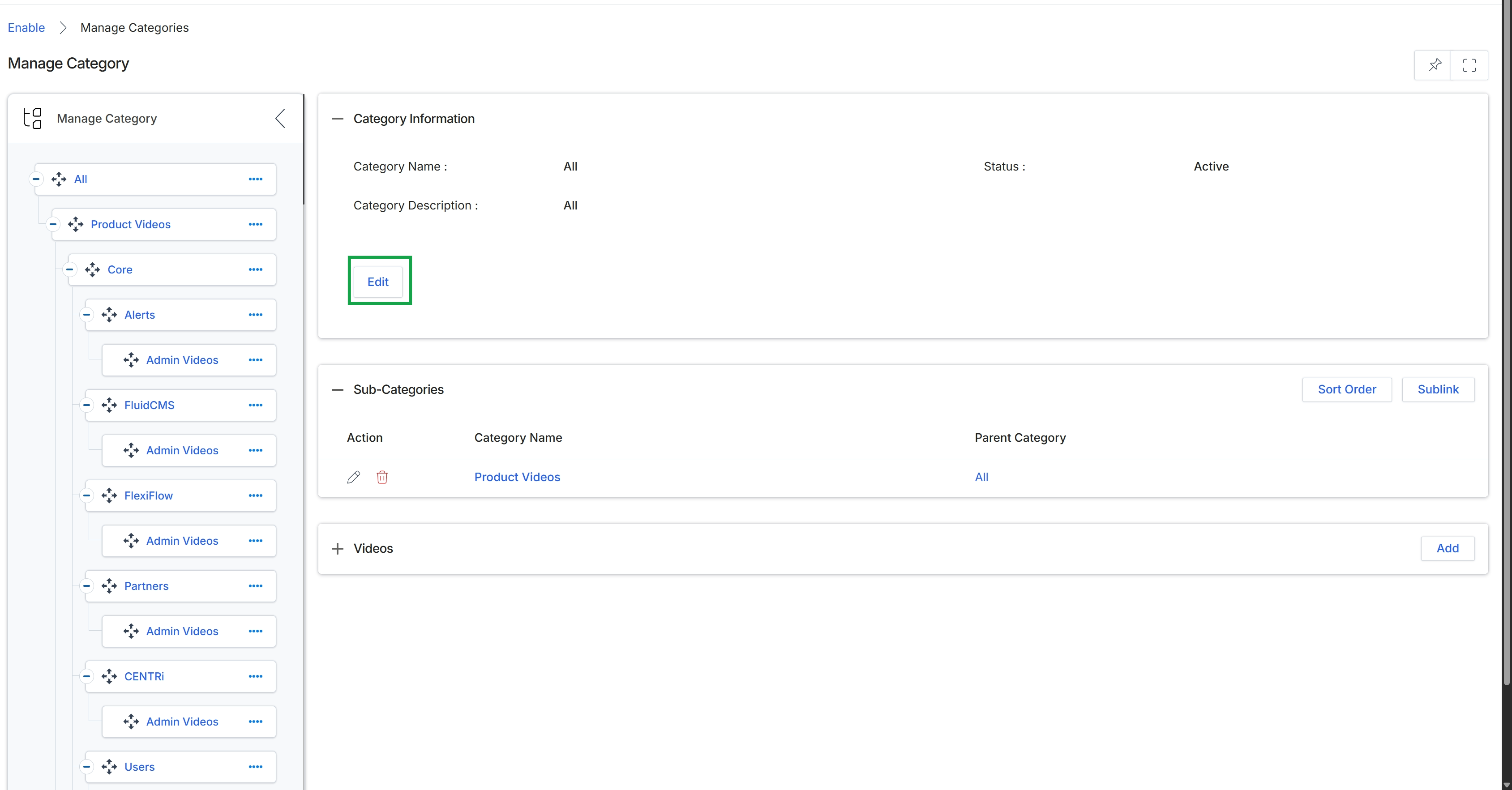
Click the Edit button to add or edit a category.
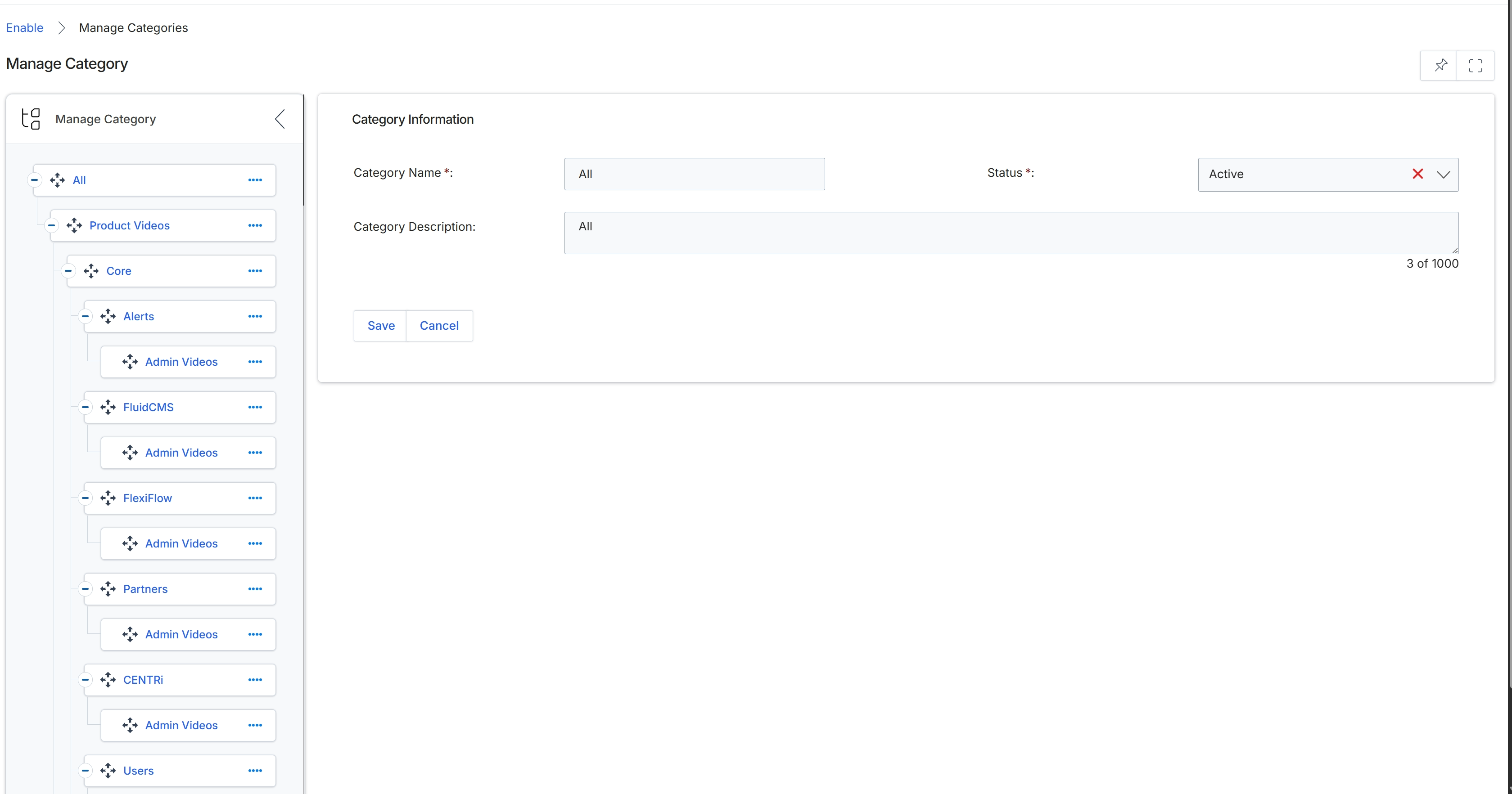
This screen presents the interface for managing video categories within the Enable module's content library, allowing administrators to view and edit the details of a selected video category. The left panel displays a hierarchical tree structure of all video categories, facilitating navigation and selection, while the right panel shows the editable fields for the currently selected category. This view is crucial for organizing video content, ensuring partners can easily find relevant training and marketing materials by defining category names, descriptions, and their active status.
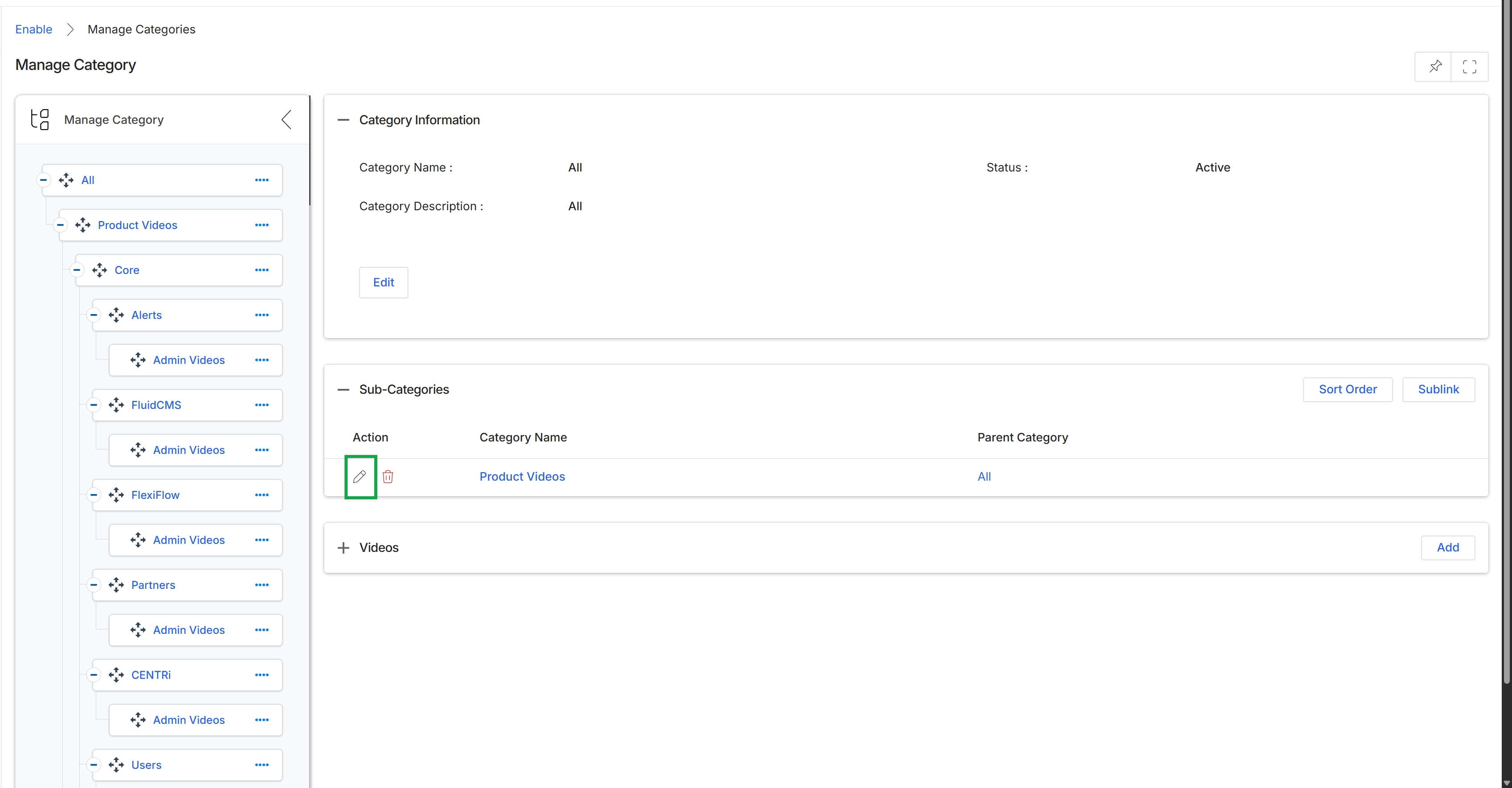
Click the Edit icon (pencil icon) next to the "Product Videos" sub-category.
Adding and Editing Categories
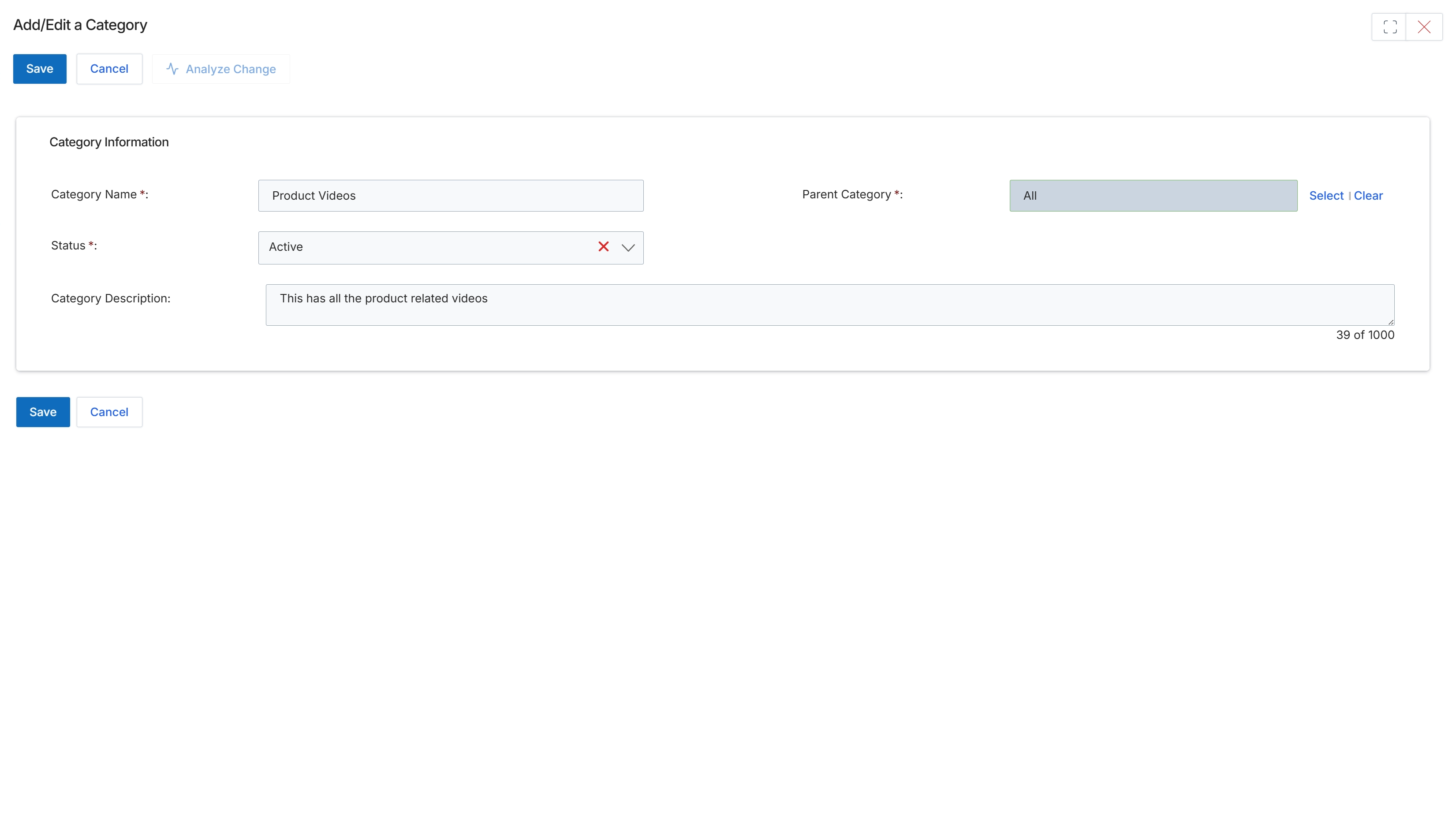
This screen presents the form for adding or editing a video category within the Enable module's content library. It allows administrators to define essential attributes for organizing video content, such as the category's name, its hierarchical parent category, its active or inactive status, and a descriptive text. This functionality is crucial for structuring the video library, ensuring partners can efficiently navigate and locate relevant training or marketing videos within their portal.
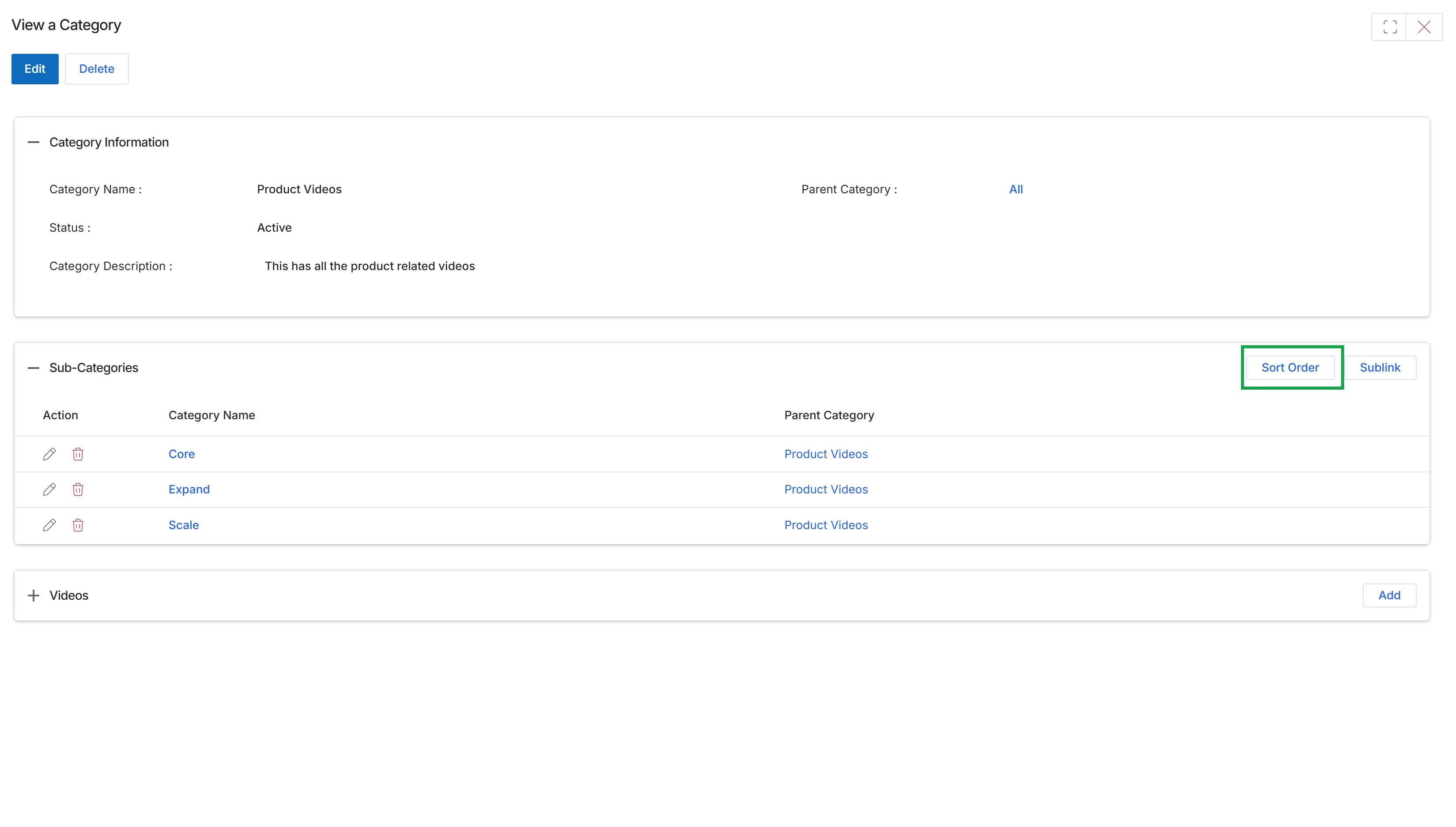
Click the Sort Order link to reorder the listed sub-categories.
Organizing Sub-Categories
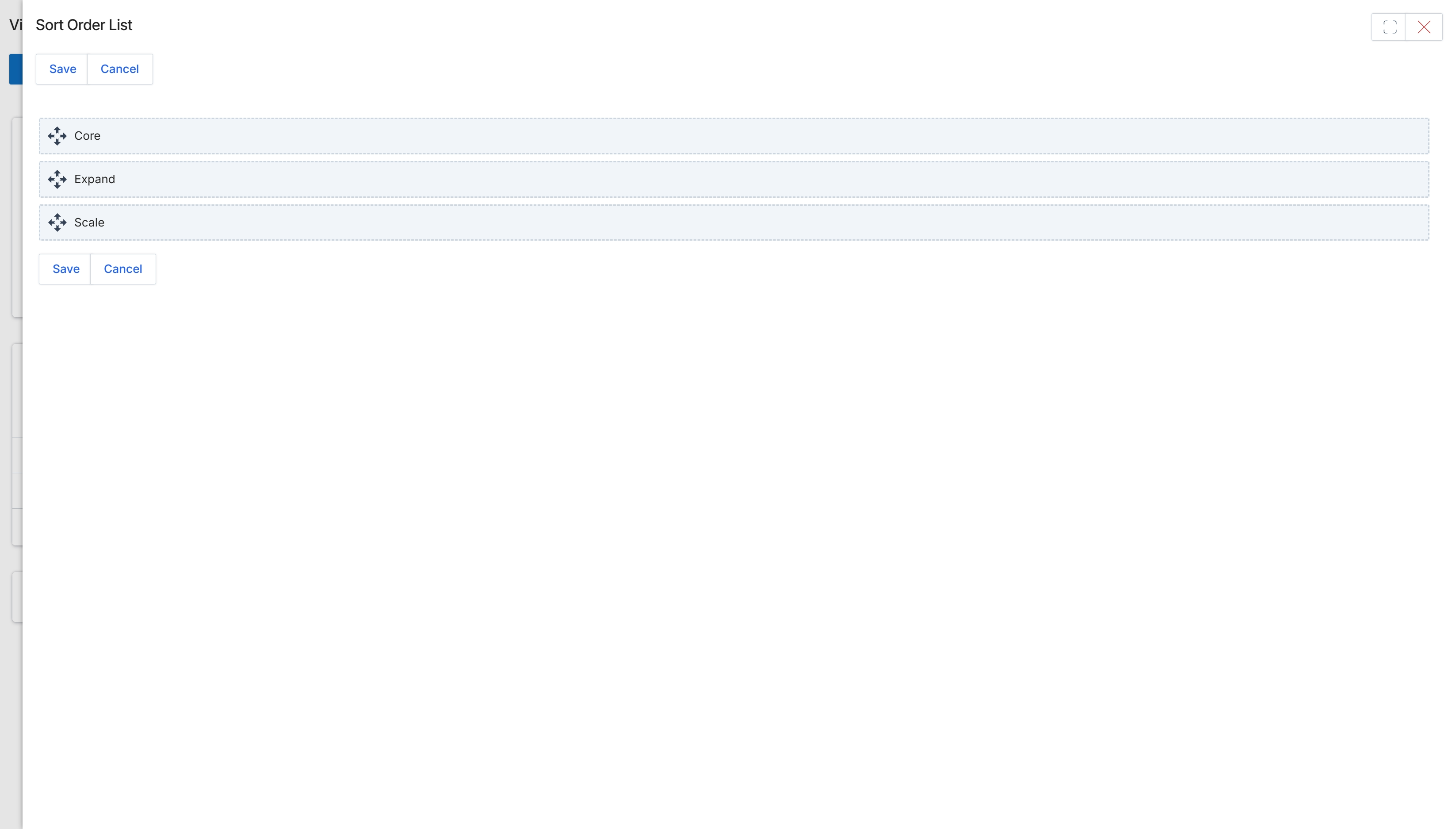
Click Sort Order to open the Sort Order List for sub-categories.
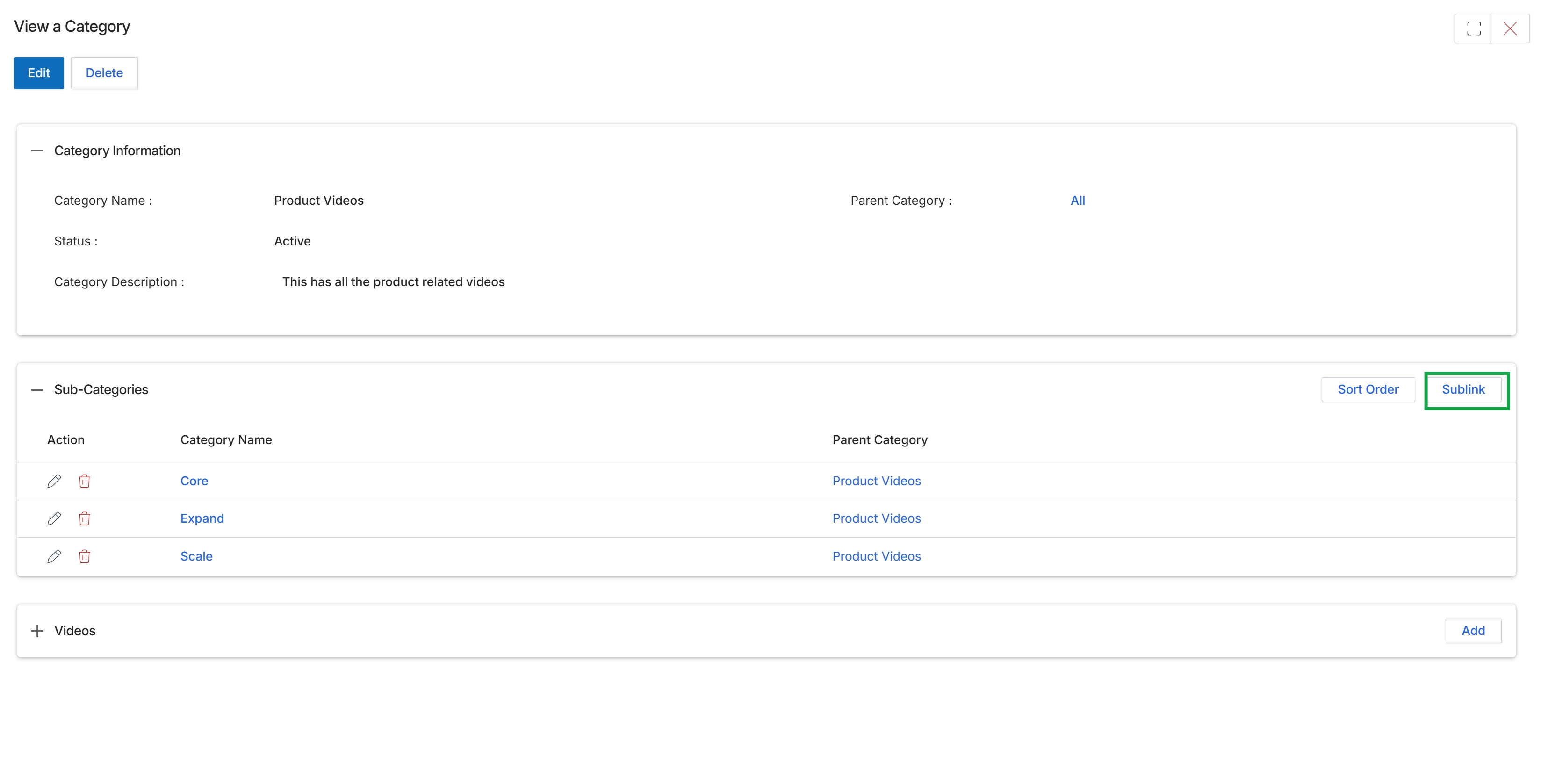
Click the Sublink button to add a new sub-category under the current category.
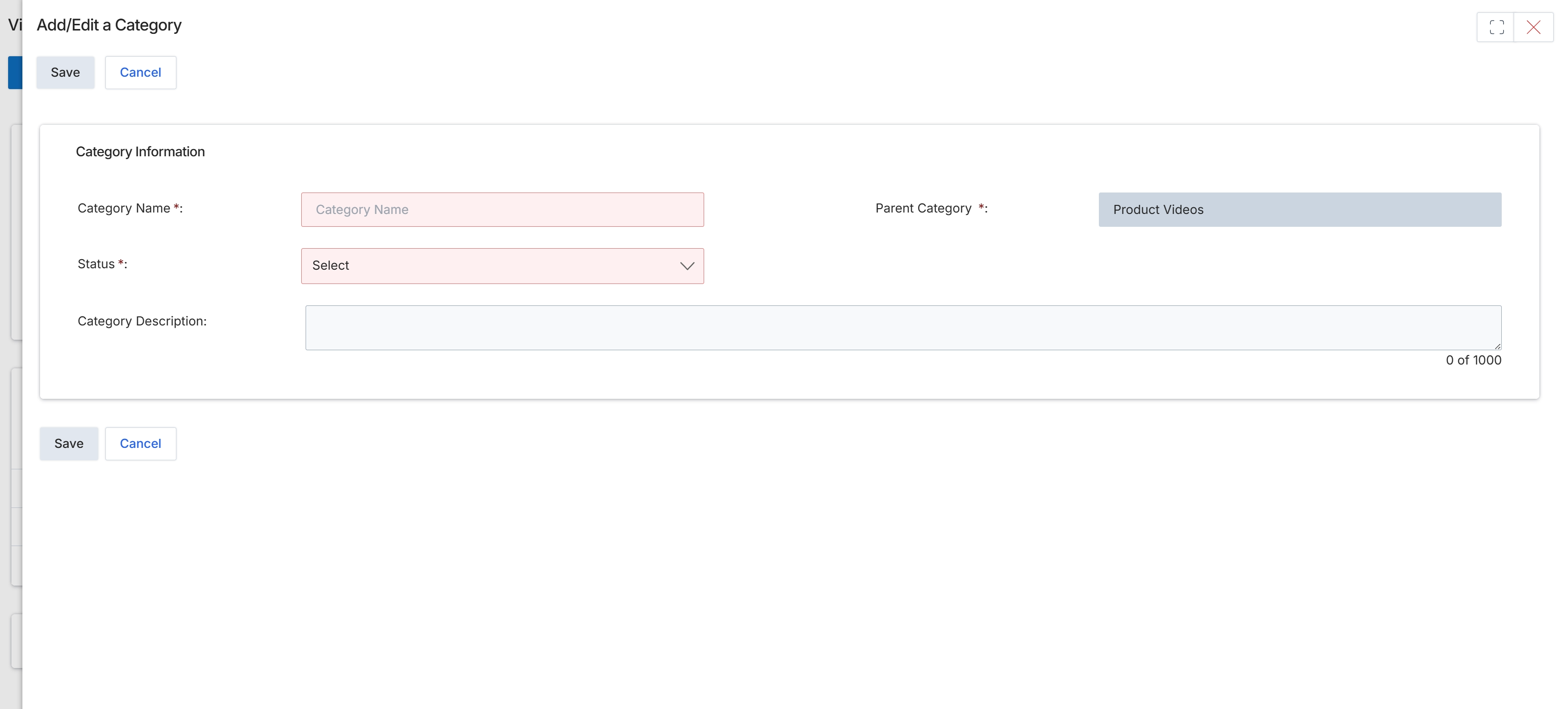
This screen displays the form for adding or editing a category within the Video Library, which is part of the Enable module. It allows administrators to define a new category or modify an existing one by providing a name, selecting a parent category to establish a hierarchical structure, setting its status, and adding a descriptive text. This functionality is crucial for organizing video content, ensuring that partners can easily navigate and find relevant training and enablement materials within their portal, and supports the application of granular visibility rules based on partner types, tiers, or segments.