

Overview
Market Development Funds (MDF) are crucial for incentivizing partners to invest in co-marketing activities that drive demand for the vendor's products or services. The MDF Claims feature is where partners submit requests for reimbursement after executing approved marketing plans. This ensures transparency and accountability in how funds are utilized, allowing the vendor to track the effectiveness of their MDF programs.
For administrators, this module is essential for managing the financial aspect of partner marketing. It provides the tools to efficiently review claims, approve or reject them based on compliance with the MDF plan, and ultimately facilitate payment. Effective management of MDF claims helps maintain strong partner relationships and ensures that marketing investments yield the desired returns.
Accessing the MDF Claims List
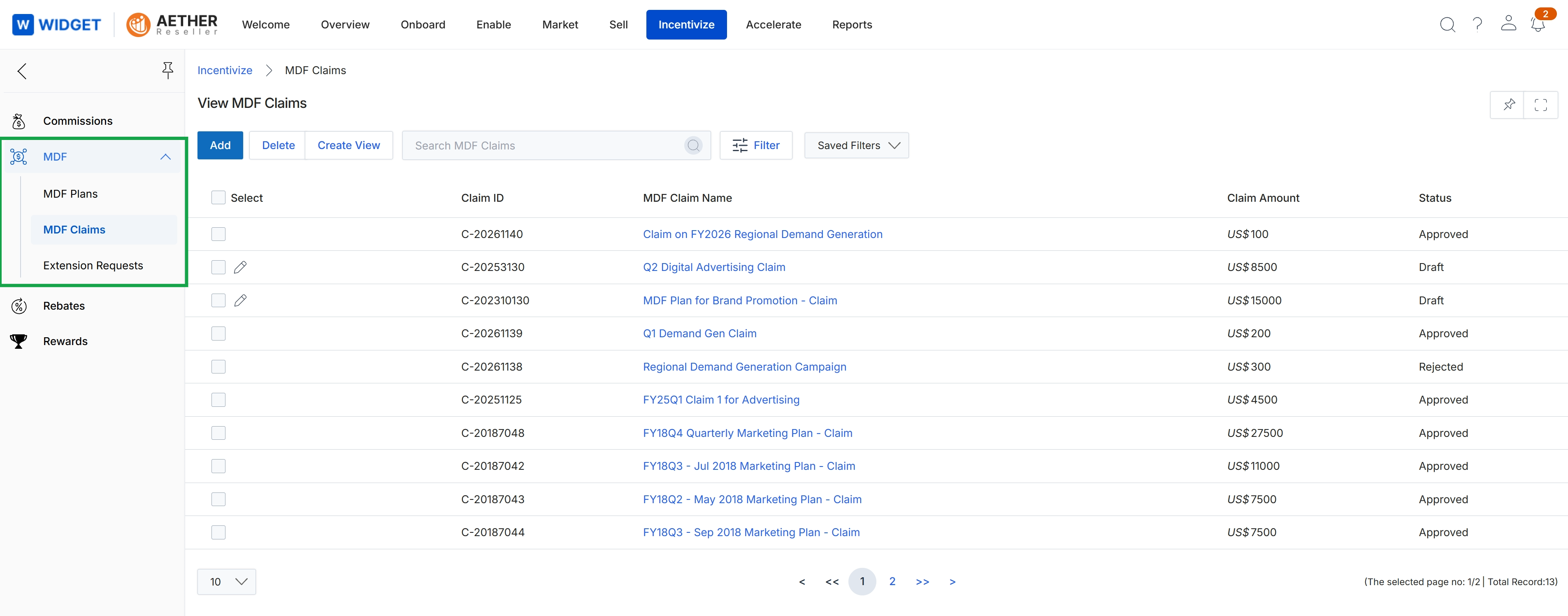
Click MDF → MDF Claims.
Deleting MDF Claims
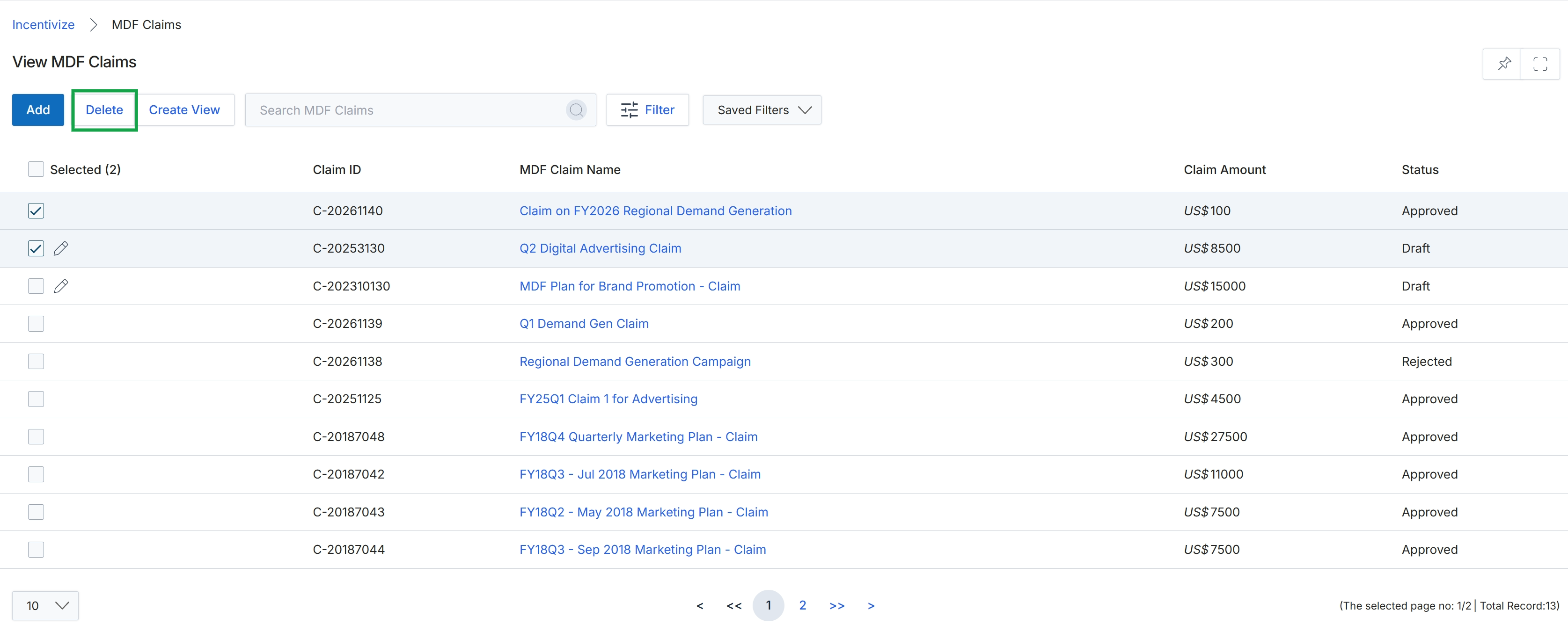
Click the Delete button.
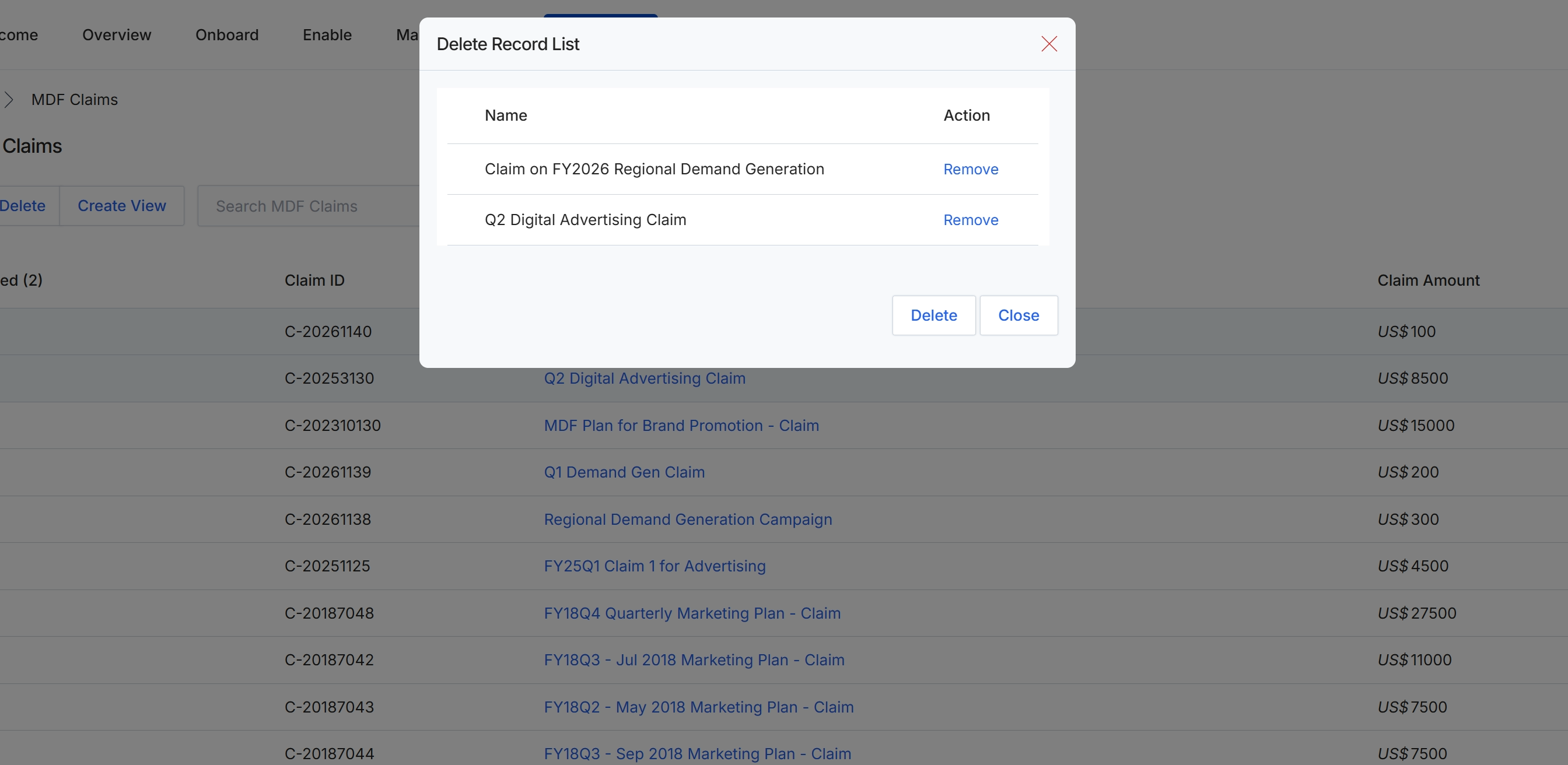
This screen displays a modal dialog for confirming the deletion of selected MDF claims. It presents a list of the specific claims that have been chosen for removal, allowing administrators to review the items before proceeding with the deletion. Each listed claim includes its name and an option to remove it from the deletion queue, providing a final check before the permanent action is executed. This dialog represents a critical step in managing MDF claims, ensuring that only intended records are permanently removed from the system.
Creating Custom Views and Filters
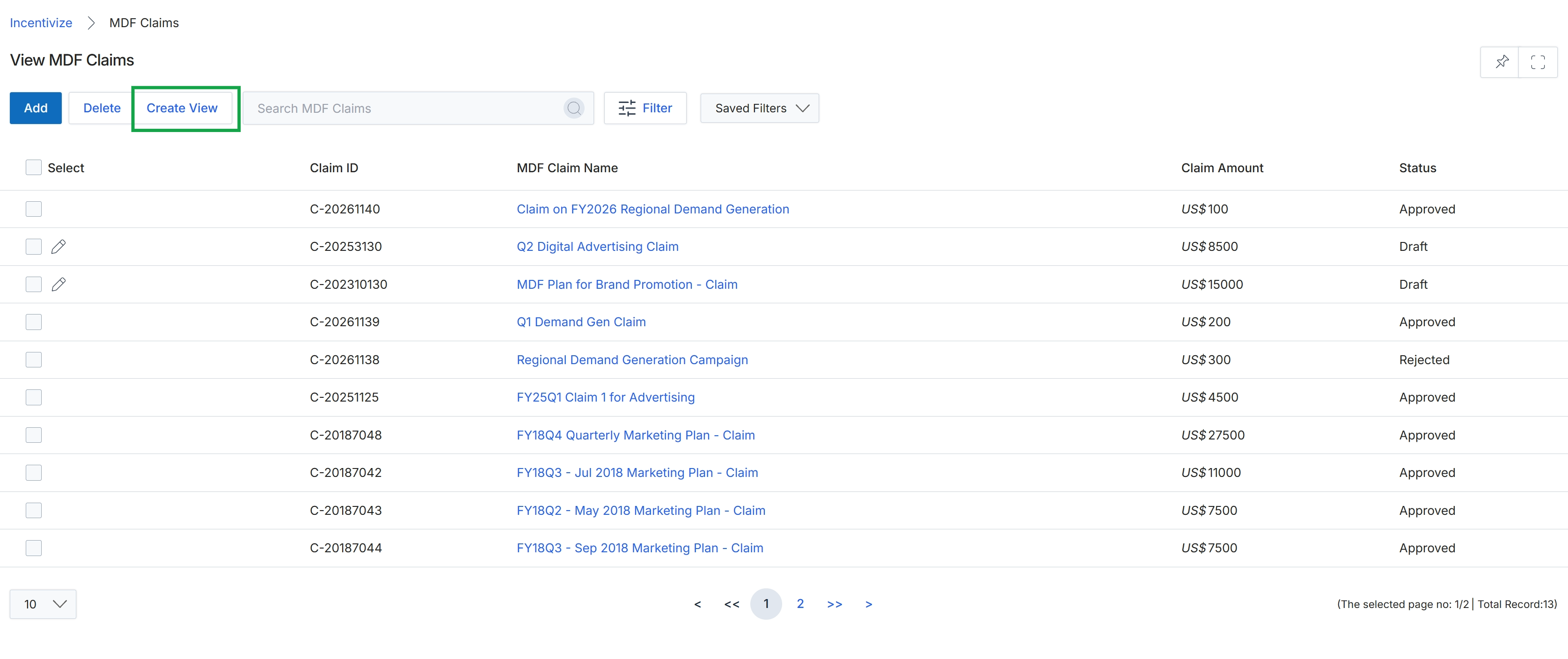
Click Create View.
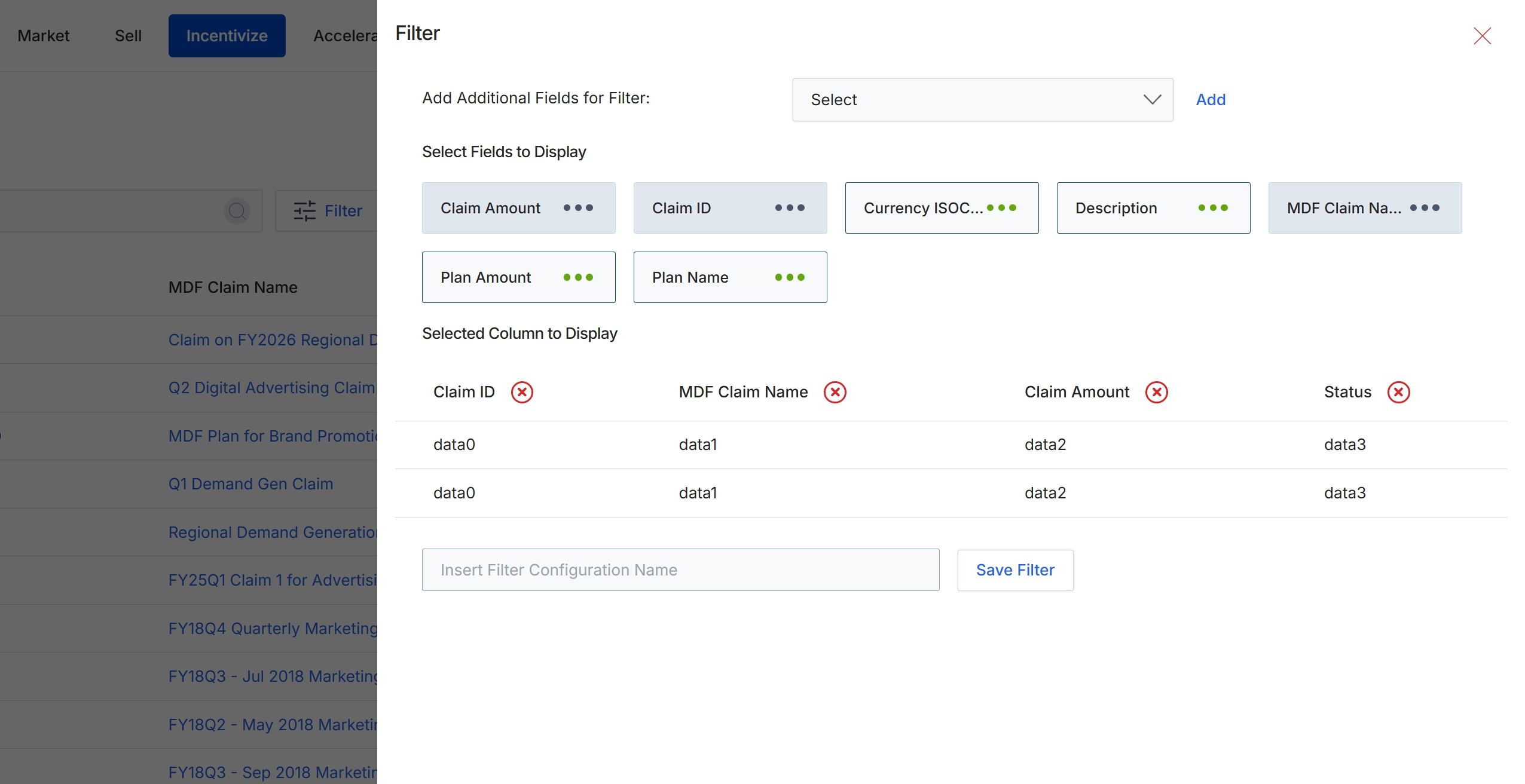
This filter configuration dialog allows users to customize the display and filtering of data within list views, such as the MDF Claims list. It provides options to add new filter criteria and select which columns are visible in the main table. Users can define specific fields to filter by, and also choose which data points are presented as columns, enabling a tailored view of the information relevant to their current task. This functionality is crucial for efficient data analysis and management, allowing administrators to quickly locate specific MDF claims or analyze trends based on various attributes like claim amount, plan name, or status. The ability to save filter configurations streamlines future access to frequently used data views.
Configure the filter settings by adding additional fields for filtering, selecting columns to display, and optionally saving the configuration for future use.
Buttons
| Button | Description |
|---|---|
| Add | Button to add the selected field as a new filter criterion. |
| Save Filter | Button to save the current filter configuration under the specified name. |
Fields
| Field | Description |
|---|---|
| Add Additional Fields for Filter | A dropdown menu to select additional fields to use for filtering the list view. |
| Select | Dropdown to select a field to add to the filter criteria. |
| Insert Filter Configuration Name | Text input field to enter a name for the current filter configuration to save it for future use. |