

Overview
Market Development Funds (MDF) are crucial for fostering partner marketing efforts, enabling partners to execute co-branded campaigns and drive demand. The MDF Plans section within the Incentivize module serves as the central hub for administrators to oversee all active and historical MDF programs. This ensures transparency and control over the funds allocated for partner marketing activities, allowing administrators to monitor plan details, financial contributions, and overall status.
Accessing MDF Plans
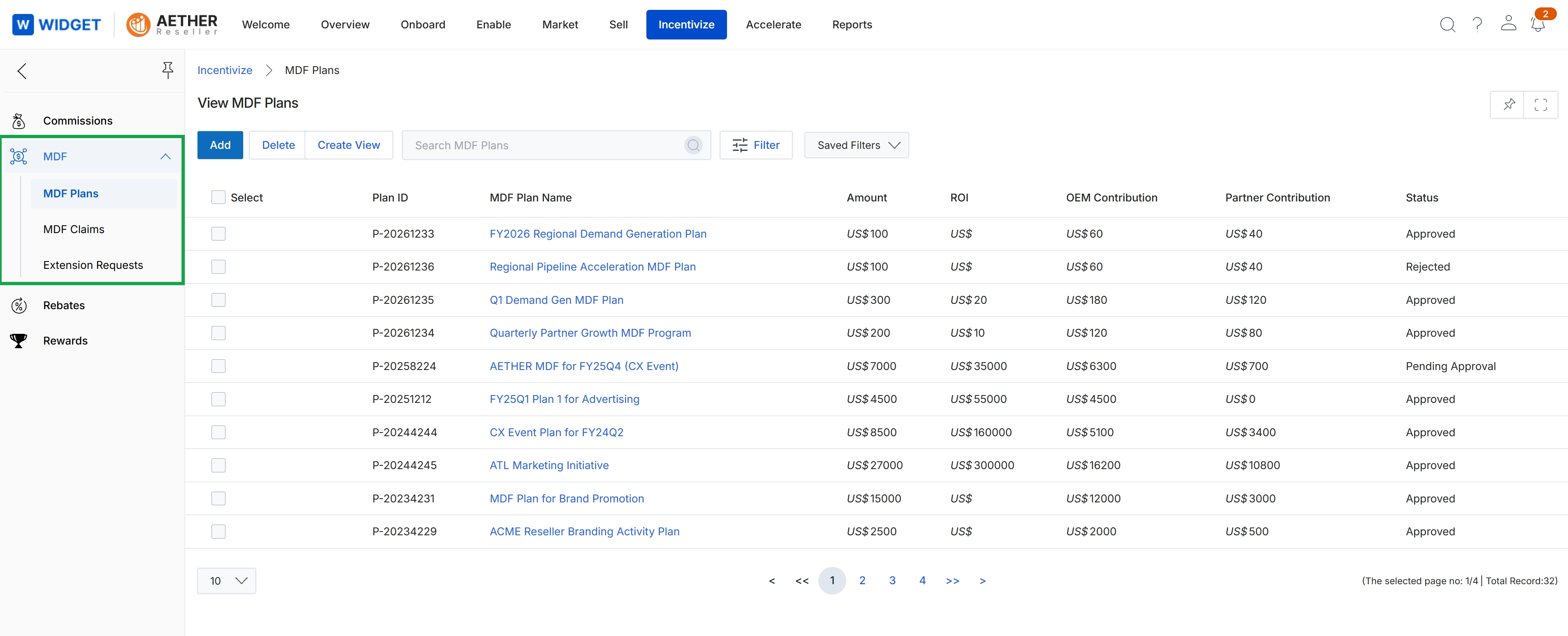
Click Incentivize → MDF → MDF Plans.
Managing MDF Plans
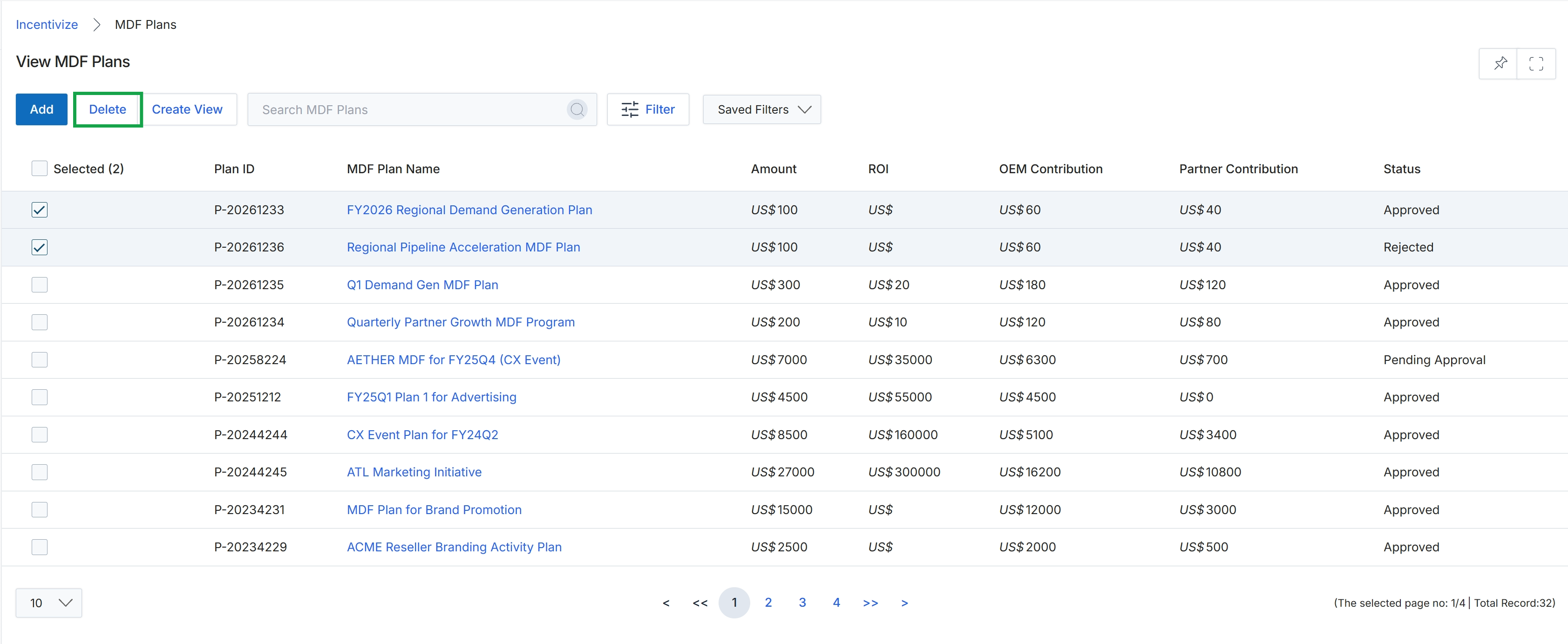
Click the Delete button.
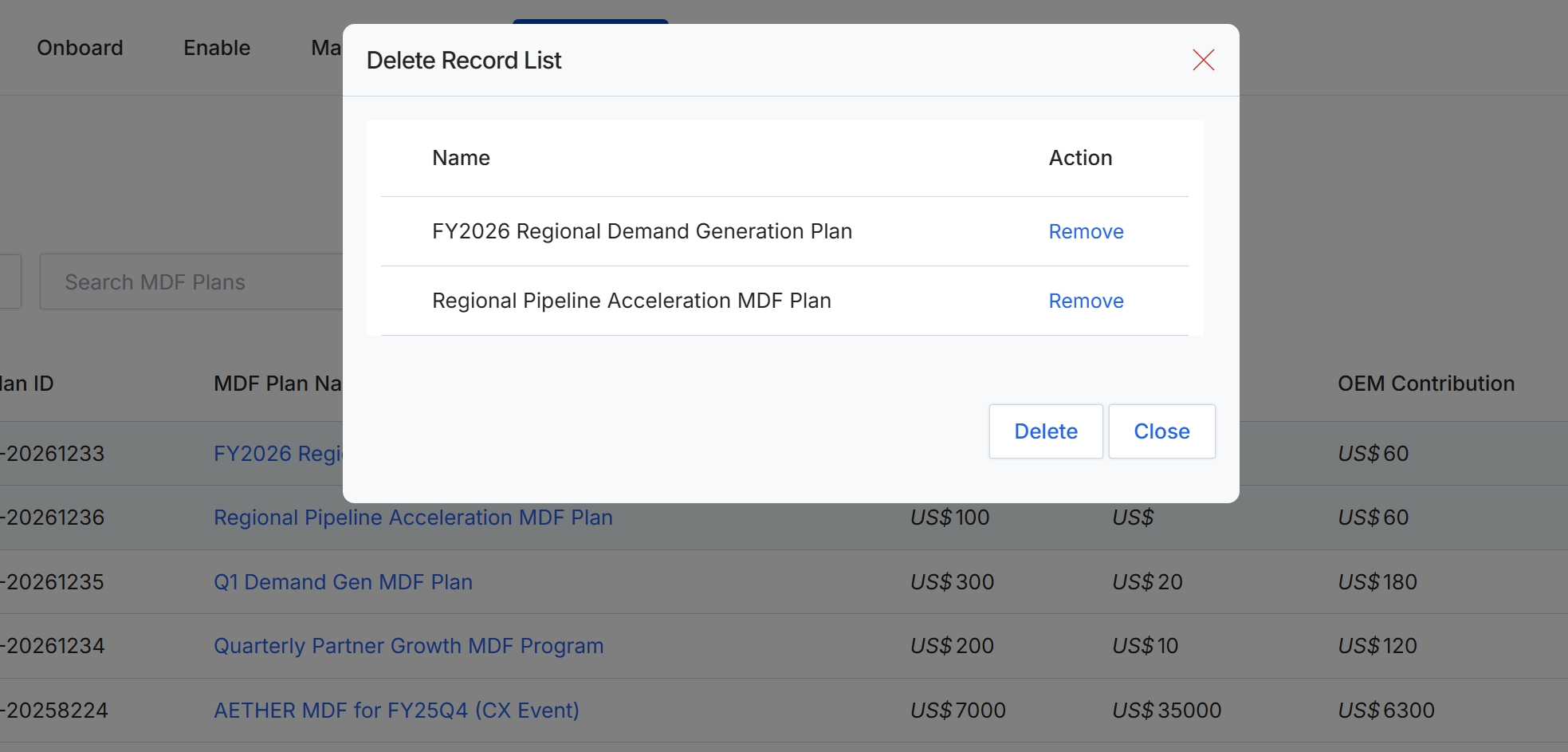
This modal window displays a confirmation list for deleting selected records, specifically Market Development Fund (MDF) Plans. It presents the names of the MDF Plans chosen for deletion and allows for individual plans to be removed from the deletion queue before the final action is taken. This screen serves as an intermediate step to review and confirm the records that will be permanently removed from the system, ensuring accuracy before the deletion process is finalized.
Filtering and Customizing the View
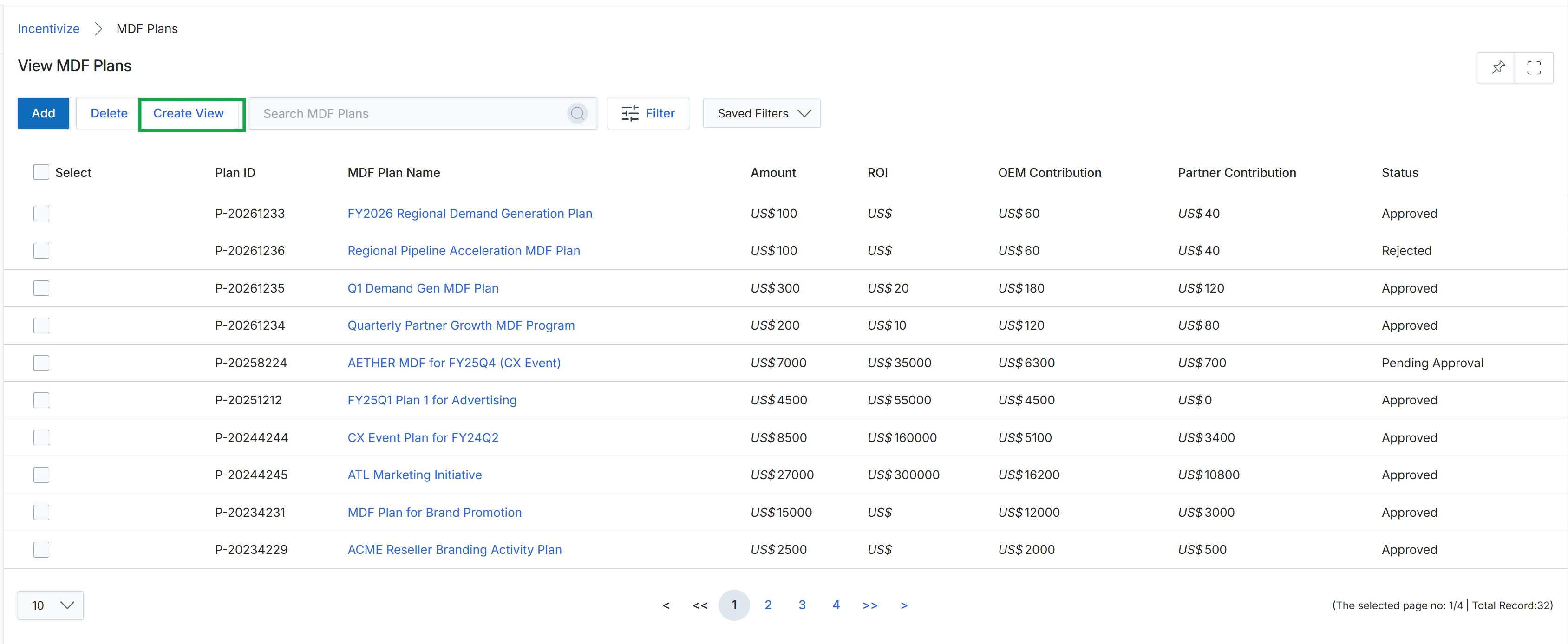
Click Close to dismiss the Delete Record List modal.
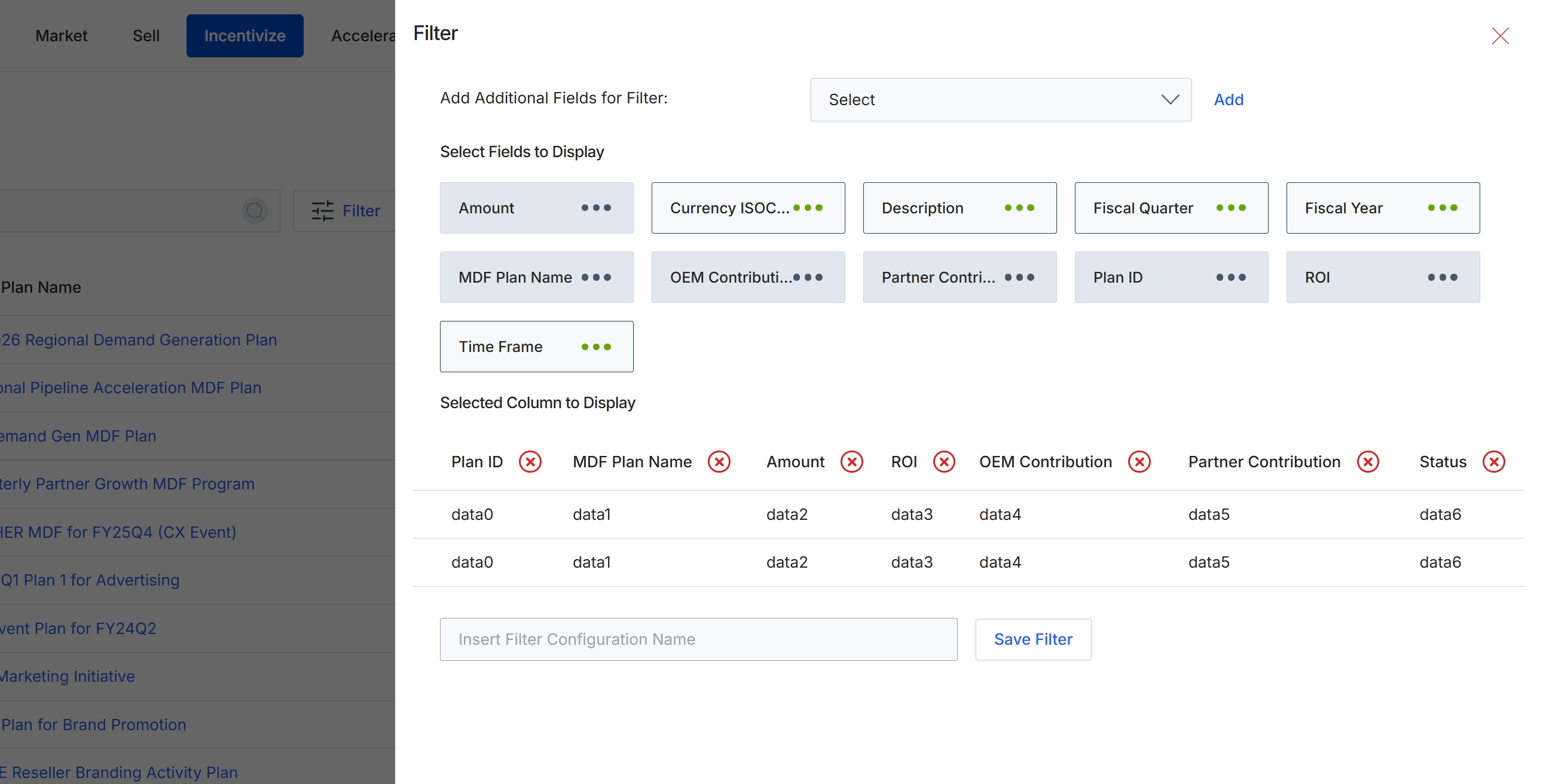
This filter configuration panel allows users to customize the data displayed and filtered within a list view, such as the MDF Plans list. It provides options to add specific fields for filtering and to select which columns are visible in the main data table. This customization helps users focus on relevant information and streamline their data analysis. The ability to save filter configurations enables quick access to frequently used views, enhancing efficiency for administrators managing MDF plans.
Configure the filter settings by adding fields for filtering, selecting columns to display, and optionally saving the configuration for future use.
Buttons
| Button | Description |
|---|---|
| Add | A button to add the selected field from the dropdown to the 'Select Fields to Display' section. |
| Save Filter | A button to save the current filter configuration with the specified name. |
Fields
| Field | Description |
|---|---|
| Select | A dropdown menu to select additional fields that can be used for filtering the list. |
| Insert Filter Configuration Name | An input field to enter a name for the current filter configuration to save it for future use. |
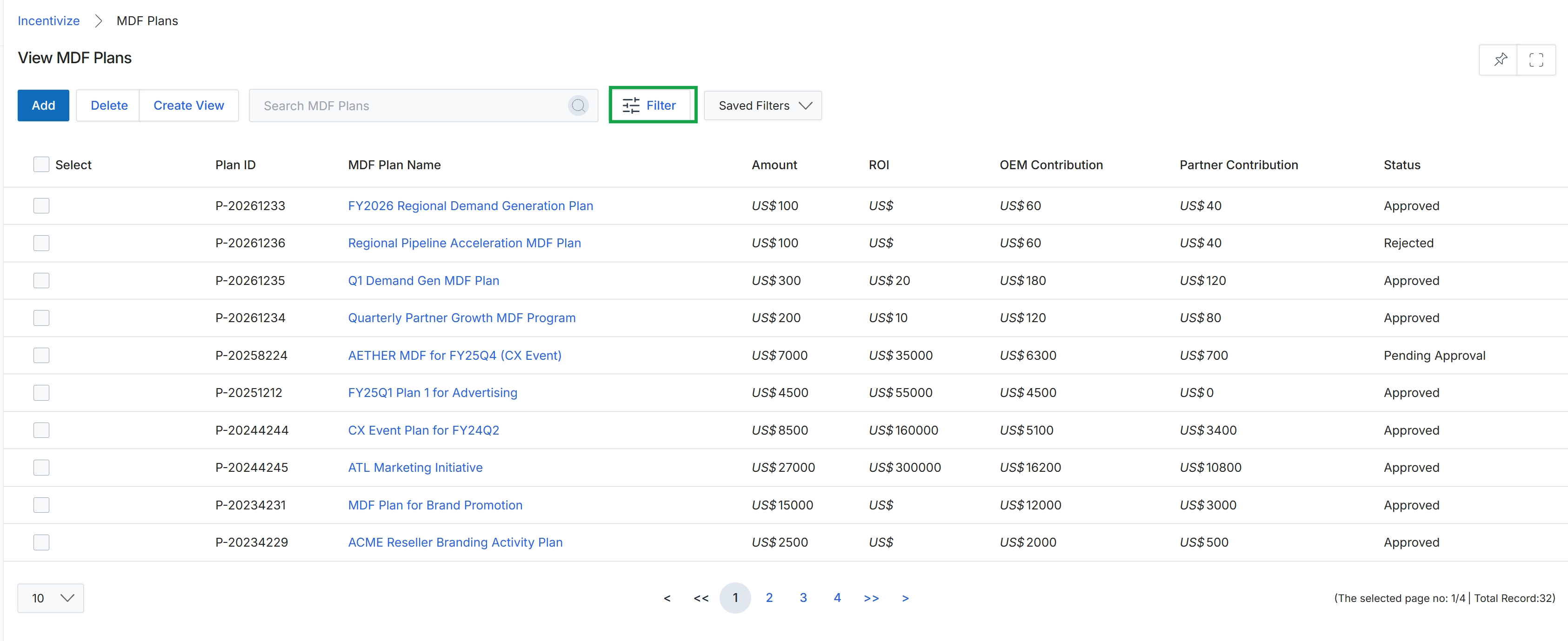
Click the Filter button to close the filter configuration panel.
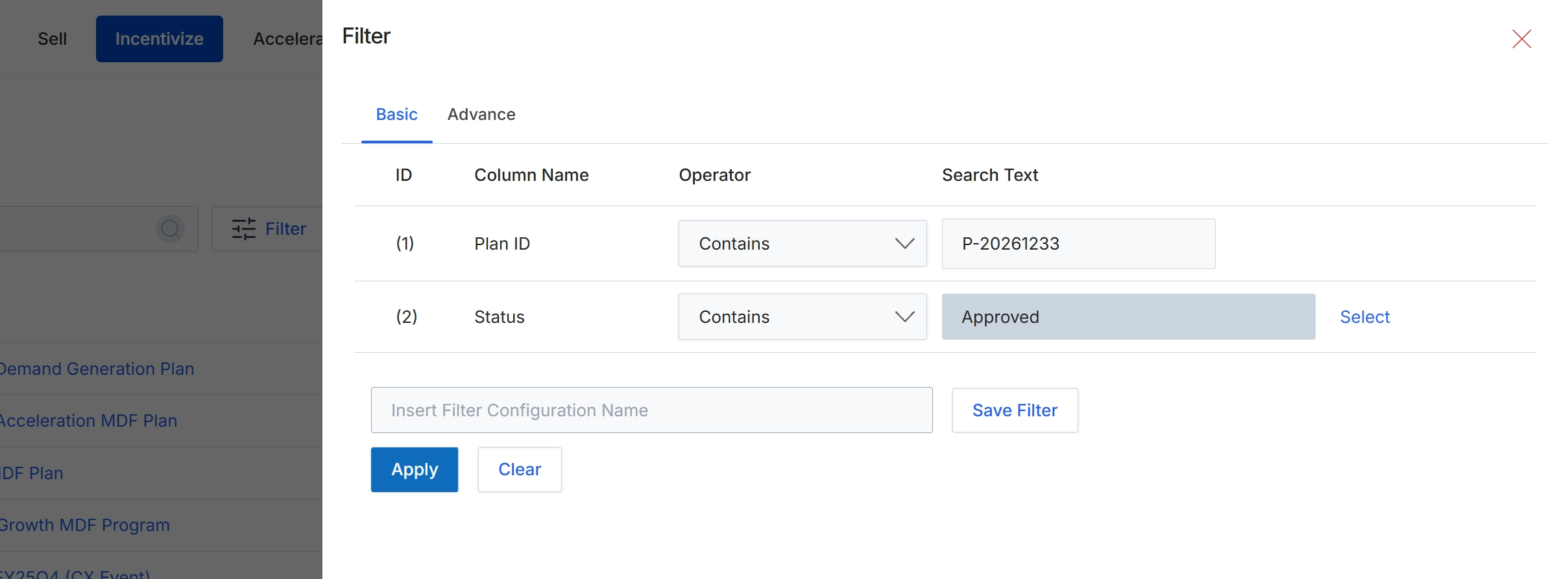
This filter dialog allows users to refine the displayed list of Market Development Fund (MDF) plans by specifying criteria for various plan attributes. It supports both basic and advanced filtering options, enabling users to search for specific plans or categories of plans based on their ID, status, or other relevant fields. Administrators use this functionality to quickly locate particular MDF plans for review, editing, or status updates, which is crucial for managing the lifecycle of co-marketing initiatives within the Incentivize module. The dialog also provides an option to save frequently used filter configurations for future convenience, streamlining repetitive search tasks.
Click the "Apply" button to execute the configured filters and update the list of MDF plans.
Buttons
| Button | Description |
|---|---|
| Basic | A tab to configure basic filters using column names, operators, and search text. |
| Advance | A tab to configure advanced filtering options, typically offering more complex logical conditions. |
| Select | A button to open a dropdown menu for selecting a different operator for the 'Status' filter. |
| Save Filter | A button to save the current filter configuration under the name provided in the 'Insert Filter Configuration Name' field. |
| Clear | A button to clear all applied filter criteria from the dialog. |
Fields
| Field | Description |
|---|---|
| Plan ID | The name of the column being filtered, representing the unique identifier for an MDF plan. |
| Contains | The selected operator for the 'Plan ID' filter, indicating that the 'Plan ID' should contain the specified search text. |
| P-20261233 | The search text entered for the 'Plan ID' filter. |
| Status | The name of the column being filtered, representing the current status of an MDF plan. |
| Contains | The selected operator for the 'Status' filter, indicating that the 'Status' should contain the specified search text. |
| Approved | The search text entered for the 'Status' filter, indicating a desire to find plans with 'Approved' in their status. |
| Insert Filter Configuration Name | A text input field to provide a name for the current filter configuration, allowing it to be saved for future use. |
Column Headings
| Column | Description |
|---|---|
| ID | A column header indicating the sequential number of each filter row. |
| Column Name | A column header for the name of the data field being filtered. |
| Operator | A column header for the comparison operator used in the filter condition (e.g., 'Contains', 'Equals', 'Starts With'). |
| Search Text | A column header for the value or text to search for within the specified column. |
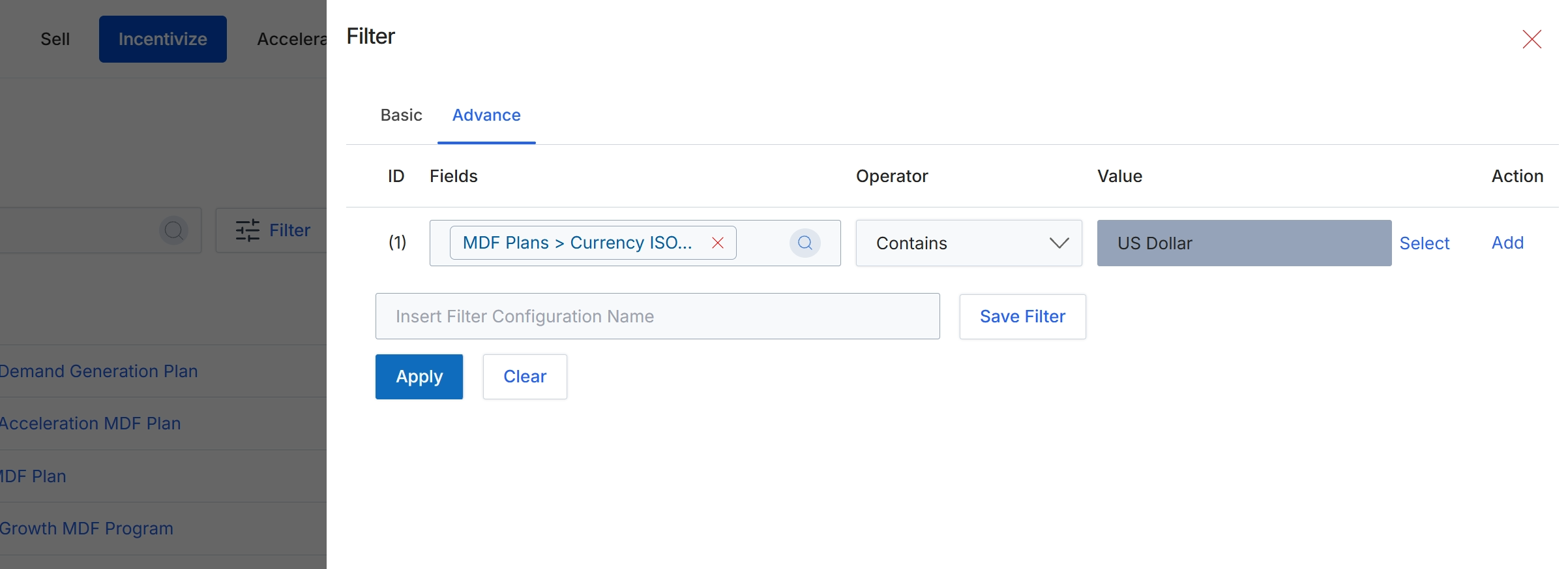
This filter dialog allows users to refine the displayed list of MDF Plans by applying specific criteria. It provides both basic and advanced filtering options to help administrators quickly locate specific plans based on various attributes. The 'Advance' tab, as shown, enables the construction of complex filter rules using logical operators and specific field values, which is crucial for managing a potentially large number of MDF plans. This functionality ensures that users can efficiently navigate and manage their marketing development fund programs by focusing on relevant data sets.
Apply the configured advanced filter to narrow down the list of MDF Plans.
Buttons
| Button | Description |
|---|---|
| Basic | A tab to switch to basic filtering options, typically for simpler, single-criterion searches. |
| Advance | A tab to switch to advanced filtering options, allowing for multi-criterion and complex rule-based filtering. |
| Select | A button to select a different value for the filter condition. |
| Add | A button to add another filter rule to the advanced filter configuration. |
| Save Filter | A button to save the current filter configuration under the specified name. |
| Apply | A button to apply the configured filter rules to the list of MDF Plans. |
| Clear | A button to clear all applied filter rules and reset the filter dialog. |
Fields
| Field | Description |
|---|---|
| MDF Plans > Currency ISO... | A field displaying the selected attribute for filtering, in this case, the currency ISO code of MDF Plans. |
| Contains | A dropdown field to select the operator for the filter condition, indicating how the value should be matched against the selected field. |
| US Dollar | A field displaying the value used in the filter condition, which is 'US Dollar' in this example. |
| Insert Filter Configuration Name | An input field to enter a name for the current filter configuration, allowing it to be saved for future use. |
Column Headings
| Column | Description |
|---|---|
| ID | The column header for the identifier of each filter rule row. |
| Fields | The column header for the field selected for filtering, such as 'MDF Plans > Currency ISO'. |
| Operator | The column header for the logical operator applied to the filter field, such as 'Contains'. |
| Value | The column header for the value used in the filter condition, such as 'US Dollar'. |
| Action | The column header for actions related to each filter rule, such as 'Select' or 'Add'. |