

Overview
Digital badges are a key component of partner recognition and gamification within a partner program. They provide a tangible representation of a partner's status, achievements, or specialized skills, which can be displayed on their portal profile or marketing materials. By creating and assigning badges, administrators can visually differentiate partners, incentivize progress through tiers, and acknowledge specific contributions, fostering a sense of accomplishment and encouraging continued engagement.
This functionality supports the overall partner lifecycle by integrating with partner tier management and regional program structures. Administrators can define the criteria for earning a badge, such as achieving a certain partner tier or operating within a specific region, and then configure the badge's validity period. The ability to upload custom badge artwork ensures that the visual representation aligns with the program's branding and recognition strategy.
Accessing and Viewing Badges
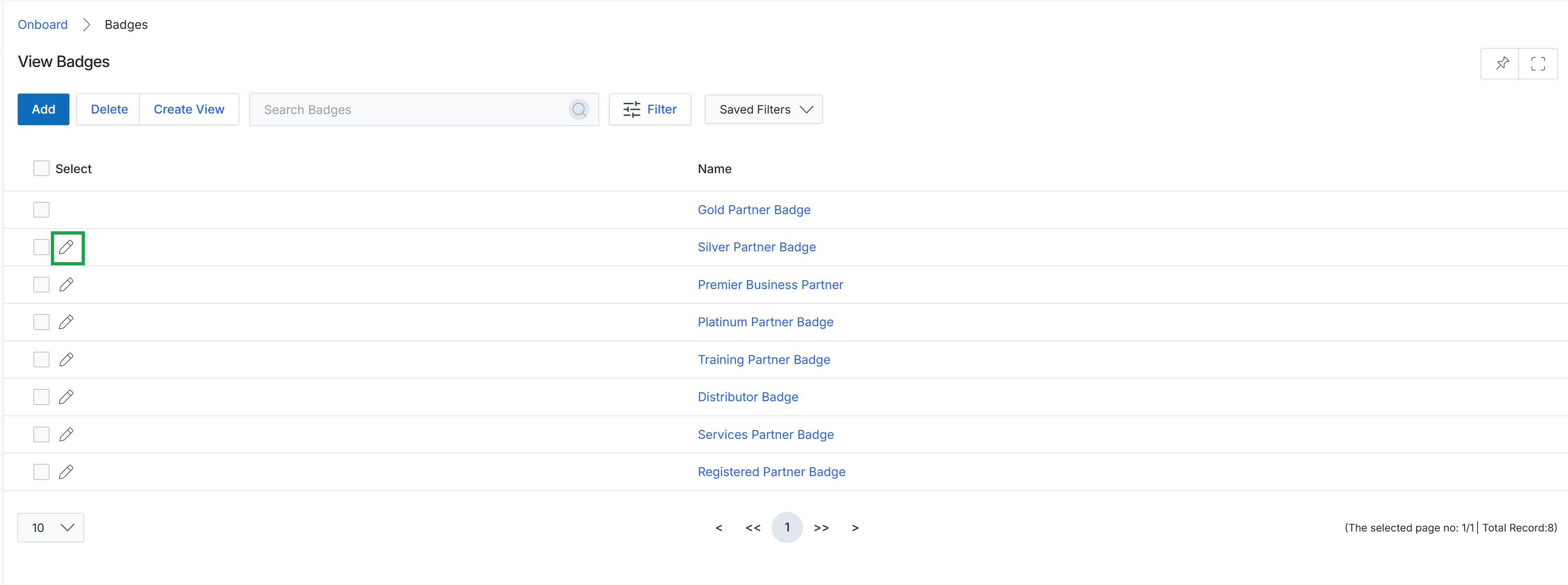
Click the pencil icon next to the "Silver Partner Badge" entry.
Adding or Editing Badge Details
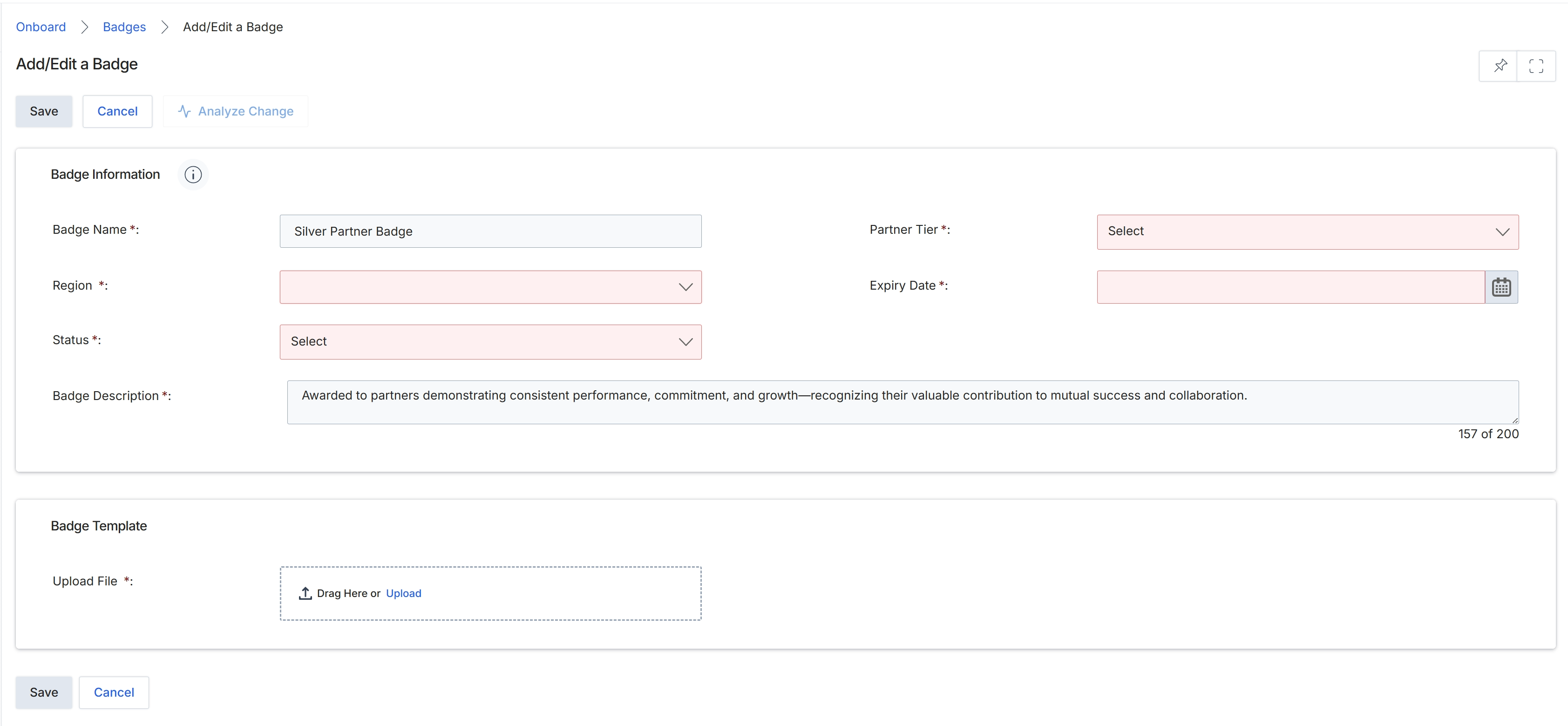
The Add/Edit a Badge form allows administrators to define and configure badges that can be awarded to partners. Badges serve as visual recognition for partner achievements, performance, or completion of specific milestones within the partner program. This screen enables the creation of new badges or modification of existing ones, including setting their name, associated partner tier, regional applicability, and an expiry date. A badge description provides context for partners, and a badge template file must be uploaded to define its visual representation. Properly configured badges can be used to incentivize partner engagement and highlight their progress within the program.
Fill in the required details for the badge in the 'Badge Information' section and upload the badge template file.
Buttons
| Button | Description |
|---|---|
| Save | Saves the newly created or updated badge information. |
| Cancel | Discards any changes and returns to the previous screen. |
| Analyze Change | Analyzes the impact of the changes made to the badge configuration. |
Badge Information
| Field | Description |
|---|---|
| Badge Name | The name of the badge, which identifies it within the platform and to partners. |
| Partner Tier | The partner tier to which this badge is applicable, selected from a dropdown list. |
| Region | The geographic region for which this badge is valid, selected from a dropdown list. |
| Expiry Date | The date when the badge will expire, selected using a calendar picker. |
| Status | The current status of the badge, indicating whether it is active or inactive. |
| Badge Description | A detailed description of the badge, explaining what it represents and the criteria for earning it. |
Badge Template
| Field | Description |
|---|---|
| Upload File | Allows users to drag and drop or upload the image file for the badge template. |