

Overview
Partner Tiers are a fundamental component of any structured partner program, categorizing partners based on their performance, commitment, or other criteria. Each tier typically comes with a distinct set of benefits, such as increased rebates, access to exclusive marketing funds (MDF), or specialized training. Effectively managing these tiers allows administrators to incentivize partner growth, differentiate support levels, and streamline the allocation of resources based on a partner's value and contribution to the program. This section provides the tools necessary to maintain and evolve the tier structure as the partner program matures.
Accessing and Viewing Partner Tiers
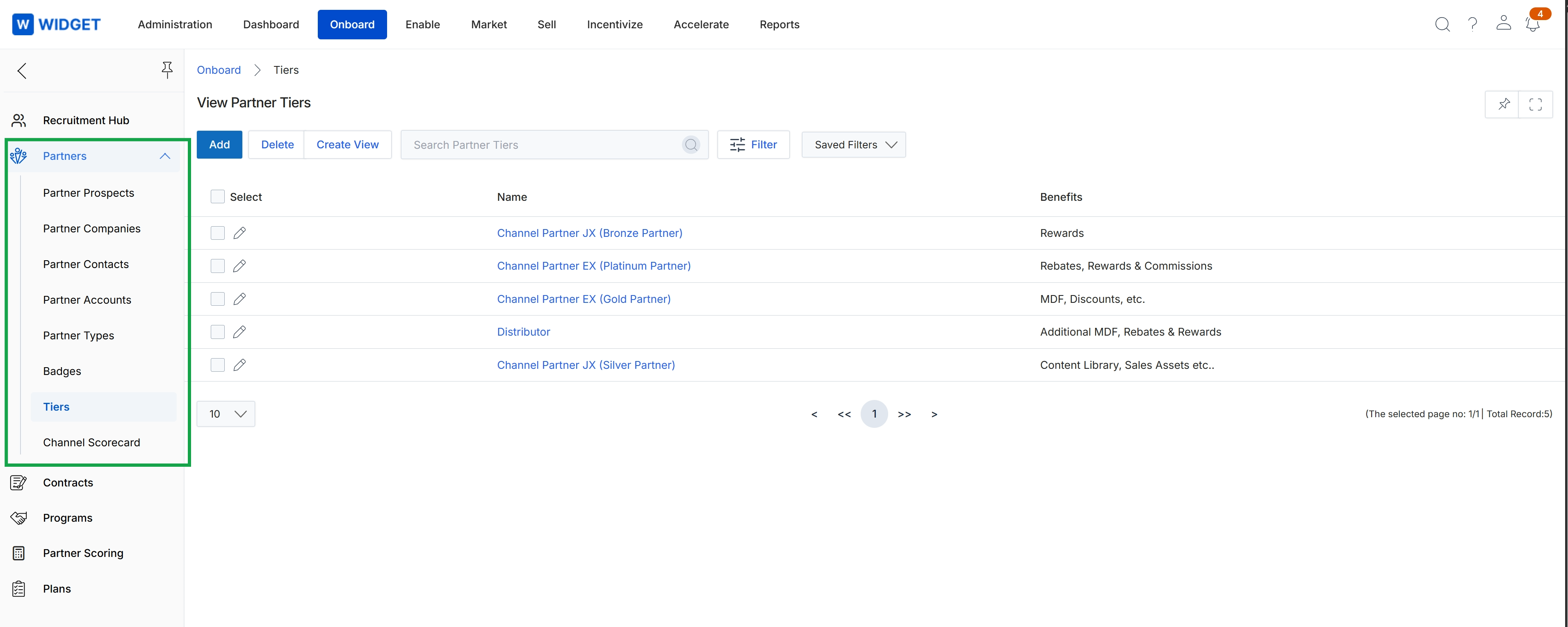
Click Onboard in the top navigation bar, then click Tiers in the left navigation menu.
Deleting Partner Tiers
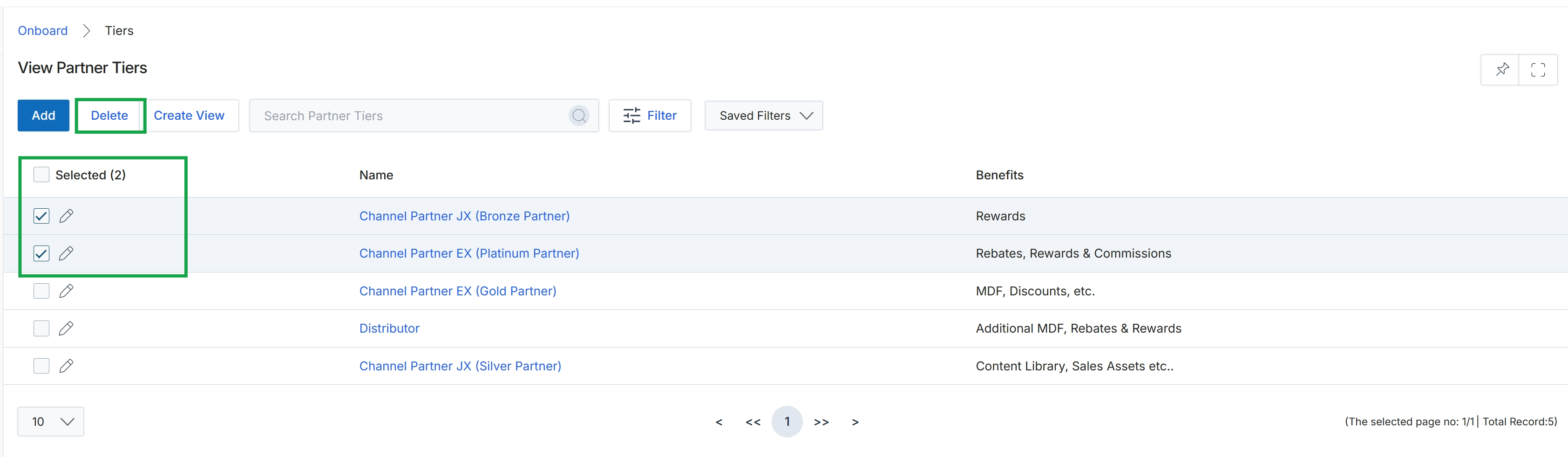
Click the checkbox next to the first two partner tiers to select them.
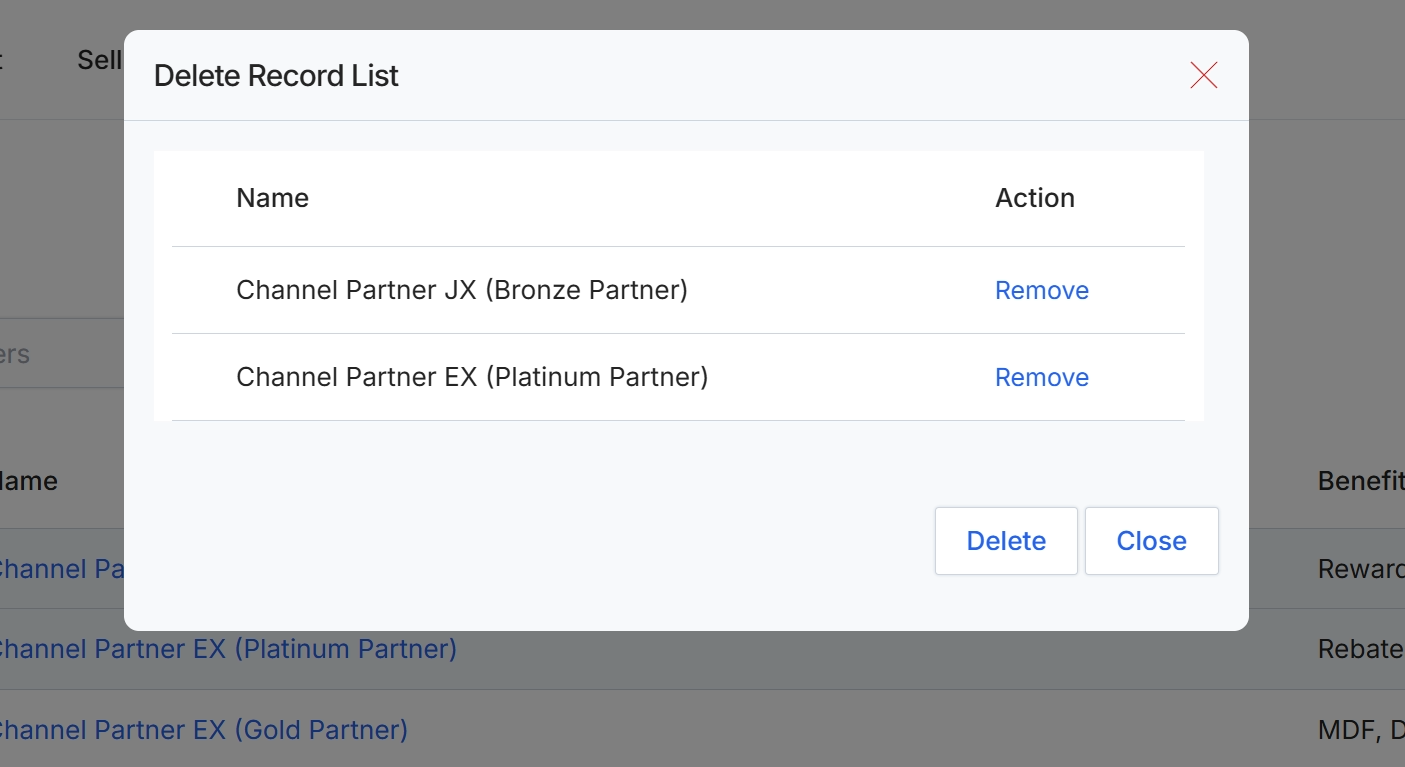
This dialog box, titled 'Delete Record List', appears when a user initiates a bulk deletion action for multiple records within the platform. It serves as a confirmation and review step, allowing the user to see the specific records selected for deletion before finalizing the action. Each record is listed with its name and an option to remove it from the deletion queue, providing an opportunity to correct any accidental selections. This ensures that only the intended records are permanently removed from the system, preventing data loss and maintaining data integrity.
Review the list of records selected for deletion and click "Delete" to confirm, or "Close" to cancel the operation.
Buttons
| Button | Description |
|---|---|
| Remove | A button to remove the corresponding record from the current deletion list without deleting it from the system. |
| Delete | A button to confirm and proceed with the deletion of all listed records. |
| Close | A button to close the dialog and cancel the deletion operation without making any changes. |
Fields
| Field | Description |
|---|---|
| Channel Partner JX (Bronze Partner) | A record identified for deletion, showing the partner's name and their associated tier. |
| Channel Partner EX (Platinum Partner) | Another record identified for deletion, showing the partner's name and their associated tier. |
Column Headings
| Column | Description |
|---|---|
| Name | The column header for the names of the records selected for deletion. |
| Action | The column header for actions that can be taken on individual records within the deletion list. |
Creating and Managing Custom Views
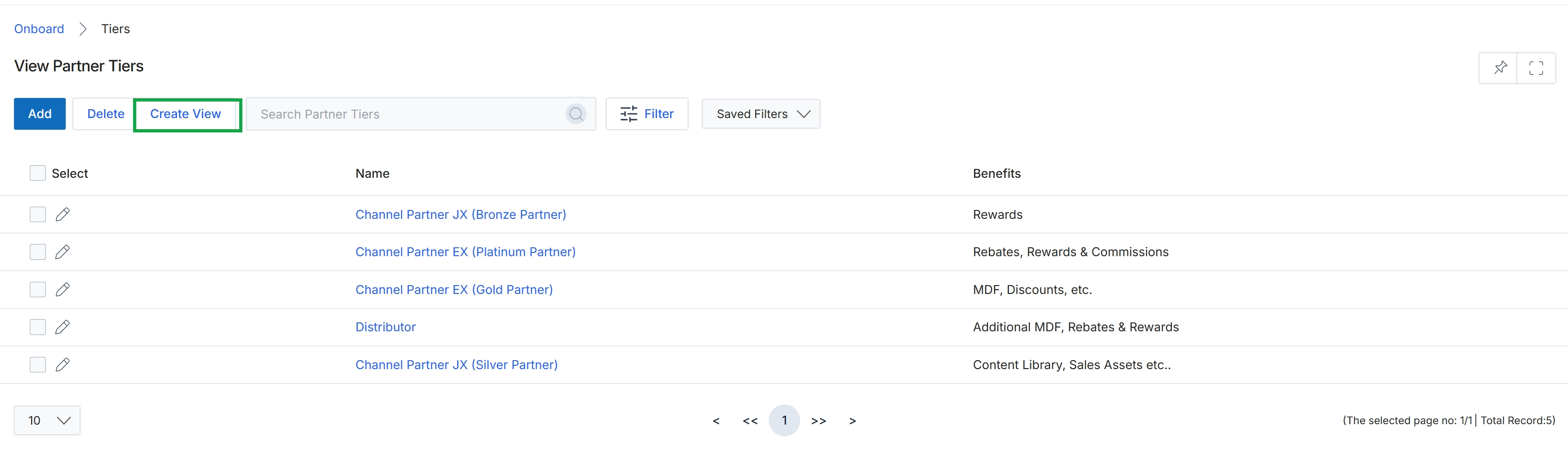
Click the Create View button.
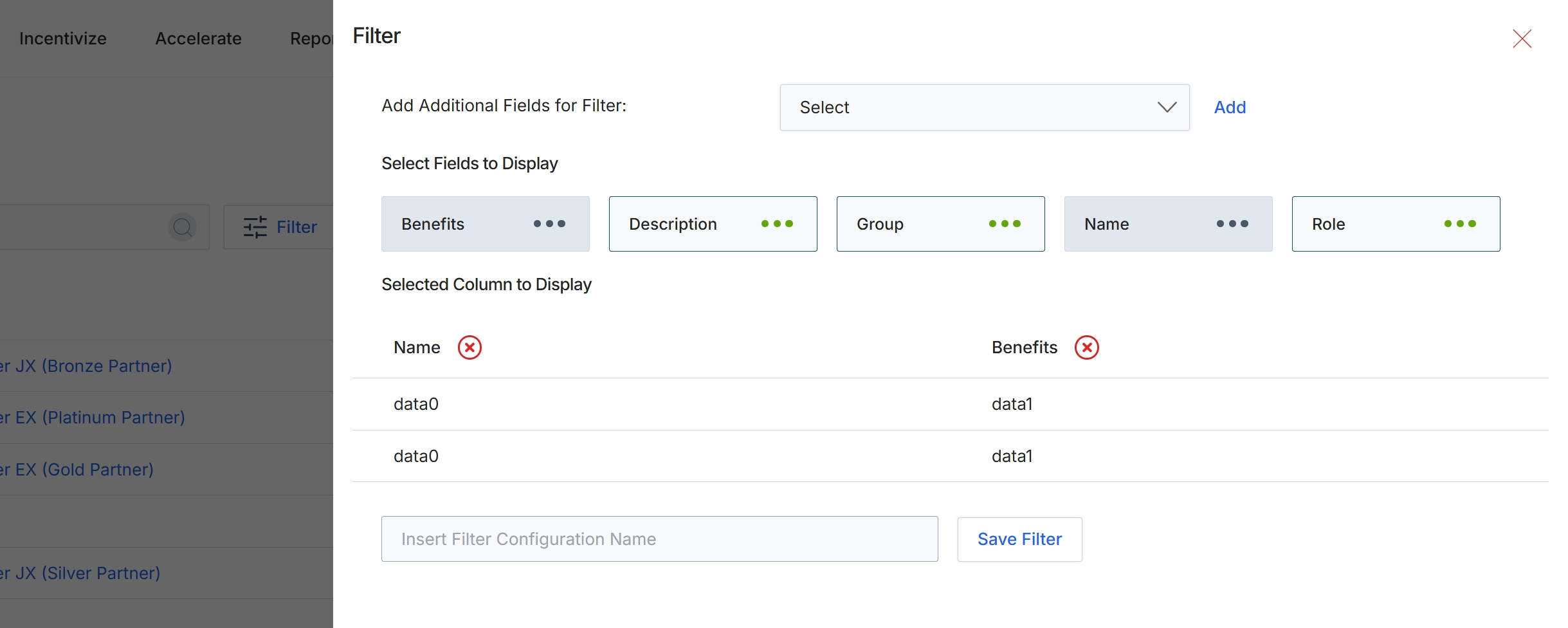
This filter configuration dialog allows administrators to customize the display of partner tier information within list views. Users can select which fields are visible as columns in the main table, tailoring the data presented to their specific analytical or operational needs. This customization enhances the usability of the list view by enabling users to focus on the most relevant attributes of partner tiers, such as their benefits, descriptions, or associated groups. The ability to save these configurations under a custom name streamlines future access to frequently used display settings, improving efficiency in managing partner tiers.
Enter a name for the filter configuration in the provided text field.
Buttons
| Button | Description |
|---|---|
| Add | A button to add the selected field to the filter criteria. |
| Benefits | A toggle button indicating that 'Benefits' is a selected field to display as a column. |
| Description | A toggle button indicating that 'Description' is a selected field to display as a column. |
| Group | A toggle button indicating that 'Group' is a selected field to display as a column. |
| Name | A toggle button indicating that 'Name' is a selected field to display as a column. |
| Role | A toggle button indicating that 'Role' is a selected field to display as a column. |
| Save Filter | A button to save the current filter configuration with the specified name. |
Fields
| Field | Description |
|---|---|
| Add Additional Fields for Filter | A dropdown menu to select additional fields that can be used for filtering the list view. |
| Insert Filter Configuration Name | A text input field to enter a custom name for the current filter configuration. |
Selected Column to Display
| Column | Description |
|---|---|
| Name | A selected column currently displayed in the list view. |
| Benefits | A selected column currently displayed in the list view. |
Filtering Partner Tiers
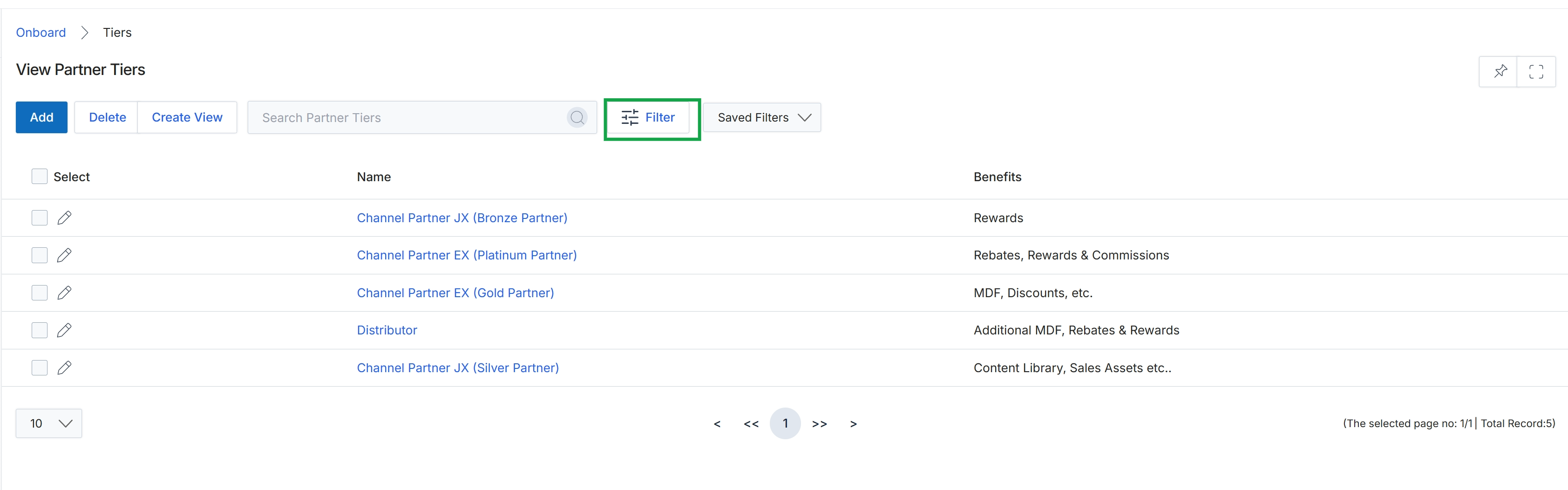
Click the Filter button.
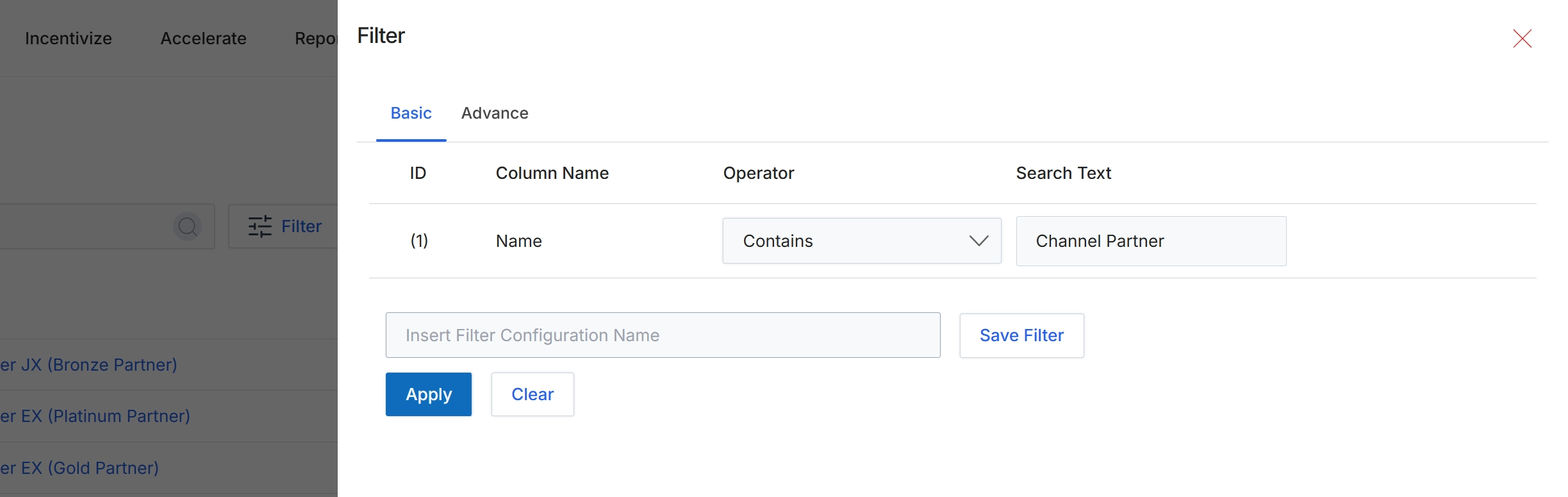
This filter configuration dialog allows administrators to define and apply specific criteria to narrow down the list of partner tiers displayed in the main view. By setting conditions based on column names, operators, and search text, users can quickly locate specific tiers or groups of tiers that match their requirements. This functionality is crucial for managing large numbers of partner tiers, enabling efficient review, editing, or analysis of tier configurations. The dialog supports both basic and advanced filtering options, and filters can be saved for future use, streamlining repetitive search tasks.
Click the "Apply" button to apply the configured filter to the partner tiers list.
Buttons
| Button | Description |
|---|---|
| Basic | Selects the basic filter configuration interface, allowing for straightforward rule creation. |
| Advance | Selects the advanced filter configuration interface, which may offer more complex rule-building capabilities (not visible in this screenshot). |
| Save Filter | Saves the current filter configuration under the name provided in the 'Insert Filter Configuration Name' field for later use. |
| Apply | Applies the defined filter rules to the list view, updating the displayed results. |
| Clear | Resets all filter rules, removing any applied criteria and displaying the full list of items. |
Fields
| Field | Description |
|---|---|
| Insert Filter Configuration Name | A text field to enter a name for the current filter configuration, allowing it to be saved and reused. |
Column Headings
| Column | Description |
|---|---|
| ID | A numerical identifier for each filter rule within the configuration. |
| Column Name | Specifies the data column to which the filter rule will be applied. In this case, it's set to 'Name'. |
| Operator | Defines the comparison logic for the filter rule, such as 'Contains', 'Equals', 'Starts With', etc. Here, it is set to 'Contains'. |
| Search Text | The value or string to search for within the specified 'Column Name' using the chosen 'Operator'. Here, it is 'Channel Partner'. |
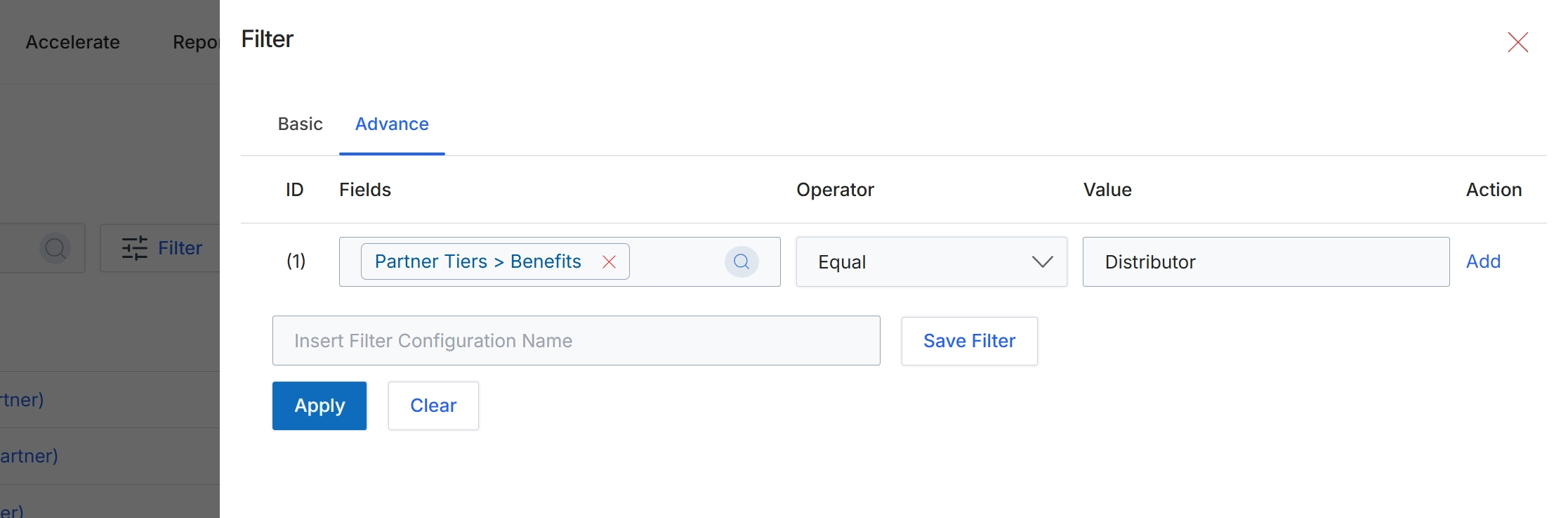
This filter dialog allows administrators to define and apply advanced filtering criteria to lists of data within the UPM, such as partner tiers. By specifying conditions based on various fields, operators, and values, users can narrow down large datasets to focus on specific records that meet their requirements. This capability is crucial for managing partner data, segmenting partners, and analyzing performance by allowing for precise data retrieval and analysis. The dialog supports both basic and advanced filtering options, enabling flexible data manipulation for reporting and operational tasks.
Click the "Apply" button to apply the configured filter to the current list view.
Buttons
| Button | Description |
|---|---|
| Basic | Switches to the basic filter configuration interface. |
| Advance | Switches to the advanced filter configuration interface, allowing for more complex rule definitions. |
| Add | Adds a new filter rule to the configuration. |
| Save Filter | Saves the current filter configuration under the specified name. |
| Apply | Applies the configured filter rules to the data list. |
| Clear | Clears all currently configured filter rules. |
Fields
| Field | Description |
|---|---|
| Partner Tiers > Benefits | The selected field for filtering, indicating that the filter applies to the 'Benefits' sub-field within 'Partner Tiers'. |
| Equal | The selected operator for the filter rule, indicating an exact match. |
| Distributor | The value used in the filter rule, specifying that the 'Benefits' field should be 'Distributor'. |
| Insert Filter Configuration Name | Text input field to enter a name for saving the current filter configuration for future use. |
Column Headings
| Column | Description |
|---|---|
| ID | Column header for the filter rule identifier. |
| Fields | Column header for the field being filtered. |
| Operator | Column header for the comparison operator used in the filter rule. |
| Value | Column header for the value used in the filter comparison. |
| Action | Column header for actions related to the filter rule, such as adding a new rule. |