

Overview
Badges are a key component of partner recognition and gamification within the UPM. They serve as visual indicators of a partner's accomplishments, specializations, or status within the program. Administrators can define various types of badges, such as 'Gold Partner Badge' for tier achievement, 'Training Partner Badge' for certification completion, or 'Distributor Badge' for specific partner types. These badges can be displayed on partner profiles, motivating partners to achieve higher levels of engagement and performance.
Effective badge management allows administrators to maintain a comprehensive and up-to-date catalog of recognition elements. This feature supports the creation of new badges, the removal of outdated ones, and the ability to organize and filter the badge list for efficient administration. By leveraging badges, administrators can enhance partner engagement, foster a sense of accomplishment, and clearly communicate partner capabilities to potential customers.
Accessing and Viewing Badges
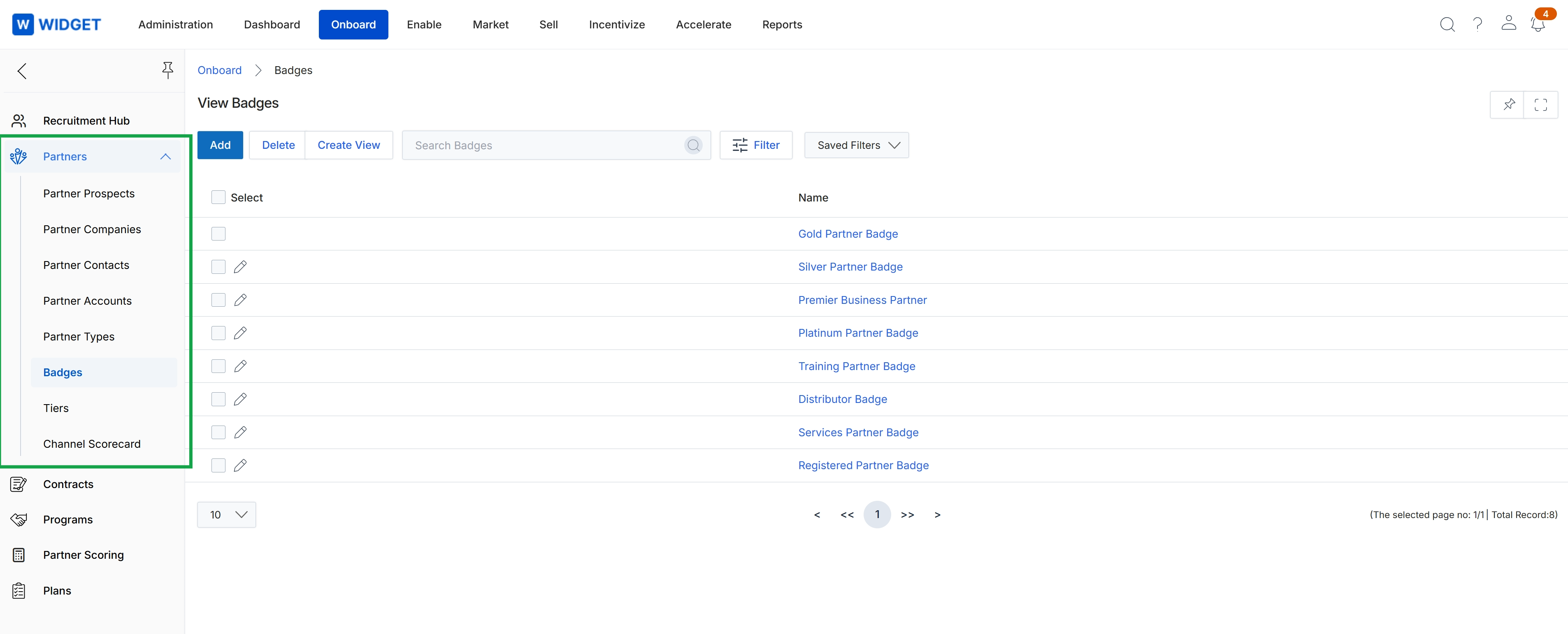
Click Onboard → Partners → Badges.
Deleting Badges
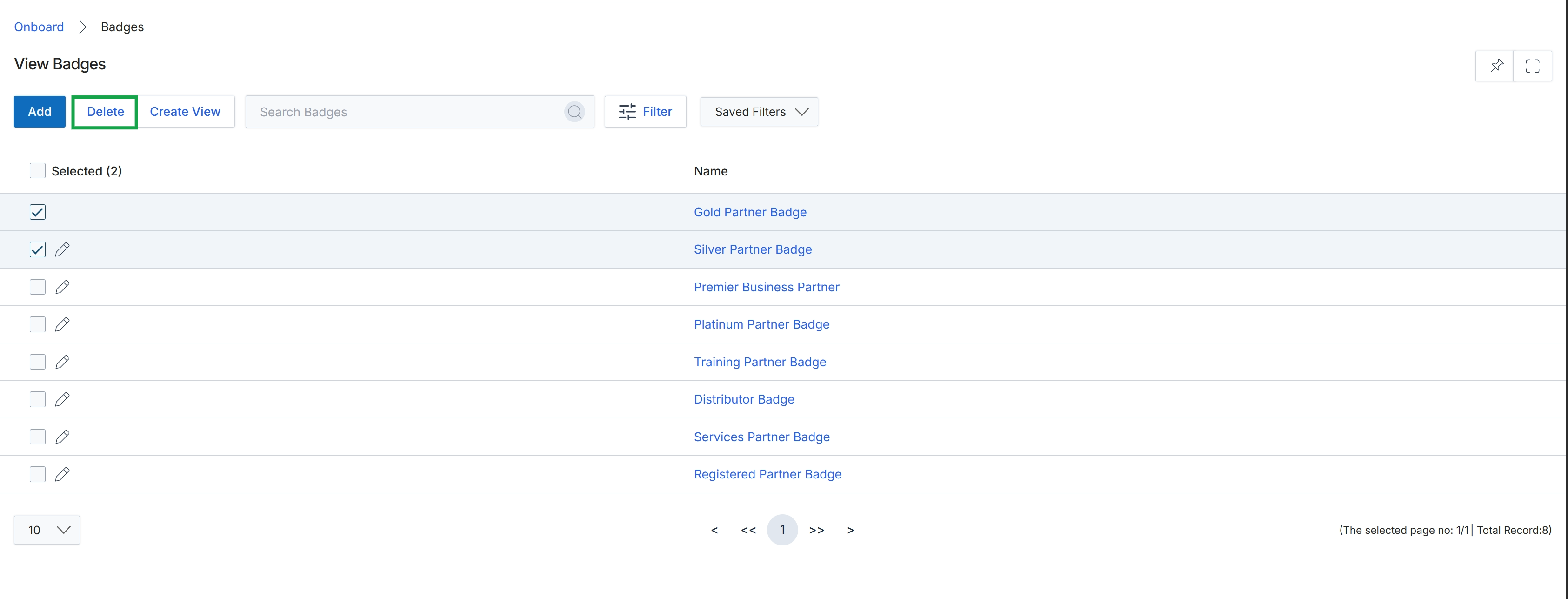
Click the Delete button.
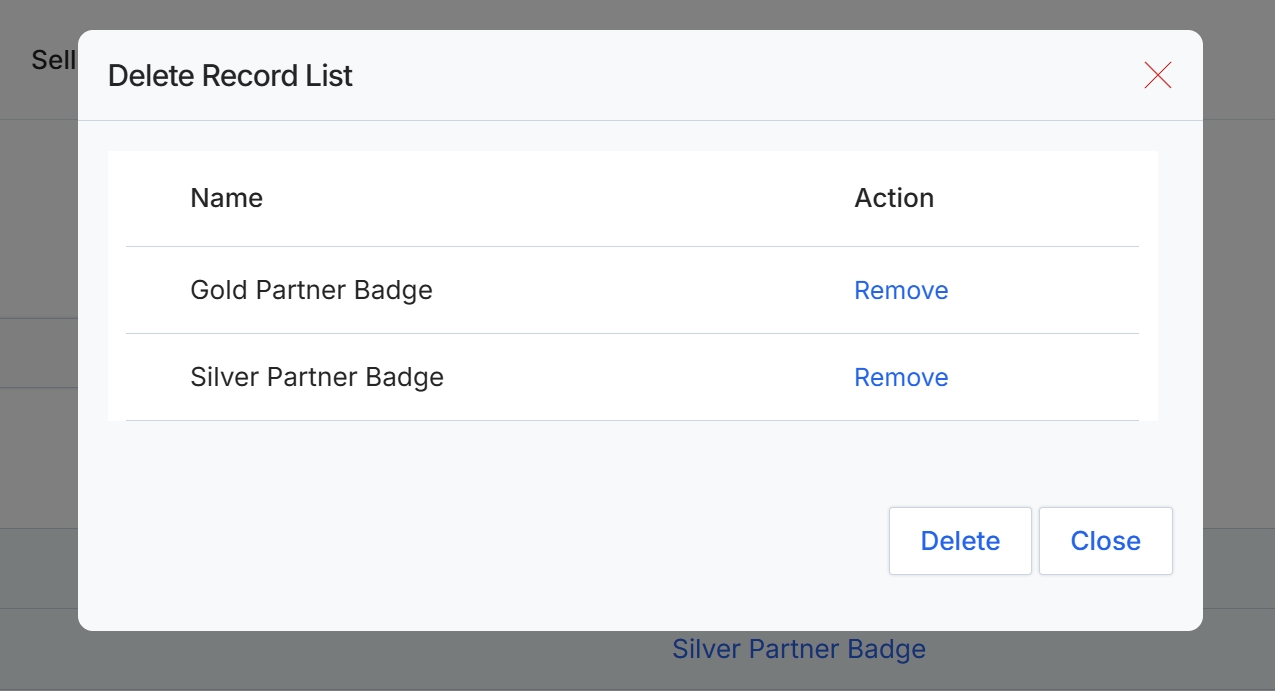
This dialog box displays a list of badges that have been selected for deletion. It provides an opportunity for administrators to review the selected items before confirming the deletion. Each badge is listed with its name and an action to remove it from the deletion list, allowing for granular control over which badges are ultimately deleted. This step ensures that no badges are accidentally removed from the system, which could impact partner recognition and tier assignments.
Click the "Delete" button to confirm the removal of the listed badges.
Buttons
| Button | Description |
|---|---|
| Remove | Removes the specific badge from the list of items to be deleted. |
| Delete | Confirms and executes the deletion of all badges currently listed in the dialog. |
| Close | Closes the dialog without performing any deletion actions. |
Column Headings
| Column | Description |
|---|---|
| Name | The name of the badge selected for deletion. |
| Action | Provides an option to remove the badge from the current deletion list. |
Creating Custom Views
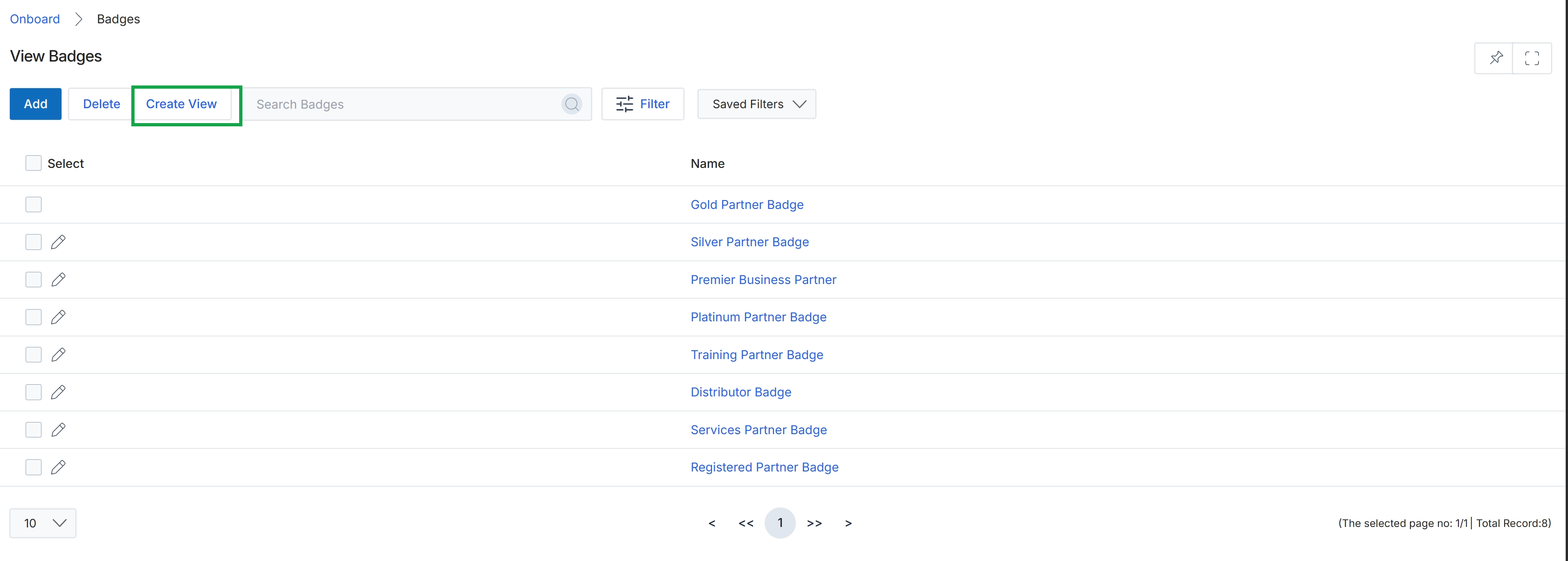
Click Create View.
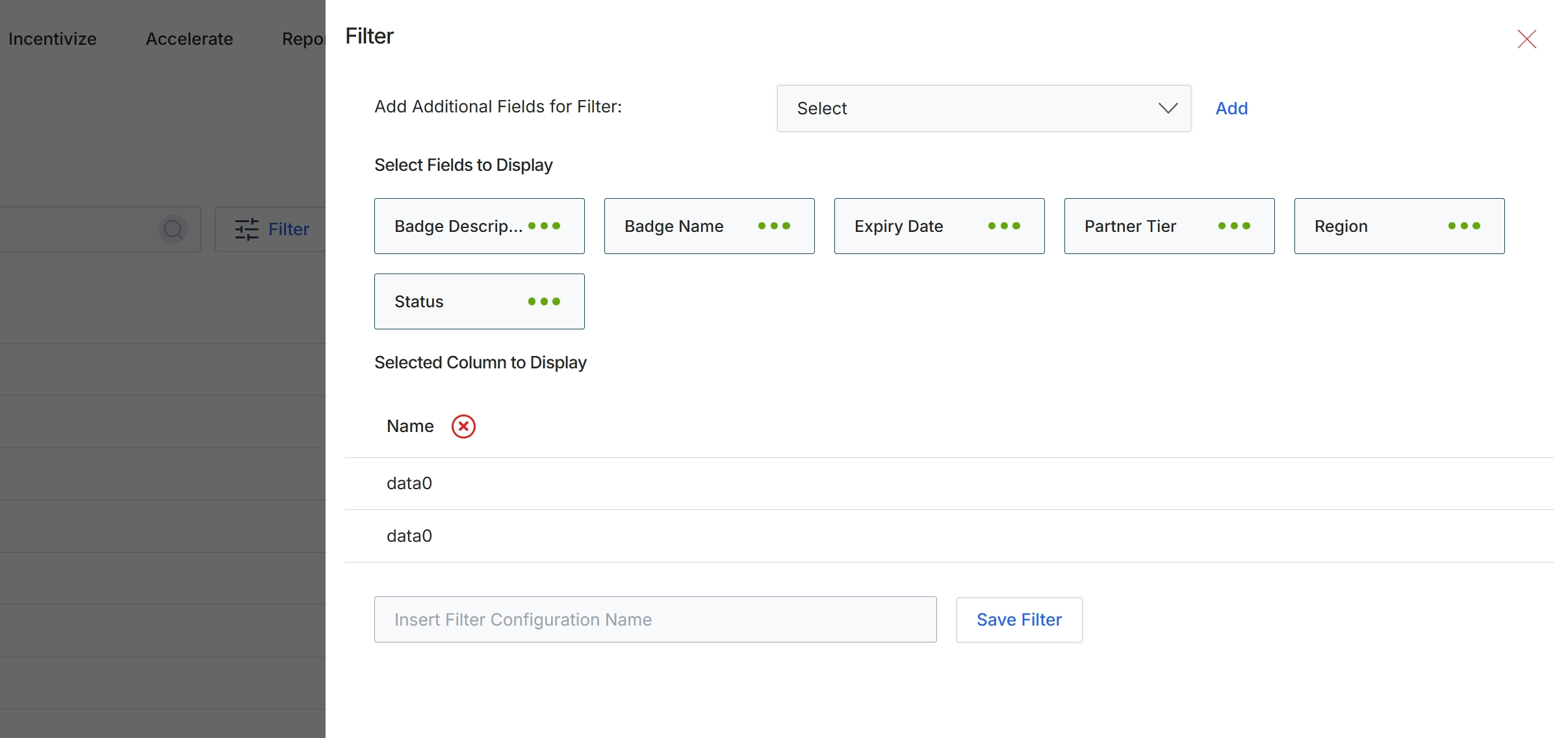
This filter configuration panel allows administrators to customize the data displayed in a list view by selecting specific fields and defining filter criteria. It enables users to refine the information presented, focusing on relevant attributes such as badge description, name, expiry date, partner tier, region, and status. This customization is crucial for efficient data analysis and management, as it helps administrators quickly locate and analyze specific partner badge information without sifting through irrelevant data. The panel also supports saving these custom filter configurations for future use, streamlining repetitive data analysis tasks.
Add additional fields to the filter by selecting them from the dropdown and clicking 'Add'.
Buttons
| Button | Description |
|---|---|
| Add | A button to add the selected field from the 'Add Additional Fields for Filter' dropdown to the list of fields available for display. |
| Save Filter | A button to save the current filter configuration with the specified name. |
Fields
| Field | Description |
|---|---|
| Add Additional Fields for Filter | A dropdown menu to select additional fields that can be used for filtering the list view. |
| Insert Filter Configuration Name | A text input field to enter a name for the current filter configuration, allowing it to be saved for future use. |
Filtering Badges
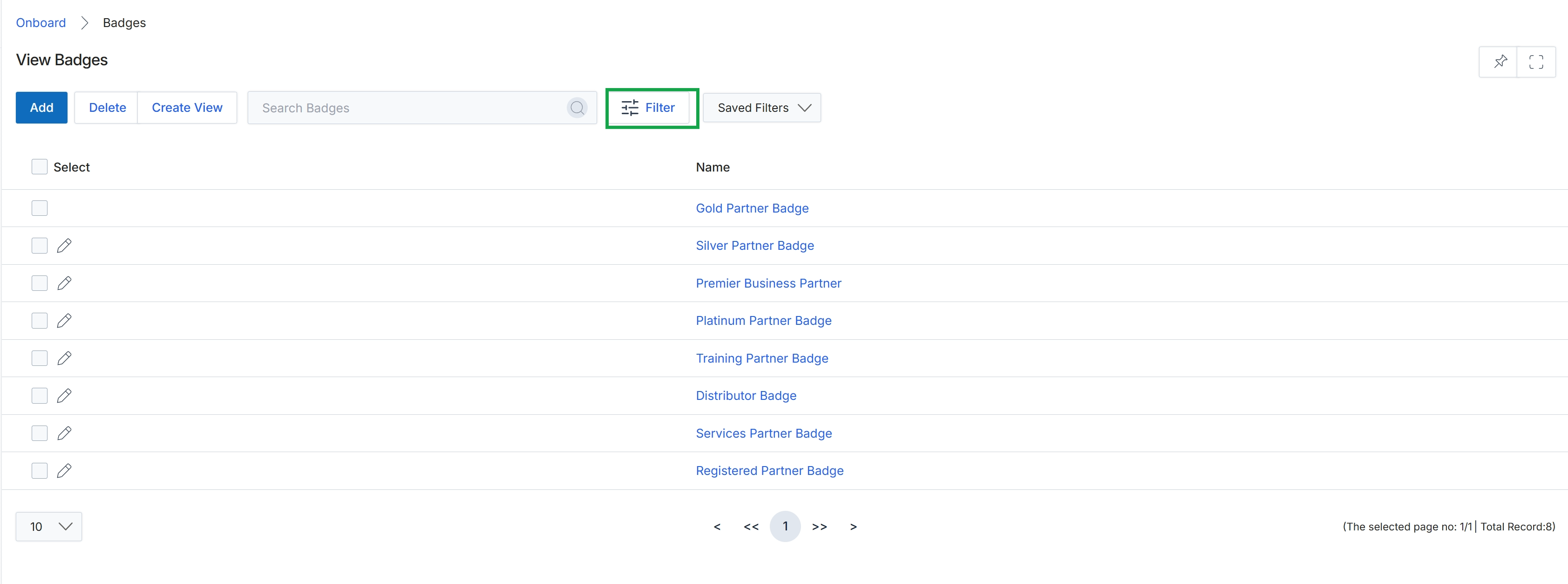
Click the Filter button.
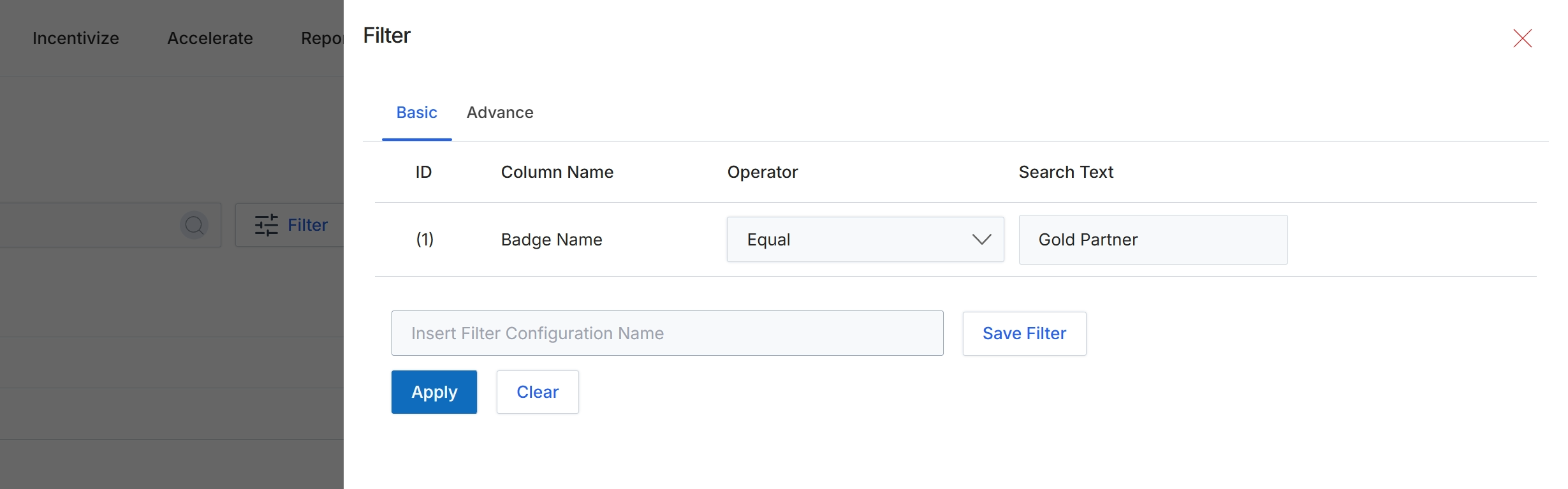
This filter dialog allows users to refine the displayed list of badges by applying specific criteria. It supports both basic and advanced filtering options, enabling users to narrow down results based on various badge attributes. The dialog provides a structured way to define filter rules, where each rule consists of a column name, an operator, and a search text. This functionality is crucial for efficiently managing and locating specific badges within larger datasets, supporting administrative tasks such as reviewing badge assignments or identifying badges that meet certain criteria.
Configure the filter by specifying the column, operator, and search text, then click "Apply" to filter the badge list.
Buttons
| Button | Description |
|---|---|
| Basic | Tab to define basic filter rules. |
| Advance | Tab to define advanced filter rules. |
| Save Filter | Button to save the current filter configuration for future use. |
| Apply | Button to apply the configured filter rules to the badge list. |
| Clear | Button to clear all applied filter rules. |
Fields
| Field | Description |
|---|---|
| Badge Name | The name of the badge to filter by. |
| Equal | Dropdown to select the comparison operator for the filter rule. |
| Gold Partner | Input field for the search text to match against the selected column. |
| Insert Filter Configuration Name | Input field to enter a name for saving the current filter configuration. |
Column Headings
| Column | Description |
|---|---|
| ID | Column header for the filter rule identifier. |
| Column Name | Column header for the name of the field to filter by. |
| Operator | Column header for the comparison operator used in the filter rule. |
| Search Text | Column header for the value to search for within the specified column. |
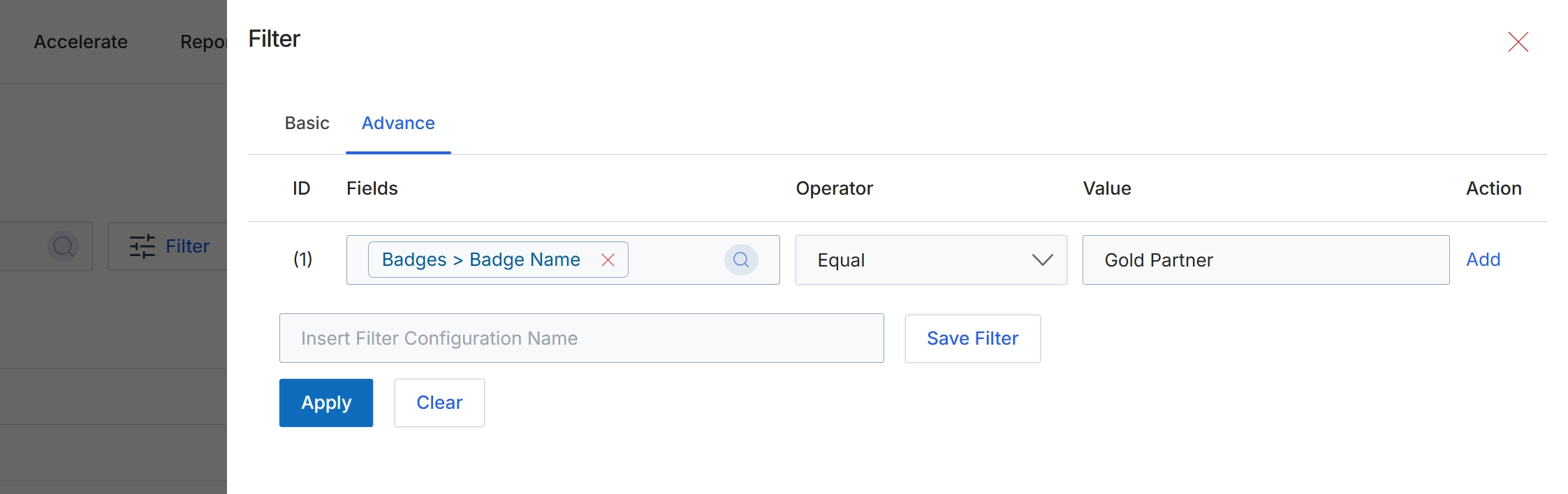
The advanced filter panel allows users to construct complex queries using multiple criteria to refine data displayed in list views. This panel is crucial for segmenting and analyzing partner data, enabling administrators to quickly locate specific partners based on various attributes such as badge name, tier, or activity. Users can define filter rules by selecting fields, operators, and values, and then apply these rules to dynamically update the displayed list. The ability to save filter configurations streamlines repetitive analysis tasks and supports consistent data segmentation across the platform.
Configure an advanced filter by specifying criteria in the 'Fields', 'Operator', and 'Value' columns, then click 'Apply' to filter the data.
Buttons
| Button | Description |
|---|---|
| Basic | A tab to switch to the basic filter configuration options. |
| Advance | A tab to switch to the advanced filter configuration options, allowing for more complex rule-based filtering. |
| Add | A link to add another filter rule to the current configuration. |
| Save Filter | A button to save the current filter configuration with the specified name. |
| Apply | A button to apply the configured filter rules to the data. |
| Clear | A button to clear all configured filter rules. |
Fields
| Field | Description |
|---|---|
| Badges > Badge Name | A field that specifies 'Badge Name' within the 'Badges' category as the target for the filter. It includes a search icon for selecting the badge name. |
| Equal | A dropdown field to select the comparison operator for the filter rule, currently set to 'Equal'. |
| Gold Partner | An input field displaying the value 'Gold Partner' for the filter rule. |
| Insert Filter Configuration Name | An input field to enter a name for the current filter configuration to save it for future use. |
Column Headings
| Column | Description |
|---|---|
| ID | A column header indicating the identifier for each filter rule. |
| Fields | A column header for selecting the data field to apply the filter rule to. |
| Operator | A column header for selecting the comparison operator (e.g., Equal, Contains, Greater Than) for the filter rule. |
| Value | A column header for entering or selecting the value to compare against the chosen field. |
| Action | A column header for actions related to managing filter rules. |