

Overview
Partner Types are a core entity within the UPM, serving as a foundational classification for partners. By defining distinct Partner Types, administrators can segment their partner ecosystem, ensuring that each partner receives relevant content, incentives, and program access tailored to their specific role or business model. For instance, a 'Reseller' partner might have access to different deal registration processes and commission structures than an 'Affiliate' partner. This granular control is essential for optimizing partner engagement and program effectiveness.
This section of the platform provides a centralized repository for managing these Partner Types. Administrators can easily add new types as their program evolves, delete obsolete ones, and efficiently search or filter the list to locate specific classifications. The ability to create custom views and apply advanced filters further enhances the management capabilities, allowing administrators to quickly analyze and organize their partner classifications.
Accessing and Viewing Partner Types
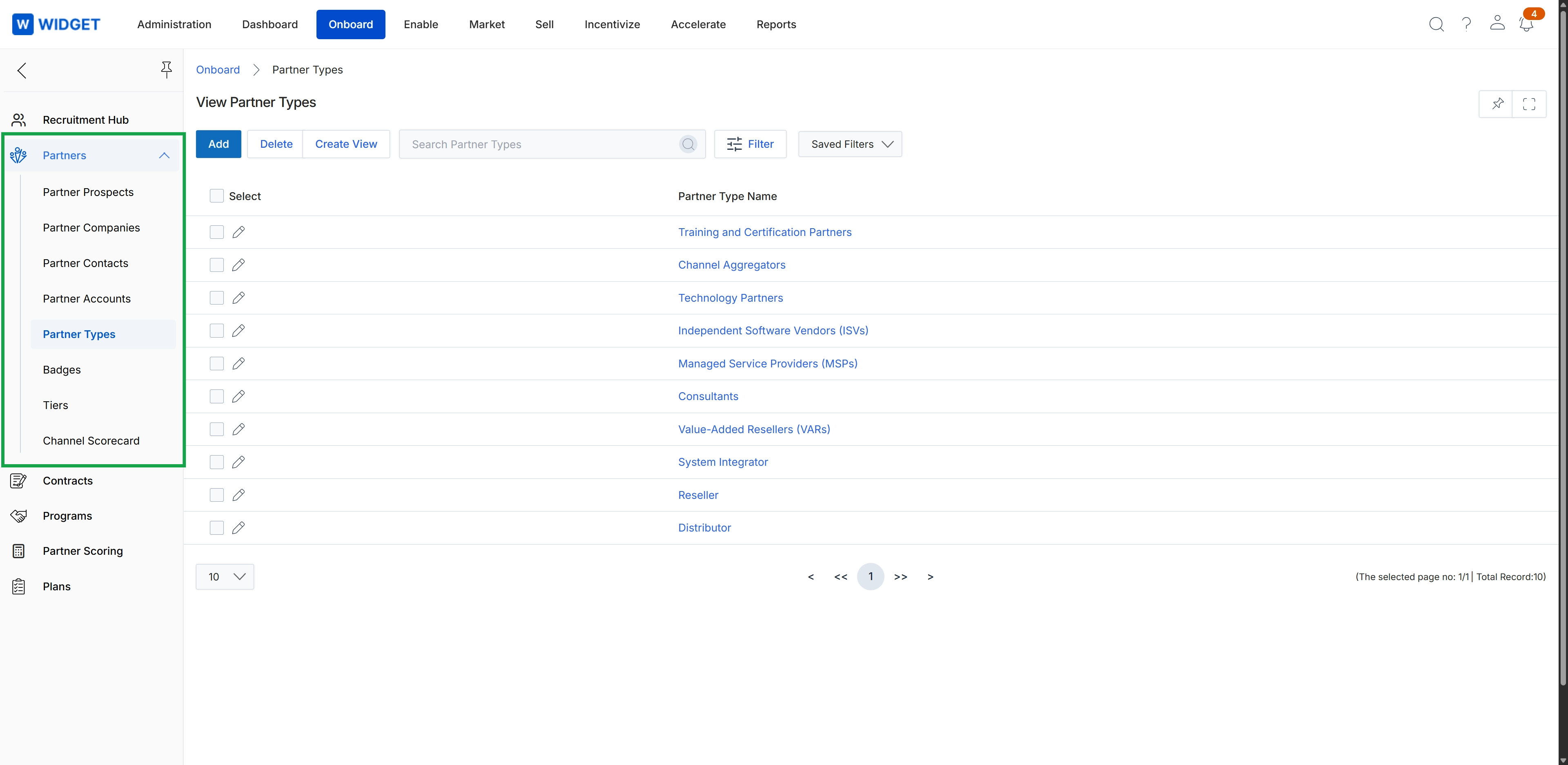
Click Onboard → Partners → Partner Types.
Deleting Partner Types
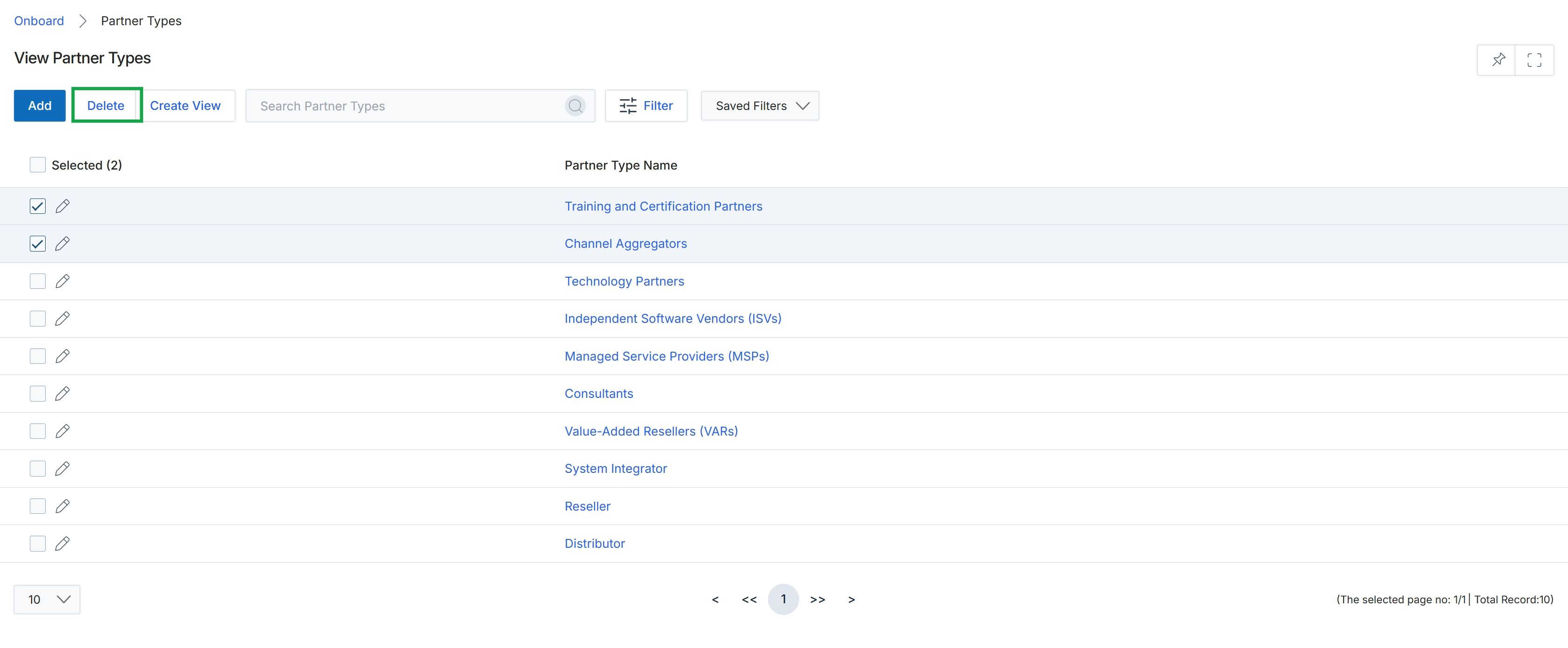
Click the Delete button.
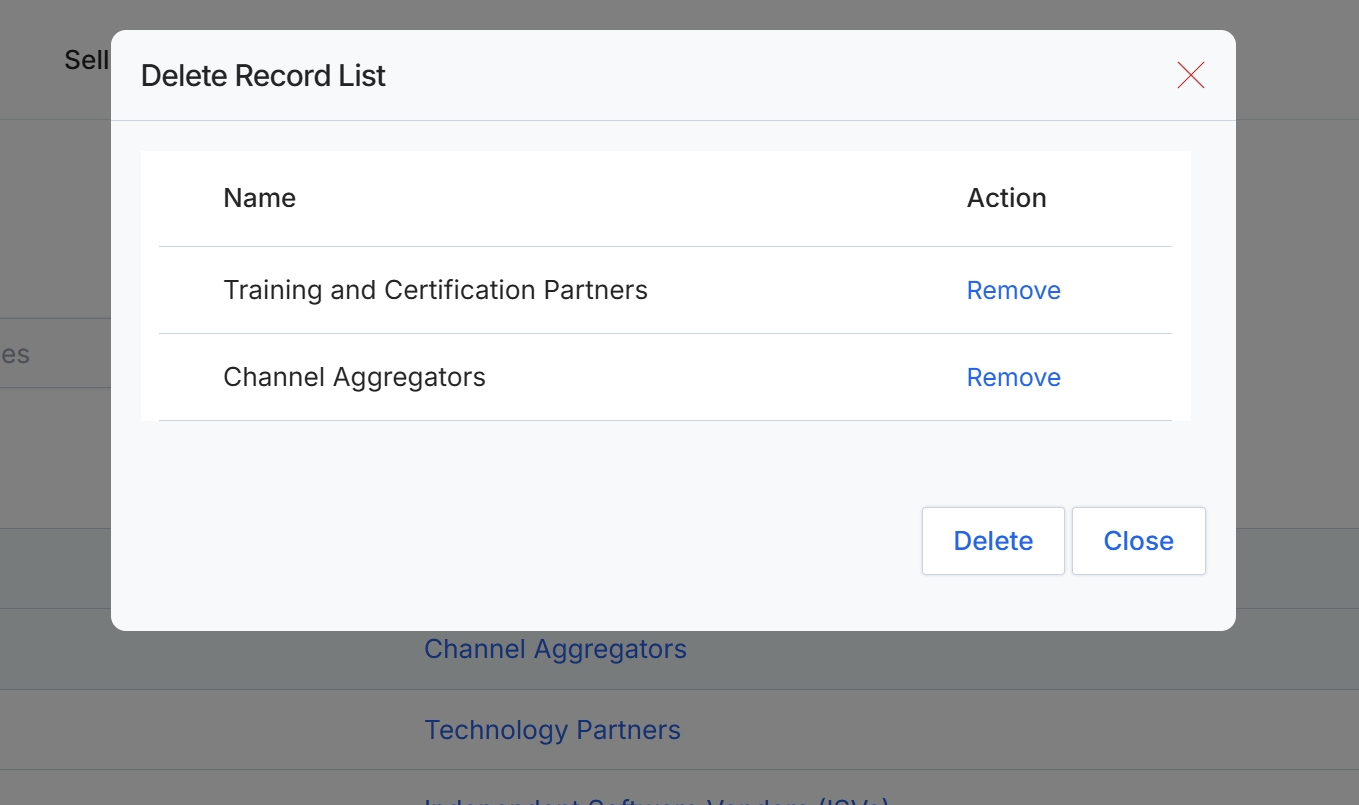
This dialog box, titled 'Delete Record List', is displayed when a UPM administrator initiates the deletion of one or more partner types. It serves as an intermediary step to confirm which partner types are selected for deletion and provides an opportunity to review and modify the selection before the final deletion action. The dialog lists the names of the partner types chosen for removal and allows the administrator to 'Remove' individual items from this temporary list, or to proceed with the 'Delete' operation for all remaining items, or to 'Close' the dialog without making any changes. This ensures that accidental deletions are minimized and that administrators have granular control over the records being processed.
Review the list of partner types selected for deletion in the 'Delete Record List' dialog.
Buttons
| Button | Description |
|---|---|
| Remove | A link to remove the corresponding partner type from the deletion list, without performing the final delete action. |
| Delete | A button to permanently delete all partner types remaining in the list. |
| Close | A button to close the dialog without performing any deletion actions. |
Fields
| Field | Description |
|---|---|
| Training and Certification Partners | A partner type currently selected for deletion. |
| Channel Aggregators | A partner type currently selected for deletion. |
Column Headings
| Column | Description |
|---|---|
| Name | The column header for the name of the partner type selected for deletion. |
| Action | The column header for actions that can be performed on individual partner types within this list. |
Creating Custom Views
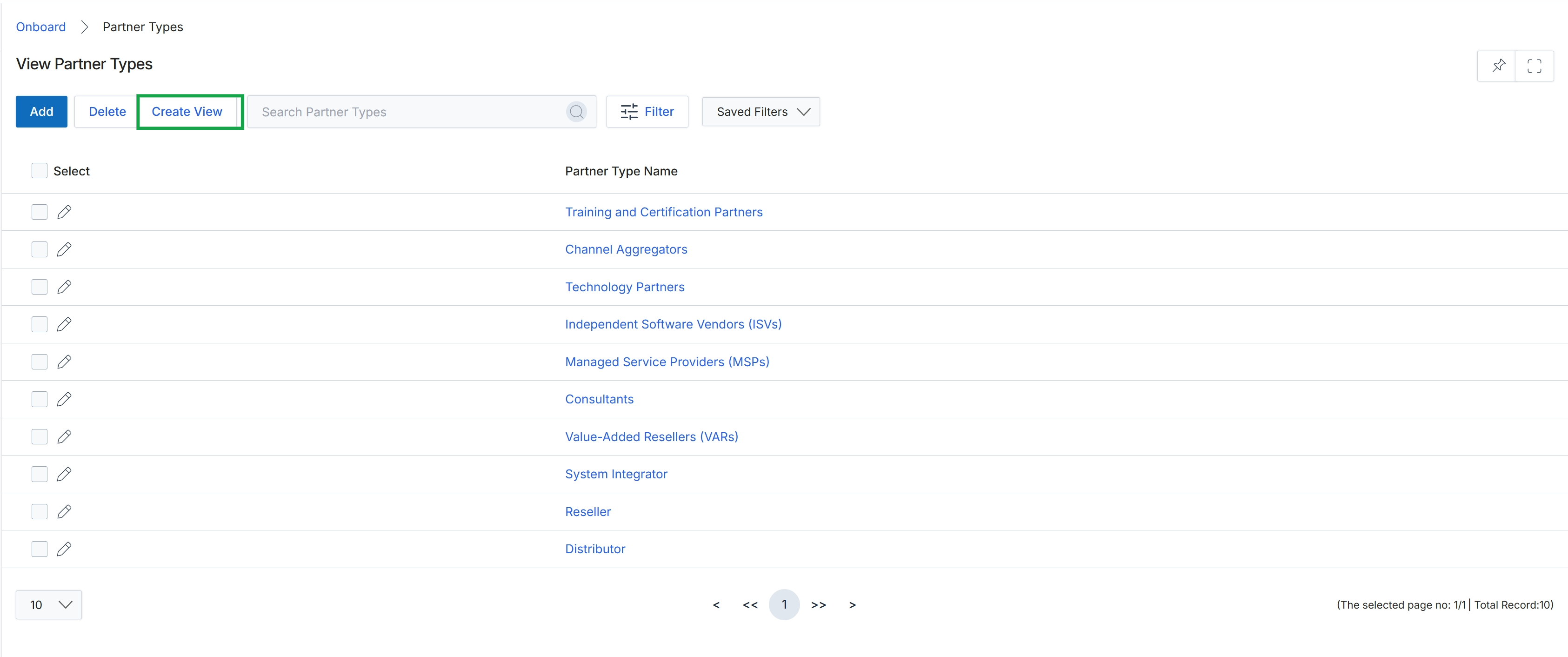
Click the Create View button.
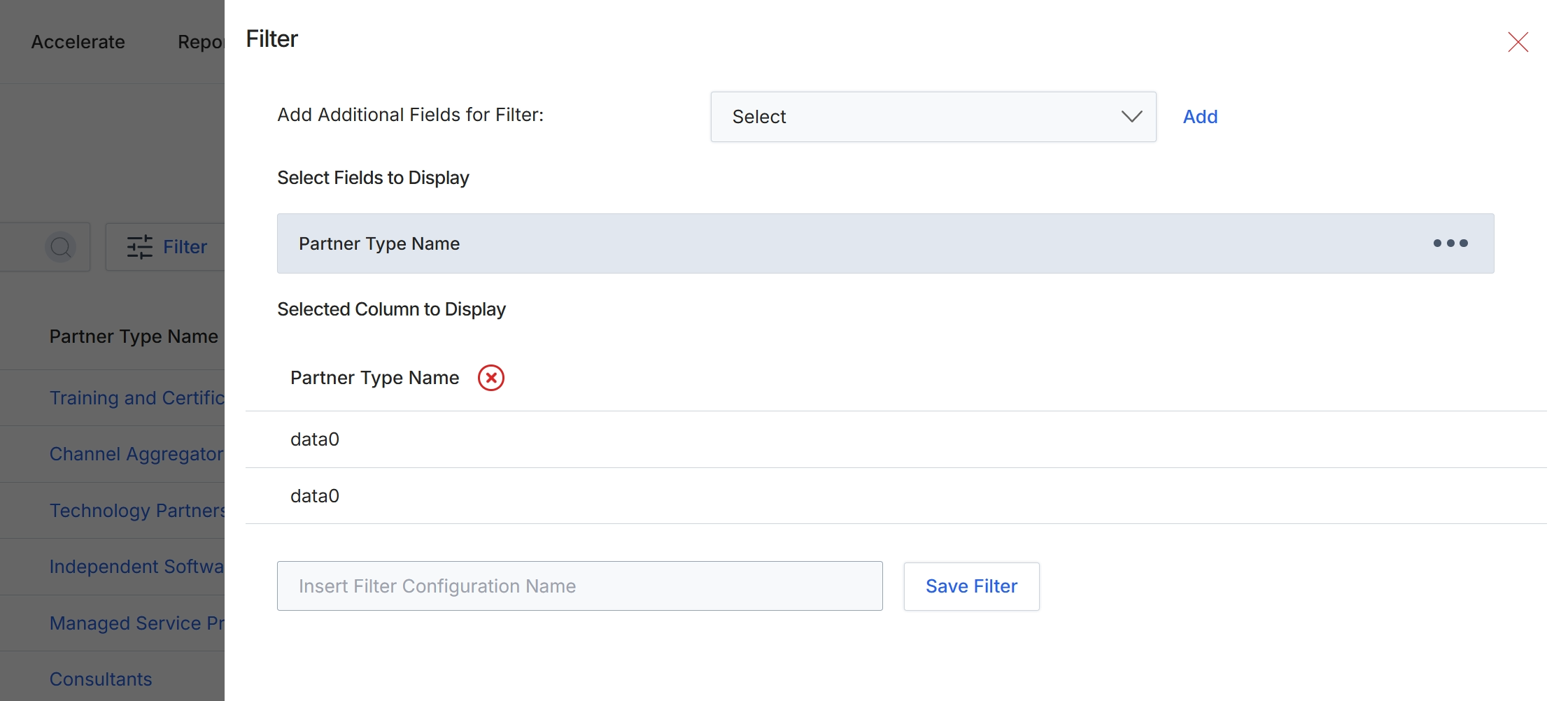
This filter configuration panel allows users to customize the displayed columns and apply filters to the Partner Type list view. Users can add specific fields to filter by, select which columns are visible in the main list, and save these configurations for future use. This feature enhances data visibility and streamlines the process of analyzing partner types based on specific criteria, supporting efficient partner management within the Onboard module.
Enter a name for the filter configuration in the provided text field to save it for future use.
Buttons
| Button | Description |
|---|---|
| Add | A button to add the selected field to the filter criteria. |
| Save Filter | A button to save the current filter configuration with the specified name. |
Fields
| Field | Description |
|---|---|
| Select | A dropdown menu to select additional fields that can be used for filtering the Partner Type list. |
| Insert Filter Configuration Name | A text input field to enter a name for the current filter configuration, allowing it to be saved and reused. |
Filtering Partner Types
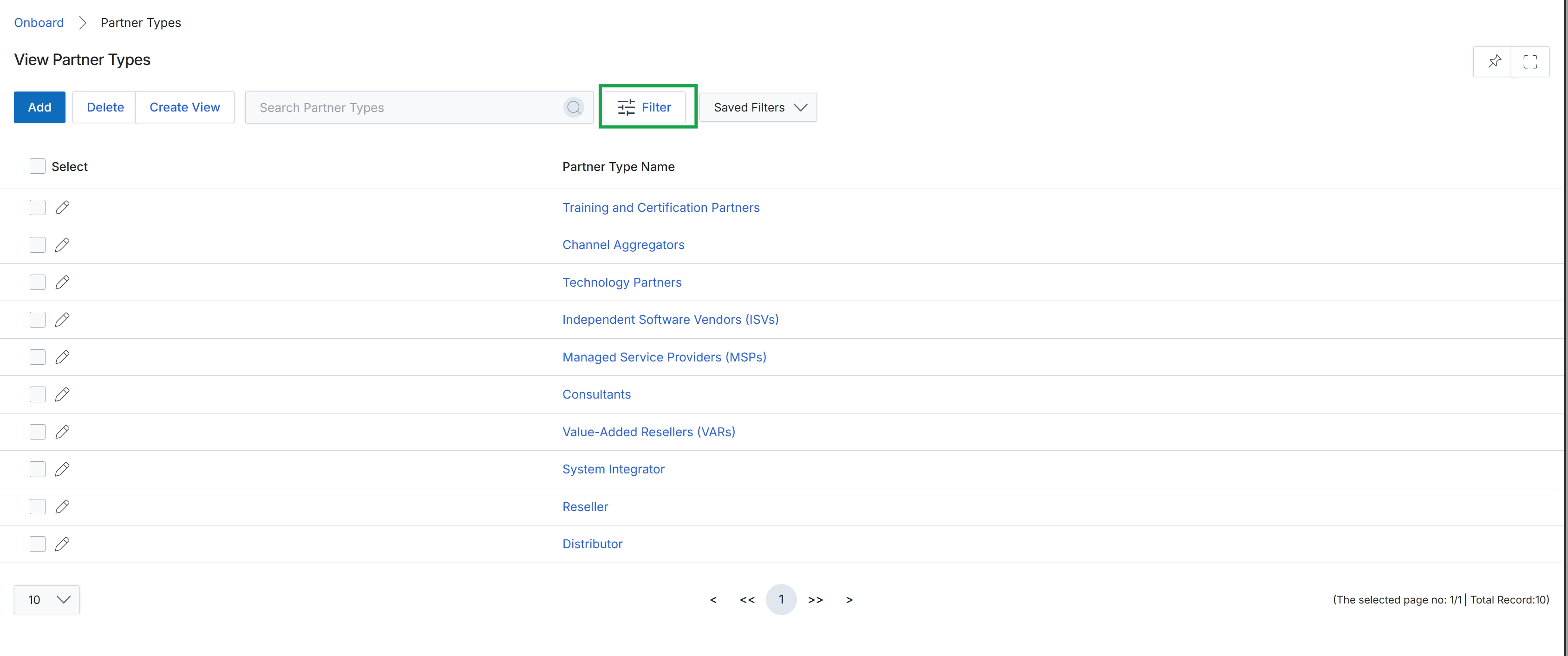
Click the Filter button.
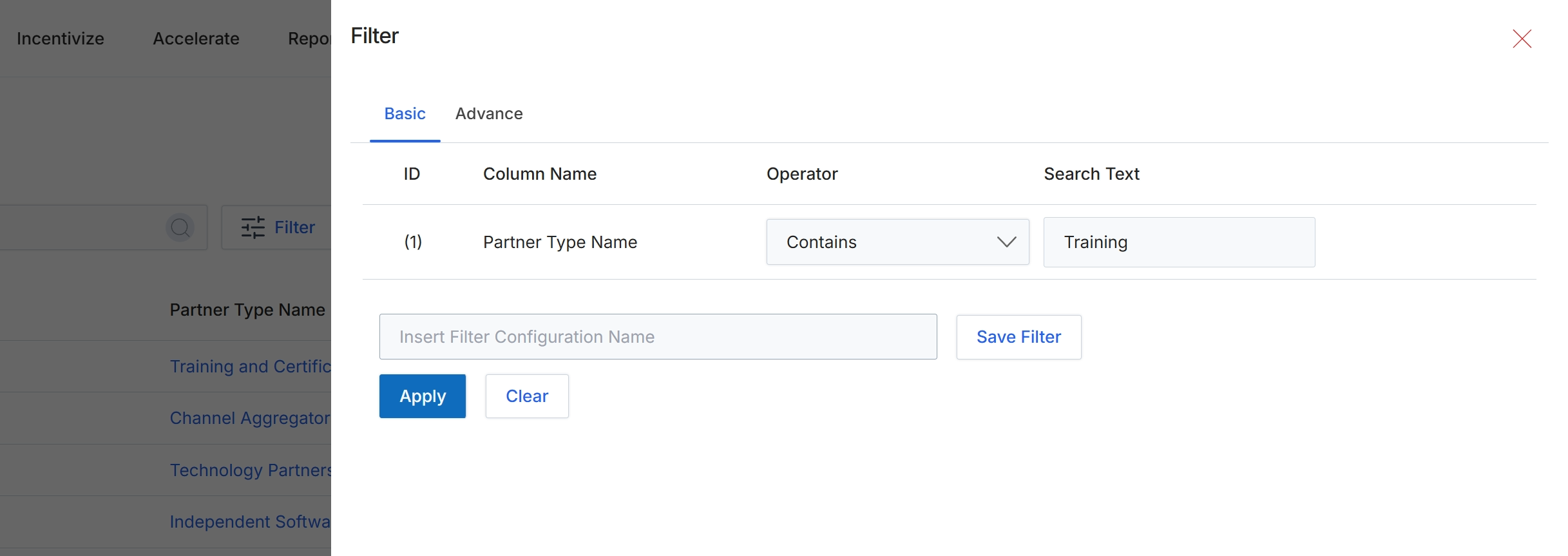
This filter dialog allows administrators to refine the list of partner types displayed in the main view by applying specific criteria. Users can define one or more filter conditions based on various attributes of the partner types, such as their name, using operators like 'Contains' to match partial text. This functionality is crucial for efficiently managing and locating specific partner types within a potentially large dataset, supporting tasks like reviewing categories for program assignment or identifying types for targeted communications. The dialog also provides an option to save frequently used filter configurations for quick access in the future.
Click the 'Apply' button to apply the filter and view partner types containing 'Training' in their name.
Buttons
| Button | Description |
|---|---|
| Basic | Tab to define basic filter conditions. |
| Advance | Tab to define advanced filter conditions. |
| Save Filter | Button to save the current filter configuration with the specified name. |
| Apply | Button to apply the configured filter conditions to the list. |
| Clear | Button to clear all applied filter conditions. |
Fields
| Field | Description |
|---|---|
| Partner Type Name | Dropdown to select the column to filter, currently set to 'Partner Type Name'. |
| Contains | Dropdown to select the operator for the filter condition, currently set to 'Contains'. |
| Training | Text input field for the search term, currently set to 'Training'. |
| Insert Filter Configuration Name | Text input field to enter a name for the current filter configuration to save it for future use. |
Column Headings
| Column | Description |
|---|---|
| ID | Column header for the filter condition identifier. |
| Column Name | Column header for the attribute to be filtered. |
| Operator | Column header for the comparison operator used in the filter condition. |
| Search Text | Column header for the value to search for within the specified column. |
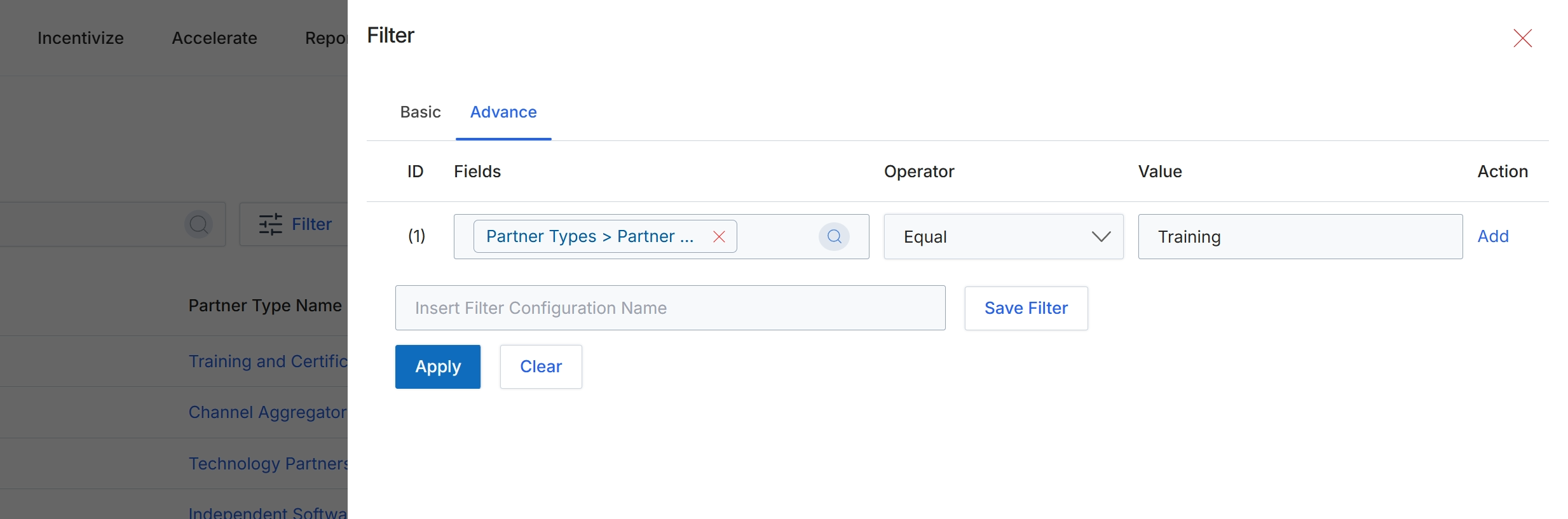
The Filter dialog allows administrators to refine the list of displayed partner types by applying specific criteria. This advanced filtering capability supports complex queries by enabling the construction of multiple filter rules, each specifying a field, an operator, and a value. This ensures that administrators can precisely target and analyze subsets of partner types based on various attributes, which is crucial for managing partner programs effectively. The ability to save filter configurations streamlines repetitive analysis tasks and promotes consistency in data segmentation, supporting workflows such as identifying partners for specific training programs or categorizing them by their associated certifications.
Click the 'Advance' tab to switch to the advanced filter options, then apply a filter rule to view partner types associated with 'Training'.
Buttons
| Button | Description |
|---|---|
| Basic | Tab to switch to basic filtering options. |
| Advance | Tab to switch to advanced filtering options, allowing for complex rule-based filtering. |
| Add | Link to add another filter rule. |
| Save Filter | Button to save the current filter configuration for future use. |
| Apply | Button to apply the configured filter rules to the partner types list. |
| Clear | Button to clear all applied filter rules and reset the filter dialog. |
Fields
| Field | Description |
|---|---|
| Partner Types > Partner ... | Dropdown field to select the specific partner type attribute to filter by. |
| Equal | Dropdown field to select the comparison operator for the filter rule. |
| Training | Input field to specify the value to filter against, in this case, 'Training'. |
| Insert Filter Configuration Name | Input field to enter a name for saving the current filter configuration. |
Column Headings
| Column | Description |
|---|---|
| ID | Column header for the filter rule identifier. |
| Fields | Column header for the field to be filtered. |
| Operator | Column header for the comparison operator used in the filter rule. |
| Value | Column header for the value to compare against in the filter rule. |
| Action | Column header for actions related to the filter rule, such as adding or removing rules. |