

Overview
The Partner Prospects feature is a critical component of the partner recruitment workflow, enabling vendors to manage potential partners from initial contact through to application. It provides a structured way to store and track information about companies and individuals who have shown interest in a partner program but have not yet submitted a formal application or been approved. This pre-onboarding management helps streamline the recruitment process, ensuring that promising prospects are nurtured and guided toward becoming active partners.
Administrators can leverage this tool to maintain a clear pipeline of potential partners, assign internal tasks for follow-up, record communication, and ultimately convert qualified prospects into full-fledged partner accounts. This proactive approach to prospect management contributes to a more efficient and effective partner recruitment strategy, laying the groundwork for a robust partner ecosystem.
View a Partner Prospect
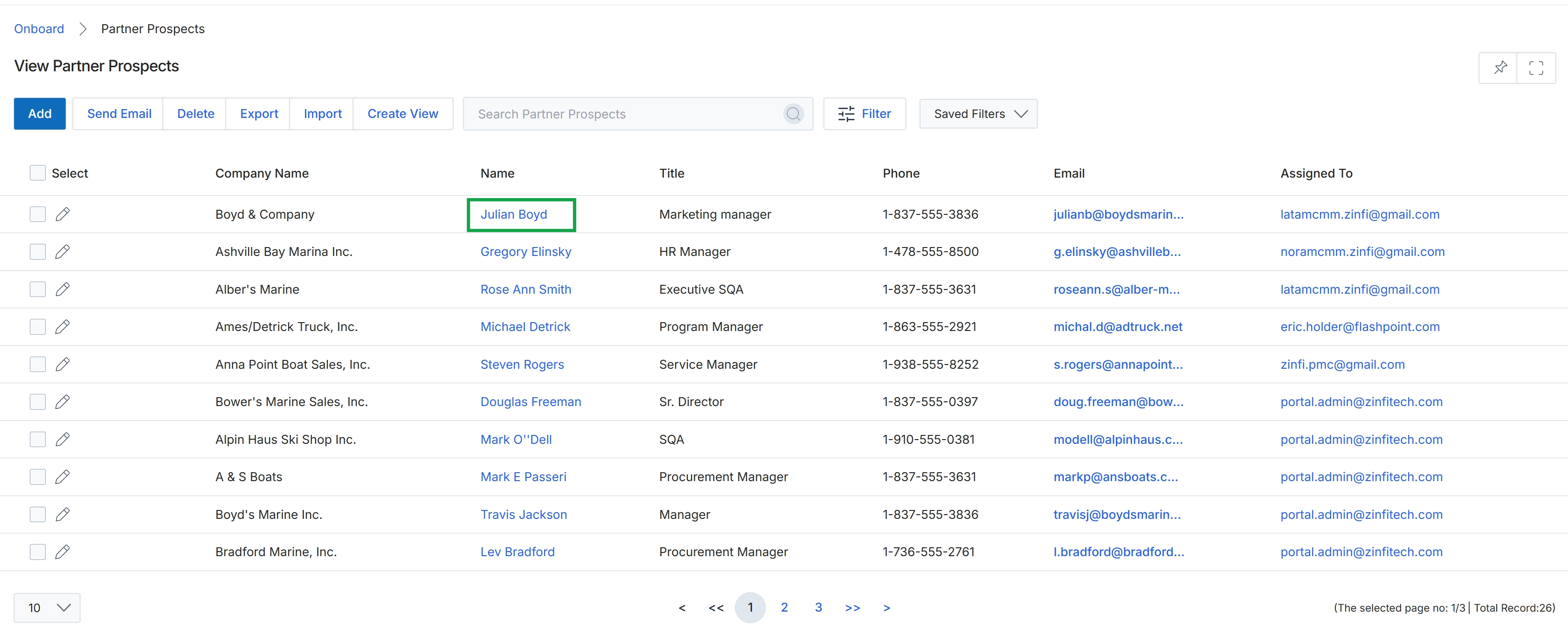
Click the Julian Boyd link in the Name column to view the prospect's details.
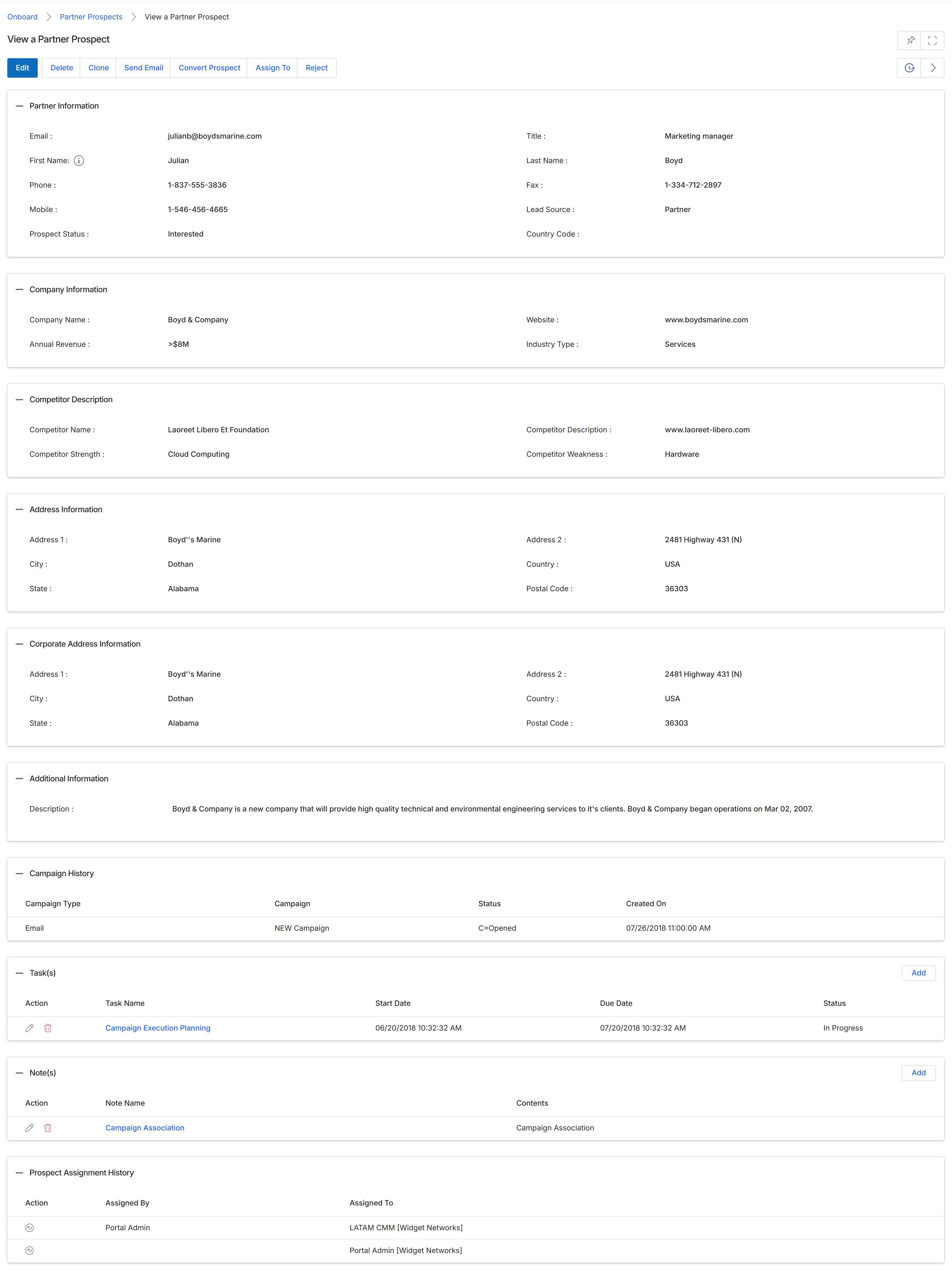
This screen displays the detailed profile of a specific prospect record within the Onboard module. Prospect records represent potential partners who have not yet been fully onboarded or converted into active partners. This view provides a comprehensive summary of all information associated with the prospect, including their contact details, company information, competitive landscape, address information, and any associated activities like campaign history, tasks, notes, and assignment history. Administrators use this screen to review prospect data, evaluate their potential, and perform actions such as editing the record, converting the prospect to a partner, or assigning the prospect to a different manager. The various sections consolidate data collected during the recruitment and application process, as well as subsequent interactions, providing a holistic view for decision-making.
Review the detailed information for the selected prospect.
Buttons
| Button | Description |
|---|---|
| Edit | Allows modification of the prospect's details. |
| Delete | Removes the prospect record from the system. |
| Clone | Creates a duplicate of the current prospect record. |
| Send Email | Initiates an email to the prospect. |
| Convert Prospect | Converts the prospect into an active partner, initiating the onboarding workflow. |
| Assign To | Assigns the prospect to a different user or team. |
| Reject | Declines the prospect, typically used for applications that do not meet criteria. |
| Add | Adds a new task for the prospect. |
| Add | Adds a new note for the prospect. |
Partner Information
| Field | Description |
|---|---|
| The prospect's email address. | |
| First Name | The prospect's first name. |
| Phone | The prospect's primary phone number. |
| Mobile | The prospect's mobile phone number. |
| Prospect Status | The current status of the prospect, indicating their stage in the recruitment process. |
| Title | The prospect's job title. |
| Last Name | The prospect's last name. |
| Lead Source | The origin or channel through which the prospect was acquired. |
Company Information
| Field | Description |
|---|---|
| Company Name | The name of the prospect's company. |
| Annual Revenue | The reported annual revenue of the prospect's company. |
| Website | The website URL of the prospect's company. |
| Industry Type | The industry sector of the prospect's company. |
Competitor Description
| Field | Description |
|---|---|
| Competitor Name | The name of a competitor associated with the prospect. |
| Competitor Strength | A description of the competitor's strengths. |
| Competitor Description | A general description or URL related to the competitor. |
| Competitor Weakness | A description of the competitor's weaknesses. |
Address Information
| Field | Description |
|---|---|
| Address 1 | The first line of the prospect's primary address. |
| City | The city of the prospect's primary address. |
| State | The state of the prospect's primary address. |
| Address 2 | The second line of the prospect's primary address. |
| Country | The country of the prospect's primary address. |
| Postal Code | The postal code of the prospect's primary address. |
Corporate Address Information
| Field | Description |
|---|---|
| Address 1 | The first line of the prospect's corporate address. |
| City | The city of the prospect's corporate address. |
| State | The state of the prospect's corporate address. |
| Address 2 | The second line of the prospect's corporate address. |
| Country | The country of the prospect's corporate address. |
| Postal Code | The postal code of the prospect's corporate address. |
Additional Information
| Field | Description |
|---|---|
| Description | Additional descriptive information about the prospect or their company. |
Campaign History
| Field | Description |
|---|---|
| Campaign Type | The type of marketing campaign associated with the prospect. |
| Campaign | The name of the campaign. |
| Created On | The date and time the campaign entry was created. |
Task(s)
| Column | Description |
|---|---|
| Action | Actions available for the task, such as edit or delete. |
| Task Name | The name or description of the task. |
| Start Date | The date and time the task was started. |
| Due Date | The date and time the task is due. |
| Status | The current status of the task. |
Note(s)
| Column | Description |
|---|---|
| Action | Actions available for the note, such as edit or delete. |
| Note Name | The title or subject of the note. |
| Contents | The content or body of the note. |
Prospect Assignment History
| Column | Description |
|---|---|
| Action | Actions related to the prospect assignment history, such as viewing details. |
| Assigned By | The user who assigned the prospect. |
| Assigned To | The user or team to whom the prospect was assigned. |
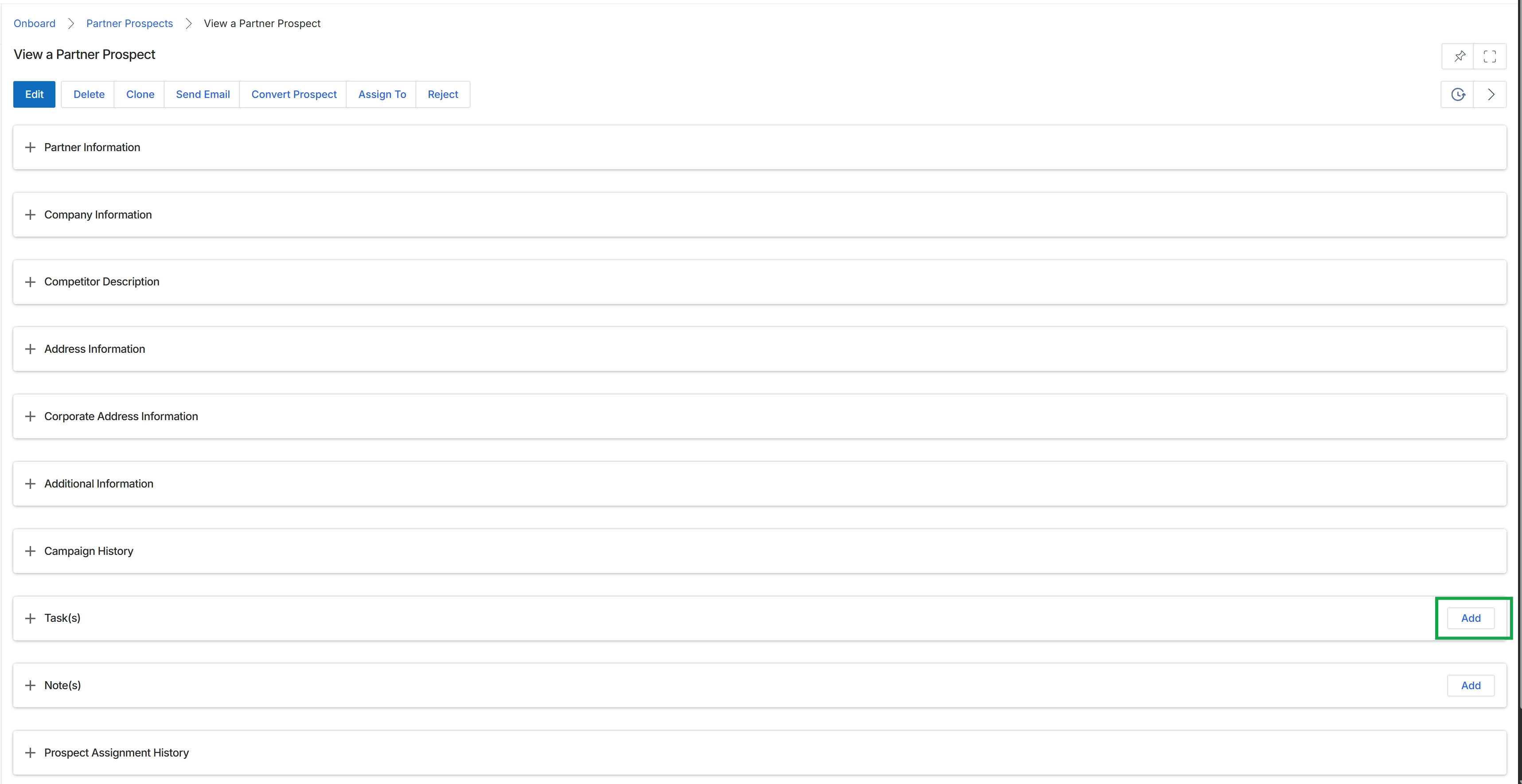
Click the Add button next to the "Task(s)" section.
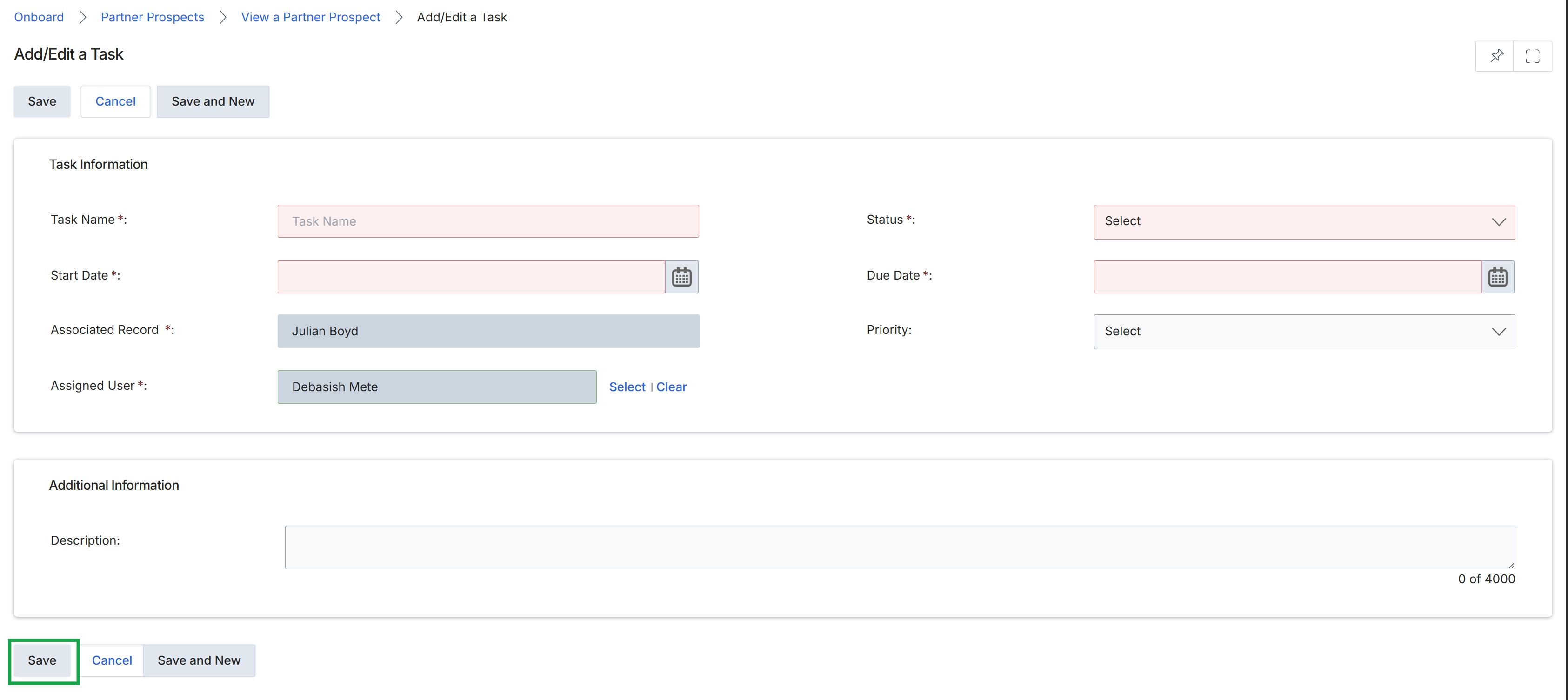
This screen displays the Add/Edit a Task form, which allows users to create new tasks or modify existing ones associated with a partner prospect. Tasks are critical for managing follow-up actions, scheduling activities, and ensuring timely engagement throughout the partner recruitment and onboarding workflows. This form captures essential task details such as name, status, dates, priority, and the associated record, enabling program managers to track their interactions and responsibilities related to specific prospects. The ability to assign tasks to specific users ensures accountability and clear ownership of follow-up actions, contributing to an organized and efficient partner management process.
Click the "Save" button to save the newly created or updated task.
Buttons
| Button | Description |
|---|---|
| Save | Saves the current task details and closes the form. |
| Cancel | Discards any changes and closes the form without saving. |
| Save and New | Saves the current task and opens a new blank task form for continuous entry. |
Task Information
| Field | Description |
|---|---|
| Task Name * | The name or title of the task. This is a required field. |
| Status * | The current status of the task, selected from a dropdown list. This is a required field. |
| Start Date * | The date when the task is scheduled to begin. This is a required field. |
| Due Date * | The deadline for completing the task. This is a required field. |
| Associated Record * | The partner prospect or other record to which this task is linked. This field is pre-populated with 'Julian Boyd' and is required. |
| Priority | The importance level of the task, selected from a dropdown list. |
| Assigned User * | The user responsible for completing the task. This field is pre-populated with 'Debasish Mete' and is required. Users can select a different user or clear the current assignment. |
Additional Information
| Field | Description |
|---|---|
| Description | A detailed explanation or notes for the task, with a character limit of 4000. |
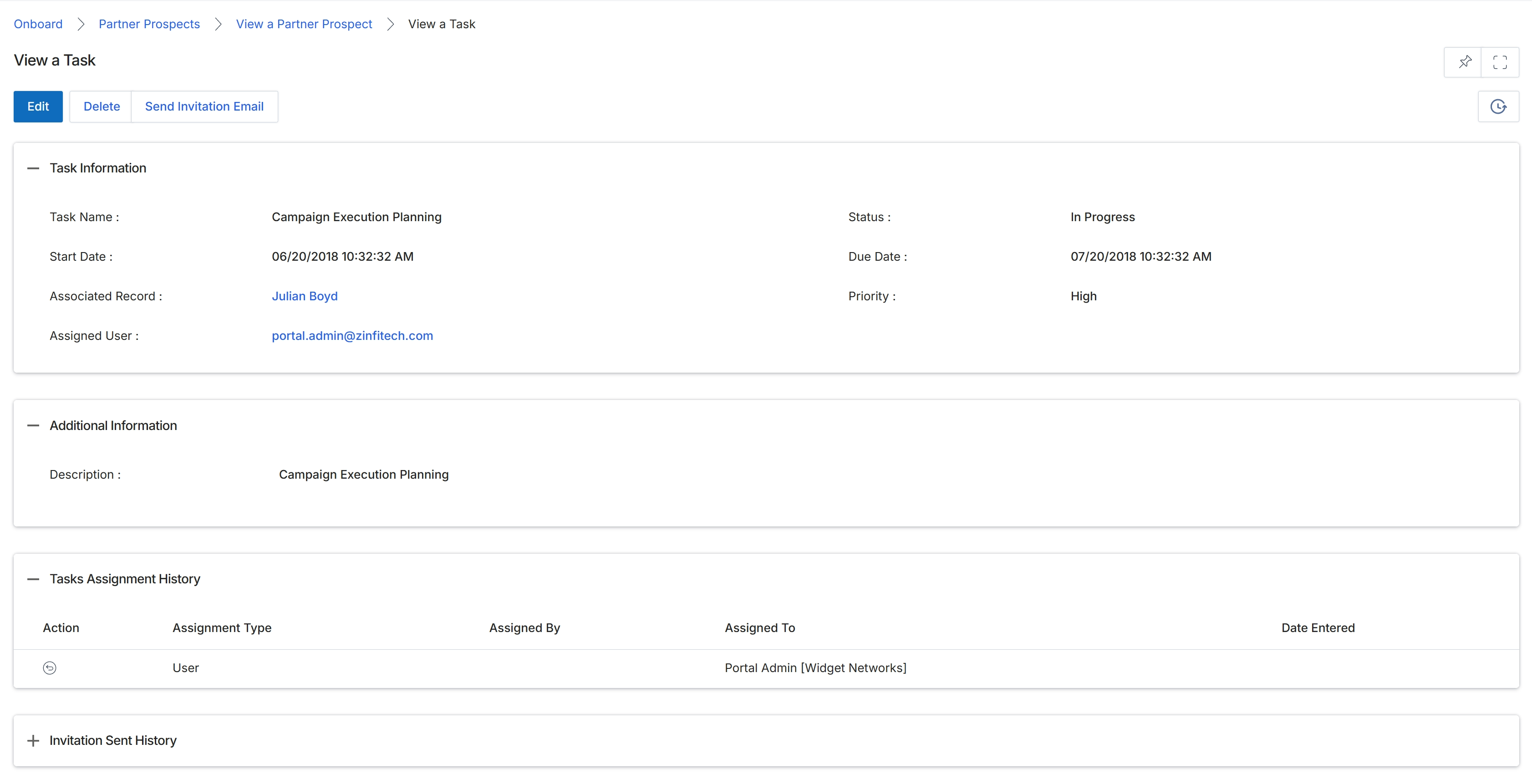
This screen displays the detailed information for a specific task associated with a partner prospect. Tasks are used by UPM administrators to manage follow-up actions, track progress, and ensure timely engagement with potential partners during the recruitment and onboarding phases. This view provides a comprehensive overview of the task's status, assignment, and related historical activities, allowing administrators to monitor and manage the prospect's journey through the pipeline. The information presented helps in understanding the context of the task, who it's assigned to, its priority, and its due date, which are critical for effective prospect management.
Review the detailed information for the selected task associated with the partner prospect.
Buttons
| Button | Description |
|---|---|
| Edit | Click to modify the details of this task. |
| Delete | Click to remove this task. |
| Send Invitation Email | Click to send an invitation email related to this task or prospect. |
Task Information
| Field | Description |
|---|---|
| Task Name | The name or title of the task. |
| Status | The current status of the task, indicating its progress. |
| Start Date | The date and time when the task was initiated. |
| Due Date | The deadline for completing the task. |
| Associated Record | The prospect or record to which this task is linked. |
| Priority | The urgency level assigned to the task. |
| Assigned User | The user responsible for completing this task. |
Additional Information
| Field | Description |
|---|---|
| Description | A detailed explanation of the task. |
Tasks Assignment History
| Column | Description |
|---|---|
| Action | Indicates the type of action performed. |
| Assignment Type | Specifies the nature of the assignment. |
| Assigned By | The user who assigned the task. |
| Assigned To | The user or entity to whom the task was assigned. |
| Date Entered | The date when the assignment record was created. |
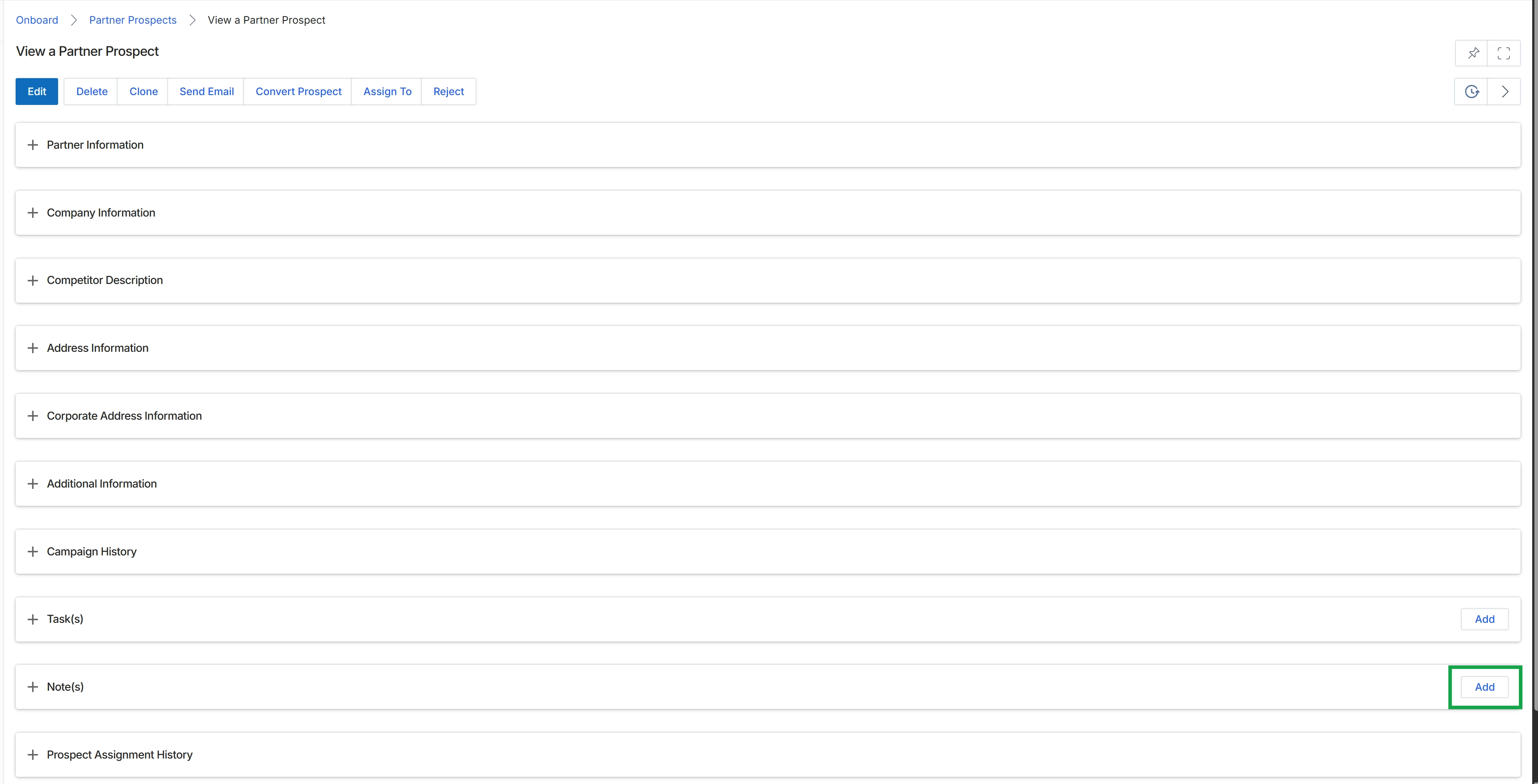
Click the Add button next to "Note(s)".
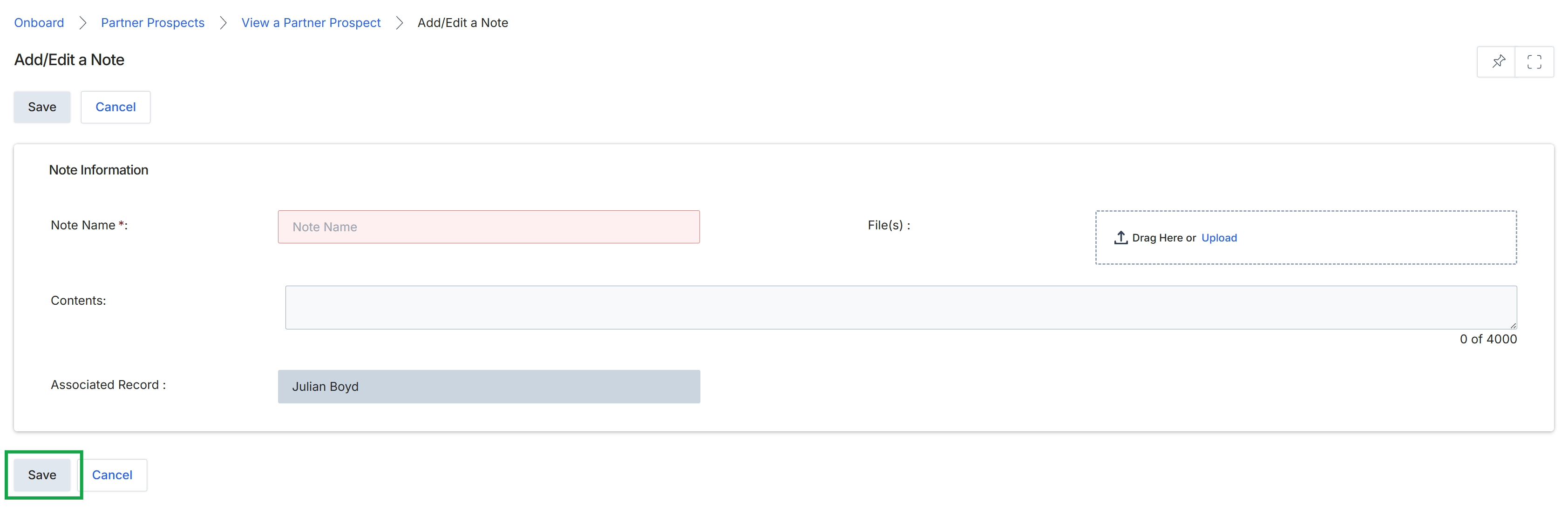
The Add/Edit a Note screen allows users to create or modify notes associated with a specific record, such as a Partner Prospect. This functionality is crucial for maintaining detailed internal records of interactions, observations, or any relevant information pertaining to the prospect's journey through the recruitment and onboarding process. Notes serve as an audit trail and a collaborative tool for program managers and other vendor-side users to track the history and context of their engagement with potential partners. The system automatically links the note to the relevant record, ensuring all related information is consolidated for easy access and review.
Click the "Save" button to save the new or updated note.
Buttons
| Button | Description |
|---|---|
| Save | Saves the current note and associates it with the specified record. |
| Cancel | Discards any changes made to the note and returns to the previous screen. |
Note Information
| Field | Description |
|---|---|
| Note Name | A required field for entering a descriptive title for the note. |
| File(s) | Allows users to drag and drop or upload files to attach to the note. |
| Contents | A text area for entering the detailed content of the note, with a character limit of 4000. |
| Associated Record | Displays the name of the record (e.g., Partner Prospect) to which this note is linked. |
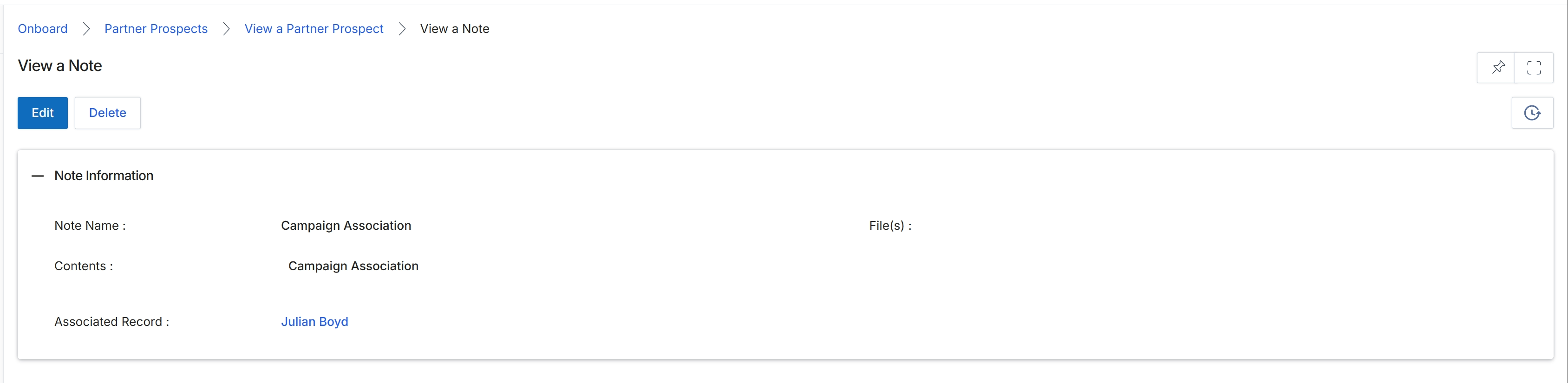
This screen displays the details of a specific note associated with a partner prospect. Notes are used to record important information, communications, or actions related to a prospect, providing a historical log and context for the recruitment and onboarding process. Each note includes a name, content, and a link to the associated record, ensuring that all relevant information is centralized and easily accessible to UPM administrators managing partner prospects. This view allows for reviewing existing notes and provides options to edit or delete them as needed.
Review the details of the note associated with the partner prospect.
Buttons
| Button | Description |
|---|---|
| Edit | Click to modify the details of this note. |
| Delete | Click to remove this note from the system. |
Note Information
| Field | Description |
|---|---|
| Note Name | Displays the title or subject of the note. |
| File(s) | Displays any files attached to this note. |
| Contents | Displays the main body or detailed text of the note. |
| Associated Record | Displays the name of the partner prospect or record to which this note is linked. |