

Overview
In the UPM platform, 'Prospects' represent individuals or companies that are potential candidates for becoming customers or partners, but have not yet been fully qualified as 'Leads' or registered as 'Deals'. This module provides administrators with the tools to manage these early-stage opportunities, allowing for systematic tracking and engagement before they enter the formal sales pipeline. Effective management of prospects is crucial for building a robust sales funnel and ensuring a steady flow of new business opportunities for both the vendor and its partners.
Administrators can import prospects, assign them to specific users or partners, apply scoring rules to prioritize engagement, and ultimately convert them into qualified leads or even directly into registered deals. This capability streamlines the initial outreach and qualification process, ensuring that resources are focused on the most promising opportunities and that the transition from a potential contact to an active sales engagement is smooth and trackable.
Viewing Prospect Details
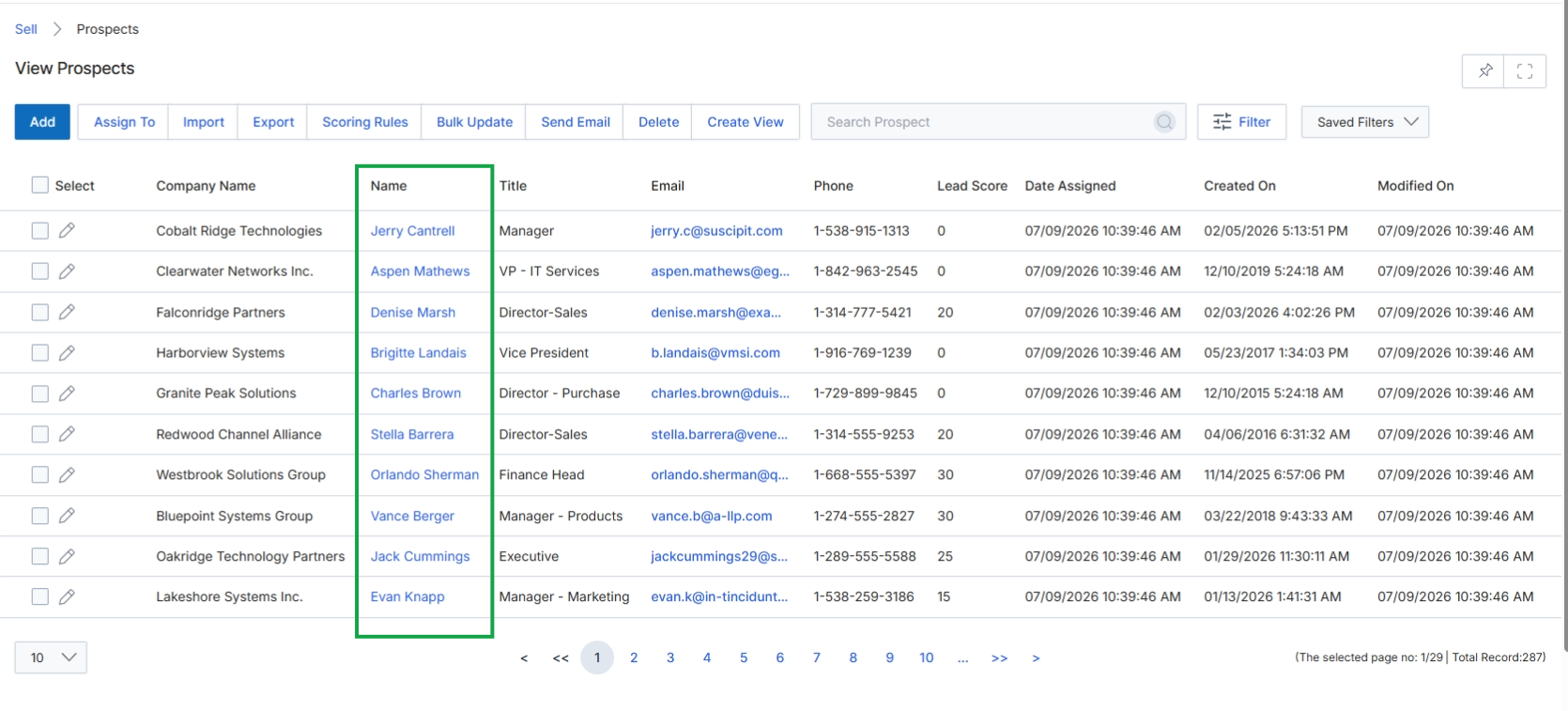
Click on any hyperlinked prospect name in the Name column, such as Jerry Cantrell, to view the prospect's details.
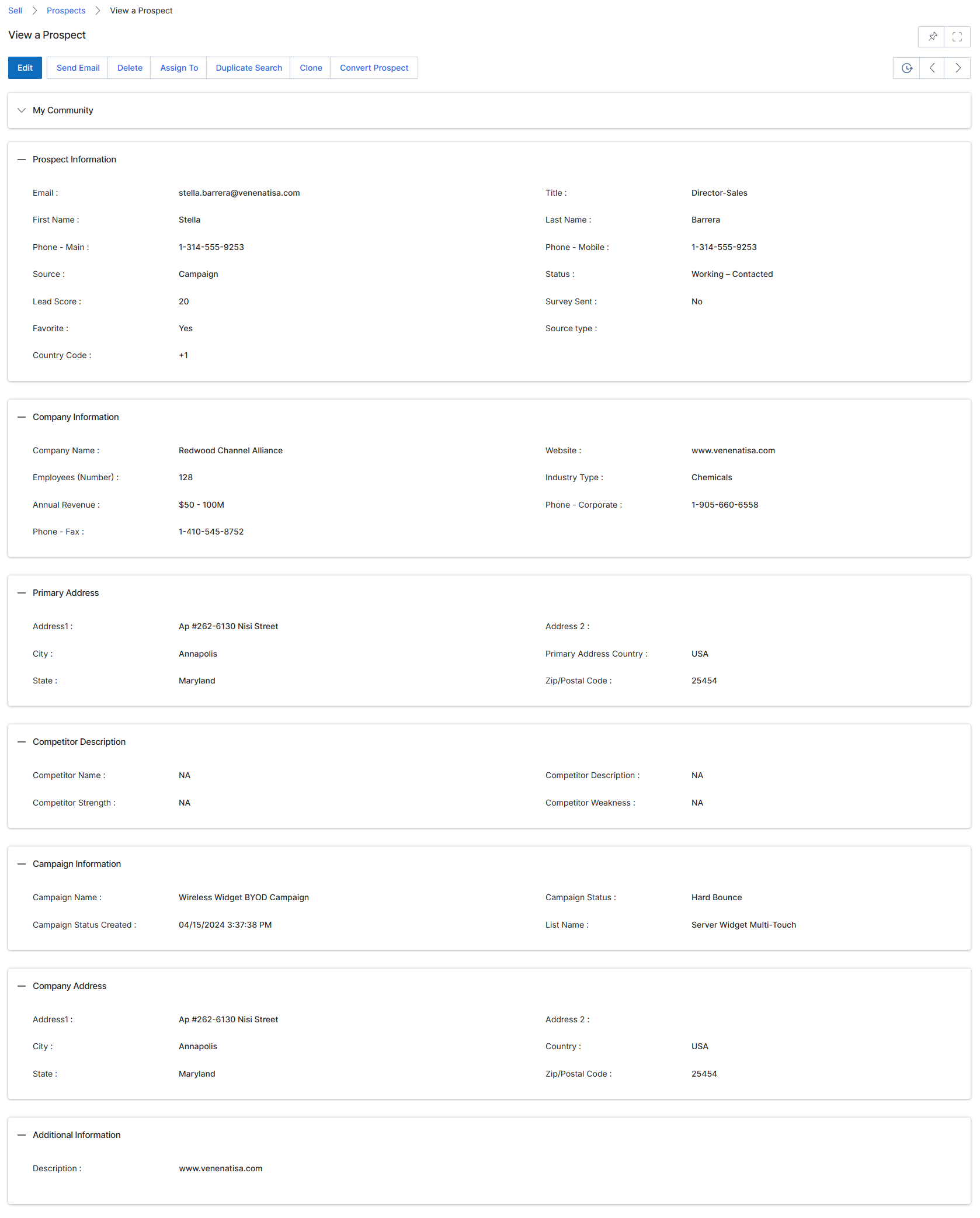
This screen displays the detailed view of a specific prospect record within the UPM 'Sell' module. Prospect records represent early-stage sales contacts that have not yet been qualified into leads or opportunities, sitting at the top of the channel sales funnel. This view provides a comprehensive overview of the prospect's contact information, company details, and engagement status, allowing vendor administrators to assess their potential and manage their progression through the sales pipeline. From here, administrators can perform actions such as editing the prospect's information, assigning them to a partner, or converting them into a more qualified lead or deal, facilitating the nurturing and tracking of potential sales opportunities. The various sections on this page categorize the prospect's data, offering a holistic view for effective management.
After clicking on a prospect's name from the list view, the detailed prospect information is displayed.
Buttons
| Button | Description |
|---|---|
| Edit | Allows modification of the prospect's details. |
| Send Email | Initiates an email to the prospect. |
| Assign To | Assigns the prospect to a specific user or partner. |
| Duplicate Search | Searches for potential duplicate prospect records. |
| Clone | Creates a copy of the current prospect record. |
| Convert Prospect | Converts the prospect into a lead or deal. |
| Document Download | A link to download a document related to the lead score. |
| Add | Adds a new task for the prospect. |
| Add | Adds a new note for the prospect. |
Prospect Information
| Field | Description |
|---|---|
| The prospect's email address, serving as a primary contact method. | |
| Title | The prospect's job title within their organization. |
| First Name | The prospect's first name. |
| Last Name | The prospect's last name. |
| Phone - Main | The prospect's primary phone number. |
| Phone - Mobile | The prospect's mobile phone number. |
| Source | Indicates how the prospect was acquired, e.g., 'Campaign'. |
| Status | The current engagement status of the prospect, e.g., 'Working - Contacted'. |
| Lead Score | A numerical score indicating the prospect's potential or engagement level. |
| Survey Sent | Indicates whether a survey has been sent to the prospect. |
| Favorite | Indicates if the prospect is marked as a favorite. |
| Source type | The type of source from which the prospect originated. |
| Country Code | The country code associated with the prospect's phone number. |
Company Information
| Field | Description |
|---|---|
| Company Name | The name of the company associated with the prospect. |
| Employee Number | The number of employees at the prospect's company. |
| Annual Revenue | The annual revenue of the prospect's company. |
| Phone - Fax | The fax number for the prospect's company. |
| Website | The website of the prospect's company. |
| Industry Type | The industry sector of the prospect's company. |
| Phone - Corporate | The main corporate phone number for the prospect's company. |
Primary Address
| Field | Description |
|---|---|
| Address 1 | The primary street address for the prospect's company. |
| City | The city of the prospect's company. |
| State | The state of the prospect's company. |
| Address 2 | Additional street address information for the prospect's company. |
| Primary Address Country | The country of the prospect's company's primary address. |
| Postal Code | The postal code of the prospect's company. |
Competitor Description
| Field | Description |
|---|---|
| Competitor Information | Details about competitors relevant to this prospect. |
| Competitor Strength | An assessment of the competitor's strength. |
| Competitor Weakness | An assessment of the competitor's weakness. |
Campaign Information
| Field | Description |
|---|---|
| Campaign Status Created | The date when the campaign status was created. |
| Campaign Status | The current status of the campaign associated with the prospect. |
| List Name | The name of the list the prospect belongs to within a campaign. |
Company Address
| Field | Description |
|---|---|
| Address 1 | The primary street address for the company. |
| City | The city of the company. |
| State | The state of the company. |
| Address 2 | Additional street address information for the company. |
| Country | The country of the company's address. |
| Postal Code | The postal code of the company. |
Additional Information
| Field | Description |
|---|---|
| Description | Additional descriptive information about the prospect. |
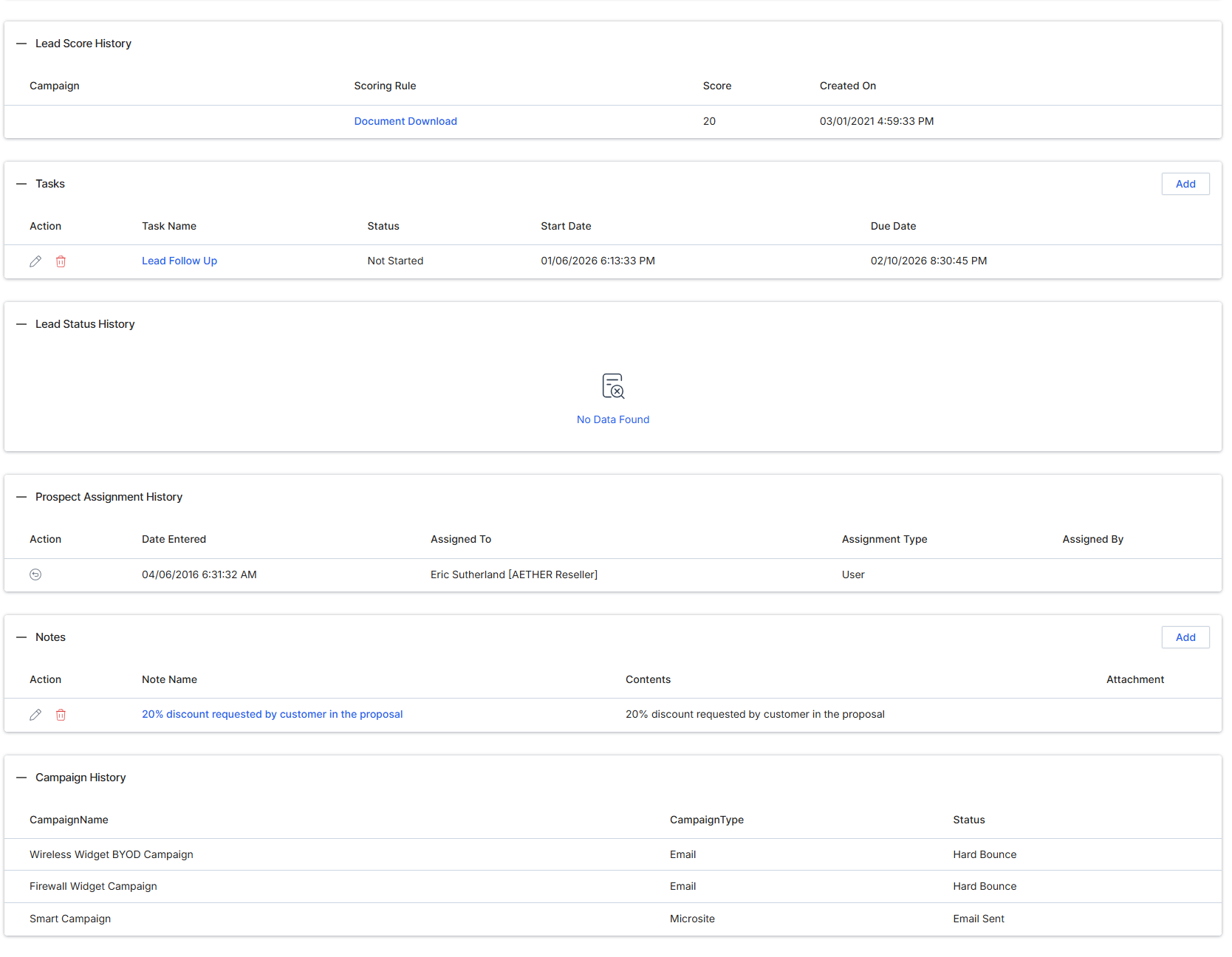
This screen displays the detailed view of a Prospect record within the UPM Sell module. Prospect records represent early-stage sales contacts that have not yet been qualified into leads or opportunities, serving as the initial entry point for potential sales in the channel sales funnel. This view consolidates all relevant information about a prospect, including personal contact details, company information, primary address, competitive context, campaign history, and any associated tasks or notes. It allows vendor administrators to review comprehensive prospect data, assess their potential, and manage their progression through the sales pipeline. The information presented here is crucial for determining whether a prospect should be advanced to a lead, assigned to a partner, or registered as a deal, aligning with the module's role in managing the channel sales pipeline.
Review the detailed information for the selected prospect, including their personal, company, and address details, along with any associated campaign, task, and note history.
Lead Score History
| Element | Description |
|---|---|
| Campaign | The name of the campaign. |
| Scoring Rule | The rule used for lead scoring. |
| Score | The lead score. |
| Created On | The date the lead score was created. |
Tasks
| Element | Description |
|---|---|
| Action | Actions available for the task, such as edit or delete. |
| Task Name | The name of the task. |
| Status | The current status of the task. |
| Start Date | The start date of the task. |
| Due Date | The due date for the task. |
Prospect Assignment History
| Element | Description |
|---|---|
| Date Entered | The date the prospect assignment was entered. |
| Assigned To | The user or partner to whom the prospect was assigned. |
| Assignment Type | The type of assignment. |
| Assigned By | The user who assigned the prospect. |
Notes
| Element | Description |
|---|---|
| Action | Actions available for the note, such as edit or delete. |
| Note Name | The name or title of the note. |
| Contents | The content of the note. |
| Attachment | Indicates if an attachment is associated with the note. |
Campaign History
| Element | Description |
|---|---|
| CampaignName | The name of the campaign. |
| CampaignType | The type of campaign. |
| Status | The status of the campaign. |
Engaging with Prospects
This screen displays the detailed view of a specific Prospect record within the UPM Sell module. Prospects are early-stage sales contacts that have not yet been qualified into leads or opportunities, representing potential future business. This view consolidates all relevant information about a prospect, including their personal details, company information, address, and any associated campaign data or tasks. It serves as a central hub for reviewing and managing individual prospect records, enabling vendor-side administrators to assess their potential and decide on subsequent actions, such as assigning them to a partner or converting them into a lead. The various sections on this page provide a comprehensive overview, supporting the workflow of nurturing prospects through the sales funnel.
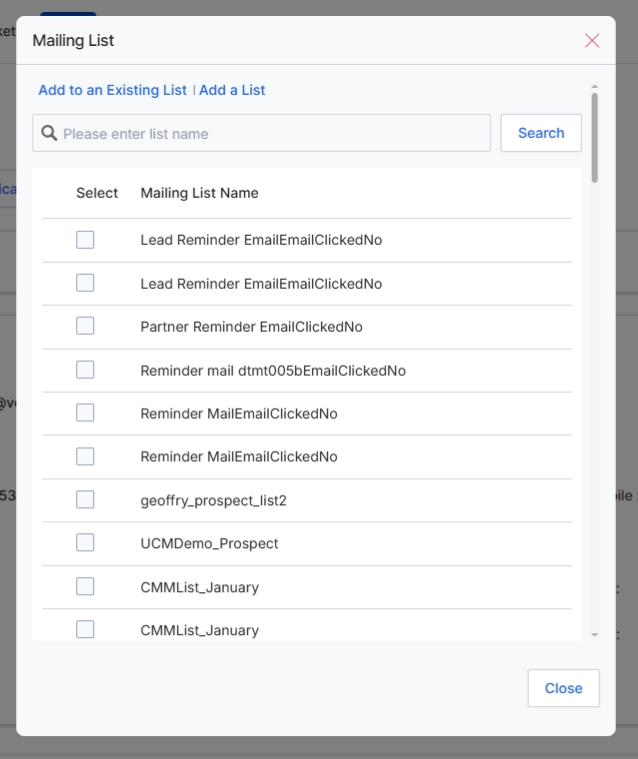
Click the "Add to an Existing list" tab to add the prospect to an existing mailing list.
Buttons
| Button | Description |
|---|---|
| Add to an Existing list | Allows the user to add the current prospect to an existing mailing list. |
| Add a List | Allows the user to create a new mailing list and add the current prospect to it. |
| Close | Closes the Mailing List dialog without making any changes. |
Fields
| Field | Description |
|---|---|
| Search | A search field to find specific mailing lists by name. |
Column Headings
| Column | Description |
|---|---|
| Mailing List Name | The name of an existing mailing list. |
Assigning Prospects
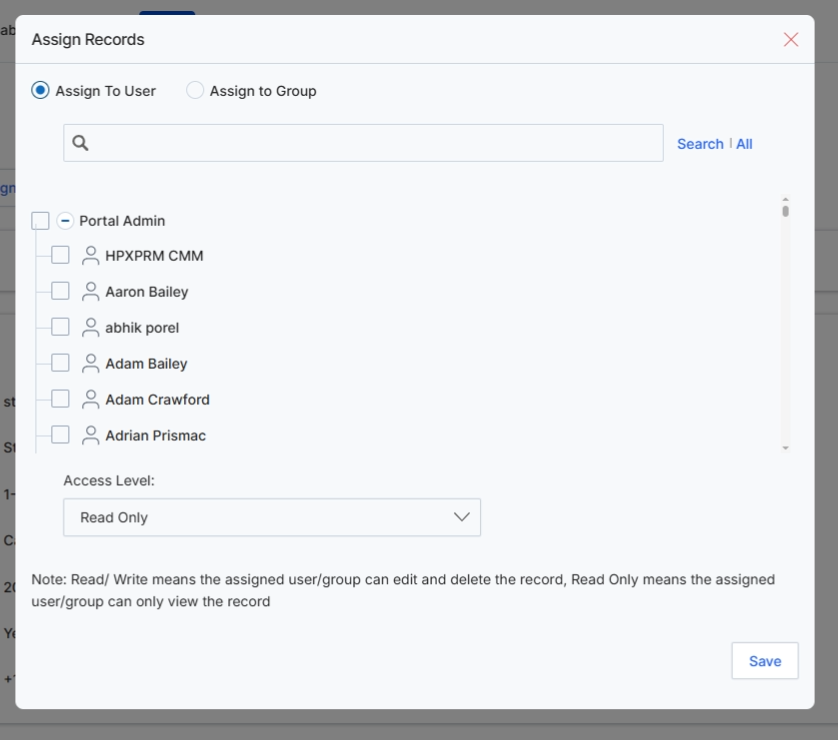
This screen displays the 'Assign Records' dialog, which allows vendor-side users to assign the currently viewed prospect record to a specific user or group within the UPM system. This functionality is crucial for managing internal workflows and ensuring that prospects are handled by the appropriate personnel. By assigning a prospect, administrators can control who has access to view and edit the record, facilitating collaboration and accountability in the sales process. The dialog provides options to search for users or groups and define their access level to the assigned record.
Select the 'Assign To User' tab to assign the prospect record to a specific user.
Buttons
| Button | Description |
|---|---|
| Assign To User | Select this tab to assign the prospect record to an individual user. |
| Assign To Group | Select this tab to assign the prospect record to a predefined group of users. |
| Save | Click to save the assignment and close the dialog. |
Fields
| Field | Description |
|---|---|
| Search | Enter keywords to search for specific users or groups. |
| Access Level | Dropdown to specify the access level (e.g., Read Only) for the assigned user or group. |
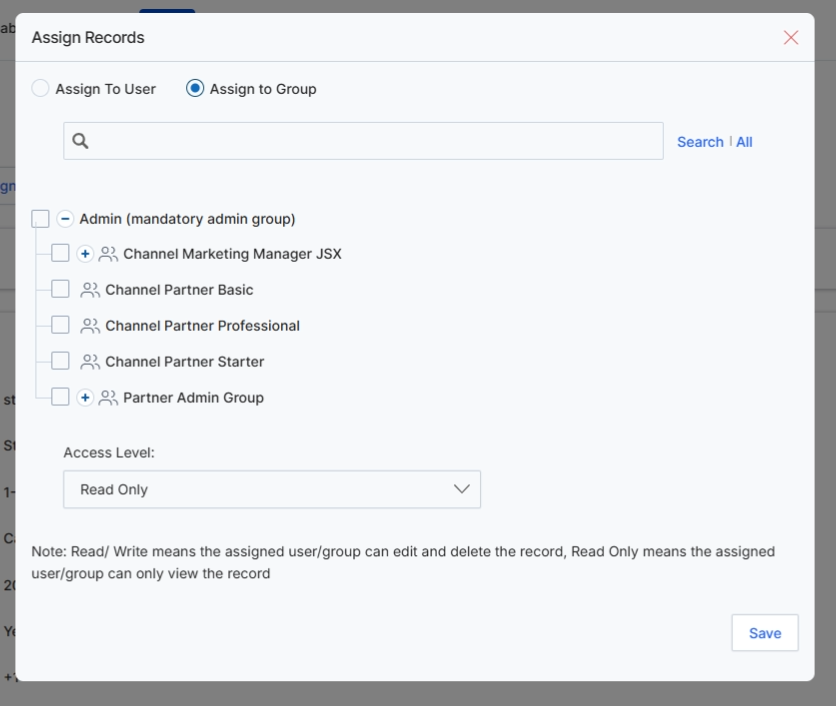
This screen, the 'Assign Records' dialog, allows vendor-side users to assign the currently viewed prospect record to either a specific user or a user group within the UPM system. This assignment determines who has visibility and access to manage the prospect, which is a critical step in the channel sales workflow to ensure proper lead distribution and accountability. By assigning prospects to groups, administrators can streamline the process of routing potential sales opportunities to the relevant teams or partner segments, ensuring that prospects are handled by the appropriate personnel based on predefined roles or territories. The dialog also allows setting the access level for the assigned user or group, controlling whether they can only view the record or also edit and delete it.
Click the 'Assign to Group' tab to view the available user groups for assigning the prospect record.
Buttons
| Button | Description |
|---|---|
| Assign To User | A tab to switch the assignment mode to individual users. |
| Assign to Group | A tab to switch the assignment mode to user groups. |
| Save | Saves the assignment and closes the dialog. |
Fields
| Field | Description |
|---|---|
| Search | A search bar to find specific users or groups by name. |
| Access Level | A dropdown to define the level of access (e.g., Read Only, Edit, Delete) the assigned user/group will have to the record. |
Searching and Converting Prospects

This screen provides a search interface within the Sell module, specifically for identifying existing prospects. The Sell module is central to managing the revenue-generating aspects of partner relationships, encompassing lead sharing, deal registration, and co-selling. The ability to search for prospects helps prevent duplicate entries and ensures that new leads or deal registrations are linked to existing records where appropriate, maintaining data integrity across the platform. This search functionality is crucial for administrators and partners to quickly locate and verify prospect information before proceeding with further sales activities, such as lead assignment or deal registration, which directly impact commission calculations in the Incentivize module.
Search for an existing prospect by entering criteria such as Company, Email, or First Name.
Buttons
| Button | Description |
|---|---|
| Search | Click to execute the search based on the entered criteria. |
Fields
| Field | Description |
|---|---|
| Company | Enter the company name of the prospect to search for matching records. |
| Enter the email address of the prospect to find records associated with that email. | |
| First Name | Enter the first name of the prospect to narrow down search results. |
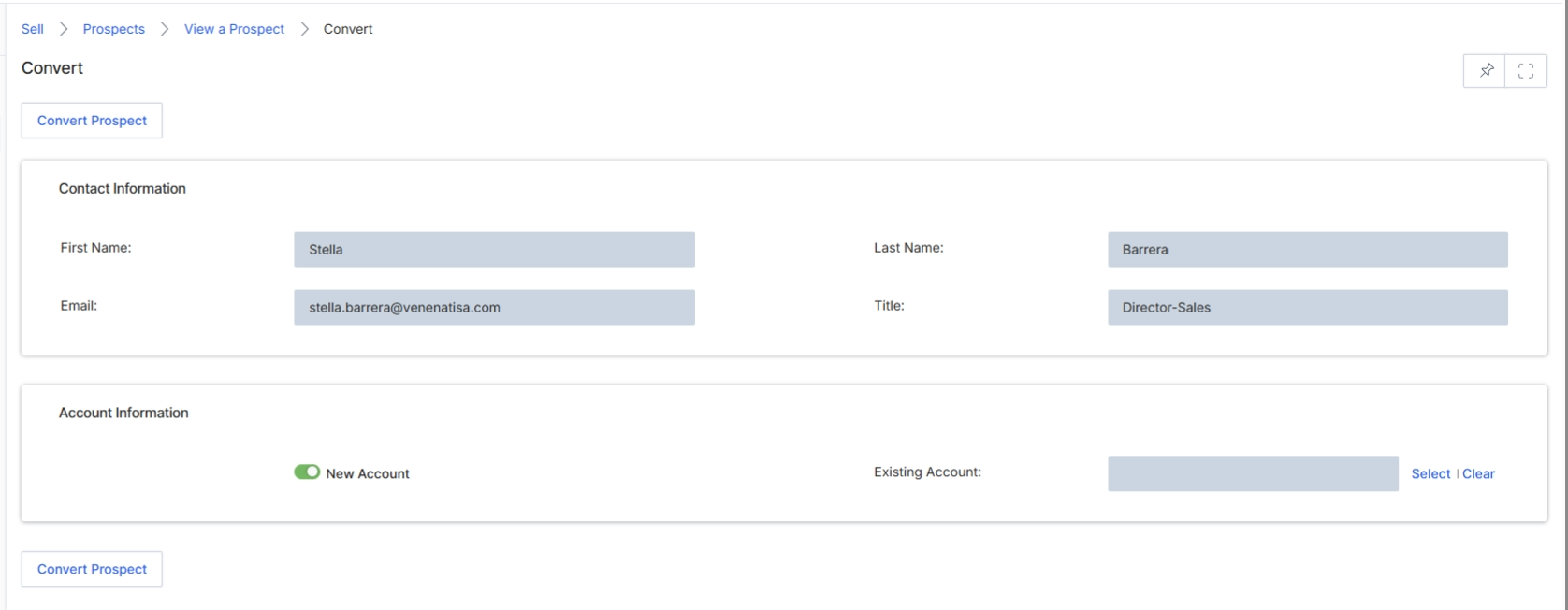
This screen, titled 'Convert', facilitates the process of converting a Prospect record into a more qualified Lead within the UPM Sell module. Prospects are early-stage sales contacts, and this conversion marks a critical step in the sales pipeline, moving them from a recruitment or initial engagement phase into an active sales opportunity. The screen displays the prospect's existing contact information and allows the user to either associate this new lead with an existing account or create a new account for them. This action is essential for tracking the progression of potential sales opportunities and ensuring proper data hygiene by linking leads to their respective company records, which can then trigger further actions in the Incentivize module for commission calculations.
Click the "Convert Prospect" button to initiate the conversion of the prospect into a lead.
Buttons
| Button | Description |
|---|---|
| Convert Prospect | Initiates the conversion of the current prospect record into a lead, displaying the contact and account information for review and association. |
| Select | Opens a dialog or search interface to choose an existing account to associate with the converted lead. |
| Clear | Clears the selection for an existing account, reverting to the option of creating a new account. |
| Convert Prospect | Finalizes the conversion of the prospect into a lead, creating a new lead record and optionally a new account, or associating with an existing one. |
Contact Information
| Field | Description |
|---|---|
| First Name | The first name of the prospect. |
| Last Name | The last name of the prospect. |
| The email address of the prospect. | |
| Title | The job title of the prospect. |
Account Information
| Field | Description |
|---|---|
| New Account | Indicates that a new account will be created for this converted lead. |
| Existing Account | Allows the user to associate the converted lead with an existing company account. |