

Overview
In UPM's Sell module, Accounts represent the target companies that partners engage with for sales opportunities. Effective management of these accounts is fundamental to the entire sales process, from lead qualification and assignment to deal registration and co-selling. The View Accounts section provides administrators with the necessary tools to maintain an accurate and comprehensive database of these crucial entities.
This feature ensures that all sales-related activities are tied to a defined account, preventing data duplication and providing a clear overview of partner engagement with specific companies. Admins can leverage this data to analyze partner performance, manage territories, and ensure proper attribution for commissions and incentives.
Accessing and Viewing Accounts
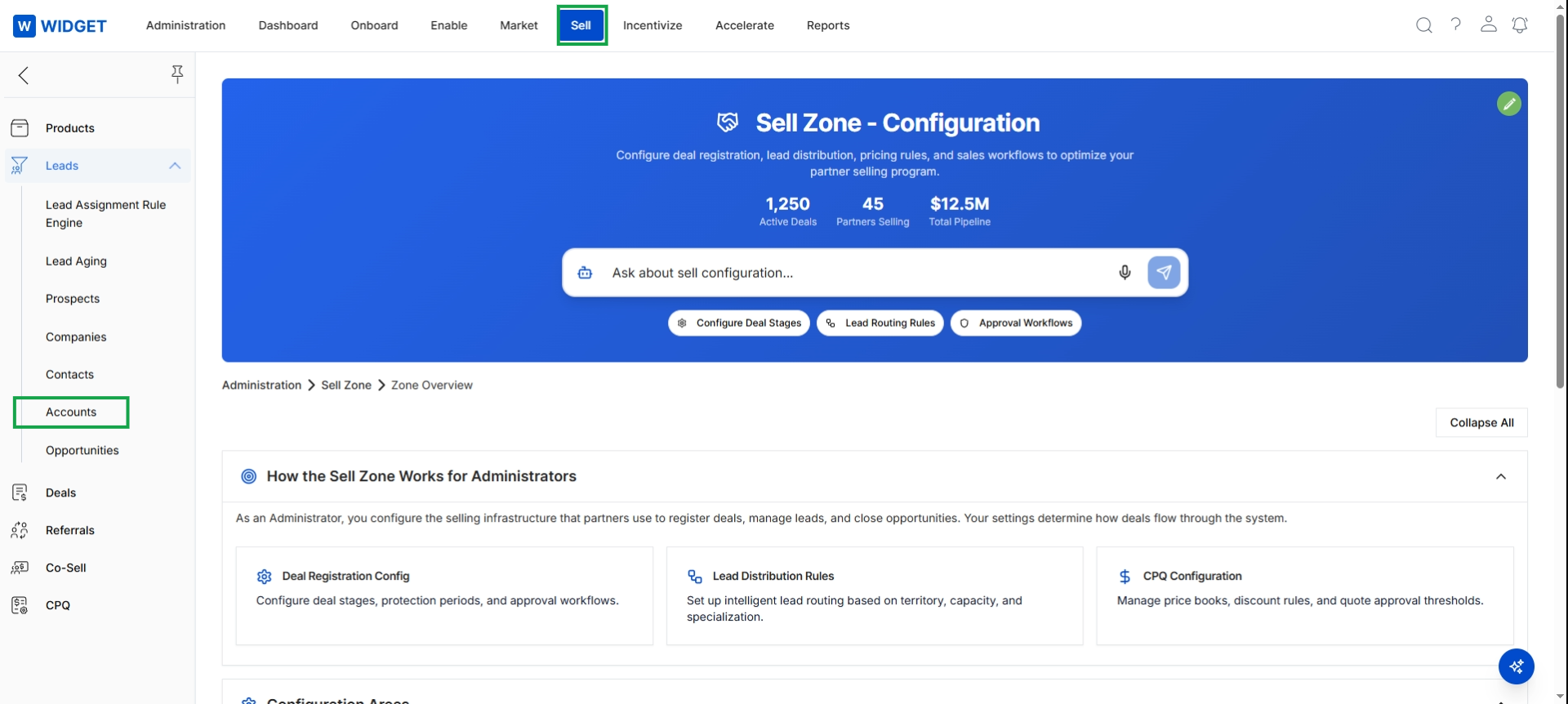
Click Accounts in the left navigation menu.
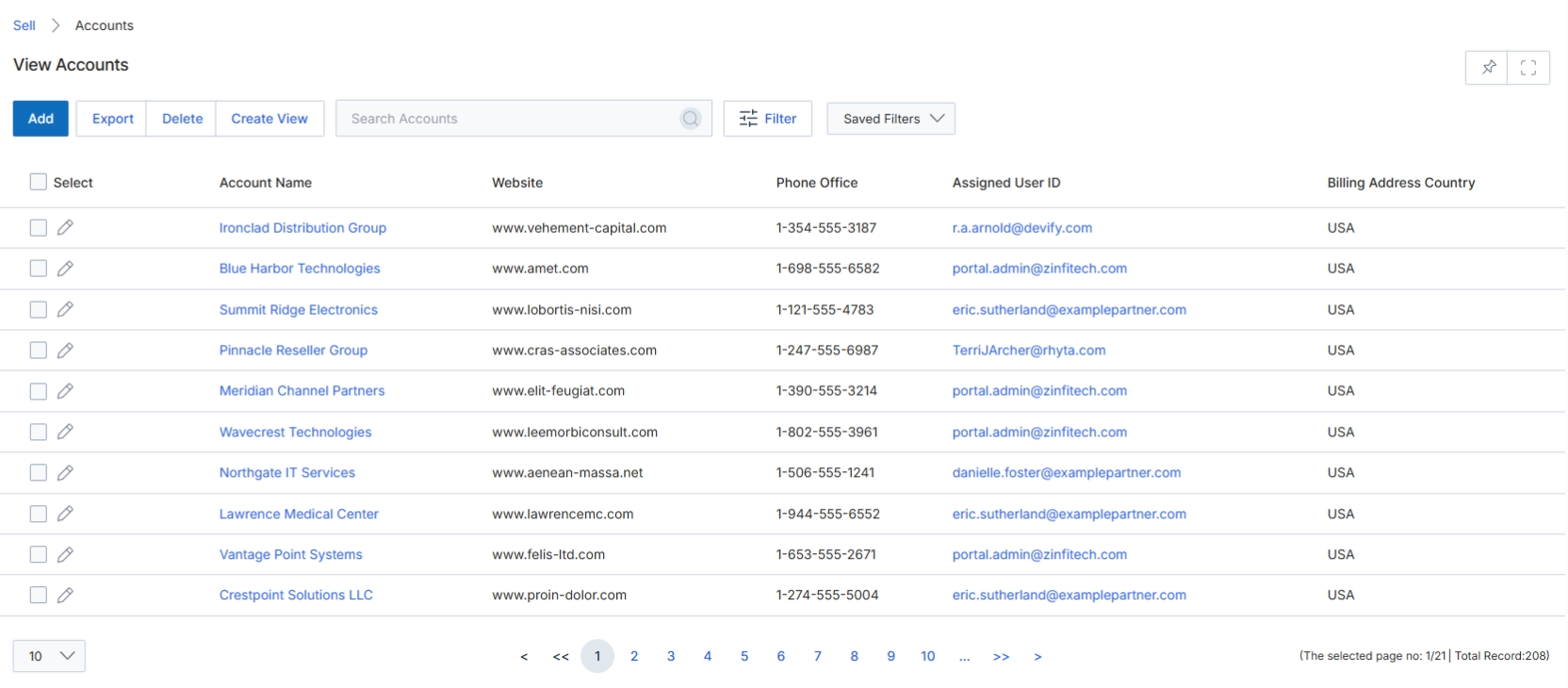
The View Accounts screen within the Sell module provides a comprehensive list of all company accounts managed within UPM. This list serves as a central repository for target companies, whether they are prospects or existing customers, and is crucial for managing partner sales activities such as lead assignment, deal registration, and co-selling. Administrators and program managers use this screen to gain visibility into the accounts associated with their partner ecosystem, allowing them to track engagement, identify potential conflicts, and ensure proper attribution for sales efforts. The data displayed here can be manually added, imported, or synchronized from integrated CRM systems like Salesforce, HubSpot, or Microsoft Dynamics, ensuring a unified view of account information across the platform. This screen supports filtering and searching capabilities to efficiently locate specific accounts and manage them effectively.
The View Accounts screen displays a list of all accounts, providing an overview of each account's key details.
Buttons
| Button | Description |
|---|---|
| Add | Initiates the process to add a new account record to the system. |
| Export | Exports the current list of accounts, potentially with applied filters, to a downloadable file. |
| Delete | Deletes selected account records from the system. |
| Create View | Allows the user to create and save a custom view of the accounts list based on specific criteria. |
| Filter | Opens a panel or dialog to apply advanced filters to the accounts list. |
| Saved Filters | A dropdown menu to select and apply previously saved filter configurations. |
Fields
| Field | Description |
|---|---|
| Search Accounts | A text input field to search for accounts by keywords across various fields. |
Column Headings
| Column | Description |
|---|---|
| Select | A checkbox column to select individual or multiple accounts for bulk actions. |
| Account Name | The name of the account, which is a clickable link to view the account's detailed information. |
| Website | The official website URL associated with the account. |
| Phone Office | The primary office phone number for the account. |
| Assigned User ID | The identifier of the user (often a partner or vendor rep) to whom the account is assigned. |
| Billing Address Country | The country specified in the account's billing address. |
Exporting Account Data
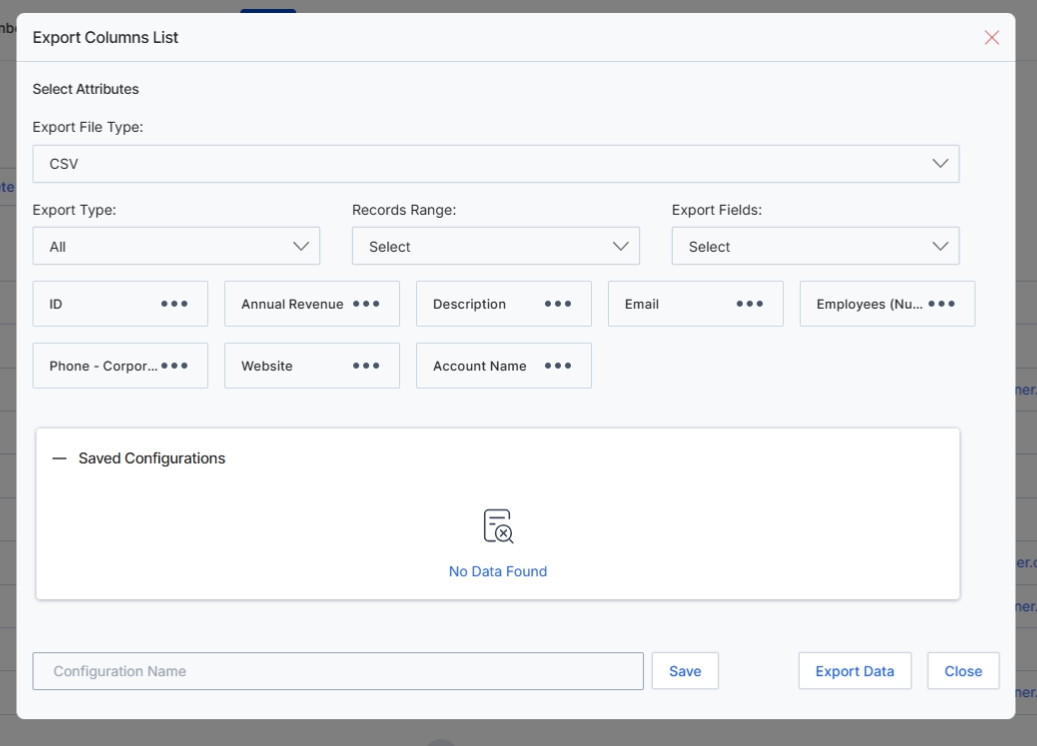
This dialog box, titled 'Export Columns List,' provides the interface for users to customize and initiate the export of account data from the UPM platform. It allows for granular control over the format, scope, and specific fields included in the exported file. Users can select the file type, define the range of records to be exported, and choose which account attributes to include. This functionality is crucial for administrators and program managers who need to extract account information for external analysis, reporting, or integration with other systems, ensuring data portability and flexibility in managing partner-related sales data.
Configure the export settings by selecting the desired attributes, export type, records range, and specific fields, then click "Export Data" to download the account information.
Buttons
| Button | Description |
|---|---|
| Save | A button to save the current export configuration settings. |
| Export Data | A button to initiate the data export based on the selected criteria. |
| Close | A button to close the Export Columns List dialog without performing an export. |
Fields
| Field | Description |
|---|---|
| Export File Type | A dropdown menu to select the format of the exported file, currently set to CSV. |
| CSV | The currently selected file type for the export, indicating a Comma Separated Values format. |
| Export Type | A dropdown menu to define the type of export, currently set to 'All'. |
| All | The currently selected export type, indicating that all available data based on other filters will be exported. |
| Records Range | A dropdown menu to specify the range of records to be included in the export. |
| Select | The placeholder text for the Records Range dropdown, prompting the user to make a selection. |
| Export Fields | A dropdown menu to choose which specific fields or columns of data will be included in the exported file. |
| Configuration Name | An input field to enter a name for saving the current export configuration for future use. |
Customizing Account Views
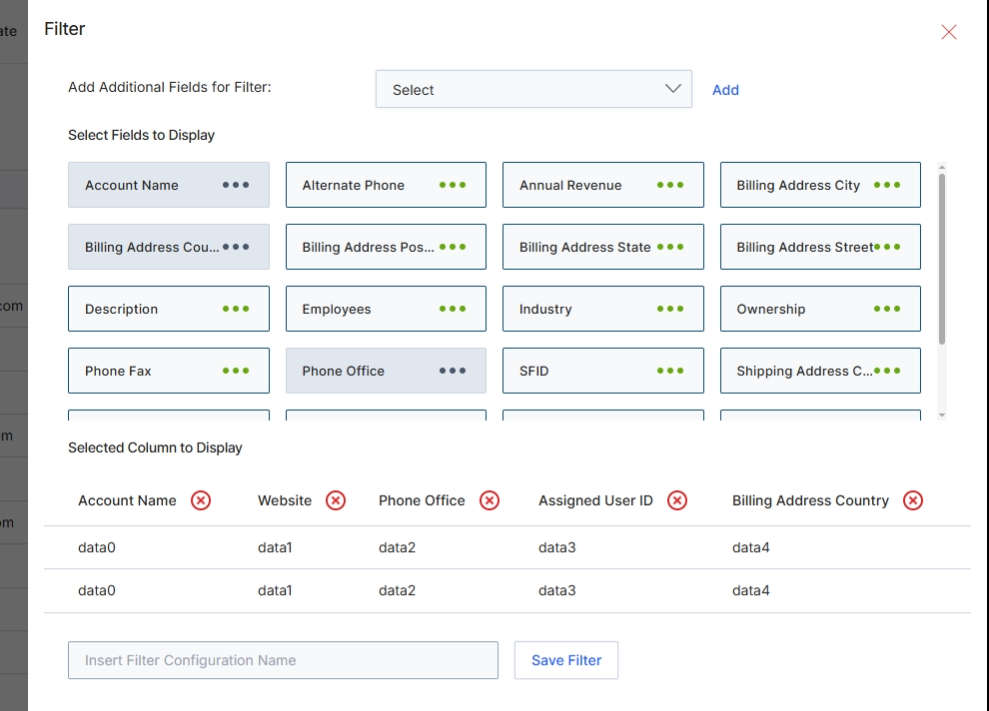
This modal window, titled 'Filter', allows users to customize the displayed columns and apply filtering criteria to the 'View Accounts' list. It provides a flexible way to tailor the account data view to specific analytical or operational needs. Users can select from a predefined set of fields to include as columns in the main table, and also define filter conditions based on these fields. This functionality is crucial for managing large datasets of accounts, enabling users to quickly find relevant information and focus on specific segments of their partner ecosystem. The configured filter settings can be saved for future use, streamlining recurring data analysis tasks.
Configure the filter settings by adding fields for filtering, selecting columns to display, and optionally saving the filter configuration.
Buttons
| Button | Description |
|---|---|
| Save Filter | A button to save the current filter configuration under the specified name. |
| Add | A button to add the selected field from the 'Add Additional Fields for Filter' dropdown to the filter criteria. |
Fields
| Field | Description |
|---|---|
| Add Additional Fields for Filter | A dropdown menu to select additional fields that can be used to filter the account list. Once selected, these fields will appear as filterable criteria. |
| Select Fields to Display | This section presents a list of available account fields that can be added or removed as columns in the 'View Accounts' table. Clicking a field name adds it to the 'Selected Column to Display' area. |
| Selected Column to Display | This section shows the fields that are currently selected to be displayed as columns in the 'View Accounts' table. Users can remove fields from this list. |
| Insert Filter Configuration Name | An input field to enter a name for the current filter configuration, allowing it to be saved and reused. |
Column Headings
| Column | Description |
|---|---|
| Account Name | A selected column representing the account's name. |
| Website | A selected column representing the account's website. |
| Phone Office | A selected column representing the account's office phone number. |
| Assigned User ID | A selected column representing the ID of the user assigned to the account. |
| Billing Address Country | A selected column representing the billing address country of the account. |