

Overview
Effective sales in a partner ecosystem heavily rely on accurate and accessible contact information. The View Contacts feature in UPM's Sell module provides administrators with the tools to manage this critical data. By centralizing contact management, UPM ensures that partners can efficiently reach out to prospects and customers, track interactions, and maintain a healthy sales pipeline. This capability supports various sales motions, from lead nurturing to deal closing, by providing a foundational layer of contact data integrity.
Accessing and Viewing Contacts
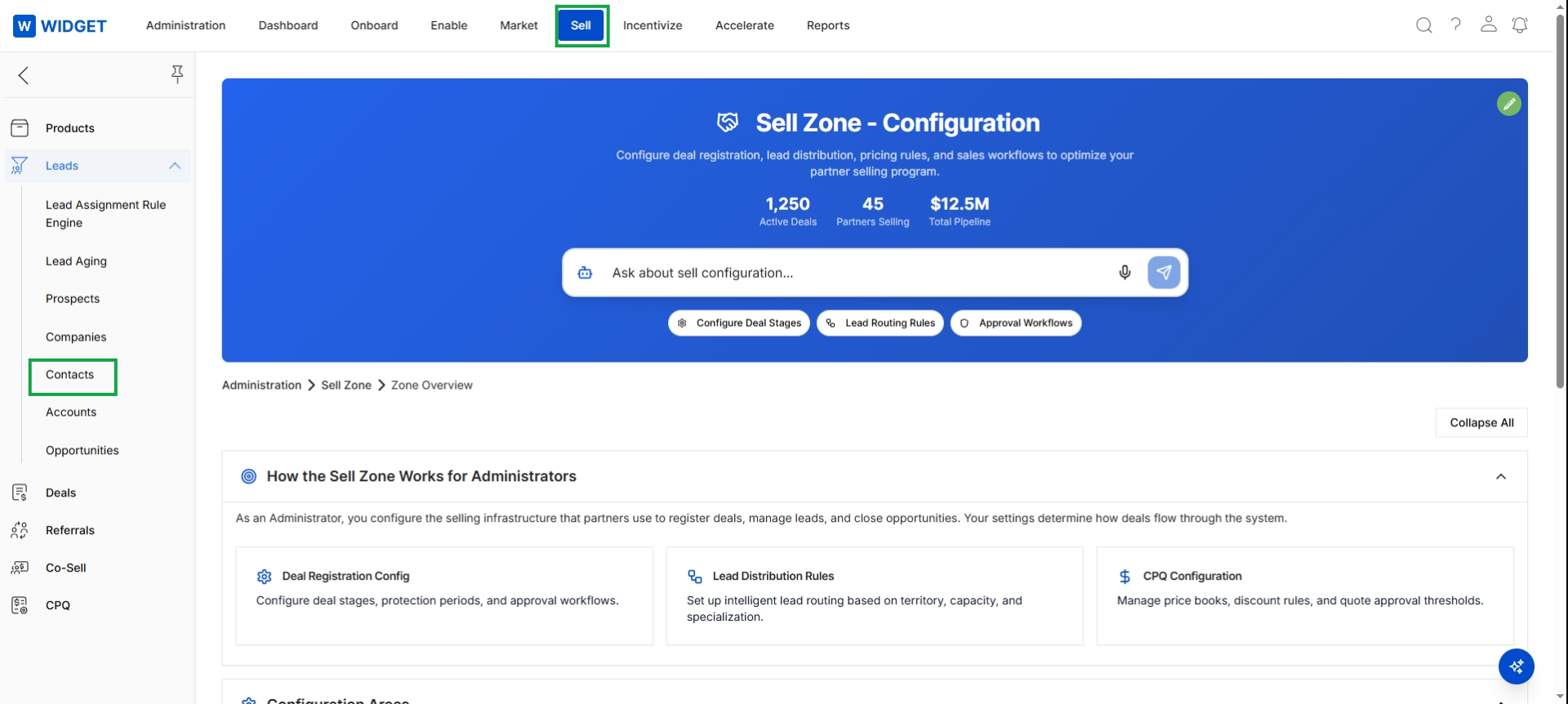
Click Contacts in the left navigation menu.
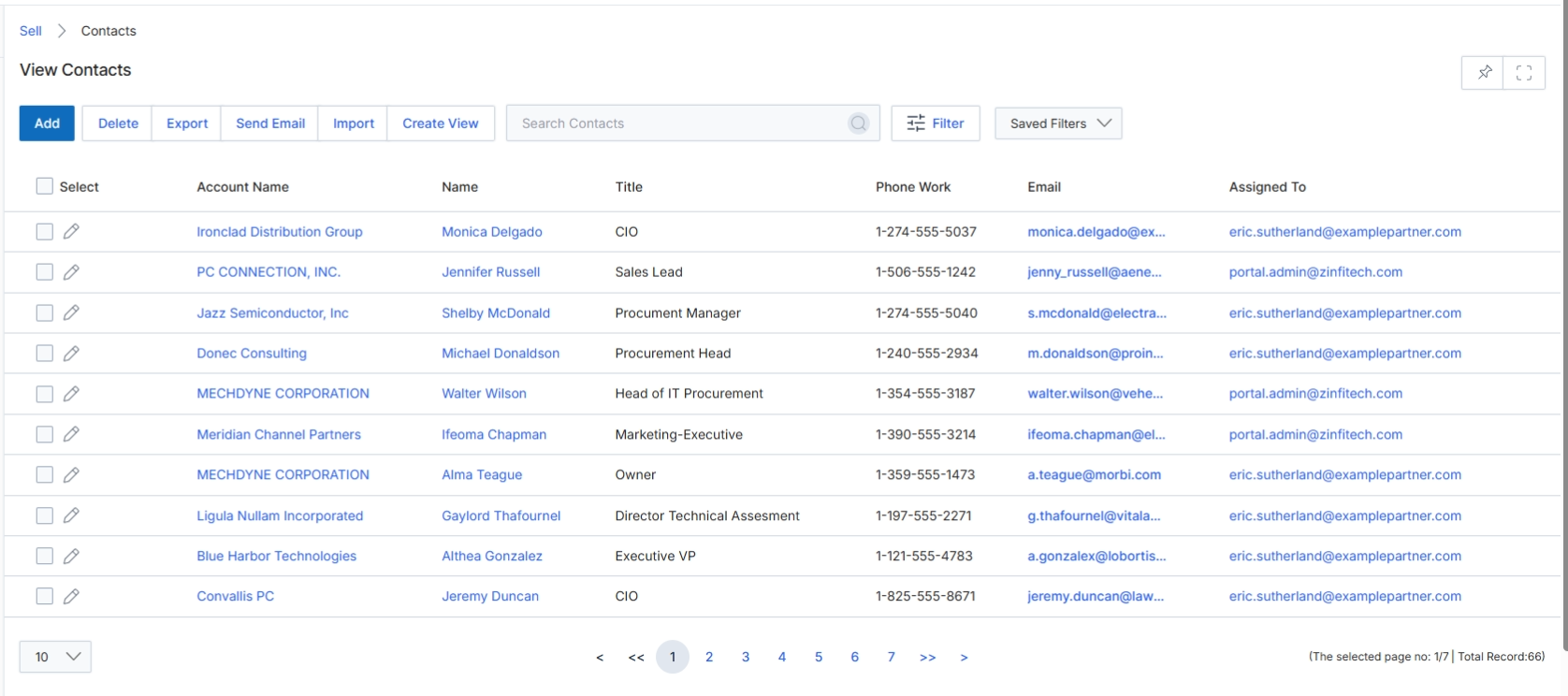
The View Contacts screen provides administrators with a comprehensive list of all contact records within the UPM platform. These contacts can be associated with accounts, prospects, or deals, and are central to managing partner sales activities within the Sell module. This list view allows administrators to quickly search, filter, and manage contact information, which is crucial for lead assignment, deal registration, and co-sell workflows. The data displayed here can originate from manual entry, CRM synchronization, or partner submissions, providing a unified view of all individuals involved in the channel sales pipeline.
Navigate to the View Contacts page to manage contact records.
Buttons
| Button | Description |
|---|---|
| Add | Adds a new contact record to the system. |
| Delete | Deletes selected contact records. |
| Export | Exports the current list of contacts to a file. |
| Send Email | Sends an email to selected contacts. |
| Import | Imports contact records from an external file. |
| Create View | Creates a custom saved view of the contact list based on applied filters. |
| Filter | Opens a panel to apply advanced filters to the contact list. |
| Saved Filters | Applies a previously saved filter configuration to the contact list. |
Fields
| Field | Description |
|---|---|
| Search Contacts | Searches for contacts by keyword across all fields. |
Column Headings
| Column | Description |
|---|---|
| Select | Checkbox to select individual contact records for bulk actions. |
| Account Name | The name of the company account associated with the contact. |
| Name | The full name of the contact. |
| Title | The job title of the contact. |
| Phone Work | The work phone number of the contact. |
| The email address of the contact. | |
| Assigned To | The user or partner to whom the contact is assigned. |
Exporting Contact Data
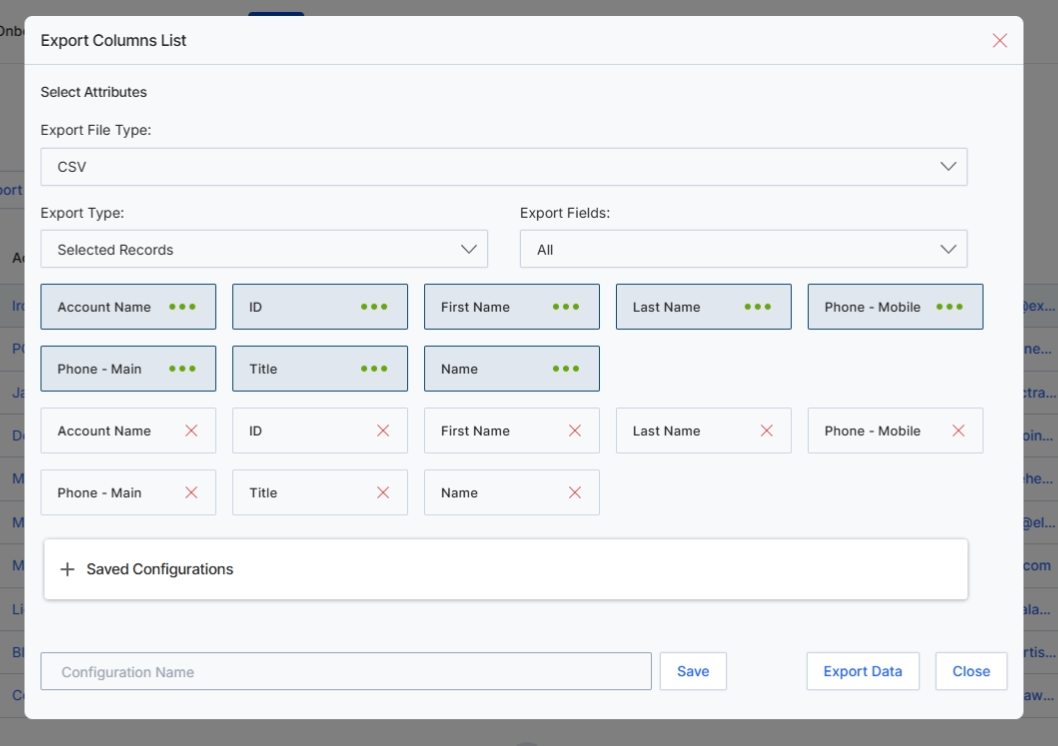
The 'Export Columns List' dialog allows users to configure and initiate the export of contact data from the 'View Contacts' list. This feature is crucial for data analysis, reporting, or integration with external systems, providing flexibility in selecting which contact attributes to include in the exported file. Users can choose the export file type, specify whether to export all records or only selected ones, and define the exact columns (attributes) to be included. The ability to save configurations streamlines recurring export tasks, ensuring consistency and efficiency in data management. This screen supports the broader data management capabilities within the Sell module, enabling partners and vendors to extract and utilize their contact information effectively.
Configure the export settings for the contact list by selecting the desired attributes and export type.
Buttons
| Button | Description |
|---|---|
| Save | A button to save the current export configuration. |
| Export Data | A button to initiate the export of contact data based on the configured settings. |
| Close | A button to close the export configuration dialog without performing an export. |
Fields
| Field | Description |
|---|---|
| Export Columns List | The title of the dialog for configuring contact export. |
| Select Attributes | A section where users can choose which contact fields to include in the export. |
| Export File Type | A dropdown to select the format of the exported file, such as CSV. |
| Export Type | A dropdown to specify whether to export all records or only the currently selected ones. |
| Export Fields | A dropdown to select predefined sets of export fields or to customize them. |
| Configuration Name | An input field to enter a name for the current export configuration to save it for future use. |
Select Attributes
| Field | Description |
|---|---|
| Account Name | A selected attribute representing the account name associated with the contact. |
| ID | A selected attribute representing the unique identifier for the contact. |
| First Name | A selected attribute representing the first name of the contact. |
| Last Name | A selected attribute representing the last name of the contact. |
| Phone - Mobile | A selected attribute representing the mobile phone number of the contact. |
| Phone - Main | A selected attribute representing the main phone number of the contact. |
| Title | A selected attribute representing the job title of the contact. |
| Name | A selected attribute representing the full name of the contact. |
Managing Mailing Lists
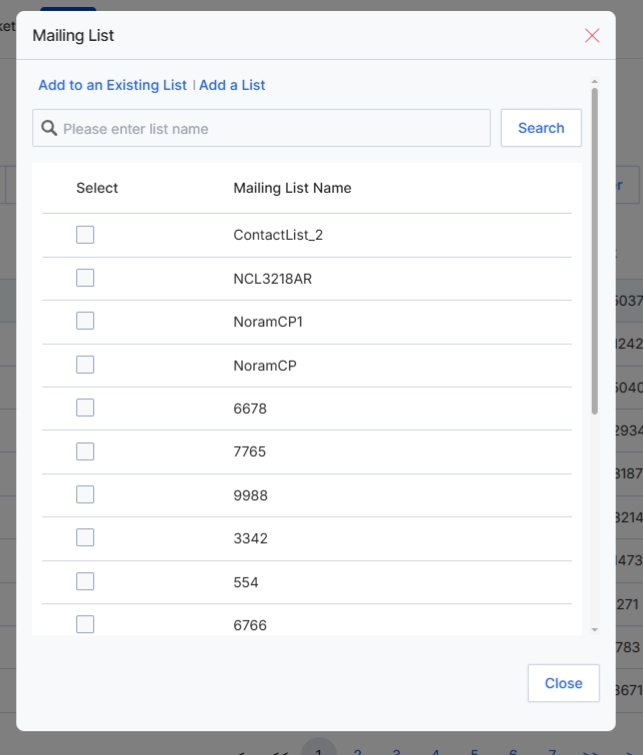
The 'Mailing List' dialog allows users to associate selected contacts with an existing mailing list or create a new one. This functionality is crucial for segmenting contacts for targeted marketing campaigns within the Market module, enabling partners and vendors to manage their communication efforts effectively. By adding contacts to specific mailing lists, users can ensure that relevant information, such as product updates or promotional materials, reaches the appropriate audience, thereby enhancing engagement and lead nurturing efforts. This dialog supports the broader goal of lead management by facilitating organized communication with prospects and customers.
After dismissing the 'Export Columns List' dialog, the 'Mailing List' dialog appears, allowing you to add the selected contacts to an existing mailing list or create a new one.
Buttons
| Button | Description |
|---|---|
| Add to an Existing List | A tab to add the selected contacts to an already created mailing list. |
| Add a List | A tab to create a new mailing list and add the selected contacts to it. |
| Search | A button to initiate the search for mailing lists based on the entered name. |
| Close | A button to close the 'Mailing List' dialog without making any changes. |
Fields
| Field | Description |
|---|---|
| Please enter list name | A search field to find existing mailing lists by name. |
Column Headings
| Column | Description |
|---|---|
| Select | A column header for checkboxes to select one or more mailing lists. |
| Mailing List Name | A column header displaying the names of available mailing lists. |
Importing Contacts
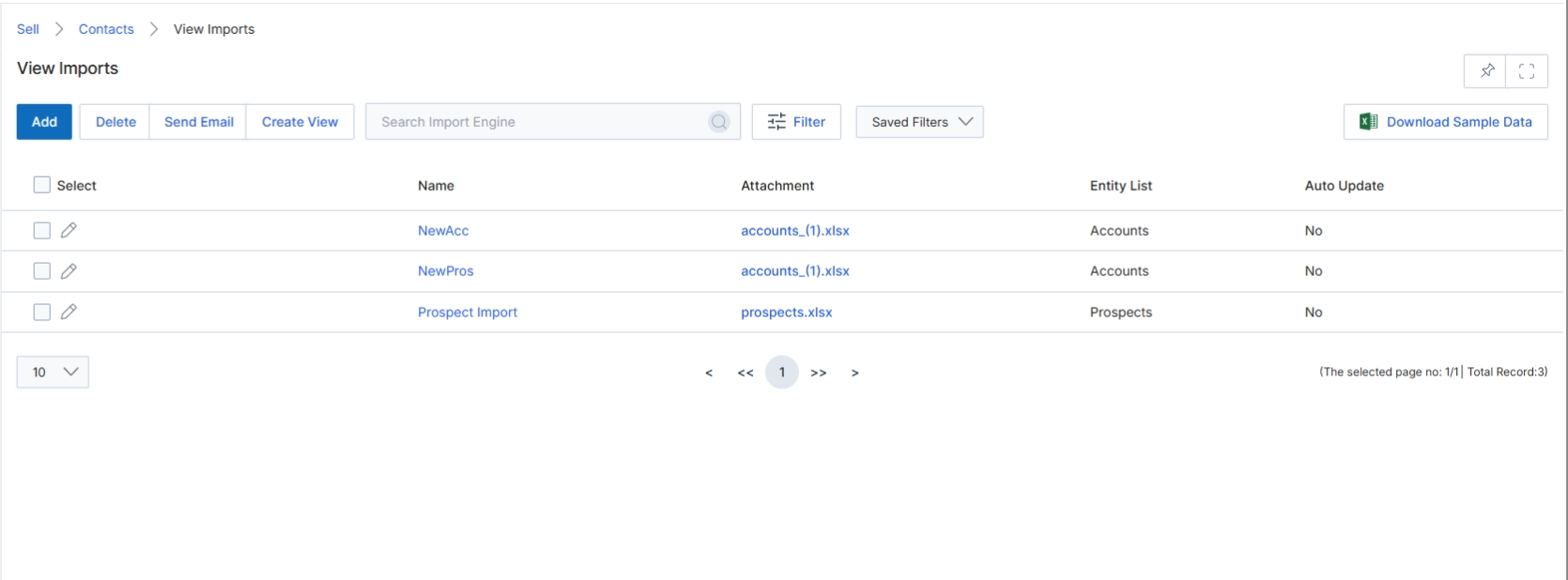
The View Imports screen provides a centralized dashboard for managing and monitoring all data import operations within the Sell module. This includes imports for various entities such as Accounts, Contacts, and Prospects. Users can review the status of past import jobs, check for any errors, and access details about the imported files. This screen is crucial for administrators to ensure data integrity and to track the successful ingestion of external data into the UPM system, supporting workflows like lead assignment and deal registration by populating necessary contact and account information.
Navigate to the View Imports screen to manage and review all data import jobs.
Buttons
| Button | Description |
|---|---|
| Add | Initiates the process to add a new data import job. |
| Delete | Deletes selected import jobs from the list. |
| Send Email | Sends an email related to the selected import job. |
| Create View | Allows creation of a custom view for the import list. |
| Filter | Opens a panel to apply filters to the import list. |
| Saved Filters | Dropdown to select and apply previously saved filter configurations. |
| Download Sample Data | Downloads a sample CSV template to guide data formatting for imports. |
Fields
| Field | Description |
|---|---|
| Search Import Engine | Search box to find specific import jobs by keyword. |
Column Headings
| Column | Description |
|---|---|
| Select | Checkbox to select individual import jobs for bulk actions. |
| Name | The name given to the import job. |
| Attachment | The file name of the data attached for import. |
| Entity List | The type of entity (e.g., Accounts, Prospects) that was imported. |
| Auto Update | Indicates whether the import job is configured for automatic updates. |
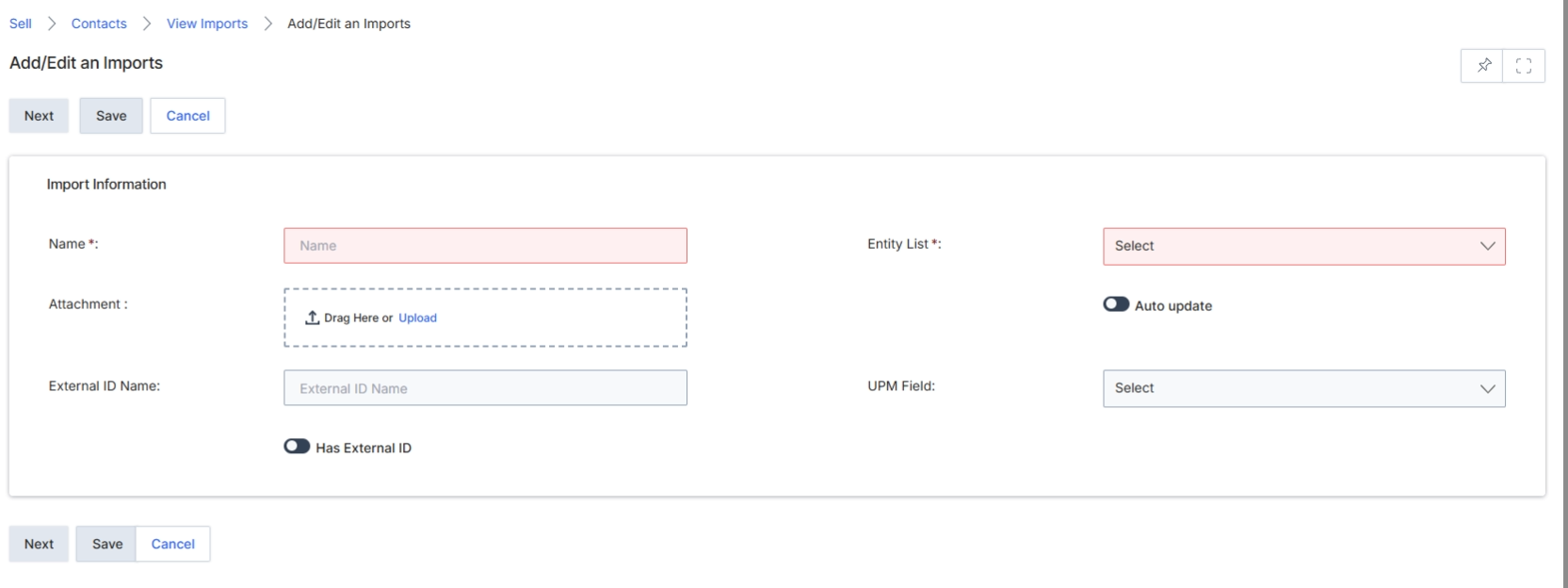
The Add/Edit an Imports form is used by vendor administrators to configure new data import jobs for various entities within the Sell module, such as Contacts, Accounts, or Prospects. This screen allows users to define the import's name, specify the target entity list for the imported data, upload the data file, and configure options like automatic updates and external ID mapping. Properly configured imports ensure that external data, often from CRM systems or other sources, can be seamlessly integrated into UPM, maintaining data consistency and enabling comprehensive partner management. This form is a critical component for initial data population and ongoing synchronization, supporting the overall data integrity of the platform.
Click the Add button to open the Add/Edit an Imports form.
Buttons
| Button | Description |
|---|---|
| Next | Proceeds to the next step in the import configuration process. |
| Save | Saves the current import configuration. |
| Cancel | Discards any changes and closes the form. |
Import Information
| Field | Description |
|---|---|
| Name | Enter a unique name for this import job. |
| Attachment | Drag and drop or upload the data file (e.g., CSV, XLSX) for import. |
| External ID Name | Enter the name of the external ID field if 'Has External ID' is enabled. |
| Entity List | Select the target entity type (e.g., Accounts, Contacts, Prospects) for the imported data. |
| Auto update | Toggle to enable or disable automatic updates for this import job. |
| UPM Field | Select the UPM field to map the external ID to. |
| Has External ID | Toggle to indicate if the import file contains an external ID for mapping. |
Customizing Contact View
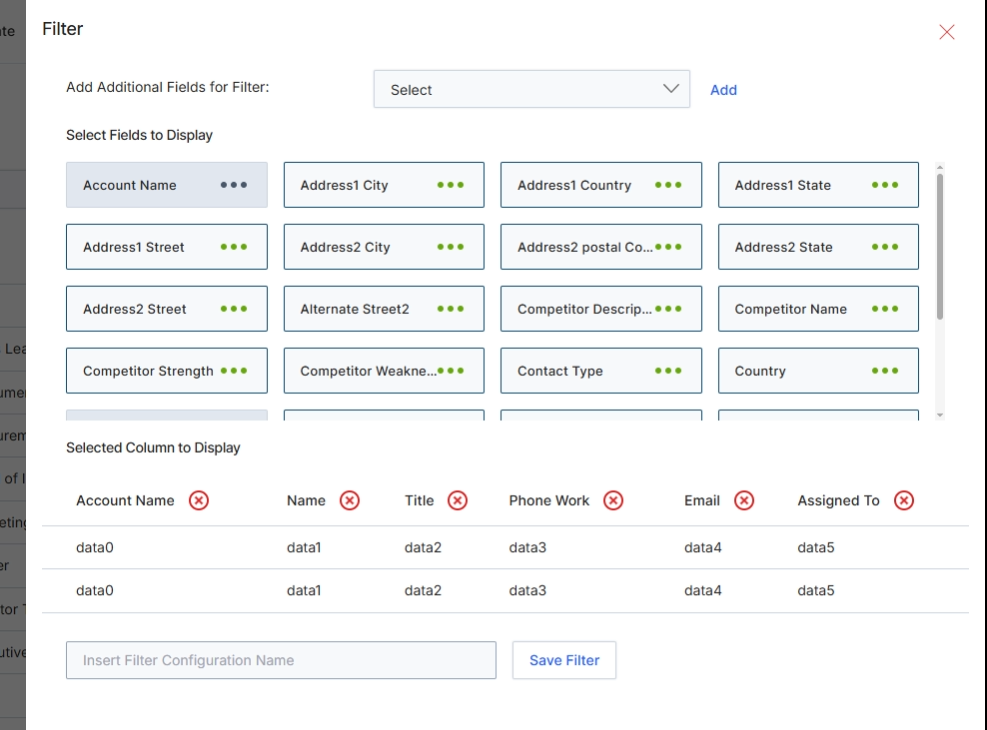
This modal window, labeled 'Filter', provides advanced options for customizing the 'View Contacts' list. It allows vendor-side users, such as Program Managers, to define specific criteria for filtering contact records and to select which columns are displayed in the main list view. This functionality is crucial for efficiently managing contact information, as contacts are individuals associated with accounts, prospects, or deals, and are vital for communication and tracking interactions within the channel sales pipeline. By configuring these filters and display columns, users can tailor the contact list to focus on relevant data, facilitating targeted analysis and management of their partner ecosystem's contacts.
Configure the filter settings by selecting additional fields for filtering, choosing columns to display, and optionally saving the configuration for future use.
Buttons
| Button | Description |
|---|---|
| Add | Adds the selected field to the filter criteria. |
| Save Filter | Saves the current filter and column selections as a named view for future use. |
Fields
| Field | Description |
|---|---|
| Add Additional Fields for Filter | A dropdown menu to select and add more fields that can be used to filter the contact list. |
| Insert Filter Configuration Name | A text input field to enter a name for the current custom filter and column configuration, allowing it to be saved and reused. |
Selected Column to Display
| Field | Description |
|---|---|
| Account Name | A currently selected column to display in the Contacts list view. |
| Name | A currently selected column to display in the Contacts list view. |
| Title | A currently selected column to display in the Contacts list view. |
| Phone Work | A currently selected column to display in the Contacts list view. |
| A currently selected column to display in the Contacts list view. | |
| Assigned To | A currently selected column to display in the Contacts list view. |