

Overview
In UPM's Sell module, Opportunities represent vendor-side sales opportunities that may be linked to partner-registered deals. This feature provides a comprehensive view of each opportunity, enabling administrators to monitor its status, value, and associated details from inception to closure. This visibility is crucial for effective pipeline management, forecasting, and ensuring alignment between vendor sales efforts and partner contributions.
Administrators can delve into specific opportunity data, such as product line items, sales stages, and expected close dates. The ability to view related sales orders, invoices, and quotes offers a complete transactional history, while task and note sections facilitate collaborative tracking. Furthermore, the system allows for the assignment of opportunities to specific users or groups, controlling access and responsibility for managing the sales cycle.
Accessing and Filtering Opportunities
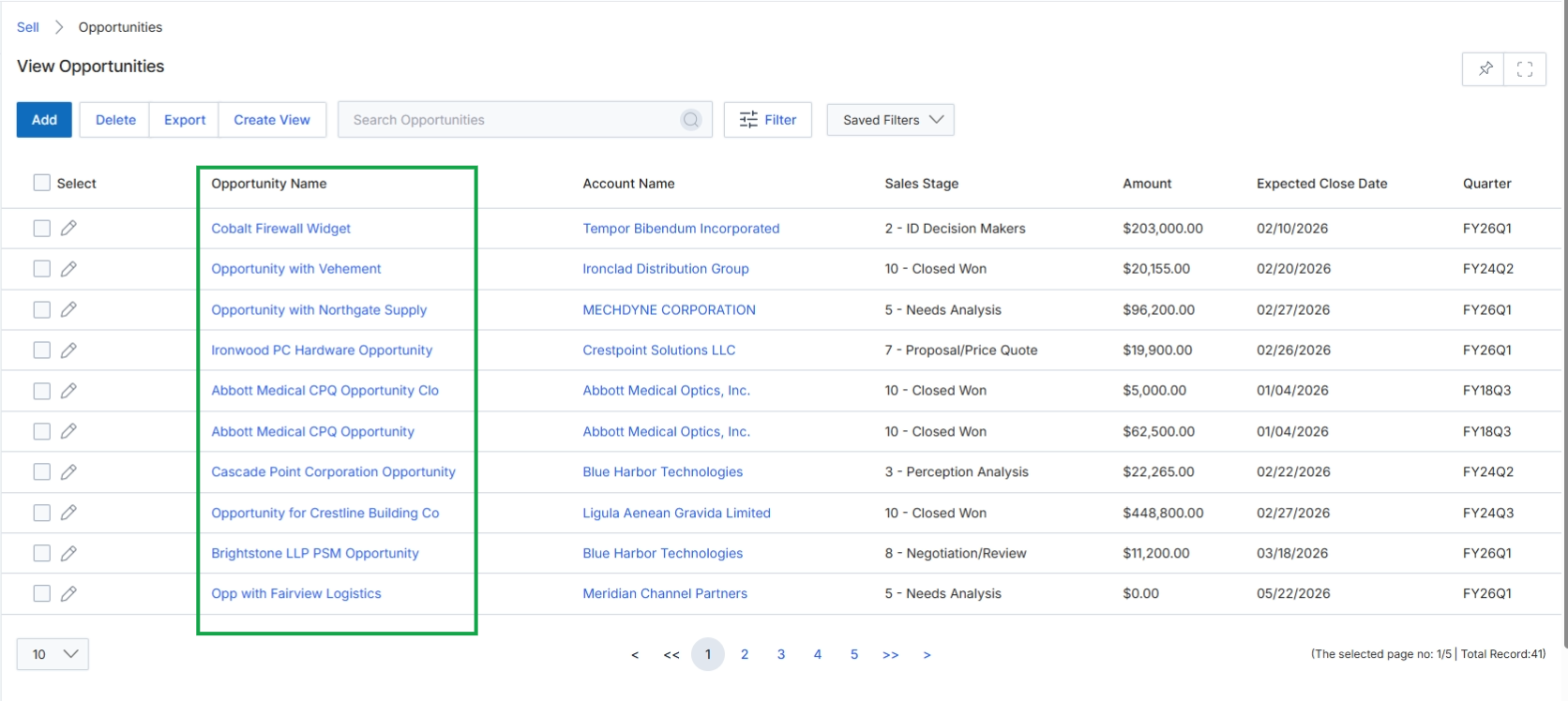
Click on any Opportunity Name in the list to view its details.
Viewing Opportunity Details
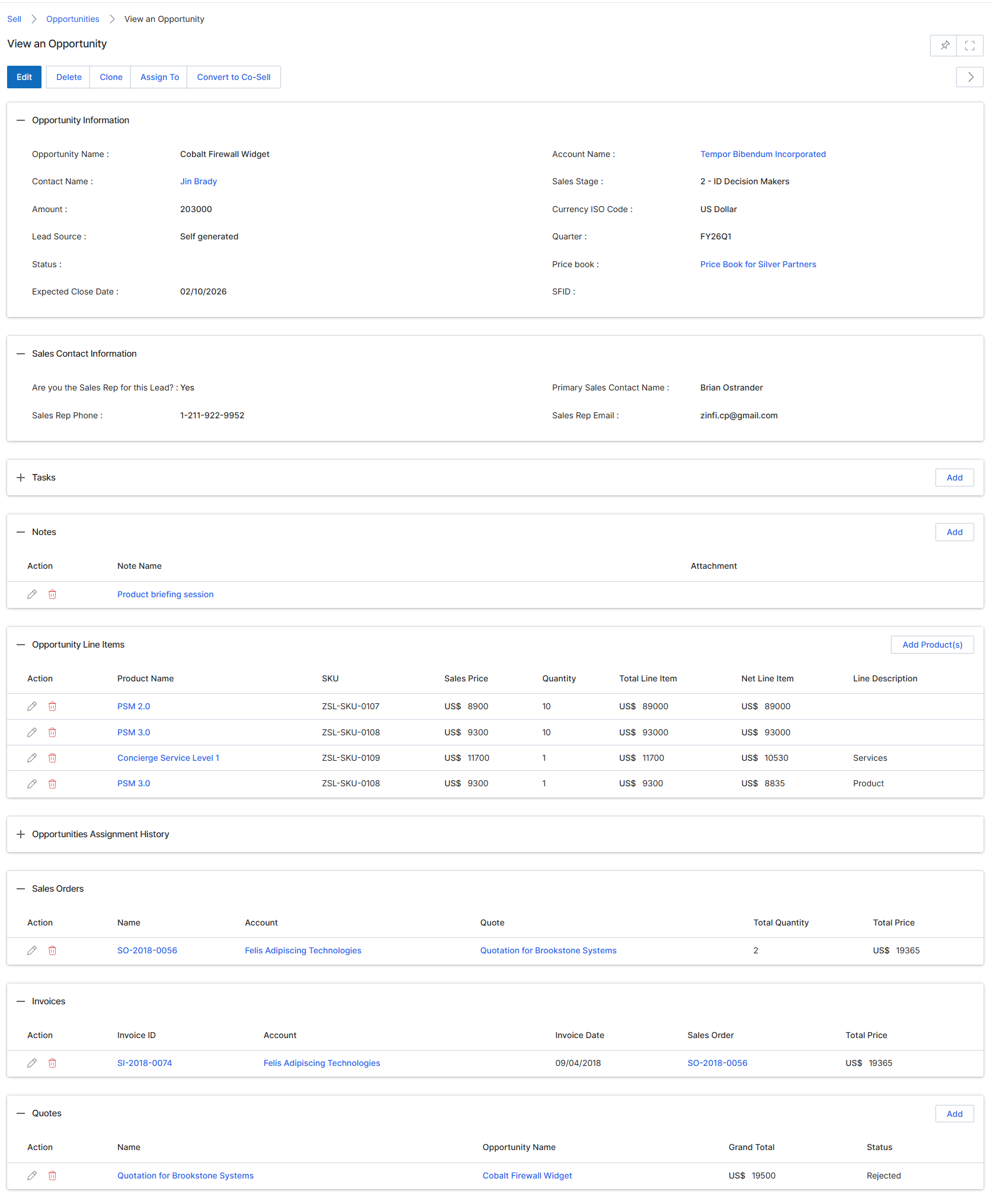
This screen displays the detailed view of a specific Opportunity record within the Sell module, providing a comprehensive overview of a potential sales deal. Opportunities represent qualified sales engagements that are actively being pursued, often linked to leads or registered deals. This view consolidates critical information such as financial details, sales contact information, associated tasks, notes, line items (products/services), sales orders, invoices, and quotes related to the opportunity. It serves as a central hub for managing the progression of a deal, allowing users to track its status, review related financial documents, and understand the sales team's engagement. The various sections provide a complete picture of the opportunity's lifecycle, from initial contact to potential closure, and facilitate actions like editing, cloning, assigning, or converting the opportunity to a co-sell engagement.
Review the detailed information for the selected opportunity, including its financial data, sales contact details, and associated records.
Buttons
| Button | Description |
|---|---|
| Edit | Allows modification of the opportunity's details. |
| Delete | Removes the opportunity record from the system. |
| Clone | Creates a duplicate of the current opportunity record. |
| Assign To | Assigns the opportunity to a different sales representative or partner. |
| Convert to Co-Sell | Initiates a co-sell request for this opportunity, involving joint selling with a partner. |
Opportunity Information
| Field | Description |
|---|---|
| Opportunity Name | The name of the sales opportunity. |
| Contact Name | The primary contact associated with this opportunity. |
| Amount | The estimated monetary value of the opportunity. |
| Lead Source | Indicates how the lead for this opportunity was generated. |
| Status | The current status of the opportunity in the sales pipeline. |
| Expected Close Date | The anticipated date for closing the opportunity. |
| Account Name | The name of the company associated with this opportunity. |
| Sales Stage | The current stage of the opportunity in the sales process. |
| Currency ISO Code | The currency used for the opportunity's financial values. |
Sales Contact Information
| Field | Description |
|---|---|
| Are you the Sales Rep for this Lead? | Indicates if the current user is the sales representative for this lead. |
| Sales Rep Phone | The phone number of the sales representative. |
| Primary Sales Contact Name | The name of the primary sales contact. |
| Sales Rep Email | The email address of the sales representative. |
Notes
| Field | Description |
|---|---|
| Product briefing session | A note detailing a product briefing session. |
Notes
| Column | Description |
|---|---|
| Action | Actions available for the note, such as edit or delete. |
| Note Name | The title or subject of the note. |
Opportunity Line Items
| Column | Description |
|---|---|
| Action | Actions available for the line item, such as edit or delete. |
| Product Name | The name of the product or service included in the line item. |
| SKU | The Stock Keeping Unit for the product. |
| Sales Price | The unit sales price of the product. |
| Quantity | The number of units of the product. |
| Total Line Item | The total price for the line item (Sales Price x Quantity). |
| Net Line Item | The net price for the line item after any discounts. |
| Line Description | A description of the line item. |
Sales Orders
| Column | Description |
|---|---|
| Action | Actions available for the sales order, such as edit or delete. |
| Name | The name or ID of the sales order. |
| Account | The account associated with the sales order. |
| Quote | The quote linked to the sales order. |
| Total Quantity | The total quantity of items in the sales order. |
| Total Price | The total price of the sales order. |
Invoices
| Column | Description |
|---|---|
| Action | Actions available for the invoice, such as edit or delete. |
| Invoice ID | The unique identifier for the invoice. |
| Account | The account associated with the invoice. |
| Invoice Date | The date the invoice was issued. |
| Sales Order | The sales order linked to the invoice. |
| Total Price | The total price of the invoice. |
Quotes
| Column | Description |
|---|---|
| Action | Actions available for the quote, such as edit or delete. |
| Name | The name or ID of the quote. |
| Opportunity Name | The opportunity associated with the quote. |
| Grand Total | The grand total amount of the quote. |
| Status | The current status of the quote. |
Assigning Opportunities
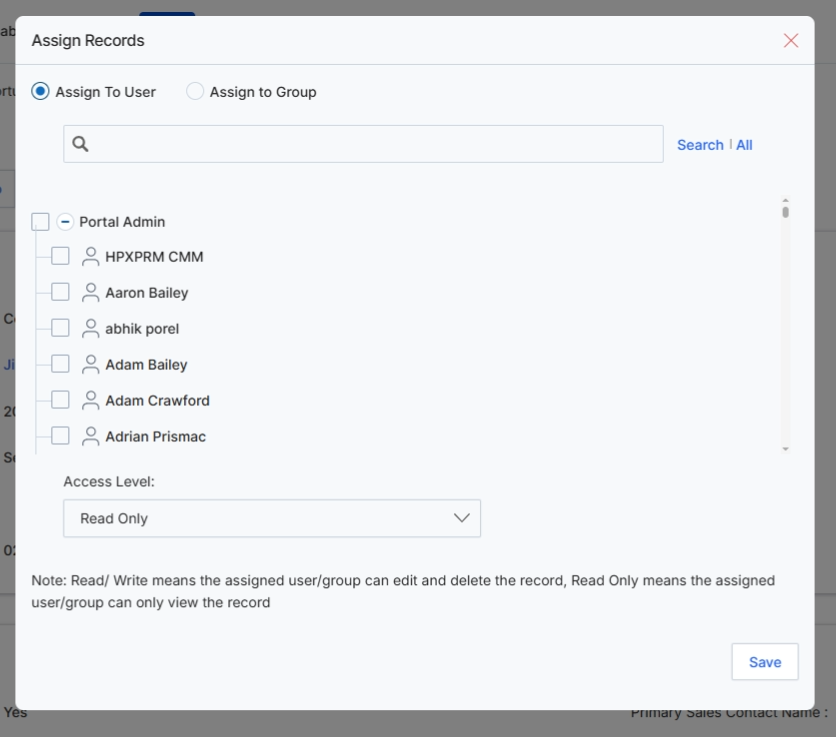
This modal dialog, 'Assign Records', allows a vendor administrator to assign an existing opportunity record to a specific user or group within the UPM system. This functionality is crucial for managing internal workflows, ensuring proper ownership of sales opportunities, and controlling access to sensitive deal information. By assigning an opportunity, the administrator dictates who can view, edit, or delete the record, which is essential for maintaining data integrity and aligning with role-based access controls. The dialog provides options to search for users and define their access level, enabling granular control over opportunity management.
Select the 'Assign To User' option to assign the opportunity to an individual user.
Buttons
| Button | Description |
|---|---|
| Save | Click to save the assignment and close the modal. |
Fields
| Field | Description |
|---|---|
| Assign To User | Select this radio button to assign the record to a specific user. |
| Assign to Group | Select this radio button to assign the record to a group of users. |
| Search | Enter keywords here to search for specific users or groups. |
| Access Level | Dropdown to define the access level (Read/Write or Read Only) for the assigned user or group. |
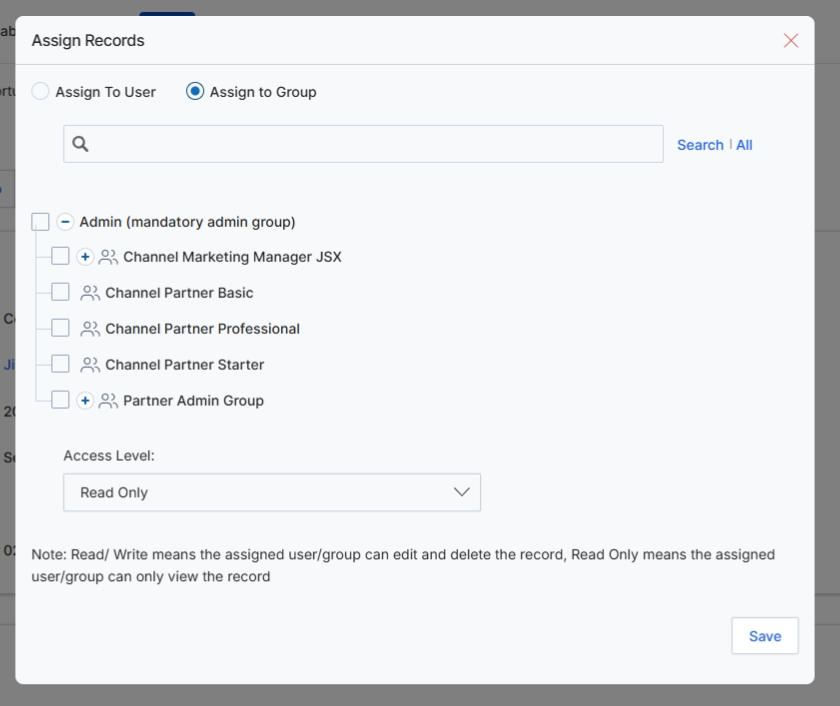
This modal window, 'Assign Records,' allows administrators to control access to the currently viewed Opportunity record by assigning it to specific user groups. This functionality is crucial for managing data visibility and collaboration within the UPM platform, ensuring that only authorized personnel or partner groups can view or interact with sensitive sales opportunities. By assigning records to groups, the system enforces role-based access control, which is a fundamental aspect of data governance in a multi-sided platform like UPM. The selected access level determines whether the assigned group can only view the record ('Read Only') or also modify and delete it ('Read/Write').
Select the 'Assign to Group' option to assign the opportunity to a specific user group.
Buttons
| Button | Description |
|---|---|
| Save | Button to save the assignment changes and close the modal. |
Fields
| Field | Description |
|---|---|
| Assign To User | Radio button to assign the record to individual users. |
| Assign to Group | Radio button to assign the record to predefined user groups. |
| Access Level | Dropdown to select the access permission for the assigned group(s), either 'Read Only' or 'Read/Write'. |