

Overview
The Registered Deals module is crucial for managing sales opportunities that partners claim for protection. Administrators need effective ways to navigate and analyze this data, especially as the number of registered deals grows. The filtering functionality allows administrators to quickly narrow down the list of deals based on specific criteria, such as deal value, sales stage, or status.
This capability supports various administrative tasks, from monitoring the pipeline for deals approaching their close date to identifying deals that require immediate attention or have specific characteristics. By saving frequently used filter configurations, administrators can streamline their workflow and gain faster insights into their partner's sales activities.
Accessing the Filter Options
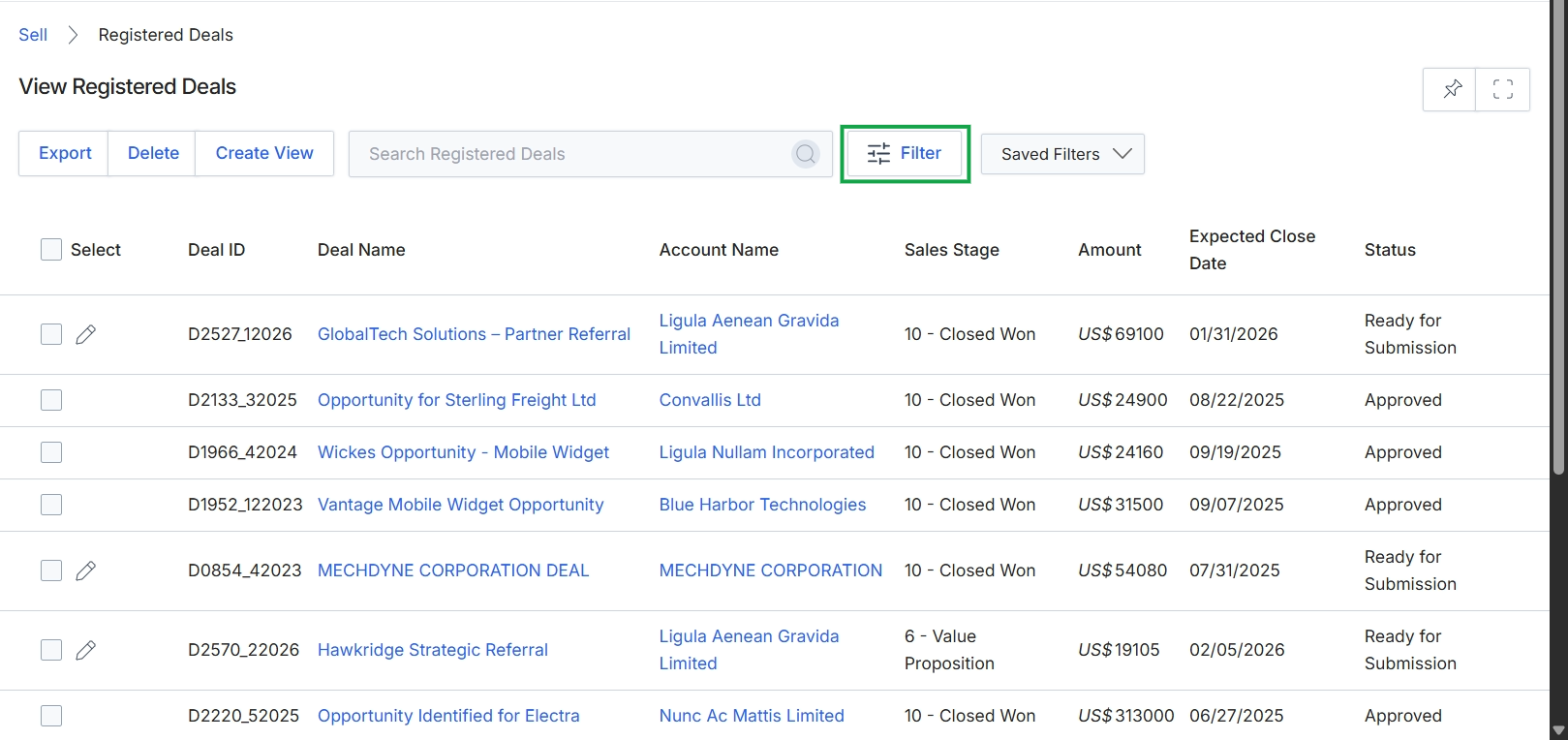
Click the Filter button.
Using Basic Filters
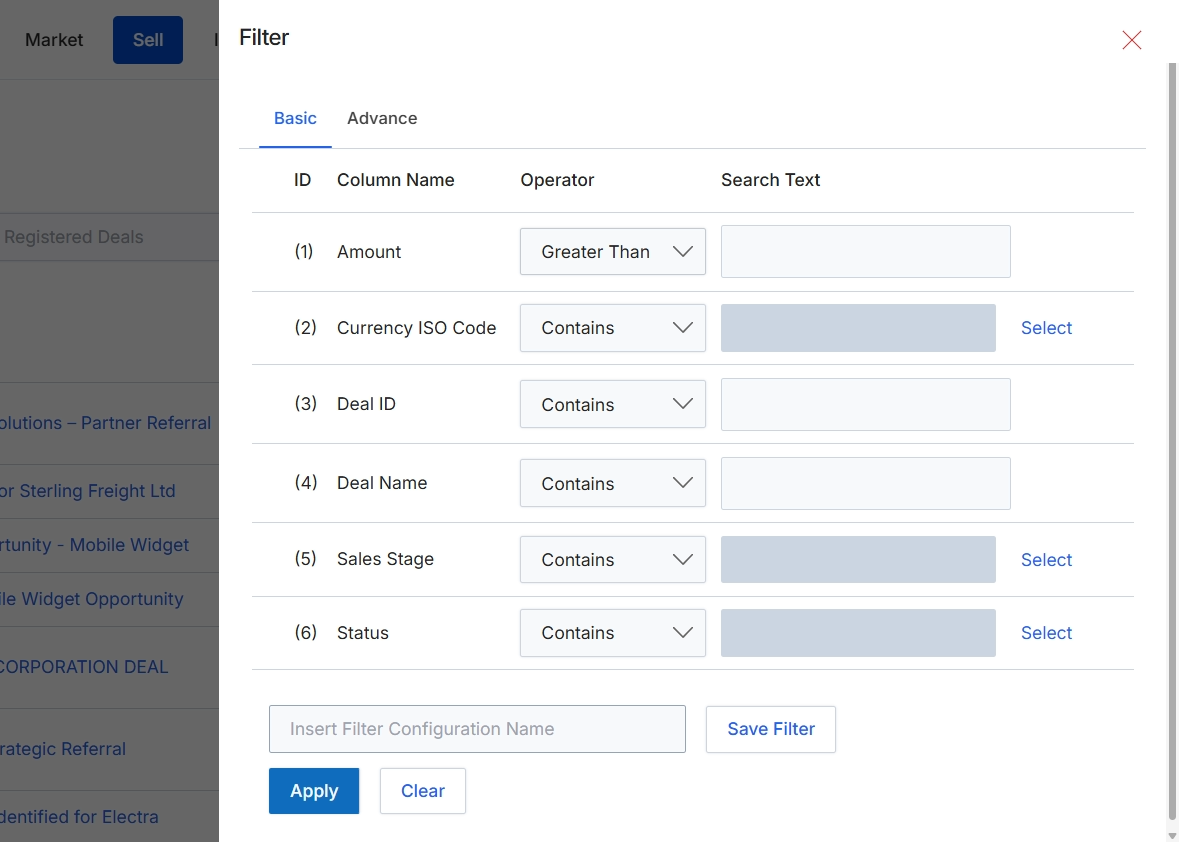
This filter panel, accessible from the Registered Deals list view, allows users to refine the displayed list of deals based on various criteria. It provides a structured way to search for specific deals by attributes such as amount, currency, deal ID, deal name, sales stage, and status. The panel supports both basic and advanced filtering options, enabling users to construct precise queries to locate relevant deal records. Filters can be configured using different operators and search text, helping administrators and partners efficiently manage their deal pipeline by focusing on deals that meet certain conditions, such as high-value deals or deals in a specific sales stage. The ability to save filter configurations streamlines future searches for frequently used criteria.
Configure the filter criteria by selecting operators and entering search text for the desired deal attributes, then click "Apply" to filter the deals list.
Buttons
| Button | Description |
|---|---|
| Basic | Tab to configure basic filter criteria. |
| Advance | Tab to configure advanced filter criteria. |
| Select | Button to open a selection dialog for 'Currency ISO Code'. |
| Select | Button to open a selection dialog for 'Sales Stage'. |
| Select | Button to open a selection dialog for 'Status'. |
| Save Filter | Button to save the current filter configuration for future use. |
| Apply | Button to apply the configured filters to the deals list. |
| Clear | Button to clear all configured filter criteria. |
Fields
| Field | Description |
|---|---|
| Amount | The financial value associated with the deal. |
| Greater Than | Dropdown to select the comparison operator for the 'Amount' field. |
| Search Text | Input field for the value to compare against the 'Amount'. |
| Currency ISO Code | The ISO currency code for the deal's value. |
| Contains | Dropdown to select the comparison operator for the 'Currency ISO Code' field. |
| Deal ID | The unique identifier for the deal. |
| Contains | Dropdown to select the comparison operator for the 'Deal ID' field. |
| Search Text | Input field for the value to compare against the 'Deal ID'. |
| Deal Name | The name or title of the deal. |
| Contains | Dropdown to select the comparison operator for the 'Deal Name' field. |
| Search Text | Input field for the value to compare against the 'Deal Name'. |
| Sales Stage | The current stage of the deal in the sales pipeline. |
| Contains | Dropdown to select the comparison operator for the 'Sales Stage' field. |
| Status | The current status of the deal (e.g., Submitted, Approved, Won, Lost). |
| Contains | Dropdown to select the comparison operator for the 'Status' field. |
| Insert Filter Configuration Name | Input field to enter a name for saving the current filter configuration. |
Using Advanced Filters
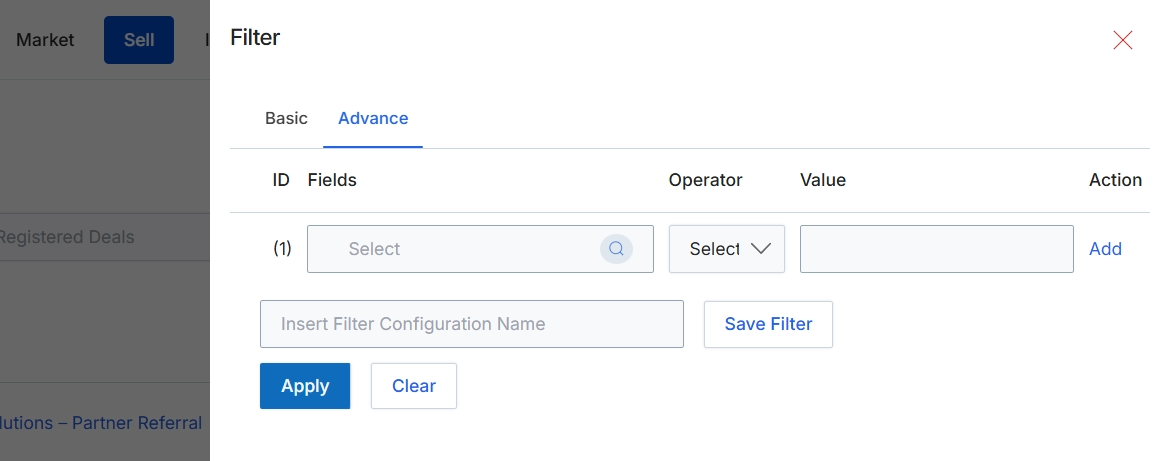
The Filter dialog provides options for refining the data displayed in list views, such as the Registered Deals list. This advanced filtering interface allows users to construct complex queries by specifying multiple criteria across different fields, using various operators and values. This functionality is crucial for administrators and partners to efficiently locate specific deals, analyze subsets of data, or create custom views for reporting and management purposes. The ability to save filter configurations streamlines future data analysis by allowing frequently used filter sets to be quickly reapplied without manual re-entry.
Click the "Advance" tab to access advanced filtering options.
Buttons
| Button | Description |
|---|---|
| Basic | A tab to switch to basic filtering options, typically offering simpler, predefined filters. |
| Advance | A tab to switch to advanced filtering options, allowing for complex, multi-criteria filter configurations. |
| Add | A button to add another row for an additional filter criterion, allowing for multi-condition filtering. |
| Save Filter | A button to save the current filter configuration under the specified name. |
| Apply | A button to apply the configured filters to the data set and update the displayed list. |
| Clear | A button to remove all applied filters and reset the list view to its default state. |
Fields
| Field | Description |
|---|---|
| Select | A dropdown menu to choose a specific field from the available data attributes for filtering. |
| Select | A dropdown menu to choose the operator for the filter condition. |
| Insert Filter Configuration Name | A text input field to enter a name for the current filter configuration, enabling it to be saved for future use. |
Column Headings
| Column | Description |
|---|---|
| ID | A column header indicating the identifier for each filter row. |
| Fields | A column header for selecting the data field to apply the filter to. |
| Operator | A column header for selecting the logical operator (e.g., equals, contains, greater than) to apply to the chosen field. |
| Value | A column header for entering the value against which the selected field will be compared using the chosen operator. |