

Overview
Effective partner enablement relies heavily on providing partners with easy access to the right information at the right time. The Content Listings feature within the Enable module addresses this need by offering a robust content library. This library is crucial for vendors to distribute marketing collateral, sales tools, product information, and training materials efficiently. By centralizing these resources, UPM helps ensure brand consistency, accelerates partner sales cycles, and reduces the administrative overhead associated with content distribution. The filter options within this feature are designed to help administrators manage this extensive library, allowing them to quickly locate and manage specific content based on various criteria such as category, file type, privacy settings, languages, and keywords. This capability ensures that administrators can maintain an organized and easily navigable content repository, which in turn facilitates partners finding the relevant materials they need.
Accessing the Filter Panel
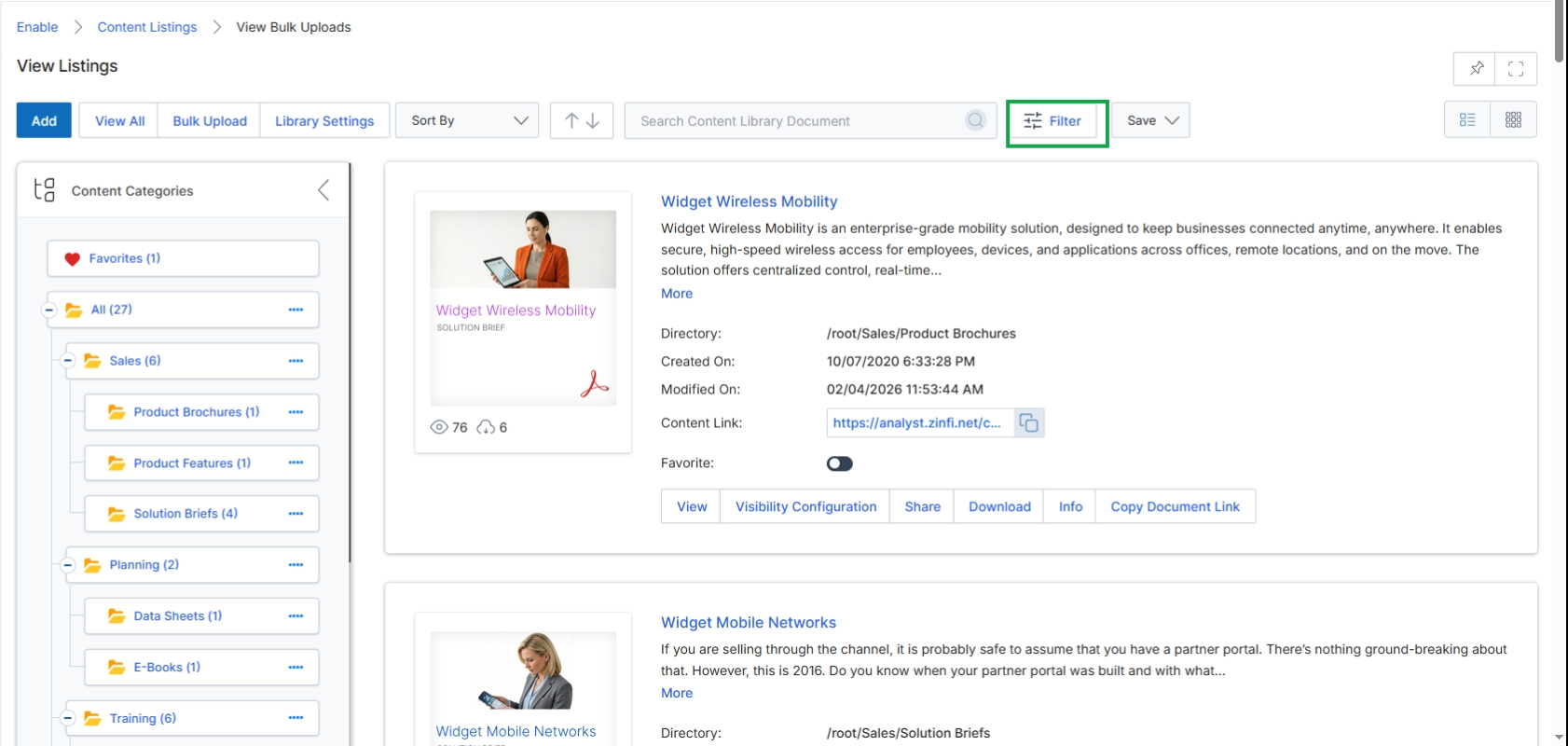
Click the Filter button to open the filter panel.
Applying Basic Filters
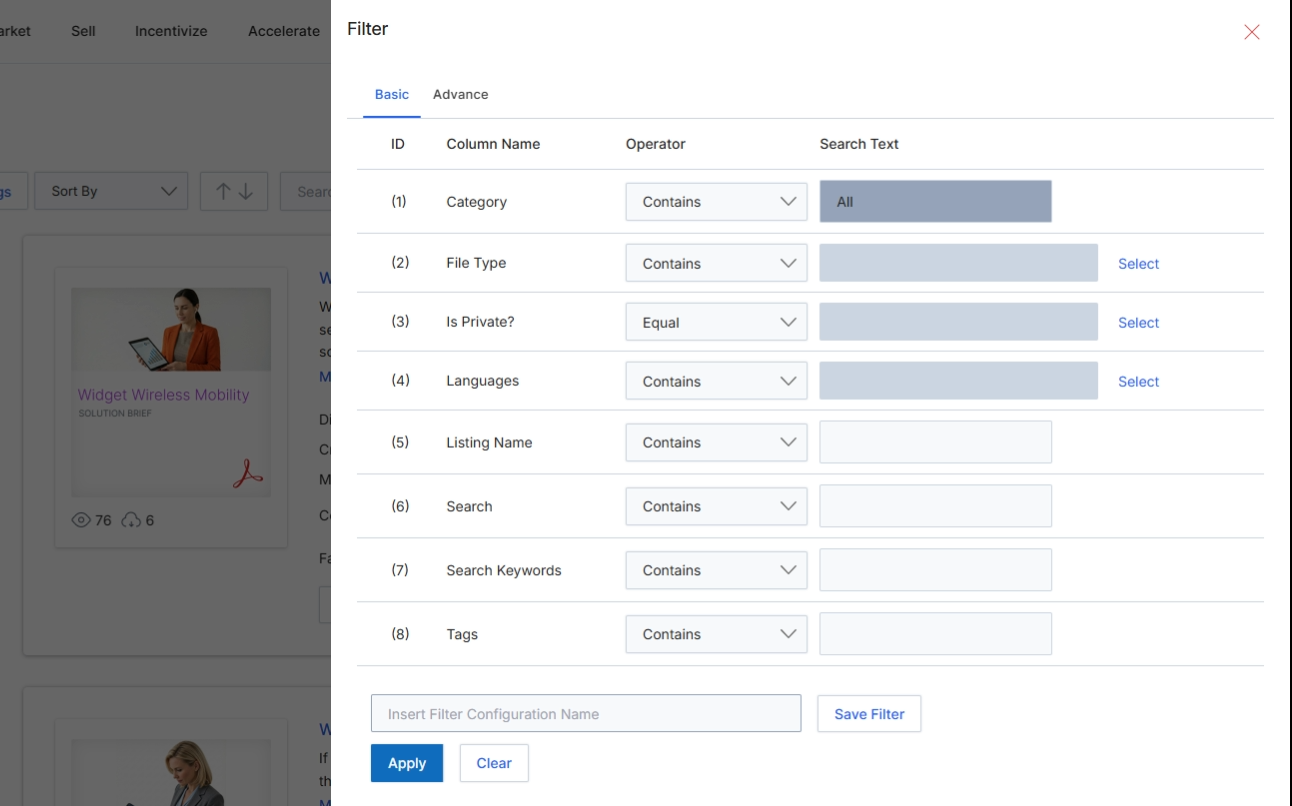
The Filter dialog provides a mechanism for users to refine the displayed list of content by applying various criteria. This feature is crucial for efficiently navigating large content libraries within the Enable module, allowing users to quickly locate specific assets or courses based on their attributes. The dialog supports both basic and advanced filtering options, enabling precise control over the content presented in the main view. Filters can be saved for future use, streamlining repetitive search tasks and enhancing user productivity.
Configure the basic filter options to narrow down the content listings.
Buttons
| Button | Description |
|---|---|
| Save Filter | Saves the current filter configuration under the specified name. |
| Apply | Applies the configured filters to the content listings. |
| Clear | Clears all applied filter criteria. |
| Basic | Switches to the basic filter options view. |
| Advance | Switches to the advanced filter options view. |
Fields
| Field | Description |
|---|---|
| Category | Filters content listings by their assigned category. |
| File Type | Filters content listings by their file format (e.g., PDF, Video, SCORM). |
| Is Private? | Filters content based on its privacy setting (e.g., public or private). |
| Languages | Filters content listings by the language they are available in. |
| Listing Name | Filters content listings by their title or name. |
| Search | A general search field to find content listings containing the specified text. |
| Search Keywords | Filters content listings by associated keywords. |
| Tags | Filters content listings by their assigned tags. |
| Insert Filter Configuration Name | Enter a name to save the current filter configuration for future use. |
Column Headings
| Column | Description |
|---|---|
| ID | A numerical identifier for each filter row. |
| Column Name | The attribute of the content listing to be filtered, such as Category, File Type, or Languages. |
| Operator | The logical operator to apply for the filter, such as 'Contains', 'Equal', or 'Does Not Contain'. |
| Search Text | The value or keyword to match against the selected column name using the specified operator. |
Using Advanced Filters
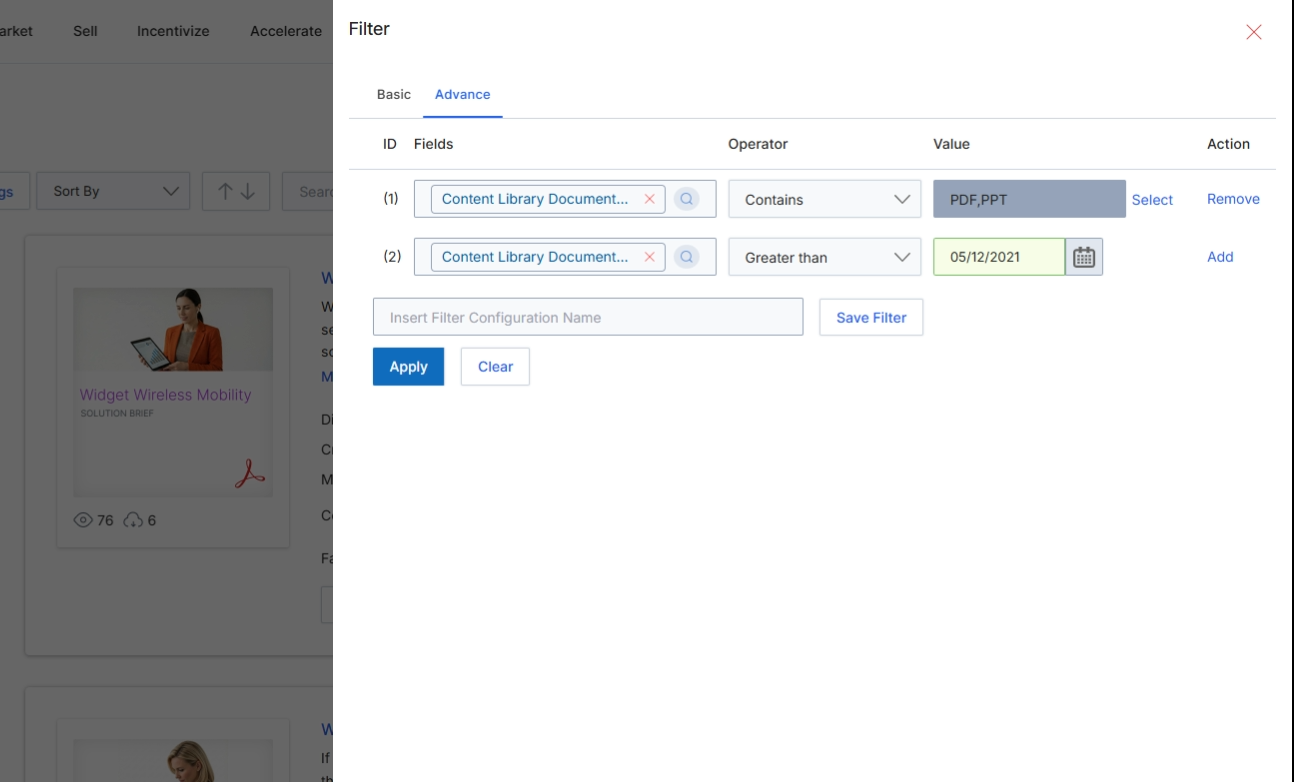
The Filter panel allows users to refine the displayed list of content listings by applying various criteria. This advanced view provides a more granular control over filtering conditions, enabling users to construct complex queries using multiple fields, operators, and values. This is particularly useful for administrators managing a large content library, allowing them to quickly locate specific assets based on detailed attributes like document type, creation date, or custom metadata. The ability to save filter configurations streamlines recurring search tasks and enhances content discoverability for both vendor and partner users.
Switch to the Advance tab to access more detailed filtering options for content listings.
Buttons
| Button | Description |
|---|---|
| Basic | Switches the filter interface to basic mode, offering simpler, predefined filtering options. |
| Advance | Switches the filter interface to advanced mode, providing granular control over filter conditions with multiple fields, operators, and values. |
| Save Filter | Saves the current filter configuration under the specified name, making it accessible for later application. |
| Apply | Applies the configured filters to the content listings and updates the displayed results. |
| Clear | Resets all filter conditions, removing any applied filters. |
Fields
| Field | Description |
|---|---|
| Insert Filter Configuration Name | Enter a name for the current filter configuration to save it for future use. |
Column Headings
| Column | Description |
|---|---|
| ID | A unique identifier for each filter condition row. |
| Fields | Allows selection of the specific content listing attribute to filter by, such as 'Content Library Document Type' or 'Created Date'. |
| Operator | Defines the comparison logic for the filter condition (e.g., 'Contains', 'Equals', 'Greater than'). |
| Value | The specific data point or keyword to match against the selected field. |
| Action | Provides options to 'Select' a value from a predefined list, 'Remove' the filter condition, or 'Add' a new filter row. |