

Overview
In UPM's Enable module, the Content Library serves as a central repository for all partner-facing assets, from sales brochures to product features and planning documents. Effective management of this library goes beyond simply uploading files; it requires granular control over who can view and utilize each piece of content. This is crucial for maintaining brand consistency, ensuring compliance with regional regulations, and providing partners with the most relevant resources for their specific markets and roles.
The Visibility Configuration feature addresses this need by allowing administrators to define precise access rules. For instance, a vendor might have product brochures translated into multiple languages or sales materials tailored for specific countries. This feature enables the admin to ensure that a partner in Germany only sees the German-language content relevant to their region, while a partner in Japan sees their localized content. Furthermore, content can be restricted to specific partner groups or even individual users, ensuring that sensitive or role-specific information is only accessible to authorized personnel. This level of control is vital for optimizing partner enablement and preventing information overload.
Visibility Configuration
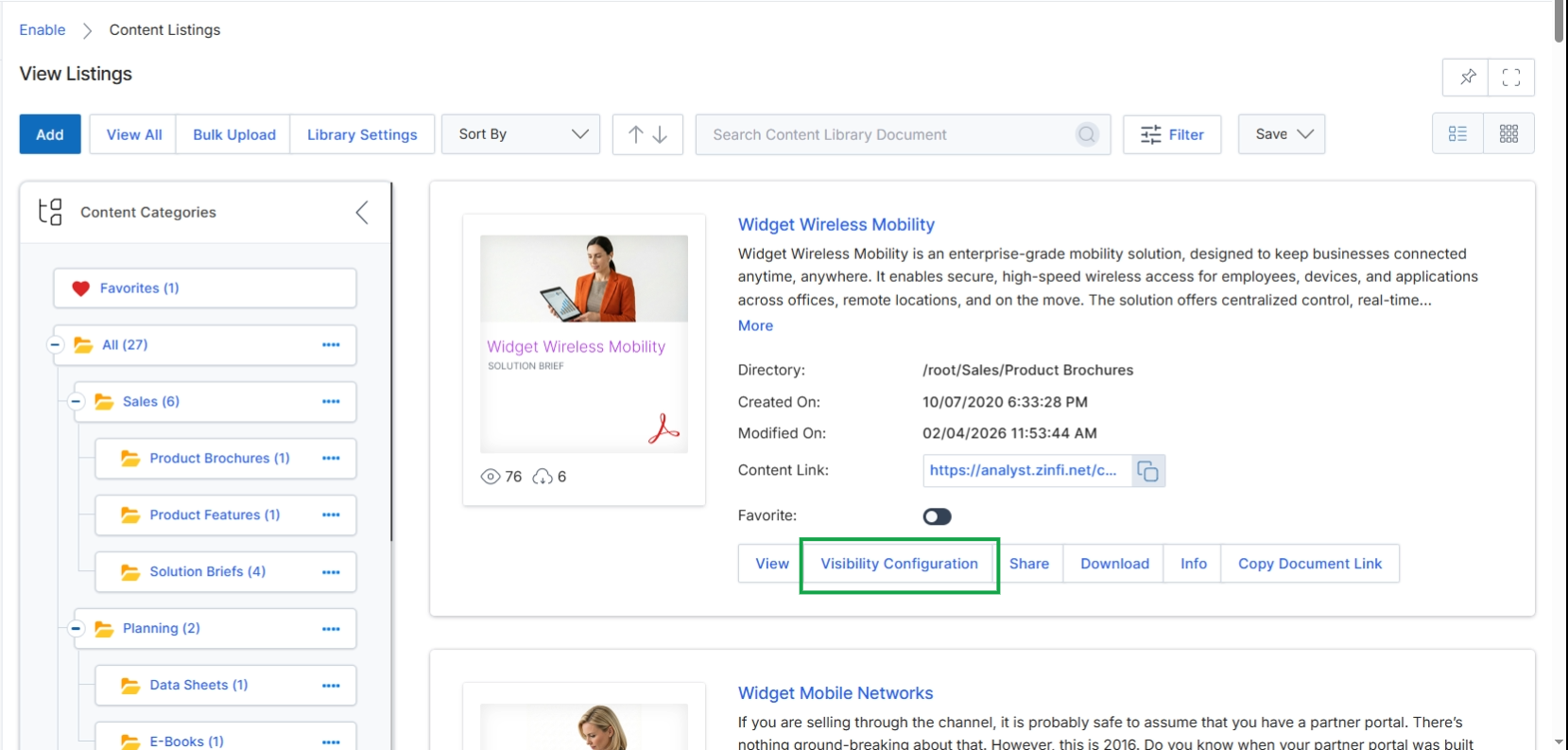
Click Visibility Configuration to manage the visibility settings for the selected content listing.
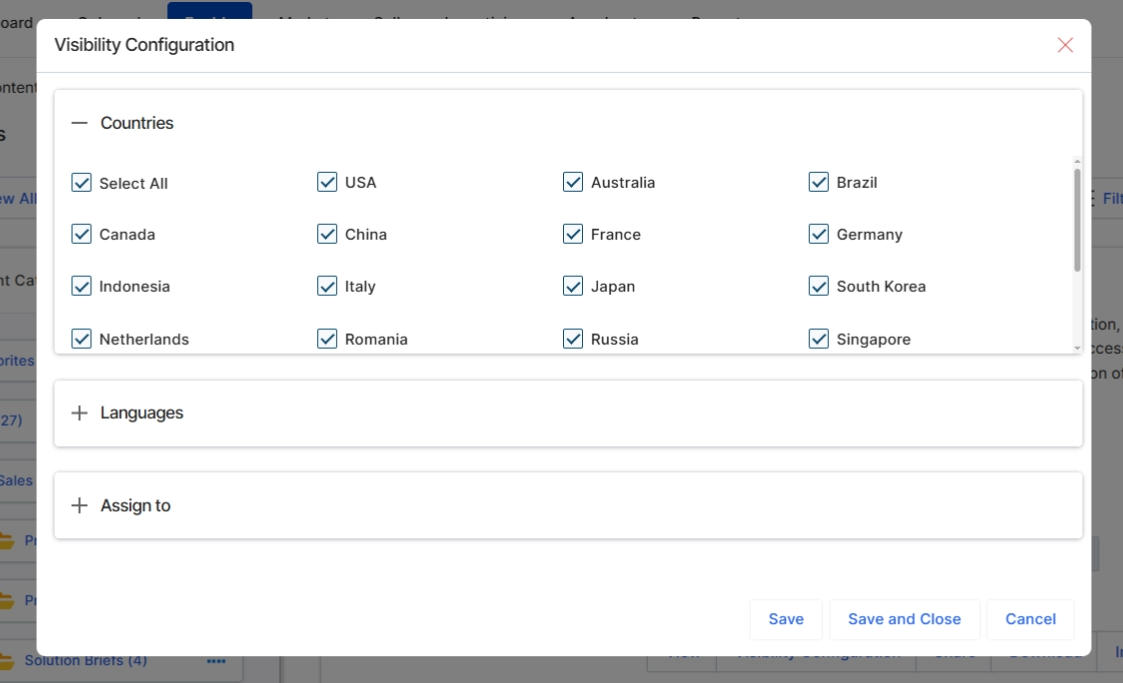
The Visibility Configuration dialog allows administrators to define which partners can access specific content library items, such as documents, videos, or learning modules. This granular control ensures that partners only see content relevant to their region, language, or assigned roles, supporting targeted enablement and preventing information overload. The dialog presents options to filter content visibility by geographical region (countries), language, and specific partner assignments, aligning with the module's purpose of providing tailored learning and content experiences. This configuration directly impacts the partner-side experience by controlling what appears in their content catalog and learning paths.
Select the specific countries for which this content item should be visible.
Buttons
| Button | Description |
|---|---|
| Save | Saves the selected visibility configurations for the content item. |
| Save and Close | Saves the selected visibility configurations and closes the dialog. |
| Cancel | Discards any changes to the visibility configurations and closes the dialog. |
Countries
| Field | Description |
|---|---|
| Select All | A checkbox to select or deselect all available countries for content visibility. |
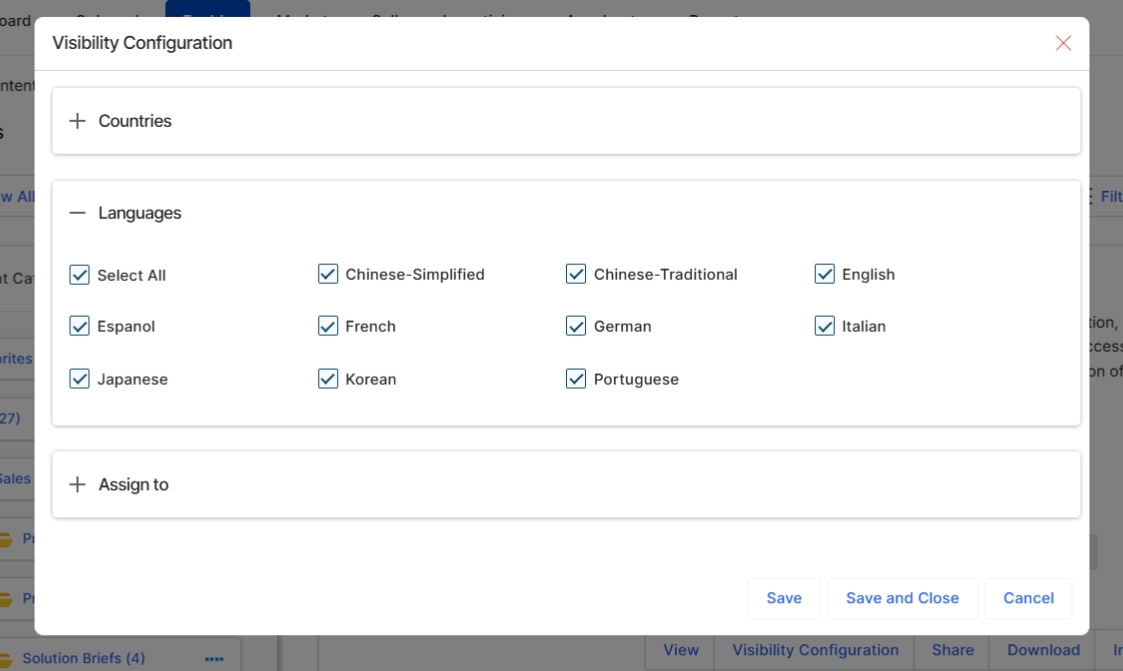
Expand the Languages section to configure language-specific visibility for the content.
Languages
| Field | Description |
|---|---|
| Select All | A checkbox to select or deselect all available languages for content visibility. |
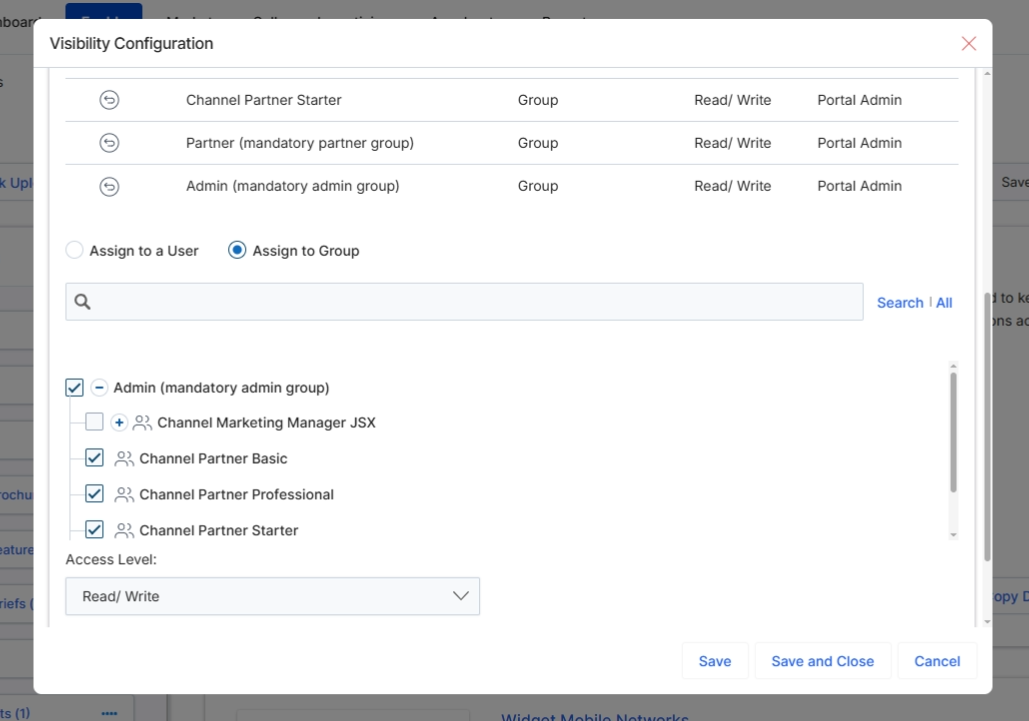
By assigning content to specific users or groups, vendors can implement targeted enablement strategies, manage content licensing, and enforce program rules that dictate content access based on partner attributes or performance. This dialog supports both individual user assignments and broader group-based assignments, providing flexibility in content distribution.
Click the "Assign to" field to expand the assignment options and specify which users or groups can access this content.
Fields
| Field | Description |
|---|---|
| Countries | A field to select specific countries for content visibility, ensuring content is only accessible to partners in those regions. |
| Languages | A set of checkboxes to select the languages for which this content is available, allowing localization of content access. |
| Assign to a User | A radio button to switch the assignment mode to individual users. |
| Assign to Group | A radio button to switch the assignment mode to partner groups. |
| Search | A search bar to find specific users or groups for assignment. |
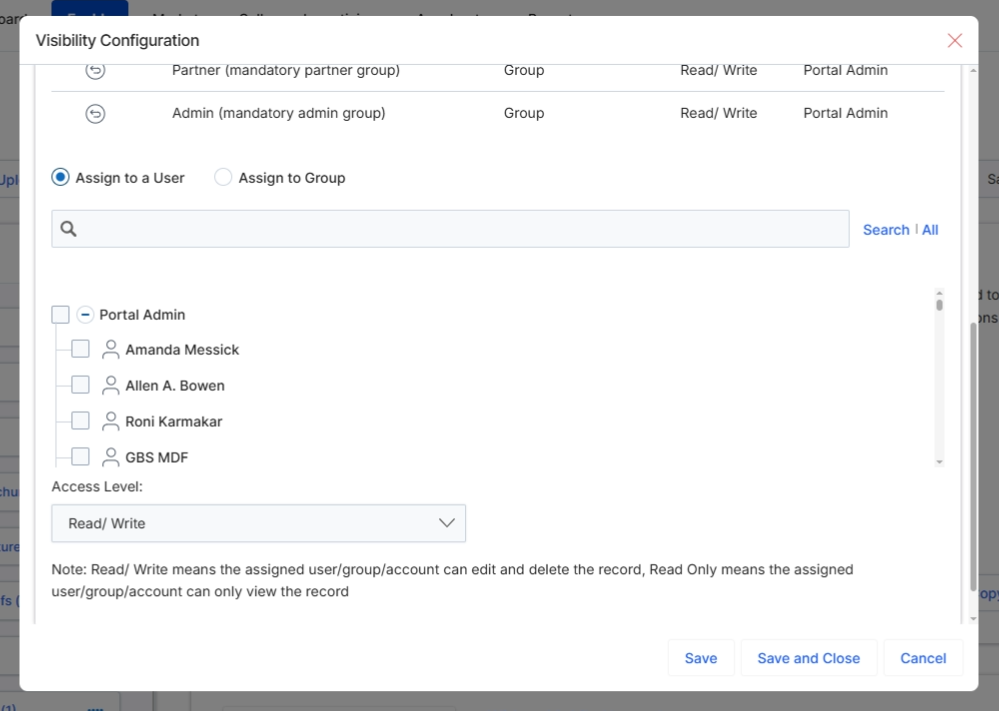
The view shows a history of content assignments, detailing which groups or users have been granted access, the type of assignment, their access level (Read/Write or Read Only), and who made the assignment. The updated view, triggered by selecting "Assign to a User," reveals a search bar and a list of individual users, enabling the administrator to select specific individuals for content assignment and define their access permissions.
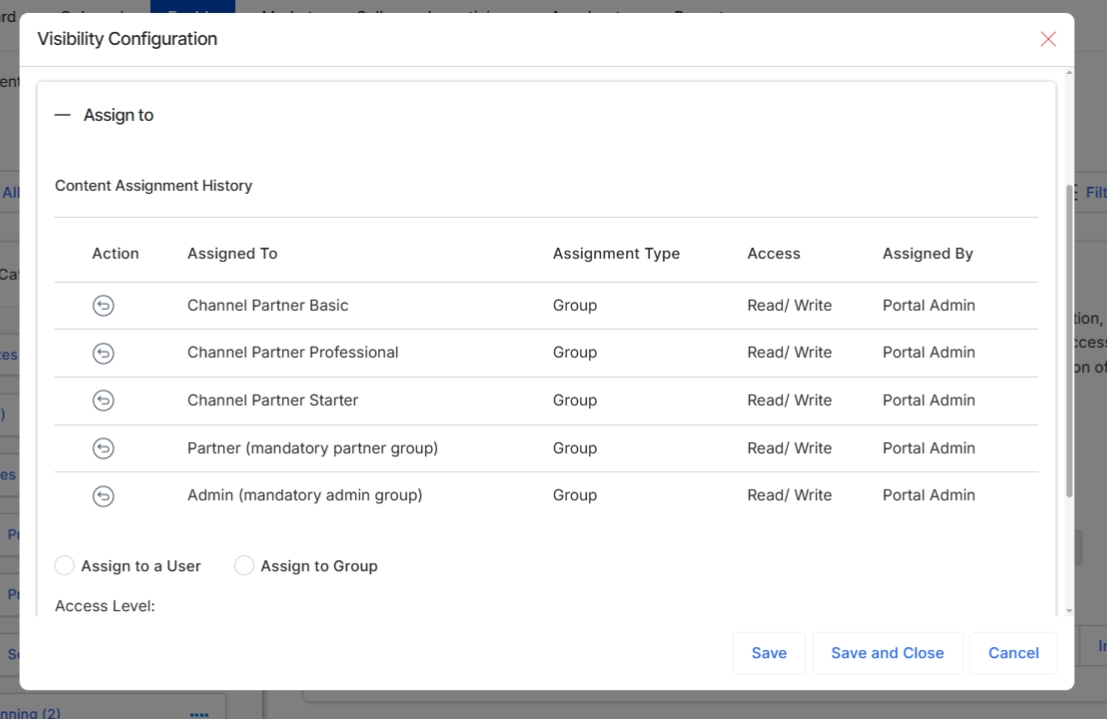
This screen displays the content assignment history for a specific asset within the Content Library. It provides a chronological record of which groups or users were assigned access to the content, the type of assignment (e.g., Group), the access level granted (e.g., Read/Write), and the administrator who performed the assignment. This history is crucial for auditing content visibility and understanding how access permissions have evolved over time, ensuring compliance and proper content governance.