

Overview
The Content Library is a central repository for all marketing, sales, and technical assets that vendors want to share with their partners. Before making these assets available, it's crucial for administrators to review them to ensure they meet quality standards, are correctly formatted, and contain accurate information. The preview functionality within the Content Library streamlines this review process, allowing for immediate visual inspection without needing to download each file separately.
This capability is essential for maintaining brand consistency and ensuring that partners always have access to the most up-to-date and polished materials. By offering an integrated preview, UPM helps administrators efficiently manage their content, reducing errors and improving the overall partner experience.
Accessing Content Preview
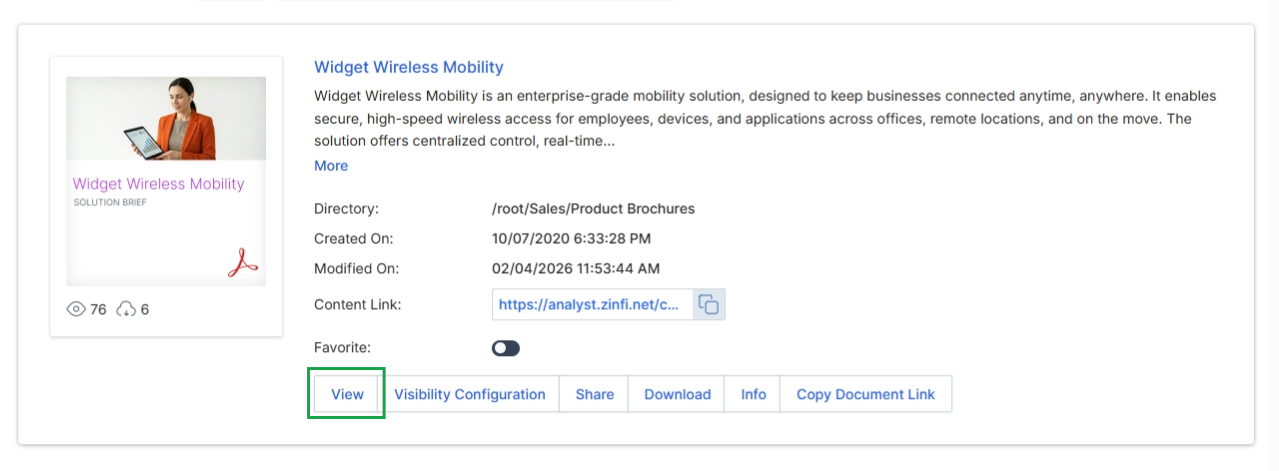
Click the View button to open the preview panel for the selected content.
Viewing Content
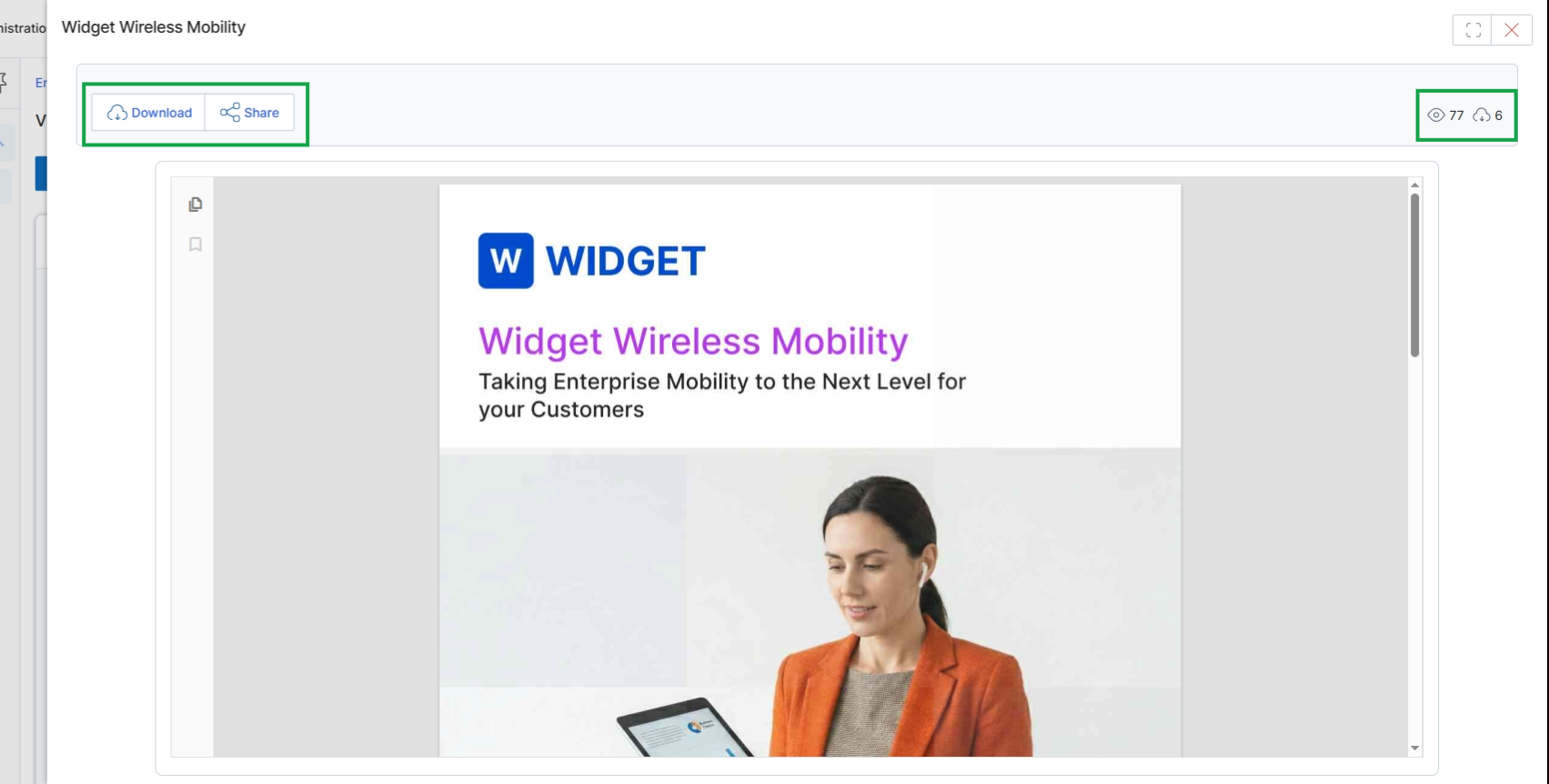
The Document Preview Panel provides a detailed, full-screen view of a selected content asset from the Content Library, allowing vendors to review its contents before distribution to partners. This panel is crucial for ensuring content accuracy, proper formatting, and alignment with messaging, thereby supporting the partner enablement strategy by facilitating content review. The Content Library supports various asset types, including PDFs, PPTs, videos, and images, and allows for setting visibility rules based on Partner Type, Tier, or Segment, as well as enabling co-branding options for partners. This view also displays key metrics such as the number of views and downloads, offering insights into content engagement.
From the Document Preview Panel, you can download the document or share it with others.
Buttons
| Button | Description |
|---|---|
| Download | Downloads the content item to the user's local device for offline access. |
| Share | Provides options to share the content item with others, potentially generating a shareable link or sending it via email. |
Icons
| Icon | Description |
|---|---|
| Views | Indicates the total number of times this content item has been viewed. |
| Downloads | Indicates the total number of times this content item has been downloaded. |