

Overview
The Content Library within the UPM Enable module serves as a central repository for all partner-facing assets, including datasheets, product brochures, and e-books. Effective management of this library is crucial for ensuring partners have access to the most relevant and up-to-date information needed for their sales and marketing efforts. The Library Settings provide administrators with granular control over how this content is presented and utilized by partners, directly impacting partner enablement and efficiency.
These settings allow vendors to tailor the partner experience, for instance, by enabling a personalized 'My Collection' feature for partners to curate their own content, or by streamlining the sharing of newly created content. The ability to configure the partner layout and category display ensures that the content library is intuitive and easy to navigate, ultimately enhancing partner engagement and their ability to leverage vendor-provided resources effectively.
Accessing Library Settings
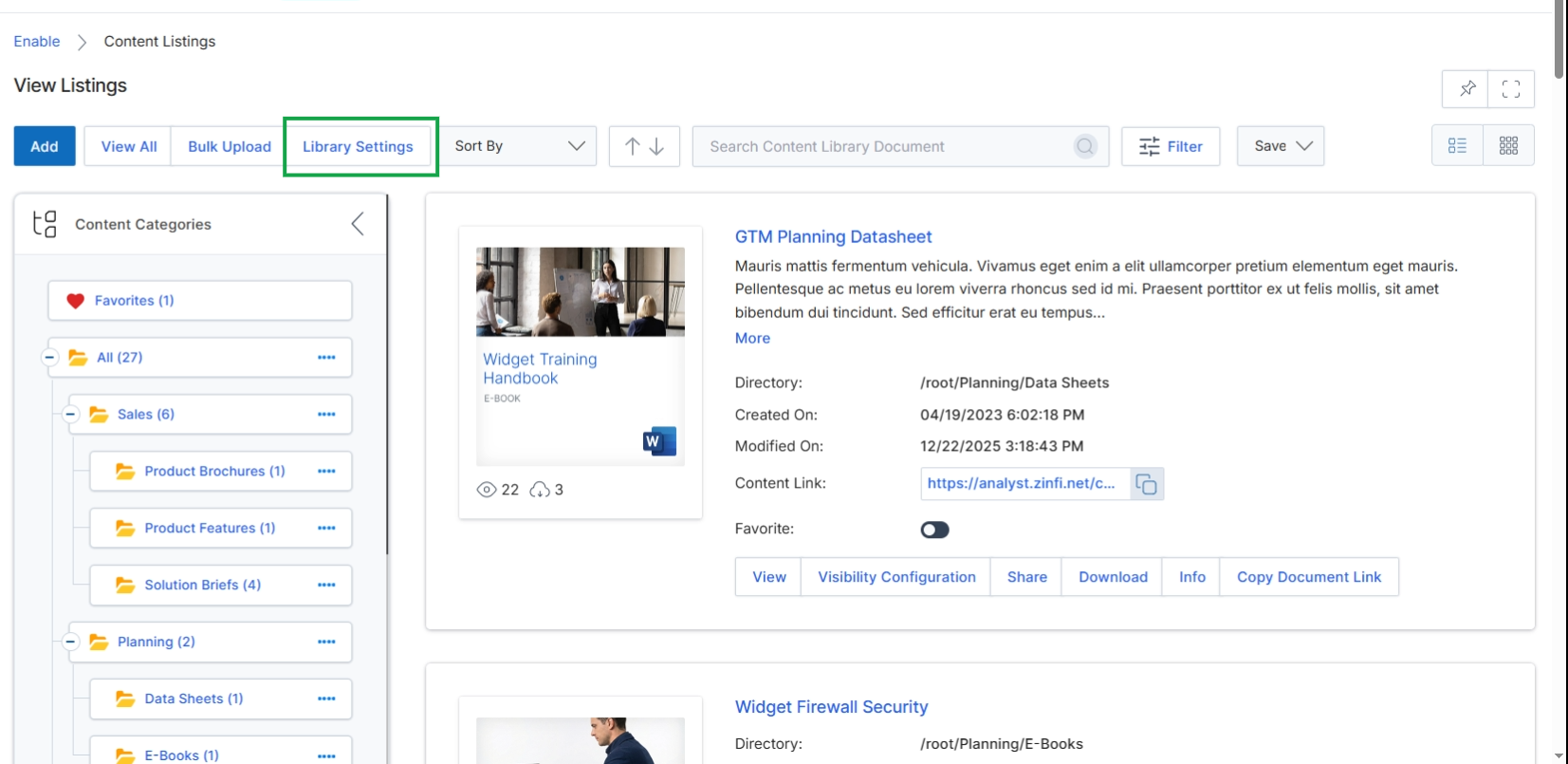
Click Library Settings to access the configuration settings for the content library.
Configuring Library Settings
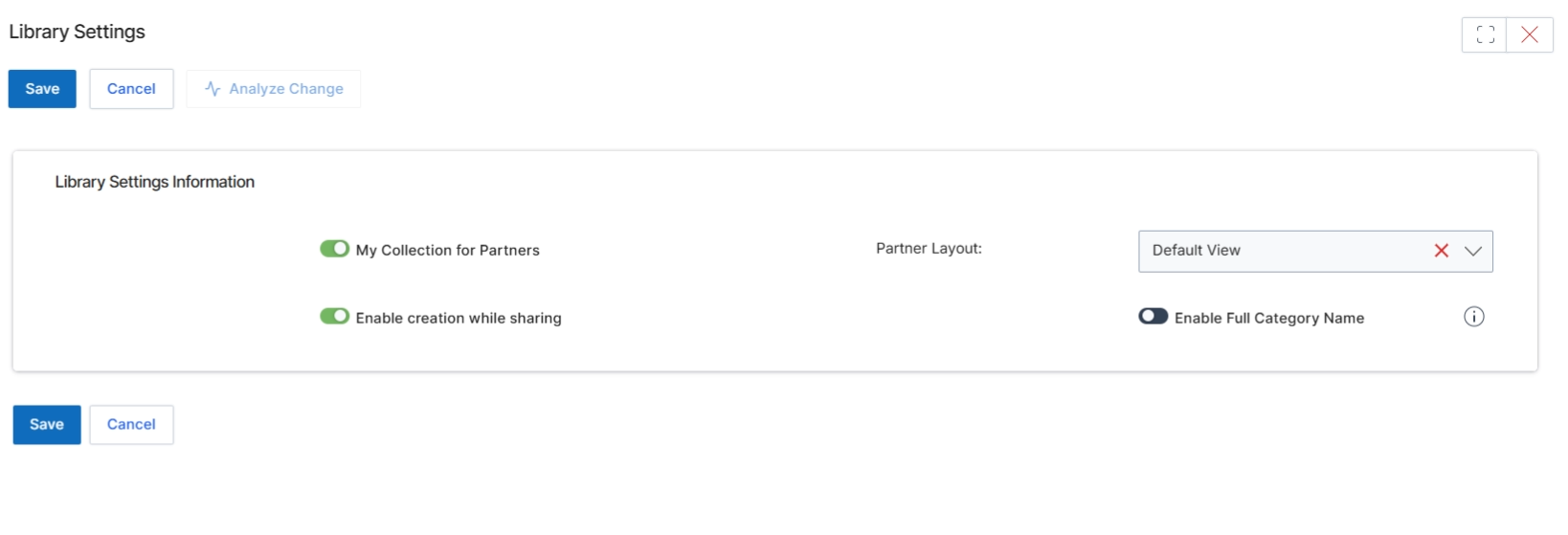
The Library Settings screen allows vendor administrators to configure global parameters for the content library within the Enable module. These settings control how partners interact with content, including their ability to organize materials and the display options for content categories. Adjustments made here affect the partner-side experience of browsing and utilizing assets and learning materials, ensuring that the content library aligns with the vendor's partner enablement strategy. These configurations are critical for maintaining a structured and user-friendly content environment for partners.
Click the "Library Settings" button to navigate to the Library Settings configuration page.
Buttons
| Button | Description |
|---|---|
| Save | Saves the current library settings. |
| Cancel | Discards changes and returns to the previous page. |
| Analyze Change | Analyzes the impact of proposed changes to the library settings. |
Library Settings Information
| Field | Description |
|---|---|
| My Collection for Partners | Toggles whether partners can create their own collections within the content library. |
| Partner Layout | Selects the default layout for the partner content library view. |
| Enable creation while sharing | Toggles whether content can be created directly while being shared. |
| Enable Full Category Name | Toggles whether the full category name is displayed in the content library. |