

Overview
In the UPM platform, the Enable module is crucial for empowering partners with the knowledge and tools they need. A core component of this enablement is the Content Library, specifically the Content Listings feature. This is where vendors can upload and manage all their essential sales and marketing collateral, product information, and other resources. By providing a well-organized and easily accessible content library, vendors ensure that partners can quickly find and utilize the most up-to-date materials, which is vital for consistent brand messaging and effective sales efforts.
Administrators use Content Listings to not only store documents but also to define who can see what, ensuring that sensitive or role-specific content is only available to the appropriate partner types, tiers, or segments. This granular control over content visibility is key to maintaining program integrity and efficiency. Partners, in turn, benefit from a streamlined experience, accessing a curated collection of assets directly from their portal, which supports their sales cycles and marketing initiatives.
Viewing Content Listings
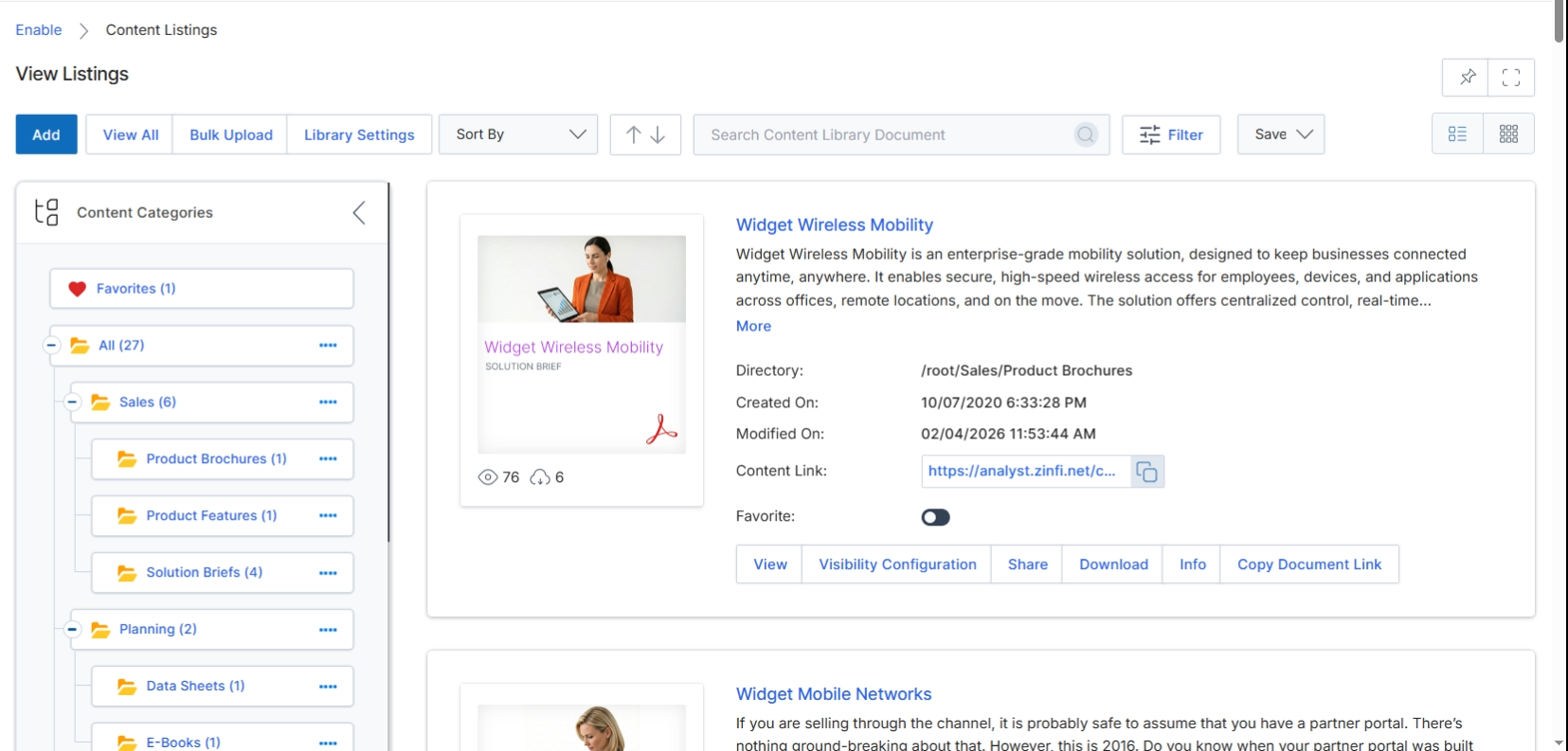
The Content Listings screen within the Enable module serves as the central repository for all vendor-provided marketing and sales assets, documents, and other content intended for partner consumption. This library allows vendors to upload various file types, categorize them, and manage their visibility to different partner types, tiers, or segments. Partners access this content through their portal to support their sales and marketing efforts, enabling them with the necessary resources to effectively market and sell the vendor's products and services. The screen displays content items in a card-based view, providing a quick overview of each asset's details and offering various actions such as viewing, configuring visibility, sharing, downloading, or copying direct links. This view is crucial for content management, allowing vendors to ensure partners have up-to-date and relevant materials.
Review the content items displayed in the Content Listings, which are organized by categories in the left panel.
Buttons
| Button | Description |
|---|---|
| Add | Initiates the process to add a new content item to the library. |
| View All | Displays all content items in a comprehensive list view. |
| Bulk Upload | Allows for the simultaneous upload of multiple content items. |
| Library Settings | Accesses the configuration options for the content library. |
| Sort By | Dropdown to select the sorting order for content items. |
| Filter | Applies filters to narrow down the displayed content items. |
| Save | Saves any changes made to the content listing view or settings. |
| List View Toggle | Switches the display of content items to a list format. |
| Thumb View Toggle | Switches the display of content items to a thumbnail or card format, which is the current view. |
| More | A link to view the full description or more details about the content item. |
| Copy Link icon | Copies the direct URL of the content item to the clipboard. |
| View | Opens the content item for viewing. |
| Visibility Configuration | Configures which partner types, tiers, or segments can view this content item. |
| Share | Provides options to share the content item with others. |
| Download | Downloads the content item to the local device. |
| Info | Displays additional information and metadata about the content item. |
| Copy Document Link | Copies the direct URL of the content item to the clipboard. |
Fields
| Field | Description |
|---|---|
| Search Content Library Document | Text input field to search for specific content items by keywords. |
| Content Categories | A hierarchical list of categories used to organize content items, allowing users to filter content by selecting a category. |
| Widget Wireless Mobility (Title) | The title of a content item, in this case, a solution brief for Widget Wireless Mobility. |
| Solution Brief | Indicates the type of content item, such as a Solution Brief, Datasheet, or Product Brochure. |
| Content Description | A brief description of the content item, providing an overview of its purpose and key information. |
| Directory | Indicates the file path or category where the content item is stored within the content library. |
| Created On | The date and time when the content item was originally created. |
| Modified On | The date and time when the content item was last modified. |
| Content Link | A direct URL to access the content item. |
| Favorite | A toggle switch to mark the content item as a favorite for quick access. |
Icons
| Icon | Description |
|---|---|
| Views icon | Indicates the number of times the content item has been viewed. |
| Downloads icon | Indicates the number of times the content item has been downloaded. |
Content Actions and Display Options
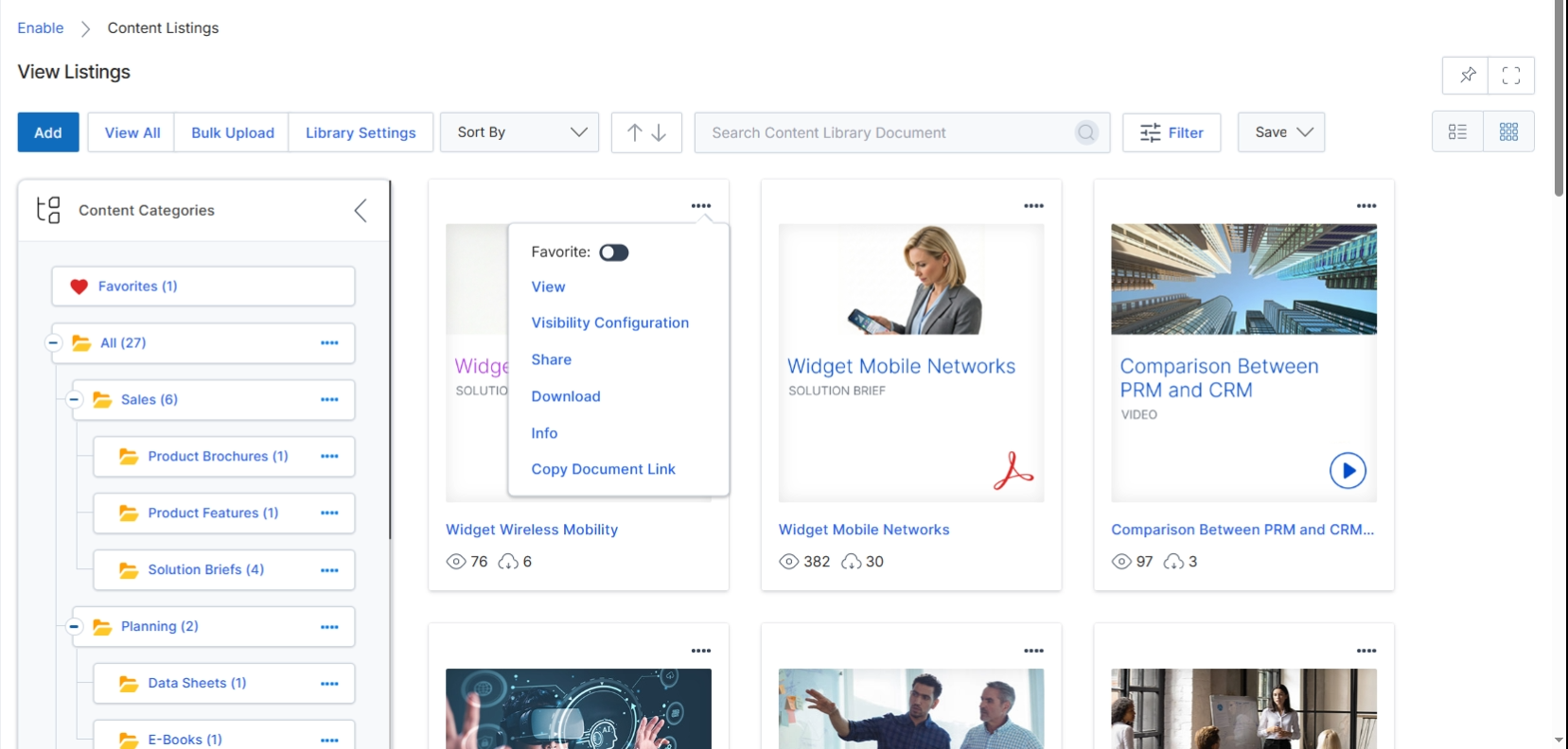
The Content Listings view within the Enable module serves as the central repository for all partner-facing marketing and sales assets, allowing vendors to manage and distribute various types of content to their partner ecosystem. This screen displays a catalog of available content items, which can include documents, videos, and other digital assets, organized by categories. Vendors utilize this interface to review content details, configure visibility settings for different partner types or tiers, and manage sharing or download options. The view supports different display modes, such as a detailed list view or a thumbnail grid, to facilitate easy browsing and management of the content library.
Switch the content display from the detailed list view to the thumbnail grid view by clicking the Thumbnail View icon.
Buttons
| Button | Description |
|---|---|
| View | Opens the content item for viewing within the platform, typically in a dedicated viewer for documents or an embedded player for videos. |
| Visibility Configuration | Configures which partner types, tiers, or segments can view this specific content item, allowing for granular control over content access. |
| Share | Provides options to share the content item with others, potentially generating a shareable link or sending it via email. |
| Download | Downloads the content file to the user's local device. |
| Info | Displays detailed information about the content item, such as its description, creation date, and modification date. |
| Copy Document Link | Copies the direct URL to the content document, which can then be shared or embedded elsewhere. |
Fields
| Field | Description |
|---|---|
| Favorite | Toggles the content item as a favorite for quick access, making it easier to find later. |