

Overview
Effective content organization is crucial for any partner program, ensuring partners can quickly find and utilize the marketing and sales materials they need. The Content Library's 'Manage Categories' functionality in UPM provides a robust framework for vendors to create a logical, intuitive structure for their digital assets. This not only streamlines content management for administrators but also significantly enhances the partner experience by improving content discoverability within the partner portal.
By defining clear categories and sub-categories, vendors can ensure that partners can easily navigate the extensive content library, whether they are looking for product brochures, solution briefs, training materials, or sales enablement tools. This structured approach supports efficient content syndication and ensures that the right content reaches the right partners at the right time, ultimately accelerating partner sales cycles and improving overall program effectiveness.
Manage Categories
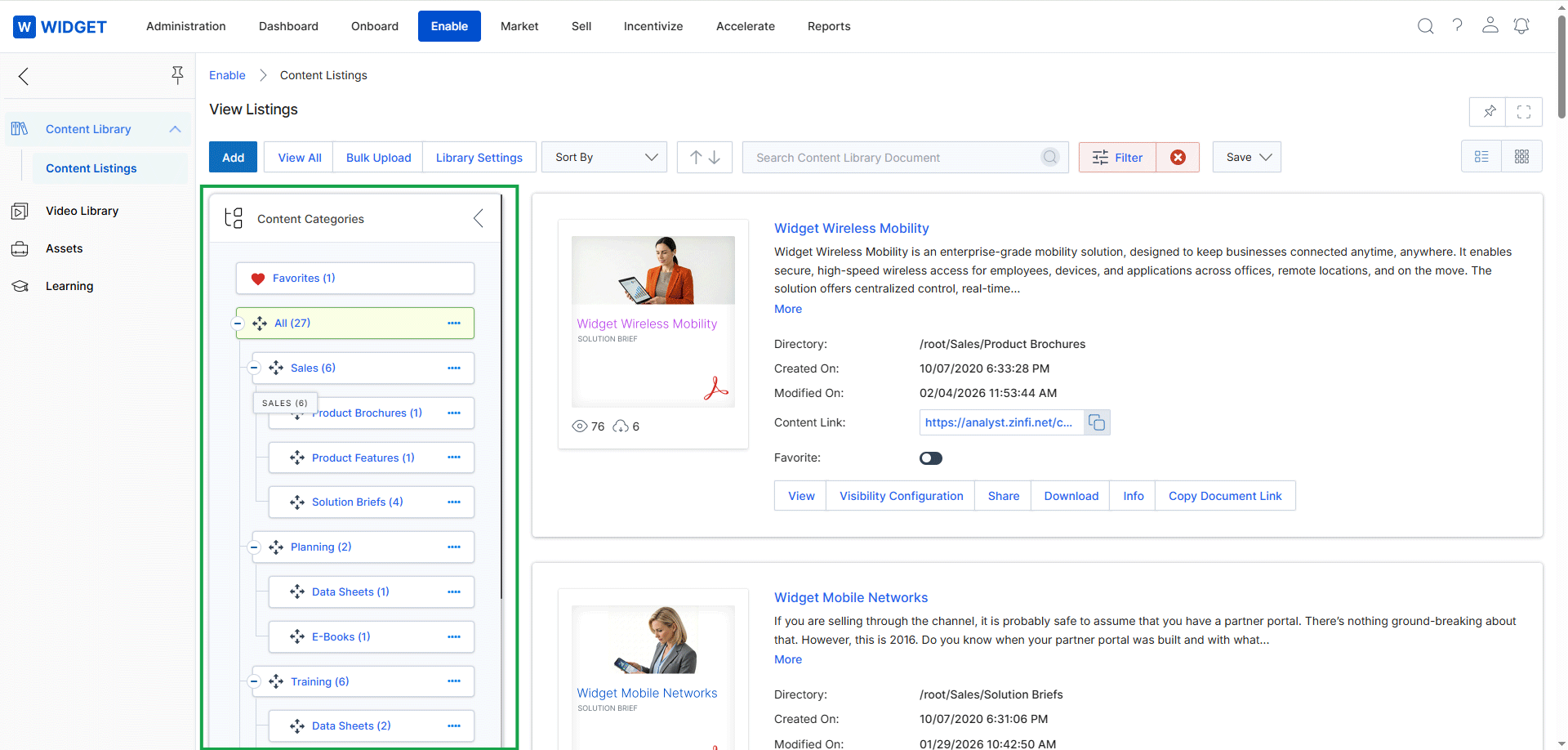
This screen displays the content categories used to organize assets within the Content Library of the Enable module. It presents a hierarchical tree view of categories and subcategories, allowing vendors to structure their marketing and sales materials logically. Each category shows the number of assets it contains, facilitating content management and navigation for both vendors and partners. This categorization system ensures that partners can easily find relevant resources in their portal, supporting the asset management workflow.
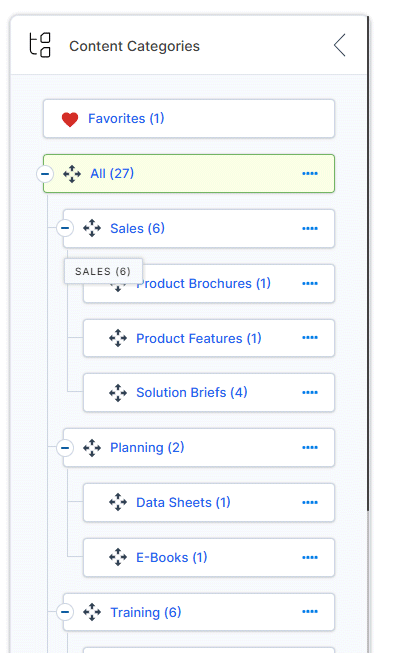
The presence of a four-directional arrow next to each category in the Content Categories tree indicates that these categories can be reordered by dragging and dropping them, enabling administrators to customize the content library's structure.
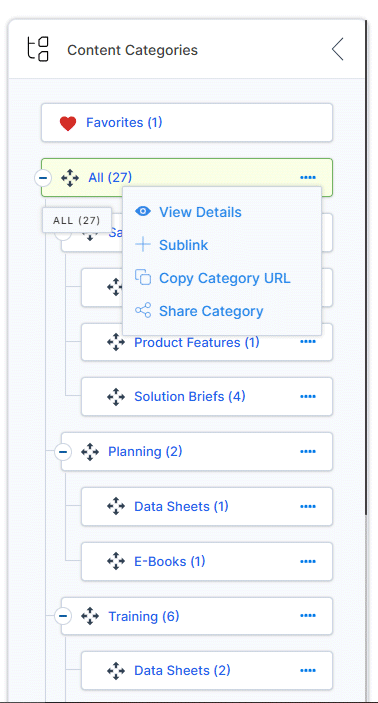
Click the ellipsis icon next to a content category to open a context menu with actions related to that category.
Buttons
| Button | Description |
|---|---|
| View Details | Opens the details page for the selected content category. |
| Sublink | Creates a sublink within the selected content category. |
| Copy Category URL | Copies the URL of the selected content category to the clipboard, allowing for direct sharing. |
| Share Category | Initiates the process to share the selected content category with partners. |
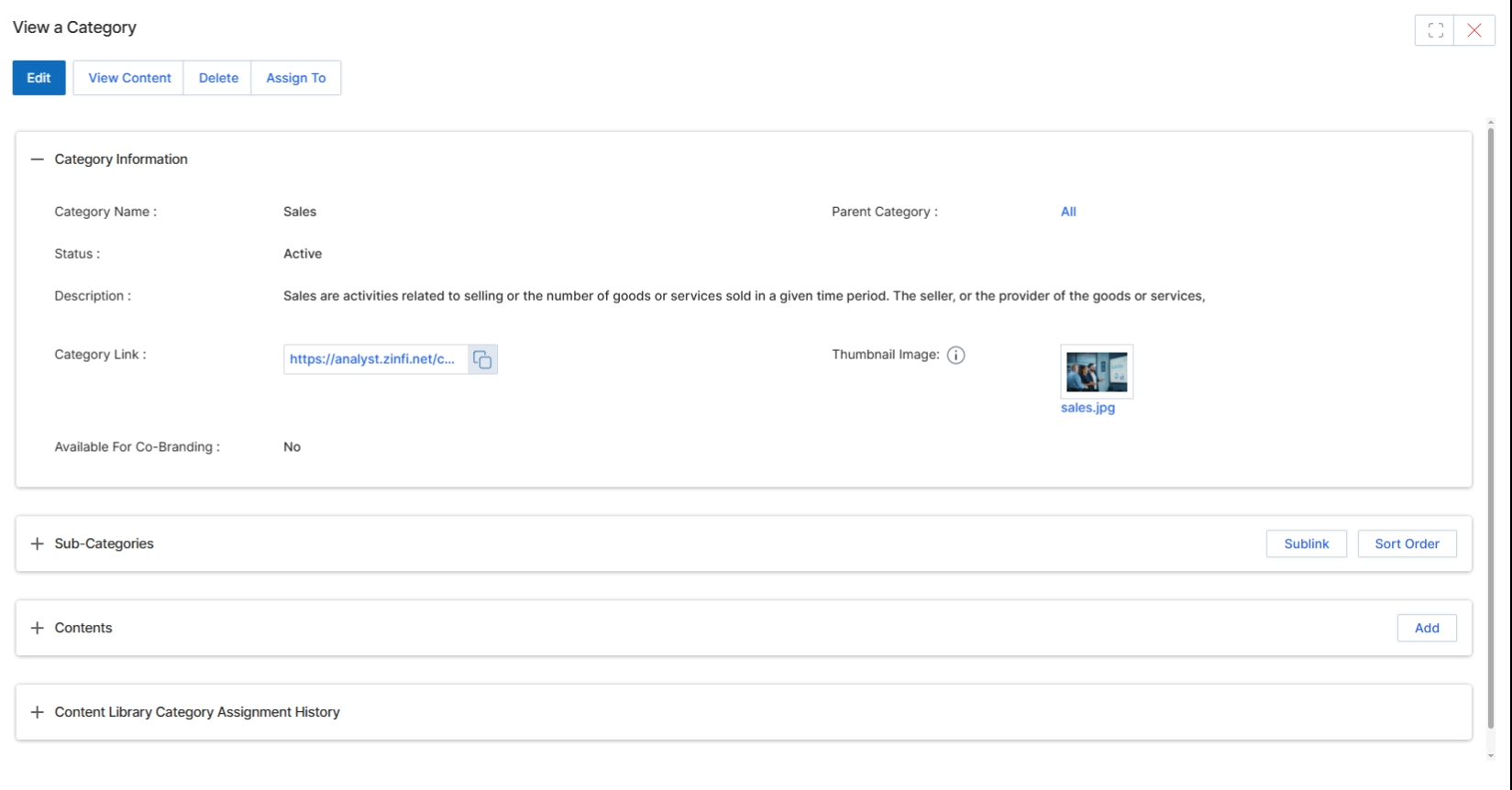
This screen displays the detailed information for a specific content category within the UPM Enable module's Content Library. Content categories are used by vendors to organize various types of assets, such as documents, videos, and training materials, making them easily discoverable by partners. This view provides a comprehensive overview of the category's properties, including its name, status, description, associated link, and any parent-child relationships with other categories. It also shows whether the category is available for co-branding and lists any sub-categories or content items associated with it, along with a history of assignments. This detailed view is crucial for administrators to manage and maintain the structure of their content library, ensuring that partners can efficiently navigate and access relevant resources.
Click the "View Details" link for the "All" category to view its detailed information.
Buttons
| Button | Description |
|---|---|
| Edit | Allows modification of the category's details. |
| View Content | Navigates to a list of content items within this category. |
| Delete | Removes the category from the system. |
| Assign To | Assigns the category to specific partners or partner groups. |
Category Information
| Field | Description |
|---|---|
| Category Name | The name of the content category. |
| Parent Category | The parent category if this is a sub-category. |
| Status | Indicates whether the category is active or inactive. |
| Description | A brief explanation of the category's purpose or content. |
| Category Link | A URL associated with the category, potentially linking to an external resource or a specific page. |
| Thumbnail Image | A visual representation or icon for the category. |
| Available For Co-Branding | Indicates if content within this category can be co-branded by partners. |
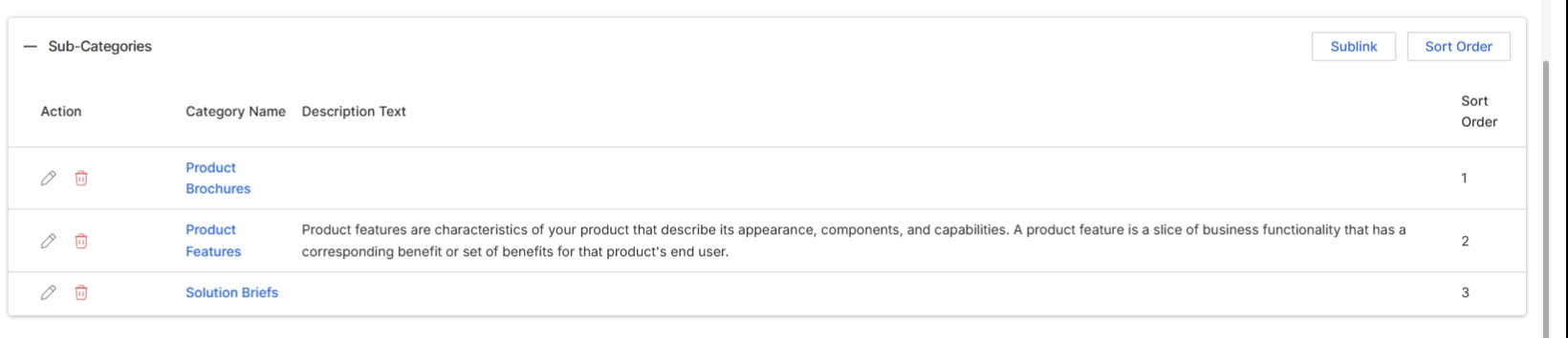
Scroll down the 'View a Category' page to reveal the 'Sub-Categories' and 'Contents' sections.
Buttons
| Button | Description |
|---|---|
| Sublink | Allows adding a new sub-category to the current category. |
| Sort Order | Enables reordering of the existing sub-categories. |
Column Headings
| Column | Description |
|---|---|
| Action | Provides options to edit or delete the sub-category. |
| Category Name | The name of the sub-category. |
| Description Text | A brief description of the sub-category. |
| Sort Order | The numerical order in which the sub-category appears. |
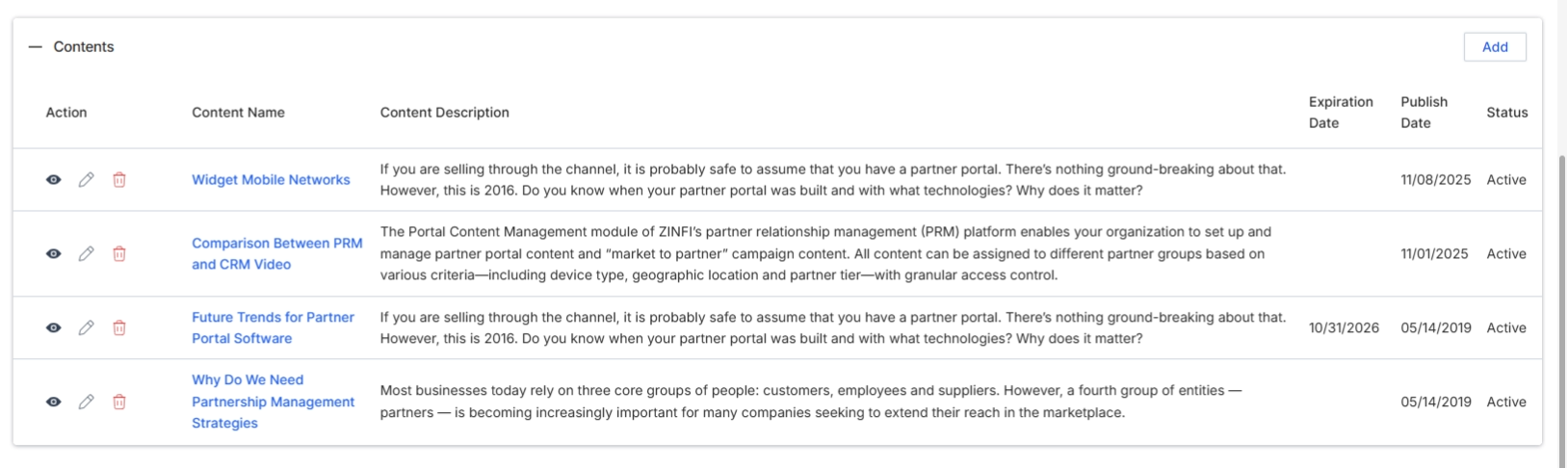
Scroll down the "View a Category" page to view the associated content items.
Buttons
| Button | Description |
|---|---|
| Add | Adds a new content item to this category. |
Column Headings
| Column | Description |
|---|---|
| Action | Provides options to edit or delete the content item. |
| Content Name | The title of the content item. |
| Content Description | A brief description of the content item. |
| Expiration Date | The date when the content item is set to expire. |
| Publish Date | The date when the content item was published. |
| Status | Indicates the current status of the content item (e.g., Active). |
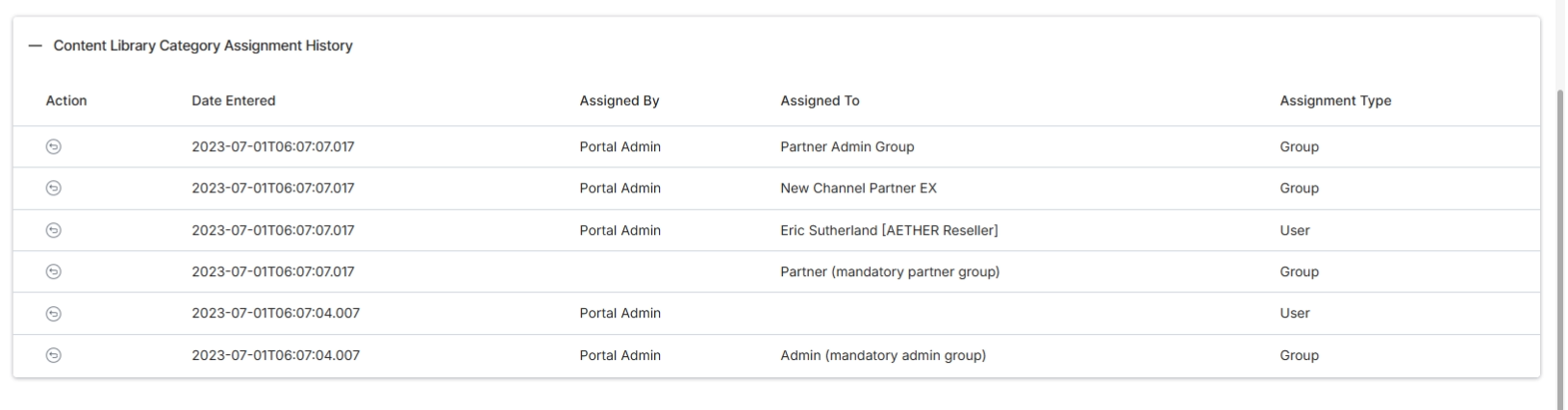
The 'Content Library Category Assignment History' section, now expanded, tracks changes to how content categories are assigned, detailing when an assignment was made, by whom, to whom (e.g., a specific partner group or user), and the type of assignment. This history is crucial for auditing content access and understanding the evolution of content distribution within the partner ecosystem.
Scroll down to view the 'Content Library Category Assignment History' section.
Column Headings
| Column | Description |
|---|---|
| Action | Provides options to view or edit the assignment entry. |
| Date Entered | The date and time when the assignment was recorded. |
| Assigned By | The user or system that performed the assignment. |
| Assigned To | The specific entity (e.g., partner group, user) to which the category was assigned. |
| Assignment Type | Indicates whether the assignment was to a group or an individual user. |
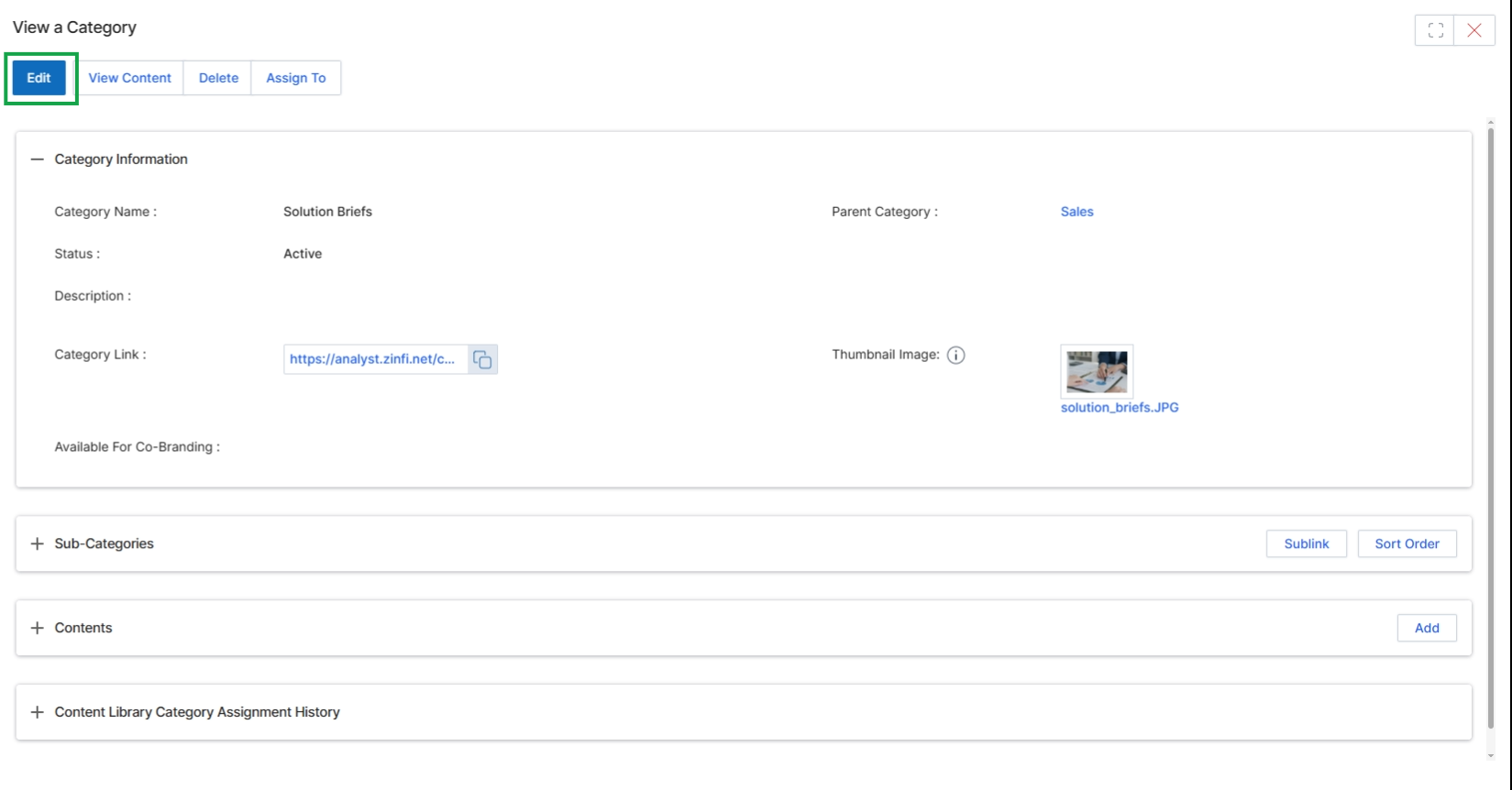
Click the Edit button to access the "Add/Edit a Category" screen.
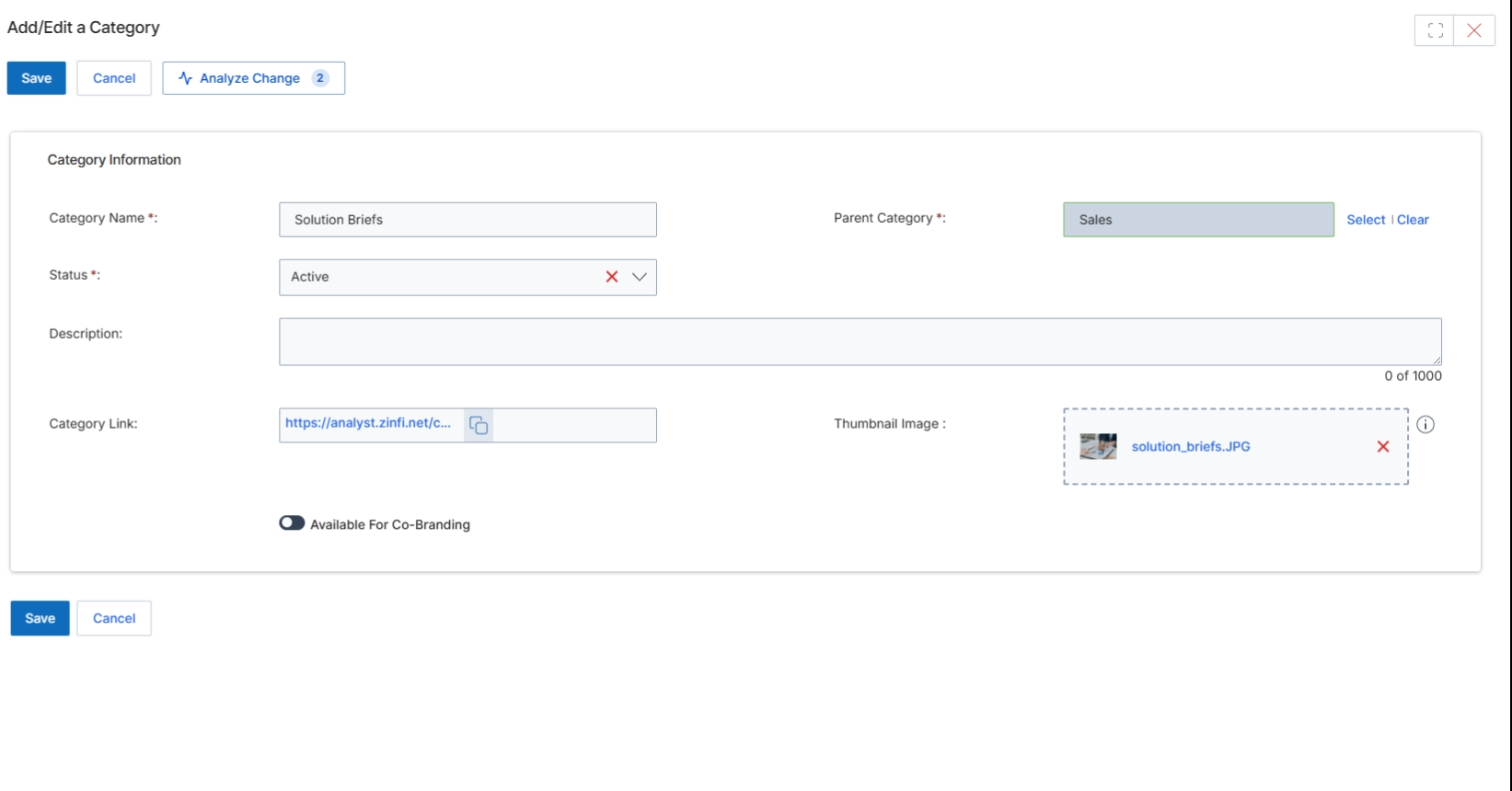
This screen displays the Add/Edit Category form, which allows administrators to define and modify content categories within the Content Library. Content categories are essential for organizing various assets such as documents, videos, and learning materials, making them easily discoverable by partners. Each category can have a name, a parent category for hierarchical organization, a status to control its visibility, and an optional description. Additionally, categories can be linked to external resources and associated with a thumbnail image for visual identification. The form also supports co-branding options, enabling partners to customize content within specific categories. This structured categorization facilitates efficient content management and ensures that partners can quickly find relevant enablement resources.
Edit the Category Information fields as needed, including the Category Name, Status, Description, Category Link, and Thumbnail Image.
Buttons
| Button | Description |
|---|---|
| Save | Saves the changes made to the category information. |
| Cancel | Discards any changes and returns to the previous view. |
| Analyze Change | Analyzes the impact of the changes made to the category. |
Category Information
| Field | Description |
|---|---|
| Category Name * | The name of the content category. |
| Parent Category * | The parent category for hierarchical organization. |
| Status * | The current status of the category, indicating whether it is active or inactive. |
| Description | A detailed description of the category. |
| Category Link | An optional external link associated with the category. |
| Thumbnail Image | A visual thumbnail image representing the category. |
| Available For Co-Branding | Toggles whether content within this category can be co-branded by partners. |