

Overview
The Multi-touch Campaigns module provides a robust framework for vendors to design and deploy comprehensive marketing campaigns for their partners. These campaigns can encompass various tactics, such as microsites, email marketing, web syndication, events, and social syndication, all managed from a single interface. By defining campaign parameters, content, and assets, vendors empower partners to execute co-branded marketing activities that align with overall program goals.
Administrators can create new campaigns from scratch or edit existing ones, specifying details like campaign name, solution offered, target audience, and execution type. The platform also supports the upload of essential marketing assets like thumbnail images and banner images, ensuring brand consistency across all partner-led initiatives. Once configured, these campaigns become available to eligible partners, who can then leverage the provided resources to drive their marketing efforts.
Accessing and Viewing Campaigns
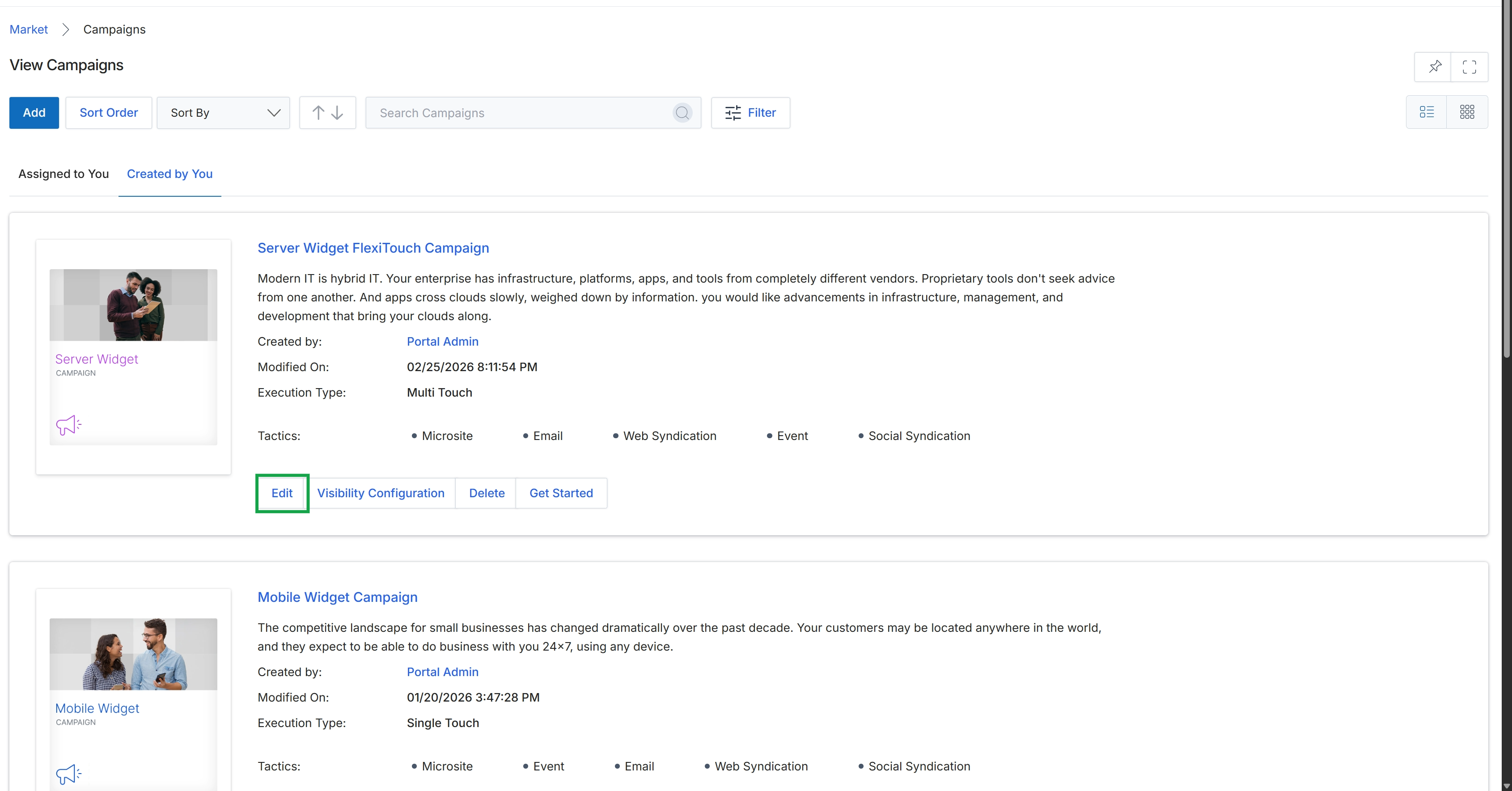
Click the Edit button for the "Server Widget FlexiTouch Campaign" to modify the campaign.
Editing Campaign Details
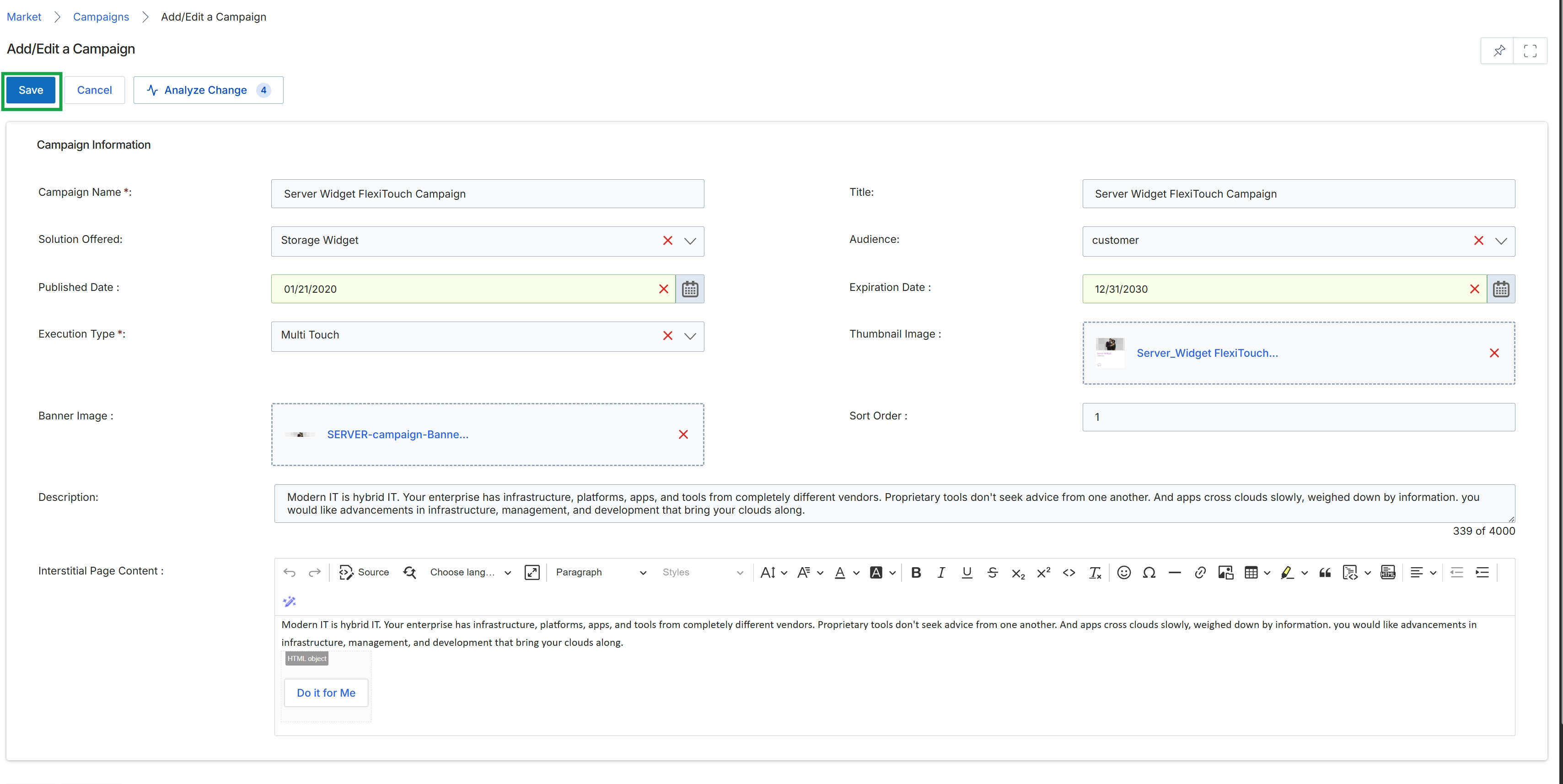
The Add/Edit a Campaign form is where vendor administrators define and configure co-marketing campaigns that partners can execute. This form allows for the specification of campaign details such as name, type, target audience, and associated assets. It plays a crucial role in the Market module's workflow by enabling vendors to structure marketing initiatives, allocate resources, and set parameters for partner participation. The information entered here dictates how the campaign will appear to partners and what options they will have for execution, including any associated MDF eligibility or tracking mechanisms. The form supports various campaign types and allows for the inclusion of rich content and imagery to effectively communicate the campaign's message.
Click the "Save" button to save the newly created or edited campaign.
Buttons
| Button | Description |
|---|---|
| Save | Saves the current campaign configuration and makes it available for partners or further editing. |
| Cancel | Discards any changes made to the campaign and returns to the previous screen. |
| Analyze Change | Analyzes the impact of changes made to the campaign, potentially showing how it affects partners or other configurations. |
Campaign Information
| Field | Description |
|---|---|
| Campaign Name * | The name of the marketing campaign, which is a mandatory field. |
| Title | The title of the campaign, often used for display purposes. |
| Solution Offered | The specific solution or product being promoted by this campaign. |
| Audience | The target audience for this campaign, such as 'customer'. |
| Published Date | The date when the campaign becomes active and visible to partners. |
| Expiration Date | The date when the campaign will no longer be active or available. |
| Execution Type * | The method or type of execution for the campaign, such as 'Multi Touch'. This is a mandatory field. |
| Thumbnail Image | A small image representing the campaign, often used in listings or previews. |
| Banner Image | A larger banner image associated with the campaign. |
| Sort Order | A numerical value that determines the display order of the campaign in lists. |
| Description | A detailed description of the campaign's purpose and content. |
| Interstitial Page Content | The content that will be displayed on an interstitial page related to the campaign, editable via a rich text editor. |
Reviewing Campaign Configuration
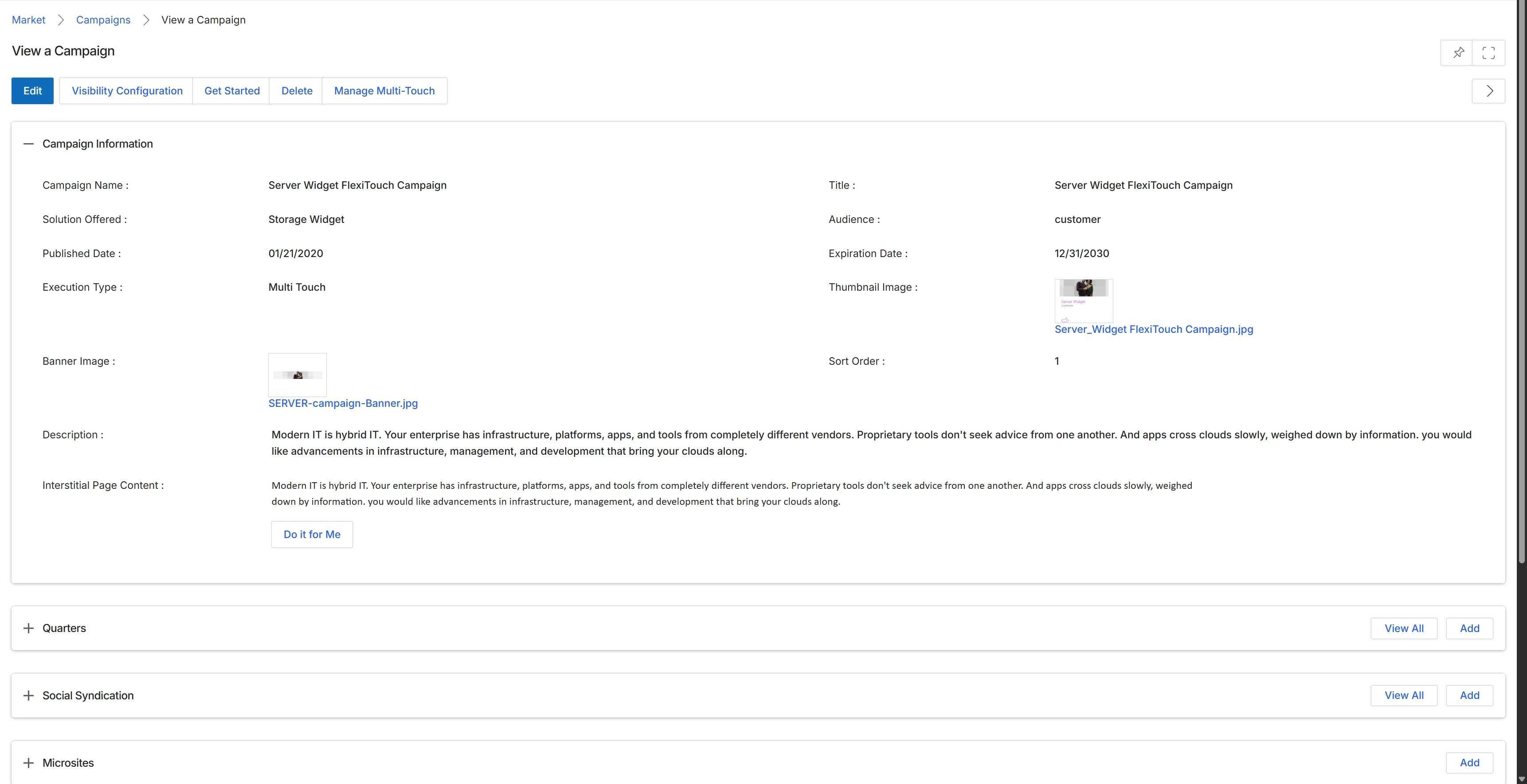
This screen displays the detailed information for a specific multi-touch campaign within the Market module. It provides a comprehensive overview of the campaign's configuration, including its name, the solution it offers, its publication and expiration dates, and its execution type. The screen also presents the campaign's visual assets, such as banner and thumbnail images, along with descriptive content. This view allows administrators to review all aspects of a campaign after it has been created, serving as a central point for understanding its setup and associated marketing elements.