

Overview
Multi-touch campaigns offer a sophisticated approach for vendors to guide partners through a series of coordinated marketing activities to achieve specific objectives. Unlike single-tactic campaigns, these campaigns allow for sequential engagement, where subsequent steps can be triggered by a partner's or prospect's interaction with previous tactics. This dynamic and responsive marketing approach maximizes engagement and conversion rates by delivering relevant communications at each stage.
Administrators utilize this module to define the entire flow of a multi-touch campaign, integrating various marketing tactics such as email sends, microsite interactions, and social media posts. The visual workflow builder simplifies the design of complex sequences, including conditional logic based on user behavior. Once configured, these campaigns can be launched, making them available for partners to execute or for automated delivery, ensuring a streamlined and effective co-marketing effort.
Accessing and Launching Campaigns
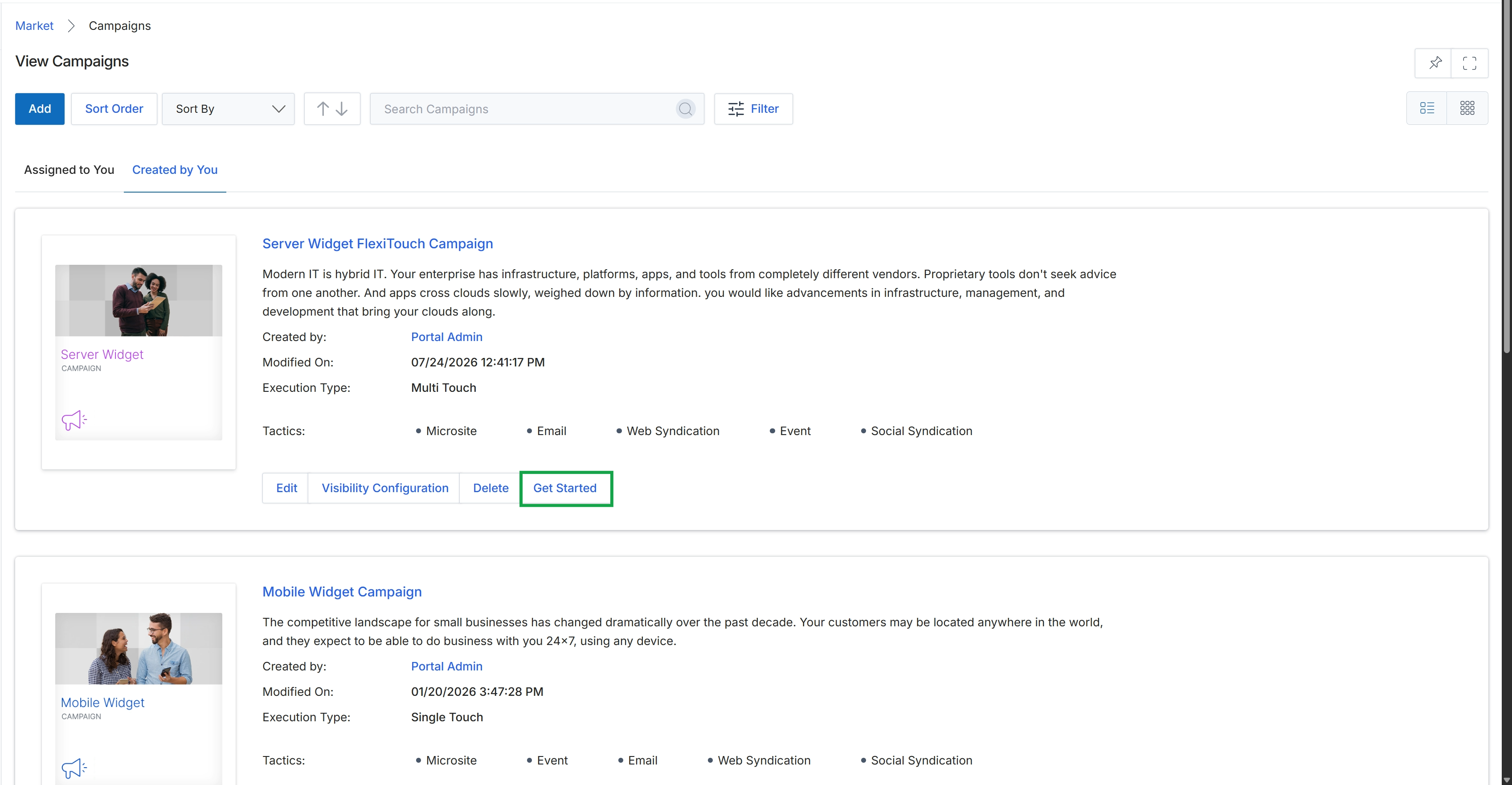
Click the Get Started button for the "Server Widget FlexiTouch Campaign" to launch the campaign.
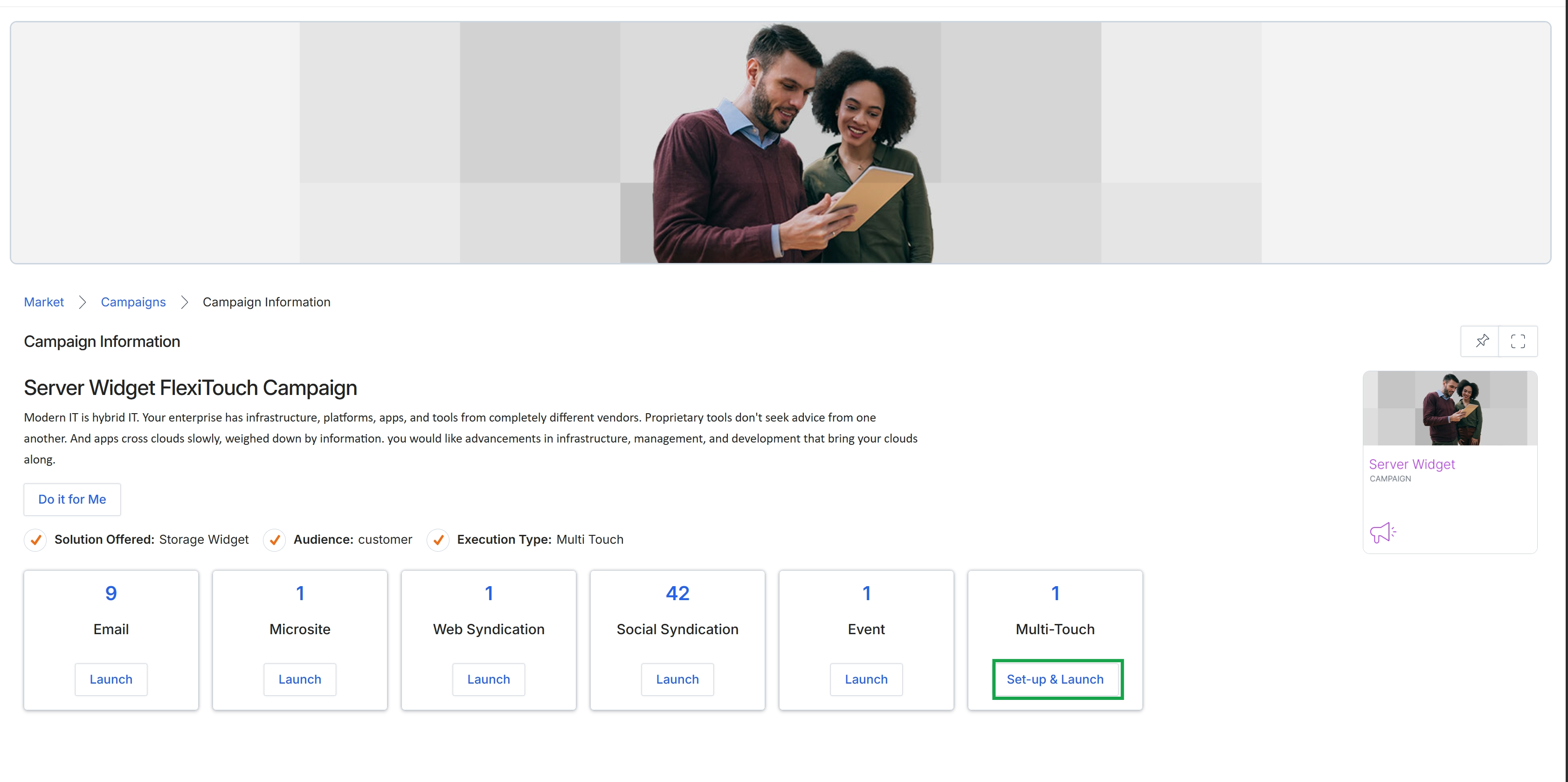
This screen provides a detailed overview of a specific campaign, displaying its objectives, target audience, and the various marketing tactics it encompasses. It serves as a central hub for partners to understand the campaign's scope and to initiate different marketing activities. The campaign details include the solution offered, the intended audience, and the execution type, which in this case is 'Multi Touch', indicating a campaign that leverages multiple marketing channels. The screen also presents a breakdown of the available tactics within the campaign, such as Email, Microsite, Web Syndication, Social Syndication, Event, and Multi-Touch, along with the number of assets or instances available for each. Partners can launch individual tactics directly from this view, enabling them to execute co-marketing activities aligned with the vendor's strategy.
Click the "Set-up & Launch" button to initiate the setup and launch process for the Multi-Touch campaign.
Buttons
| Button | Description |
|---|---|
| Do it for Me | A button that initiates an automated setup process for the campaign. |
| Launch | Button to launch the Email tactic. |
| Launch | Button to launch the Microsite tactic. |
| Launch | Button to launch the Web Syndication tactic. |
| Launch | Button to launch the Social Syndication tactic. |
| Launch | Button to launch the Event tactic. |
| Set-up & Launch | Button to initiate the setup and launch process for the Multi-Touch campaign. |
Fields
| Field | Description |
|---|---|
| Solution Offered | Indicates the specific product or service that the campaign is promoting. |
| Audience | Specifies the target demographic for the campaign. |
| Execution Type | Describes the overall strategy or approach of the campaign, indicating it involves multiple marketing channels. |
Managing Multi-Touch Flows
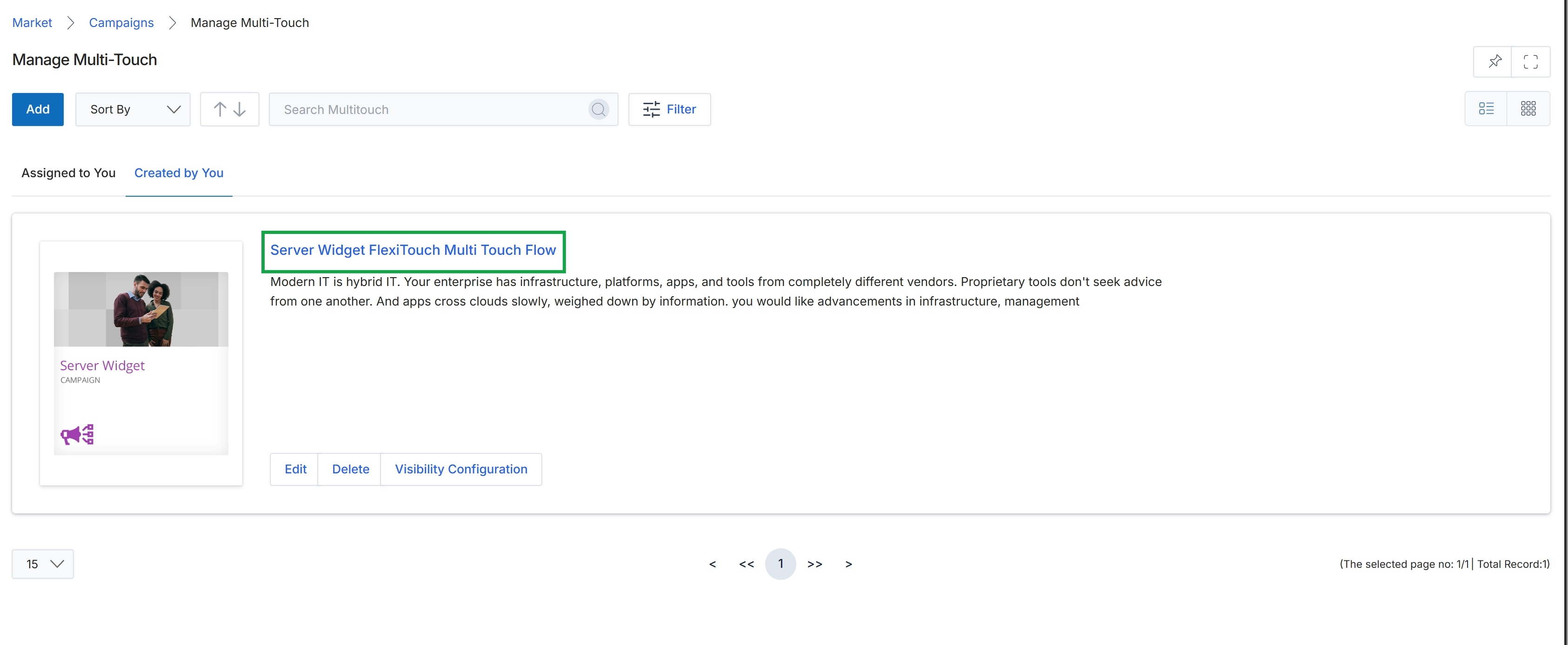
Click the Server Widget FlexiTouch Multi Touch Flow campaign from the list.
Designing Multi-Touch Workflows
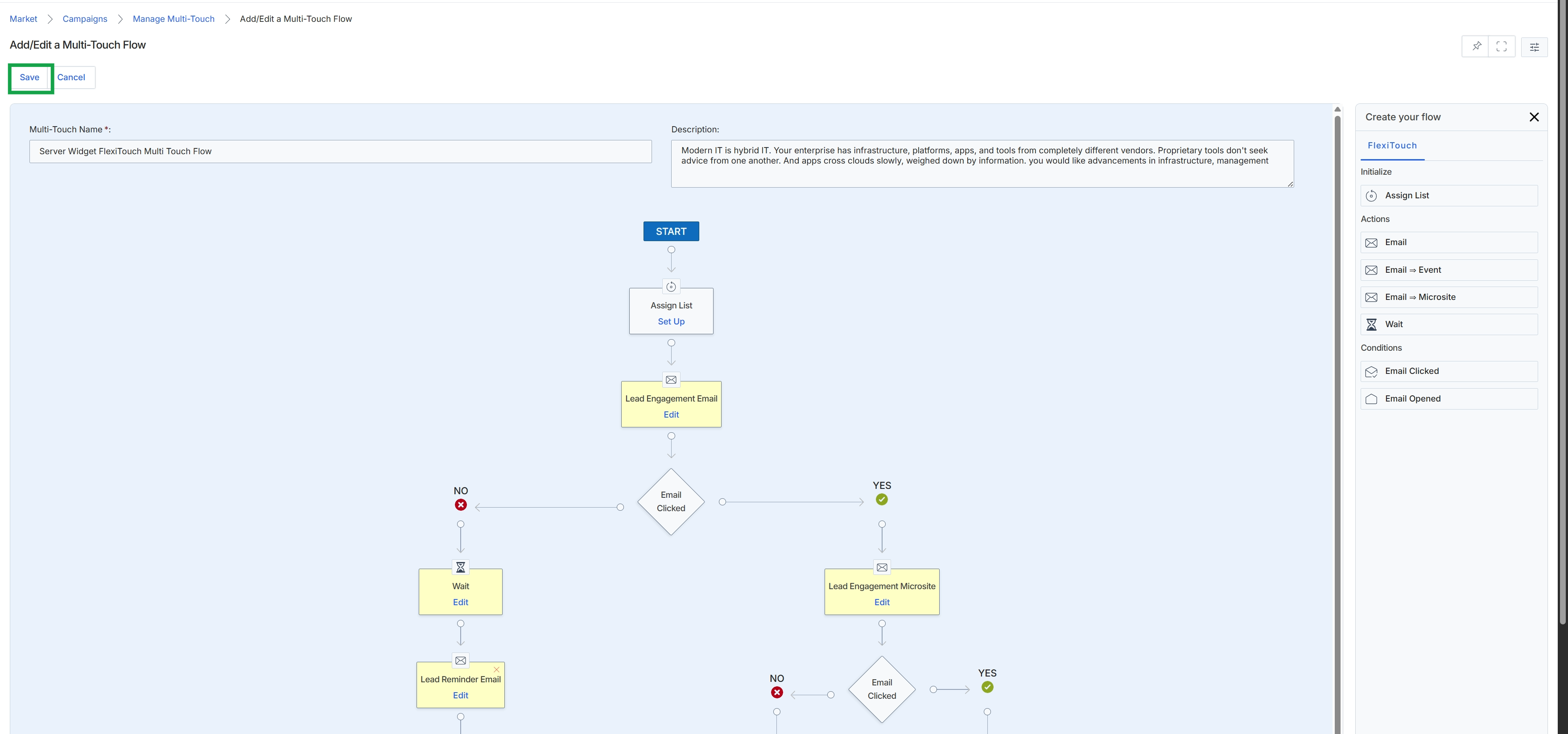
The Add/Edit a Multi-Touch Flow screen provides a visual canvas for designing automated multi-step marketing campaigns. This feature allows administrators to define a sequence of actions and conditions that guide prospects through a personalized journey, such as sending emails, waiting for specific interactions like email clicks or opens, and directing them to microsites or events. The drag-and-drop interface on the right panel enables the construction of complex workflows, which are crucial for nurturing leads and engaging partners effectively within the Market module. Each flow can be named and described, allowing for clear identification and management of various campaign strategies. Once configured, these flows automate the execution of marketing tactics based on prospect behavior, optimizing engagement and conversion rates.
Click the "Save" button to save the newly configured Multi-Touch Flow.
Buttons
| Button | Description |
|---|---|
| Save | Saves the current Multi-Touch Flow configuration. |
| Cancel | Discards any changes and returns to the previous screen. |
| Assign List | A draggable element to initialize the flow by assigning a mailing list. |
| A draggable element to add an email sending action to the flow. | |
| Email → Event | A draggable element to add an action that sends an email and directs to an event. |
| Email → Microsite | A draggable element to add an action that sends an email and directs to a microsite. |
| Wait | A draggable element to add a waiting period or delay in the flow. |
| Email Clicked | A draggable element to add a condition that checks if an email was clicked. |
| Email Opened | A draggable element to add a condition that checks if an email was opened. |
Fields
| Field | Description |
|---|---|
| Multi-Touch Name * | The name of the multi-touch campaign flow. |
| Description | A detailed description of the multi-touch campaign flow's purpose and strategy. |
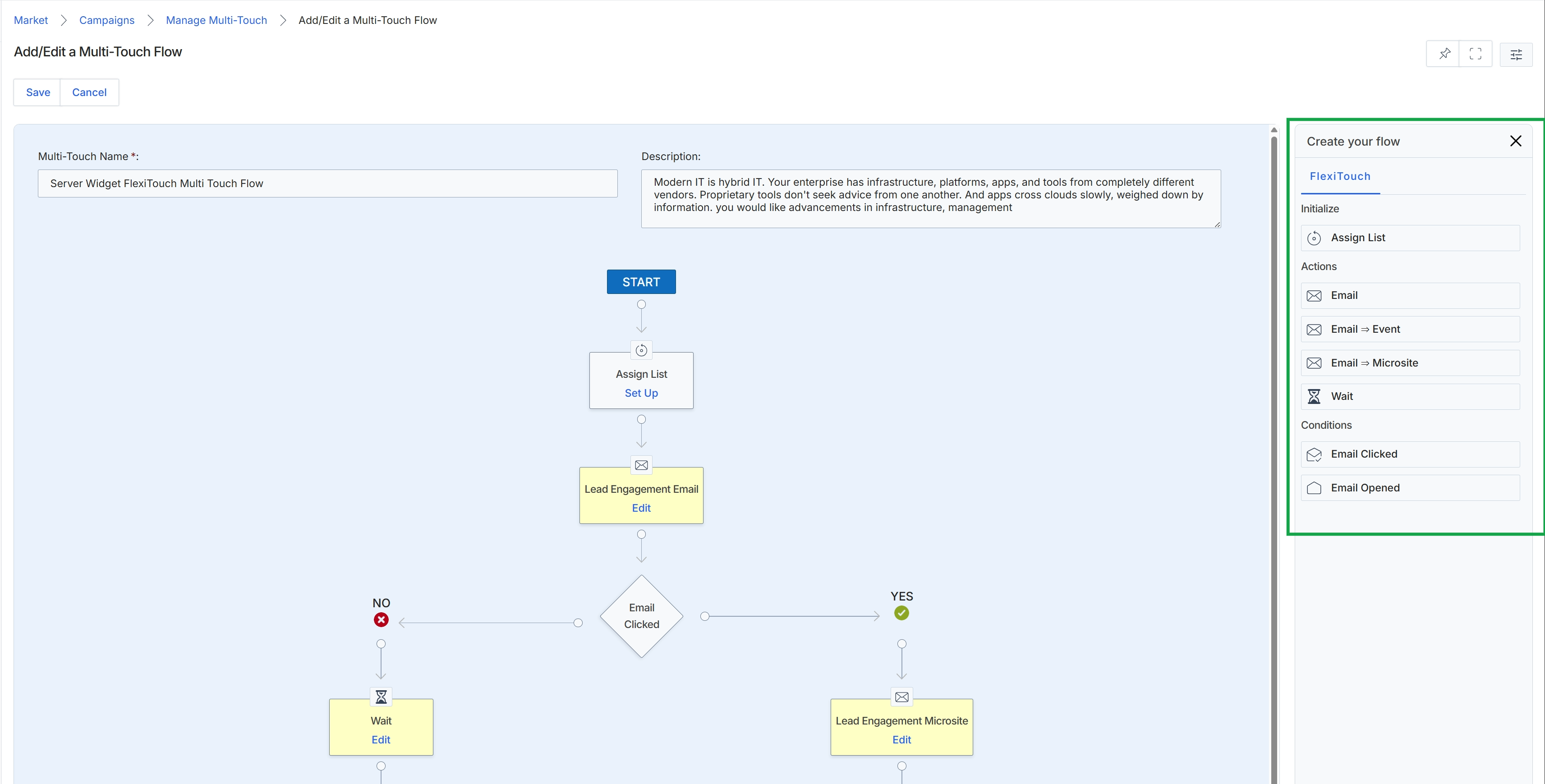
This screen provides a visual workflow builder for creating or editing multi-touch campaign flows within the Market module. Multi-touch campaigns enable vendors to automate a sequence of marketing actions, such as sending follow-up emails, directing recipients to microsites, or introducing wait periods, based on partner or prospect engagement. The canvas on the left side of the screen visualizes the campaign's logic, displaying the sequence of steps and conditional branches that define the automated journey. The right panel, labeled 'Create your flow', offers a palette of available actions and conditions that can be dragged and dropped onto the canvas to construct or modify the workflow. This tool is crucial for designing sophisticated, automated marketing journeys that dynamically respond to user behavior, thereby optimizing engagement and conversion rates.
Drag and drop options from the 'Create your flow' panel on the right to build or modify the multi-touch campaign workflow on the canvas.
Buttons
| Button | Description |
|---|---|
| Save | Saves the current multi-touch flow configuration. |
| Cancel | Discards any changes and returns to the previous screen. |
| X | Closes the 'Create your flow' panel. |
Fields
| Field | Description |
|---|---|
| Multi-Touch Name * | The name of the multi-touch campaign flow. This is a mandatory field. |
| Description | A detailed description of the multi-touch campaign's purpose and strategy. |
| Create your flow | The title of the panel that contains draggable elements for building the workflow. |
| FlexiTouch | A tab within the flow creation panel, indicating a category of flow elements. |
Initialize
| Field | Description |
|---|---|
| Assign List | A draggable element to initialize the campaign flow by assigning a mailing list. |
Actions
| Field | Description |
|---|---|
| A draggable element to add an action to send an email as part of the campaign flow. | |
| Email -> Event | A draggable element to add an action to send an email promoting an event. |
| Email -> Microsite | A draggable element to add an action to send an email directing recipients to a microsite. |
| Wait | A draggable element to introduce a delay in the campaign flow. |
Conditions
| Field | Description |
|---|---|
| Email Clicked | A draggable element to add a condition to branch the flow based on whether an email was clicked. |
| Email Opened | A draggable element to add a condition to branch the flow based on whether an email was opened. |