

Overview
The platform's Market module is a central hub for managing co-marketing activities between vendors and partners. Campaigns are a core entity within this module, encapsulating marketing initiatives with defined objectives, assets, and tactics. As the number of campaigns grows, efficient search and filtering capabilities become crucial for administrators to maintain oversight and manage individual campaigns effectively. This filtering functionality ensures that administrators can quickly narrow down the campaign list to focus on specific types of campaigns, those using particular marketing tools, or campaigns with certain execution characteristics.
By offering both basic and advanced filtering, the platform caters to different levels of search complexity. Basic filters provide quick access to common search parameters, while advanced filters allow for more granular control over the search criteria, enabling administrators to construct highly specific queries. The ability to save filter configurations further streamlines the workflow for frequently used searches, improving productivity and ensuring consistent data retrieval.
Accessing the Filter Panel
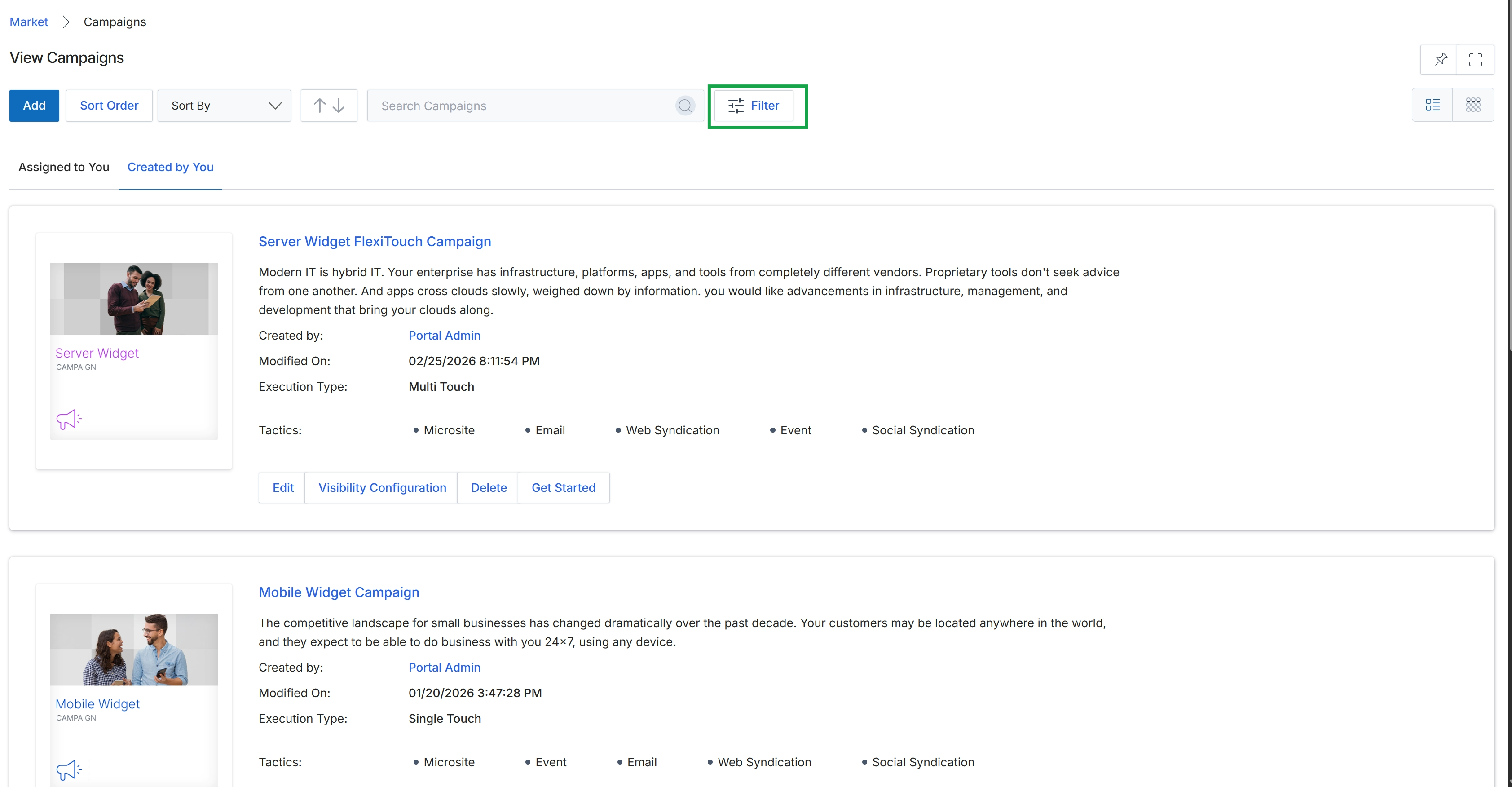
Click the Filter button.
Using Basic Filters
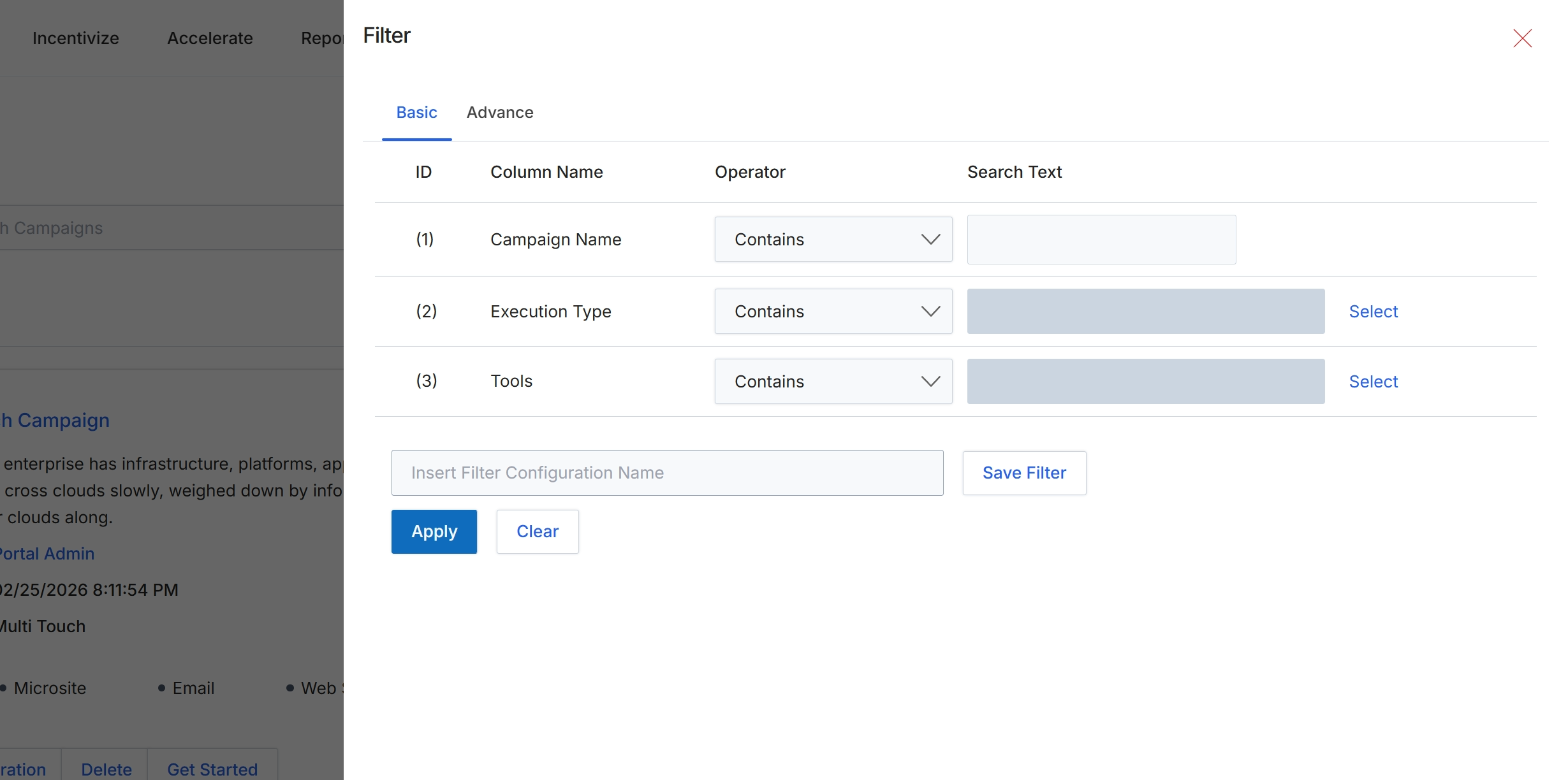
This filter dialog allows users to define and apply basic search criteria to refine the list of multi-touch campaigns. Users can specify conditions for various campaign attributes like Campaign Name, Execution Type, and Tools, using operators such as 'Contains' to match partial text. This functionality helps administrators quickly locate specific campaigns within a potentially large dataset, improving efficiency in campaign management and reporting. The ability to save filter configurations streamlines repetitive search tasks, enabling quick access to frequently used views of campaign data.
Define the basic filter criteria for campaigns by entering values in the search text fields.
Buttons
| Button | Description |
|---|---|
| Basic | This tab allows users to define simple filtering criteria using predefined columns and operators. |
| Advance | This tab is for defining more complex or custom filtering criteria. |
| Select | Opens a selection dialog to choose specific execution types. |
| Select | Opens a selection dialog to choose specific marketing tools. |
| Save Filter | Saves the current filter configuration under the specified name. |
| Apply | Applies the defined filter criteria to the campaign list. |
| Clear | Clears all defined filter criteria. |
Fields
| Field | Description |
|---|---|
| Campaign Name | Filters campaigns based on their name. |
| Contains | The operator for the Campaign Name filter, indicating that the campaign name should include the specified text. |
| Execution Type | Filters campaigns based on their execution type. |
| Contains | The operator for the Execution Type filter, indicating that the execution type should include the specified text. |
| Tools | Filters campaigns based on the marketing tools used. |
| Contains | The operator for the Tools filter, indicating that the tools used should include the specified text. |
| Insert Filter Configuration Name | Enter a name to save the current filter configuration for future use. |
Column Headings
| Column | Description |
|---|---|
| ID | A numerical identifier for each filter row. |
| Column Name | The name of the campaign attribute to filter by, such as Campaign Name, Execution Type, or Tools. |
| Operator | The logical operator (e.g., 'Contains') used to compare the column value with the search text. |
| Search Text | The value to search for within the specified column. |
Using Advanced Filters
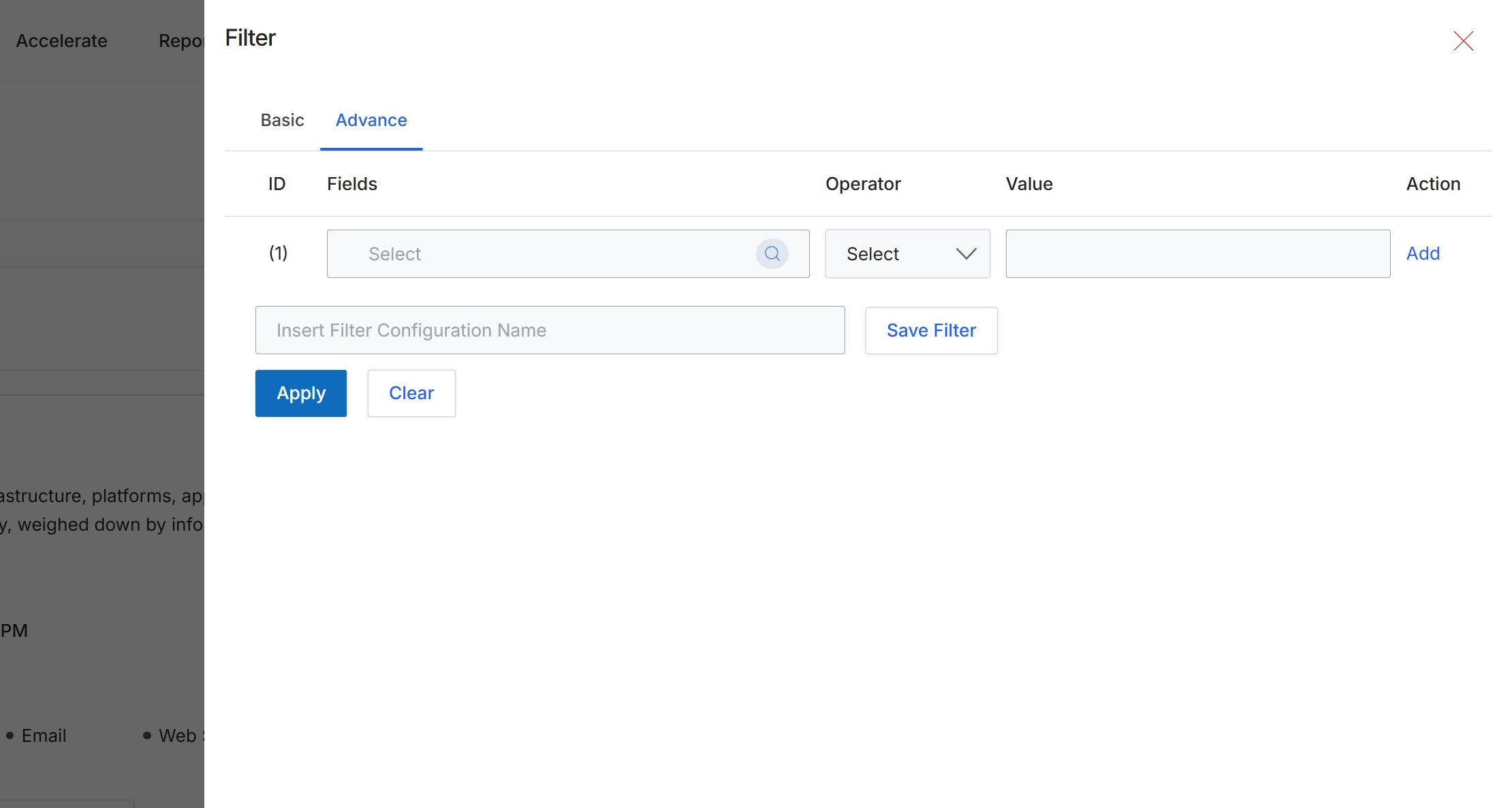
The advanced filter option within the Filter dialog allows users to construct complex queries for refining data displayed in list views or reports. Unlike basic filters, this interface supports combining multiple conditions using logical operators, enabling highly specific data segmentation. Users can define criteria based on various fields, specify comparison operators, and input values to match. This capability is crucial for administrators and program managers who need to analyze specific subsets of data, such as partners in a certain region who have achieved a particular tier and engaged in a specific campaign type, or to isolate records that meet precise business rules for further action or reporting.
Select the 'Advance' tab to access advanced filtering options.
Buttons
| Button | Description |
|---|---|
| Basic | A tab to switch to the basic filtering interface, which typically offers simpler, predefined filter options. |
| Advance | The currently selected tab, providing access to the advanced filtering interface for building complex filter conditions. |
| Add | A button to add another row for an additional filter condition. |
| Save Filter | A button to save the defined filter configuration for future use. |
| Apply | A button to apply the configured filter conditions to the data. |
| Clear | A button to clear all defined filter conditions and reset the filter dialog. |
Fields
| Field | Description |
|---|---|
| Select | A text input field with a search icon, used to select the specific data field for the filter condition. |
| Select | A dropdown menu to choose the logical operator for the filter condition. |
| Insert Filter Configuration Name | A text input field to enter a name for the current filter configuration, allowing it to be saved and reused. |
Column Headings
| Column | Description |
|---|---|
| ID | A column header indicating the sequential identifier for each filter condition row. |
| Fields | A column header for selecting the data field to which the filter condition will be applied. |
| Operator | A column header for selecting the logical operator (e.g., equals, contains, starts with) for the filter condition. |
| Value | A column header for entering the value to filter by. |